Inventory Planning Command Center - Inventory Budget Advisor
You can use the agent Inventory Budget Advisor within the agentic application Inventory Planning Command Center to review inventory budget and inventory value for the current inventory optimization plan.
The advisor provides two review flows:
- Use the Opportunities to Increase Service Levels flow to identify items where safety stock increases can most effectively improve service levels with the least investment.
- Use the Opportunities to Reduce Inventory Costs flow to identify items where safety stock decreases have the least impact to service level.
After you select a review flow, a list of item-location candidates is displayed. Choose an item-location to preview and make adjustments to safety stock, safety stock value, and achieved service level.
With this update, you can improve inventory planning decisions by targeting safety stock changes based on service-level sensitivity, inventory value, and budget impact.
The Inventory Budget Advisor is initialized using your last used inventory optimization plan. If you haven’t loaded an inventory optimization plan before, or if you want to change the plan, use the Ask Oracle search bar to find an inventory plan.
Searching for plans
To search for and load a new inventory plan, or to switch to a different inventory plan:
- From the Inventory Planning Command Center, enter a specific plan name or a plan search query in the Ask Oracle search bar. For example, entering “show inventory plans containing SK” in Ask Oracle will return a list of the first five matching inventory plans.

Searching for a plan using Ask Oracle
- A list of up to five plans that meet the search criteria are displayed, along with Open Inventory Plan action buttons.
Note: Plans returned can be inventory optimization plans or replenishment plans. If a replenishment plan is returned in your search results, the action button shown is Open Replenishment Plan instead of Open Inventory Plan. The Open Replenishment Plan action will open the Replenishment Stockout Advisor. You can restrict your search to specific plan types (for example “inventory optimization plans”) in your Ask Oracle query.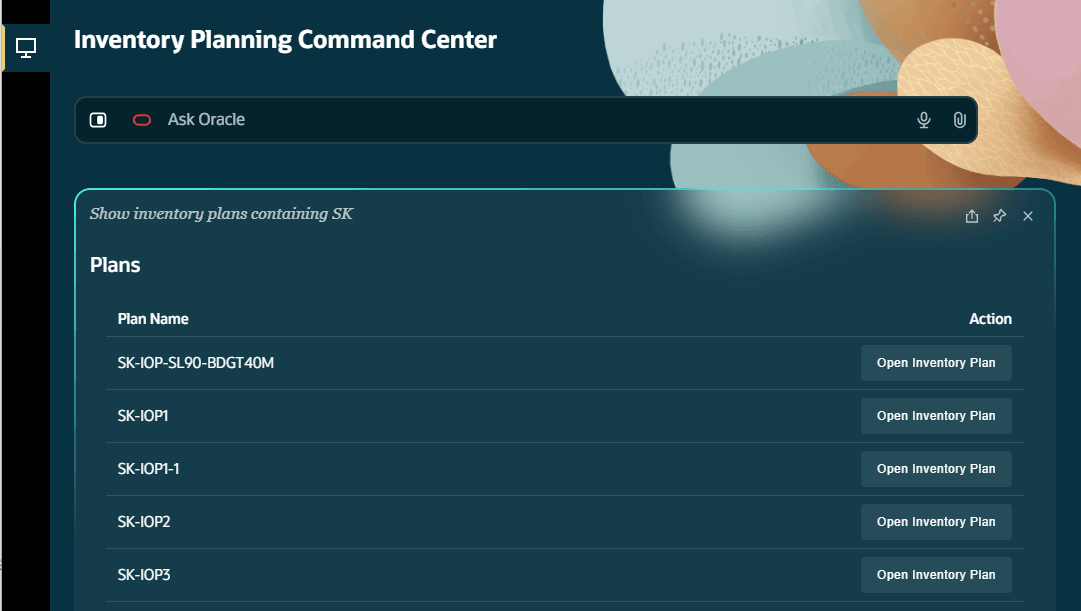
Plan search results
- Select the Open Inventory Plan action button for your desired plan.
The Inventory Budget Advisor opens with the selected plan.
Inventory Budget Advisor summary section
Inventory Budget Advisor summary view
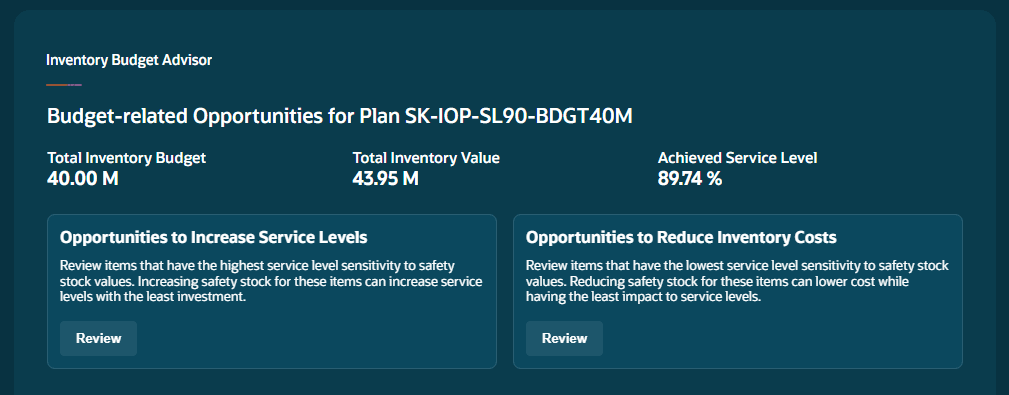
The top of the Inventory Budget Advisor shows the plan’s total inventory budget, the total inventory value, and the plan’s current achieved service level.
- The total inventory budget value is defined in Plan Options.
- Plan action menu > View More > Edit Plan Options > Safety stock > Parameters for safety stock calculation > Plan level > Inventory Budget Value and Inventory Budget Currency
- The total inventory value is calculated during the plan run using the safety stock cost of each item.
- The current achieved service level is calculated during the plan run, evaluating the ability to meet customer demand without stockouts.
The Inventory Budget Advisor includes two cards that provide you with specific actions to initiate:
- Opportunities to Increase Service Levels – This flow identifies end-items having the highest service level sensitivity to safety stock values. Increasing safety stock for these items can increase service levels with the least investment.
- This Review action starts the 1. Review Opportunities to Increase Service Levels flow, described in the following sections.
- Opportunities to Reduce Inventory Costs – This flow identifies items having the lowest service level sensitivity to safety stock values. Reducing safety stock for these items can lower cost while having the least impact to service levels.
- This Review action starts the 2. Review Opportunities to Reduce Inventory Costs flow, described in the following sections.
Selecting a Review action opens a new section above the Inventory Budget Advisor summary section.
1. Review Opportunities to Increase Service Levels
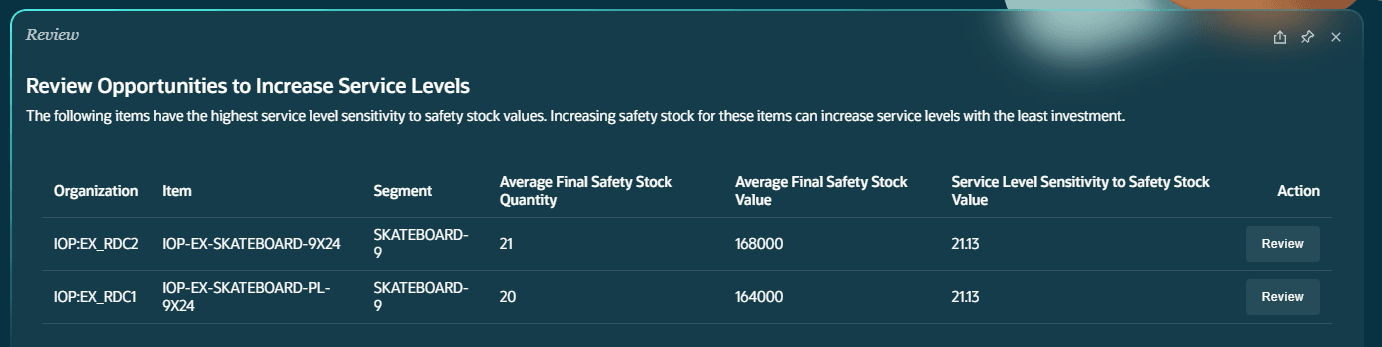
This section displays a list of the end-items by organization for which increasing safety stock quantity would have the highest impact to improving service levels with the least investment.
Review Opportunities to Increase Service Levels
Each item listed includes the organization and segment, as well as the following measures:
- Average Final Safety Stock Quantity – The average Final Safety Stock quantity across the time buckets in the plan. This measure provides a view of buffer inventory levels over time, reflecting all user adjustments incorporated into the final safety stock calculation.
- Average Final Safety Stock Value – The average value of Final Safety Stock across the selected time buckets in the plan. This measure helps evaluate the financial impact of buffer inventory levels after all user adjustments have been applied.
- Service Level Sensitivity to Safety Stock Value – The percentage change in service level associated with a million-unit change in safety stock value. The items in this list are ordered by this column, from highest to lowest.
Select one of these items to review potential safety stock adjustments. Selecting the Review action opens the Potential Safety Stock Adjustment section.
2. Review Opportunities to Reduce Inventory Costs
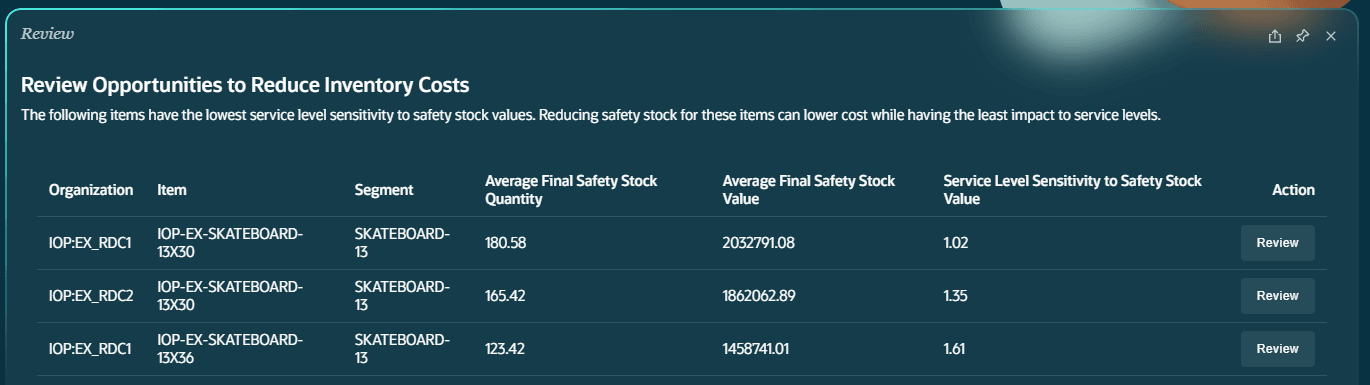
This section shows a list of the top end-items by organization for which reducing safety stock quantity can lower costs with the least impact to service levels.
Review Opportunities to Reduce Inventory Costs
Each item listed includes the organization and segment, as well as the following measures:
- Average Final Safety Stock Quantity – The average Final Safety Stock quantity across the time buckets in the plan. This measure provides a view of buffer inventory levels over time, reflecting all user adjustments incorporated into the final safety stock calculation.
- Average Final Safety Stock Value – The average value of Final Safety Stock across the selected time buckets in the plan. This measure helps evaluate the financial impact of buffer inventory levels after all user adjustments have been applied.
- Service Level Sensitivity to Safety Stock Value – The percentage change in service level associated with a million-unit change in safety stock value. The items in this list are ordered by this column, from lowest to highest.
Select the Review action button for one of these items to review potential safety stock adjustments.
The Review action opens a Potential Safety Stock Adjustment section.
Potential Safety Stock Adjustment
This section shows the impact of changing the selected item’s safety stock quantity by different percentages. The first row shows the current baseline values for comparison purposes. Each subsequent row shows a higher percentage change and what the corresponding adjusted safety stock quantity, safety stock value, and achieved service level would be.
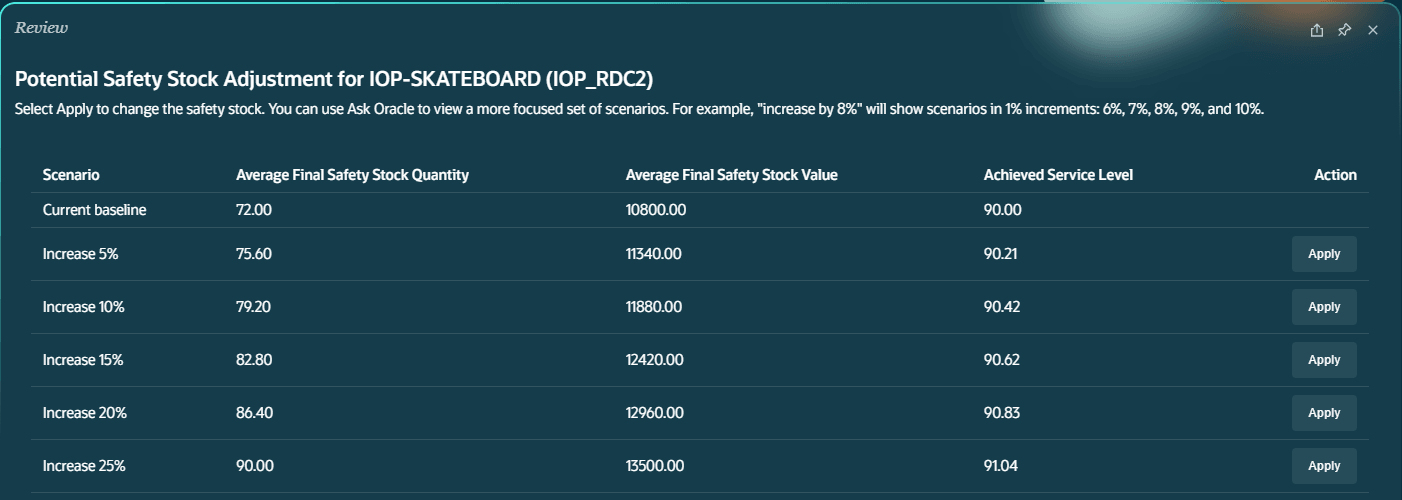
Potential Safety Stock Adjustments
You can use Ask Oracle to see a different set of safety stock percentage changes. For example, entering "increase by 8%" will show five scenarios in 1% increments, centered around the percentage change that you specified (that is, 6%, 7%, 8%, 9%, and 10%).
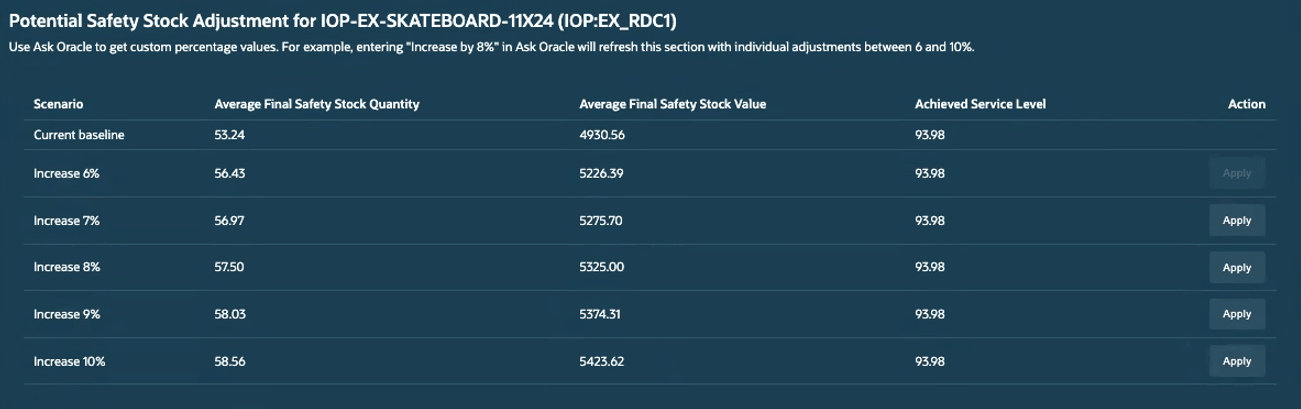
Custom safety stock adjustment scenarios
The Potential Safety Stock Adjustment flows for increasing and decreasing safety stock are identical, except that the scenarios listed are to increase the safety stock by different percentages for the former, and to decrease the safety stock by different percentages for the latter.
Selecting the Apply action will change the item’s safety stock quantity, saving the percentage change to the item’s Adjusted Safety Stock Quantity measure across the plan’s date buckets.
For example, increasing the safety stock by 5% will multiply the Adjust Safety Stock Quantity by 1.05 for that item at the organization for each time bucket. A confirmation message will show the adjustment. For example:
Safety stock quantity for item IOP-EX-SKATEBOARD-9X24 in organization IOP:EX_RDC1 has been increased by 5%.
The new safety stock quantity is visible in the Adjusted Safety Stock Quantity values in the inventory optimization plan’s Inventory Plan table in Redwood.
Steps to enable and configure
You don't need to do anything to enable this feature.
Key resources
- AI Agentic App: Inventory Planning Command Center
- Access Requirements for AI Agent Studio
- How can I give users access to AI agents?
- Create AI Agents Using Preconfigured Templates
- How do I use AI Agent Studio?
Access requirements
To access the Oracle AI Agent Studio for Fusion Applications and manage SCM AI agents, users must be assigned a configured job role that contains these duty roles:
| Duty role status | Duty role name and code |
|---|---|
| Existing | SCM Intelligent Agent Management Duty (ORA_RCS_SCM_AI_AGENT_MANAGEMENT_DUTY) |
| Existing | SCM Intelligent Agent Management Duty (ORA_RCS_SCM_AI_AGENT_MANAGEMENT_DUTY_HCM) |
| Existing | Fai Genai Agent SCM Administrator Duty (ORA_DR_FAI_GENERATIVE_AI_AGENT_SCM_ADMINISTRATOR_DUTY) |
To interact with AI agents in product pages, users must be assigned a configured job role that contains this duty role:
| Duty role status | Duty role name and code |
|---|---|
| Existing | Fai Genai Agent Runtime Duty (ORA_DR_FAI_GENERATIVE_AI_AGENT_RUNTIME_DUTY) |
Users who are assigned a configured job role that contains the following duty role can access this feature. This duty role is inherited by the Replenishment Planner job role.
| Duty role status | Duty role name and code |
|---|---|
| Existing | Inventory Planning Command Center Workflow (ORA_MSC_INVENTORY_PLANNING_COMMAND_CENTER_WORKFLOW_DUTY) |
In the Security Console, filter by Roles and Permission Groups to find these duty roles.
To allow users to interact with agents, you must also enable permission groups in the Security Console on those users' configured job roles that contain the Fai Genai Agent Runtime Duty role. You can enable permission groups when you manage the basic information of your configured job roles.
Users' configured job roles must also contain privileges that allow access to the pages where AI agents are enabled.
See Access Requirements for AI Agent Studio (for administrators) and How can I give users access to AI agents (for end-users) for more information.