Search for requesters and approvers using flexible keyword search
You can now search for requesters and approvers using a flexible keyword search, including partial name and email matches.You must enter at least 3 characters for the search to display results.
Here's the list of applicable attributes and pages:
| S.No. | Attribute | Page |
|---|---|---|
| 1 | Requester | Preferences drawer on the homepage |
| 2 | Requester | Requisition Summary - Edit page |
| 3 | Overriding Approver | Requisition Summary - Edit page |
| 4 | Requester | Delivery Details or Delivery and Billing Details tab on the Edit Requisition Line page |
| 5 | Requester | Edit Multiple Lines |
| 6 | Reassign To | Reassign requisition drawer on the My Requisitions and Requisition Details pages |
The search results display the person's name, department, job, and email address, based on the information available.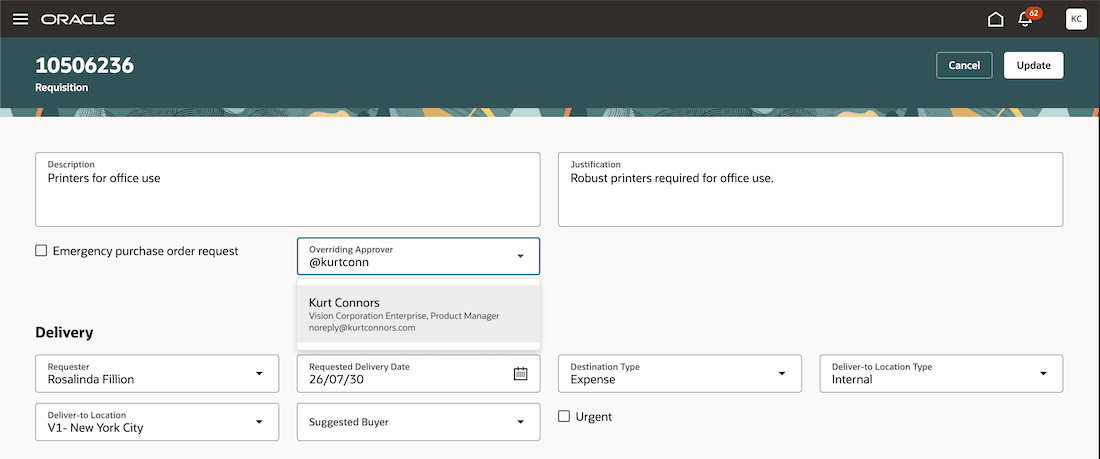
Partial email match on the Overriding Approver LOV
Steps to enable and configure
To enable this feature, you must set the Enable HCM Workers LOV constant in Oracle Visual Builder Studio to true. This constant is set to false by default.
To set a value for this constant, follow these steps:
- Navigate to the Self Service Procurement home page.
- On the page, from Settings and Actions, Select Edit Page in Visual Builder Studio.
- Under Shared properties, select Shopping > Configure Flow Properties.
- Select Extension Rules - Default > Properties > Enable HCM Workers LOV.
- Set Enable HCM Workers LOV to true.

Constant for enabling the HCM Workers LOV
Tips and considerations
- By default, search requires a minimum of 3 character. You can change the minimum number of characters in Oracle Visual Builder Studio. For example, you can set the minimum to 1 character. To change the minimum number of characters, follow these steps:
- Open the Self Service Procurement home page for editing in Oracle Visual Builder Studio.
- Under the Shared Properties section, select Shopping > Configure Flow Properties.
- Find the Set Minimum Characters Required to Search Persons attribute.
- Set the value to the minimum number of characters you want users to enter. The default value is 3.

Minimum characters required for search
Note: Lowering the minimum number of characters can delay the retrieval of search results.
- After you have enabled the constant, you should be able to use this feature. The search uses Oracle Search to retrieve worker information. If the person data hasn't already been ingested, run the data ingestion process before using the search. You don't need to run the data ingestion process again if it was already completed. Here are the steps:
- Navigate to Tools > Scheduled Processes.
- Search for and run the scheduled process using these details:
Job Name Parameter Name Parameter Value ESS job to create index definition and perform initial ingest to OSCS Index Name to Reingest fa-hcm-person - Submit the process.
The enhanced workers list of values is also available to approvers when they edit requisitions that are pending approval.
Key resources
- To know more on how to run initial data ingestion for HCM's parameters, see Initial setup of Oracle Search.
- To explore how to set up the enhanced workers list of values, see Worker list of values enhanced by Oracle Search.
- To explore setting the enhanced public worker access for Oracle search, see Enable public worker access for Oracle Search.
Access requirements
If you are using custom job roles, then you need to validate that you have the previously delivered privilege.
| Privilege status | Privilege name and code |
|---|---|
| Previously delivered |
Use REST Service - Workers List of Values (PER_REST_SERVICE_ACCESS_WORKERS_LOV_PRIV). |