Close Sales Orders with Scheduled Processes, REST API, or Redwood Mass Actions
Order Management provides a scheduled process that closes each order header when it finishes all the orchestration steps. You can Set up Scheduled Processeses to Close Orders at Regularly Scheduled Times or you run the process to close orders at any time.
- To close all open orders you can run the Update or Close Sales Orders scheduled process before or after any scheduled times that you might have in place. See To Close Orders Running the Scheduled Process
- To close a select group of orders, you can use the close orders through mass actions in the Redwood UI. For details on how to use Redwood: Close Orders Through Mass Actions,on the 25D What's New page. Note that this feature can close one or many select orders and triggers a scheduled process on selected orders only.
- Close orders using the REST API from the command line see Use REST API with the Update or Close Sales Orders
To Close Orders Running the Scheduled Process
Assume you administer a call center that's open 9 AM to 5 PM, and you must process all order headers that Order Management creates during the open hours. You must also run the scheduled process every day for the 2026 fiscal year, and run it after the call center closes:
-
Verify that the orchestration process successfully finished processing the order line:
-
Go to the Order Management work area, then click View More Actions > Manage Orchestration Processes.
- Search for, then open your sales order.
-
Verify that the Line Status attribute on the order line contains Closed.
-
Click the value in the Orchestration Process Number attribute on the order line, such as 300100541247223.
-
On the Orchestration Process page, in the Orchestration Plan area, verify that the last row in the Task Progress column contains a green check mark.
-
- Sign
into Oracle Applications with the credentials that you need to run the scheduled process:
Credential Value Job role Order Manager (ORA_DOO_ORDER_MANAGER_JOB Privilege Plan Orchestration Processes (DOO_PLAN_ORCHESTRATION_PROCESSES_PRIV) Manage Orchestration Order Modification (DOO_MANAGE_ORCHESTRATION_ORDER_MODIFICATION_PRIV)
Duty Role Orchestration Order Management (ORA_DOO_ORCHESTRATION_ORDER_MANAGEMENT_DUTY) This topic uses predefined job roles. You must create your own job roles, depending on your security requirements. For details, see Get the Privileges That You Need to Implement Order Management.
- Enable the profile options that you need to use the latest version of the scheduled process. This isn't a requirement if you're using 26B. If you are in previous releases, see Close Sales Orders That Remain Open.
-
Go to the Scheduled Processes work area.
-
On the Scheduled Process page, click Actions > Schedule New Process.
-
In the Schedule New Process dialog, search for the value:
Parameter
Value
Name
Update or Close Sales Orders
-
Click OK > OK.
-
Make sure at least one sales order is open and that it meets the values that you set in the next step. If no sales order meets the criteria that you set, then the process won't return an error.
-
In the Process Details dialog, set the parameter values to meet your needs.
-
Click Advanced > Using a Schedule, then set the values:
Attribute
Value
Frequency
Daily
Every
1 Day
From Creation Date
1/1/21 5:30 PM
To Creation Date
12/31/21 5:30 PM
-
Submit.
For important details, see Guidelines for Using Scheduled Processes in Order Management.
Age Parameter
| Value | Description |
|---|---|
| Ordered Date |
Filter according to the sales order's Ordered Date attribute. Assume you exclude 1 month and today is May 1, 2025. If the order's ordered date happens on or before April 1, 2025, then the process will close the order. |
| All Lines Closed |
Filter according to when all of the sales order's lines were closed. Assume you exclude 1 month and today is May 1, 2025. If all the order's lines were closed on or before April 1, 2025, then the process will close the order. |
| Immediate |
Filter starting today. Assume today is May 1, 2025. If all the order's lines were closed on or before May 1, 2025, then the process will close the order. |
If you set the Scope parameter to All Orders, then the scheduled process will close orders when all of the order's lines are closed or canceled. Assume today is May 1, 2026. If all the order's lines were closed on or before May 1, 2026, then the process will close the order.
Set up Scheduled Processeses to Close Orders at Regularly Scheduled Times
-
You can manually close orders orders any time, or you can set up a process to close orders at regular intervals. We recommend that use a regularly scheduled process to close orders and schedule it to run every day at close of business, or every 12 hours, for example. Here are some key things to keep in mind when you're scheduling close order processes.
-
The new enhanced schedule process update status on the order header as either closed or cancelled. It doesn’t update order header as Partially Closed.
-
The job updates the SHIPPED_QUANTITY, SCHEDULE_SHIP_DATE, and ACTUAL_SHIP_DATE columns in DOO_LINES_ALL when the order is being closed, that is, when no open fulfillment lines remain on the order. If you don't run the process, then the status on the order line might display as Closed in the Order Management work area but as Open in DOO_LINES_ALL, or the Scheduled Ship Date on the line might contain a value in the work area but not in DOO_LINES_ALL.
The DOO_ORDER_LINES will remain open until all Fulfilment lines are closed or cancelled. For example:
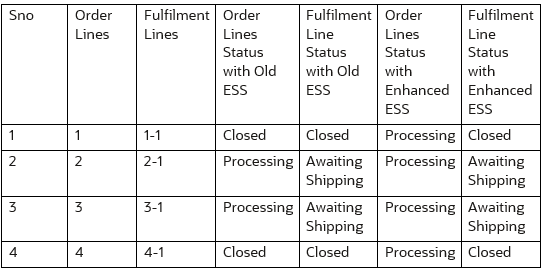
- The scheduled process updates the order status depending on the order line status:
Order Fulfilment Line Status Order Header Status All lines in the sales order are in the Cancelled status. Sets the order status to Cancelled.
All lines in the sales order are in the Closed status. Sets the order status to Closed.
At least one line in order is in the Closed status and all other lines are in the Canceled or Closed status. Sets the order status to Closed.
-
If you don't run the scheduled process, then the data that you use in various integrations, such as reports and analytics, might not reflect the latest changes that you see in the Order Management work area.
- Make sure all instances of the Update or Close Sales Orders scheduled process are currently in the Succeeded status or the Error status. If you find a process that isn't in one of these statuses, such as Retrying, then you must wait for that instance to finish before you start a new instance.
- If the volume of sales orders to close is high, the it is recommended to scheduling multiple scheduled process with different parameter options such as Source Order System, Business Unit etc.. This will assist to improve the load on to process multiple records.
Use REST API with the Update or Close Sales Orders
If you use REST API to run the Update or Close Sales Orders scheduled process, then you must modify your REST payload.
            COPY
            /fscmRestApi/resources/latest/erpintegrations
            And replace the payload that you're currently using with this one:
            COPY
            {
            "OperationName": "submitESSJobRequest",
            "JobPackageName": "oracle/apps/ess/scm/doo/orchestration/processPlanning",
            "JobDefName": "CloseOrderServiceJob",
            "ESSParameters": ",,,,,SELECT_ORDERS,,204,HARDWARE,GPR,IMMEDIATE,,0,Days,",
            "ReqstId": null
}| Parameter | Value |
|---|---|
| Scope |
SELECT ORDERS |
| Business Unit Id |
204 |
| Order Type |
HARDWARE |
| Source System |
GPR |
| Age |
IMMEDIATE |
| Numeric value for the Number Of parameter |
0 |
| Number Of |
Days |
Also, you can no longer reference an order header in a request, starting in update 26B. For example, you can't use this request:
            {
            "OperationName": "submitESSJobRequest",
            "JobPackageName": "oracle/apps/ess/scm/doo/orchestration/processPlanning/",
            "JobDefName": "CloseOrderServiceJob",
            "ESSParameters": "Header,300100638246206,,,4",
            "ReqstId": null
            }

            Where Header specifies the order header, and 300100638246206 is that header's Id.