Redwood: Data Entry
This section describes general instructions for manually entering data using Redwood user interfaces. It explains the graphic elements, field types, and other options commonly found on data entry pages.
Note: Special characters, such as greater than and less than signs (<>), question marks (?) and ampersands (&) should not be used in any input field. They are not supported. Only letters and numbers should be used. XIDs and domain names have some additional naming restrictions. See Domain Names and XID Field Restrictions for details.
New Business Objects
Most menu options display initial Smart Search and search results pages used filter results by queries, if available, or by filters. The Smart Search appears at the top of the page under the page title.
The Smart Search results section of the page that is just under the Smart Search on the same page usually contains an Add button near the bottom left corner at just above the table. You can use add to create new business objects.
Once you click the Add button, you see the Redwood manager. Here you see the Equipment Type manager.
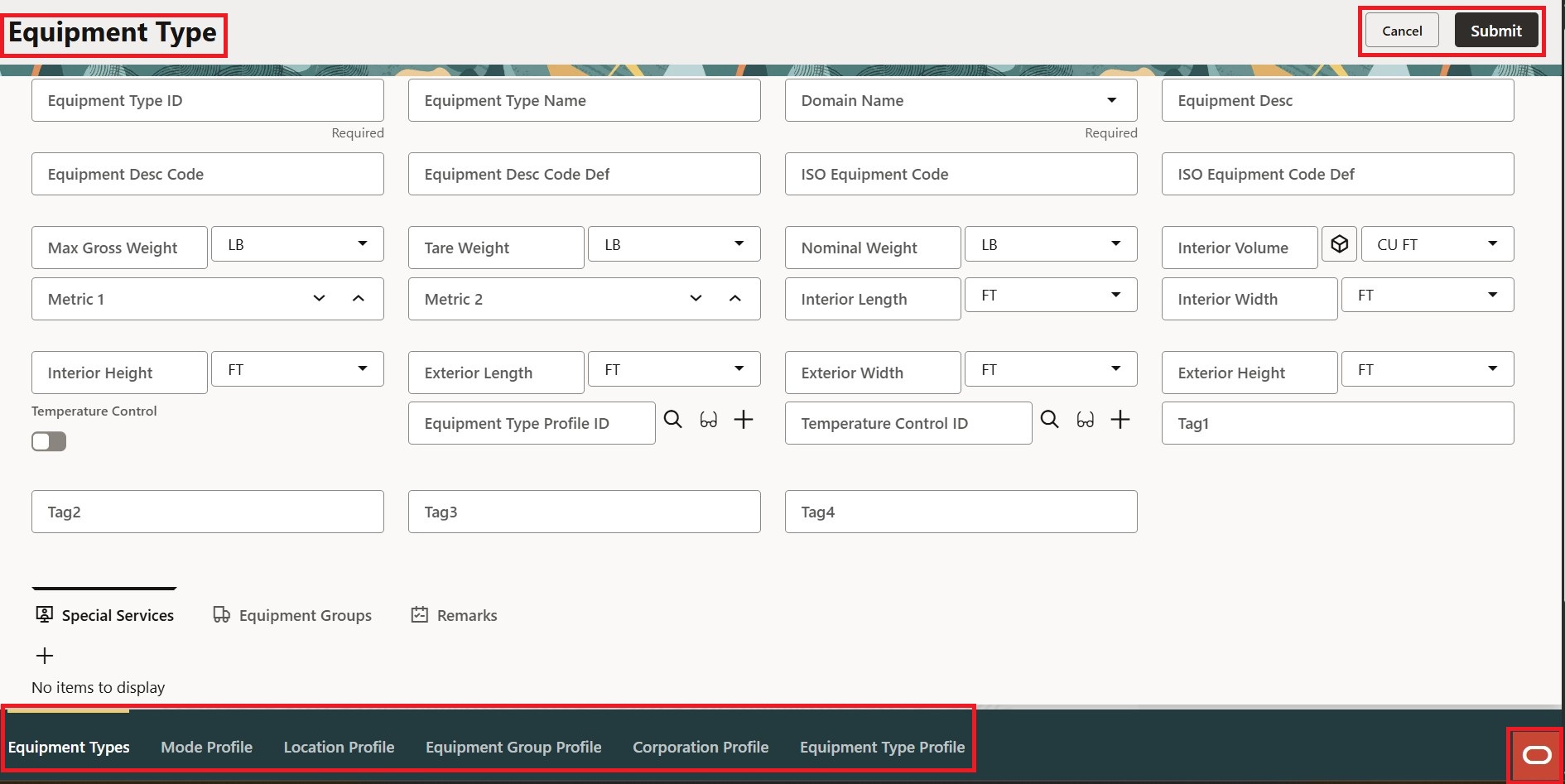
On the screen shot above, the page header, the Cancel and Submit buttons, and the navigation area on the bottom of the page are all highlighted.
Data Fields
Most data entry pages have fields that are classified as follows:
- Required fields for data that must be entered in a record. Each required field is marked by the text "required" just under the field.
Note: You cannot save a new record without entering data in all its required fields.
- Optional fields for data that may or may not be relevant to your needs. Usually in entry pages, most fields are optional.
- Inactive fields for data that cannot be entered. Fields may be inactive for a variety of reasons. For example, a field may be inactive if it is automatically generated when the record is saved.
To enter data in a field, do one of the following:
- Type the data, if you know its exact value or spelling.
- Select a value from a list box, if the field has one.
- Use the field icons (see below).
Field Types and Icons
There are various field types and icons within Oracle Transportation Management:
Use larger marked up page shots. And then match the descriptions here.
|
Field Type |
Example |
Description |
|---|---|---|
|
ID Field |
|
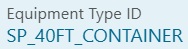
Use this field to enter a unique ID for a business object. After the ID is entered it cannot be changed and appears with the value that you entered. Note: XIDs follow the same rules as domain names. Be sure to know these rules before creating IDs. |
|
List Box |
|
This field type displays a list of valid choices for the field.The details of each can be viewed and edited by clicking the View icon. Once a list displays, you can navigate up and down in the list using the up and down arrow keys. If you have too many items in a drop list box, you may exceed the user interface limitation for creating the drop-down list on other pages. The limit varies depending on variables such as your network and servers, but at most, you should not have more than a couple hundred. |
|
Text Field |
|
Enter descriptive text in this type of field. |
|
Option checkbox |
|
Use this field to turn an action on/off. |
|
Hyperlink |
|
Click the hyperlink to display another page of data. |
|
Power Field |
|
Power fields on Search pages also display conditional operators. |
|
Date Field/Calendar |
|
Enter a date in this field according to your user preference date format or you can click the calendar icon next to the field to open the calendar. If you are editing a field that has a date, that is the date that displays in the calendar. |
|
Unit of Measure (UOM) Field |
|
Unit of Measure (UOM) fields allow you to specify a unit of measure for the field value that precedes it. For example, you can enter a value for Interior Volume and Interior Wdith, and then specify a unit of measure of CU FT, FT, etc. If |

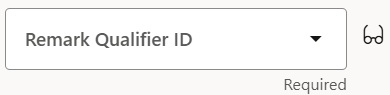



 displays a search page or results page for finding an existing record to populate in the current field. If you enter the start of an ID before clicking the Search icon, OTM displays a list of all records that begin with those characters. If you do not enter any text and click the Search icon, you see a search page where you can enter criteria and perform a search. You can select a record from the results to populate the power field.
 displays summary data for the record that you entered in the field.
 creates a new record which is populated in the current field when you save the record.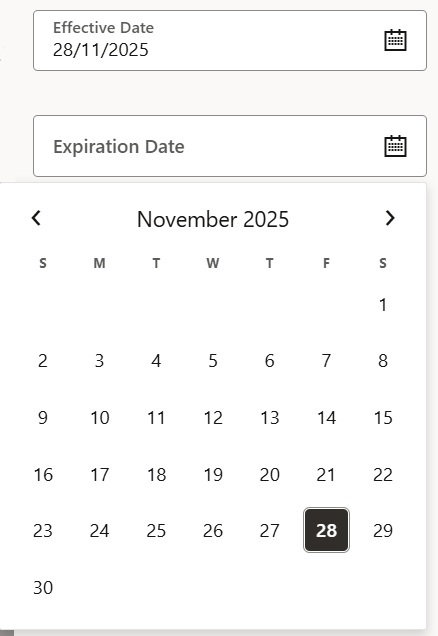
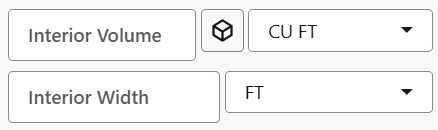
 appears next to Volume fields and calculates volume by multiplying length, width, and height.
Data Entry Grids
Many data entry pages have grids that allow you to record multiple data values. In the example below, you can use the grid to enter one or more Special Service. To enter data into a grid, click the Add (plus icon) under the type of record that you want to add. Then, you see a drawer open out of the far right-hand side of the page. You can enter data and then click Save to save the data to the grid.
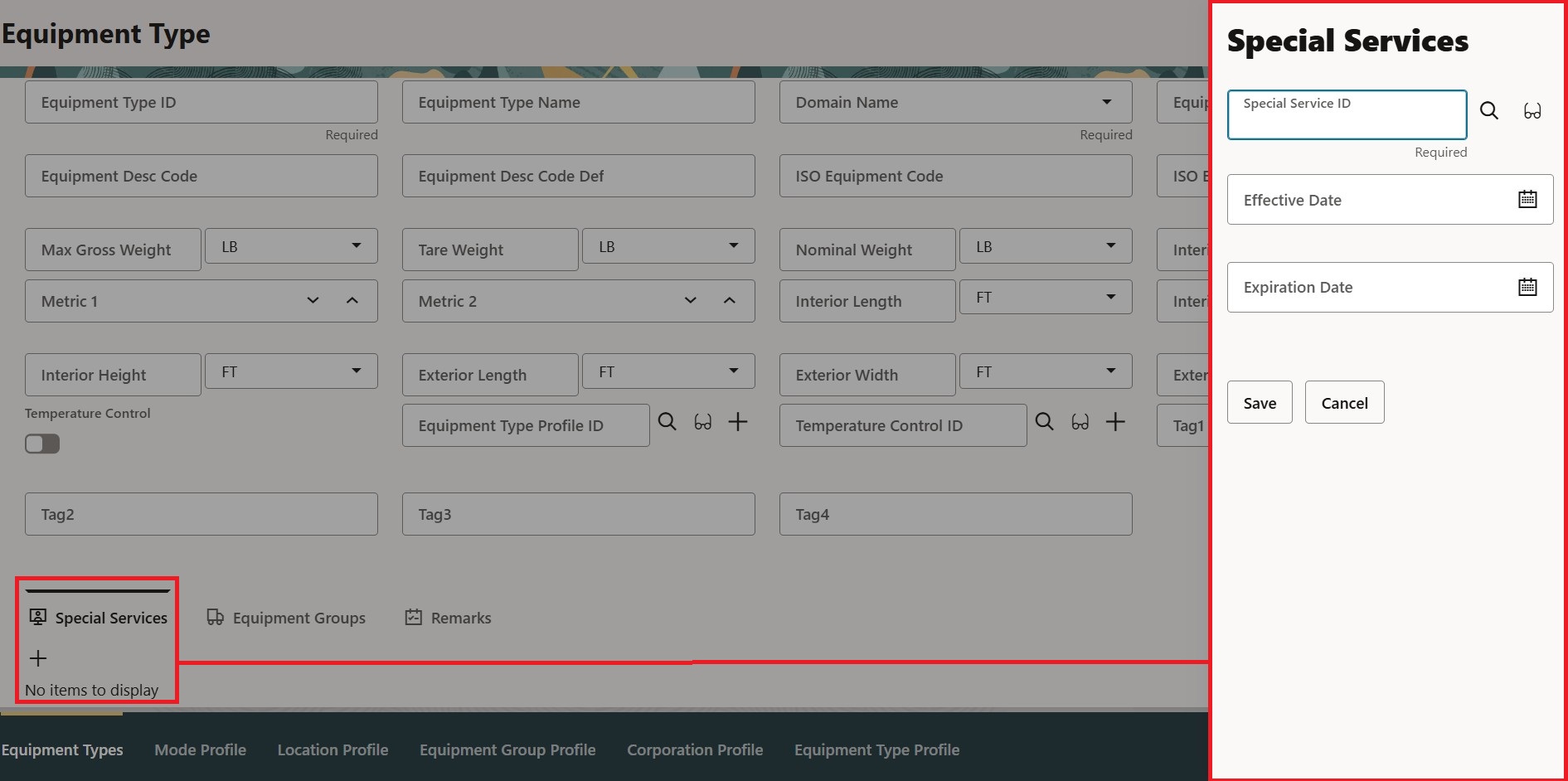
Once you save the records, you see the

Saving Data
Merely entering or selecting data in a field does not save that data. To save data, follow these steps:
- Click Save to save individual grid entries on the page.
- Always click Submit to save data to the database.
Related Topics
Redwood: About the Redwood Experience
Redwood: Ask Oracle Landing Page
Redwood: Working with Qualifiers
