Redwood: Smart Search
You can use Smart Search to narrow down the search results. Then, you can use the Results section of the page to create, edit, or delete a record. Below, you see the Smart Search on the Redwood Equipment Types manager.

Smart Search offers several ways to narrow down your search results:
- enter words, partial word, numbers, etc. to search by
- click on one of the filters directly below the search bar and when prompted enter numbers or text
- click in the search bar to see a full list of all filters available and select one, then enter numbers or text
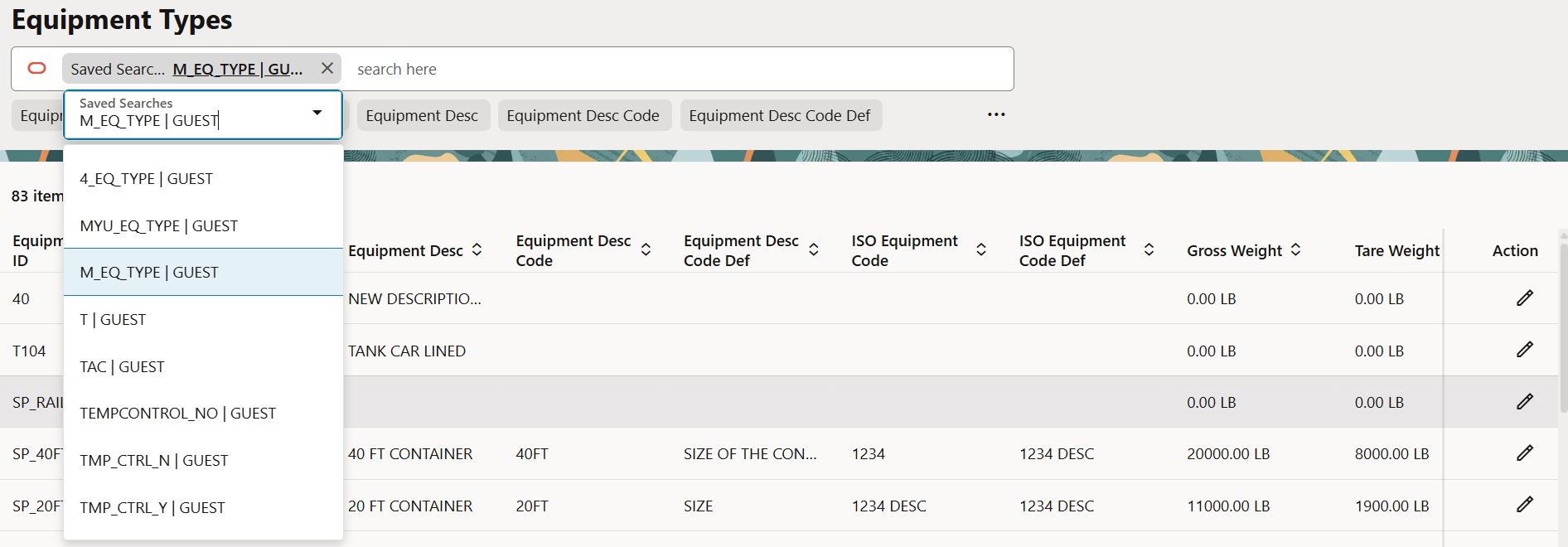
- if available, select the Saved Searches to see a list of saved queries
Filters
To filter the search results, select filters or enter words, partial word, numbers, etc. to search by. Then, click Enter or anywhere outside the search bar to filter the search results. Each time you click Enter, the filter word or words that you type appear in the search bar and the results below are limited based on the filters entered. You can enter multiple filters and you see all search terms listed in the search bar. Click the x next to a search term to remove it.
Using the Filters
There are multiple ways to use the filters provided for you. By default, all fields on the screen set.
The Smart Search uses the fields on screen set search tab to load the filters shown below the search bar. Click on a filter. For example, Equipment Type ID.
- Enter the first few letters or numbers in the text box that appears.
- Then, click outside the Smart Search field to search for all Equipment Type IDs that start with the letter or numbers that you entered above.
- You see the results in the table directly below the Smart Search.
Search by Unit of Measure
Some fields can be searched based on specific units of measure such as weight, volume, temperature, numbers, currencies, and size in length/width. In these cases, you can control your search by selecting a unit of measure and then
You can set a Minimum and a Maximum
- Between: This is the default. Enter a Minumum and a Maxiumum
- More than: Enter a Minimum
- Less than: Enter a Maximum
Examples
Let's look at some example filters:
- A contains search is applied when you enter a single filter value.
For example, if you enter the filter ship the search returns only rows that contain the text ship. - If you enter multiple search criteria, each criteria limits the search further. When you add another filter, the filter is expanded by searching for both the initial filer AND the new one.
For example, if you add two filters ship and 111, the results display all records that contain both ship (or its combinations) and 111 (or its combinations) across all searchable fields. - If you enter multiple words as a filter by separating the word by a space within the same filter, an OR search is performed. Multiple spaces treated as single space. Any leading and trailing spaces are ignored.
Searching by purchase order returns all rows that contain either purchase (or its combinations) or order (or its combinations) across all searchable attributes. - If filter is enclosed within double quotes, "filter filters", the search is conducted for a entire value within the quotes (search is still case insensitive). For example, if you enter a filter of "purchase order" the search returns all rows with purchase order (or its combination) as a substring in one or the searchable attributes.
- If there are columns that have true/false as the possible values, you can enter true in the search field and only records with a value of true are returned.
Note: Search pages are configured to display up to 1,000 records as the result of any search. This limit can be changed by your System Administrator.
Using Saved Searches
If there are saved queries available, click on the Saved Searches filter to see a drop-down list as shown on the screen shot below. If there is no Saved Searches filter, then are no saved queries available.
Viewing Search Results
The results section of the page populates automatically based on what is in the search bar. You can use Results pages to perform the following tasks:
- Review the list of resulting records
- Edit a record
- Delete a record
- Add a new record
The number counter lists the number of records that resulted from your search. The default record limit for display is 1,000.
New Business Object
The Search and Results pages display a Add button for creating new business objects and power data.
Use the following generic steps to add a new business object.
- Click Add and enter data for the fields that are presented.
- Click Submit to save the business object to the database.
Workbench
You can use Smart Search in the Enhanced Workbench by enabling the Smart Search Population Method when creating or editing a layout. The Smart Search appears as follows on an Enhanced Workbench layout:

Related Topics
Redwood: About the Redwood Experience
Redwood: Ask Oracle Landing Page
Redwood: Working with Qualifiers
