16.4.2 Previewing Image in a Form Region
To preview an image from a BLOB image column, use a Form region based on the table or view that includes it, or use a SQL query that selects it.
IF you pick a SQL query approach, ensure you indicate the primary key column. You
can hide all columns other than the image and any title you want to display. For example,
mark the ID column as Primary Key, and set the type of all columns
except
P18_TITLE and P18_IMAGE to Hidden.
select id,
       title,
       image, /* BLOB image */
       updated,
       file_name,
       mime_type,
       apex_string.format('%s (%s by %s)',
            title,
            posted,
            posted_by) as description
  from eba_demo_emp_breakroom_photo_v
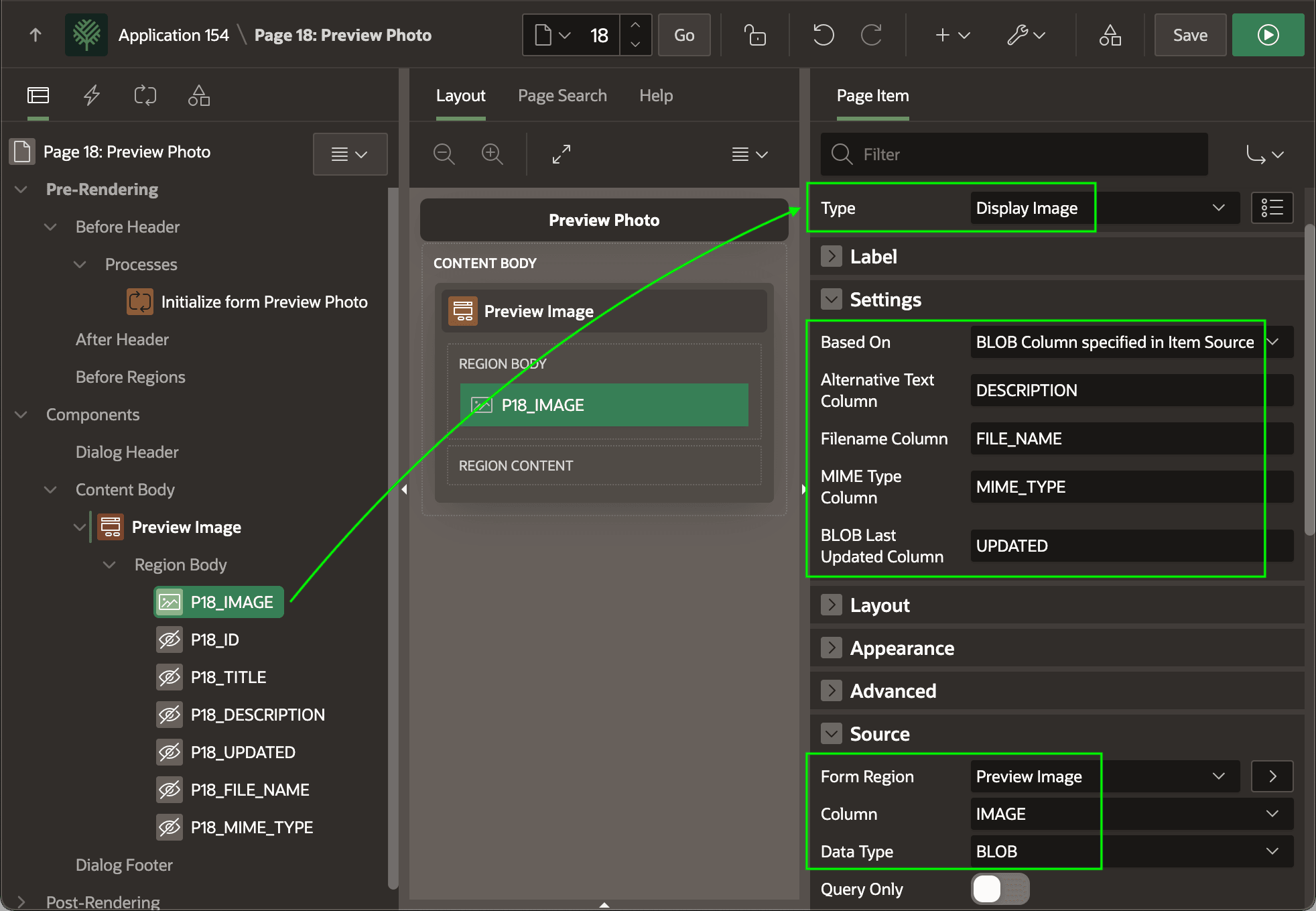
Then, as shown below, set P18_IMAGE to have type Display Image, to be based on a BLOB Column, and configure additional column names for Alternative Text, Filename, MIME Type, and Last Updated.
Tip:
In addition to providing improved accessibility for screen-readers, the Alternative Text value provides the hover-over "tooltip" as well.
Figure 16-19 Configuring Display Image Form Page Item for Image BLOB
P18_IMAGE item:
- Blank out its Label property
- Set Appearance > Template to Hidden, and
- Set Label Column Span to zero (
0).
To center the image and vertically stretch it to fill the dialog, set its Advanced > CSS Classes to vertical_stretch and add the following two CSS rules to the page's CSS > Inline setting.
.vertical_stretch {
   height: calc(100vh - 3em);
}

#P18_IMAGE {
   display : block;
   margin  : auto;
}
Tip:
The calc(100vh - 3em) computes the remaining vertical height after
accounting for the height of three (3) characters in the page's base
font size used by the dialog title area. For more information, see Applying Vertical Stretch in a Dialog.
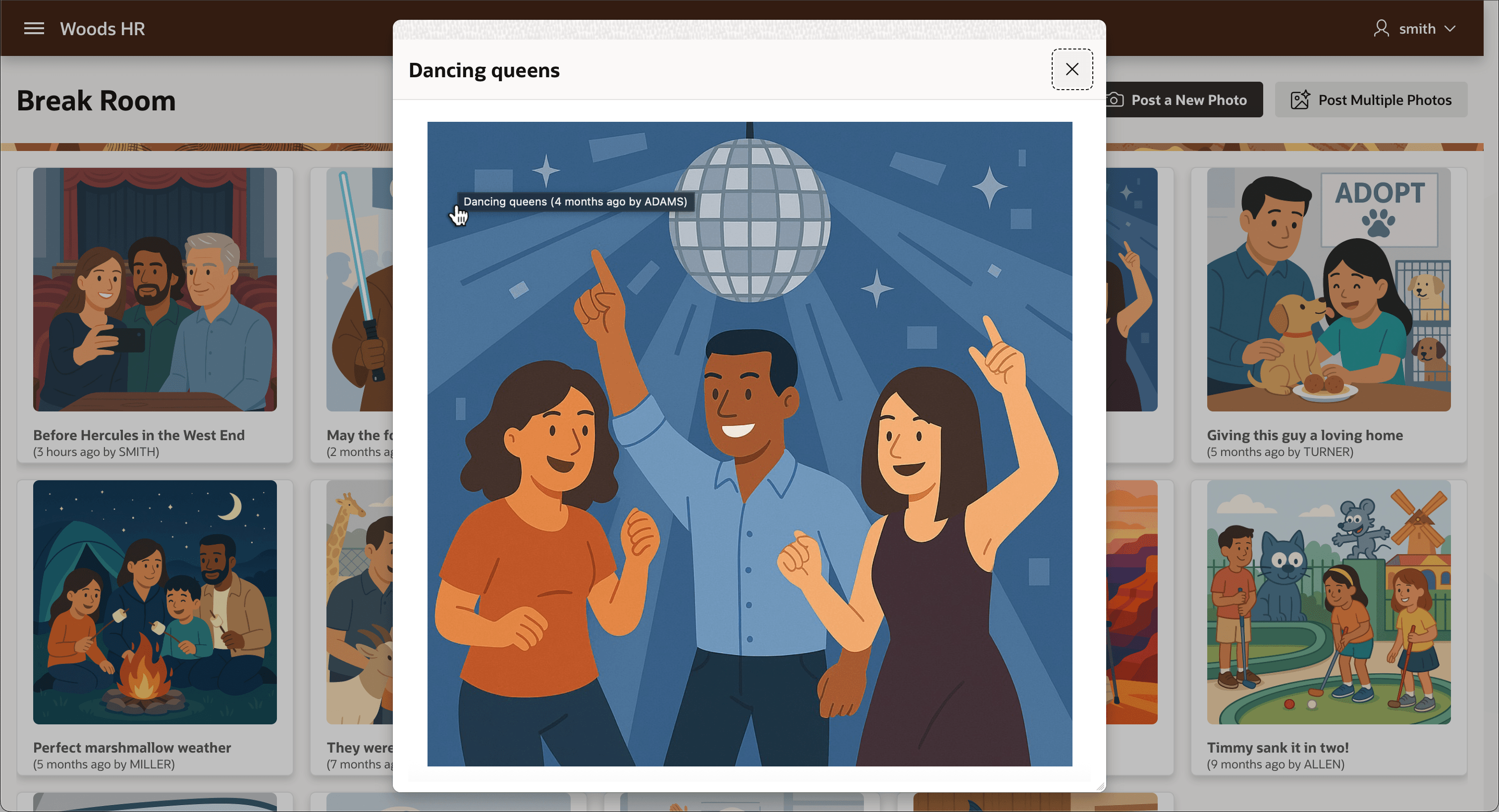
If you use a modal dialog page, you can set a dynamic title on page load to show the image's title. In a Page Load dynamic action, call the setDialogTitle() JavaScript function from Providing App-Wide Helper Functions to set the dialog title dynamically to the title of the break room photo. After doing these few steps, you end up with the result shown below. A Full Card action on the Break Room Cards region in the calling page redirects to your new modal image preview dialog page, passing in the value of the P18_ID image primary key. This lets users get a better look at any photo. Hovering their mouse over the image, they can also see the image description in the tooltip.
Figure 16-20 Previewing an Image from a BLOB Column in a Form Region
Parent topic: Displaying BLOB Column Images