2.5.2 Understanding the App Builder Home Page
Use App Builder to create new applications, select an application to edit, import previously exported applications, view the Dashboard, or access workspace utilities.
Tip:
In a new workspace, the first time you access the App Builder home page, a Get Started Now region appears. Click Create New App to access the launch the Create Application Wizard. See Choosing an Application Creation Method. Click Install a Starter or Sample App to access the Gallery. See Using the App Gallery.
- App Builder Home Page Controls and Navigation Bar
Learn about using the controls and navigation bar on the App Builder home page. - Create Button
Learn about the App Builder home page Create button. - App Builder Home Side Bar
Learn about links on the App Builder home page side bar.
Related Topics
Parent topic: Understanding App Builder
2.5.2.1 App Builder Home Page Controls and Navigation Bar
Learn about using the controls and navigation bar on the App Builder home page.
About App Builder Home Page Controls
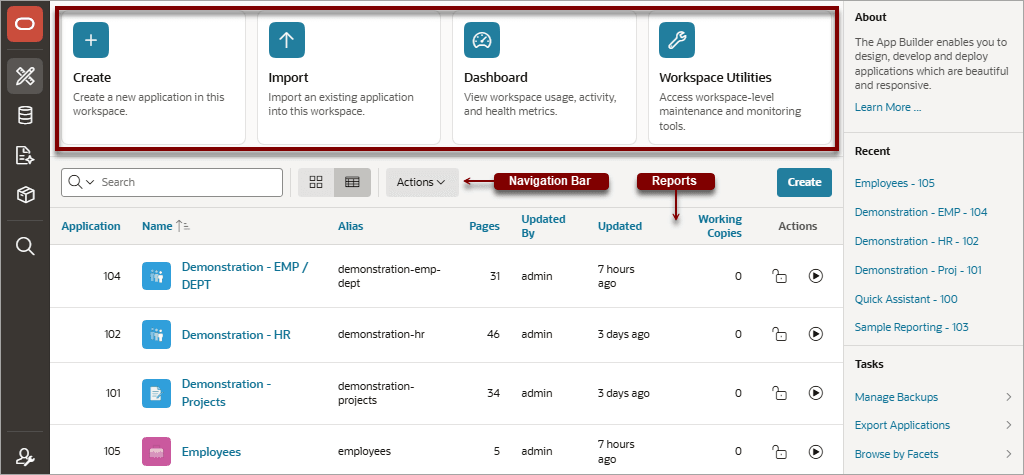
The top of App Builder home page features the following controls:
-
Create. Launches the Create Application Wizard. Use the Create Application Wizard to build a complete application containing multiple pages. See Creating Applications.
-
Import. Launches the Import Wizard. Use this wizard to import export files from the export repository. See Importing Export Files.
-
Dashboard. Links to the App Builder Dashboard which displays metrics about applications in the current workspace.
-
Workspace Utilities. Use the Workspace Utilities page to access REST Enabled SQL Services, Remote Servers, Application Groups, Web Credentials, Workspace Themes, Export, Oracle APEX Views, Manage Backups, and REST Source Catalog. See Using Workspace Utilities.
About the Navigation Bar
The App Builder home page displays all installed applications. You can customize how the applications display using the navigation bar in the center of page.
Available controls include:
-
Columns to search - This control features a magnifying glass button. Click this button to narrow your search to only specific columns. To search all columns, select All Columns.
-
Text area - Enter case insensitive search criteria (wildcard characters are implied) and click Go.
-
View Icons - Displays each application as a large icon identified by the application name.
-
View Report (default) - Displays each application as a line in a report with the following columns: Application (ID), Name (application), Pages, Updated, Working Copies, and Run.
-
Actions menu - Use the Actions menu to customize the report view. For example, display additional columns by selecting Actions, Columns.
Tip:
In a new workspace, the bottom of the App Builder home page displays two regions: Create a New App and Install a Starter or Sample App. Follow the on-screen instructions. Once you create or install an application, these region disappear.
Related Topics
Parent topic: Understanding the App Builder Home Page
2.5.2.2 Create Button
Learn about the App Builder home page Create button.
The Create button displays in the center of the page to the right of the navigation bar.
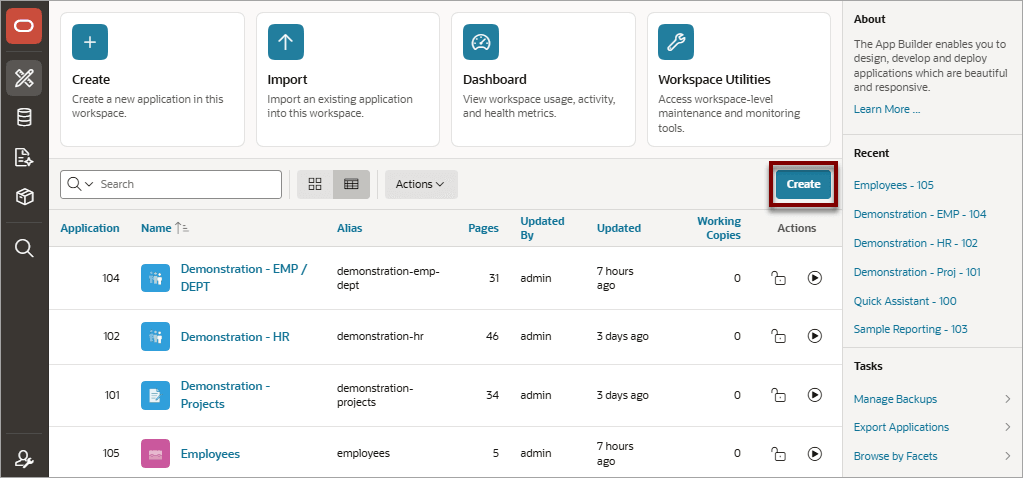
Click Create to create a new application. The Create an Application page appears and prompts you to select how to create the application.
Related Topics
Parent topic: Understanding the App Builder Home Page
2.5.2.3 App Builder Home Side Bar
Learn about links on the App Builder home page side bar.
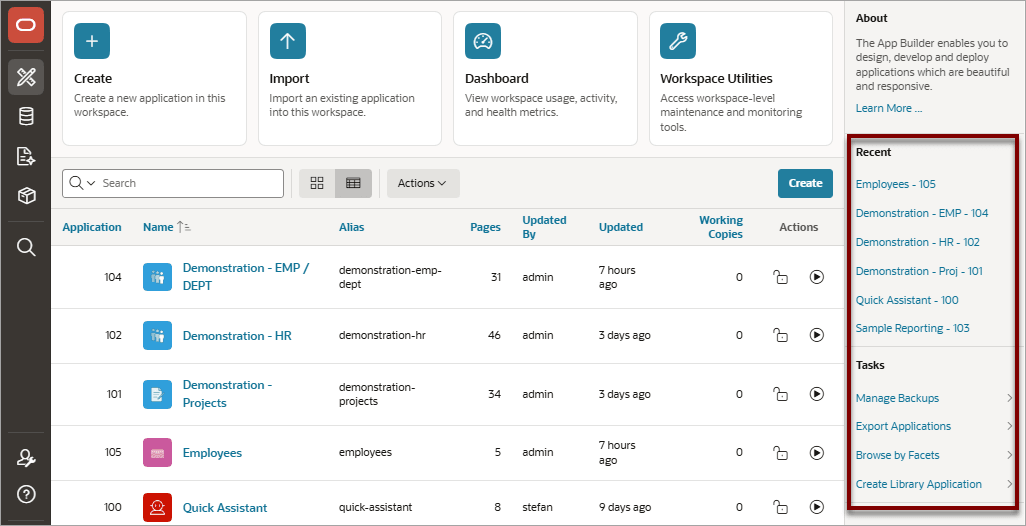
The App Builder home page feature two regions on the side bar: Recent and Tasks.
Recent
The Recent region contains links to recently viewed applications. Click an application name to view it on Application home page.
Tasks
The Tasks region contains the following links:
-
Manage Backups - Links to the Manage Backups page. See Managing Application Backups.
-
Export Applications - Links to the Export Application page. See Exporting an Application.
-
Browse by Facets - Links to the Search Applications page. Filter the report by selecting facet values in the Search region. Link to an application by selecting the App Name.
-
Create a Library Application - A Library Application is a repository for Shared Components, including Authentication Schemes, Lists of Values, Text Messages, and other reusable components.Standard Applications subscribe to Library Applications through Component Groups, inheriting shared components that are centrally defined.
Parent topic: Understanding the App Builder Home Page