Understanding the Application Home Page
Use the Application home page to run, edit, import, export, copy, or delete applications.
When a developer selects an application on the App Builder home page, the Application home page appears.
For more information, see:
Edit Application Definition Button
Learn how to identify the application ID and name and edit the application definition.
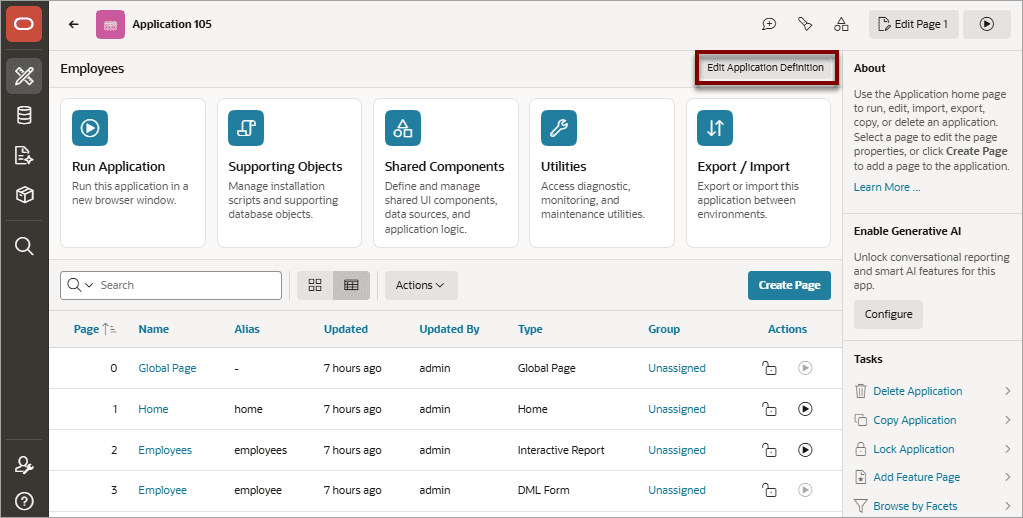
The application ID and the application name display at the top of the Application home page.
Description of the illustration app_bldr_edit_app.png
The Edit Application Definition button displays to the right of the application and name. Click Edit Application Definition to edit the application definition, including the application Name and Application Alias.
See Also: Editing the Application Definition
Application Home Page Controls
Learn about the controls on the Application home page.
Description of the illustration bld_hm_top_ico.png
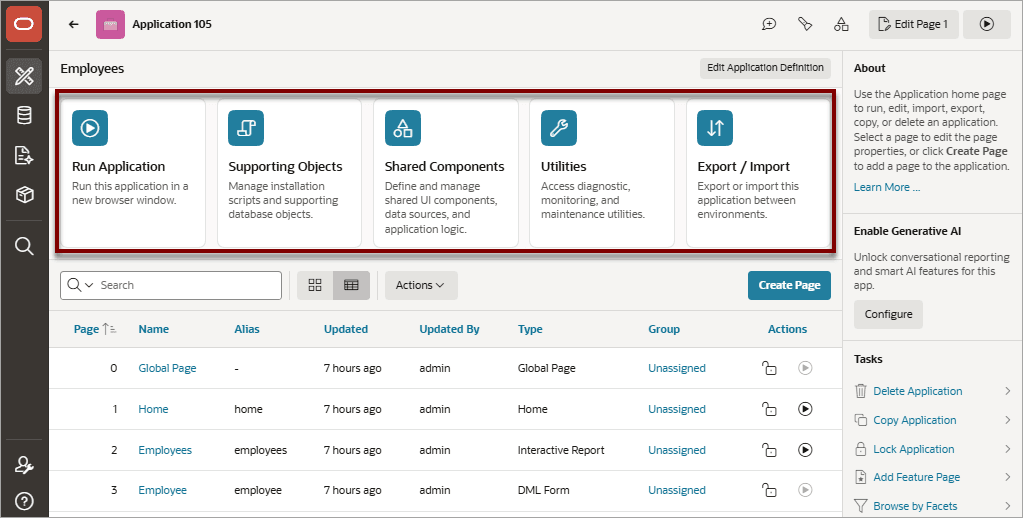
The following large controls beneath the application ID and application name:
-
Run Application submits the home page in the current application to the Oracle APEX engine to render viewable HTML.
-
Supporting Objects links to the Supporting Objects page. Use Supporting Objects to define database object installation scripts that are invoked when importing an application. You can also define deinstallation scripts to drop objects when deleting an application.
-
Shared Components links to the Shared Components page. Shared components can display or be applied to any page within the application.
-
Utilities links to the Utilities page. Use this page to monitor developer activity, view dashboards, run Advisor, and view numerous other reports.
-
Export/Import links you to the Export/Import page. Click Import or Export to import or export a workspace, an application, application components, or related files. Select Remote Deployment to deploy an application to remote Oracle APEX instances using REST Enabled SQL references.
See Exporting and Importing from App Builder and Understanding One-Click Remote Application Deployment.
Create Page Button
Learn about creating a new page from the Application home page.
Description of the illustration bldr_hm_create.png
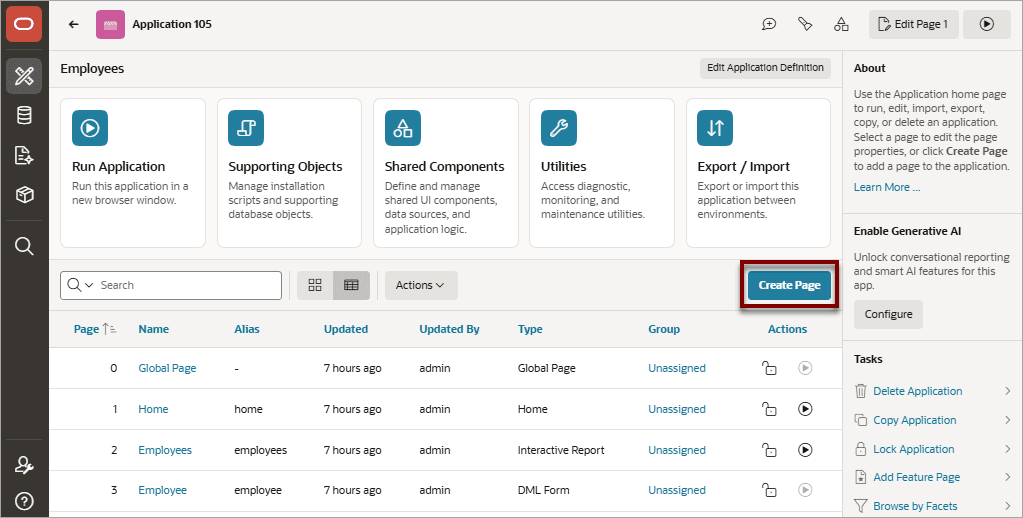
Click the Create Page button to launch a wizard that walks you through creating a page in an application.
See Also: Adding a New Page to an Application
Application Home Page Navigation Bar
Learn about navigation bar on the Application home page.
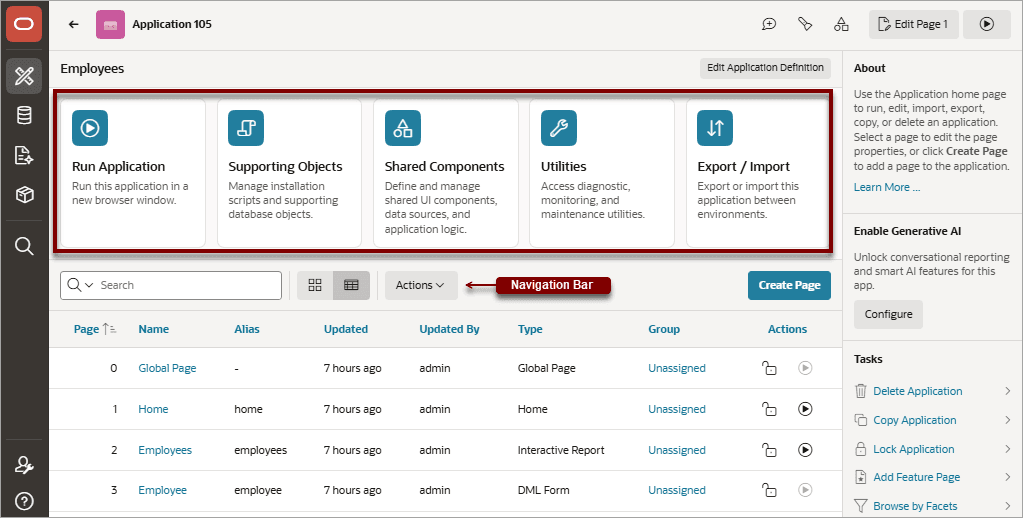
A navigation bar displays in the center of the Application home page. You can use the navigation to search for pages or customize the appearance of the page.
Description of the illustration bldr_hm_nav.png
The Application home page navigation bar contains the following controls:
-
Columns to search - Resembles a magnifying glass. Click this control to narrow your search to specific columns.
-
Text area - Enter case insensitive search criteria (wildcard characters are implied) and click Go.
-
View icons. Use these icons to toggle between two views:
- View Icons - Displays each page as a large icon identified by the page name.
To view a page, click the page icon.
- View Report (default) - Displays each page as a line in a report. Each line includes the page number (ID), the page name, when the page was last updated and by whom, the page type, any associated group, the user interface, and lock status.
To view a page, click the page name. Click the Lock icon to prevent conflicts during application development. Click the Run icon to run the associated page and render viewable HTML.
-
Actions menu - Displays the Actions menu. Use this menu to customize the report view.
For more information, see:
Application Home Side Bar
Learn about links on the Application home page side bar.
Enable Generative AI
Click Unlock to unlock conversational reporting and smart AI features for this aaplication and select a Generative AI Service.
To learn more, see Managing Generative AI in APEX.
Tasks List
A Tasks list displays on the side bar of the Application home page and contains the following links
-
Delete Application deletes the current application. See Deleting an Application.
-
Copy Application creates a copy of the current application. See Copying an Application from the Application Home Page.
-
Lock Application/Unlock Application - Enables developers to lock or uplock the current application. The link that displays depends upon the current lock status. See Locking and Unlocking an Application.
-
Add Feature Page launches the Feature page of the Create Page Wizard enabling you to add features to an existing application. See Adding Features to an Existing App.
-
Browse by Facets - Links to Search Application Pages. Filter the report by selecting facet values in the Search region. Link to a page by selecting the Page Name.
-
Workflow Designer - Links to Workflow Designer. Use the Workflow Designer to create or edit Workflow Definitions. See Managing Workflows and Tasks.
Working Copy Tasks
Click Create Working Copy to create a special copy of an application, make changes in the copy, and then merge those changes back into the main development application. See Creating a Working Copy to Merge, Refresh, or Compare.
Recently Edited Pages
Recently Edited Pages lists links to recently edited pages within the current application. To link to specific page, click the page ID and name.