SQL Editor
This topic provides an overview of the SQL editor in Oracle® Database Navigator plug-in.
As part of editing SQL queries, the Oracle® Database Navigator offers SQL consoles that act like terminals stored locally for every database connection and provide direct interaction with the database in terms of executing queries and viewing results. SQL consoles provide a more focused and streamlined SQL development capabilities and enables you in exploring, retrieving, and manipulating data, and testing sample queries.
Oracle® Database Navigator lets you maintain multiple SQL consoles for a database connection. Additionally, it supports a wide range of databases including MySQL, PostgreSQL and SQLite.
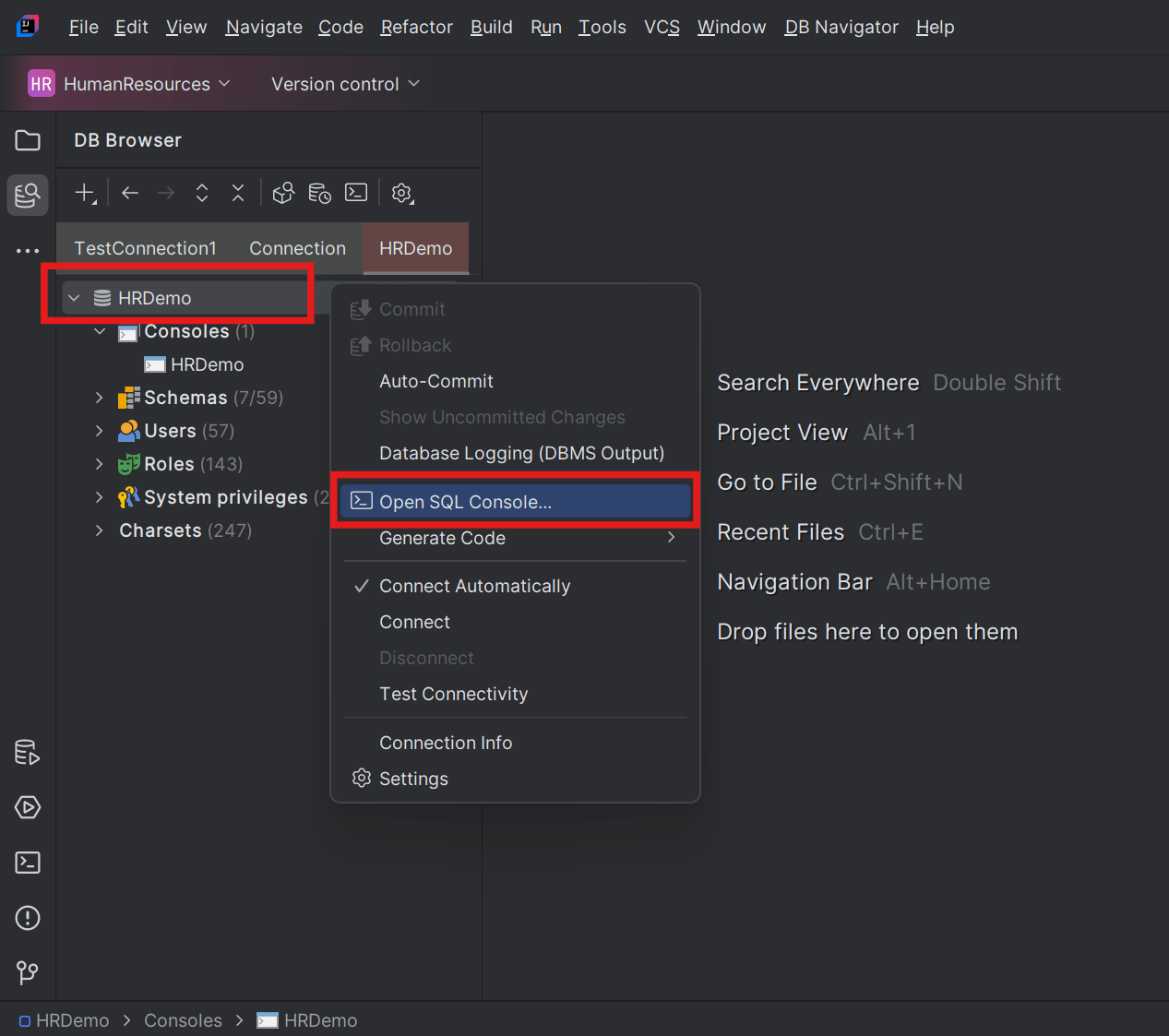
To access an SQL console, from the DB Browser pane, right-click the database connection (root folder) and select Open SQL Console option from the context menu.
The SQL Console opens in the SQL Editor window on the right-side of the DB Browser pane with SQL statements.
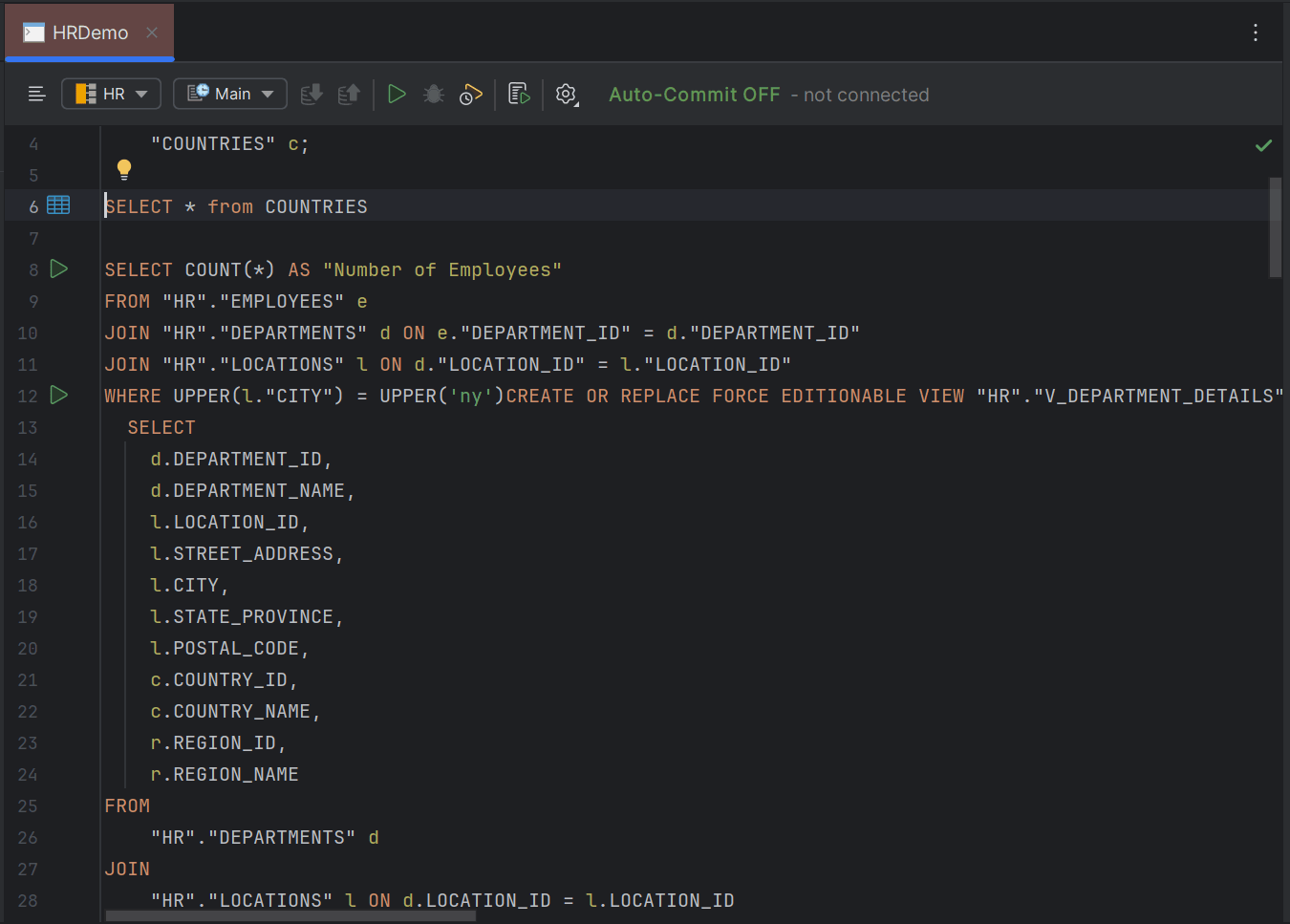
| Toolbar Options | Description |
|---|---|
| Database Logging (DBMS Output) | Switch database logging on or off to enable/disable the database logging integration during statement execution. This option is only supported for Oracle databases - DBMS output. |
| Select Current Schema | Select database schema to associate the SQL editor. SQL statement will be executed against the schema you select. |
| Select Database Session | Select database session for the SQL editor. SQL statements will be executed against the session you select.
|
| Commit | Commit unsaved changes in the SQL statement to the database. |
| Rollback | Rollback unsaved changes in the SQL statement to the database. |
| Execute Statement | Invoke execution of the SQL statement at the cursor. |
| Debug Statement | Invoke debug execution of the SQL statement at the cursor. |
| Explain Plan for Statement | Invoke extraction of explain plan for the SQL statement at the cursor. |
| Execute SQL Script | Invoke execution of the current SQL script using Command-Line Interface of your database. |
| Options |
Additional options available are as follows:
|
- Creating New SQL Consoles
This topic describes the procedure to create new SQL consoles within a database connection. - Editing SQL Script Files
This topic describes the procedure to write and modify SQL script files in SQL editor.
Parent topic: Code Editors