Create AI Profile and Cloud Credential
A Cloud Credential stores authentication details used by the database to
access the selected AI provider or related cloud resources. The Cloud credential comprises
information such as user_ocid, tenancy_ocid,
private_key and fingerprint. An AI Profile is
information about a user and their attributes, such as provider,
credential_name, and object_list. It specifies how
the database connects to an LLM — including the provider, (for example, openai, oci),
credential, model, and optional parameters such as temperature and max_tokens and so
on.
DBMS_CLOUD_AIpackageuser_ocidtenancy_ocidprivate_keyfingerprint
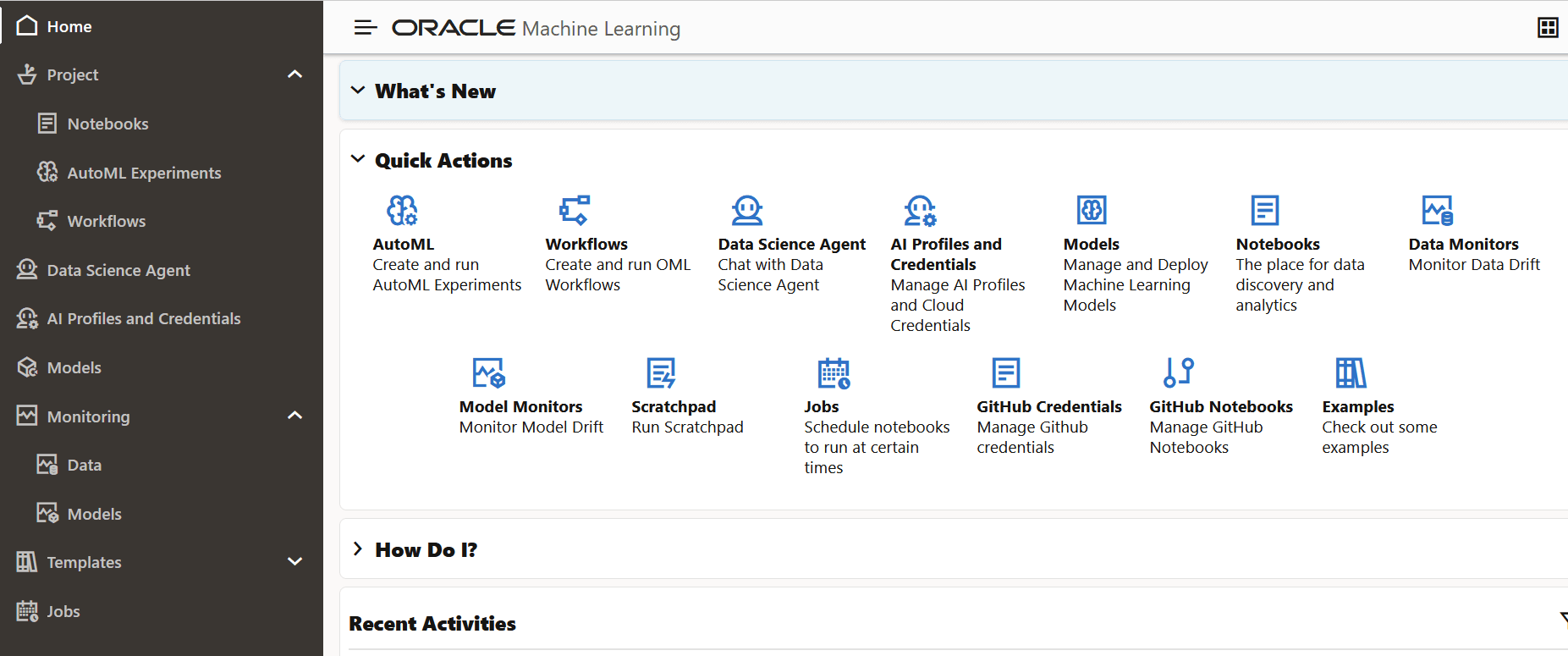
- On the Oracle Machine Learning UI homepage, click AI Profiles and Credentials. Alternatively, you can click the Cloud menu icon and click AI Profiles and Credentials. This opens the Manage AI Profile and Cloud Credentials page.
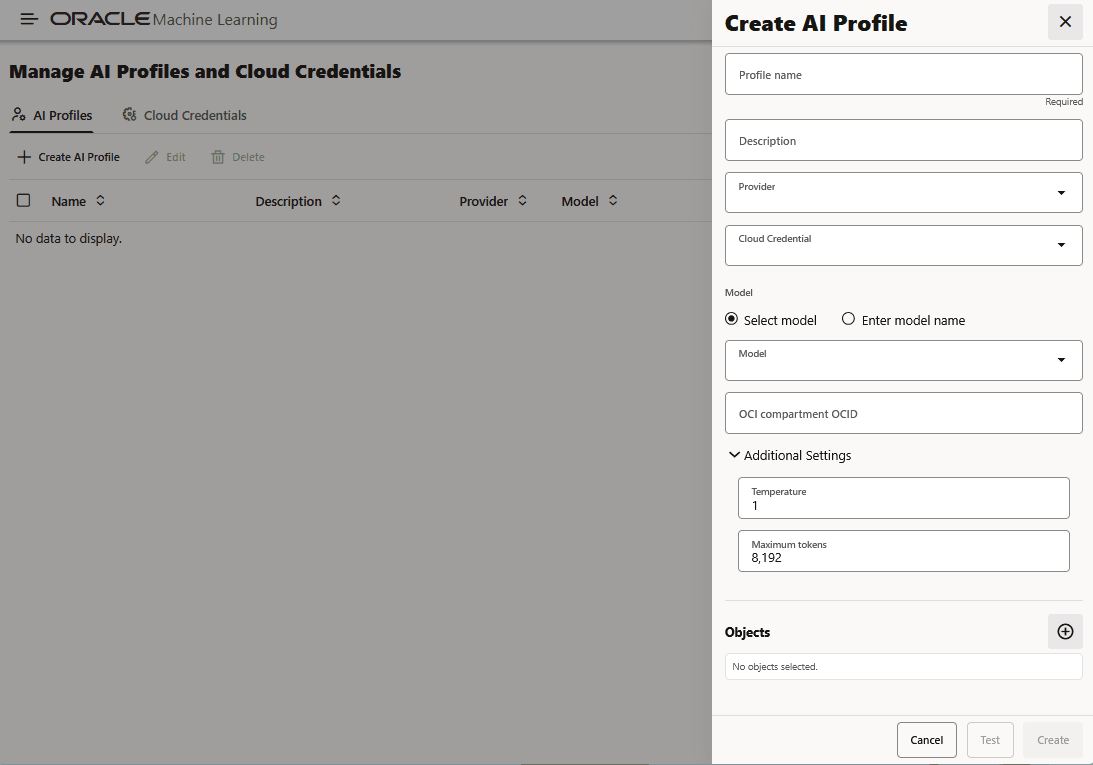
- On the Manage AI Profile and Cloud Credentials page, go
to the AI Profiles tab and click Create AI
Profile. This opens the Create AI Profile pane on the right.
Define the following attributes for this profile:
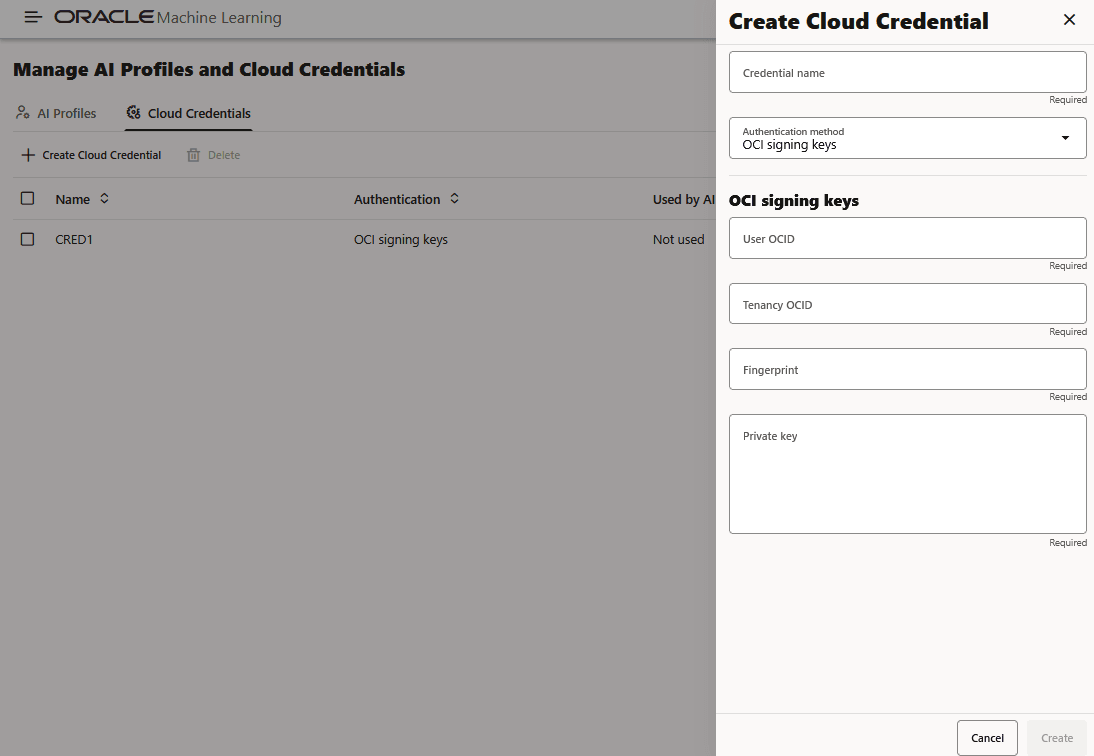
- On the Manage AI Profile and Cloud Credentials page, go
to the Cloud Credentials tab and click Cloud
Credentials. This opens on the Create Cloud
Credential pane on the right.
Here, define the following attributes for the credential:
Parent topic: Get Started with Data Science Agent
Recommended Models
Data Science Agent works with large language models accessed through
Oracle DBMS_CLOUD_AI and DBMS_CLOUD_AI_AGENT
packages. The DBMS_CLOUD_AI package, with Select AI, supports the
translation of natural language prompts to generate, run, explain SQL statements,
and also enables RAG and natural language-based interactions, including chats with
LLMs. For more information, see DBMS_CLOUD_AI Package and
DBMS_CLOUD_AI_AGENT Package.
Note:
Data Science Agent is fully supported on Autonomous AI Database 19c. Note that XGBoost is not available in this 19c.Note:
Recommended models may change as providers update model availability, latency, pricing, and quality. Check the current list of supported models for your AI provider before creating a profile.Table 3-1 Recommended Models
| Provider | Tier | Large Language Model |
|---|---|---|
| OpenAI or OCI GenAI | Top | gpt-6-sol |
| OpenAI or OCI GenAI | Cost-effective | gpt-6-luna |
| OCI GenAI | Top | xai.grok-4.7Note: When using OCI Generative AI, use the provider and model identifiers exactly as documented for OCI GenAI. Some model identifiers may include the original model family or vendor name. |
| OCI GenAI | Cost-effective | xai.grok-4.3Note: When using OCI Generative AI, use the provider and model identifiers exactly as documented for OCI GenAI. Some model identifiers may include the original model family or vendor name. |
| Top | gemini-3.8-flash |
|
| Cost-effective | gemini-3.8-flash |
|
| Anthropic | Top | claude-opus-5-5 |
| Anthropic | Cost-effective | claude-sonnet-5-5 |
- Top: Represents the best state-of-the-art model from a specific provider. This tier is the strongest option in terms of quality, reliability, and precision.
- Cost-effective: Represents a good compromise between quality, cost, and speed. These models are typically faster and less expensive. But the trade-off is lower quality and reliability compared to the Top tier.
Profile Creation for GPT-5.5
To create an AI profile for GPT-5.5 through OpenAI, run the following script in a notebook:
DECLARE
    profile_name VARCHAR2(128) := 'OPENAI_GPT_5_5';
BEGIN
    dbms_cloud_ai.drop_profile(profile_name, TRUE);
    dbms_cloud_ai.create_profile(
        profile_name => profile_name,
        attributes => '{
            "credential_name": "OPENAI_CRED",
            "model": "gpt-5.5",
            "provider": "openai",
            "temperature": 1,
            "max_tokens": 8192
        }'
    );
END;
/
To create an AI profile for GPT 5.5 through Oracle Cloud Infrastructure (OCI), run the following script in a notebook:
DECLARE
    profile_name VARCHAR2(128) := 'OCI_GPT_5_5';
BEGIN
    dbms_cloud_ai.drop_profile(profile_name, TRUE);
    dbms_cloud_ai.create_profile(
        profile_name => profile_name,
        attributes => '{
            "credential_name": "OCI_CRED",
            "model": "openai.gpt-5.5",
            "provider": "oci",
            "temperature": 1,
            "max_tokens": 8192,
            "oci_compartment_id": "<your-dep-id>"
          }'
        );
    END;
/
Profile Creation for Grok 4.3
To create an AI profile for Grok 4.3 through Oracle Cloud Infrastructure (OCI), run the following script in a notebook:
DECLARE
    profile_name VARCHAR2(128) := 'OCI_GROK_4_3';
BEGIN
        dbms_cloud_ai.drop_profile(profile_name, TRUE);
        dbms_cloud_ai.create_profile(
            profile_name => profile_name,
            attributes => '{
                "credential_name": "OCI_CRED",
                "model": "xai.grok-4.3",
                "provider": "oci",
                "temperature": 1,
                "max_tokens": 8192,
                "oci_compartment_id": "<your-dep-id>"
               }'
            );
    END;
/profile_name: Name of the AI profile. It must follow Oracle SQL identifier naming rules.credential_name: Name of the credential used to authenticate with the selected AI provider.model: Model identifier used by the selected provider.provider: AI provider for the profile, for exampleopenai,oci,google, oranthropic.temperature: Recommended value for Data Science Agent examples:1.max_tokens: Recommended value for these examples:8192.Note:
Data Science Agent profile inspection treats values below4096as not recommended.oci_compartment_id: Required for the OCI GenAI examples. Use the target compartment OCID or documented deployment/compartment identifier.
For more information, see Manage AI Profiles.
Parent topic: Create AI Profile and Cloud Credential