Monitor Search Activity with Telemetry
Use the Admin dashboard to understand which results users select, identify searches that need further review, and monitor API calls.
To open Telemetry:
- Sign in to the Oracle Trusted Answer Search Admin application.
- Select the Search Space that you want to review.
- Open Dashboard and select Telemetry.
- Choose a time period in Data interval, such as Last Day or Last Week. The default is Last Week.
The time period applies to Dashboard components that display time-based data. Values depend on the selected search space and time period.
Understand Search Outcomes by Result Rank
The Search Outcomes by Result Rank chart shows where users click in the search results. Rank 1 is the first result, rank 2 is the second result, and so on.
- The blue bars show the number of clicked search targets at each result rank. Read these counts against the left axis.
- The green line shows the cumulative percentage of clicks through each rank. Read these percentages against the right axis.
Set Include non-click outcomes to Yes to also display counts for searches where results were shown but none was clicked, and searches users reported as unsuccessful. With No selected, the chart displays only clicked result ranks.
The following Wikimedia example shows the count at each clicked rank and the cumulative percentage of clicks for Last Week. The counts in your dashboard depend on the selected search space and time period.
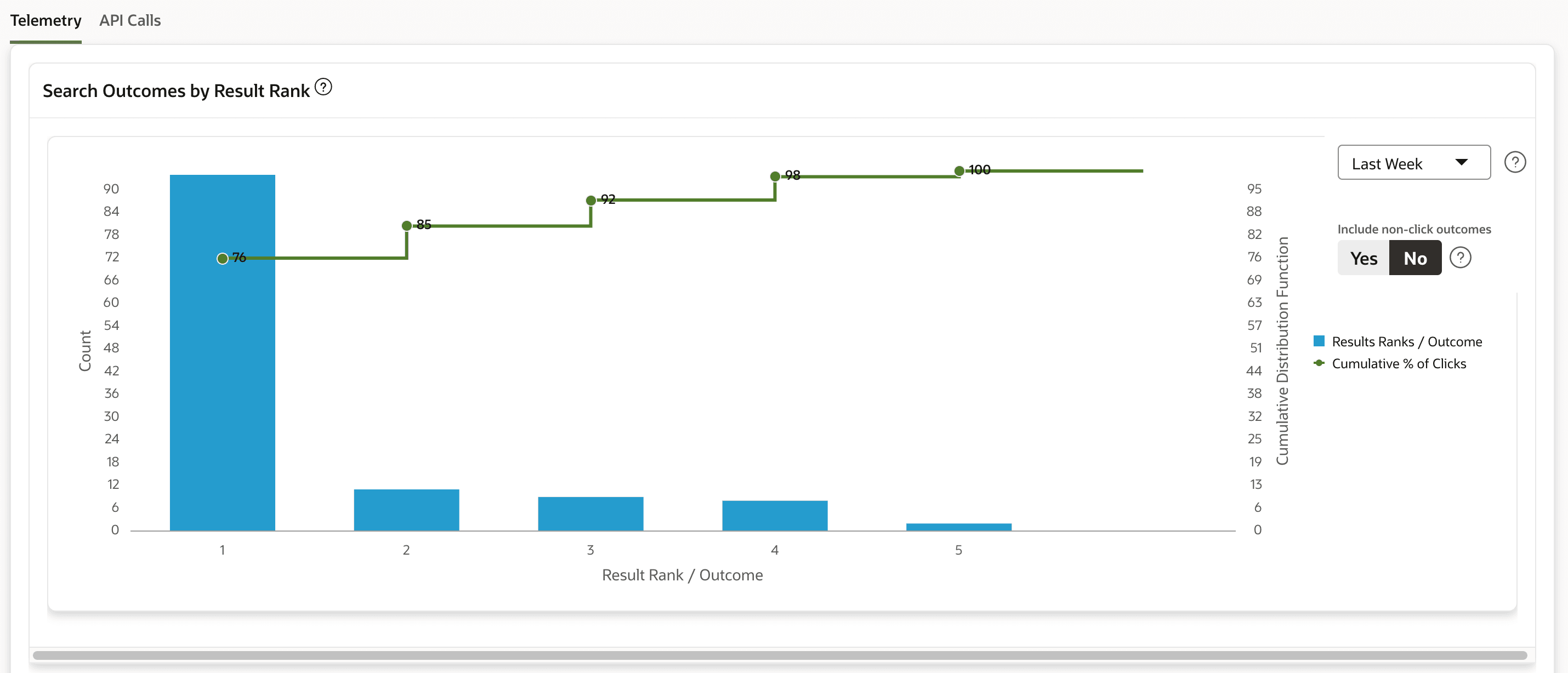
Description of the illustration telemetry-result-rank-wikimedia.png
Read the Summary Metrics
The cards below the chart summarize search activity.
| Metric | Meaning |
|---|---|
| Total Searches | The number of published end-user searches, excluding Query Tester searches. |
| Searches with a Clicked Result | The number of distinct searches with at least one selected result. |
| Click-Through Rate | The percentage of total searches with at least one clicked result: Searches with a Clicked Result divided by Total Searches, multiplied by 100. |
Click-through rate measures how often searches lead to a result selection. A click alone does not confirm that the result answered the user’s question.

Description of the illustration telemetry-summary-wikimedia.png
Review Search Activity
Use the tabs below the summary cards to review different types of search activity.
| Tab | What It Shows |
|---|---|
| Clicked Search Targets | Searches where a user clicked a returned result. The report includes the query text, clicked search target, clicked rank, and top search target. |
| Searches with No Clicked Search Target | Searches where results were shown but no result was clicked. |
| User-Reported Unsuccessful Searches | Searches that users explicitly reported as unsuccessful by selecting the widget’s option to report that no useful result was found. |
| Query Tester Searches | Searches run in Query Tester. These searches are excluded from Total Searches and its click-through-rate calculation. |
A search with no clicked result does not necessarily mean that the user reported an unsuccessful search. Review both reports to understand the recorded activity.
For an example of the widget’s unsuccessful-search option, see Widget Visuals.
Review and Triage Searches
The search-activity reports provide controls for following up on individual queries. Inspect a recorded query and its results before applying administrator feedback to confirm an appropriate match or identify a target that is not of interest for that query. You can flag a query for follow-up and add a comment; clear the flag when the review is complete.
To preserve representative queries for repeatable test runs, select recorded queries and add them to an existing evaluation set. Review their expected results before saving; see Add Dashboard Queries to an Evaluation Set.
Administrative feedback and a user’s unsuccessful-search report are different signals. The latter appears in User-Reported Unsuccessful Searches only when a user selects the widget’s reporting option.
Monitor API Calls
On Dashboard, select API Calls to review service activity. The Average Latency of Calls chart shows average call latency over time for the available APIs. The report below it lists each API’s description, Number Of Calls, Average Call Response Time (ms), Last Call Duration (ms), Last Called, and Number Of Failures.
Use the call count and latency columns together when looking for a performance change. Check Number Of Failures before treating a lower call count as an improvement. For query-level latency, run an evaluation set with search latency profiling enabled and inspect its phase breakdown; see Review Results and Latency.