10.6.13 Database Views from RDF Models
You can create relational views from RDF models. These views can represent a vertex or an edge view of a graph.
SPARQL query patterns can be used as a declarative language for specifying how to build vertex and edge views from RDF data.
It is important to note the following when creating the vertex and edge views from an RDF model:
- The RDF model must have classes defined and the application uses a
SPARQL query to retrieve the distinct classes defined on an RDF model. For
example:
SELECT DISTINCT ?o WHERE { ?s a ?o } order by ?o - One or more RDF classes can define a vertex view. A vertex view
consists of:
- Database vertex view name
- Key attribute name
- Vertex properties from RDF class
- One or two vertex views can define an edge view. An edge view consists
of:
- Database edge view name
- Source and destination vertex keys
- Label property from RDF classes
The following sections explain the steps to create a database graph view:
10.6.13.1 Creating a Graph View
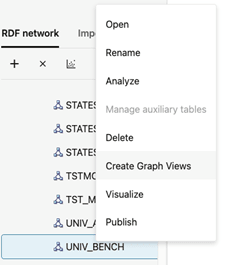
- Right-click the RDF model to open the context menu as shown:
- Click Create Graph Views.
The application opens an editor with the available RDF classes populated from a SPARQL query as shown:
Note that the database graph views cannot be created if there are no RDF classes.
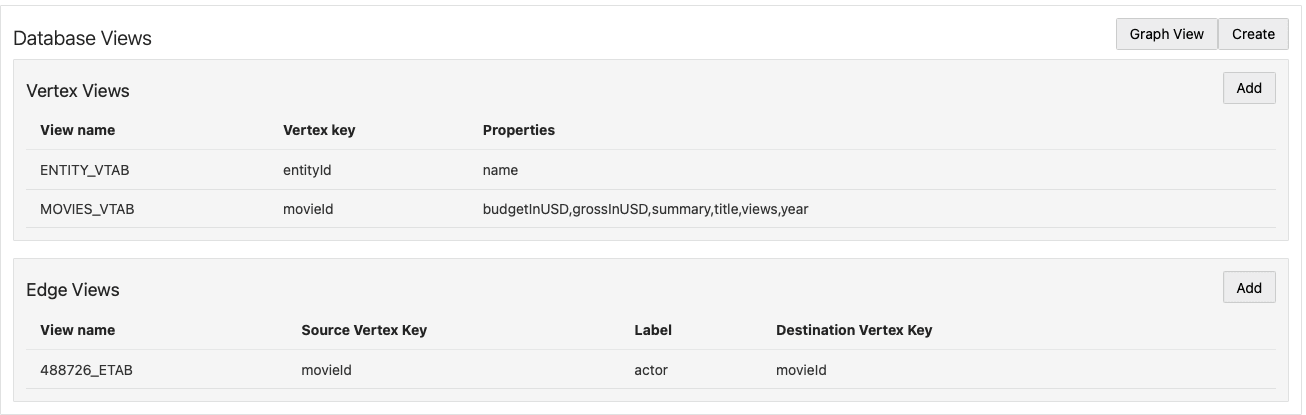
- Review and verify the graph representation of the Database
Views.The following figure shows a sample graph representation:
- Optionally, you can hover over a table row and click the action menu icon to
Remove, Edit, or
Preview a specific vertex or an edge view.
- Click Graph View to visualize the sample graph.
Note that in a graph view, each node represents a vertex view and the link between nodes have an edge label. The following figure shows a sample graph visualization containing two vertex views with key attributes
movieIdandentityIdwhich are linked by theactoredge label.Figure 10-96 Graph Visualization for RDF Database Views
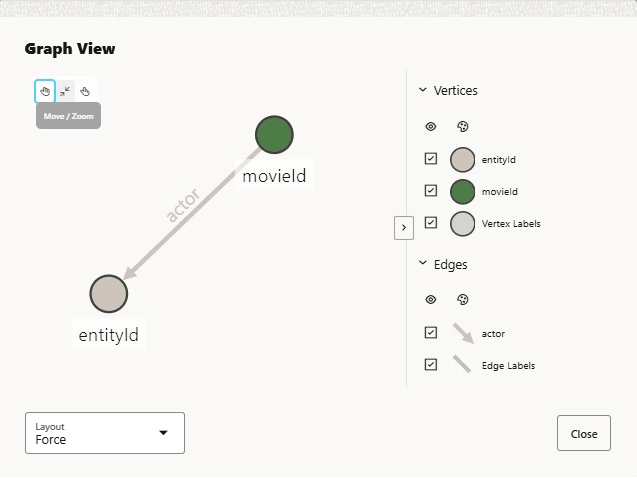
Description of "Figure 10-96 Graph Visualization for RDF Database Views" - Click Create to create the RDF graph view in the
database.
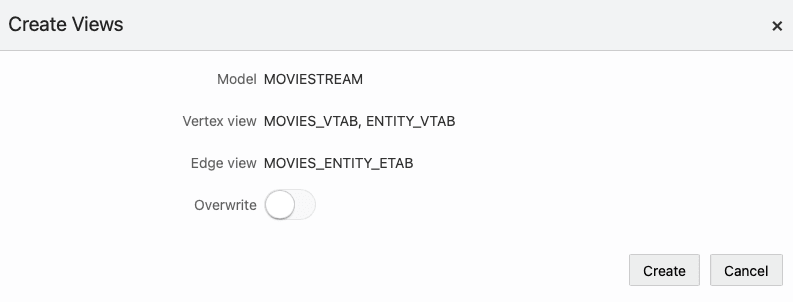
The Create Views dialog opens as shown:
- Optionally, switch ON the Overwrite option to replace any existing view definition.
- Click Create.
The database graph view gets created.The following figure shows the views that are created in the database for the sample graph definition shown in step-5:



Parent topic: Database Views from RDF Models
10.6.13.2 Creating a Vertex View
- Click Add in the Vertex Views
panel shown in the following figure:
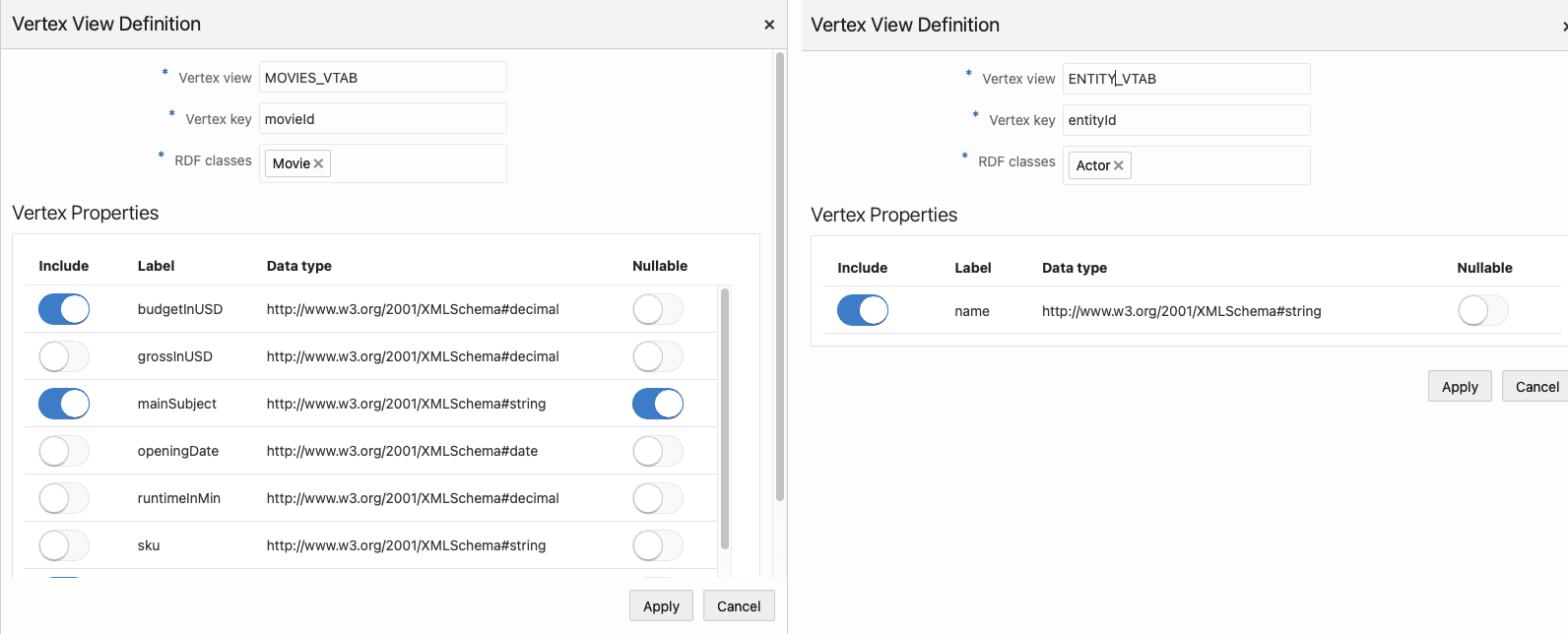
- Configure the Vertex View Definition.Provide the following parameter values to define the vertex view:
- Vertex view: Name of the vertex view. This will be used for querying the vertex.
- Vertex key: Vertex key attribute.
- RDF classes: One or more RDF
classes. When RDF classes are added, the application retrieves the
available properties for the class and lists them in the dialog. You can
choose the properties to be added to the view. The Vertex
Properties table has the following columns:
- Include: At least one property must be included
- Label: Property label
- Data type: Displays the property data type
- Nullable: At least one
FALSEproperty must be includedTRUE: Vertices withNULL(missing) values for the property will be included.FALSE: Vertices withNULL(missing) values for the property will be excluded.
The following figure shows two examples of vertex view definitions (
movieandactorentities):

Parent topic: Database Views from RDF Models
10.6.13.3 Creating an Edge View
To create an edge view:
- Click Add in the Edge Views panel
shown in the following figure:
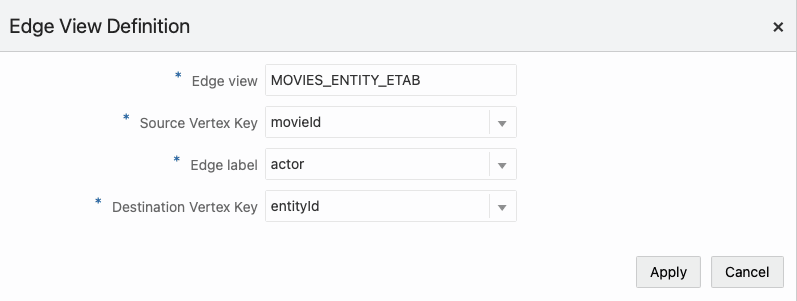
- Configure the Edge View Definition.Provide the following parameter values to define the edge view:
- Edge view: Name of the edge view. This will be used for querying the edge.
- Source Vertex key: Source vertex key attribute.
- Edge label: Edge label value.
- Destination Vertex key: Destination vertex key attribute.
In the following figure, the edge links the
movieandactorentities:

Parent topic: Database Views from RDF Models