RDF Views from Relational Data
Starting from Graph Server and Client Release 25.3, you can easily create an RDF view graph using the RDF View Wizard in RDF Graph Server and Query UI. You can then run SPARQL queries on the RDF view graph and visualize the query output.
The wizard provides both a one-click as well as a structured step-by-step guided approach allowing you to create an R2RML mapping for viewing the contents of the relational tables as RDF triples. Note that viewing resources as blank nodes is not supported in mappings that are created using the wizard.
Note: Oracle Graph also provides subprograms to create, export, and drop RDF Views. See API Support for RDF Views for more information. An RDF view graph can be queried using SPARQL queries.
The RDF View Wizard is based on the following concepts:
-
Resource Maps: These represent the mapping for obtaining the resources (nodes) in the graph structure. A resource map contains the mapping for viewing the content of each row in an entity table as a set of RDF triples. These triples use as subject the same resource, representing the entity corresponding to the row, along with all its properties.
-
Link Maps: These represent the mapping for obtaining the relationships (edges) between two resources in the graph structure. A link map contains the mapping for viewing each binary relationship, captured in a row of the relationship table, as an RDF triple whose predicate reflects the type of relationship and whose subject and object are resources obtained using the referenced (source and target) resource maps.
-
Template Maps: These are named, reusable templates for generating IRIs (International Resource Identifiers) or CURIEs (compact URIs), allowing you to apply a consistent identifier pattern across mappings without retyping it.
The following section explains the steps to create, query, and visualize an RDF view graph using the wizard:
Getting Started with the RDF View Wizard
The instructions in this section describe the steps to create an RDF view graph using the RDF View wizard. It is assumed that the application is connected to a data source. The required relational tables and RDF network exist in the database. The following figure provides a visual representation of the example schema used in the example steps:
Figure: Example Schema (RDFU)
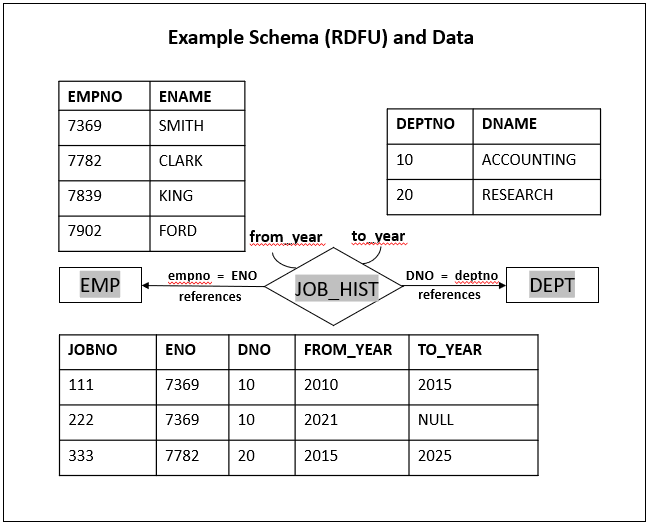
Description of the illustration rdf_view_example_schema.png
As seen in the preceding diagram, the schema RDFU comprises three tables: EMP, JOB_HIST, and DEPT. The single-column primary keys for the three tables are EMPNO, JOBNO, and DEPTNO, respectively. The JOB_HIST table contains ENO and DNO as the foreign keys for referencing the EMP and DEPT tables respectively.
Perform the following steps to create an RDF view graph using the RDF View Wizard.
-
Navigate to the Data page.
-
Select the Data source and the RDF network.
-
Right click RDF Views under RDF Objects in the RDF Network tab.
-
Click Create using Wizard from the context menu.
The Create RDF View Wizard page opens on the right panel as shown:
Figure: Create RDF View Wizard
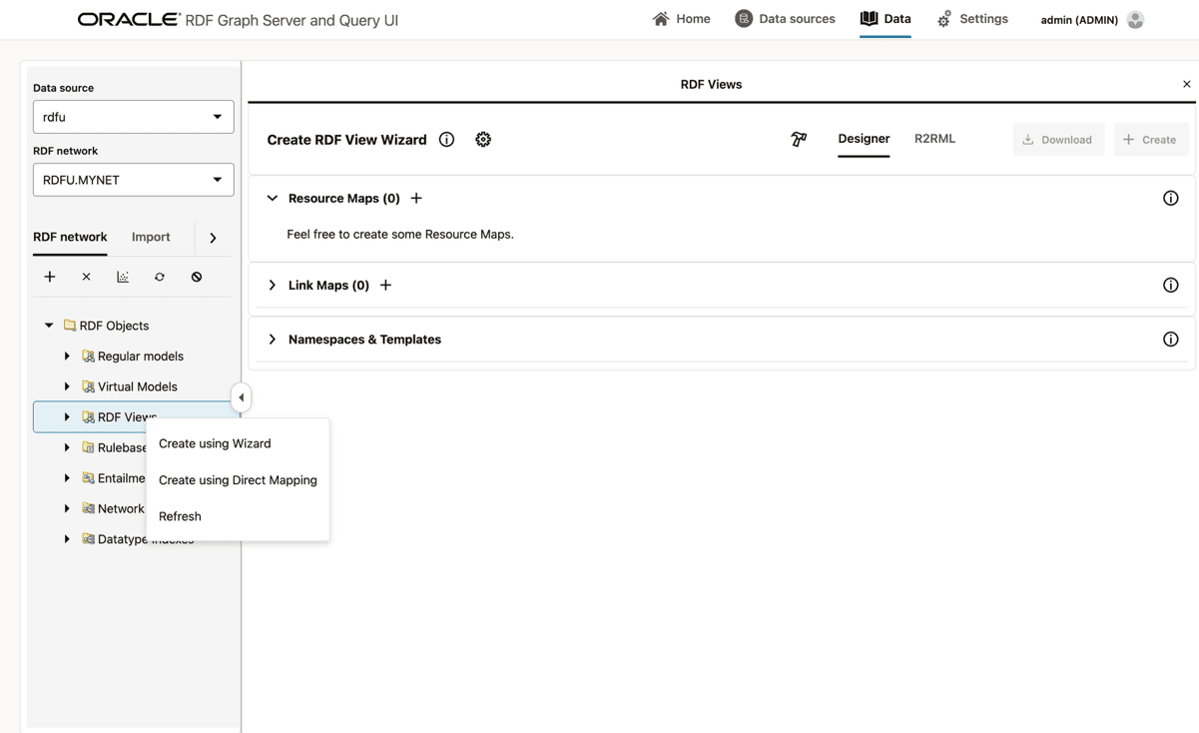
Description of the illustration rdf_view_wiz_landing_page.png
You can click on the information icon to access more information about the RDF View Wizard.
You can begin creating the RDF view graph using one of the following approaches:
-
One-click bootstrap: Automatically build the mappings from database tables that you own. This approach is available only when no resource maps currently exist in your environment.
-
Manual mapping: Manually select the tables to create resource and link mappings, and then follow the wizard workflow.
-
Expand existing resource and link mappings (Transitive Closure / Incremental Expansion): Extend an existing set of RDF view graph mappings one foreign-key hop at a time.
You can also mix and match these approaches to create your RDF view graph.
-
-
Perform the steps depending on the approach you wish to choose:
-
Build from Foreign Keys Automatically (One-click Bootstrap):
When there are no resource maps existing in your environment, the hammer icon on the top right corner displays Build from Foreign Keys. Use the button (shown highlighted in the following figure) to bootstrap mappings from your database with one click.
Figure: Build from Foreign Keys
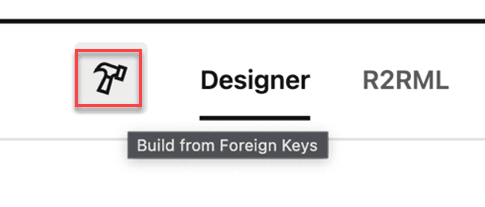
Description of the illustration rdf_view_graph_bootstrap.png
The wizard performs the following actions:
-
Selects all the tables in your schema and inspects their foreign keys.
-
Creates RMAPs for entity tables with at least one non‑foreign key column. Pure join tables that only contain foreign keys are not created as standalone RMAPs.
-
Creates LMAPs for relationships discovered through foreign keys, including links derived from join tables that were not created as RMAPs.
Tip: Click on the gear icon to configure RDF View Wizard settings.
-
-
Transitive Closure Step (Incremental Expansion):
When at least one RMAP exists in your environment, the hammer icon on the top right changes to
 , and displays Transitive closure step. Each click on this button expands the RDF view graph mappings one foreign-key hop from your current RMAPs, adding relationship tables that reference your mapped entities and their other related parent entities.
The wizard performs the following actions:
-
Creates RMAPs for newly found tables that have at least one non‑foreign key column.
-
Creates LMAPs between mapped tables.
-
Adds related tables from other schemas if you have the table privileges to read the necessary foreign key and column metadata.
You can click repeatedly on the Transitive closure step button to continue expanding the RDF view graph mappings until you see a toast message, No new related tables found. Note that each expand action only adds new tables and preserves all edits to names, prefixes, keys, classes, properties, or predicates in your existing mappings.
-
-
Add Resource and Link Maps Manually:
-
See Creating Resource Maps Manually for more information.
-
See Creating Link Maps Manually for more information.
-
-
-
Optionally, click on any added Resource Map to view or edit its details.
Figure: Viewing Resource Map Details
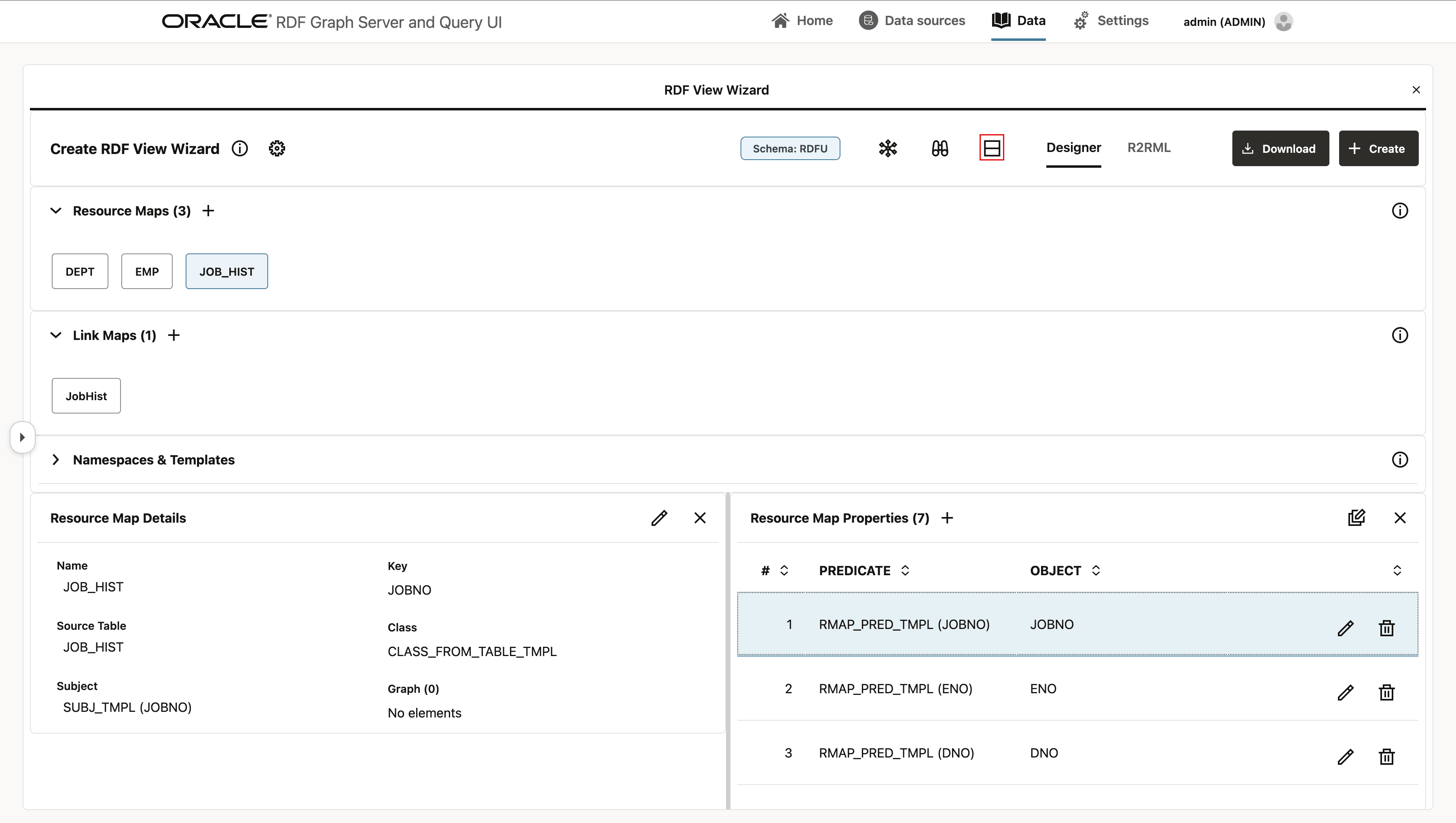
Description of the illustration view_rs_map_dtls.png
In this view, you can switch on the Readable View toggle (
 ) to display large IRIs or Template Maps expressions in a simplified form. You can also resize the Resource Map Details and Resource Map Properties panels, or visualize them vertically by clicking the Toggle Designer Layout icon (shown highlighted in the preceding figure).
Also, note the following:
-
If the underlying database table for the resource map does not have a primary key, then a warning is displayed: No primary key found. Using first column as key. By default, the first table column is then used as the resource map Key.
-
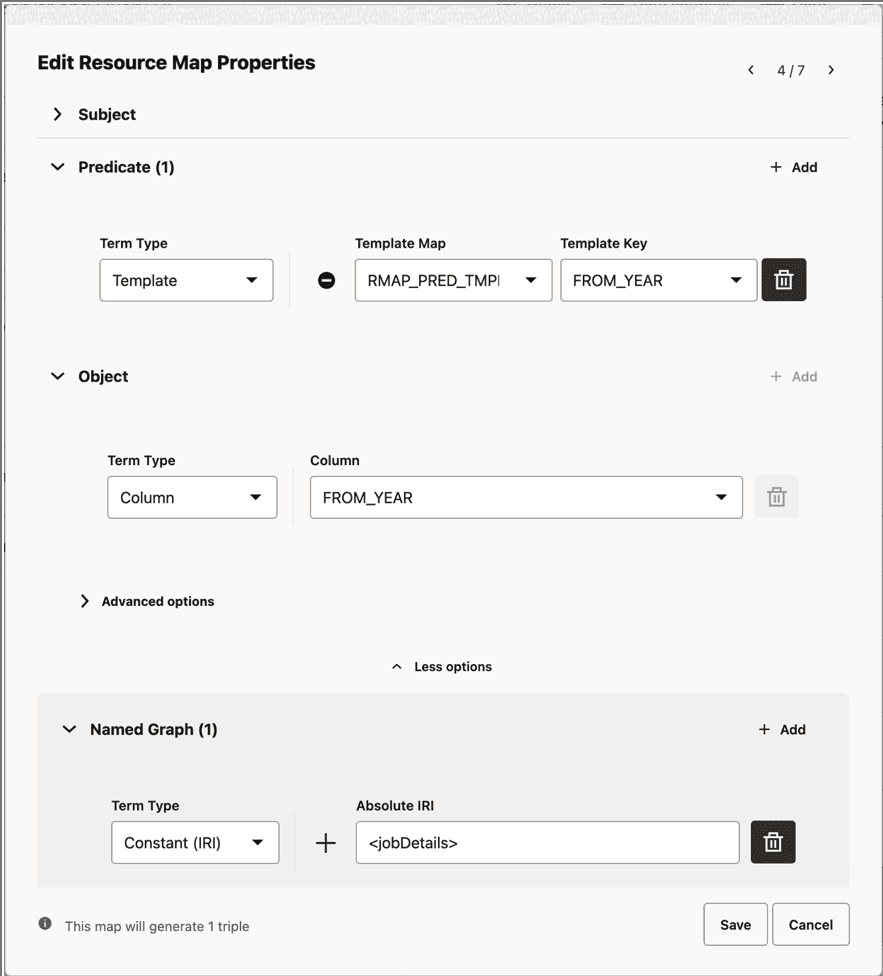
You can choose to edit the name, key, class, graph map, and subject template of the resource map in the Resource Map Details section. For example, you may want to rename the JobHist resource map to a more meaningful name like workedFor.
-
You can choose to edit the mapping for the predicate and object of the properties in the Resource Map Properties section. Among many options for object, you can use a template (any available template map or a custom formatted string), column, or a constant IRI or literal, and for literals you can specify custom datatype, language tag, and so on. Additionally, each property triple can be associated with a named graph by choosing More options.
-
The editor may automatically add referenced object properties, which are object properties that reference another Resource Map using the table’s key columns.
Most of the fields allow you to choose one of the following Term Map sources:
-
Column: The column name comes directly from a table column.
-
Constant IRI: An absolute, relative, or CURIE form.
-
Template: A template map or custom formatted string.
Template Maps are named, reusable expressions that let you build consistent IRIs or CURIEs across mappings without retyping the same pattern. See About Template Maps for more information.
-
Literal: A plain literal value.
-
Figure: Editing Resource Map Properties
Description of the illustration rdf_view_rsmap-more_options.png
-
-
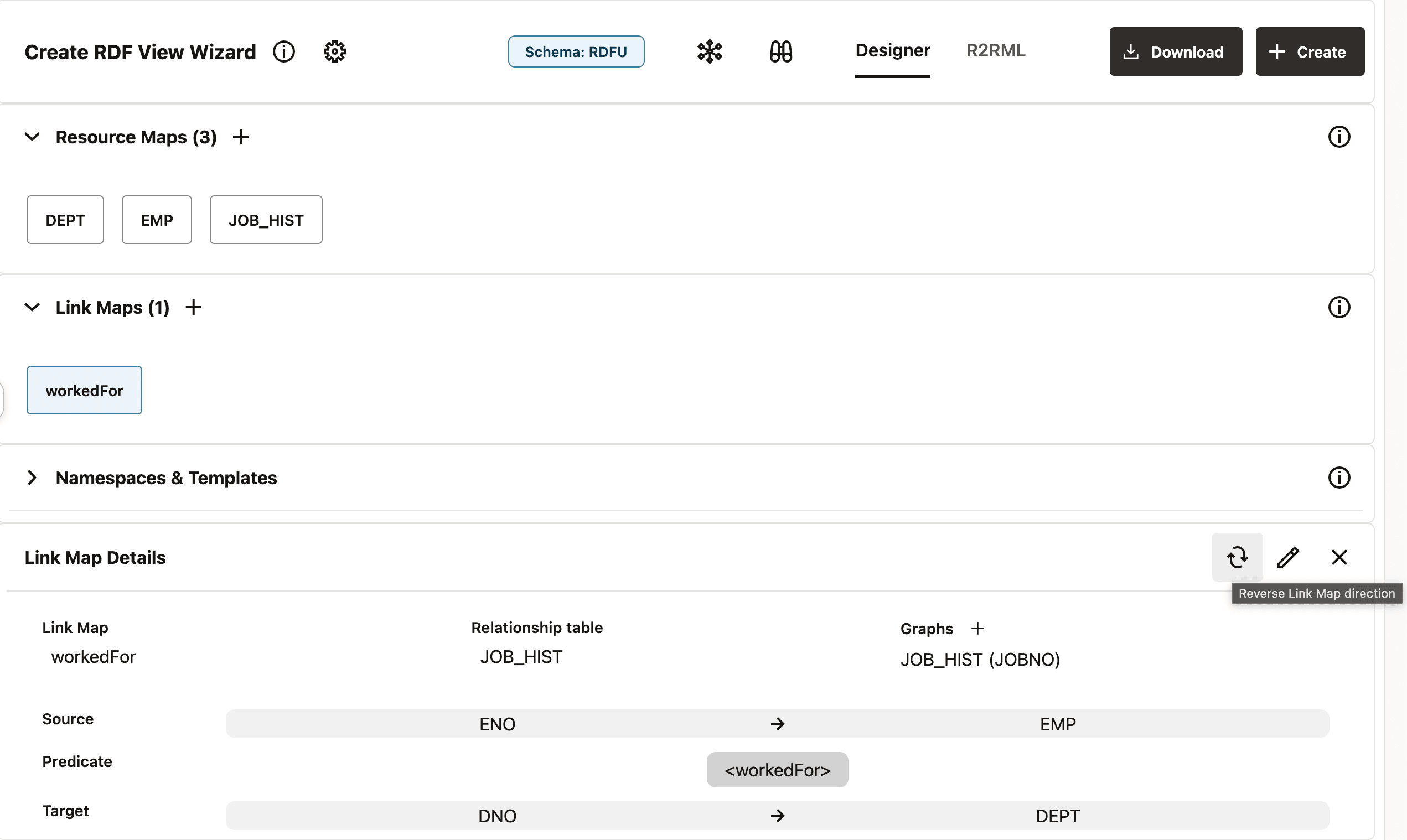
Optionally, click on any added Link Map to view or edit its details.
Figure: Viewing Link Map Details
Description of the illustration view_triple_map_dtls.png
Additionally, you can easily reverse the direction of a link in a Link Map by clicking the switch arrows button, next to the edit button.
-
Choose one of the following actions to proceed.
-
Continue to manually add additional Resource Maps or Link Maps.
-
Expand your mappings by clicking the
(Transitive Closure Step) icon to fetch related tables and relationships. -
Download the raw R2RML for inspection or a PL/SQL ready-to-run script with the R2RML string in it (see step-9).
-
Create the RDF View directly by proceeding to step-10.
-
-
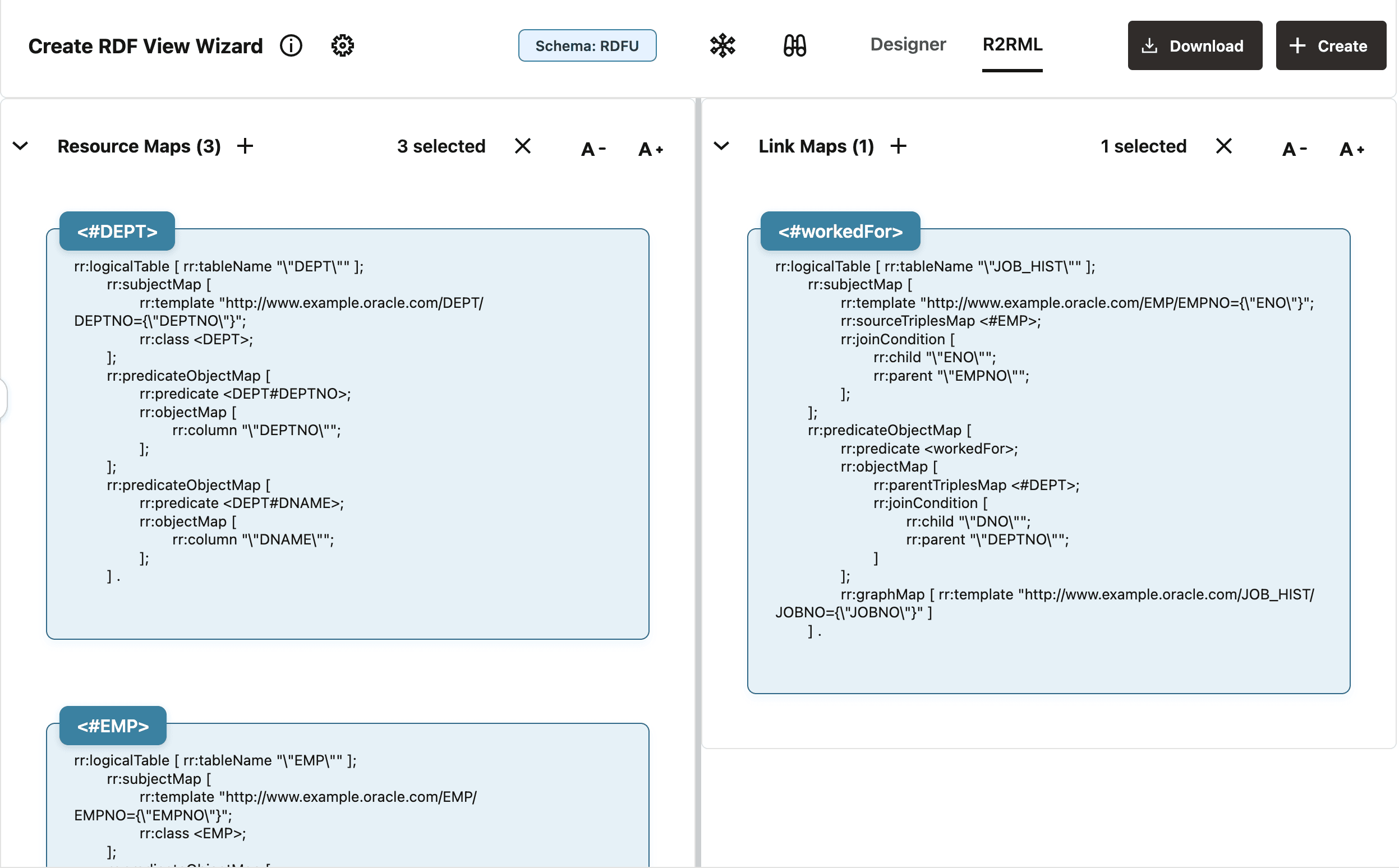
Click the R2RML tab to inspect the raw R2RML.
You can search for an specific mapping by typing in the search bar, you can copy the R2RML of a specific mapping card, or you can click on any mapping to see its related mappings.
Figure: Inspecting R2RML
Description of the illustration view_r2rml.png
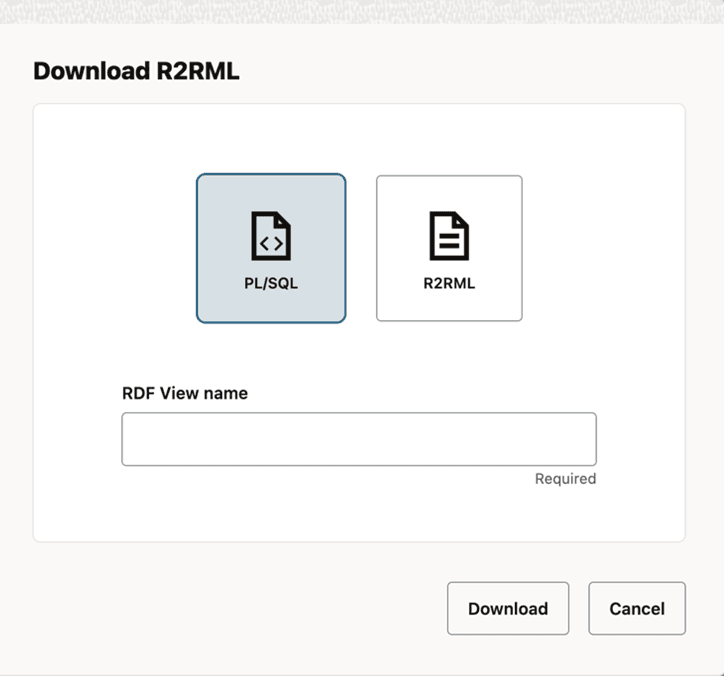
Optionally, click Download to download the PL/SQL ready-to-run script containing the R2RML string or the raw R2RML.
Figure: Download R2RML
Description of the illustration download_plsql_block.png
-
Click PL/SQL, enter the RDF View name, and click Download to download the PL/SQL anonymous block for creating the RDF View based on the current R2RML mapping.
-
Click R2RML and then Download to download the R2RML mapping document.
-
-
Click Create (Create RDF View button) on the top right of the Create RDF View Wizard page.
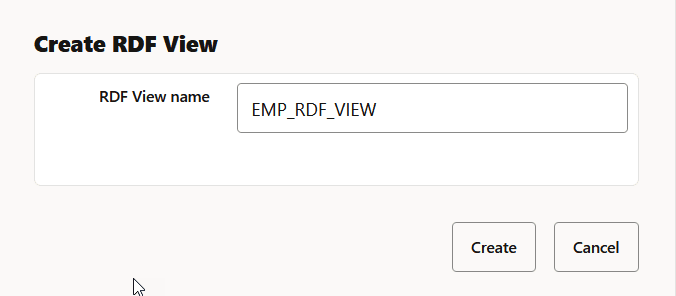
The Create RDF View window opens as shown:
Figure: Create RDF View
-
Enter RDF View name and click Create.
-
Refresh RDF Views in the left pane under RDF Objects.
The newly created view is successfully added to the list.
Optionally, you can right click on an RDF view graph and click Open to view the RDF view graph details. You can execute SPARQL queries in the SPARQL tab. The results of the SPARQL query can be viewed either as a tabular output, graph, or both. Additionally, if using a
CONSTRUCTtype of query, you can download the result triples as an n-triples file.Figure: Executing SPARQL Queries on an RDF View
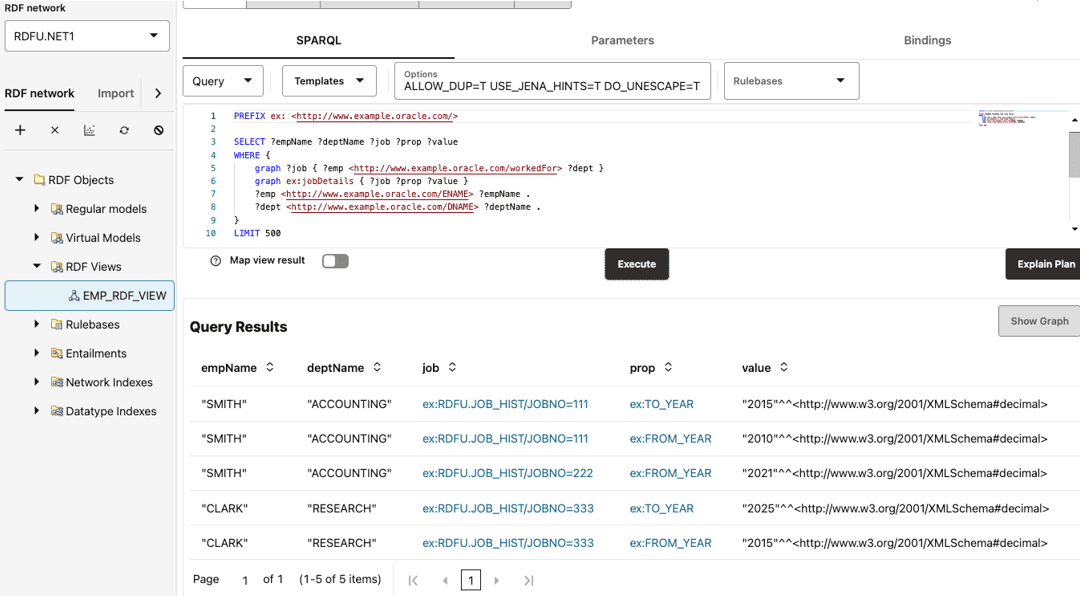
Description of the illustration sparql_on_rdf_view.png
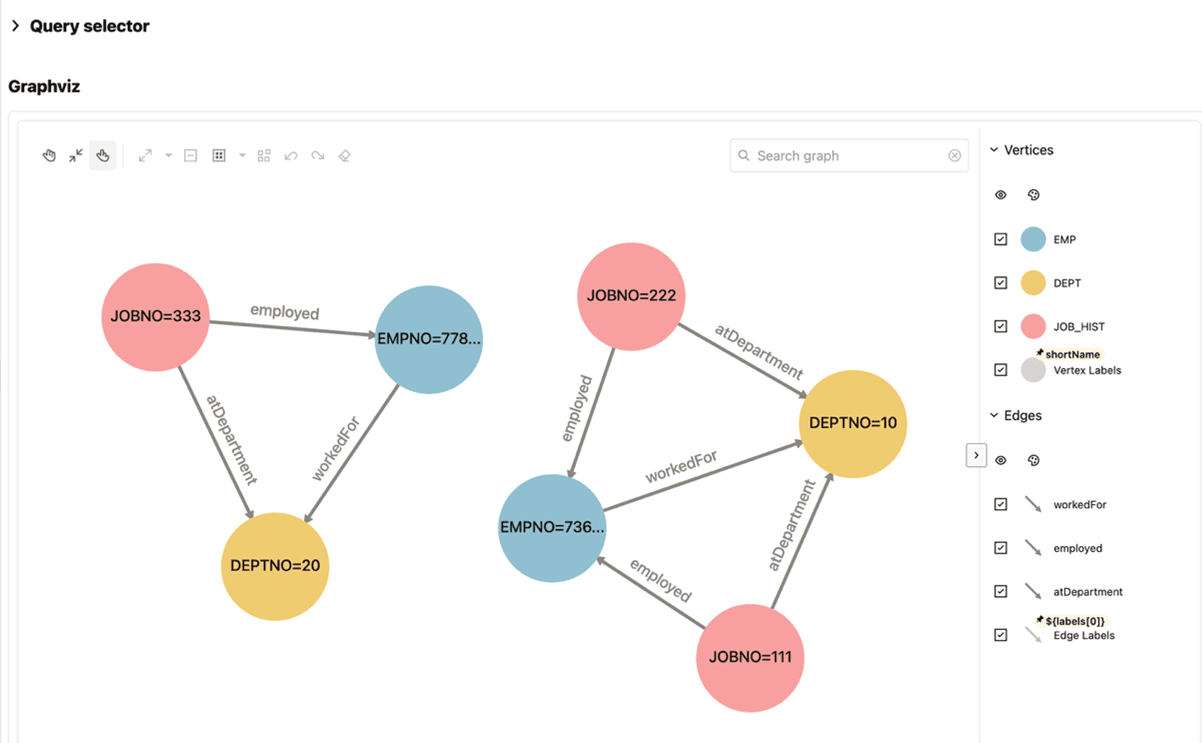
You can also right click on an RDF view graph and select Visualize. This opens the RDF view visualization page in a new tab. You can enter a SPARQL query in the Query selector section and click Execute. The output of the query is displayed as a graph in the Graphviz section. For example, consider running the following SPARQL query to find the department in which the employees work:
PREFIX ex: <http://www.example.oracle.com/>

CONSTRUCT {
    ?emp <http://www.example.oracle.com/workedFor> ?dept .
    ?job <http://www.example.oracle.com/employed> ?emp .
    ?job <http://www.example.oracle.com/atDepartment> ?dept .
}
WHERE {
    graph ?job {
      ?emp <http://www.example.oracle.com/workedFor> ?dept
    }
}
LIMIT 500
The query visualization output gets displayed as shown:
Figure: Visualizing SPARQL Queries on an RDF View Graph
Creating Resource Maps Manually
Perform the following steps to manually create the Resource Maps for the RDF view graph in the Designer tab of the RDF View Wizard.
-
Click the Add new Resource Map (+) icon.
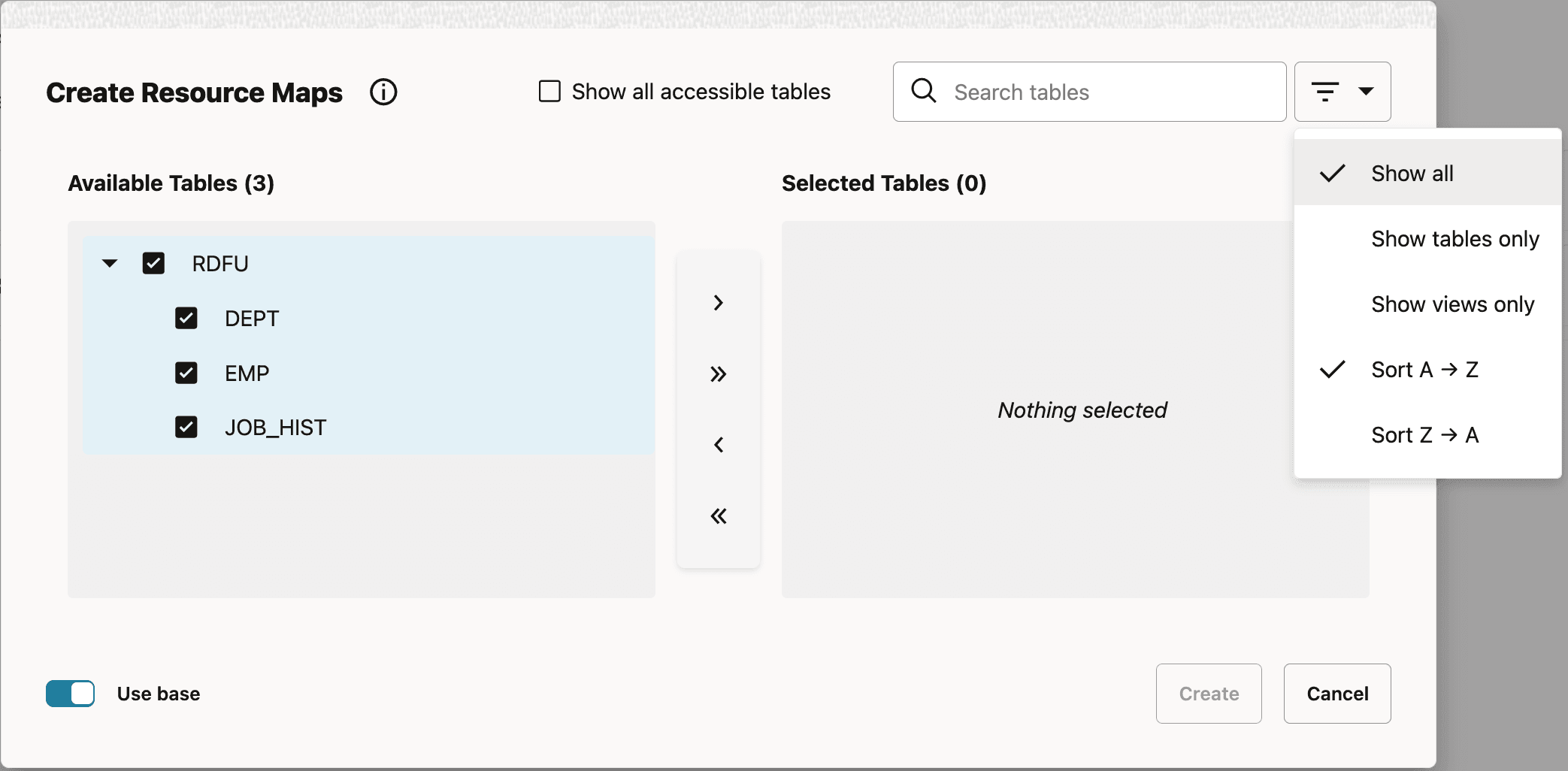
The Create Resource Maps dialog opens and lists the tables or views that you own.
Figure: Create Resource Maps
-
Optionally, click Show all accessible tables to include all the tables to which you have access from other schemas. You can also search for specific tables or use filters to refine your results.
-
Select the desired input tables or views, and then move your selections to the right.
-
Optionally, switch
OFFthe Use base toggle to select a prefix value from the Using prefix drop-down.By default, the Use base toggle is enabled.
You can edit the base utilized throughout the mappings in the < > Base tab under Namespaces & Templates.
Figure: Editing Base IRI

-
Click Create.
The selected tables are added to the Resource Maps section. Also, based on this selection some Link Maps may get created automatically.
The wizard can also recommend adding related tables based on what you have already selected. For instance, if you select only JOB_HIST, it will suggest including the associated EMP and DEPT tables as well.
Figure: Displaying Related Tables for Link Maps
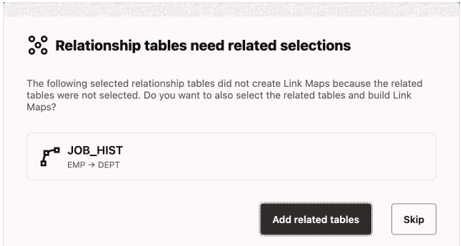
Description of the illustration auto_link_maps.png
Tip: You can click the Transitive closure step button at any time while building the RDF view graph to expand your existing mappings.
Creating Link Maps Manually
Perform the following steps to manually create the Link Maps for the RDF view graph in the Designer tab of the RDF View Wizard.
-
Click the Link Map (+) icon.
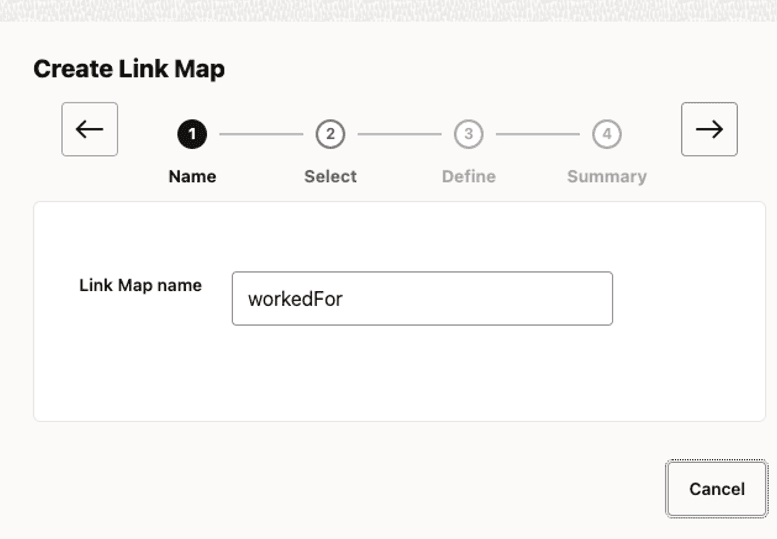
The Create Link Map workflow opens and the Name step is displayed.
Figure: Create Link Map: Name
-
Enter the Link Map name.
-
Click the Next arrow icon.
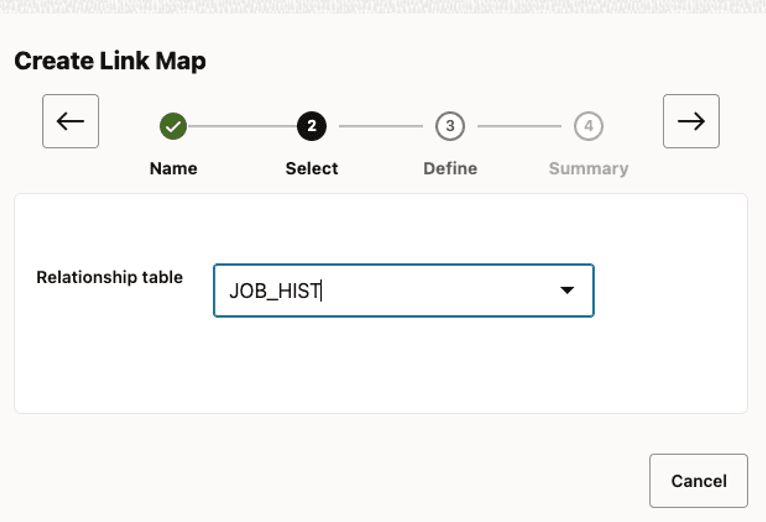
The Select step opens as shown.
Figure: Create Link Map: Select
-
Select the Relationship table from the drop-down.
-
Click the Next arrow icon.
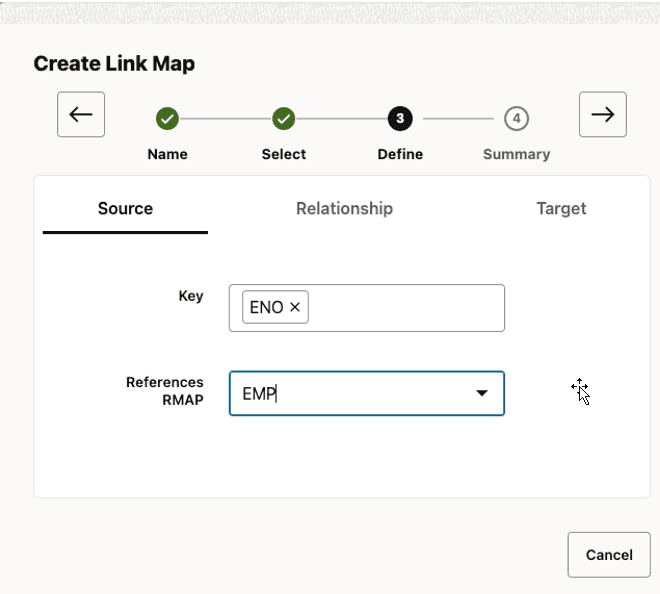
The Define step opens displaying the Source tab.
Figure: Create Link Map: Define (Source Tab)
-
Select the source References RMAP and Key in the Source tab.
-
Specify how the predicate should be created for this link. It can be based on a template map or template string, a column, or by explicitly specifying a constant absolute or compact IRI in the Relationship tab.
Figure: Create Link Map: Define (Relationship Tab)
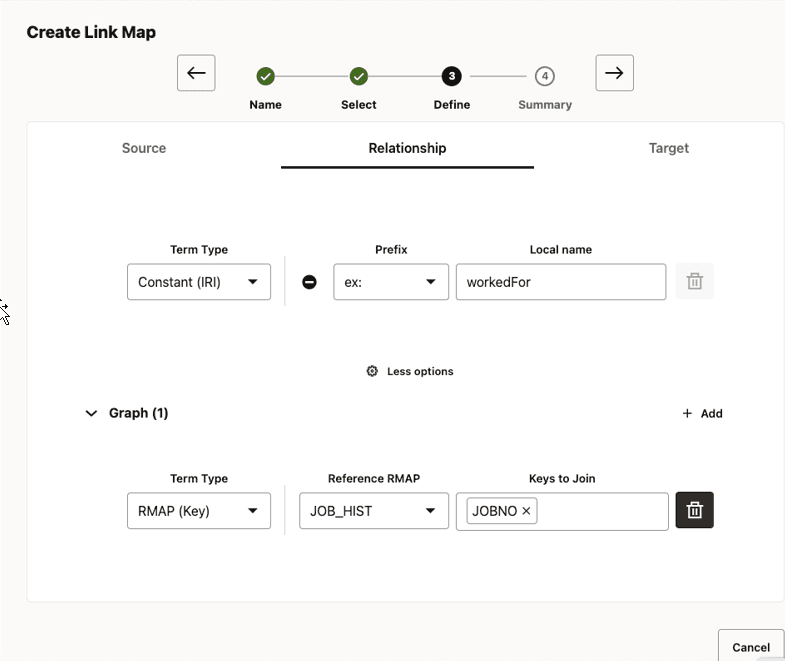
Description of the illustration add_triple_map_3_relationships.png
-
Optionally, click More options to add the generated links to named graph(s) (see Figure: Create Link Map: Define (Relationship Tab)).
This allows creation of RDF quads. A Graph map can be expressed as any variation of a Term Map option. For example, you can use a template map or a template string, a column, constant (IRI), or a reference to a Resource Map with a matching key. For the Resource Map based option, the template of the referenced Resource Map is used with the columns substituted (from the relationship table) specified as the key and, as a result, the generated named graph IRI can be used as the identifier for the generated triple. See Named Graphs for more information on named graphs.
-
Select the destination References RMAP and Key in the Target tab.
Figure: Create Link Map: Define (Target Tab)
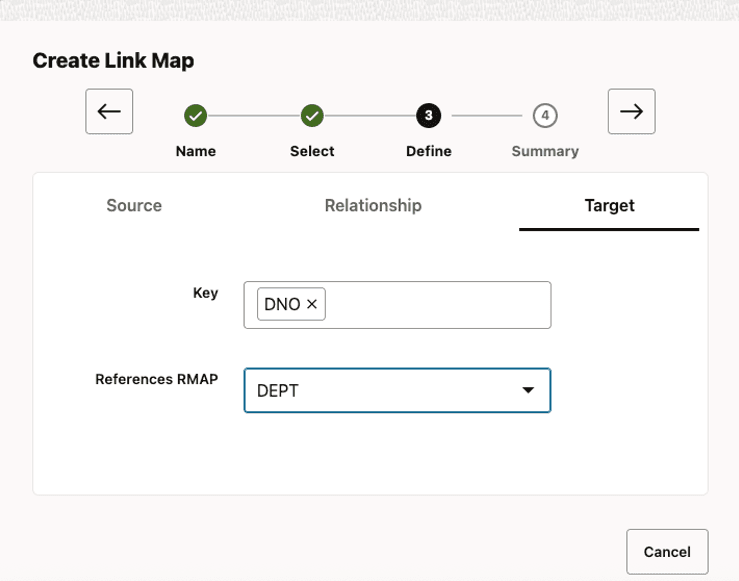
-
Click the Next arrow icon.
The Summary of the designed graph structure is displayed. For example:
Figure: Create Link Map: Summary
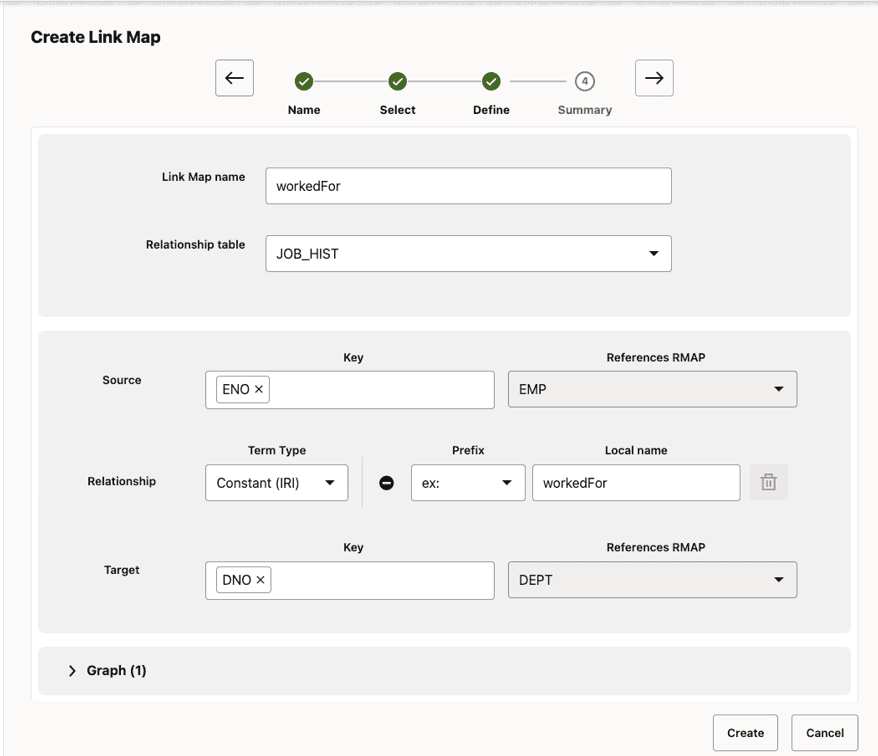
-
Click Create.
The configured triple is added and displayed in the Link Maps section.
About Template Maps
Template Maps are named, reusable template expressions. They allow you to define a pattern once and reuse it consistently across your mappings. You can find them under Namespaces & Templates.
Figure: Template Maps

Description of the illustration rdf_view_template_maps.png
The difference between Template Maps and a plain template string is:
-
A plain template string is a one-off expression that you enter directly in a field.
-
A Template Map is a saved, named template that you can select and reuse anywhere templates are supported.
Use Template Maps to:
-
Define a template pattern once and then reuse the same pattern across subjects, predicates, graphs, and objects.
-
Enforce a single pattern for formatting for table keys and IRI construction.
-
Create mappings faster by selecting a saved template instead of retyping the same expression.
In any field that supports templates (for example: Subject IRI, Class, Graph, Predicate, or Object), switch to Template mode and select a Template Map from the drop-down.
To help you get started, the RDF View Wizard includes a small set of built-in template maps. These are applied by default to the most common template-enabled fields (such as Subject IRI, Class, and Predicate) so you can get started with consistent, working patterns. You can customize them later or replace them with your own template maps.
Figure: Supported Template Maps
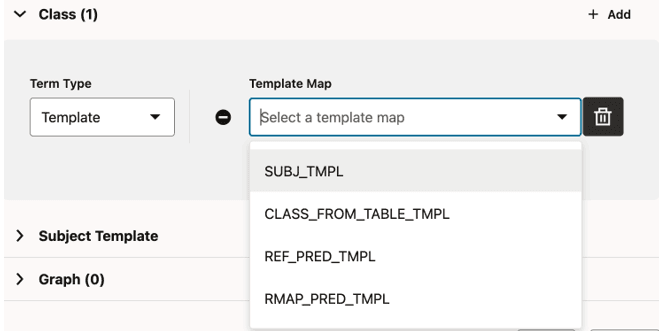
Description of the illustration rdf_view_supported_template_maps.png
The following shows the list of default template maps provided by the RDF View wizard:
-
SUBJ_TMPL: Default subject IRI pattern -
CLASS_FROM_TABLE_TMPL: Default class IRI pattern derived from the table name -
RMAP_PRED_TMPL: Default predicate pattern for column-based properties -
REF_PRED_TMPL: Default predicate pattern for referenced object properties
You can choose to edit a default template if required, or create a new one. See Defining a Template Map to define a new template map.
Defining a Template Map
Perform the following steps to create a new template map.
-
Go to Namespaces & Templates.
-
Click + Add template map.
-
Enter a name for the new template map.
-
Enter an expression.
The following reserved tokens are supported in expressions:
-
${TABLE}: Current table name
-
${LOOP}: Default loop expansion over keys
-
${COLNAME}: Current iterable column name (used inside ${LOOP}(...))
-
${COLVAL}: Current iterable column value placeholder (used inside ${LOOP}(...))
-
${SEP}: Separator setting used inside ${LOOP}(...)
-
${LOOP}(${SEP}=”-“): Default pattern with custom separator
Note: If the effective key list contains exactly one key,
${COLNAME} / ${COLVAL}can also be used without ${LOOP}(...).The following shows a few expression examples:
-
Default pattern (expanded form)
<${TABLE}/${LOOP}(${COLNAME}=${COLVAL}, ${SEP}=";")> -
Default pattern (short form)
<${TABLE}/${LOOP}> -
Custom separators
<http://graphs.example.com/${TABLE}/${LOOP}(${SEP}="-")> -
Loop pattern with column name/value
<${TABLE}/${LOOP}(${COLNAME}=${COLVAL}, ${SEP}="&")> -
Single key sugar (no LOOP)
<${TABLE}#${COLNAME}> -
CURIE-like (prefix:local)
ex:${TABLE} -
CURIE with loop shorthand
ex:${TABLE}/${LOOP}(${SEP}="_")
-