Enabling and Configuring the Oracle Database API for MongoDB
This section describes how to enable and configure the Oracle Database API for MongoDB.
Starting with ORDS release 22.3, Oracle REST Data Services supports the Oracle Database API for MongoDB when running in a standalone mode. This enables the use of MongoDB drivers, frameworks, and tools to develop your JSON document-store applications against the Oracle Database. The Oracle Database API for MongoDB, translates the MongoDB wire protocol into SQL statements that are executed using the ORDS connection pools.
Figure 1: Architecture Diagram for Oracle Database API for MongoDB
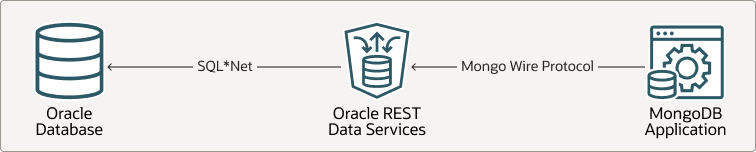
Description of the illustration mongodb.png
Following points must be considered:
-
The MongoDB concept of a database is mapped to the concept of a schema in Oracle Database. Specifically, an ORDS-enabled schema. For example, when you insert a JSON document into a collection in the database
foo, the API for MongoDB inserts the document into a collection in the ORDS-enabled schemafoo. -
Authentication and authorization when using the API for MongoDB depends on the Oracle Database users and access controls and not the MongoDB users. When you are connecting a MongoDB client, you must specify the Oracle Database credentials using the LDAP authentication mechanism of MongoDB using the connection options
authMechanism=PLAINandauthSource=$external. The protocol passes the username and password as a plain text and so, TLS/SSL must be enabled using the connection optiontls=true. -
The Oracle API for MongoDB maps the MongoDB commands to the corresponding SQL statements on the table backing the collection.
For example, a MongoDB command such as
emp.find({"name":"John"})is executed against the database using a SQL select statement similar toselect data from emp e where e.data."name" = 'John'. -
When required, SQL can be executed directly over JSON collections. With this model, you get the speed, flexibility, and ease-of-use of a NoSQL document store while still having the ability to use SQL for analytics and reporting directly over your natively stored JSON data.
-
Requirements This section lists the client and database requirements.
-
Configurable Settings for MongoDB This section lists the editable configuration settings to support the MongoDB API stored in the global configuration, located at
global/settings.xml. -
Examples This section lists some examples that use the
ords config setcommand to store the MongoDB settings in the current working directory (CWD)global/settings.xmland also provides an example for MongoDB listener settings inglobal/settings.xmlfile. -
Logging MongoDB API Access This section describes how to enable logging of requests to the MongoDB API. <div class="infoboxnote" markdown="1">
**See Also:**

- [Oracle Database API for MongoDB](https://docs.oracle.com/en/database/oracle/mongodb-api/)

- [Interactive Command-Line Interface Installation](installing-and-configuring-oracle-rest-data-services.html#GUID-B52816FE-58C7-4B5A-8EAA-4BB191288322 "Starting with Oracle REST Data Services (ORDS) release 24.1, auto installation feature is introduced.This section explains the interactive command-line interface (CLI) installation prompts for creating a new ORDS configuration. Specify the database port for a basic connection.This section explains how to configure Oracle REST Data Services (ORDS) and run in a standalone mode.")

- [Serve Commands for Running in Standalone Mode](deploying-and-monitoring-oracle-rest-data-services.html#GUID-872EA939-5348-4B31-B4EC-EFD038F69837 "This section describes the serve command options for running in standalone mode.")

</div>
Getting Started
Perform the following steps to get started to use the Oracle Database API for MongoDB: 1. Install and configure ORDS:
From a command prompt, install and configure ORDS using the following commands:

<div class="infoboxnote" markdown="1">   **Note:**

- If you are installing ORDS against the Autonomous Database, then use the command `ords install adb`.

- Oracle API for MongoDB is only supported for installations in a non-CDB database or PDB.

</div>
See Also:
1. Install ORDS in a standalone mode in a non-CDB Database or in a PDB.
Note: Oracle API for MongoDB is only supported for installations in a non-CDB database or PDB.
<pre class="copy"><code>ords install</code></pre>
-
By default, the Oracle API for MongoDB is not enabled. To enable the API, in your configuration, include the following:
<pre class="copy"><code>ords config set mongo.enabled true</code></pre>-
Start ORDS
ords serve
When the MongoDB API is enabled, you will get a notification and you get the connect string when ORDS is started.
Log showing that the Oracle API for MongoDB is enabled:
After starting ORDS using the
ords servecommand, the log shows a message similar to the following to verify if the Oracle API for MongoDB is enabled:Disabling document root because the specified folder does not exist: ./config/global/doc_root 2022-08-17T15:23:04.043Z INFO Oracle API for MongoDB listening on port: 27017 2022-08-17T15:23:04.050Z INFO The Oracle API for MongoDB connection string is: mongodb://[{user}:{password}@]localhost:27017/{user}?authMechanism=PLAIN&authSource=$external&ssl=true&retryWrites=false&loadBalanced=true -
-
Create an ORDS-enabled user:
Leave the server running and from SQLcl, create an ORDS-enabled user.
See Also: Creation of Users, Authentication, and Authorization
<pre class="copy"><code>create user foo identified by "<Password>"; grant soda_app, create session, create table, create view, create sequence, create procedure, create job, unlimited tablespace to foo; connect foo/<Password> exec ords.enable_schema;</code></pre>
-
Connect to ORDS using the MongoDB shell:
By default, ORDS uses a self-signed certificate for secure communication. The Mongo API does not allow self-signed certificates, so you cannot directly connect with any Mongo tool or driver to the Mongo API.
The alternatives are as follows:
-
Disabling TLS option is specifically for local environments that are not dealing with sensitive data. To disable TLS, you must invoke the following command before starting ORDS:
ords config set mongo.tls false
ords serve
Note: Mongo API connect string changes to reflect that
mongo.tlsis not enabled. For example:...ssl=false....-
Use the mongo tools and drivers to explicitly disable the requirement for TLS to require a valid signed certificate.
The settings change depending on the tools and the APIs. For example, the
mongoshhas a ar--tlsAllowInvalidCertificatescommand line argument, whereasmongoimporthas--tlsInsecurecommand line argument.
-
See Also: Support for MongoDB APIs, Operations, and Data Types - Reference
- Configure the properties `standalone.https.cert` and `standalone.https.cert.key` to aquire a valid signed cerfificate.
Example using `mongosh` without a valid signed certificate:
<pre class="copy"><code> mongosh --tlsAllowInvalidCertificates 'mongodb://foo:<Password>@localhost:27017/foo?authMechanism=PLAIN&authSource=$external&tls= true&retryWrites=false&loadBalanced=true'foo> db.createCollection('emp'); { ok: 1 } foo> db.emp.insertOne({"name":"Blake","job": "Intern","salary":30000}); ... foo> db.emp.insertOne({"name":"Smith","job": "Programmer","salary": 60000,"email" : "smith@oracle.com"}); ... foo> db.emp.insertOne({"name":"Miller","job": "Programmer","salary": 70000}); ... foo> db.emp.find({"name":"Miller"}); [ { _id: ObjectId("6320bfc40dd73b60ef5641b9"), name: 'Miller', job: 'Programmer', salary: 70000 } ] foo> db.emp.updateOne({"name":"Miller"}, {$set: {"email":"miller@oracle.com"}}) { acknowledged: true, insertedId: null, matchedCount: 1, modifiedCount: 1, upsertedCount: 0 }</code></pre>
-
The data inserted from the MongoDB client can be accessed from SQL:
SQL> select json_serialize(e.data)
     from emp e;

JSON_SERIALIZE(E.DATA)

--------------------------------------------------------------------------------
{"_id":"6320bfa30dd73b60ef5641b7","name":"Blake","job":"Intern","salary":30000}
{"_id":"6320bfb30dd73b60ef5641b8","name":"Smith","job":"Programmer","salary":60000,"email":"smith@oracle.com"}
{"_id":"6320bfc40dd73b60ef5641b9","name":"Miller","job":"Programmer","salary":70000,"email":"miller@oracle.com"}

SQL> select e.data."name".string() n,
           e.data."job".string() j
     from emp e
     where e.data."email".string() = 'miller@oracle.com';

N                    J

-------------------- -----------------------
Miller               Programmer
Requirements
This section lists the client and database requirements.
The MongoDB API supports Oracle Database version 21c or later and the Autonomous Oracle Database 19c or later (serverless, dedicated, and cloud@customer). In general, Oracle API for MongoDB supports MongoDB tools and drivers that support the loadBalanced connection option.
See Also: Tools and Drivers for Oracle Database API for MongoDB
Configurable Settings for MongoDB
This section lists the editable configuration settings to support the MongoDB API stored in the global configuration, located at global/settings.xml.
Note: Oracle recommends users to use the Oracle REST Data Services command-line interface to edit the configuration files.
Table 1 Configuration Settings to Support
| Key | Type | Description |
| — | — | — |
| mongo.enabled(Mandatory property) | boolean | Specifies to enable the API for MongoDB. Default value is false. Specifies to enable the API for MongoDB, set the value to true. |
| mongo.tls | boolean | Enables the use of the MongoDB API with non-TLS connections (Oracle Database 19c and later). |
| mongo.access.log | path | Specifies the path to the folder where you want to store the API for MongoDB access logs. If the path is not specified, then no access is generated. |
| mongo.host | string | Specifies a comma separated list of host names or IP addresses to identify a specific network interface on which to listen. Default value is `
0.0.0.0. |
| mongo.port | integer | Specifies the API for MongoDB listen port. Default value is 27017. |
| mongo.idle.timeout | duration | Specifies the maximum idle time for a connection in milliseconds. Default value is 30m |
| mongo.op.timeout | duration | Specifies the maximum time for a database operation in milliseconds. Default value is 10m`. |
      <div class="infoboxnote" markdown="1">

      **See Also:**

      - [About the Oracle REST Data Services Configuration Files](about-REST-configuration-files.html#GUID-9C3FE70B-AEBC-4149-9902-9E58DEFE6AEF "This section lists the configuration settings for the settings.xml and pool.xml configuration files, and secure settings for the wallet.")

      </div>
Examples
This section lists some examples that use the ords config set command to store the MongoDB settings in the current working directory (CWD) global/settings.xml and also provides an example for MongoDB listener settings in global/settings.xml file.
Examples of using the ords config set command
-
ords config set mongo.tls false -
ords config set mongo.enabled true -
ords config set mongo.host example.com -
ords config set mongo.port 27017 -
ords config set mongo.idle.timeout 40m -
ords config set mongo.op.timeout 15m
Example of Mongo Listener settings in global/settings.xml
<!DOCTYPE properties SYSTEM "http://java.sun.com/dtd/properties.dtd">
<properties>
<comment>Saved on Wed Jun 15 01:33:58 UTC 2022</comment>
<entry key="debug.printDebugToScreen">true</entry>
. . .
<entry key="mongo.tls">false</entry>
<entry key="mongo.enabled">true</entry>
<entry key="mongo.host">example.com</entry>
<entry key="mongo.port">27017</entry>
<entry key="mongo.idle.timeout">40m</entry>
<entry key="mongo.op.timeout">15m</entry>
. . .
</properties>
Examples of using the ords config get command
-
ords config get mongo.enabledtrue -
ords config get mongo.port27016
Using the ords serve Command
Use the ords serve command to run in standalone mode.
Note: To enable the Oracle API for MongoDB, prior to running the serve command, you must set mongo.enabled property to true
See Also:
Accessing the Connection Pools
Oracle REST Data Services supports the ability to connect to more than one database. Multiple named pools can be defined using the install command. Adding a pool creates a corresponding directory under ./databases within the ORDS configuration directory. An initial install of Oracle REST Data Services typically adds a default database connection pool named default.
By default, when you are connecting to the MongoDB API, all database requests are directed to the default connection pool. Optionally, you can route MongoDB API requests to other connection pools using the hostnames file. For example, assume that the database pool named mydb1 has a configuration directory at ords_config/databases/mydb1.
Note: You cannot use multiple pools when mongo.tls key is disabled, only default pool is supported.
If you create the hostname file ords_config/databases/mydb1/hostnames containing two hostnames as follows:
www.example.com
example.com
Then, the following connection strings routes to mydb1 conection pool instead of the default connection pool:
"mongodb://www.example.com:27017/scott?authMechanism=PLAIN&authSource=$external&ssl=true&retryWrites=false&loadBalanced=true"

"mongodb://example.com:27017/scott?authMechanism=PLAIN&authSource=$external&ssl=true&retryWrites=false&loadBalanced=true"
See Also:
Logging MongoDB API Access
This section describes how to enable logging of requests to the MongoDB API.
By default, requests to the MongoDB API are not logged. To enable logging access to MongoDB API, you must set the configuration property mongo.access.log to a directory path. If the directory path is not absolute, it is resolved relative to the the ORDS configuration directory (<ords config>). If the directory does not exist, then ORDS creates the directory on startup. ORDS then adds an access log file entry within this directory each time the MongoDB API is accessed.
Example:
ords config set mongo.access.log mongologs
This command writes access log files under <ords config>/mongologs/ folder.