Installing and Configuring Oracle REST Data Services
This chapter describes how to install, configure, and upgrade Oracle REST Data Services (ORDS).
-
Upgrading Oracle REST Data Services This section describes how to upgrade to Oracle REST Data Services latest release.
-
Uninstalling Oracle REST Data Services This section describes the interactive and non-interactive uninstallation CLI commands used to uninstall the ORDS schema.
-
Updating the Configuration Settings The ORDS
configcommand is used to update and edit the contents of the global and database pool specific settings in the configuration files.
See Also:
Installing Oracle REST Data Services
You must complete the following steps before installing ORDS.
Note: The procedures in this topic apply to installing Oracle REST Data Services in a non-CDB Database or a PDB. For setting up ORDS in a CDB environment, refer to Using the Multitenant Architecture with Oracle REST Data Services section.
If you are planning to use the Oracle API for MongoDB, then you must install Oracle REST Data Services in a non-CDB or PDB. See Enabling and Configuring the Oracle Database API for MongoDB for more information.
You can then install ORDS using one of the following options:
-
Non-Interactive Command-Line Interface Installation (Silent)
-
Downloading ORDS This section describes how to download ORDS.
-
Setting Up the Configuration Folder Structure This section describes how to set up the configuration folder structure.
-
Non-Interactive Command-Line Interface Installation (Silent)
-
Configuring ORDS to use with APEX APEX requires PL/SQL Gateway access to ORDS.
See Also:
Downloading ORDS
This section describes how to download ORDS.
Downloading ORDS Zip file
Download the ords_<latest>.zip file from the Oracle REST Data Services (ORDS) download page, and then unzip ords_<latest>.zip file into a folder of your choice. The folder you choose to unzip the file is referred to as the ORDS product folder. The ORDS product folder contains a bin folder and other folders and files required to run ORDS.
Adding ORDS bin folder to your Operating System PATH
Oracle recommends to add the ORDS bin folder to your operating system PATH environment variable.
Example for LINUX/UNIX Operating System
echo -e 'export PATH="$PATH:/<ords product folder>/bin"' >> ~/.bash_profileStart a new shell to pick up this change.
Example for WINDOWS Operating System
Use a command prompt with administrator privileges.
SetX PATH "%PATH%;<ords product folder>\bin"Start a new command prompt to pick up this change.
Example for MAC Operating System
echo -e 'export PATH="$PATH:/<ords product folder>/bin"' >> ~/.zprofileStart a new terminal to pick up this change.
Downloading ORDS Using yum
ORDS is published in Oracle Linux (OL) 8 and 9 repositories. System administrators can add this repository to a yum configuration in order to install ORDS and its dependencies.
If the oracle software repository has been added to your yum configuration, then you can download and install ORDS using the following command:
sudo yum install ordsThe preceding command handles all the ORDS dependencies and place the ORDS program in /usr/local/bin/ords folder to set up your ORDS configuration and install or upgrade ORDS in the database.
Oracle recommends you to use /etc/ords/conf configuration directory. The following comand is used to configure ORDS:
ords --config /etc/ords/config installIf you want to use a different directory to place your ORDS configurations and you want to use the Linux system service management as system d or system v, then configure the ORDS config directory in /etc/ords.conf folder.
Installing ORDS Using RPM
If your system where you want to install is not using yum or is not connected to the internet, then you can download the ORDS RPM from the links mentioned in the preceding section (Download ORDS using yum) and install the RPM manually. This does not handle the ORDS dependencies, you must install the java JDK manually. After downloading the RPM file you can install it using the following command:
sudo rpm -i ords-22.1.X-X.elX.noarch.rpmThis places the ORDS program in /usr/local/bin/ords folder to set up your ORDS configuration and install or upgrade ORDS in the database.
To configure your ORDS, we recommend using the configuration directory in /etc/ords/conf folder with the following command:
ords --config /etc/ords/config installIf you want to use a different directory to place your ORDS configurations and you want to use the LINUX system service management as systemd or system v, then configure the ORDS configuration directory in /etc/ords.conf folder.
Using ORDS image from Oracle Container Registry
Oracle REST Data Services is available as a Docker image (which also supports Podman) in the Oracle Container Registry. This ORDS image includes GraalVM and an ORDS production release configured for standalone deployment.
See Also: Oracle REST Data Services Docker image
Setting Up the Configuration Folder Structure
This section describes how to set up the configuration folder structure.
Specifying the New ORDS Configuration Folder
New installation has the ORDS configuration files placed in the configuration folder. Configuration files from ORDS release 21.4.x or earlier are migrated to the configuration folder.
You can obtain the configuration folder location using one of the following options: 1. Command option:
Use the `--config` option to specify your configuration folder.

Example:

`ords --config /path/to/conf install`
- Environment variable:
Note: This option is preferred if you forget to include the
--configoption when you are using the ORDS command-line Interface.
- `ORDS_CONFIG`: Create the `ORDS_CONFIG` environment variable.

  Example for LINUX or UNIX operating system:

  <pre class="copy"><code>Shell script containing ORDS_CONFIG cat example_env export ORDS_CONFIG=/path/to/conf  echo $ORDS_CONFIG /path/to/conf</code></pre>
-
Current Working Directory:
If the
--config <configuration_folder>option is not specified, and theORDS_CONFIGenvironment variable is not defined, then your current working directory is used as the configuration folder.Example:
If your current working directory is
/path/to/conf, then it uses that location for your configuration folder.Note:
-
Oracle highly recommends you to ensure that ORDS does not create the configuration directory in the ORDS product folder. For example, you can have a configuration folder in the following location:
/Users//work/dbtools-dev/config/The best practice is to have your configuration files separate from the application files, this makes maintenance and upgrades easier and more reliable.
- The following command is no longer valid:
Example:
java -jar ords.war installIf you specify the legacy commands using
java -jar ords.war, you get the following warning message:Warning:Support for executing:
java -jar ords.warhas been deprecated. Please add ords to your PATH and use the ords command instead. Run the following command to add ORDS to yourPATH:Displays an example of adding the bin folder to your PATH>`Start a new terminal to pick up this change. Oracle recommends to add the ORDS product
binfolder to your path.
Interactive Command-Line Interface Installation
This section explains various scenarios that use the auto-installation feature found in the interactive Command-Line Interface (CLI) installation prompts.
To be prompted for the scenarios discussed in the following sections, you must execute one of the following commands:
Table 1 ORDS CLI Commands
| ORDS CLI Command | Description |
|---|---|
ords install |
Creates a database pool or upgrades ORDS in existing database pool(s). Generates an upgrade script if more than one database pool exists in the ORDS configuration. |
ords install -i --db-only |
Install or upgrade ORDS that are in the database pools, or specify the database connection. Generates upgrade script if more than one database pool exists in the ORDS configuration. With this command, ORDS configuration is neither created nor updated. |
ords install -i --config-only |
Creates or updates a database pool. This command does not install or upgrade ORDS in the database. |
Configuration Folder
Specify the install command without specifying the --config <CONFIG FOLDER> option. This assumes that the configuration directory is specified through the environment variable, or you are defaulting to the current working directory.
Example:
-
ords install -
ords install -i --config-only -
ords install -i --db-only
Specify the install command using the --config <CONFIG FOLDER> option. Depending on the ORDS CLI commanda used, ORDS uses that configuration folder to create or update the configuration or read the existing configuration from that <CONFIG FOLDER> location.
Example:
-
ords --config /path/to/myconfig install -
ords --config /path/to/myconfig install -i --config-only -
ords --config /path/to/myconfig install -i --db-only -
Auto Installation of ORDS Starting with Oracle REST Data Services (ORDS) release 24.1, auto installation feature is introduced.
Auto Installation of ORDS
Starting with Oracle REST Data Services (ORDS) release 24.1, auto installation feature is introduced.
Auto-Install operation, discovers the database connections and display them to the user. Creating a database pool is much simpler and default settings are used to minimize the prompting to the user. If a bequeath connection is available, then it is used to retrieve the information from the database, and install or upgrade ORDS in the database without using the credentials of the administrator user.
See Also: Setup Bequeath Connection for Interactive Install
Following are some of the scenarios demonstrating auto-installation feature:
-
Scenario 1: New ORDS Configuration and ORDS Installation This section explains the interactive command-line interface (CLI) installation prompts for creating a new ORDS configuration.
-
Multiple Options for Database Pool and Standalone Configuration
Scenario 1: New ORDS Configuration and ORDS Installation
This section explains the interactive command-line interface (CLI) installation prompts for creating a new ORDS configuration.
Run the following ORDS CLI command:
ords installWhen you run the preceding command, the interactive inataller detects that an ORDS configuration does not exist. A default database pool is created. Refer to Creating an Additional Database Pool, you are prompted to create the default database pool and to install ORDS in the database.
Scenario 2: Single Database Pool (Default Pool)
Run the following ORDS CLI command:
ords installWhen you create a new ORDS configuration, a default pool is created. This scenario indicates that there is only one database pool, known as the default database pool. You have the option to select the default database pool and upgrade ORDS in the database. You also have the option to create an additional database pool.
Table 2 Prompts for Single Database
| Prompt | Description |
|---|---|
|
Refer to |
Scenario 3: Multiple Database Pools
In this scenario, if more than one database pools exist in your configuration, you have the option to upgrade ORDS in an existing database pool, generate an upgrade script, specify the database pool to upgrade ORDS or create an additional database pool.
Displays a list of the database pools in your configuration. The default database pool is displayed first followed by the other database pools in an alphabetical order.
Run the following ORDS CLI command:
ords installTable 3 Prompts for Multiple Database
| Prompt | Description |
|---|---|
|
If the total number of database pools is greater than 9, then the option Refer to: |
Scenario 4: Add or Update Configuration Only
Run the following ORDS CLI command:
ords install -i --config-onlyUsing this scenario, you can update an existing database pool or create a database pool. The --config-only option does not perform the install or upgrade ORDS in the database operation.
Table 4 Prompts for Add/Update
| Prompt | Description |
|---|---|
|
Refer to: |
Scenario 5: Install or Upgrade ORDS in Database Only
Run the following ORDS CLI command:
ords install -i --db-onlyUsing this scenario, you can only install or upgrade ORDS in the database. If more than one database pool exists in your configuration, you have the option to:
-
upgrade ORDS in an existing database pool
-
generate an upgrade script
-
specify the database connection or database pool to install or upgrade ORDS in the database
Displays a list of the database pools in your configuration.
The default database pool is displayed first, followed by the other database pools in alphabetical order. A maximum of 9 database pools are displayed. If the maximum number of database pools is reached, the option “Specify the database pool name to upgrade ORDS” is displayed.
Table 5 Prompts for Install or Upgrade
| Prompt | Description |
|---|---|
|
If the total number of database pools is greater than 9, then the option Specify the database pool name to upgrade ORDS is displayed. Refer to: |
Entering a Number to Select the Database Pool
The database pool(s) and its connections are displayed. Enter the number to select the database pool that you want to install or upgrade ORDS in the database. The installer installs ORDS in the database if ORDS does not exist in the database. The installer upgrades ORDS in the database if the ORDS schema version is less than the ORDS product version that you are using.
Creating an Additional Database Pool
Create an additional database pool option
The Create an additional database pool option, prompts you for the following information:
-
Database pool name
- If a database pool already exists in your ORDS configuration, then you are prompted for the database pool name. Note: If you are creating a new ORDS configuration, then you are not prompted for the database pool name since it creates the default database pool.
-
Connection information
-
Shows the TNS Net service names from the
tnsnames.orafile. You have the option to select the TNS Net service name.- Automatically locates the
tnsnames.orafile in your folders
- Automatically locates the
-
Specify the database connection (
Basic,TNSorCustom URL).
-
-
Administrator username and password
Note: If you are using Bequeath Connection and the host and servicename or sid exists in the database, then you are not prompted for the administrator username and password.
-
Multiple options to update the database pool and standalone configuration
-
Connection information
-
Runtime user
ORDS_PUBLIC_USERpassword -
Default and temporary tablespaces for the ORDS runtime user and the ORDS schema
-
Additional ORDS Feature
-
Standalone Mode Configuration
-
HTTP/HTTPS Protocol
-
Protocol port
-
Certificate Type for HTTPS Protocol
-
Self-Signed Certificate
-
User provides the Certificate
-
-
APEX Static Resources Location
-
-
Note: If APEX exists in the database, then the APEX static
resources location option is displayed.
{: .infoboxnote}
The multiple options for the database pool and standalone configuration are displayed and enables you to make any updates. If you are satisfied with the values that are displayed, then select option A to accept and continue. If the option contains Accept and Continue - Create configuration and Install ORDS in the database, then the database pool is created and ORDS is installed in the database. If you enable the option Configure and start ORDS in Standalone Mode, then the standalone settings are created or updated, and ORDS runs after the installation completes.
Example 2-1 Creating an Additional Database Pool
Enter the database pool name: database2

Enter a number to select the TNS Net Service Name to use or specify the database connection
    [1] TNS name: DB2  SERVICE_NAME=pdb2
    [2] TNS name: DB3  SERVICE_NAME=pdb3
    [3] TNS name: DB4  SERVICE_NAME=pdb4
    [S] Specify the database connection
Choose [1]: 1

Connecting to administrator user: SYS AS SYSDBA for PDB service name: pdb2 using bequeath connection

ORDS is not installed in the database. ORDS installation is required.

Enter a number to update the value or select option A to Accept and Continue
  [1] Connection Type: TNS
  [2] TNS Connection: TNS_NAME=DB2 TNS_FOLDER=/path/to/myfolder
         Administrator User: SYS AS SYSDBA via Bequeath Connect
  [3] Database password for ORDS runtime user (ORDS_PUBLIC_USER): <generate>
  [4] ORDS runtime user and schema tablespaces:  Default: SYSAUX Temporary TEMP
  [5] Additional Feature: Database Actions
  [6] Configure and start ORDS in Standalone Mode: Yes
  [7]    Protocol: HTTPS
  [8]       HTTPS Port: 8443
  [9]    Certificate Type: Use Self-Signed Certificate
  [10]      SSL Hostname: myhost
  [11]   APEX static resources location: /path/to/apex/images
  [A] Accept and Continue - Create configuration and Install ORDS in the database
  [Q] Quit - Do not proceed. No changes
Choose [A]:
Table 6 Creating an Additional Database Pool Prompts
| Prompt | Description |
|---|---|
|
Prompts for the database pool name if your ORDS configuration already exists and contains a database pool. Note: If you are creating a new configuration, you are not prompted for the database pool name because it creates the database pool nameddefault. Refer to Entering the Database Pool Name |
|
Refer to |
|
<div class="infoboxnote" id="GUID-C392577B-2C8A-4F69-B6BE-842B7F499E03__GUID-971E250F-B667-4009-B451-2114FA3B9D12"> <p class="notep1">Note:</p>If you are using Bequeath Connection and the host and servicename and sid exists in the database, then you are not prompted for the administrator username or password. </div> |
|
Displays the default values highlighted in blue for the database pool.</p> Displays the Standalone settings that already exists in the ORDS configuration. These settings are displayed after the option Configure and start ORDS in Standalone Mode.<p>Refer to Multiple Options for Database Pool and Standalone Configuration |
Entering the Database Pool Name
The database pool name displays when you choose the option Create an Additional Database Pool. Specify the database pool name carefully since it sets the mapping pattern.
If you select the option c when prompted, then the database pool name prompt is displayed. Enter the database pool name. For example, if the pool name you enter is database1, then all the REST requests to that pool starts with/ords/database1/.
  <div class="infoboxnote" markdown="1">

  **Note:**

  - The database pool name must only contain lowercase alphabets a-z, digits 0-9, and the characters "-", "\_" and "." .

  - When the database pool is created, the database pool folder is also created along with the pool specific settings, and a wallet to store the database user credentials.

  - The database pool name also sets the mapping pattern.

  If you are creating a new ORDS configuration, then you are not prompted for the database pool name.

  </div>
Entering a Number to Select the TNS Net Service Name to Use or Specify the Database Connection
A list of the TNS net service name and its service name or SID displays if the tnsnames.ora file is found in your folder. If the tnsnames.ora does not exist in your folder, then the database connection type options are shown.
See Also: Entering a Number to Select the Database Connection
Entering a Number to Select the Database Connection
Select the database connection type.
Table 7 Prompts for Selecting the Database
| Prompt | Description |
|---|---|
|
Refer to: |
Entering the Basic Connection
Specify the database host name, database listener port and the service name.
Table 8 Entering the Basic Connection Prompts
| Prompt | Description |
|---|---|
|
Refer to Entering the Database Host Name |
|
Refer to Entering the Database Listener Port |
|
Refer to Entering the Database Service Name |
-
Entering the Database Listener Port Specify the database port for a basic connection.
Entering the Database Host Name
Specify the database host name for the basic connection.
Entering the Database Listener Port
Specify the database port for a basic connection.
Entering the Database Service Name
Specify the service name. The default value for the service name is obtained from one of the following options in the given sequence:
-
The service name setting in the ORDS configuration file. If it is not present, then
-
It checks for
ORACLE_PDBenvironment variable. If it is undefined, then -
It checks for
ORACLE_SIDenvironment variable. If it is undefined, then -
It uses
orclas the default value.
Entering the TNS Connection
Specify the TNS folder location and select the TNS network alias.
Table 9 TNS Connection Prompts
| Prompt | Description |
|---|---|
|
Refer to Entering the TNS Location |
|
Refer to Entering a Number to Select the TNS Network Alias |
Entering the TNS Location
Specify a valid folder of where the tnsnames.ora file is located.
Entering a Number to Select the TNS Network Alias
Select the TNS alias name from the list of TNS network alias names displayed.
Entering the Custom URL Connection
Specify the Custom URL connection.
Table 10 Custom URL Connection Prompt
| Prompt | Description |
|---|---|
|
Refer to Entering the Custom Database URL |
Entering the Custom Database URL
Specify the custom database URL for custom database URL connection.
Example URL formats:
jdbc:oracle:<driver>:@//<host>:<port>/<servicename>
jdbc:oracle:thin:@//localhost:1521/orcl

jdbc:oracle:<drivertype>:@(DESCRIPTION=(ADDRESS=(PROTOCOL=TCP)(HOST=<host>)(PORT=<port>))(CONNECT_DATA=(SERVICE_NAME=<servicename>)))
jdbc:oracle:thin:@(DESCRIPTION=(ADDRESS=(PROTOCOL=TCP)(HOST=localhost)(PORT=1521))(CONNECT_DATA=(SERVICE_NAME=orcl)))
Multiple Options for Database Pool and Standalone Configuration
If you are creating or updating a database pool, the multiple options display the database pool and standalone configuration prompts. The standalone configuration options display after the Configure ORDS and start in Standalone Mode prompt.
Note: If a database pool already exists in your ORDS configuration, then the existing standalone settings are displayed.
Enter the option number to change the value of the setting. When you are satisfied with the values, press the return key to accept and continue.
-
Standalone Configuration This section explains how to configure Oracle REST Data Services (ORDS) and run in a standalone mode.
Multiple Options with Default Values
For a new database pool, the following default values are highlighted in blue:
-
Generate the Runtime user (
ORDS_PUBLIC_USER) password -
If you are installing ORDS in the database, the default values for the default tablespace is
SYSAUXand the temporary tablespace isTEMP.
Note: If any of these tablespaces do not exist, then it uses the database default tablespaces.
-
The additional feature defaults to
Database Actions. -
If you are installing ORDS in standalone mode, then
Configure and Start ORDS in Standalone Modedefaults toYes -
Protocol defaults to
HTTP -
The default value for Choose is
[A] Accept and Continue
Figure 1: Example of Multiple Options with Default Values
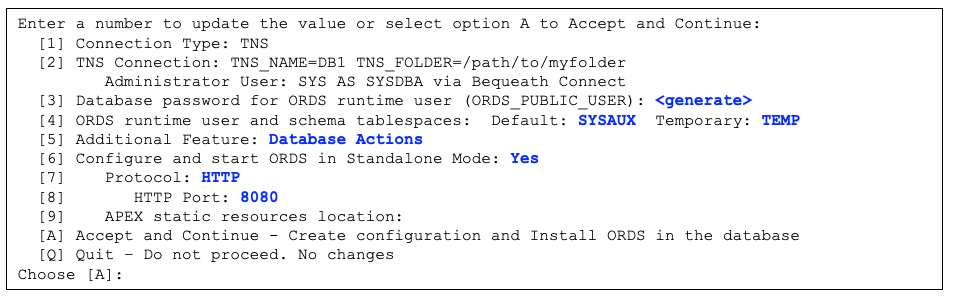
Description of the illustration multiple_options_image.bmp
Table 11 Database Pool and Standalone Configuration Prompts
| Prompt | Description |
|---|---|
|
The type of connection. Displays either Basic, TNS or Custom URL.<p>Refer to Entering a Number to Select the Database Connection</p> |
|
Displays Basic Connection if connection type is Basic.<p>Refer to Entering the Basic Connection</p> |
|
Displays TNS Connection if connection type is TNS.<p>Refer to Entering the TNS Connection</p> |
|
Displays Custom URL Connection if connection type is Custom URL.<p>Refer to Entering the Custom URL Connection</p> |
|
Defaults to generate password.<p>Refer to Entering the Password Option</p> |
|
Displays Tablespace option only if installing ORDS in the database.<p>Refer to Entering the Tablespaces</p> |
|
Defaults Additional Feature to Database Actions.<p>Refer to Entering a Number to Select the Additional Feature</p> |
|
Toggles to Yes or No.Displays option if installing ORDS in the database and not using the Bequeath Connection. Refer to Standalone Configuration |
|
Toggles to Yes or No Displays option if using the Bequeath Connection or the configuration only ( Refer to Standalone Configuration |
|
Defaults Protocol to HTTP.<p>Refer to Entering a Number to Use HTTP or HTTPS Protocol</p> |
|
{::nomarkdown}<p>Defaults HTTP Port to |
| 8080.</p><p>Displays HTTP Port if protocol is HTTP.</p><p>Refer to Entering a Number to Use HTTP or HTTPS Protocol</p> {:/} | |
|
Refer to Entering the APEX Static Resources Location |
|
Refer to Accept and Continue Option |
Accept and Continue Option
Once you are done updating and reviewing the values, select option [A] Accept and Continue. Accept and Continue includes a message on what is performed. For example, Accept and Continue - Create configuration and Install ORDS in the database option creates the database pool and ORDS is installed in the database. If configure ORDS in standalone mode is enabled, then the standalone configuration is also created or updated.
Entering the Password Option
The runtime user password for ORDS_PUBLIC_USER defaults to generate password. If you want to change the password and specify your own password, select option S to specify the password. You are prompted twice for the password.
Table 12 Example of the Password Option Prompts
| Prompt |
|---|
|
Entering the Tablespaces
The tablespace option only displays if installing ORDS in the database. Specify the default and temporary tablespaces for the ORDS database runtime user and the ORDS schema. The default value for the default tablespace is SYSAUX and the default value for the temporary tablespace is TEMP.
Table 13 Example of the Tablespaces prompts
| Prompts |
|---|
|
|
Entering a Number to Select the Additional Feature
Specify the additional feature that you want to enable.
Table 14 Example of Additional Features prompts
| Prompt |
|---|
|
Standalone Configuration
This section explains how to configure Oracle REST Data Services (ORDS) and run in a standalone mode.
Table 15 Prompts for standalone
| Prompt | Description |
|---|---|
|
Toggle the option to Note: TheConfigure and start ORDS in Standalone Mode option is displayed only if you are installing ORDS and you are not using the bequeath connection. |
|
You can toggle the option to Yes or No. A Yes indicates to configure ORDS in a standalone mode. A No indicates not to make any standalone configuration changes. Note:
If ORDS is installed in the database, and you want to run ORDS in a standalone mode, then use the |
Entering a Number to Use HTTP or HTTPS Protocol
Displays the HTTP/HTTPS Protocol prompts. Select the protocol (HTTP or HTTPS) that you want to use. Note: Oracle highly recommends to run ORDS in a standalone mode with HTTPS versus HTTP.
Entering the HTTP Port
Specify the HTTP port. The default HTTP port is 8080.
Entering the HTTPS Port
Specify the HTTPS port. The default HTTPS port is 8443.
Table 16 HTTPS Protocol Prompts
| Prompt | Description |
|---|---|
|
Select the protocol (HTTP or HTTPS) that you want to use. |
|
Specify the HTTPS port. The default HTTPS port is 8443. |
|
Refer to: |
Entering a Number to Select the Certificate Type
You have the option to select the self-signed certificate that generates automatically when running ORDS in standalone mode, or you provide the SSL certificate which requires both the SSL Certificate and its private key.
HTTPS Protocol and Use Self-Signed Certificate
Selecting the prompt Use self-signed certificate prompts you for the SSL hostname.
Table 17 Example of Use Self-Signed Certificate
| Prompt |
|---|
|
ORDS generates the Self-Signed Certificate when running ORDS in a standalone mode.
The value entered here is stored in the standalone.https.host configuration setting. The Self-Signed Certificate is generated only once and the Common Name value for that certificate is taken from the standalone.https.host configuration setting. Changing the standalone.https.host after the Self-Signed Certificate is generated does not change the Common Name in that certificate.
Table 18 HTTPS Protocol and Use Self-Signed Certificate Prompts
| Prompt | Description |
|---|---|
|
|
|
Specify the SSL Hostname. |
HTTPS Protocol and Use my SSL Certificate
Selecting Use my SSL Certificate requires you to provide an existing SSL certificate and its private key.
| Example of Use my SSL Certificate | |
|---|---|
|
|
Table 19 HTTPS Protocol and Use my SSL Certificate Prompts
| Prompt | Description |
|---|---|
|
Refer to Entering a Number to Select the Certificate Type |
|
Refer to Entering the Path for the SSL Certificate |
|
Refer to Entering the Path for the SSL Certificate’s Private Key |
Entering the Path for the SSL Certificate
Specifying the SSL certificate file location and filename.
Example:
/path/to/mycert.crt
Entering the Path for the SSL Certificate’s Private Key
Specifying the SSL certificate’s private key file location and filename.
Example
/path/to/mycert.der
Entering the APEX Static Resources Location
ORDS detects if APEX is installed in the database and if the database user APEX_PUBLIC_USER exists. If found, then it displays the APEX static resources location option. Provide the folder location of the APEX images.
Generate an Upgrade Script
Selecting the option [G] Generate script to upgrade ORDS in all the database pools, prompts you for the script location and generates the upgrade script. The upgrade script contains ORDS non-interactive (silent) command to upgrade ORDS in the database and includes the database pool to use. You can run this script in your shell environment.
Table 20 Prompts for generating a script to
| Prompts |
|---|
|
If you are using the bequeath connection and ORDS exist in the database based on your database pool connection information such as host, port, servicename/sid, then the non-interactive (silent) command includes the --bequeath-connect option.
Example:
ords --config /path/to/myconfig install --db-pool exampledb1 --bequeath-connect --db-onlyOtherwise, you must replace the --admin-user <username> with the administrator user, and the --password-stdin < <file> with a file that contains the administrator password.
Example:
ords --config /path/to/myconfig install --db-pool <pool> --admin-user <username> --db-only --password-stdin < <file>
ords --config /path/to/myconfig install --db-pool <pool> --admin-user ADMIN --db-only --password-stdin < /path/to/special.txt
Example of the Generated Upgrade Script
# ------------------------------------------------------------
# Date       : 24 Mar 2024 16:27:05
# Release    : Oracle REST Data Services 24.1.0.r0822130
# Type       : Generated Upgrade Script
# ------------------------------------------------------------

# ------------------------------------------------------------
# Database   : Oracle Database 23c Free
# DB Version : 23.3.0.23.09
# Install/upgrade command using --bequeath-connect option
# ------------------------------------------------------------

ords --config /path/to/myconfig install --bequeath-connect --db-only
ords --config /path/to/myconfig install --db-pool exampledb1 --bequeath-connect --db-only
ords --config /path/to/myconfig install --db-pool exampledb2 --bequeath-connect --db-only
ords --config /path/to/myconfig install --db-pool exampledb3 --bequeath-connect --db-only
ords --config /path/to/myconfig install --db-pool fxdb50 --bequeath-connect --db-only

# ------------------------------------------------------------
# Install/upgrade command using --db-only option
# ------------------------------------------------------------

ords --config /path/to/myconfig install --db-pool hrdb105 --admin-user <username> --db-only --password-stdin < <file>
ords --config /path/to/myconfig install --db-pool sampledb7 --admin-user <username> --db-only --password-stdin < <file>
ords --config /path/to/myconfig install --db-pool sampledb8 --admin-user <username> --db-only --password-stdin < <file>
ords --config /path/to/myconfig install --db-pool sampledb9 --admin-user <username> --db-only --password-stdin < <file>
ords --config /path/to/myconfig install --db-pool testdb111 --admin-user <username> --db-only --password-stdin < <file>
ords --config /path/to/myconfig install --db-pool testdb222 --admin-user <username> --db-only --password-stdin < <file>
ords --config /path/to/myconfig install --db-pool testdb333 --admin-user <username> --db-only --password-stdin < <file>
Specify the Database Pool Name to Upgrade ORDS
The option Specify the database pool name to upgrade ORDS prompts you for the database pool name. If the database pool name exists in your ORDS configuration, then ORDS is upgraded in the database.
Example:
Enter the database pool name: db1Setup Bequeath Connection for Interactive Install
You can use the bequeath connection to install and upgrade Oracle REST Data Services in the database.
Note: For bequeath connections, if you access the database using a fully qualified domain name (FQDN), then the target database must have a domain that matches the DNS domain of the host machine. Ensure that the instance parameter db_domain is set to the same domain. A mismatch may prevent ORDS from establishing a bequeath connection.
The bequeath connection enables ORDS to connect directly to an Oracle database bypassing the network listener. You can then execute ORDS on the same server as the database.
Administrator username and password are not required for using the bequeath connection. To use the bequeath connection, set the following environment variables:
-
ORACLE_HOME -
ORACLE_SID -
LD_LIBRARY_PATH (points to the $ORACLE_HOME/lib)
You can then execute one of the following ORDS CLI commands to install ORDS:
Note: --java-options "-DuseOracleHome=true" option is mandatory for using the bequeath connection to install/upgrade, repair or uninstall ORDS.
-
ords --java-options "-DuseOracleHome=true" install -i --bequeath-connectCreates a database pool or upgrades ORDS that are in the database pool(s).
-
ords --java-options "-DuseOracleHome=true" install -i --bequeath-connect --db-onlyInstall or upgrade ORDS that are in the database pools, or specify the database connection. Here, the configuration is not created or updated.
Non-Interactive Command-Line Interface Installation (Silent)
The non-interactive command-line interface (CLI) installation or silent installation, performs the following tasks:
-
Creates or updates the ORDS configuration files
-
Installs or upgrades the ORDS schema
-
Creates the ORDS proxy user and the related objects in the Database
The non-interactive installation command does not run ORDS in standalone mode. If you want to run ORDS in standalone mode, then it must be followed by the ords serve command.
Note: If you have setup your OS environment to use the bequeath connection, then ensure that the JDK_JAVA_OPTIONS does not contain the useOracleHome=true prior to using the ords serve command. Remove useOracleHome from the environment variable JDK_JAVA_OPTIONS or unset JDK_JAVA_OPTIONS.
If you provide the command-line options for the non-interactive installation and if you are missing a required option (for example: Basic connection requires the db-port option), then an error message is displayed.
The --db-pool <pool_name> option specifies the database pool to create or update. If the --db-pool option is omitted, then it defaults to the default database pool.
-
Non-interactive (Silent) ORDS Operations Using the Bequeath Connection
-
Understanding Command Options for Command-Line Interface Installation
Non-interactive (Silent) ORDS Operations Using the Bequeath Connection
You can use the bequeath connection to install or upgrade, repair and uninstall Oracle REST Data Services in the database.
The bequeath connection enables ORDS to connect directly to an Oracle database bypassing the network listener. You can then execute ORDS on the same server as the database.
Using the bequeath connection, administrator username, and password are not required. Set the following environment variables to use the bequeath connection:
-
ORACLE_HOME -
ORACLE_SID -
LD_LIBRARY_PATH (points to the $ORACLE_HOME/lib)
Note: `–java-options
            "-DuseOracleHome=true"` option is mandatory for using the bequeath connection to install/upgrade, repair or uninstall ORDS.
            {: .infoboxnote}
Examples using ORDS install command using the –bequeath option:
Example 2-2 Basic Connection
ords --java-options "-DuseOracleHome=true" --config <PATH TO CONFIG> install --db-pool <POOL NAME> --
bequeath-connect --db-hostname <DB HOST> --db-port <DB PORT> --
db-servicename <DB SERVICENAME> --proxy-user --feature-sdw true
--log-folder <LOG FOLDER> --password-stdin < <PATH TO FILE>
Example 2-3 TNS Connection
ords --java-options "-DuseOracleHome=true" --config <PATH TO CONFIG> install --db-pool <POOL NAME> --
bequeath-connect --db-tns-alias <TNS ALIAS> --db-tns-dir <TNS
FOLDER> --proxy-user --feature-sdw true --log-folder <LOG
FOLDER> --password-stdin < <PATH TO FILE>
Example 2-4 Custom URL Connection
ords --java-options "-DuseOracleHome=true" --config <PATH TO CONFIG> install --db-pool <POOL NAME> --
bequeath-connect --db-custom-url <Custom URL> --proxy-user --
feature-sdw true --log-folder <LOG FOLDER> --password-stdin <
<PATH TO FILE>
Note: If you omit --db-pool option, then the settings are written to the default pool settings file.
Example of the ords install --db-only command to upgrade an existing database pool.
ords --java-options "-DuseOracleHome=true" --config <PATH TO CONFIG> install --db-pool <POOL NAME> --bequeath-connect --db-onlyNote: If you omit --db-pool option, the upgrade occurs using the default pool.
Example of the ords install repair command using an existing database pool:
ords --java-options "-DuseOracleHome=true" --config <PATH TO CONFIG> install repair --db-pool <POOL NAME> --bequeath-connectNote: If you omit --db-pool option, the repair occurs using the default pool.
Example using ords uninstall command using an existing database pool:
ords --java-options "-DuseOracleHome=true" --config <PATH TO CONFIG> uninstall --db-pool <POOL NAME> --bequeath-connectNote: If you omit --db-pool option, the uninstall occurs using the default pool.
Understanding Command Options for Command-Line Interface Installation
Table 21 Command Options for Command-Line
| Options | Description |
|---|---|
--admin-user <USERNAME> |
Specifies the user with privileges to install or upgrade ORDS in the database, or obtains the ORDS status information. |
--bequeath-connect |
Specifies that bequeath connect that enables clients to connect directly to an Oracle database bypassing the network listener. This is when the client is on the same server as the database. Refer to Oracle REST Data Services documentation to setup your environment to use the –bequeath-connect option. |
--config <CONFIG_PATH> |
Specifies the path to the folder containing the configuration files. |
--config-only |
Specifies to create or update the configuration only. |
--db-only |
Specifies to install or upgrade ORDS in the database and not to create or update the configuration files. |
--db-pool <POOL_NAME> |
Specifies the name of the database pool to create, update or use. If the db-pool option is omitted, then the default database pool is used. |
--db-custom-url <URL> |
Specifies the custom database url for the database connection. |
--db-hostname <HOST> |
Specifies the database host name. |
--db-port <PORT> |
Specifies the database port. |
--db-servicename <SERVICENAME> |
Specifies the database service name. |
--db-sid <SID> |
Specifies the database SID. |
--db-tns-alias <ALIAS_NAME> |
Specifies the TNS alias name that exists in the tnsnames.ora file. |
--db-tns-dir <TNS_DIR> |
Specifies the folder where the tnsnames.ora file is located. |
--feature-db-api <BOOLEAN> |
Specifies if you want to enable DB API feature. Possible values are:true or false.
Returns an error if the specified options are |
--feature-rest-enabled-sql <BOOLEAN> |
Specifies if you want to enable REST-Enabled SQL feature. Possible values are:true or false.
Returns an error if the specified options are |
--feature-sdw <BOOLEAN> |
Specifies if you want to enable Database Actions feature. Possible values are:
If the option is set to
Returns an error if
|
--gateway-mode <MODE> |
Specifies the PL/SQL gateway mode. Possible values are: Default value is
|
--gateway-user <USER> |
Specifies the user that exists in the Oracle database and has privileges to access the stored procedures. |
--interactive, -i |
Prompts user for all the required information. |
--help, -h |
Shows how to use the command. |
--legacy-config <FOLDER> |
Specify the legacy configuration folder to migrate to the revised configuration structure. |
--legacy-context <STRING> |
Specifies the context (example: ords, apex, and so on.) that was used in the legacy configuration. |
--log-folder |
Writes the logs from the install, upgrade, repair or uninstall to the log folder. If this option is omitted, then the output is written to standard output. |
--password-stdin |
To run the ORDS install, upgrade, repair, or uninstall command non-interactively, use this option to read the password value from standard input when redirecting input to a file or here document. |
--pdb-exclude <(PDB...)> |
Specifies the option applicable for CDB. List of PDBs that are excluded from the ORDS install/upgrade, or repair. |
--pdb-open-readwrite-all |
Specifies the option applicable for CDB. Specifies whether to open all PDBs in read write mode if their status is either closed or read only. |
--pdb-open-readwrite <(PDB...)> |
Specifies the option applicable for CDB. List of PDBs that are read-only or closed to be open for read/write to install, upgrade, repair, or uninstall ORDS. |
--pdb-skip-readonly |
Specifies the option applicable for CDB. Skips PDBs that are read-only. If this option is omitted, an error message is returned informing the user that the PDB(s) are read-only for install or upgrade ORDS. Excludes |
--pdb-skip-closed |
Specifies the option applicable for CDB. Skips PDBs that are closed (mounted). If this option is omitted, an error message is returned informing the user that the PDB(s) are closed for installation/upgradation of ORDS. |
--proxy-user |
Specifies the password of the ORDS database user (ORDS_PUBLIC_USER) that is in a file or in a here document when redirecting the standard input. |
--proxy-user-tablespace <TABLESPACE> |
Specifies the option applicable for ORDS install. The default tablespace for proxy user (For example: If this option is omitted, then the defaulted database default tablespace is used. |
--proxy-user-temp-tablespace <TABLESPACE> |
Specifies the option applicable for an ORDS install. The temporary tablespace for proxy user (For example: If this option is omitted, then the defaulted database temporary tablespace is used. |
--schema-tablespace <TABLESPACE> |
Specifies the default tablespace for If this option is omitted, then the defaulted database default tablespace is used. |
--schema-temp-tablespace <TABLESPACE> |
Specifies the option applicable for an ORDS install. The temporary tablespace for If this option is omitted, then the defaulted database temporary tablespace is used. |
Using Input Redirection
This section describes how to redirect the standard input using the here command or to a file.
Redirect STDIN to a file
Redirect STDIN to a file that contains the password. In the following example, the file must contain two passwords. Each password must be on a separate line.
Example:
$ cat password.txt
firstpassword
secondpassword
The first password belongs to the first user on the command line (for example: SYS). The second password belongs to the second user on the command line (for example: proxy-user).
ords --config <configuration_folder> install --db-pool <pool_name> --admin-user <username> --proxy-user
--db-hostname <host> --db-port <port_number> --db-servicename <service_name>
--log-folder <log_folder> --feature-sdw <boolean> --password-stdin < <filename>
Example:
ords --config /path/to/conf install --db-pool db1 --admin-user SYS --proxy-user --db-hostname localhost
--db-port 1521 --db-servicename orcl --log-folder /path/to/logs --feature-sdw true
--password-stdin < password.txt
Redirect Standard Input Using Here Document
Redirect STDIN using the Here document (also known as heredoc) for the password(s). The heredoc consists of the ‘<<’ redirection operator followed by a delimiter token.
Each password must be on a separate line and it is ended by the delimiter token.
Example:
The first password belongs to the first user on the command line (for example: SYS). The second password belongs to the second user on the command line (for example: proxy-user).
ords --config <configuration_folder> install --db-pool <pool_name> --admin-user <username> --proxy-user --db-hostname
 <host> --db-port <port_number> --db-servicename <service_name> --log-folder <log_folder> --feature-sdw <boolean>
--password-stdin << EOF
<password1>
<password2>
EOF
ords --config /path/to/conf install --db-pool db1 --admin-user SYS --proxy-user --db-hostname
localhost --db-port 1521 --db-servicename orcl --log-folder /path/to/logs --feature-sdw true
--password-stdin << EOF
<password1>
<password2>
EOFConfiguring ORDS to use with APEX
APEX requires PL/SQL Gateway access to ORDS.
To configure ORDS to use with APEX, once APEX installation is completed, run the following command:
Note: If you have a single database pool (for example: pool named default), then omit the --db-pool option.
ords --config <config path> config --db-pool <pool name> set plsql.gateway.mode proxiedExample 2-5
ords --config /path/to/config config set plsql.gateway.mode proxiedords --config /path/to/config config --db-pool db1 set plsql.gateway.mode proxiedRestart ORDS, you can then access APEX from the ORDS landing page:
http://<host>:<port>/ordsRepairing the Oracle REST Data Services Installation
If you want to check that the Oracle REST Data Services installation is valid, specify the repair command.
Note: To repair ORDS in the database, the ORDS product version must be the same version as the ORDS installed schema version in the database.
Example of repair command to prompt for information:
ords [--config <folder>] install repair --interactive [--log-folder <folder>]If you have an existing configuration, you may choose to select from a list of database pools. You also have the option to specify the database connection for ORDS to be installed. You are prompted to provide the administrator username and password.
Example
Oracle REST Data Services - Interactive Repair

  Enter a number to select the database pool to use or specify the database connection
    [1] default      jdbc:oracle:thin:@//localhost:1521/orcl
    [2] sales          jdbc:oracle:thin:@//localhost:1521/pdb1
    [S] Specify the database connection
  Choose [1]:
  Provide database user name with administrator privileges.
    Enter the administrator username: SYS
    Enter the database password for SYS AS SYSDBA:
<div class="infoboxnote" markdown="1">
**Note:**
If you install Oracle REST Data Services before APEX run the following command to ensure that the ORDS configuration for your database pool contains the PL/SQL gateway mode setting and is set to `proxied`.
If you have a single database pool (for example: pool named `default`), then omit the `--db-pool` option.
<pre class="copy"><code>ords --config <config_path> --db-pool <pool_name> get plsql.gateway.mode</code></pre>
Run the following command to set `plsql.gateway.mode` value to `proxied`:
<pre class="copy"><code>ords --config <config_path> config --db-pool <pool_name> set plsql.gateway.mode proxied</code></pre>
</div>
- Command Options for Repair CLI This section describes the interactive and non-interactive install repair CLI commands used to repair the ORDS schema in the database.
Command Options for Repair CLI
This section describes the interactive and non-interactive install repair CLI commands used to repair the ORDS schema in the database.
Table 22 Command Options for Repair CLI
| Command | Description |
|---|---|
--admin-user <string> |
Specifies the user with privileges to install, upgrade, or uninstall ORDS in the database. |
--bequeath-connect |
Specifies that the bequeath connect enables clients to connect directly to an Oracle database bypassing the network listener. This occurs if client is on the same server as the database. |
--db-custom-url <url> |
Specifies the custom database url for the database connection. |
--db-hostname <string> |
Specifies the database host name. |
--db-pool <string> |
Specifies the name of the database connection pool. |
--db-port <int> |
Specifies the database port. |
--db-servicename <string> |
Specifies the database service name. |
--db-sid <string> |
Specifies the system identifier which is a unique name that identifies the database. |
--db-tns-alias <string> |
Specifies the TNS alias name that exist in the tnsnames.ora file. |
--db-tns-dir <folder> |
Specifies the folder where the tnsnames.ora file is located. |
-h, --help |
Shows how to use and provides information of the command. |
-i, --interactive |
Prompts for the required information. |
--log-folder <folder> |
Writes the logs from the install, upgrade or uninstall to the log folder. If this option is omitted, then the output is written to standard output. |
--password-stdin |
Specifies to use this option to read the password value from standard input when redirecting input to a file or here document when you run the ords install or uninstall command non-interactively, If the --password-stdin option and the redirection symbol (“<” or “«”) are omitted, then you are prompted for the password(s) for the command option(s) that require the password. |
--pdb-exclude <string...> |
Specifies the list of PDBs that are excluded from the ORDS install, upgrade, or repair. This option only applies to the CDB. |
--pdb-open-readwrite <string...> |
Specifies the list of PDBs that are read only or closed to be open for read write for ORDS install, upgrade, repair or uninstall. This option only applies to the CDB. |
--pdb-open-readwrite-all |
Specifies to open all PDBs in read write mode if their status is either closed or read only. This option only applies to the CDB. |
--pdb-skip-closed |
Skips PDBs that are closed (mounted). This option only applies to the CDB. |
--pdb-skip-readonly |
Skips PDBs that are read-only. This option only applies to the CDB. |
Upgrading Oracle REST Data Services
This section describes how to upgrade to Oracle REST Data Services latest release.
Upgrading from ORDS 21.4.x or earlier releases
If you are planning to upgrade from version 21.4.x or earlier releases, then refer to the Migration of Legacy Configuration section before proceeding. Starting with ORDS version 22.1, changes to both URL mapping and the configuration directory structure were implemented. Ensure you review these changes and then prepare your migration strategy accordingly.
Upgrading from ORDS 22.1.x or later
If you are upgrading from ORDS 22.1.x or later releases, then refer to the following sections:
-
Non-Interactive Command-Line Interface Installation (Silent)
-
Migrate Configuration and Upgrade from ORDS 21.4.x or Earlier Releases This section describes how to upgrade from ORDS 21.4.x or earlier releases.
Migrate Configuration and Upgrade from ORDS 21.4.x or Earlier Releases
This section describes how to upgrade from ORDS 21.4.x or earlier releases.
To upgrade to ORDS 22.x from ORDS 21.4.x or earlier releases:
Provide the location of your configuration files that were used from your previous ORDS release (21.4.x or earlier). If you do not know the location, then specify the command using your previous ORDS release (21.4.x or earlier).
java -jar /path/to/earlierRelease/ords.war configdir
Example:
java -jar /path/to/earlierRelease/ords.war configdir

INFO   The config.dir value is /path/to/legacy/conf
In the preceding example /path/to/legacy/conf is configuration location
You can upgrade to ORDS 22.x release from ORDS 21.4.x or earlier releases in the following two ways:
Interactive Upgrade
Interactive Upgrade
Specify the following install command to migrate your configuration, and to upgrade ORDS in your specified database:
ords --config <folder> install -i --legacy-config <folder> --log-folder
    <folder>
Table 23 Interactive Upgrade
| Command Options | Description |
|---|---|
--config <folder> |
Specifie the configuration folder to store your migrated configuration files. Your configuration folder must not be in the same location as your legacy configuration folder. Otherwise, an error occurs. |
-i or --interactive |
Specifies to run the command in interactive mode. You are then prompted for the information. |
--legacy-config <folder> |
Specifies to provide the location of your configuration files that you used for ORDS 21.4.x or earlier releases. |
--log-folder <folder> |
Specifies to provide the location to store your log file. |
ords --config /path/to/new/conf install -i --legacy-config /path/to/legacy/conf --log-folder /path/to/logs

Oracle REST Data Services 24.x.x.rNNNNNN - Migrate Configuration
Migrating ORDS Configuration files located at /path/to/legacy/conf
...

Legacy configuration files located at /path/to/legacy/conf/ords are no longer being used
to configure ORDS or its connection pools.
Your migrated configuration files are now located at /path/to/new/conf

Oracle REST Data Services - Interactive Install

  Enter a number to select the database pool to upgrade ORDS.
  Additional options to Generate script, or Create an additional database pool.
    [1] default      jdbc:oracle:thin:@//localhost:1521/orcl
    [2] db1          jdbc:oracle:thin:@//localhost:1521/pdb1
    [3] db2          jdbc:oracle:thin:@//localhost:1521/pdb2
    [G] Generate script to upgrade ORDS in all the database pools
    [C] Create an additional database pool
  Choose [1]:
A list of the migrated database pools are displayed. The legacy configuration database pool named apex is migrated, and the name is changed to default.
If you have multiple database pools to upgrade, you can either select the option Generate a script to upgrade ORDS in all the database pools, or repeat the install command again excluding the --legacy-config option since you have already migrated the configuration.
Example:
ords --config /path/to/new/conf install -i --log-folder /path/to/logsSee Also: Scenario 3: Multiple Database Pools
Silent Upgrade
To do a silent upgrade you must provide the following:
-
Legacy configuration location
-
The database password for the administrator user The database password can be in a text file or using a
Heredocument. If you are using a text file, then ensure to delete the text file when the upgradation is complete. The legacy configuration database pool namedapexis migrated, and the name is changed todefault.
If you omit the --database-pool <name> option, then it uses the default database pool to upgrade.
Using a Text File
You can redirect standard input using a text file that contains the password. Delete the text file once you complete the upgrade operation.
ords --config <folder> install --admin-user <user> --legacy-config <folder> --log-folder <folder>
      --password-stdin <  <text-file>
**Example of using a
The text file contains 1 password for --admin-user <user>

ords --config /path/to/new/conf install --admin-user SYS --legacy-config /path/to/legacy/conf
--log-folder /path/to/logs --password-stdin < adminpwd.txt
Using a Here Document
You can redirect Standard Input using the Here document (also known as heredoc) for the password(s). The heredoc consists of the << redirection operator followed by a delimiter token once the upgrade operation completes. If you are using a script that contains the password(s), then delete the script.
ords --config <folder> install --admin-user <user> --legacy-config <folder> --log-folder <folder> --password-stdin <<  <delimiter-token>
> <password>
> <delimiter-token>
ords --config /path/to/new/conf install --admin-user SYS --legacy-config /path/to/legacy/conf --log-folder
/path/to/logs --password-stdin << EOF
> <password for admin-user>
> EOFUpgrading the Multiple Database Pools
Oracle highly recommends that if you have multiple database pools that uses a PL/SQL gateway user, then you must also upgrade those database pools using the ords install command so that the PL/SQL gateway user is configured in the ORDS schema.
Uninstalling Oracle REST Data Services
This section describes the interactive and non-interactive uninstallation CLI commands used to uninstall the ORDS schema.
Interactive Uninstall CLI
The interactive uninstallation CLI prompts you for the necessary information to uninstall the ORDS schema, ORDS proxy user and related database objects from the database.
To be prompted, you must execute one of the following commands:
-
Specify the uninstall command only. For example:
$ ords uninstallNote: Assumes that the configuration folder is specified through the environment variable or you are defaulting to the current working directory. -
Specify the option
--config <configuration folder>followed by the uninstall command. For example:$ ords --config /path/to/config uninstall -
Specify the
--interactiveoption.For example:
$ ords --config /path/to/config uninstall --interactive
Table 24 Interactive Uninstall Prompts
| Prompt Number | Prompt | Description |
|---|---|---|
| 1. | |
Refer to Entering a Number to Select the Database Pool |
| 2. | |
Refer to Entering a Number to Select the Database Connection Type |
| 3. | |
Refer to Entering the Database Host Name |
| 4. | |
Refer to Entering the Database Listener Port |
| 5. | |
Refer to Entering the Database Service Name |
| 6. | |
Refer to Entering the TNS Location |
| 7. | |
Refer to Entering a Number to Select the TNS Network Alias |
| 8. | |
Refer to Entering the Custom Database URL |
| 9. | |
Refer to Entering the Administrator Username |
| 10. | Enter the database password for SYS AS SYSDBA: |
Refer to Entering the Database Password for SYS AS SYSDBA |
| 11. | |
Refer to Entering an Option for Uninstalling ORDS |
-
Entering a Number to Select the Database Connection Type Select the database connection type.
-
Entering the Database Host Name Specify the database host name for basic connection.
-
Entering the Database Listener Port Specify the database port for a basic connection.
-
Entering the Database Password for SYS AS SYSDBA Specify the administrator user password.
Entering a Number to Select the Database Pool
You get this prompt only if the configuration pool(s) exists in the configuration folder.
-
If you select a database pool, then it bypasses the database connection type and prompts you for the administrator username and password.
-
If you select option 2, then you get the prompt number 2. Note: If the configuration pool(s) does not exist in your configuration folder, then it prompts you for the database connection type.
Entering a Number to Select the Database Connection Type
Select the database connection type.
Entering the Database Host Name
Specify the database host name for basic connection.
Entering the Database Listener Port
Specify the database port for a basic connection.
Entering the Database Service Name
Specify the service name. The default value for the service name is obtained from one of the following in the given sequence:
-
The service name setting in the ORDS configuration file. If not present, then
-
It checks for
ORACLE_PDBenvironment variable. If undefined, then -
It checks for
ORACLE_SIDenvironment variable. If undefined, then -
It uses
orclas the default value.
Entering the TNS Location
Specify a valid folder of where the tnsnames.ora file is located.
Entering a Number to Select the TNS Network Alias
Select the TNS alias name from the list of TNS network alias names displayed.
Entering the Custom Database URL
Specify the custom database URL for custom database URL connection.
Example URL formats:
jdbc:oracle:<driver>:@//<host>:<port>/<servicename>
jdbc:oracle:thin:@//localhost:1521/orcl

jdbc:oracle:<drivertype>:@(DESCRIPTION=(ADDRESS=(PROTOCOL=TCP)(HOST=<host>)(PORT=<port>))(CONNECT_DATA=(SERVICE_NAME=<servicename>)))
jdbc:oracle:thin:@(DESCRIPTION=(ADDRESS=(PROTOCOL=TCP)(HOST=localhost)(PORT=1521))(CONNECT_DATA=(SERVICE_NAME=orcl)))
Entering the Administrator Username
Specify a user who has installer privileges to install or upgrade ORDS in the database.
See Also: Privileges Granted to the Oracle REST Data Services Users
Entering the Database Password for SYS AS SYSDBA
Specify the administrator user password.
Entering an Option for Uninstalling ORDS
If the ORDS enabled or disabled schemas exist, and the --force command option is not specified, then it displays the enabled or disabled schemas and prompts for a confirmation to uninstall ORDS in the database.
If the --force command option is specified, then the uninstall confirmation is not shown,
Non-Interactive Uninstall CLI
The non-interactive uninstall CLI uninstalls the ORDS schema, ORDS proxy user, and related database objects from the database.
Provide the command options for the non-interactive uninstall CLI. If you are missing a required option (for example, db-port for a connection), then you are not prompted. Instead, an error is returned.
Using Input Redirection
This section describes how to redirect standard input using Here document or to a file.
Redirect Standard Input to a File
Redirect STDIN to a file that contains the password. In the following example, the file contains one password.
Example:
$ cat adminpwd.txt
password
The password belongs to the administrator user on the command line (for example: SYS). This example assumes that the config folder and the db1 pool already exists.
ords --config /path/to/conf uninstall --db-pool db1 --admin-user SYS --log-folder /path/to/logs --password-stdin < adminpwd.txt
Redirect Standard Input using Here Document
Redirect STDIN using the Here document (also known as heredoc) for the password. The heredoc consists of the << redirection operator followed by a delimiter token.
The password must be on a separate line and it is ended by the delimiter token.
Example:
ords --config <configuration_folder> uninstall --db-pool <pool_name> --admin-user <username>
--db-hostname <host> --db-port <port_number> --db-servicename <service_name> --log-folder <log_folder>
--password-stdin << EOF
<password>
EOF
The password belongs to the the administrator user on the command line. (for example: SYS).
ords --config /path/to/config uninstall --db-pool db1 --admin-user SYS --db-hostname
      localhost --db-port 1521 --db-servicename orcl --log-folder /path/to/logs << EOF
<password>
EOF
Command options for Uninstall CLI
Table 25 Command Options for Uninstall
| Options | Description |
| — | — |
| --admin-user <USERNAME> | Specifies the user with privileges to install, upgrade, repair, or uninstall ORDS in the database. |
| --bequeath-connect | Specifies that the bequeath connect enables clients to connect directly to an Oracle database bypassing the network listener. This occurs if client is on the same server as the database. |
| --config <CONFIG_PATH> | Specifies the path to the folder containing the configuration files. |
| --db-pool <POOL_NAME> | Specifies the name of the database pool. |
| --db-custom-url <URL> | Specifies the user specified custom url. |
| -db-hostname <HOST>- | Specifies the database host name. |
| --db-port <PORT> | Specifies the database port. |
| --db-servicename <SERVICENAME> | Specifies the database service name. |
| --db-sid <SID> | Specifies the database SID. |
| --db-tns-alias <ALIAS_NAME> | Specifies the tns alias name that exists in the tnsnames.ora file. |
| -db-tns-dir <TNS_DIR>- | Specifies the folder where the tnsnames.ora file is located. |
| --force | Specifies that you can uninstall ORDS from the database regardless of the number of ORDS enabled/disabled schemas. |
| ` –help, -h | Shows how to use the command. |
| –interactive, -i | Prompts the user for all the required information. |
| –log-folder | Writes the logs from the install, upgrade, repair, or uninstall to the log folder. If this option is omitted, then the output is written to the standard output. |
| -password-stdin | Specifies when you want to run the ORDS install or uninstall command non-interactively, you can use this option to read the password value from standard input when redirecting input to a file or here document. If the –password-stdin option and the redirection symbol ("<" or "<<") are omitted, you are prompted for the password(s) for the command option(s) that requires the password. |
| –pdb-open-readwrite-all | {::nomarkdown}<p>Specifies the option applicable for CDB.</p><p>Specifies whether to open all PDBs in read write mode if their status is either closed or read only.</p> {:/} |
| –pdb-open-readwrite <(PDB…)>` |
Specifies the option applicable for CDB.
Specifies the list of PDBs that are readonly or closed to be open for readwrite to uninstall ORDS.
|Updating the Configuration Settings
The ORDS config command is used to update and edit the contents of the global and database pool specific settings in the configuration files.
The config command comprises a list of sub-commands. The config command has the --db-pool <POOL_NAME> option that identifies the database pool to which you want to apply the setting. If this option is omitted, then the default database pool settings get updated.
ords config [OPTIONS] [SUB-COMMAND]
Where:
-
OPTIONS:
-
--db-pool <string>: The name of the database connection pool to configure -
-h, --help: Show usage information for the command
-
-
SUB-COMMAND:
delete,get,info,list,secret,set, anduser
info
Following is the list of sub-commands along with the descriptions:
Shows the description of the specified key, explaining its purpose. Indicates if it is a sensitive value and what is the default value.
Example: ords config info <KEY>
set
Sets the config key to a value. If you wish the setting to be set at a global level, then use the --global option.
Example: ords config set [--global] <KEY> <VALUE>
secret
Sets the sensitive values (for example: connection pools password). Use ords config secret to set the sensitive values. Some values are sensitive (example: db.password). Per Oracle Secure Coding Standards such values must not be passed as command line arguments as this leads to leakage of the value (appears in ps output).
Example: ords config secret --password-stdin <KEY> < <file>
Note: If an attempt is made to do ords config set on a sensitive value, an error is returned.
Non-Interactive example:
If the --password-stdin option is specified, then the value is read from stdin.
Example:
ords config secret --password-stdin db.password < secret.txtInteractive Example
If --password-stdin is not specified, then the user is prompted to enter and confirm the secret value.
Example:
ords config secret db.passwordget
Echo the config value to stdout. If the value is a secret then it’s value will be replaced by the text ******. If you wish to see the plain text of the secret, then use the --secret argument.
Example: ords config get [--global] [--secret] <KEY>
list
Show all explicitly configured values for the pool settings and global settings. Secret values are replaced with the text ******. Use --include-defaults to list all the settings including those with the default values.
Example: ords config list [--include-defaults]
The information lists the name of the setting, value, and the source location (global configuration, pool specific configuration, or global/pool wallet. The table includes the columns such as
-
Setting: Name of the setting -
Value: The value of the setting -
Source: Location of the global/pool specific setting
For example the output is similar to the following:
Configuration: /path/to/conf/

Database pool: default

Setting                        Value                      Source
-------------------         ---------------            ------
db.connectionType           basic                      Pool
db.hostname                 localhost                  Pool
db.password                 ******                     Pool Wallet
db.port                     1521                       Pool
db.servicename              orcl                       Pool
db.username                 ORDS_PUBLIC_USER           Pool
feature.sdw                 true                       Pool
restEnabledSql.active       true                       Pool
The column Source indicates the origin of the setting value which can be any one of the following:
-
Default: Uses the default value for the setting -
Global: The value is specified in the global/settings.xml configuration file -
Pool:The value is explicitly configured in the pool -
Pool Wallet:The (sensitive) value is explicitly configured in the pool wallet
user delete
Deletes the key from the configuration.
Example: delete [--global]
user add
Add a user and its password and role(s) in the credentials file. If the user already exists, then it is updated.
Non-interactive
Include option --password-stdin to read from STDIN. Requires the password file of the user.
Example:
ords config user add <USERNAME> <ROLES>
Enter the password:
Confirm password:
Interactive
Prompts for the password if --password-stdin option is omitted.
Example:
ords config user add <USERNAME> <ROLES>
Enter the password:
Confirm password:
user delete
ords config user delete <USERNAME>Delete the specified user.
user get
ords config user get <USERNAME>Retrieve the specified user.
user list
ords config user listLists the users in the credential file.
  <div class="infoboxnote" markdown="1">

  **See Also:**

  - [Understanding the Configurable Settings](about-REST-configuration-files.html#GUID-006F916B-8594-4A78-B500-BB85F35C12A0 "This section lists the configuration settings for the settings.xml and pool.xml configuration files, and secure settings for the wallet.")

  - [Setting Up the Configuration Folder Structure](installing-and-configuring-oracle-rest-data-services.html#GUID-A12A1E26-3AE1-4DB9-901B-2168613D467A "This section describes how to set up the configuration folder structure.")

  </div>