Using the Graph Server Administrator Dashboard
The graph server administrator can efficiently track and manage the memory usage of the graph server (PGX) using the Administrator Dashboard.
Access to the Administrator Dashboard depends on your authorization level:
- If you have the
PGX_SERVER_GET_INFOprivilege that is granted through theGRAPH_ADMINISTRATORrole, then you can view server-wide memory usage, session, and graph information. You can also terminate your own sessions. If you also have thePGX_SERVER_MANAGEprivilege granted through the same role, then you can terminate other users’ sessions. - If you are an authenticated non-administrator having the
GRAPH_DEVELOPERrole, then you can view information only about your own sessions and the graphs visible or referenced through those sessions. You can also terminate your own sessions. This access is read-only and you cannot view other users’ data.
Perform the following steps to access the Administrator Dashboard:
-
Open the following URL in your web browser.
https://<server_host>:7007/graphstudio/The Oracle Graph Studio login screen opens.
-
Enter your Username and Password.
-
Click Sign In.
-
Click the hamburger icon in the top left of the page to open the navigation menu.
The following image shows the Administrator Dashboard options displayed for the graph server administrator:
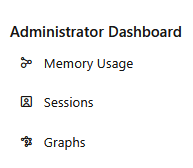
Description of the illustration admin_menu.png
The following image shows the Administrator Dashboard options displayed for an authenticated non-administrator having the
GRAPH_DEVELOPERrole: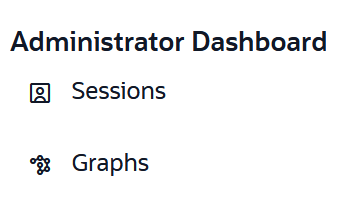
Description of the illustration admin_dashboard_non_admin.png
The following topics describe the Administrator Dashboard menu options in detail:
-
Memory Usage
The Memory Usage dashboard provides in-depth information on the amount of memory used by the graph server (PGX). -
Sessions
Sessions Manager displays the active user sessions available to the current user. -
Graphs
Graphs Manager lists the graphs that you are authorized to view and provides the total memory usage for each graph.