Creating a Hotspot
What is a Hotspot?
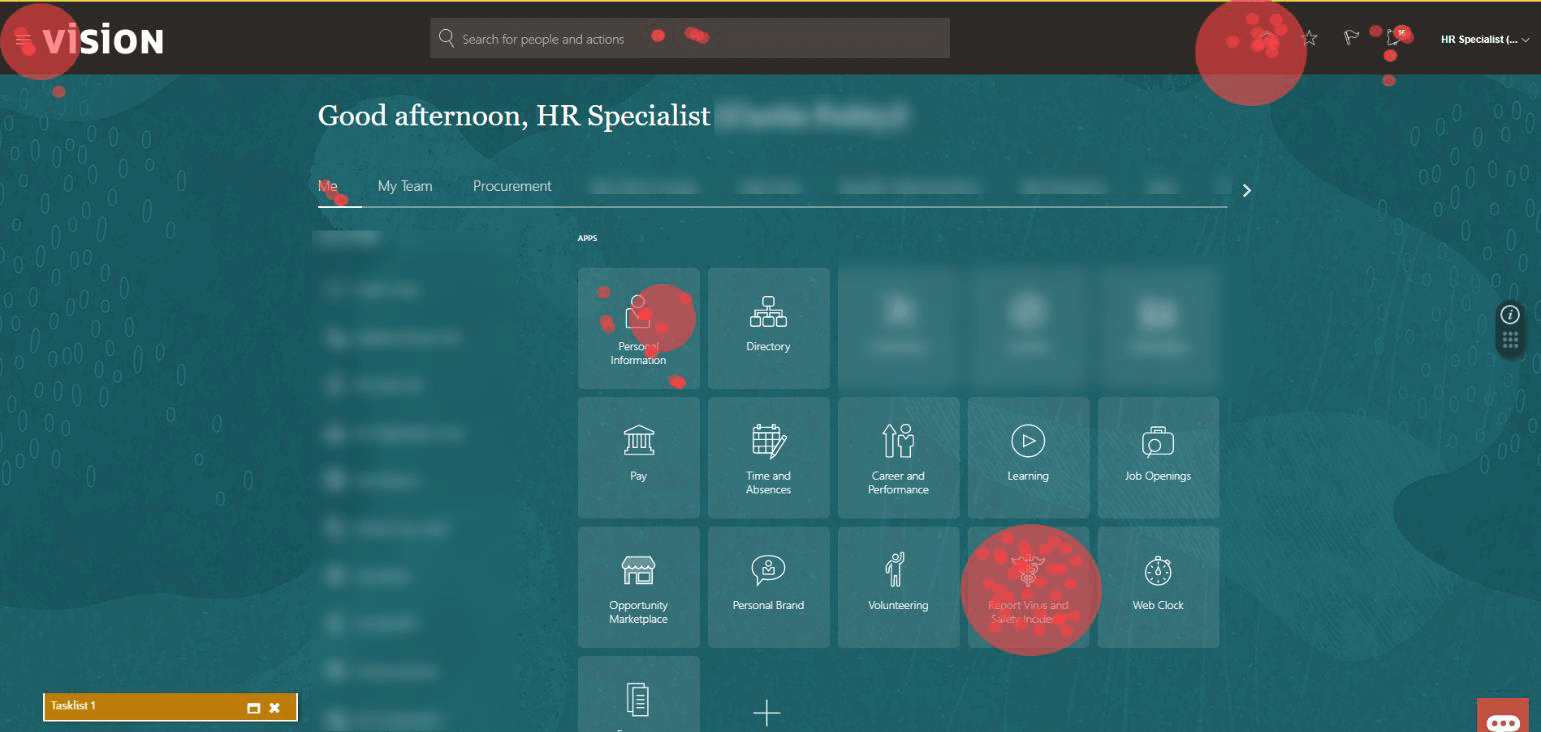
A Hotspot is a type of "event listener" that allows you to gather critical information on how your users interact with and use your application. In principle, Hotspots are a variation of Launchers; while Launchers listen for an event, and when that event occurs (i.e., a click of a button), OGL launches an item. Hotspots listen for an event, and when that event occurs, OGL registers that event in analytics. Use this feature to set up hotspots around your application to gain insight into how users navigate or monitor key differences between starting a process and not submitting it.
The image illustrates what the invisible Hotspots would look like on the application and the analytics dashboard after a month of use.
Creating a Hotspot
To create a Hotspot:
- On the OGL console homepage, select Hotspot.
Note:
You can also select the Create+ ( ) button from the My Content page and select the Hotspot
type.
) button from the My Content page and select the Hotspot
type.

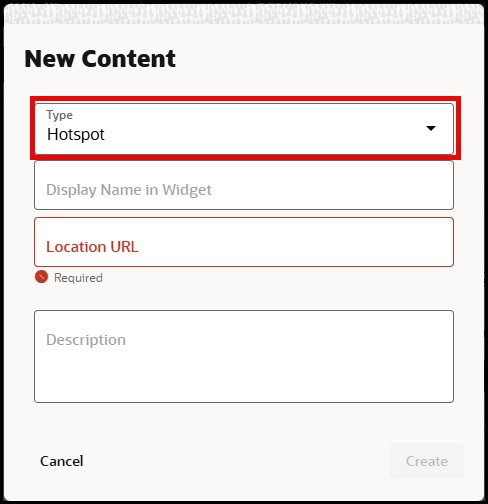
The New Content modal dialog is now displayed. Select Hotspot from the Type dropdown menu, if needed.
- Enter the Display Name and the Location URL.
Note:
The following characters are not allowed: / \ | : " < > ?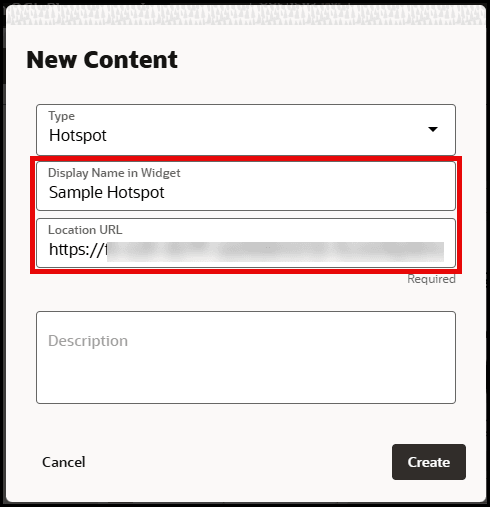
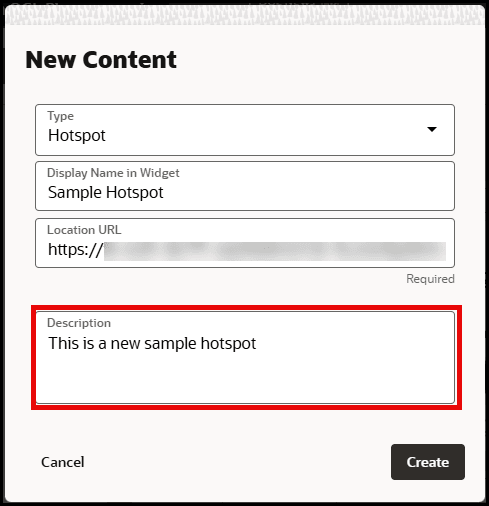
- Enter the Description for the Hotspot, as needed.
- Select the Create button (
 ) to launch the OGL Editor.
The OGL Editor launches in a new tab on your host application.
- In the OGL Editor, select Select and Element button.
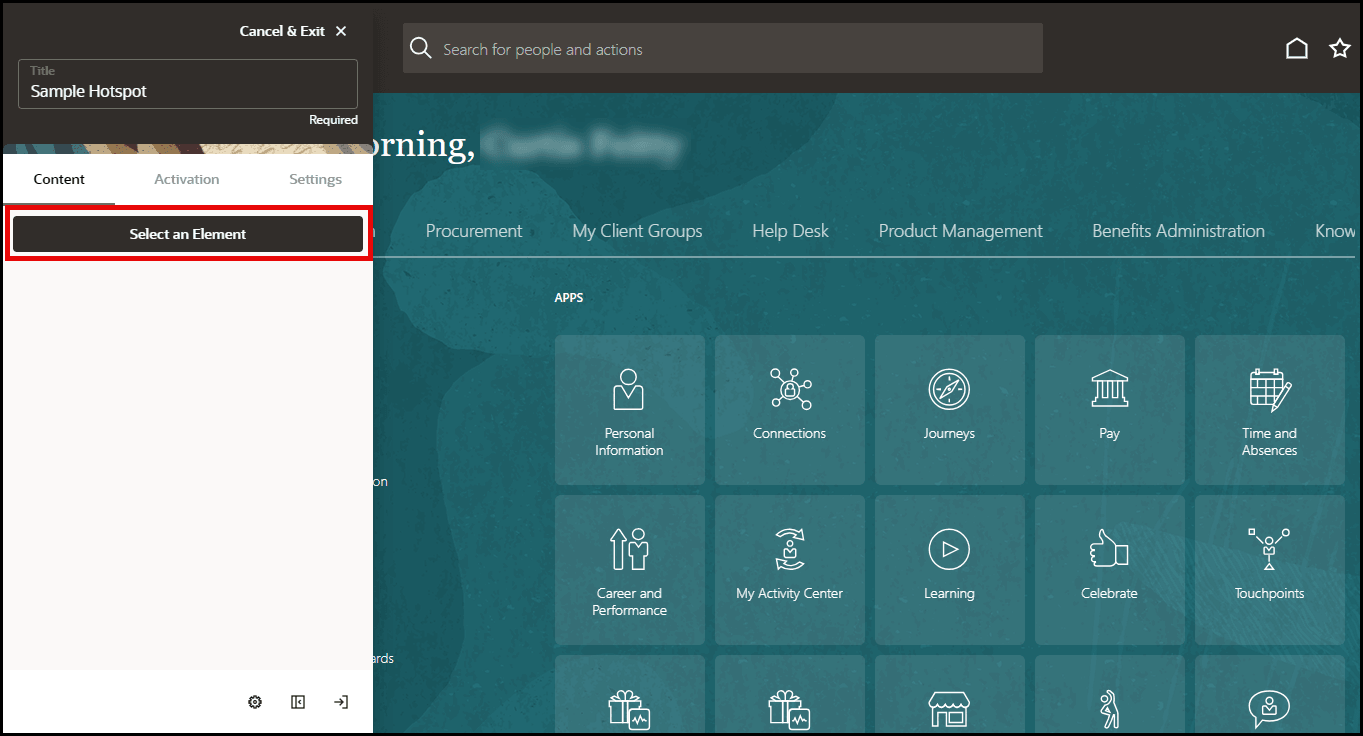
- Move your mouse about the page and select an element where you want
to place the Hotspot, then select the Select (
 ) button..
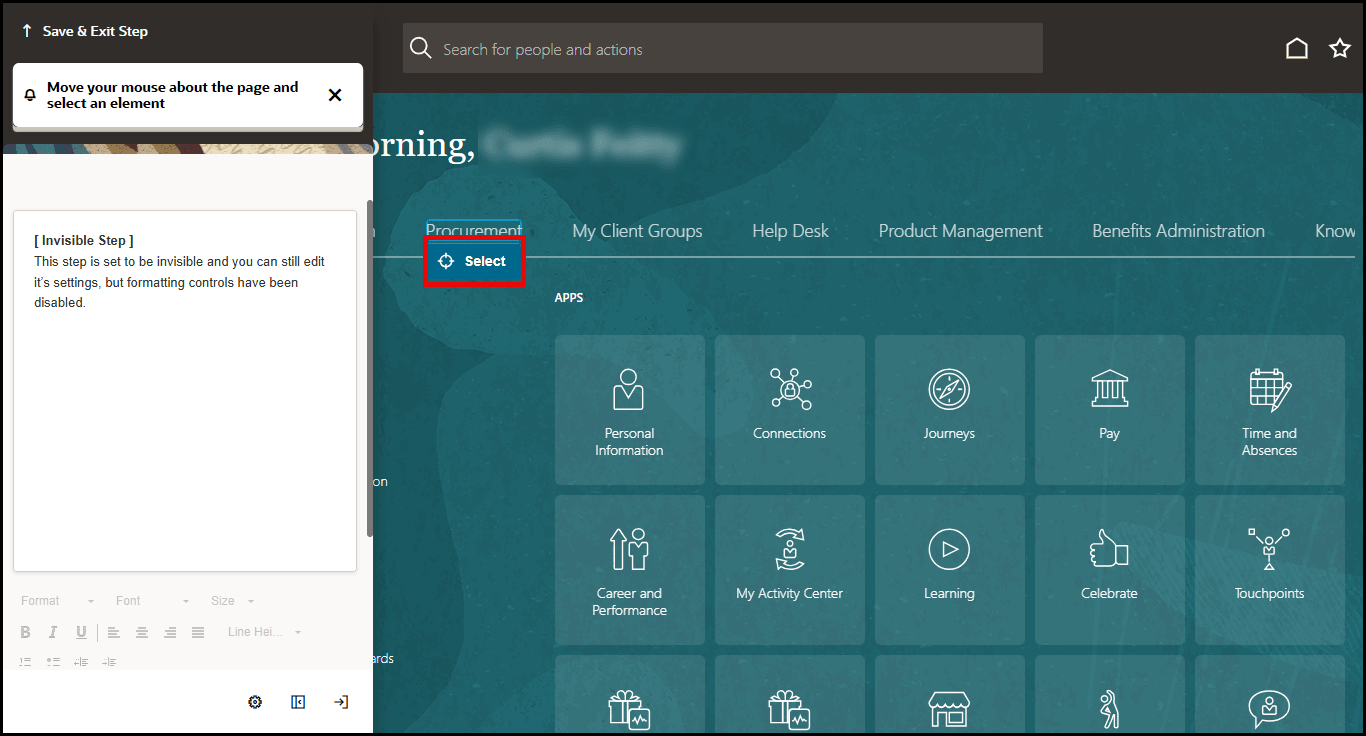
- A tool tip will appear to indicate the selected target element.
Note:
This tool tip will not display for the end user. - Select the Step Settings (
 ) button top open the Step Settings panel in the OGL Editor.
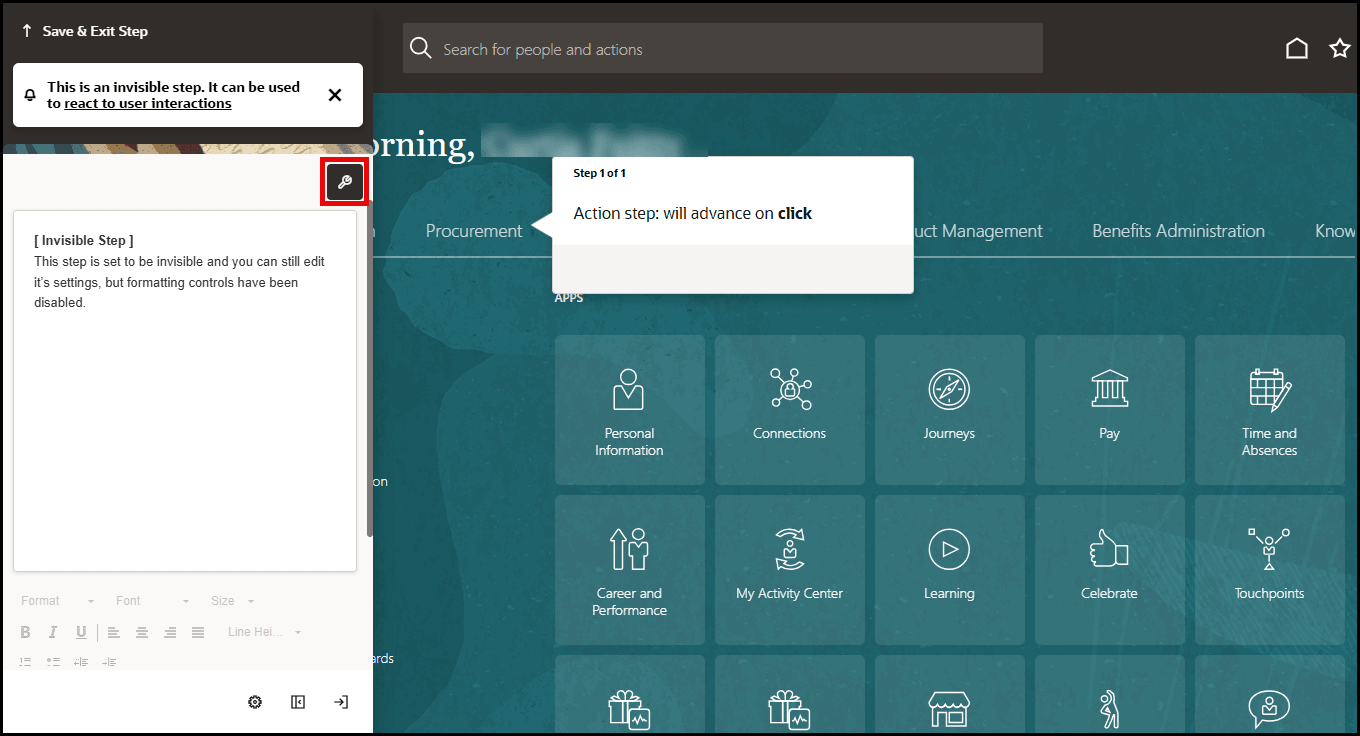
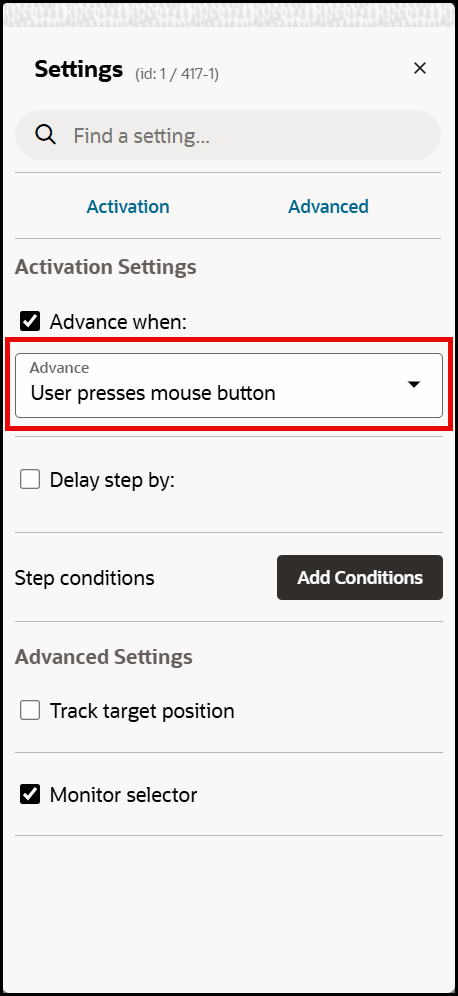
- Set the desired Activation Settings and Advanced
Settings.
Note:
In the Advance when: setting, choose the user action that you wish to be counted when the user interacts with the selected element. For example, if you want the Hotspot to count the number of times the element is clicked, then select 'User presses mouse button' instead of 'User clicks element'.When a user clicks an element, there are two distinct events that can be counted:
- User presses mouse button (i.e., "mousedown") : Records the event as soon as the mouse button is pressed down.
- User clicks element (i.e., "click") : Records the event after the mouse button is pressed and then released on the same element.
Key Differences:
- 'mousedown' = happens before the full click is completed. Use 'mousedown' for immediate response.
- 'click' = requires both press and release on the same target. Use 'click' for actions that confirm a full click.
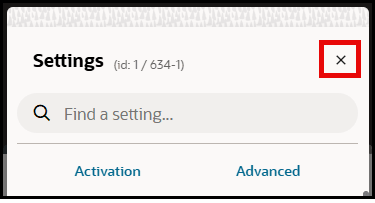
- Select the Close button to close the Settings panel when
finished.
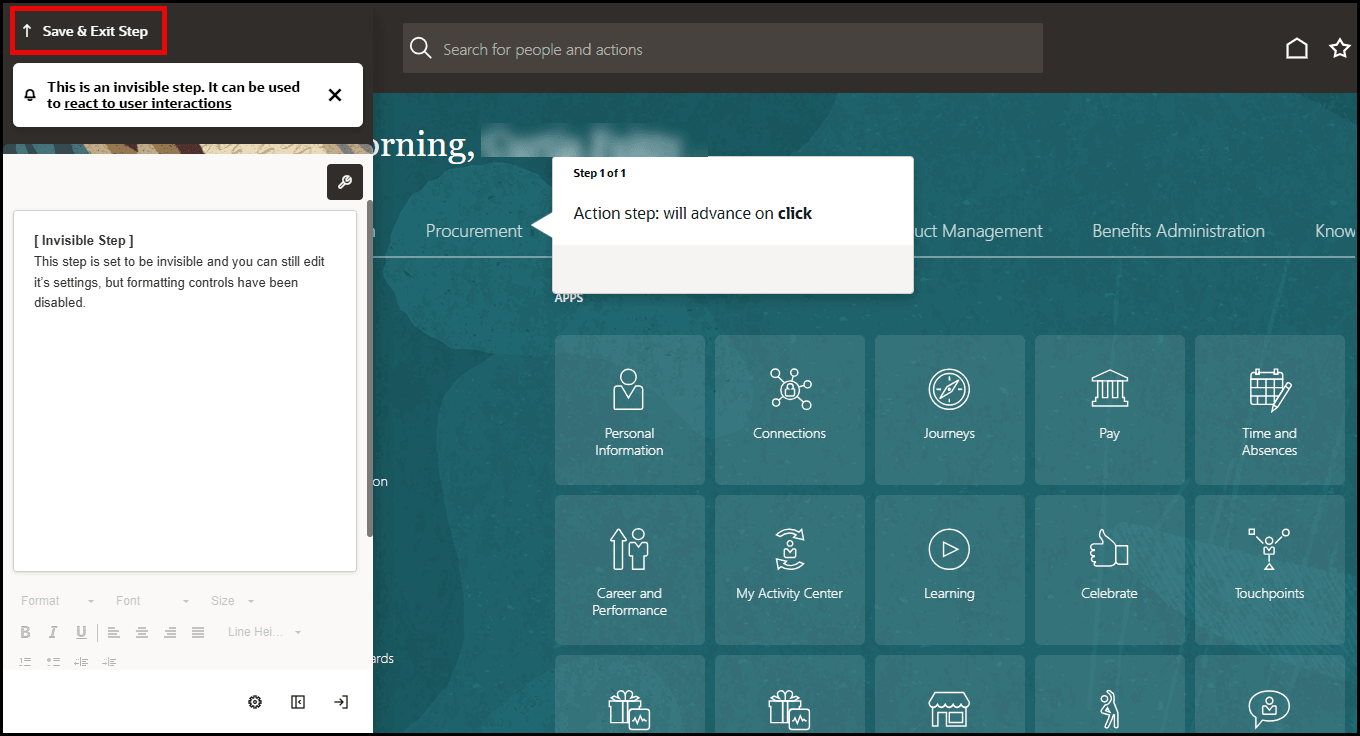
- Select Save & Exit Step to return to the OGL Editor main
panel.
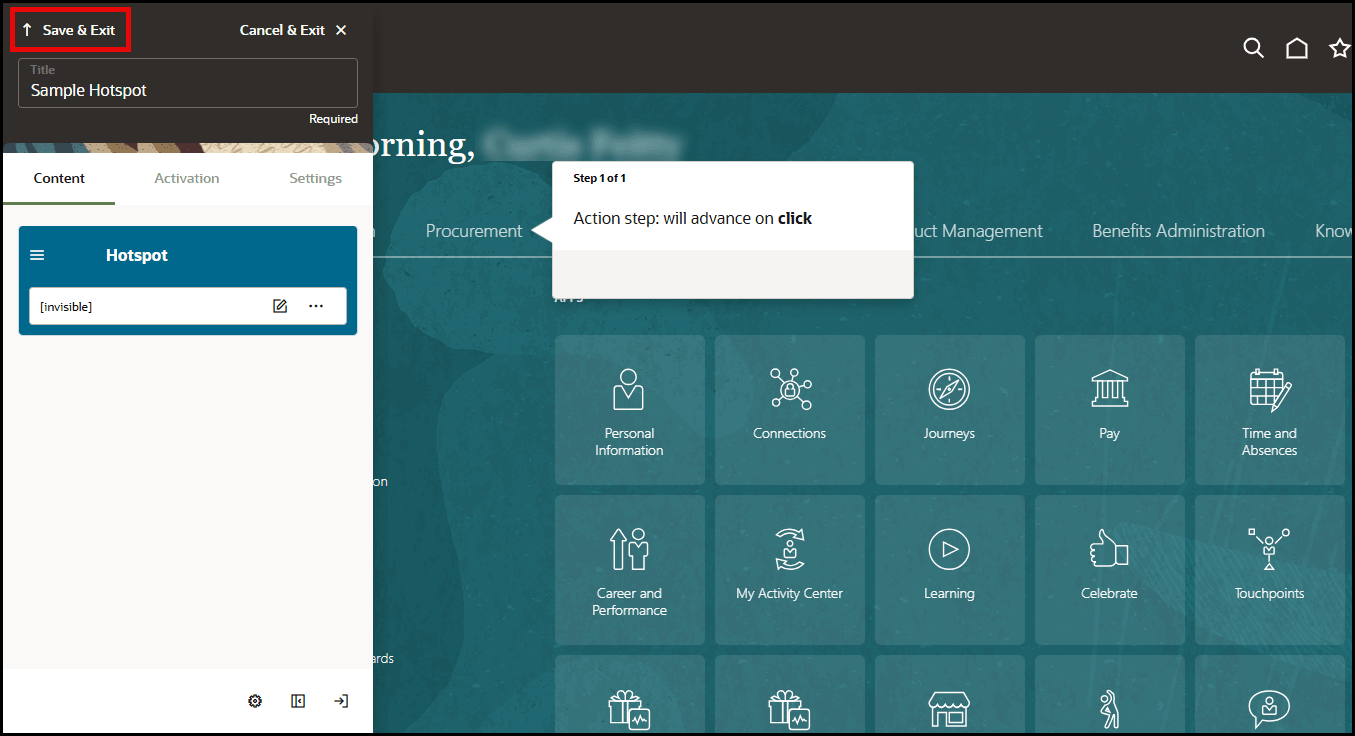
- Select Save & Exit when finished.
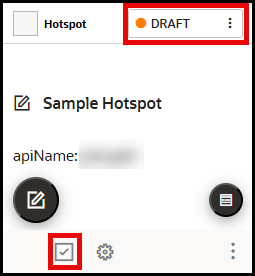
- From the OGL console, be sure to activate the Hotspot. Configure Guide
Activation settings for this Hotspot, as needed, by selecting Guide
Activation in the guide tile and Publish the guide when you ready
to deploy the Hotspot.
Note:
Remember to set your activation conditions, refer to the Enabling Guide Activation Settings section.