Creating a Launcher
What is a Launcher?
Launchers take advantage of the existing event listener capabilities. This allows OGL to track user events such as clicks and key presses. We use these events to launch an OGL content item, and these OGL items are intended to inform users of new information, assist them in completing a task, or serve as a reminder of internal policies and procedures.
Important:
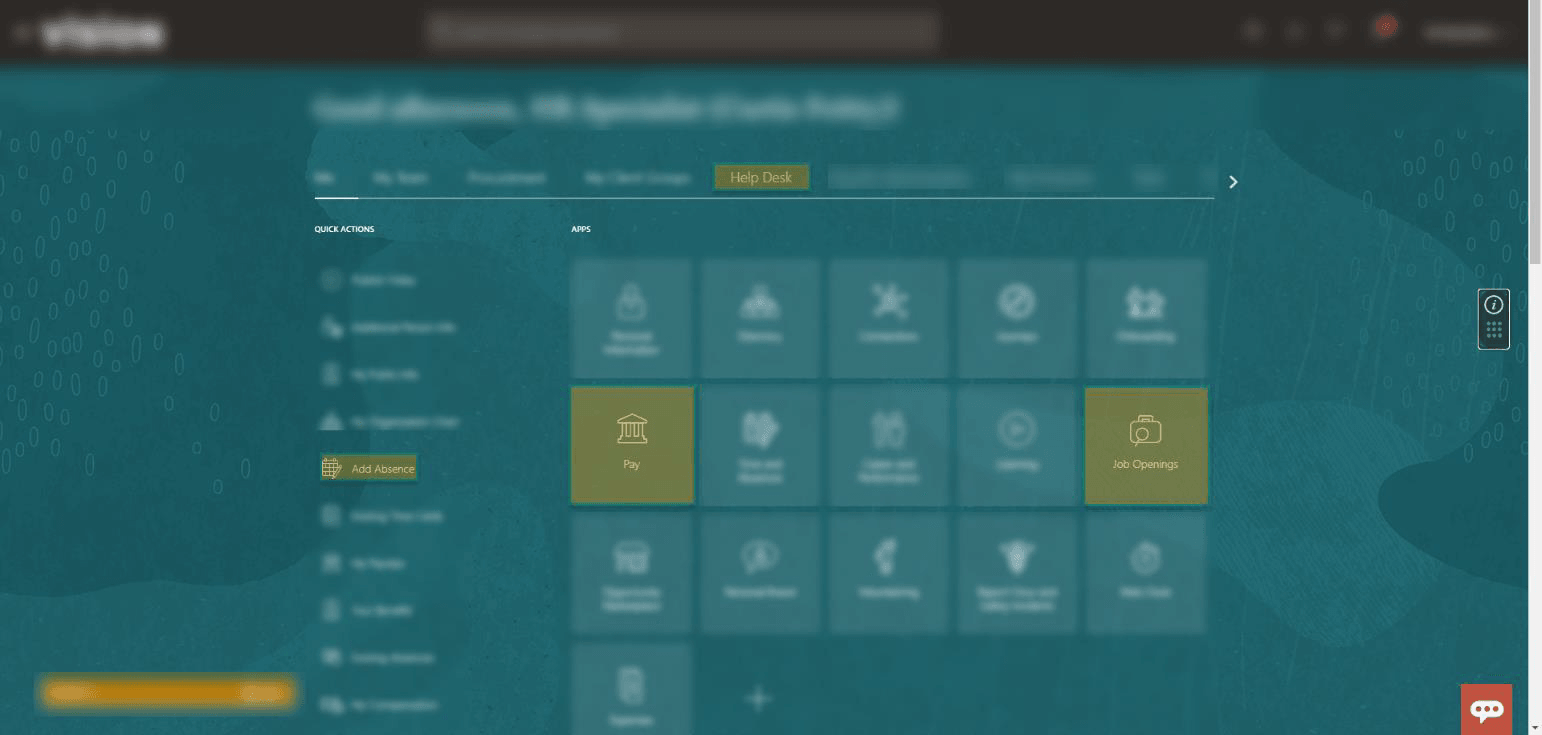
Launchers cannot read user data; they are only limited to identifying actions performed by the user on the application.The image illustrates what the set of invisible Launchers would look like on the backend.
Creating a Launcher
- On the OGL console homepage, select Launcher.

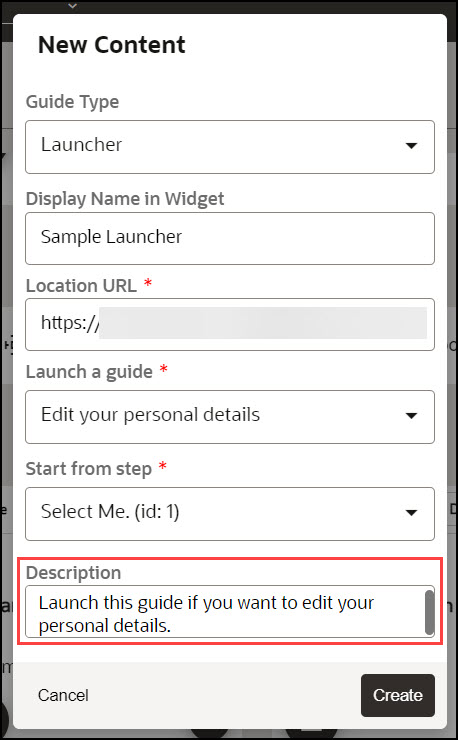
The New Content modal dialog is now displayed.
- Enter the Display Name and the Location URL.
Note:
The following characters are not allowed: / \ | : " < > ?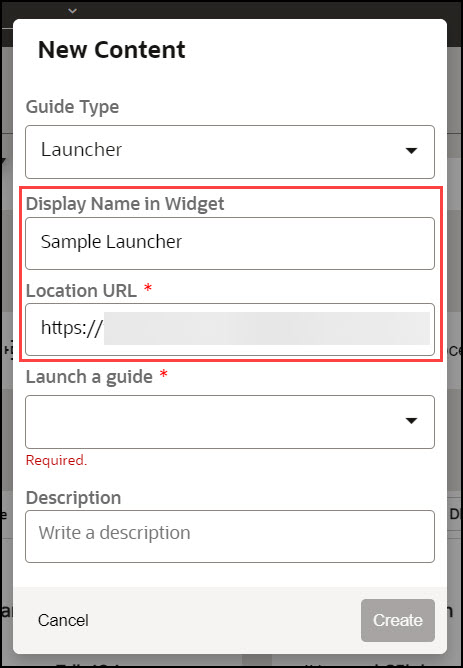
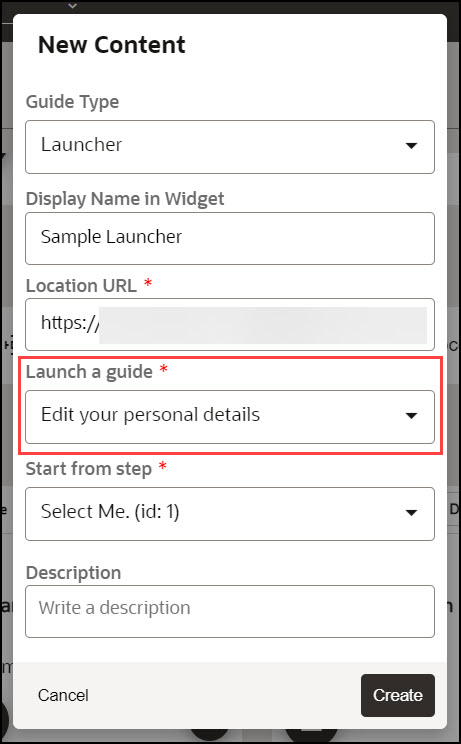
- Use the Launch a Guide dropdown to choose the guide to
launch.
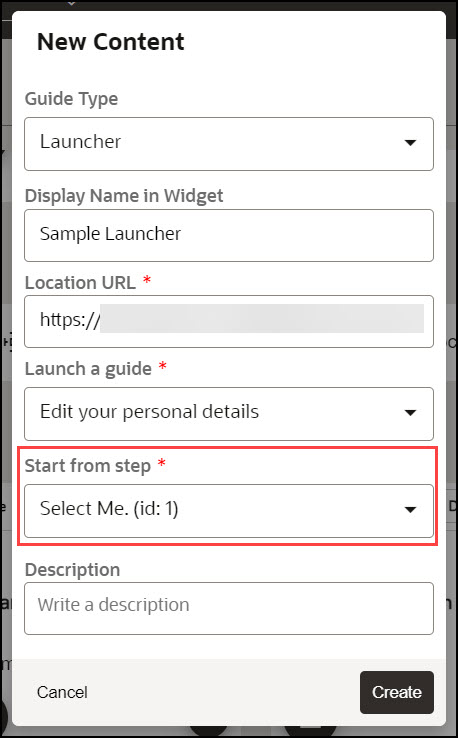
- Use the Start from step dropdown to choose the step to
launch.
- Enter a description for the launcher.
- Select the Create button (
 ) to launch the OGL Editor.
The OGL Editor launches in a new tab, where you can start capturing the contents of the guide.
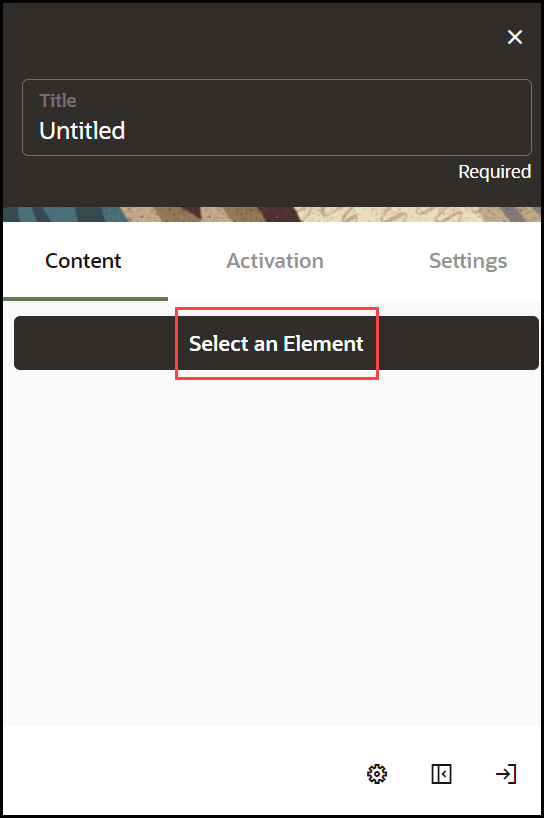
- Click the Select an Element on the application.
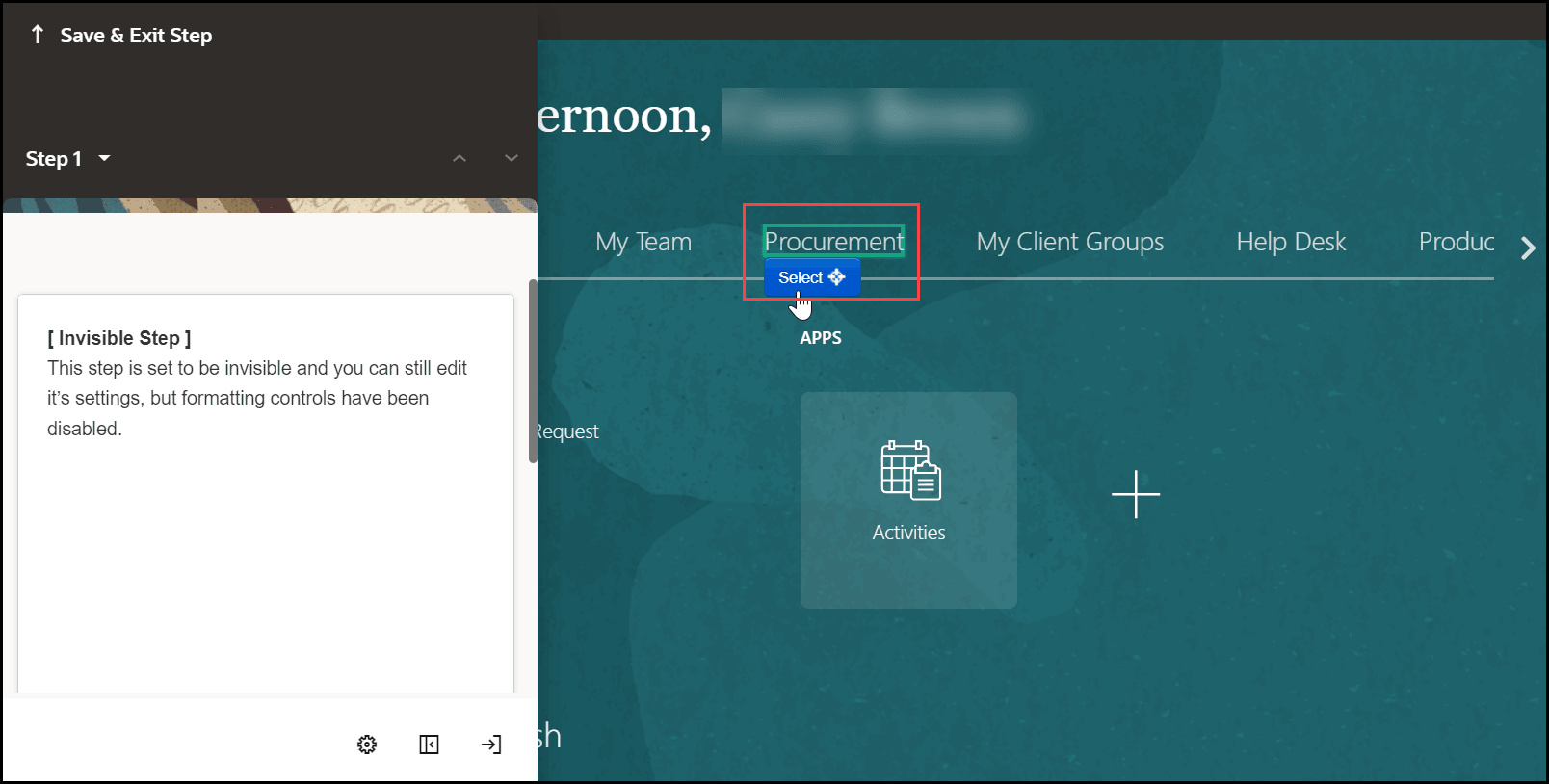
- Select the target element on the application.
- Go to Step Settings.
- Set the desired Activation Settings and Advanced Settings.
- Select Save & Close.
- Go to the OGL console homepage and activate the Launcher.
Note:
Remember to set your activation conditions, refer to Enabling Guide Activation Settings section.