3 Configuring the Microsoft SCOM REST Event Connector and Web Service
The Event Connector Web Service is the API that receives the request directly from Oracle Enterprise Manager and performs the follow up actions of authenticating to the SCOM server and translating the alert into a format that the management pack can interpret.
Configuring the Event Connector Web Service
- On the main screen, select View current configurations to verify that the information provided is correct.
Here's an example of the configuration:
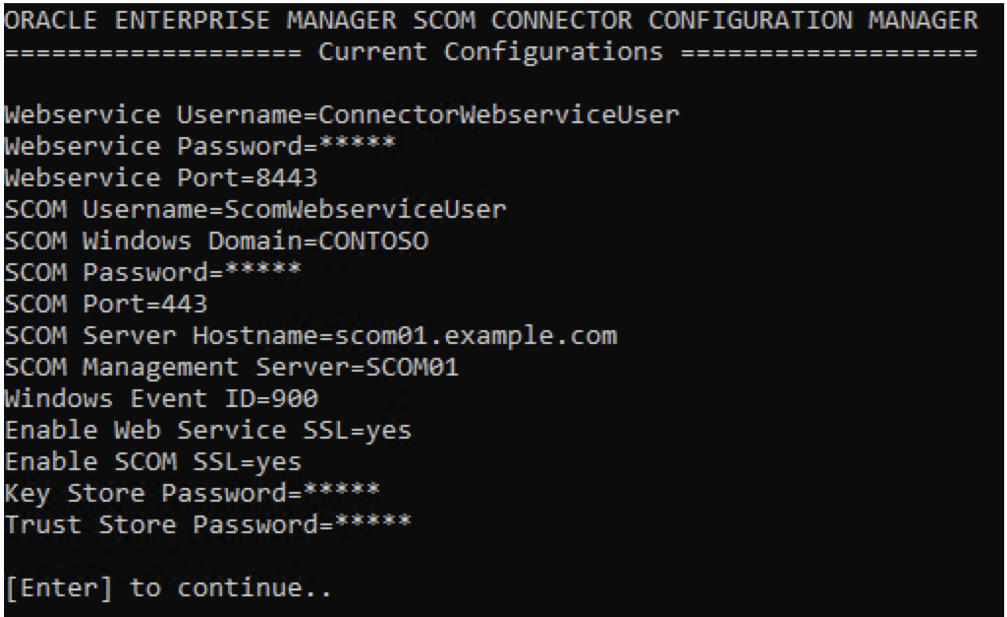
WebService.jar file with the -wsconfig flag. Note that if you forget or misplace the credentials created for the Event Connector Web Service, delete the configuration file at <ECWS_HOME>/config/WebServiceConfig.json and reconfigure the connector.
Running the Event Connector Web Service
To run the service, navigate to ECWS_HOME and execute the WebService.jar file as mentioned in the configuration steps, but omit the -wsconfig flag:
$JAVA_HOME/bin/java -jar WebService.jarIf successful, the following message is displayed in the terminal session:
Connector webservice successfully started on port <PORT>If no message is displayed or the application exits unexpectedly, re-run the command in debug mode using the -logLevel flag. This generates more detailed messages in the ecws.log files, located in the <ECWS_HOME>/logs directory. Here's an example command:
$JAVA_HOME/bin/java -jar WebService.jar -logLevel=DEBUGYou can also search the logs for the following line, which will be followed by its cause:
Unable to start web service due to the followingRunning the Event Connector Web Service in the Background
By default, the Event Connector Web Service runs in a command or terminal window that must remain open. However, it can be manually configured on Windows and Linux to run as a background process at startup. The required steps depend on your Operating System (OS), so refer to the relevant OS documentation. However, here are example steps that work in most environments.
Windows Example
- Open a text editor and paste the following script after replacing
<ECWS_HOME>and<JAVA_HOME>with the appropriate paths:@echo off cd /d "%ECWS_HOME%" "%JAVA_HOME%\bin\java.exe" -jar "WebService.jar" >> "logs\ecws.log" 2>&1 - Save the script as a batch file named
EcwsStartScript.bat. - Open Windows Task Scheduler.
- From the Actions menu, select Create Task.
The Create Task dialog box is displayed.
- In the General tab:
- Enter
ecwsin the Name field. - Select the Run whether user is logged on or not option.
- Select the Run with highest privileges option.
- Enter
- In the Triggers tab:
- Click New.
The New Trigger dialog box is displayed.
- From the Begin the task menu, select At startup.
- Ensure that the Enabled option is selected.
- Click OK.
- Click New.
- In the Actions tab:
- Click New.
The New Action dialog box is displayed.
- From the Action menu, select Start a program.
- Set the Program/script field to
<ECWS_HOME>\EcwsStartScript.bat. - Click OK.
- Click New.
- In the Conditions tab, ensure that the Start the task only if the computer is on AC power option is not selected.
- In the Settings tab, ensure that the Stop the task if it runs longer than... option is not selected.
- Click OK.
- Open a command prompt as Administrator and use the following commands to:
- Start the task:
schtasks /run /tn "ecws" - Stop the task:
schtasks /end /tn "ecws"
- Start the task:
Linux Example
- Create a new service file at
/etc/systemd/system/ecws.service. - Replace
<ECWS_HOME>with the appropriate installation path, for example,/opt/ecws, and copy the following contents intoecws.service:[Unit] Description=OEM to SCOM Event Connector Web Service After=network.target [Service] WorkingDirectory=<ECWS_HOME> ExecStart=/usr/bin/java -jar <ECWS_HOME>/WebService.jar Restart=always RestartSec=15 SuccessExitStatus=143 [Install] WantedBy=multi-user.target - Execute the following commands to:
- Load the service:
sudo systemctl daemon-reload - Enable the service:
sudo systemctl enable --now ecws
- Load the service:
- The service will be initiated at system startup but can be controlled using the following commands:
- Start the service:
sudo systemctl start ecws - Stop the service:
sudo systemctl stop ecws
- Start the service:
Configuring the Oracle Enterprise Manager Management Connector
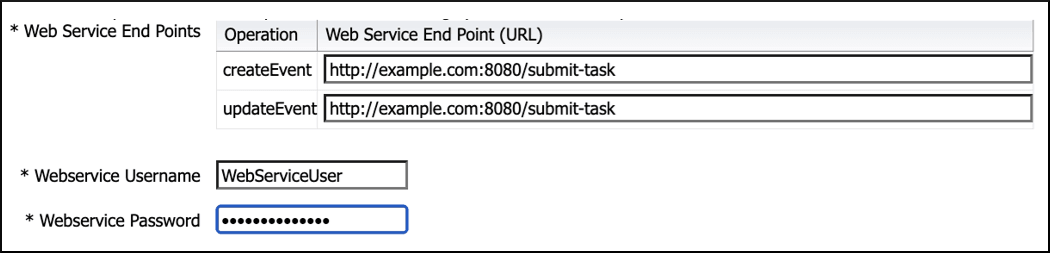
- On the configuration page, ensure that at least the following web service details are entered or updated:
- In the createEvent and updateEvent fields, replace <hostname> with the resolvable host name that your Event Connector Web Service is running on.
- In the createEvent and updateEvent fields, update the port number if you are not using the default
8080. - In the createEvent and updateEvent fields, replace
httpwithhttpsif secure communication is enabled. - Update the Webservice Username and Webservice Password with the credentials created for authenticating to the Event Connector Web Service.
- Configure proxy settings only if using a proxy (optional).
Note:
This configuration page information applies only to communication between Oracle Enterprise Manager and the Event Connector Web Service. These fields do not apply to communication between the Event Connector Web Service and the Microsoft SCOM Web Service.Here's an example that shows the minimal configuration requirements: