2 Security Overview
This chapter describes the security features of the Advanced Control Services (ACS) application.
About Secure SSL Connection to the Database
This section explains how to enable secure SSL connections to the database, and how to enable SSL for ACS.
Enabling Secure SSL Connection to the Database
Convergent Charging Controller supports secure network logins through Secure Socket Layer (SSL) connections from the Convergent Charging Controller UI to the database. SSL is the default method for connecting to the database when you install Convergent Charging Controller. You can also enable SSL after installing Convergent Charging Controller.
For information about enabling SSL connections to the database, see SMS Technical Guide.
Enabling SSL for ACS
You can access the ACS through the Services menu in the SMS UI, or you can access it directly from:
- Your Web browser by using the appropriate URL
- A Java WebStart URL
- The desktop or Start menu by using the CCP shortcut
If you access the ACS through the SMS UI and SSL is already enabled, no further action is required to enable SSL for the ACS. For information about enabling SSL on the SMS, see SMS Technical Guide.
If you access the ACS directly, enable SSL connections to the database by:
- Creating the Oracle wallet that identifies the database server on the SMS node. Its location must be specified in the listener.ora and sqlnet.ora files.
- Modifying the listener.ora file to also listen on port 2484. Use the TCPS protocol for secure SSL connections to the database.
Note:
The standard Oracle listener TCP port is 1521. However, SSL connections use the standard port for the TCPS protocol, port 2484, instead. If there is a firewall between screen clients and the SMS, you must open port 2484 in the firewall.For more information about enabling SSL by configuring the Oracle wallet and updating the listener.ora and sqlnet.ora files, see SMS Technical Guide.
The following additional configuration must be set in the acsGui.bat/acsGui.sh file:
- The
jnlp.sms.secureConnectionDatabaseHostJava application property (on non-clustered systems) or thejnlp.sms.secureConnectionClusterDatabaseHostJava application property (on clustered systems) must specify the database connection in the CONNECT_DATA part. In addition, the PROTOCOL part must be set to TCPS and the PORT part must be set to 2484. - Set the
jnlp.sms.EncryptedSSLConnectionJava application property to true. The Convergent Charging Controller UI connects to the database by using encrypted SSL connections by default.
Note:
If you use non-SSL connections to the database, you must setjnlp.sms.EncryptedSSLConnection to false.
See Java Application Properties for more information.
About Security in ACS
This section describes the ACS security system and gives instructions for its use. ACS will always be installed as a service that is available through Service Management System, but may also be accessed directly.
ACS maintains its own security system, distinct from that of SMS.
Accessing ACS through SMS
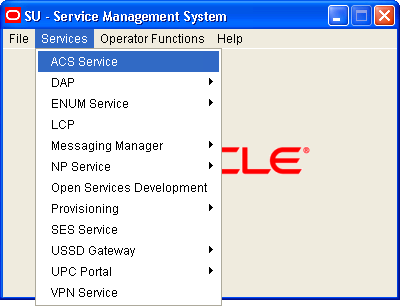
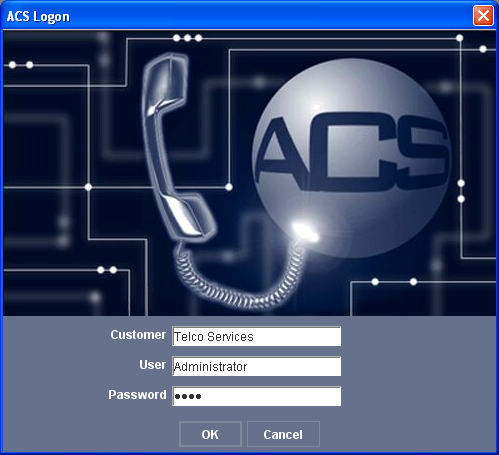
When ACS is accessed through the Service Management System (SMS), the SMS security settings take precedence over the ACS security settings. ACS is accessed through SMS as shown below:
Defining the Security Levels
The ACS security system, which applies when ACS is accessed directly, operates by assigning tiered permission levels to ACS customers, to manage the degree of access that each customer has to the features of ACS.
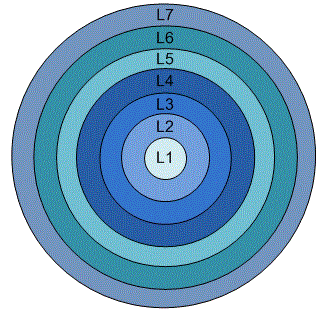
These permissions range from a Level 7 super user to a Level 1 user with read-only access to the system. When ACS is installed, a super user is automatically created, with full access to the system. Only one super user is allowed and cannot be deleted. Other users are created as required, with permission levels appropriate to the desired degree of access.
Note:
These ACS permissions apply only when the user has accessed ACS without accessing the Service Management System screens. Any user who logs on through the SMS takes the SMS permission level associated with the SMS login used.ACS User Privilege Levels
The diagram below shows the various user privilege levels. See Permission Levels for a description of each level.
Permission Levels
Table 2-1 describes the seven levels of user privileges or permissions within the ACS application.
Table 2-1 Permission Levels within ACS
| Level | Description |
|---|---|
| 1 |
Read only access to information for their customer.
|
| 2 |
Access of permission 1 and in addition:
|
| 3 |
User has access of permission 2 and in addition:
|
| 4 |
User has access of permission 3 and in addition:
|
| 5 |
User has access of permission 4 and in addition:
|
| 6 |
ACS V2 system administrator has access to add, delete and modify all aspects of ACS V2, including all public data and announcements:
|
| 7 |
User has full access to ACS and in addition:
|
Setting Up ACS Security Through SMS
A Telco must set up SMS users for all users accessing the Service Management System. These SMS users must have a SMS security template assigned to them. All users who access the SMS use the security settings that are set up in the template assigned to them. When accessed through the SMS screens, the SMS security system takes precedence and the following steps are required.
For example, a Telco may set up an ACS system administrator template, for users who perform a system administrator role, perhaps as a Telco help desk operator. The following example shows setting up this ACS system administrator user to access ACS through the SMS, and then having this user create an ACS customer.
To set the security for a user:
-
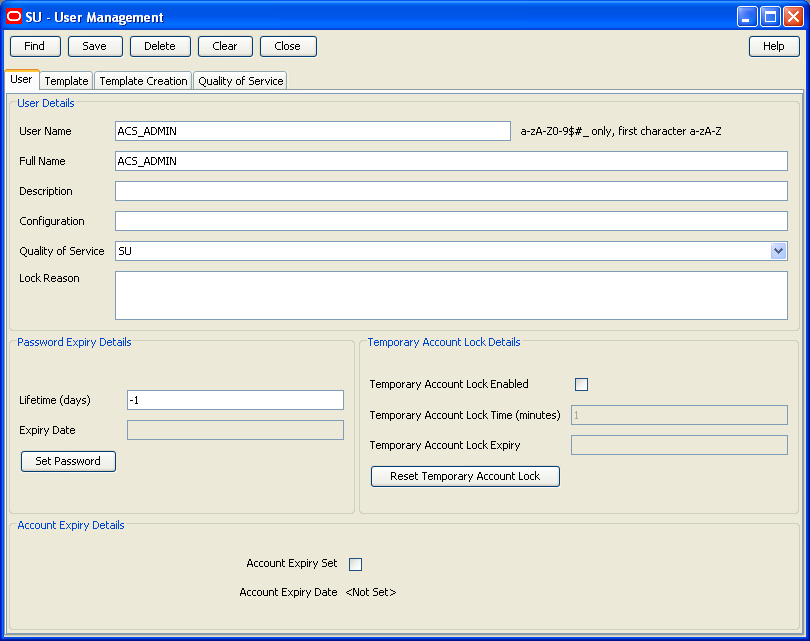
Set up an SMS user, using the User tab of the SU - User Management screen.
See SMS User's Guide for more details about the SMS screens.
-
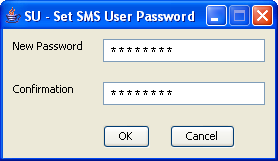
Enter and confirm a password for the new SMS user.
When the new user logs onto the SMS, the user name and password are entered into the Login dialog.
-
Note:
Follow this step only if you are required to create a new template for a user, which should rarely arise.-
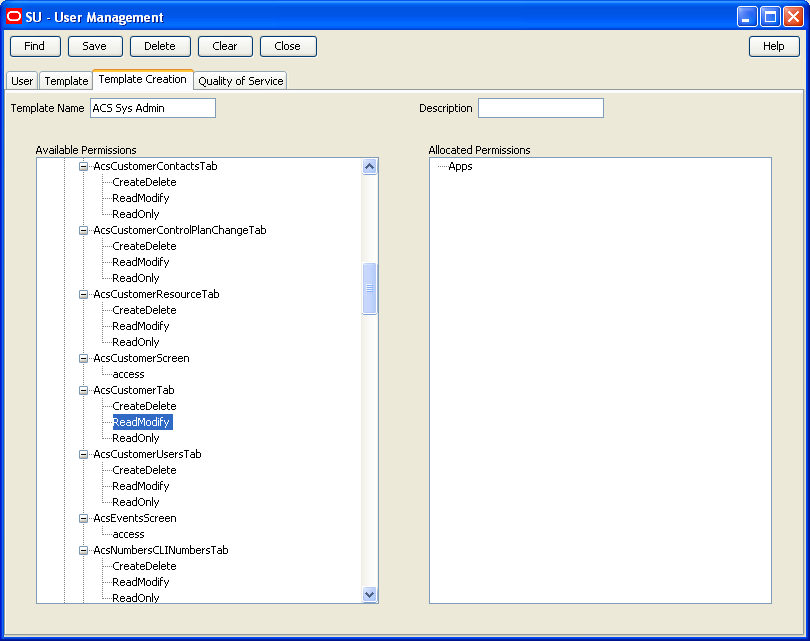
Create a template for the permissions that are to be allocated to the new user. Do this on the Template Creation tab of the SU - User Management screen.
-
Select the required permission for each ACS feature from the tree diagram in the Available Permissions list. Using the mouse, drag the selected permission to the Allocated Permissions list.
The entries in the Allocated Permissions list indicate the level of access granted to any user allocated this template.
- Name the template and save the settings.
See SMS User's Guide for further details about SMS screens.
-
-
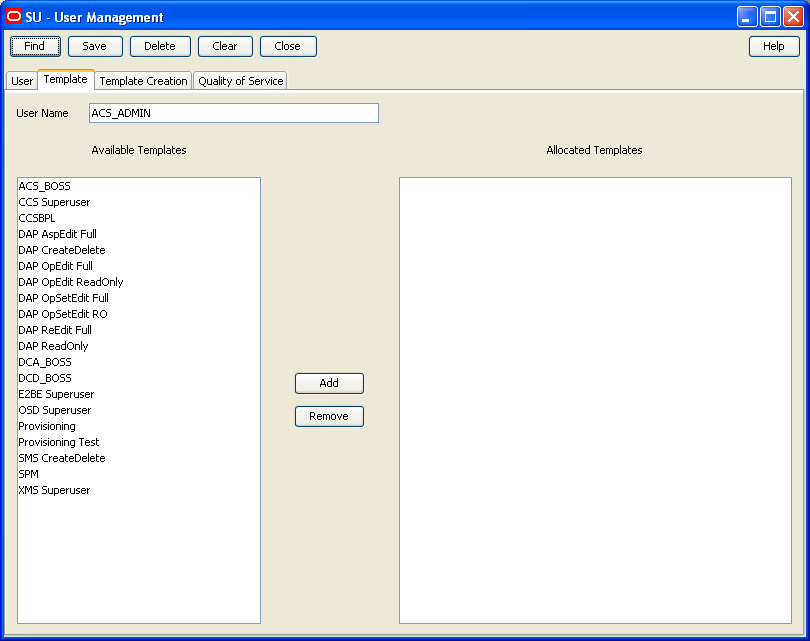
Assign a template to the user using the Template tab of the SU - User Management screen.
Allocate the new template to the new user. The user is then granted the specific access to ACS that has been set in the Template Creation tab.
To allocate a template, select the required template in the Available Templates list and click Add. The template will appear in the Allocated Templates list.
Note:
You are able to assign any number of users to a template.
-
Close and restart the SMS UI.
-
Log in using the new user name and password.
-
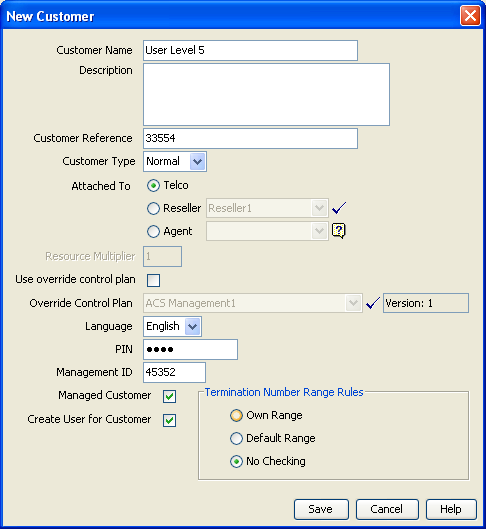
Open the ACS Customer screen, accessed through the ACS main screen, and set up an ACS customer for the SMS user.
Where the allocated template gives the SMS user full access to ACS, an ACS customer may be created with ACS user permissions up to level 5.
Only the ACS Boss user may create and delete ACS level 6 users. On the New Customer screen, select the Create User for Customer option to automatically create a user for that customer.
This same user may also need to have an ACS system administrator user set up for them. The Telco will set up a level 6 user, who has full access to the ACS system but cannot add or delete other level 6 users. This will be for direct access to ACS and may be achieved as shown in the example below.
Setting Up ACS Security Without Using SMS
When ACS is not accessed through the Service Management System UI, the SMS security system does not apply.
To set the security for a level 6 user:
-
Enter the ACS screens as the Boss user (permission level 7). Set up a new ACS customer, using the Customer tab of the ACS Customer screen.
See ACS User's Guide for further details about the ACS screens.
-
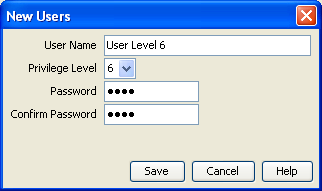
Select the new customer from the list at the top of the ACS Customer screen. Using the User tab, create a user for the new customer, with Permission Level 6.
-
The customer may then log in directly, and with full access, to ACS (without having access to the SMS screens) using this user and password, in this example created using the Users tab of the ACS Customer screen.