2 Configuration Overview
This chapter explains how to configure the Oracle Communications Convergent Charging Controller application.
Configuration Overview
This topic provides a high level overview of how the CCS application is configured.
There are configuration options which are added to the configuration files that are not explained in this chapter. These configuration options are required by the application and should not be changed.
Configuration Process Overview
This table describes the steps involved in configuring CCS for the first time.
| Stage | Description |
|---|---|
| 1 |
The environment CCS will run in must be configured correctly. This includes:
|
| 2 | The eserv.config file must be configured for CCS. The example file should be copied into the main eserv.config, and any required details configured. For more information, see eserv.config Configuration. |
| 3 | acs.conf must be configured to include CCS on all SMSs and SLCs. |
| 4 | If the default language for the CCS graphical user interface need changing, the new default language must be configured. |
| 5 | The CCS screen-based configuration must be completed. |
| 6 | If the VWS has been installed, the VWS processes must be configured. |
Configuration Components
CCS is configured by the following components:
| Component | Locations | Description | Further Information |
|---|---|---|---|
| eserv.config | All machines |
The most important is eserv.config, because it configures most Network Charging and Control applications, including the VWS processes used by CCS. CCS is configured by the CCS section of eserv.config. |
eserv.config Configuration |
| acs.conf | All SMS and SLC nodes |
The acs.conf file configures the:
|
Configuring acs.conf for the SLC Advanced Control Services Technical Guide |
| CCS UI | SMF database | The CCS UI allows you to configure many parts of CCS. | User Interface-Based Configuration Tasks and Charging Control Services User's Guide |
| NA | SLC nodes | NA | Voucher Status Report Configuration |
Configuring the Environment
Oracle variables
The CCS Unix system accounts ccs_oper and ebe_oper require the standard ORACLE environment variables to be present.
The cost of this call is deducted from the wallet associated with the calling card.
Configuring EDR Log Directories
Because most systems will generate a large number of EDRs, it is recommended that the EDR log directories are changed from the default install values.
A link should be created between the default logging directories and the actual location on separate physical disk, apart from the main application installations.
You must create links from the following directory on the VWS:
- /IN/service_packages/BE/logs/CDR
You must create links from the following directories on the SMS:
- /IN/service_packages/CCS/logs/CDR
- /IN/service_packages/CCS/sync/tmp
Procedure
Follow these steps to configure the location of the EDR log directories.
Note:
These steps assume /volD is the mount point for the disk that EDRs are to be stored on.-
Change to the volume where the EDRs should be kept.
Example command:
cd /volD -
Create a EDR directory.
Example command:
mkdir CDRResult: This creates the EDR directory.
-
Change to the CCS log directory.
Example command:
cd /IN/service_packages/CCS/logs -
Move the EDR directory's contents to the EDR directory on the alternative volume.
Example command:
mv CDR/* /volD/CDRNote: The move command may fail, if so repeat.
-
Delete the EDR directory.
Example command:
rmdir CDR -
Create a link from the application's EDR directory to the new EDR directory on the alternative volume.
Example command:
ls -s /volD/CDR /IN/service_packages/CCS/logs/CDRResult: This links the new location to the old name. CCS will write all EDRs to the new location.
Configuring the .profile
If ACS and CCS are installed, follow these steps to edit the .profile file to set the path correctly:
-
Open the .profile file for editing.
Example command: vi <ACS_ROOT>/.profile-scp
-
Add the following line:
export LD_LIBRARY_PATH=<CCS_ROOT>/lib:$LD_LIBRARY_PATH - Save and close the file.
Configuring CCS Balance Top Up Suite
The UTL_FILE_DIR parameter defines the directories the utl_file package,
used by CCS Balance Top Up Suite, needs for writing files. You must add this parameter
to the initSMF.ora file.
Procedure - Adding UTL_FILE_DIR
Follow these steps to add the UTL_FILE_DIR parameter to the initSMF.ora file. This enables access to the file system.
-
Log in to the SMF server as the Oracle unix user:
Type
su - oraclepassword - Locate the oracle parameter file initSMF.ora in the $ORACLE_BASE/admin/SMF/pfile/ directory.
-
Add both the following
UTL_FILE_DIRparameters to initSMF.ora on the SMF server:UTL_FILE_DIR=/IN/service_packages/CCS/tmp UTL_FILE_DIR=/IN/service_packages/CCS/tmpResult: The utl_file package now has access to the file system.
- Restart the SMF Oracle instance.
eserv.config Configuration
The eserv.config file is a shared configuration file, from which many Oracle Communications Convergent Charging Controller applications read their configuration. Each Network Charging and Control machine (SMS, SLC, and VWS) has its own version of this configuration file, containing configuration relevant to that machine. The eserv.config file contains different sections; each application reads the sections of the file that contains data relevant to it.
The eserv.config file is located in the /IN/service_packages/ directory.
The eserv.config file format uses hierarchical groupings, and most applications make use of this to divide the options into logical groupings.
Example eserv.config Detail
This configuration sample shows an example of a part of an eserv.config file showing a CCS wallet handler:
CCS = {
    reservationHandler = {
        reservationLengthTolerance = 60 # in milliseconds
    }
}
Configuration File Format
To organize the configuration data within the eserv.config file, some sections are nested within other sections. Configuration details are opened and closed using either { } or [ ].
- Groups of parameters are enclosed with curly brackets – { }
- An array of parameters is enclosed in square brackets – [ ]
- Comments are prefaced with a # at the beginning of the line
To list things within a group or an array, elements must be separated by at least one comma or at least one line break. Any of the following formats can be used, as in this example:
{ name="route6", id = 3, prefixes = [ "00000148", "0000473"] }
{ name="route7", id = 4, prefixes = [ "000001049" ]}
or
{ name="route6"
    id = 3
    prefixes = [
        "00000148"
        "0000473"
    ]
}
{ name="route7"
    id = 4
    prefixes = [
        "000001049"
    ]
}
{ name="route6"
    id = 3
    prefixes = [
        "00000148", "0000473" ]
}
{ name="route7", id = 4
    prefixes = [ "000001049" ]
}
eserv.config Files Delivered
Most applications come with an example eserv.config configuration in a file called eserv.config.example in the root of the application directory, for example, /IN/service_packages/eserv.config.example.
CCS eserv.config Example File
CCS delivers a cut-down eserv.config file that only contains non-default parameters; it is not a full list of all parameters that are available. This file will normally be installed as eserv.config, except in the case that another application has already installed eserv.config.
Some specific parameters (for example host names) will need to be amended in the installed eserv.config file; these are clearly marked with "Change Me" markers. Once amended, CCS will run with no further changes to eserv.config. Where additional implementation changes need to be made to eserv.config, refer to the Background Processes chapters for full descriptions of all parameters for the processes.
In addition, a full example file containing examples of all parameters and parameter descriptions is also delivered. This example file is called eserv.config.ccs_example.
Parameters
Listed below are the parameters in the CCS section that are common to all machines.
accountNumberLength
| Syntax: | accountNumberLength = int |
| Description: | The number of digits in card number in a subscriber account. If accountNumberLength is set to zero (0) then the account number can be any length. |
| Type: | Integer |
| Optionality: | Optional (default used if not set) |
| Allowed: | Not applicable |
| Default: | 10 |
| Notes: | Used by ccsAccount when generating subscriber accounts. |
| Example: | accountNumberLength = 14 |
oracleUserAndPassword
| Syntax: | oracleUserAndPassword =
"user/pwd[@db_sid]|/@connection_string" |
| Description: | The user credentials that CCS uses for connections to the
database on a local or remote SMS node when the
oracleUser or oraclePassword
parameters are not defined.
|
| Type: | String |
| Optionality: | Optional (default used if not set) |
| Allowed: |
For connections to a:
|
| Default: | / |
| Notes: | You can specify the user credentials for connecting to
the database in the oracleUser or
oraclePassword parameters for some CCS processes.
In this case, the oracleUserAndPassword parameter is
ignored.
|
| Example: | oracleUserAndPassword = "smf/smf" |
suppressedEDRTags
| Syntax: | suppressedEDRTags =
["EDRtags"] |
| Description: | Some EDR tags can be optionally hidden when creating an EDR. |
| Type: | Array |
| Optionality: | Optional |
| Allowed: |
Optional tags are:
|
| Default: | |
| Notes: | Any tag listed in the following section will be suppressed. |
| Example: |
|
Editing the File
Open the configuration file on your system using a standard text editor. Do not use text editors, such as Microsoft Word, that attach control characters. These can be, for example, Microsoft DOS or Windows line termination characters (for example, ^M), which are not visible to the user, at the end of each row. This causes file errors when the application tries to read the configuration file.
Always keep a backup of your file before making any changes to it. This ensures you have a working copy to which you can return.
Configuring acs.conf for the SLC
CCS runs on the ACS subsystem by providing CCS-specific libraries and plug-ins for slee_acs. The configuration options for slee_acs on the SLC are contained in the acs.conf file.
When CCS is installed, it automatically configures entries in acs.conf to include the plug-in libraries which run basic functionality. This configuration is required in the acsChassis section for the CCS system to run successfully, though it can be changed by qualified engineers under some circumstances.
The following pages contain a description of the acs.conf parameters that are specifically relevant to CCS.
For more information about acs.conf and plug-in libraries in general, see ACS Technical Guide.
acsChassis
The acsChassis section defines how to handle traffic coming in to slee_acs. It defines the traffic processed by a specified service and service loader plug-in library combination. It also defines how slee_acs processes the traffic to each service.
The available parameters are:
ChassisPlugin
| Syntax: | |
| Description: |
Chassis plug-ins provide the ACS Control Plan Editor with an expanded interface to its environment. The ChassisPlugin lines are required to define which chassis action libraries will be available to slee_acs. The CCS chassis action library (ccsActions) must be included here. |
| Type: | |
| Optionality: | Required (must be set to include the required CCS library) |
| Allowed: | |
| Default: | |
| Notes: |
The interface between the CPE and the Voucher and Wallet Server is implemented using chassis plug-ins. Other uses include external database operations or network access. One shared library may implement more than one chassis action. No further configuration is needed to allow the Chassis to load the plug-ins at startup. However, individual plug-ins may have configuration requirements of their own. For more information about the slee_acs, see ACS Technical Guide. |
| Example: |
|
MacroNodePluginFile
| Syntax: | MacroNodePluginFile libraryname |
| Description: | The MacroNodePluginFile lines are required to define which feature node libraries will be available in the control plans used by slee_acs. The CCS feature node library (ccsMacroNodes) must be included here. |
| Type: | |
| Optionality: | Required (must be set to include the required CCS library) |
| Allowed: | |
| Default: | |
| Notes: |
Some plug-in-based feature nodes distributed with CCS are:
|
| Example: | MacroNodePluginFile ccsMacroNodes.so |
ServiceEntry
| Syntax: | ServiceEntry(ServiceName,NetworkCPSource,LogicalCPSource,
PendingTNSource,ConnectCLISource,RedirectingPartyID,
OriginalCalledPartyID,libname)
|
| Description: | The ServiceEntry lines are needed to define which services defined in the SLEE.cfg are handled by the CCS service loader library (ccsSvcLibrary). |
| Type: | |
| Optionality: | Mandatory (must be set to include the required CCS library). |
| Allowed: | For more information about the structure of this configuration option, see acsChassis ServiceEntry Configuration (SCP) in the ACS Technical Guide. For more information about the values which can be used in the service element of this configuration, see Services in the Configuration chapter in CCS Technical Guide. |
| Default: | |
| Notes: | Any service defined in SLEE.cfg must have a corresponding
ServiceEntry line configured in
acs.conf.
|
| Example: | ServiceEntry (CCS,ccsSvcLibrary.so) |
srf
| Syntax: | srf (srfName, UseETC=Y|N, Address=IP|nothing,
NOA=0|1|2|3|4 typeOfSrf=NAP|other) |
| Description: | The name and number of the Specialized Resource Function (or Intelligent Peripheral) is required for each IP on the network. |
| Notes: | Parsing should continue until no new IPs can be found in the configuration file. This will eliminate the need for a count to be specified in the configuration file for the number of resources available. |
| Example: | srf (nap1,UseETC=N,Address=,NOA=3) |
Services
This table describes the valid values for the ServiceName array parameter of the ServiceEntry parameter.
| acs.conf String | Description |
|---|---|
| CCS | Use for CCS voice mobile originating. |
| CCS_ROAM | Use for CCS voice mobile terminating. |
| CCS_SM_MO | Use for CCS SMS mobile originating. |
| CCS_SM_MT | Use for CCS SMS mobile terminating. |
| REVERSE_CCS_SM_MT | Use for CCS SMS mobile terminating with reverse. |
| CCS_DATA | Use for CCS DATA. |
| CCS_BPL | Use exact string for BPL task triggers from the SMS. |
| CCS_BPL* | Use CCS_BPL prefix for services which should trigger xmlTcIf from a third-party interface. |
Note:
The CCS Service Loader must trigger one of the following service names before it can extract the XMS, MM, or SMS information from the InitialDP:
- CCS_SM_MO
- CCS_SM_MT
- REVERSE_CCS_SM_MT
Example Service Entries
Here are some example service entries for CCS services in the acsChassis
section in acs.conf.
acsChassis
...
ServiceEntry (CCS,GgNnFf,ILcCaAnN,ccsSvcLibrary.so)
ServiceEntry (CCS_ROAM,cCoOnN,dDfF,dDfF,E,ccsSvcLibrary.so)
ServiceEntry (CCS_SM_MO,nN,cC,dD,E,ccsSvcLibrary.so)
ServiceEntry (CCS_SM_MT,dD,cC,dD,E,ccsSvcLibrary.so)
ServiceEntry (REVERSE_CCS_SM_MT,cC,dD,dD,E,ccsSvcLibrary.so)
ServiceEntry (CCS_BPL,ccsSvcLibrary.so)
ServiceEntry (CCS_BPL*,ccsSvcLibrary.so)...
Note:
For more information about service entry configuration, see acsChassis ServiceEntry Configuration (SLC) in ACS Technical Guide.acsChassis - Optional Parameters
The parameters in this portion of the acsChassis section are optional
and may be added when required. Only one entry per parameter is allowed.
UnknownNOA
| Syntax: | |
| Description: | This value is the NOA to be used, to denormalize an outgoing number. |
| Type: | Integer |
| Optionality: | |
| Allowed: | |
| Default: | 65535 |
| Notes: | |
| Example: |
NormalRule
| Syntax: | (incoming NOA,incoming prefix,outgoing NOA,outgoing #digits to strip,prefix to add) |
| Description: | Enter a conversion rule for each incoming NOA. |
| Type: | Array |
| Optionality: | |
| Allowed: | |
| Default: | |
| Notes: |
Incoming prefix can be 'E' to specify the global rule for a given NOA, which will map anything not matched by a prefix. Outgoing prefix can be 'E' to specify no digits to add to the digit string. If a minimum parameter is present and a maximum parameter is not provided then only the minimum check is carried out. If a maximum parameter is provided a minimum parameter must be present. |
| Example: |
The second example includes two optional parameters, which denote a size that a number has to be to trigger a rule. The first parameter is the minimum number of digits, and the second the maximum. |
acsChassis - Variables
The remaining topics explain the variables described in the acsChassis
section of the acs.conf file.
srf_SLEE
Usage:
srf (IP_name, UseETC=Y/N, Address=address, NOA=noa,
                TypeOfSrf=type)
Where:
| Parameter | Description |
|---|---|
| IP_name | The IP name to use as a resource name when specifying announcement entries. |
UseETC |
Y or N. Use Y if an external IP is contacted directly from the SLC. This establishes a temporary connection to that IP. |
Address |
Contains the IP address if an external IP is used or nothing if internal |
NOA |
The nature of address indicator. The indicator is a digit from 0 – 4, as follows:
|
TypeOfSrf |
Describes the type of SRF identified by the SRF name. Currently, the only supported value is "NAP”. If you do not specify an SRF type then no SRF-type-specific extensions will be activated. Example: If you have the
|
Example: srf (NAP1,UseETC=N,Address=,NOA=3)
Explanation
-
The SLC communicates with the SSP through CTR (Connect to Resource) and using an internal IP.No IP address is required for this option. UseETC is not required (select N). The IP name is required. NOA is required.
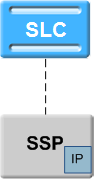
-
The SLC communicates with the SSP through the CTR and IP address. The SSP then uses the IP address to communicate with an external IP. The IP address is required for this option. UseETC is not required (select N). The IP name is required. NOA is required.
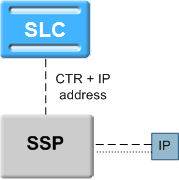
-
The SLC communicates with the SSP through the ETC (EstablishTemporaryConnection) and IP address. The SSP then uses the IP address to communicate with an external IP.
The IP address is required for this option. The SLC also communicates directly with the IP, using an ARI (AssistRequestInstructions). UseETC is required (select Y). The IP name is required. NOA is required.
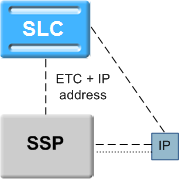
NOA and Normal Rules
The NOA (nature of address, also known as NOC and NON) is a classification to determine in what realm (local, national or international) a given phone number resides, for the purposes of routing and billing.
Details vary between different implementations of telephone systems, but the following table is representative:
| Dialed Digits | NOA | Definition |
|---|---|---|
| 477 9425 | 1 ==> subscriber | Number within local telephone exchange |
| 4 477 9425 | 3 ==> national | Number within country telephone exchange |
| 64 4 477 9425 | 4 ==> international | Number within world telephone exchange |
| 477 9425 | 2 ==> UNKNOWN | Numbering scheme rule ==> subscriber |
| 0 4 477 9425 | 2 ==> UNKNOWN | Numbering scheme rule ==> national |
| 00 64 4 477 9425 | 2 ==> UNKNOWN | Numbering scheme rule ==> international |
In essence, the subscriber's telephone system may try to ascertain the nature by examining the dialed digits. If they can be understood by "built-in" mechanisms, the NOA can unambiguously be one of the values subscriber, national, international, or a finer classification determined by the protocol variant.
Otherwise the NOA is Unknown and the dialed digits must be clarified by a set of (usually simple) rules specified by a numbering scheme.
Leading zeros are used in New Zealand among other places, but the leading characters could be any arbitrary sequence that the numbering scheme could specify.
Ultimately the usage of NOA is determined by the phone network itself which may classify and possibly modify a phone number while it is being transmitted between the service logic and the switch.
People deal with (and database usually store) telephone numbers in their normalized form (for example, 00441918666223). The network gives and receives number in a denormalized form (that is, where the type of number (the Nature of Address) is known explicitly), (for example: [International, 441918666223] from the previous example).
Example:
Normalized number: 049393434
De-Normalized number: Nature of Address: National
Digits: 49393434
Possible Natures of Addresses:
An address can be of the following natures:
| Nature of Address | Description |
| Subscriber (local) | (is 1 with ITU/ETSI CS-1) |
| Unknown | (is 2 with ITU/ETSI CS-1) |
| National | (is 3 with ITU/ETSI CS-1) |
| International | (is 4 with ITU/ETSI CS-1) |
Each individual service decides what numbers need to be normalized, however, ACS provides the conversion functionality. The mapping is created through the acs.conf file using the following parameters:
| Parameter | Description |
| UnknownNOA IntegerValue | This value is the NOA to be used in the code to denormalize a number. The same function is used to normalize as is used to denormalize. |
| NormalRule ConversionRule | This rule determines how to convert between the normal and denormalized number. |
The rule is of the following format:
incoming NOA ,incoming prefix ,outgoing NOA,outgoing #digits to strip,prefix to
                add
Note:
- There are NO spaces within the rule.
- Incoming prefix can be 'E' to specify the global rule for a given NOA, which will map anything not matched by a prefix.
- Outgoing prefix can be 'E' to specify no digits to add to the digit string.
- Incoming prefix can be 'E' to specify the global rule for a given NOA, which will map anything not matched by a prefix.
- Outgoing prefix can be 'E' to specify no digits to add to the digit string.
Example 1:
UnknownNOA 9999
NormalRule (4,E,9999,0,00) Result:
- Will normalize international Nature Of Address (4) with any prefix(E)
- Will not strip any digits (0), but will prefix 00 to the number
- Value 9999 for the outgoing NOA is ignored as normalized numbers do not have a Nature of Address
- This rule would normalize [International, "6449391234"] to "006449391234".
Example 2:
NormalRule (9999,0,3,1,E)
Result:
- Will de-normalize (9999 - this must match our UnknownNOA value) numbers beginning with 0.
- Set the Nature of Address to National (3)
- Strip one digit (1) but will not prefix anything (E).
- This rule would de-normalize "049391234" to [National, "49391234"].
Setting up the Screens
About Customizing the UI
You can customize the CCS user interface (UI) by setting Java application properties in the smsGui.bat/smsGui.sh file located in the /IN/html/ directory. You set JNLP application properties by using the following syntax:
-Dproperty = "value"
Where:
- property is the name of the application property
- value is the value to which that property is set
For more information about the smsGui.bat/smsGui.sh file, see SMS Technical Guide.
Java Application Properties
The following application properties are available to customize the UI:
jnlp.ccs.BeORBTimeoutms
| Syntax: | -Djnlp.ccs.BeORBTimeoutms = "num" |
| Description: | Specifies the length of time, in milliseconds, after which an ORB request from the screen operator's terminal to the Network Charging and Control server times out. |
| Type: | Integer |
| Optionality: | Optional (default used if not set) |
| Allowed: | Any positive integer |
| Default: | 20000 (that is, 20 seconds) |
| Notes: | |
| Example: | -Djnlp.ccs.BeORBTimeoutms = "5000" |
jnlp.ccs.defaultEDRSearchAge
| Syntax: | -Djnlp.ccs.defaultEDRSearchAge =
"num" |
| Description: |
Used to calculate the default start date that is shown in the EDR
Viewer. The default start date is equal to the current date and time
minus The default end date is the current date and time. |
| Type: | String |
| Optionality: | Optional (default used if not set) |
| Allowed: | Any positive integer |
| Default: | 2 |
| Notes: | |
| Example: | -Djnlp.ccs.defaultEDRSearchAge = "5" |
jnlp.ccs.defaultEDRSearchCategories
| Syntax: | -Djnlp.ccs.defaultEDRSearchCategories =
"list_of_categories" |
| Description: |
Specifies the default EDR categories to search for when viewing EDRs in the CCS View EDRs for Subscriber screen. Use a comma-separated string of EDR sub-types. |
| Type: | String |
| Optionality: | Optional (default used if not set) |
| Allowed: | |
| Default: | All |
| Notes: | The list of categories must be comma-separated and enclosed in single quotes. |
| Example: | -Djnlp.ccs.defaultEDRSearchCategories = "'Amount
Charge','Bad Pin'" |
jnlp.ccs.defaultSubscriberSearchType
| Syntax: | -Djnlp.ccs.defaultSubscriberSearchType =
"exact|prefix" |
| Description: |
Sets the default search type for subscribers in the following locations in the CCS UI:
|
| Type: | String |
| Optionality: | Optional (default used if not set) |
| Allowed: |
|
| Default: | prefix |
| Notes: | |
| Example: | -Djnlp.ccs.defaultSubscriberSearchType =
"exact" |
jnlp.acs.ProfileN
| Syntax: | -Djnlp.acs.Profilenumber = "new_name" |
| Description: | Specifies to suppress or change the name of any of the 20 profile blocks. |
| Type: | String |
| Optionality: | Optional |
| Allowed: |
1 <= number <= 20 new_name is one of the following:
|
| Default: |
The following table lists default profile block names in the order in which they appear in feature node drop-down lists.
|
| Notes: |
|
| Examples: |
|
jnlp.ccs.MaxProductTypePeriodicCharges| Syntax: | -Djnlp.ccs.MaxProductTypePeriodicCharges =
"int" |
| Description: | Specifies the maximum number of periodic charges that may be assigned to a product type. |
| Type: | Integer |
| Optionality: | Optional (default used if not set) |
| Allowed: | |
| Default: | 15 |
| Notes: | |
| Example: | -Djnlp.ccs.MaxProductTypePeriodicCharges =
"15" |
jnlp.ccs.ShowEmptyEDRTags
| Syntax: | -Djnlp.ccs.ShowEmptyEDRTags =
"taglist" |
| Description: | Lists the CCS EDR tags that must be displayed in EDR Viewer or CCP Dashboard when they are empty. |
| Type: | String |
| Optionality: | Optional (default used if not set) |
| Allowed: | Comma separated list of the tags to include. |
| Default: | Empty tags are not displayed in EDR Viewer. |
| Notes: | Do not insert spaces in the list of tags. |
| Example: | -Djnlp.ccs.ShowEmptyEDRTags =
"ACS_CUST_ID,PI,WALLET_TYPE" |
jnlp.ccs.showSecondaryBE
| Syntax: | -Djnlp.ccs.showSecondaryBE = "value" |
| Description: | The number of seconds ............... |
| Type: | Integer, Decimal, Array, Parameter list, String, Boolean |
| Optionality: | Optional (default used if not set) |
| Allowed: | |
| Default: | |
| Notes: | |
| Example: | -Djnlp.ccs.showSecondaryBE = "value" |
jnlp.ccs.voucherManagement| Syntax: | -Djnlp.ccs.voucherManagement = "?" |
| Description: | The number of seconds ............... |
| Type: | Integer, Decimal, Array, Parameter list, String, Boolean |
| Optionality: | Optional (default used if not set) |
| Allowed: | |
| Default: | |
| Notes: | |
| Example: | -Djnlp.ccs.voucherManagement = "?" |
jnlp.ccs.VRRedeemMaxVoucherLength| Syntax: | -Djnlp.ccs.VRRedeemMaxVoucherLength = "int"
|
| Description: | Specifies the maximum number of digits in a voucher number. |
| Type: | Integer |
| Optionality: | Optional (default used if not set) |
| Allowed: | Must be equal to or larger than VRRedeemMinVoucherLength. |
| Default: | 18 |
| Example: | -Djnlp.ccs.VRRedeemMaxVoucherLength = "18" |
jnlp.ccs.VRRedeemMinVoucherLength| Syntax: | -Djnlp.ccs.VRRedeemMinVoucherlength =
"int" |
| Description: | Specifies the minimum number of digits in a voucher number. |
| Type: | Integer |
| Optionality: | Optional (default used if not set) |
| Allowed: | Must be equal to or smaller than VRRedeemMaxVoucherLength. |
| Default: | 10 |
| Example: | -Djnlp.ccs.VRRedeemMinVoucherlength = "10"
|
Defining the Screen Language
The default language file sets the language that the Java administration screens start in. The user can change to another language after logging in.
The default language can be changed by the system administrator.
By default, the language is set to English. If English is your preferred language, you can skip this step and proceed to the next configuration task, Defining the Help Screen Language.
Default.lang
When CCS is installed, a file called Default.lang is created in the application's language directory in the screens module. This contains a soft-link to the language file which defines the language which will be used by the screens.
If a Default.lang file is not present, the English.lang file will be used.
The CCS Default.lang file is /IN/html/Ccs_Service/language/Default.lang
Example Screen Language
If Dutch is the language you want to set as the default, create a soft-link from the Default.lang file to the Dutch.lang file.
Procedure
Follow these steps to set the default language for your CCS Java Administration screens:
-
Change to the following directory:
/IN/html/Ccs_Service/language
Example command:
cd /IN/html/Ccs_Service/language - Ensure the Default.lang file exists in this directory.
- If the required file does not exist, create an empty file called Default.lang.
-
Ensure that the language file for your language exists in this directory. The file should be in the format:
language.langWhere:
language = your language.
Example:
Spanish.lang -
If the required language file does not exist, either:
- create a new one with your language preferences, or
- contact Oracle support.
To create a language file, you will need a list of the phrases and words used in the screens. These should appear in a list with the translated phrase in the following format:
original phrase=translated
                        phrase
Any existing language file should have the full set of phrases. If you do not have an existing file to work from, contact Oracle support with details.
-
Create a soft link between the Default.lang file, and the language file you want to use as the default language for the CCS Java Administration screens.
Example command:
ln -s Dutch.lang Default.lang
Defining the Help Screen Language
The default Helpset file sets the language that the help system for the Java Administration screens start in. The user can change to another language after logging in.
The default language can be changed by the system administrator. By default, the language is set to English.
Default_Ccs_Service.hs
When CCS is installed, a file called Default_Ccs_Service.hs is created in the application's language directory in the screens module. This contains a soft-link to the language file which defines the language which will be used by the screens.
If a Default_Ccs_Service.hs file is:
- Not present, the English_Ccs_Service.hs file will be used.
- Present, the default language will be used.
The Default_Ccs_Service.hs file is /IN/html/Acs_Service/helptext/Default_Ccs_Service.hs.
Example Helpset Language
If Dutch is the language you want to set as the default, create a soft-link from the Default_Ccs_Service.hs file to the Dutch_Ccs_Service.hs file.
Setting the Default Language for your CCS Graphical User Interface
-
Change to the following directory:
/IN/html/Ccs_Service/helptext
Example command:
cd /IN/html/Ccs_Service/helptext - Ensure the Default_Ccs_Service.hs file exists in this directory.
- If the required file does not exist, create an empty file called Default_Ccs_Service.hs.
-
Ensure that the language file for your language exists in this directory. The file should be in the format:
language_Ccs_Service.hsWhere:
language = your language.
Example:
Dutch_Ccs_Service.hs
-
If the required language file does not exist, perform one of the following actions:
- Create a new one with your language preferences
- Contact Oracle support
To create a language file, you will need a list of the phrases and words used in the UI. These should appear in a list with the translated phrase in the following format:
original
                            phrase=translated phrase
Any existing language file should have the full set of phrases. If you do not have an existing file to work from, contact Oracle support with details.
-
Create a soft link between the Default_Ccs_Service.hs file, and the language file you want to use as the default language for the SMS UI.
Example command:
ln -s Dutch_Ccs_Service.hs
                            Default_Ccs_Service.hs
Configuration Through the ACS Screens
Some CCS functions rely on resources which are configured through the ACS UI.
ACS Resources
This table lists the resources which may need to be configured through the ACS UI in order to be able to configure CCS.
| Resource | ACS Screen |
|---|---|
| ACS customers, including resource limits. | ACS Customer |
| Sets, including geography, holiday, announcement, VARS, VARS mapping and feature sets. | ACS Configuration |
| Notification templates. | ACS Configuration |
| Control plans | Control Plan Editor |
User Interface-Based Configuration Tasks
Some of the configuration for CCS must be completed through the SMS, ACS and CCS UI windows.
For more information about using the CCS UI, see Charging Control Services User's Guide.
SMS UI Configuration
This table lists elements of the system which you may need to configure through the SMS UI.
| Element | Description of Configuration |
|---|---|
| Replication | Ensure CCS tables will be correctly replicated to the appropriate nodes in the IN. |
| Users | Setting up different levels of access for system administrators. |
| Alarms | Setting up filtering and monitoring systems for CCS alarms. |
| Statistics | Setting up statistics which relate to the nodes which CCS runs on. |
For more information about using the SMS UI, see SMS User's Guide.
ACS UI Configuration
This table lists elements that you may need to configure through the ACS UI.
| Element | Description of Configuration |
|---|---|
| ACS customers | All calls are processed in relation to an ACS customer. ACS customers are used to manage control plans and resources. |
| Resource sets |
Resource sets are required for much of the functionality used in control plans. In particular, resource sets define:
|
| Control plans | Call processing logic is defined in control plans. |
| Statistics | Setting up statistics for the control plans used in CCS. |
For more information about:
- Using the ACS UI, see Advanced Control Services User's Guide.
- The Control Plan Editor, see CPE User's Guide.
- The available feature nodes, see Feature Nodes Reference Guide.
CCS UI Configuration
This table lists elements of the system which you may need to configure through the CCS UI.
| Element | Description of Configuration |
|---|---|
| Currencies | Currencies must be set up for financial processes. |
For more information about using the CCS UI, see Charging Control Services User's Guide.
Configuring VWS Processes for CCS
VWS processes used by CCS
There are a number of VWS processes which must be configured correctly for CCS to use the VWS functionality:
- BeClient interface on the SLC must be configured to include CCS plug-ins
- beVWARS on the VWS must be configured to include the CCS beVWARS plug-ins and message handlers
- beServer VWS must be configured to include the CCS beServer plug-ins
For more information about configuring these processes, see:
Message Handlers and Event Plug-ins
Message handlers provide functionality which is specifically related to messages passed between BeClient and the VWS. Plug-ins are designed to handle specific events such as a balance expiry date being passed.
Message Handlers
CCS installs a number of message handlers and plug-ins into the VWS for handling the CCS-specific messages and functionality. This table lists the main message handlers installed for beVWARS.
| Message Handler | Description |
|---|---|
| ccsVWARSWalletHandler | This beVWARS plug-in handles inquiries/updates to wallets and balances. |
| ccsVWARSReservationHandler | This beVWARS plug-in handles call-related messages. |
| ccsVWARSNamedEventHandler | This beVWARS plug-in handles named event-related messages. |
These handlers, and their respective configuration items, are described in Background Processes on the VWS.
The ccsVWARSVoucherHandler is described in Voucher Manager Technical Guide.
BeClient IF
The BeClient is covered in more detail in VWS Technical Guide. However it needs to be configured for CCS to allow functions such as wallet interaction.
For more information about configuring BeClient for CCS, see BeClient.
Configuring CCS Macro Nodes
Macro nodes are feature nodes that are used by CCS using the ACS Control Plan Editor. Macro nodes are supplied by many Oracle applications and require the presence of ACS for use.
Macro nodes require some configuration to be entered into the eserv.config file. The following sections will detail the configuration that is necessary for the CCS macro nodes.
The macro node reads the global configuration file (eserv.config) on initialization. Should the configuration of a macro node be changed, the configuration files must be re-read.
Macro Node Location
Macro nodes are delivered as shared libraries, and are located on installation in:
/IN/service_packages/CCS/lib/
Node icons are installed in:
/IN/html/Acs_Service/images/
Macro Node Icons
Node icons are delivered as gif files and are named according to the following standard:
| Filename | Description |
FNmacroNodeNamfor
exampleif |
The icon that appears on the node in the CPE. |
LFNmacroNodeName.gif |
The icon that appears in the edit dialog for the specific feature node. |
PFNmacroNodeName.gif |
The icon that appears in the CPE feature node palette. |
eserv.config Macro Node Configuration
This is a high level view of the ccsMacroNodes configuration section of eserv.config.
CCS = {
    ccsMacroNodes = {
        general macro node config
        macro node config for specific node
        MacroNodeName = {
            configuration for specific macro node
        }
    }
}
See ccsMacroNodes for specific macro node configuration.
Introduction
To calculate the caller's wallet balance a configurable list of balance types will be checked. The list of balance types to be checked for each customer is configured in the SLC's eserv.config file. If the list of balance types for the balance status feature node is omitted from the eserv.config, only the default balance type will be checked. If included, the default balance type will only be checked if it appears in the list.
A section like the one below must be placed in the CCS section of the file:
CCS = {
    ccsMacroNodes = {
        BSBCheckBalanceTypes = [
            { acsCustomerId = customer_id_1
                balTypeIds = [
                    balancetype_id_1, balancetype_id_2, balancetype_id_3
                ]
            }
            { acsCustomerId = customer_id_2
                balTypeIds = [
                    balancetype_id_4, balancetype_id_5
                ]
            }
        ]
    }
}
acsCustomerId
| Syntax: | See the Balance Status Branch Introduction. |
| Description: | This is the ID of the ACS customer in the database. |
| Type: | |
| Optionality: | |
| Allowed: | The acsCustomerId must exist in the ACS_CUSTOMER database table. |
| Default: | 1 |
| Notes: | |
| Example: |
balTypeIds
| Syntax: | See the Balance Status Branch Introduction. |
| Description: | The database ids of the balance types that are to be checked for each customer. |
| Type: | |
| Optionality: | |
| Allowed: | |
| Default: | None |
| Notes: | The balTypeIds listed must exist in the CCS_BALANCE_TYPE database table. |
| Example: |
BSBCheckBalanceTypes
| Syntax: | See the Balance Status Branch Introduction. |
| Description: | The specific balance types that are to be checked for each customer. |
| Type: | Array |
| Optionality: | Optional. If there is no BSBCheckBalanceTypes
section for the current customer then only the default balance type is
used to determine if the caller has credit. If there is a
BSBCheckBalanceTypes section for the current
customer then the total of all of the balance types specified is used to
determine if the caller has credit.
|
| Allowed: | |
| Default: | None |
| Notes: | The balance types must all have the same balance unit. |
| Example: |
Switch Configuration for the UATB Node
The switch types used to control the switch communication flows for the UATB feature node
are defined in the acsCharging.switchConfiguration section of the
eserv.configconfiguration file.
acsCharging.switchConfiguration
Several switch types may be defined and the chassis action GetSwitchParameters determines which switch is in use for a particular call.
Example:
acsCharging = {
   switchConfiguration = [
       {
           switchType = "cap3"
           addDisconnectOrRelease = false
       }
       {
           # INTERNAL switch type
           # default IDP appContext {1,3,6,1,4,1,3512,10,100}

           switchType = "internal"
           addDisconnectOrRelease = true
       }

       {
           switchType = "internal"
           addDisconnectOrRelease = true

           extended = {
              # extended IDP appContext {1,3,6,1,4,1,3512,10,100,2}
              oid = 2
              allowZeroSecondsApplyCharge = true
           }
       }
  ]
The available parameters are:
addContinue
| Syntax: | addContinue = true|false |
| Description: | Defines whether the UATB feature node should enable send responses, add responses, and continue responses to the TCAP to enable charging for a successful subsequent reservation on the Voucher and Wallet Server. |
| Type: | Boolean |
| Optionality: | Optional (default used if not set) |
| Allowed: | true, false |
| Default: | false |
| Example: | addContinue = false |
addDisconnectOrRelease
| Syntax: | addDisconnectOrRelease =
true|false |
| Description: | Defines whether the UATB node can release or disconnect calls during billing scenarios. For example, where the call is still active but the calling party has exhausted their funds or the maximum call limit has been reached. |
| Type: | Boolean |
| Optionality: | |
| Allowed: | true, false |
| Default: | false |
| Notes: | |
| Example: | addDisconnectOrRelease = false |
allowZeroSecondsApplyCharge
| Syntax: | allowZeroSecondsApplyCharge = value |
| Description: | The chassis that the switch can handle time grants of zero deciseconds. |
| Type: | Integer, Decimal, Array, Parameter list, String, Boolean |
| Optionality: | Optional (default used if not set) |
| Allowed: | true, false |
| Default: | true |
| Notes: | |
| Example: | allowZeroSecondsApplyCharge = true |
oid
| Syntax: | oid = value |
| Description: | The extension digit number {1,3,6,1,4,1,3512,10,100,2}. |
| Type: | Integer |
| Optionality: | Optional (default used if not set) |
| Allowed: | |
| Default: | |
| Notes: | |
| Example: | oid = 2 |
switchType
| Syntax: | switchType = "type" |
| Description: | Specifies a switch type for a UATB node. |
| Type: | String |
| Optionality: | Optional |
| Allowed: |
One of:
|
| Default: | Not set |
| Notes: | Use the internal switch type to support the extra information passed by the Diameter Control Agent (DCA) to ACS in the IDP extension fields in Continue and Release Call operations. |
| Example: | switchType = "internal" |
Voucher Status Report Configuration
voucherStatusReport.env provides configuration for the Voucher Status report in addition to the configuration available at Voucher Status Report Configuration.
For more information about the Voucher Status report, see Charging Control Services User's Guide.
Parameters
The following parameters can be used in voucherStatusReport.env.
TZ_CODE
| Syntax: |
|
| Description: | The timezone to use when calculating the dates to print in the report. |
| Type: | String |
| Optionality: | Optional (default used if not set). |
| Allowed: | Any valid Unix timezone code. |
| Default: | GMT |
| Notes: | Used for converting date in GMT to an appropriate timezone. |
| Example: |
export
TZ_CODE |
VR_MSISDN_LENGTH
| Syntax: |
VR_MSISDN_LENGTH=int export VR_MSISDN_LENGTH |
| Description: | The maximum number of characters in an MSISDN printed in the report. |
| Type: | Integer |
| Optionality: | Optional (default used if not set). |
| Allowed: | |
| Default: | 20 |
| Notes: | Any MSISDN longer than this number will have the final digits removed. |
| Example: |
VR_MSISDN_LENGTH=20 export VR_MSISDN_LENGTH |
VR_STATUS
| Syntax: |
|
| Description: | How the voucher status should be presented in the report. |
| Type: | String |
| Optionality: | Optional (default used if not set). |
| Allowed: |
|
| Default: | NORMAL |
| Notes: | |
| Example: |
|
CCP Configuration
The Customer Care Portal (CCP) is a Java application that provides a customized view of CCS subscribers.
ccpGui.bat/ccpGui.sh File
The ccpGui.bat/ccpGui.sh file is used to start the CCP. It contains the following properties that can be configured for a specific customer:
- The customer logo displayed in the CCP Login screen.
- Whether to cache user names and passwords or to force users to login fresh each time
- If caching is allowed, the port on which to start a listening service.
- The service provider initially displayed in the Service Provider selection box in the CCP Dashboard screen.
- The maximum number of entries on the History panel of the CCP Dashboard
Application properties use the following format:
-Dproperty = "value"
Where:
- property is the name of the Java application property
- value is the value of the Java application property
jnlp.ccs.AllowDeletedVouchers
| Syntax: | -Djnlp.ccs.allowDeletedVouchers =
"value" |
| Description: |
Specifies whether you can set a voucher status or a voucher range state to Deleted. This parameter is used by the following in the Voucher Manager screens:
|
| Type: | Boolean |
| Optionality: | Optional (default used if not set) |
| Allowed: |
All other values are considered to be false. |
| Default: | True |
| Notes: |
If set to:
|
| Example: | -Djnlp.ccs.allowDeletedVouchers = "true" |
jnlp.ccp.CustomerLogo
| Syntax: | -Djnlp.ccp.CustomerLogo = "filename" |
| Description: | Use to display a different graphic in the CCP login screen to the one installed with the system. |
| Type: | String |
| Optionality: | Optional (default used if not set). |
| Allowed: | gif or jpeg files. |
| Default: | ccp/oracle.gif |
| Notes: | If the specified file does not exist, then the default is used. |
| Example: | -Djnlp.ccp.CustomerLogo = "ccp/oracle.gif" |
jnlp.ccp.dashboardPort
| Syntax: | -Djnlp.ccp.dashboardPort = "address"
|
| Description: | When caching is allowed, specifies the port on which to start a listening service. |
| Type: | String |
| Optionality: | Required when jnlp.ccp.ForceLogin is
true.
|
| Allowed: | |
| Default: | 7007 |
| Notes: | |
| Example: | -Djnlp.ccp.dashboardPort = "1234"
|
jnlp.sms.dbPassword| Syntax: |
|
| Description: | Specifies the database password. This password is for a special database user that the ACS Logon screen uses before the user logs in. This property is set during installation and is then not changed. |
| Type: | String |
| Optionality: | Optional (default used if not set) |
| Allowed: | |
| Default: | acs_public |
| Notes: | Do not change this value. |
| Example: |
|
jnlp.sms.dBUser| Syntax: | -Djnlp.sms.dBUser =
"user" |
| Description: | Specifies the database user name. This is a special database user that the ACS Logon screen uses before the user logs in. This property is set during installation and is then not changed. |
| Type: | String |
| Optionality: | Optional (default used if not set) |
| Allowed: | |
| Default: | acs_public |
| Notes: | Do not change this value. |
| Example: | -Djnlp.sms.dBUser = "acs_public"
|
jnlp.ccs.defaultEDRSearchAge| Syntax: | -Djnlp.ccs.defaultEDRSearchAge = "num"
|
| Description: |
Used to calculate the default start date that is shown in
the EDR Viewer. The default start date is equal to the current date
and time minus The default end date is the current date and time. |
| Type: | String |
| Optionality: | Optional (default used if not set) |
| Allowed: | Any positive integer |
| Default: | 2 |
| Notes: | |
| Example: | -Djnlp.ccs.defaultEDRSearchAge = "5"
|
jnlp.ccs.defaultEDRSearchCategories| Syntax: |
|
| Description: |
Specifies the default EDR categories to search for when viewing EDRs in the CCS View EDRs for Subscriber screen. Use a comma-separated string of EDR sub-types. |
| Type: | String |
| Optionality: | Optional (default used if not set) |
| Allowed: | |
| Default: | All |
| Notes: | The list of categories must be comma-separated and enclosed in single quotes. |
| Example: | -Djnlp.ccs.defaultEDRSearchCategories = "'Amount
Charge','Bad Pin'"
|
jnlp.ccp.ForceLogin| Syntax: | -Djnlp.ccp.ForceLogin = "Y|N" |
| Description: | Specifies whether to allow caching of user names and passwords or to force users to login fresh each time. |
| Type: | Boolean |
| Optionality: | Optional (default used if not set). |
| Allowed: |
|
| Default: | N |
| Notes: | |
| Example: | -Djnlp.ccp.ForceLogin = "N" |
jnlp.sms.host| Syntax: | -Djnlp.sms.host = "IPaddress"
|
| Description: | Specifies the Internet Protocol (IP) address for the SMS host machine that is set at installation. |
| Type: | String |
| Optionality: | Required |
| Allowed: |
|
| Default: | No default |
| Notes: | You can use the industry standard for omitting zeros when specifying IP addresses. |
| Examples: |
|
jnlp.ccp.maxHistory| Syntax: | -Djnlp.ccp.maxHistory = "number" |
| Description: | Sets the maximum number of items that can be listed on the History panel in the CCP Dashboard. |
| Type: | Integer |
| Optionality: | Optional (default used if not set). |
| Allowed: | |
| Default: | 20 |
| Notes: | |
| Example: | -Djnlp.ccp.maxHistory = "20" |
jnlp.sms.namingServerPort
| Syntax: | -Djnlp.sms.namingServerPort = "port" |
| Description: | Tells the Dashboard screens how to contact the naming server. |
| Type: | String |
| Optionality: | Optional (default used if not set). |
| Allowed: | |
| Default: | 5556 |
| Notes: | The value in this field should be the same as the value set in the -p parameter in /IN/service_packages/SMS/bin/smsNamingServerStartup.sh. |
| Example: | -Djnlp.sms.namingServerPort = "5556" |
jnlp.ccp.normaliseFile| Syntax: | -Djnlp.ccp.normaliseFile = "filename"
|
| Description: | Specifies the location and name of the file that contains the set of CCP normalization rules. |
| Type: | String |
| Optionality: | Optional (default used if not set). |
| Allowed: | |
| Default: | ccp/normalise.config |
| Notes: | |
| Example: | -Djnlp.ccp.normaliseFile = "ccp/normalise.config"
|
jnlp.ORB_HOST
| Syntax: | -Djnlp.ORB_HOST = "hostsms" |
| Description: | Specifies the host name of the machine running the ccsBeOrb background process. |
| Type: | String |
| Optionality: | Optional (default used if not set) |
| Allowed: | |
| Default: | The SMS machine host name. |
| Notes: | |
| Example: | -Djnlp.ORB_HOST = "hostname" |
jnlp.sms.port
| Syntax: | -Djnlp.sms.port = "num" |
| Description: | Specifies the SQL*Net port for connecting to the SMS host machine. |
| Type: | Integer |
| Optionality: | Optional (default used if not set) |
| Allowed: | |
| Default: | 1521 |
| Notes: | Set at installation |
| Example: | -Djnlp.sms.port = "1521" |
ccp.ServiceProvider
| Syntax: | -Dccp.ServiceProvider = "name" |
| Description: | The initial service provider to display in the Service Provider selection box in the CCP Dashboard screen. |
| Type: | String |
| Optionality: | Optional (default used if not set). |
| Allowed: | |
| Default: | Boss |
| Notes: | |
| Example: | -Dccp.ServiceProvider = "Boss" |
jnlp.sms.sslCipherSuites
| Syntax: | -Djnlp.sms.sslCipherSuites =
"(TLS_RSA_WITH_AES_128_CBC_SHA)" |
| Description: | Specifies the cipher suites to use for SSL encryption. You must set this property if you are using encrypted SSL for connecting to the SMS database. |
| Type: | String |
| Optionality: | Optional (default used if not set) |
| Allowed: | (TLS_RSA_WITH_AES_128_CBC_SHA) |
| Default: | (TLS_RSA_WITH_AES_128_CBC_SHA) |
| Notes: | You must also set the SSL_CIPHER_SUITES property to (TLS_RSA_WITH_AES_128_CBC_SHA) in the listener.ora and sqlnet.ora files. |
| Example: | -Djnlp.sms.sslCipherSuites = "(TLS_RSA_WITH_AES_128_CBC_SHA)"
|
jnlp.trace
| Syntax: | -Djnlp.trace = "value" |
| Description: | Specifies whether to enable tracing for the Control Plan Editor. The output is displayed in the Java Console. |
| Type: | Boolean |
| Optionality: | Optional (default used if not set) |
| Allowed: | on | off, true | false, yes | no, 1 | 0, enabled | disabled |
| Default: | Off |
| Notes: | |
| Example: | -Djnlp.trace = "on" |
jnlp.sms.TZ| Syntax: | -Djnlp.sms.TZ = "timezone" |
| Description: | Specifies the time zone used for all time and date values displayed in Convergent Charging Controller UI windows. |
| Type: | String |
| Optionality: | Optional (default used if not set) |
| Allowed: | Any Java supported time zone. |
| Default: | GMT |
| Notes: | For a full list of Java supported time zones, see Time Zones. |
| Example: | -Djnlp.sms.TZ = "GMT" |
Example ccpGui.bat/ccpGui.sh Resource Properties
The following example configuration shows CCP resources in the ccpGui.bat/ccpGui.sh file.
Note:
The ccpGui.bat/ccpGui.sh file is located in the /IN/html/ccp/cgi-bin/ directory on the SMS.The following example configuration shows CCP resources in the ccpGui.bat/ccpGui.sh file.
Note:
The ccpGui.bat/ccpGui.sh file is located in the /IN/html/ccp/cgi-bin/ directory on the SMS.ccpGUI.bat
@echo off
REM Copyright (c) 2025 Oracle. All rights reserved.
REM
REM This material is the confidential property of Oracle Corporation or its
REM licensors and may be used, reproduced, stored or transmitted only in
REM accordance with a valid Oracle license or sublicense agreement.
REM
REM
REM ccpGui.bat: runs the CCP application
REM Run: execute ccpGui.bat
REM Set JAR_PATH to the current directory
set JAR_PATH=%~dp0
REM Enable delayed expansion
setlocal enabledelayedexpansion
REM Set classpath
set CLASSPATH=%JAR_PATH%;%JAR_PATH%ccs.jar.sig;%JAR_PATH%ojdbc11.jar.sig;%JAR_PATH%oraclepki.jar.sig;%JAR_PATH%acs.jar.sig;%JAR_PATH%sms.jar.sig;%JAR_PATH%common.jar.sig;
REM Starting GUI....
java ^
-Djnlp.packEnabled=true ^
-Djnlp.ccp.ServiceProvider=Boss ^
-Djnlp.ccp.CustomerLogo="SMS/images/oracleNCC.png" ^
-Djnlp.ccp.maxHistory=20 ^
-Djnlp.ccp.normaliseFile="ccp/normalise.config" ^
-Djnlp.ccp.dashboardPort=7007 ^
-Djnlp.ccp.ForceLogin=N ^
-Djnlp.sms.namingServerPort=5556 ^
-Djnlp.sms.secureConnectionDatabaseHost="(DESCRIPTION= (ADDRESS_LIST= (ADDRESS=(PROTOCOL=TCPS)(HOST=NCC_DBHOST)(PORT=SECPORT))) (CONNECT_DATA= (SERVICE_NAME=OUI_ORACLE_SID)))" ^
-Djnlp.sms.secureConnectionClusterDatabaseHost="(DESCRIPTION= (ADDRESS_LIST= (ADDRESS=(PROTOCOL=TCPS)(HOST=NCC_DBHOST)(PORT=SECPORT))) (CONNECT_DATA= (SERVICE_NAME=OUI_ORACLE_SID)))" ^
-Djnlp.sms.EncryptedSSLConnection=true ^
-Djnlp.sms.sslCipherSuites=(TLS_RSA_WITH_AES_128_CBC_SHA) ^
-Djnlp.sms.host=OUI_HOSTNAME ^
-Djnlp.sms.databaseID=LPORT:OUI_ORACLE_SID ^
-Djnlp.sms.databaseHost=NCC_DBHOST:LPORT:OUI_ORACLE_SID ^
-Djnlp.sms.TZ=GMT ^
-Djnlp.ORB_HOST=HOSTNAME ^
-cp "%CLASSPATH%" ^
CCP_Dashboard.CCP_Dashboard
REM End delayed expansion
endlocal
ccpGui.sh
#!/bin/bash
###############################################################################
#
# Copyright (c) 2025 Oracle. All rights reserved.
#
# This material is the confidential property of Oracle Corporation or its
# licensors and may be used, reproduced, stored or transmitted only in
# accordance with a valid Oracle license or sublicense agreement.
#
#
# ccpGui.sh : runs the CCP application
# Run: bash ccpGui.sh
#
###############################################################################
JAR_PATH=$(pwd)
CLASSPATH=$JAR_PATH/:$JAR_PATH/ccs.jar.sig:\
$JAR_PATH/ojdbc11.jar.sig:\
$JAR_PATH/oraclepki.jar.sig:\
$JAR_PATH/acs.jar.sig:\
$JAR_PATH/sms.jar.sig:\
$JAR_PATH/common.jar.sig:
echo "Starting GUI...."
exec ${JAVA_HOME}/bin/java \
-Djnlp.packEnabled=true \
-Djnlp.ccp.ServiceProvider=Boss \
-Djnlp.ccp.CustomerLogo="SMS/images/oracleNCC.png" \
-Djnlp.ccp.maxHistory=20 \
-Djnlp.ccp.normaliseFile="ccp/normalise.config" \
-Djnlp.ccp.dashboardPort=7007 \
-Djnlp.ccp.ForceLogin=N \
-Djnlp.sms.namingServerPort=5556 \
-Djnlp.sms.secureConnectionDatabaseHost="(DESCRIPTION= (ADDRESS_LIST= (ADDRESS=(PROTOCOL=TCPS)(HOST=NCC_DBHOST)(PORT=SECPORT))) (CONNECT_DATA= (SERVICE_NAME=OUI_ORACLE_SID)))" \
-Djnlp.sms.secureConnectionClusterDatabaseHost="(DESCRIPTION= (ADDRESS_LIST= (ADDRESS=(PROTOCOL=TCPS)(HOST=NCC_DBHOST)(PORT=SECPORT))) (CONNECT_DATA= (SERVICE_NAME=OUI_ORACLE_SID)))" \
-Djnlp.sms.EncryptedSSLConnection=true \
-Djnlp.sms.sslCipherSuites=(TLS_RSA_WITH_AES_128_CBC_SHA) \
-Djnlp.sms.host=OUI_HOSTNAME \
-Djnlp.sms.databaseID=LPORT:OUI_ORACLE_SID \
-Djnlp.sms.databaseHost=NCC_DBHOST:LPORT:OUI_ORACLE_SID \
-Djnlp.sms.TZ=GMT \
-Djnlp.ORB_HOST=HOSTNAME \
-cp "$CLASSPATH" \
CCP_Dashboard.CCP_Dashboard
The following application properties, defined in the ccpGui.bat/ccpGui.sh file, are defined in the smsGui.bat/smsGui.sh file. You must set the application properties in the ccpGui.bat/ccpGui.sh file and the smsGui.bat/smsGui.sh file to the same value.
Note:
For more information about the smsGui.bat/smsGui.sh application properties, see SMS Technical Guide.<resources>
<property name="jnlp.ORB_HOST" value="hostsmp" />
<property name="jnlp.sms.host" value="192.168.26.22" />
<property name="jnlp.sms.databaseID" value="1533:SMF" />
<property name="jnlp.sms.TZ" value="GMT" />
<property name="jnlp.ccs.defaultEDRSearchAge" value="20"/>
<property name="jnlp.ccs.defaultEDRSearchCategories" value="'Amount Charge','Bad Pin'" />
<resources/>
CCP Application Properties for SSL and Non-SSL Database Connections
The following Java application properties in the ccpGui.bat/ccpGui.sh file are used for SSL and non-SSL connections to the database:
jnlp.sms.database
| Syntax: | -Djnlp.sms.database = "SMF" |
| Description: | Specifies the Oracle SID for the SMF database. |
| Type: | String |
| Optionality: | Optional (default used if not set) |
| Allowed: | |
| Default: | SMF |
| Notes: | Set at installation. |
| Example: | -Djnlp.sms.database = "SMF" |
jnlp.sms.databaseHost
| Syntax: | -Djnlp.sms.databaseHost = "ip:port:sid"
|
| Description: |
Sets the IP address and port to use for non-SSL connections to the SMF database, and the database SID.
|
| Type: | String |
| Optionality: | Optional |
| Allowed: | |
| Default: | Not set. Secure SSL connection is enabled at installation by default. |
| Notes: | Internet Protocol version 6 (IPv6) addresses must be enclosed in
square brackets []; for example:
[2001:db8:n:n:n:n:n:n] where n is a group of
4 hexadecimal digits. The industry standard for omitting zeros is also
allowed when specifying IP addresses.
|
| Examples: |
|
jnlp.sms.databaseID| Syntax: | -Djnlp.sms.databaseID = "port:sid"
|
| Description: | Specifies the SQL*Net port for connecting to the database, and the database SID. |
| Type: | String |
| Optionality: | Required |
| Allowed: | |
| Default: | 1521:SMF |
| Notes: |
|
| Example: | -Djnlp.sms.databaseID = "1521:SMF"
|
jnlp.sms.clusterDatabaseHost
| Syntax: |
|
| Description: |
Specifies the connection string (including a host and an alternative host address, in case the first IP address is unavailable) for non-SSL cluster-aware connection to the database. To use non-SSL connections to the database, set the
|
| Type: | String |
| Optionality: | Optional |
| Allowed: | |
| Default: | By default, port is set to 1521. |
| Notes: | If present, this property is used instead of the
jnlp.sms.databaseID property.
|
| Example: |
|
jnlp.sms.EncryptedSSLConnection| Syntax: | -Djnlp.sms.EncryptedSSLConnection = "value"
|
| Description: | Specifies whether connections to the client UI use encrypted SSL. |
| Type: | Boolean |
| Optionality: | Optional (default used if not set) |
| Allowed: |
true – Use encrypted SSL connections to access the client UI. false – Use non-SSL connections to access the client UI. |
| Default: | true |
| Notes: |
|
| Example: | -Djnlp.sms.EncryptedSSLConnection = "true"
|
jnlp.sms.sslCipherSuites
| Syntax: | -Djnlp.sms.sslCipherSuites = "(TLS_RSA_WITH_AES_128_CBC_SHA)"
|
| Description: | Specifies the cipher suites to use for SSL encryption. You must set this property if you are using encrypted SSL for connecting to the SMS database. |
| Type: | String |
| Optionality: | Optional (default used if not set) |
| Allowed: | (TLS_RSA_WITH_AES_128_CBC_SHA) |
| Default: | (TLS_RSA_WITH_AES_128_CBC_SHA) |
| Notes: | You must also set the SSL_CIPHER_SUITES property to (TLS_RSA_WITH_AES_128_CBC_SHA) in the listener.ora and sqlnet.ora files. |
| Example: | -Djnlp.sms.sslCipherSuites=
"(TLS_RSA_WITH_AES_128_CBC_SHA)"
|
jnlp.sms.secureConnectionDatabaseHost
| Syntax: |
|
| Description: |
Specifies the connection string (including host address and port) for encrypted SSL connections to the SMF database on a non-clustered system. To use SSL connections to the database, set port to 2484 and
set the |
| Type: | String |
| Optionality: | Optional (default used if not set) |
| Allowed: | |
| Default: | |
| Notes: | If present, this property is used instead of the
jnlp.sms.databaseID property.
|
| Example: |
|
jnlp.sms.secureConnectionClusterDatabaseHost
| Syntax: |
|
| Description: |
Specifies the connection string (including host address and port) for encrypted SSL connections to the SMF database on a clustered system. To enable secure SSL connections to the database, set port to
2484 and set the |
| Type: | String |
| Optionality: | Optional (default used if not set) |
| Allowed: | |
| Default: | |
| Notes: | If present, this property is used instead of the jnlp.sms.secureConnectionDatabaseHost property. |
| Example: |
|
Setting the Initial Service Provider
- Log in to the SMS as the root user.
- Open the /IN/html/ccp/cgi-bin/ ccpGui.bat/ccpGui.sh file in a text editor.
-
Enter the name of the initial service provide in the
ccp.ServiceProviderapplication property. For example:-Dccp.ServiceProvider = "Boss" - Save and close the file.
Customizing the CCP Login Screen
Follow these steps to change the image displayed in the CCP Login screen:
- Log in to the SMS as the root user.
- Open the /IN/html/ccp/cgi-bin/ccpGui.bat or /IN/html/ccp/cgi-bin/ccpGui.sh file in a text editor.
- Add the name of the new image file to the
ccp.CustomerLogoapplication property in ccpGui.bat and ccpGui.sh. For example:-Djnlp.ccp.CustomerLogo="ccp/company.gif"Note: The image can be either a JPEG or a GIF file.
- Save and close the file.
Setting the Maximum History Shown
Follow these steps to set the maximum number of items shown in the History panel of the CCP Dashboard:
- Log in to the SMS as the root user.
- Open the /IN/html/ccp/cgi-bin/ccpGui.bat or /IN/html/ccp/cgi-bin/ccpGui.sh file in a text editor.
-
Enter the maximum number of history items to display as "maxHistory" application property in ccpGui.bat and ccpGui.sh. For example:
-Djnlp.ccp.maxHistory="20"Note: The value specified applies to both subscriber and voucher histories.
- Save and close the file.
normalise.config Configuration File
The normalise.config file contains the set of normalization rules for prefixes used in the CCP Dashboard. The file is located in the IN/html/ccp directory on the SMS.
Normalization rules in the file use the following format:
PREFIX NUM-STRIP,DIGITS-ADD MIN-LENGTH,MAX-LENGTHHere is an example normalise.config file:
44 2,0
00 2,01
000 3,21
21 2,00
For example, rule "44 2,0" specifies to replace the prefix '44' with '0'.
Apache Configuration
As part of the "login once" for accessing the dashboard, the APACHE server requires additional configuration (see SMS Technical Guide for more information about Apache server installation and configuration).
Follow these steps to configure the Apache daemon for the dashboard:
-
Open the httpd.conf configuration file in a text editor. The location of this file depends on your installation. For example, it could be located in one of these places:
- /usr/local/apache/conf/httpd.conf
- /etc/apache/httpd.conf
-
Locate the following text:
<Directory "/var/apache/cgi-bin"> -
After the
<Directory "/var/apache/cgi-bin">line, add the following text:<Directory "/IN/html/ccp/cgi-bin"> AllowOverride None Options None Order allow,deny Allow from all </Directory> - Save and close the file.
-
Restart the apache daemon with either command, depending on where the .conf configuration file is located, for example:
/usr/apache/bin/apachect1 restart
Multiple Customers
If multiple customers are using the same platform, you can start the CCP by using a separate JNLP file for each customer.
Creating a Customer JNLP File
Follow these steps to create a separate customer bat or sh file:
- Log in to the SMS as the root user.
-
Copy the /IN/html/ccp/cgi-bin/ccpGui.bat and /IN/html/ccp/cgi-bin/ccpGui.sh file and save it with a different name.
Example:
cp ccpGui.bat customer.bat
cp ccpGui.sh customer.sh
Where customer is the customer’s name you want to use.
-
Open the customer file in a text editor.
Example:
vi/IN/html/ccp/cgi-bin/customer.bat vi /IN/html/ccp/cgi-bin/customer.sh - Download this script file for accessing.
- Save and close the file.