Install the Cable Management Arm (Optional)
Follow this procedure to install the cable management arm (CMA), which you can use to manage cables connected to the back of the server.
Note:
Before you install the CMA, ensure that the right-angle AC power cables are long enough to connect to the rackmounted servers when routed through the CMA.- Unpack the CMA, which contains the following components.
Figure 5-12 Unpacking the CMA
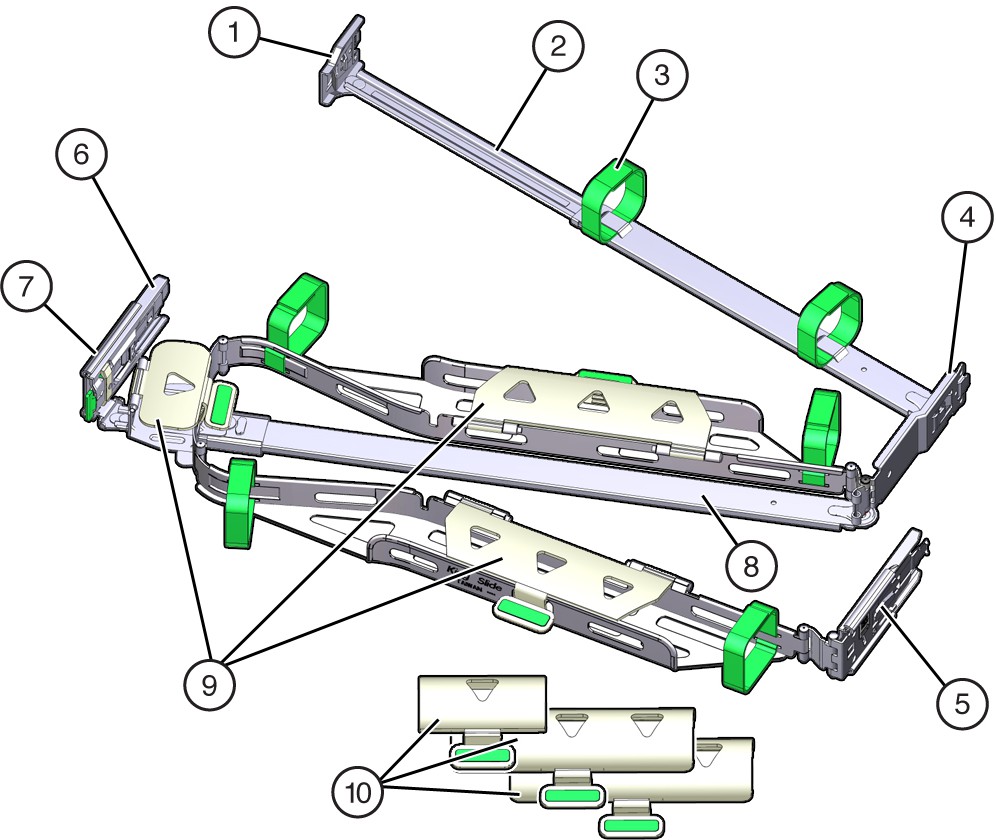
Call Out Description 1 Connector A 2 Front slide bar 3 Velcro straps (6) 4 Connector B 5 Connector C 6 Connector D 7 Slide-rail latching bracket (used with connector D) 8 Back slide bar 9 Server flat cable covers 10 Server round cable covers (optional) - Prepare the CMA for installation.
- Ensure that you install the flat cable covers for your server on the CMA.
- Ensure that the six Velcro straps are threaded into the CMA.
Note:
Ensure that the two Velcro straps located on the front slide bar are threaded through the opening in the top of the slide bar, as shown in the illustration in 1. This prevents the Velcro straps from interfering with the expansion and contraction of the slide bar when the server is extended out of the rack and returned to the rack. - To make it easier to install the CMA, extend the server approximately 13 cm (5 inches) out of the front of the rack.
- Take the CMA to the back of the equipment rack, and ensure that you have adequate room to work at the back of the server.
Note:
References to "left" or "right" in this procedure assume that you are facing the back of the equipment rack.Throughout this installation procedure, support the CMA and do not allow it to hang under its own weight until it is secured at all four attachment points.
- To install CMA connector A into the left slide-rail:
- Insert CMA connector A into the front slot on the left slide-rail until it locks into place with an audible click [1 and 2].
The connector A tab (callout 1) goes into the slide-rail front slot (callout 2).
- Gently tug on the left side of the front slide bar to verify that connector A is properly seated.
Figure 5-13 Installing and Verifying CMA Connector A on the Left Slide-Rail
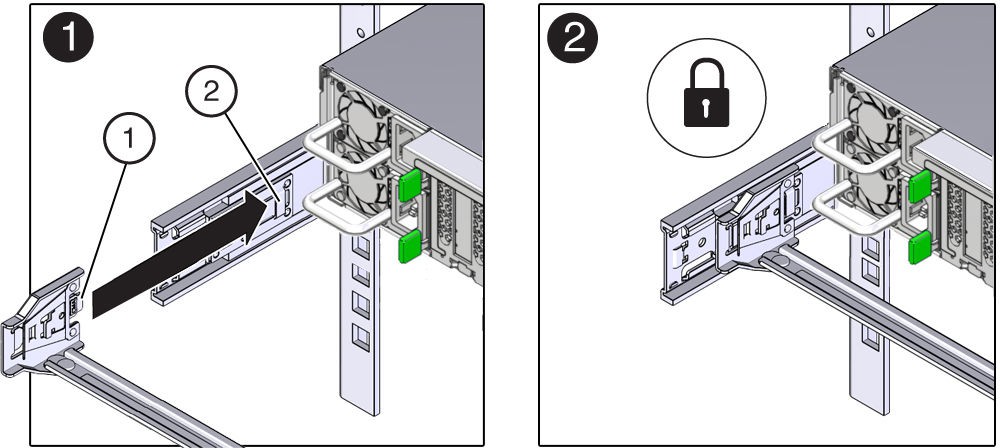
Call Out Description 1 Connector A tab 2 Left slide-rail front slot
- Insert CMA connector A into the front slot on the left slide-rail until it locks into place with an audible click [1 and 2].
- To install CMA connector B into the right slide-rail:
- Insert CMA connector B into the front slot on the right slide-rail until it locks into place with an audible click [1 and 2].
The connector B tab (callout 1) goes into the slide-rail front slot (callout 2).
- Gently tug on the right side of the front slide bar to verify that connector B is properly seated.
Figure 5-14 Verifying Proper Seating of Connector B via Front Slide Bar
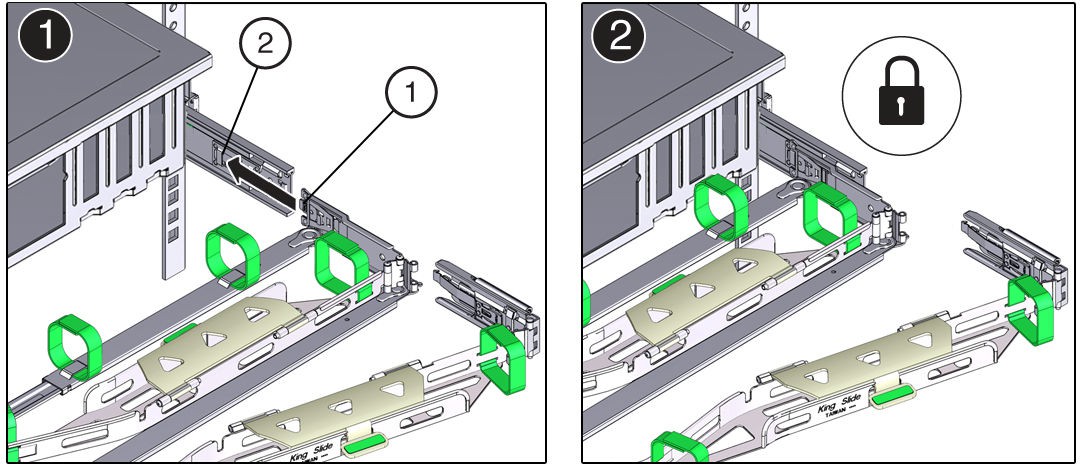
Call Out Description 1 Connector B tab 2 Right slide-rail front slot
- Insert CMA connector B into the front slot on the right slide-rail until it locks into place with an audible click [1 and 2].
- To install CMA connector C into the right slide-rail:
- Align connector C with the slide-rail so that the locking spring (callout 1) is positioned inside (server side) of the right slide-rail [1].
Figure 5-15 Aligning CMA Connector C with the Right Slide-Rail for Installation
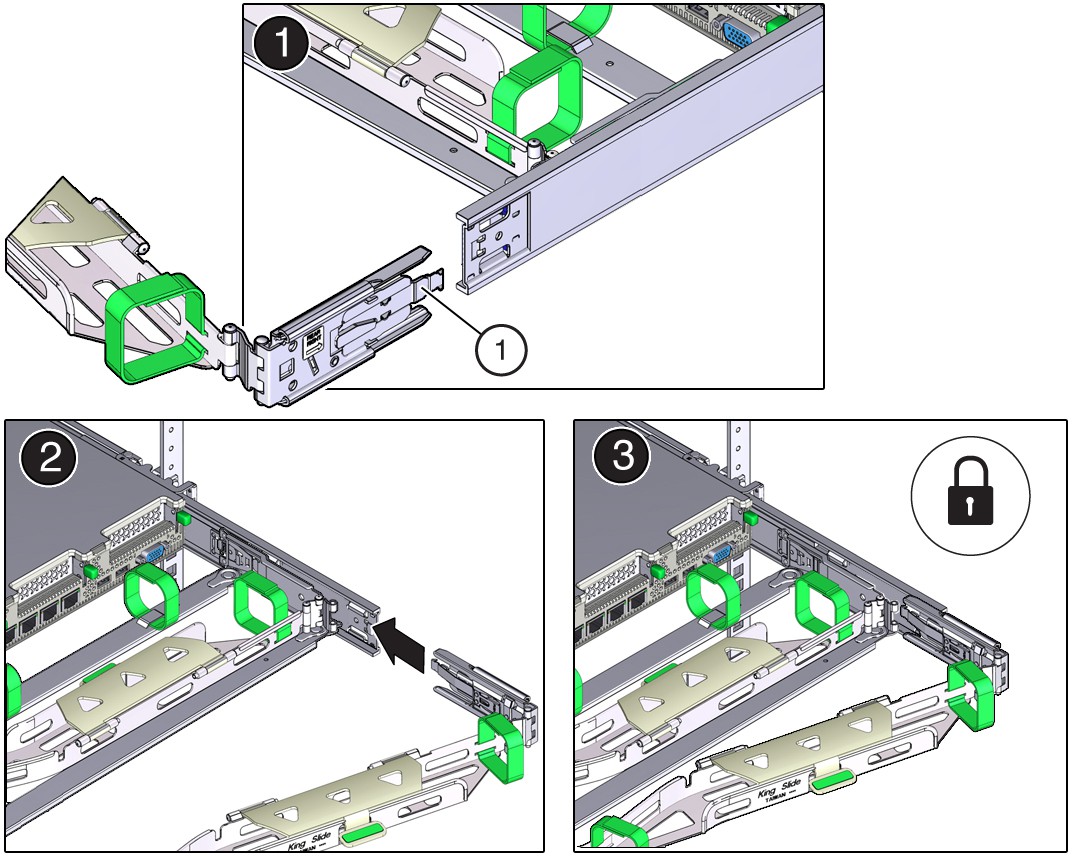
Call Out Description 1 Connector C locking spring - Insert connector C into the right slide-rail until it locks into place with an audible click [2 and 3].
- Gently tug on the right side of the CMA back slide bar to verify that connector C is properly seated.
- Align connector C with the slide-rail so that the locking spring (callout 1) is positioned inside (server side) of the right slide-rail [1].
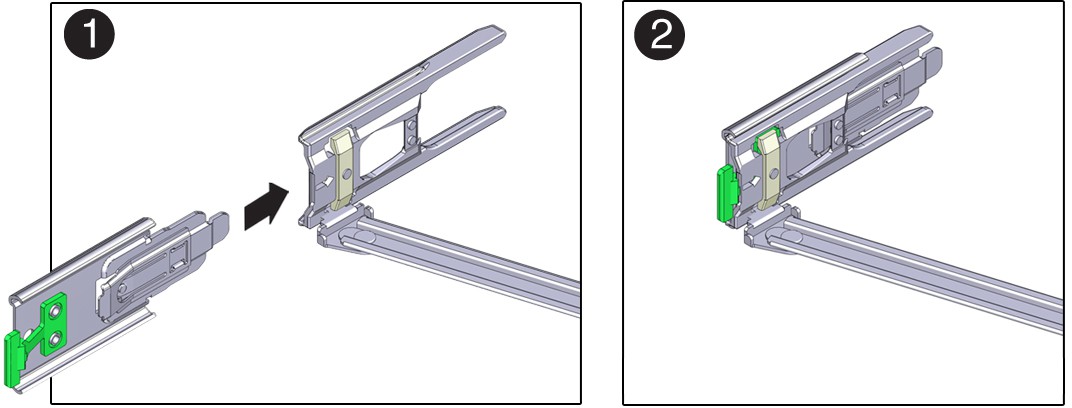
- To prepare CMA connector D for installation, remove the tape that secures the slide-rail latching bracket to connector D, and ensure that the latching bracket is properly aligned with connector D [1 and 2].
Note:
The CMA is shipped with the slide-rail latching bracket taped to connector D. You must remove the tape before you install this connector.Figure 5-16 Preparing CMA Connector D by Removing Tape and Aligning the Latching Bracket
- To install CMA connector D into the left slide-rail:
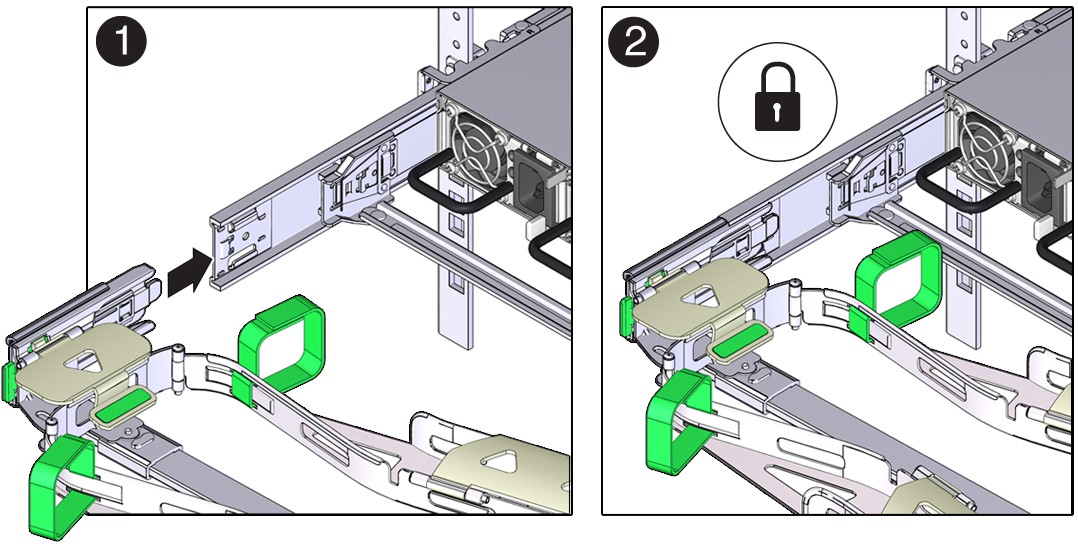
- While holding the slide-rail latching bracket in place, insert connector D and its associated slide-rail latching bracket into the left slide-rail until connector D locks into place with an audible click [1 and 2].
Note:
When inserting connector D into the slide-rail, the preferred and easier method is to install connector D and the latching bracket as one assembly into the slide-rail. - Gently tug on the left side of the CMA back slide bar to verify that connector D is properly seated.
Note:
The slide-rail latching bracket has a green release tab. Use the tab to release and remove the latching bracket so that you can remove connector D.Figure 5-17 Installing and Verifying CMA Connector D on the Left Slide-Rail
- While holding the slide-rail latching bracket in place, insert connector D and its associated slide-rail latching bracket into the left slide-rail until connector D locks into place with an audible click [1 and 2].
- Gently tug on the four CMA connection points to ensure that the CMA connectors are fully seated before you allow the CMA to hang by its own weight.
- To verify that the slide-rails and the CMA are operating properly before routing cables through the CMA:
- Ensure that the rack anti-tilt bar is extended to prevent the rack from tipping forward when the server is extended.
Caution:
To reduce the risk of personal injury, stabilize the rack cabinet and extend the anti-tilt bar before extending the server from the rack.For instructions to stabilize the rack, see Stabilize the Rack.
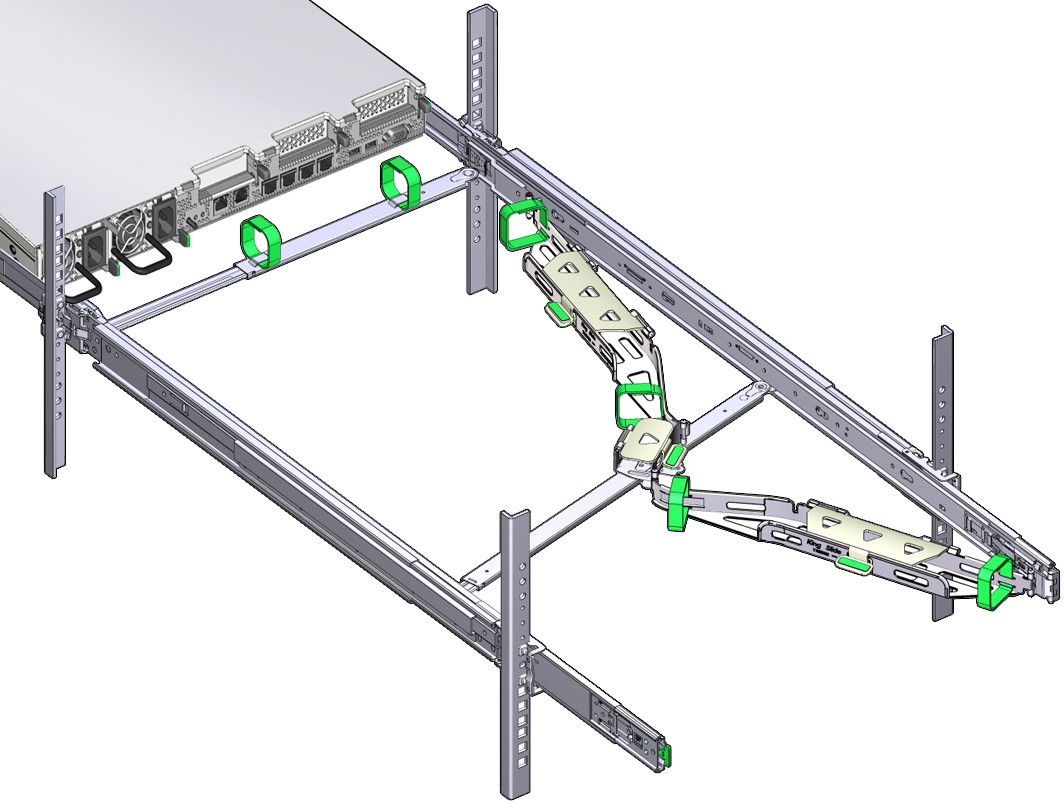
- Slowly pull the server out of the rack until the slide-rails reach their stops.
- Inspect the attached cables for any binding or kinks.
- Verify that the CMA extends fully with the slide-rails.
Figure 5-18 Verifying Slide-Rail and CMA Operation Before Cable Routing
- Ensure that the rack anti-tilt bar is extended to prevent the rack from tipping forward when the server is extended.
- To return the server to the rack:
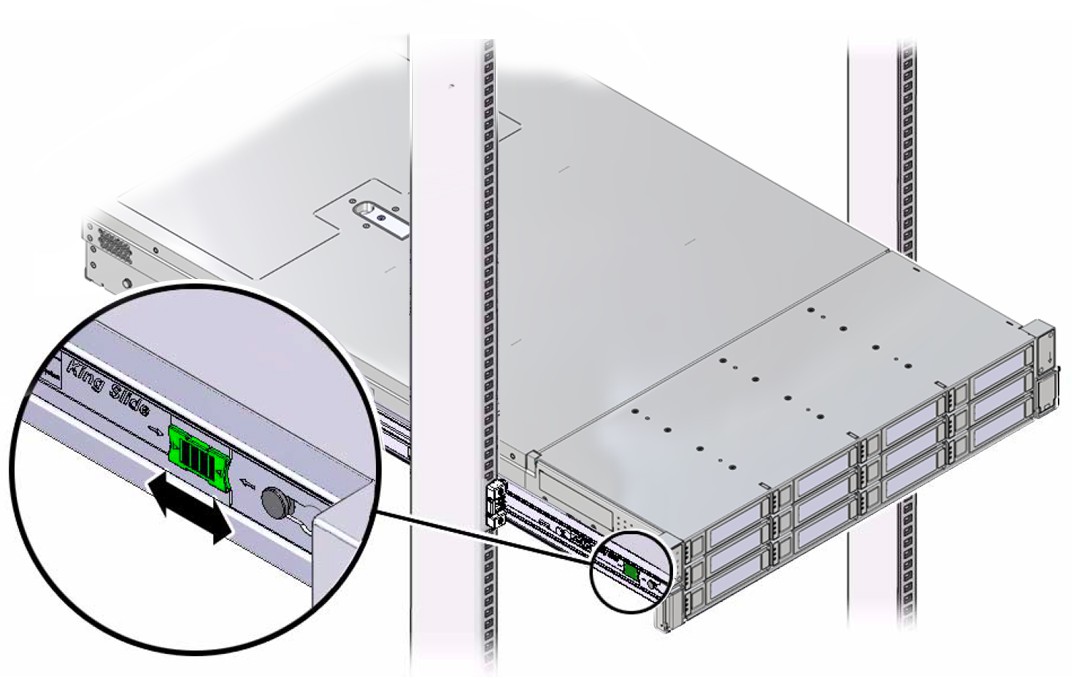
- Simultaneously pull and hold the two green release tabs (one on each side of the server) toward the front of the server while you push the server into the rack. As you push the server into the rack, verify that the CMA retracts without binding.
- To pull the green release tabs, place your finger in the center of each tab, not on the end, and apply pressure as you pull the tab toward the front of the server.
Figure 5-19 Retracting the Server into the Rack and Ensuring Smooth CMA Operation
- Continue pushing the server into the rack until the slide-rail locks (on the front of the server) engage the slide-rail assemblies.
You hear a click when the server is in the normal rack position.
- Connect cables to the server, as required.
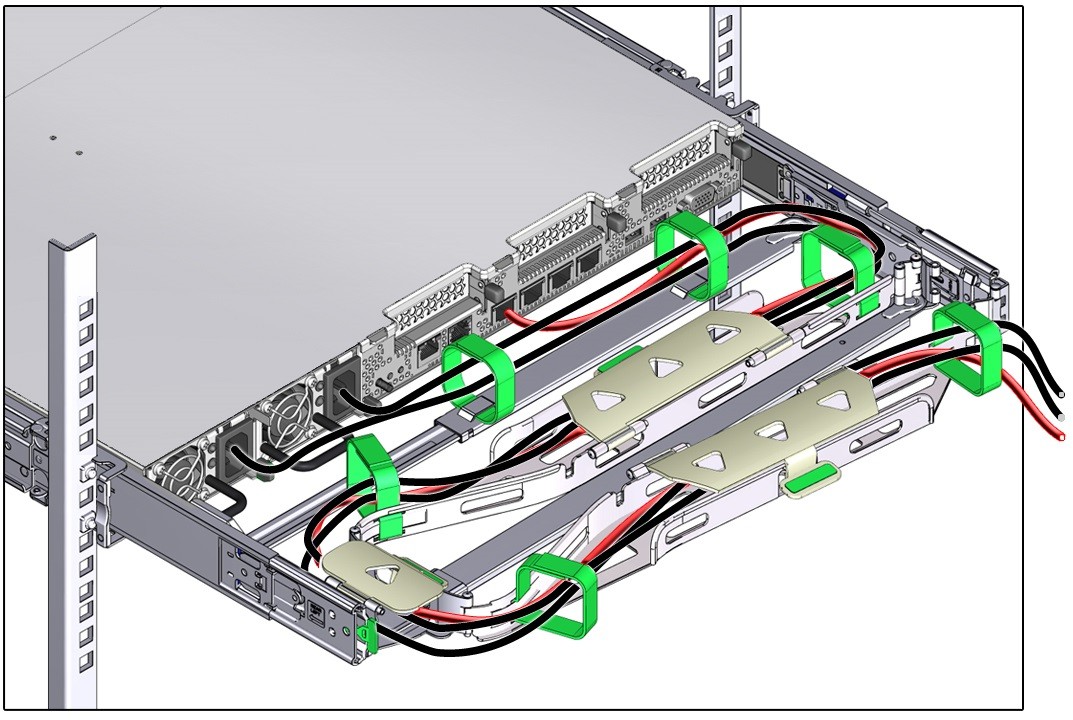
- Open the CMA cable covers, route the server cables through the CMA cable troughs (in the order specified in the following steps), close the cable covers, and secure the cables with the six Velcro straps.
- First through the front-most cable trough.
- Then through the small cable trough.
- Then through the back-most cable trough.
Caution:
When securing the cables with the Velcro straps located on the front slide bar, ensure that the Velcro straps do not wrap around the bottom of the slide bar. Otherwise, expansion and contraction of the slide bar might be hindered when the server is extended from the rack and returned to the rack.Figure 5-20 Routing and Securing Server Cables Through the CMA
- Ensure that the secured cables do not extend above the top or below the bottom of the server to which they are attached.
Otherwise, the cables might snag on other equipment installed in the rack when the server is extended from the rack or returned to the rack.
- If necessary, bundle the cables with additional Velcro straps to ensure that they stay clear of other equipment.
Note:
If you need to install additional Velcro straps, wrap the straps around the cables only, not around any of the CMA components. Otherwise, expansion and contraction of the CMA slide bars might be hindered when the server is extended from the rack and returned to the rack.