2 Unpacking and Inspection
This chapter covers unpacking and inspecting your Cloud Connector hardware, verifying that all components are included, and referencing device diagrams for the front and rear panels.
You’ll find instructions for orders with Starlink components and for Cloud Connector-only shipments. Use this information as a checklist to confirm that all required parts are present.
Unboxing The Cloud Connector
Follow these steps to unpack your Cloud Connector shipping box and remove all contents. Start here if your order does not include any Starlink components.
- Prepare a clean, static-free workspace.
- Use appropriate grounding or anti-static precautions.
- Take care when cutting seals or opening packaging to avoid damaging enclosed components.
- Open the outer packaging box and lift the lid. Take care not to damage any contents inside.
- Remove the top cover and set aside the documentation or instructions included with it.
- Take out the antennas, power cable, and GPS antenna from their designated positions. Place these accessories on your workspace.
- Lift out the inner packaging insert that sits above the Cloud Connector unit.
- Remove the power adapter from its compartment within the packaging insert.
- Gently lift the Cloud Connector unit out of the packaging and place it on your prepared surface.
Unboxing A Starlink Gen3 Order
Follow these steps to unpack your Starlink overpack box and remove all contents.
- Prepare a clean, static-free workspace.
- Use appropriate grounding or anti-static precautions.
- Take care when cutting seals or opening packaging to avoid damaging enclosed components.
- Open the overpack box by cutting any shipping tape and folding back the outer flaps.
- Remove the two empty inserts from the top layer and set them aside.
- Lift out the Cloud Connector box and place it on your workspace for later unpacking.
- Remove the Wedge Mount Accessory Kit.
- Remove the GEN3 Satellite System box from the bottom of the overpack box.
- Open the Gen 3 Starlink Satellite box and identify the large 1-page Quick Start Guide.
Figure 2-1 Diagram of Starlink and Cloud Connector package
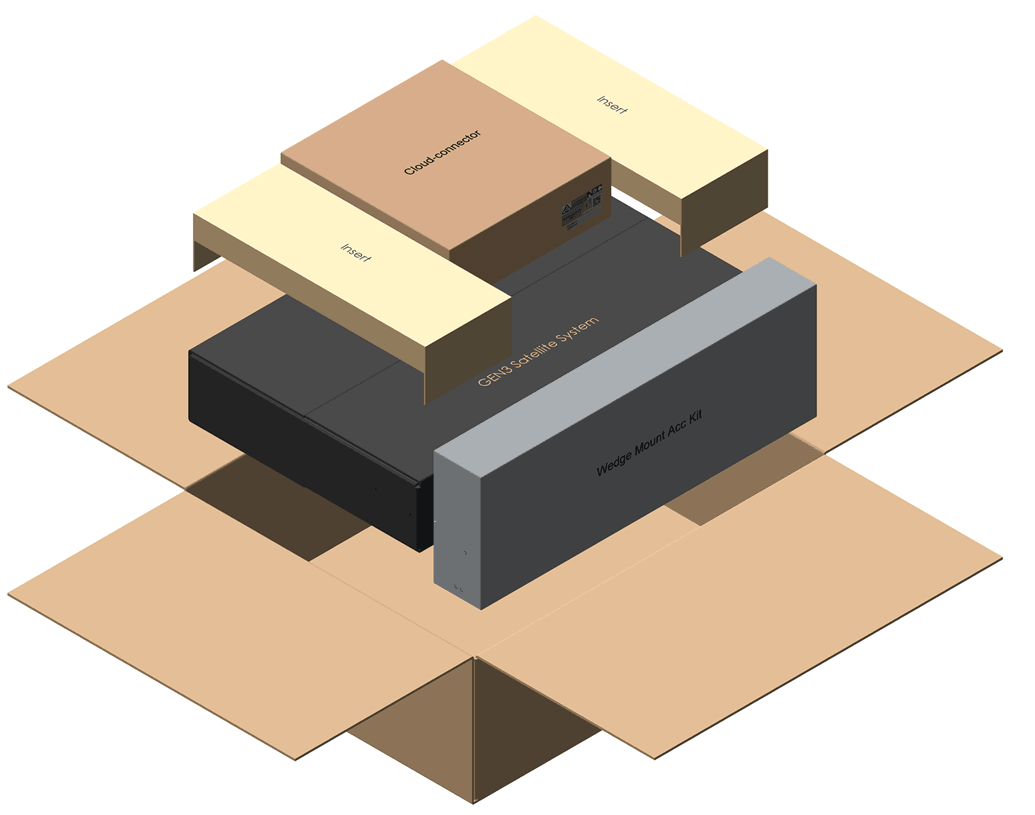
Once you have finished unpacking the Starlink overpack box, continue to the Cloud Connector unboxing instructions.
Unboxing a Starlink Mini Order
Follow these steps to unpack your Starlink Mini overpack box and remove all contents.
- Prepare a clean, static-free workspace.
- Use appropriate grounding or anti-static precautions.
- Take care when cutting seals or opening packaging to avoid damaging enclosed components.
- Open the overpack box by cutting any shipping tape and folding back the outer flaps.
- Remove the top cardboard insert from the overpack box and set it aside.
- Remove the 2 side cardboard inserts from the second layer and set them aside.
- Lift out the Cloud Connector system box and place it on your workspace for later unpacking.
- Remove the Starlink Mini System box from the bottom layer of the overpack box.
- Open the Starlink Mini System box and identify the included Starlink Mini components and quick start documentation.
Figure 2-2 Diagram of Starlink Mini and Cloud Connector package
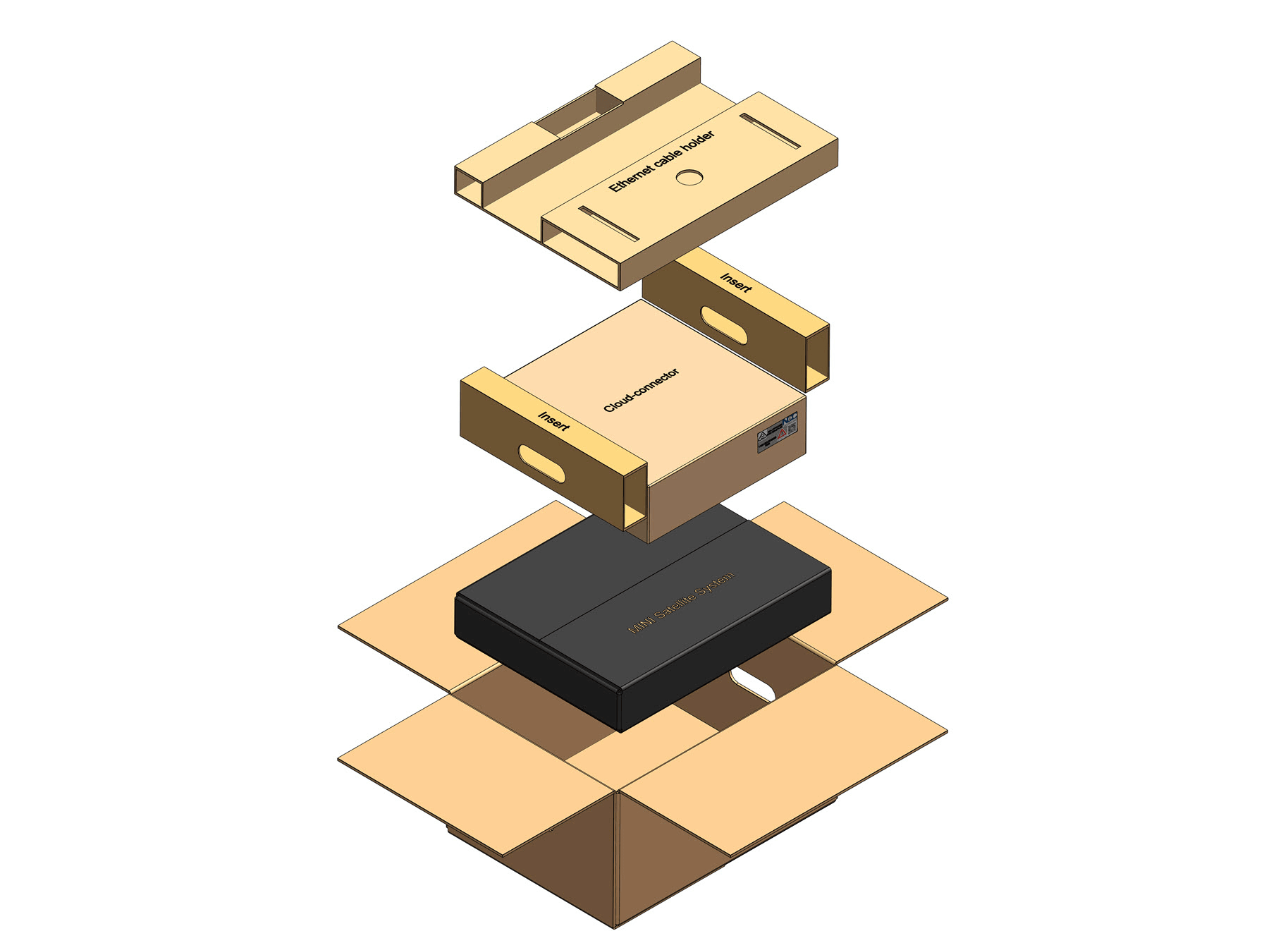
Once you have finished unpacking the Starlink Mini overpack box, continue to the Cloud Connector unboxing instructions.
Inspecting the Cloud Connector Components
After unboxing your Oracle Cloud Connector, the first step is to inspect the device and its accessories. This helps ensure you have everything you need for a successful installation and setup. The Cloud Connector box includes the following items:
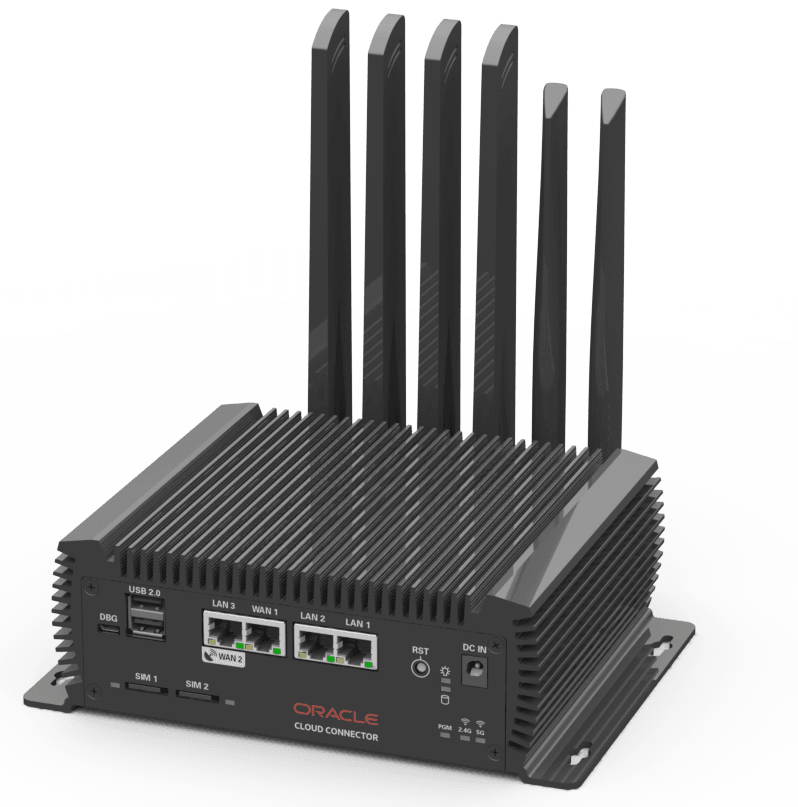
- Oracle Cloud Connector (1) – The edge computing device enabling far reaching functionality as paired with Oracle ECP.
Figure 2-3 Front view of Oracle Cloud Connector.
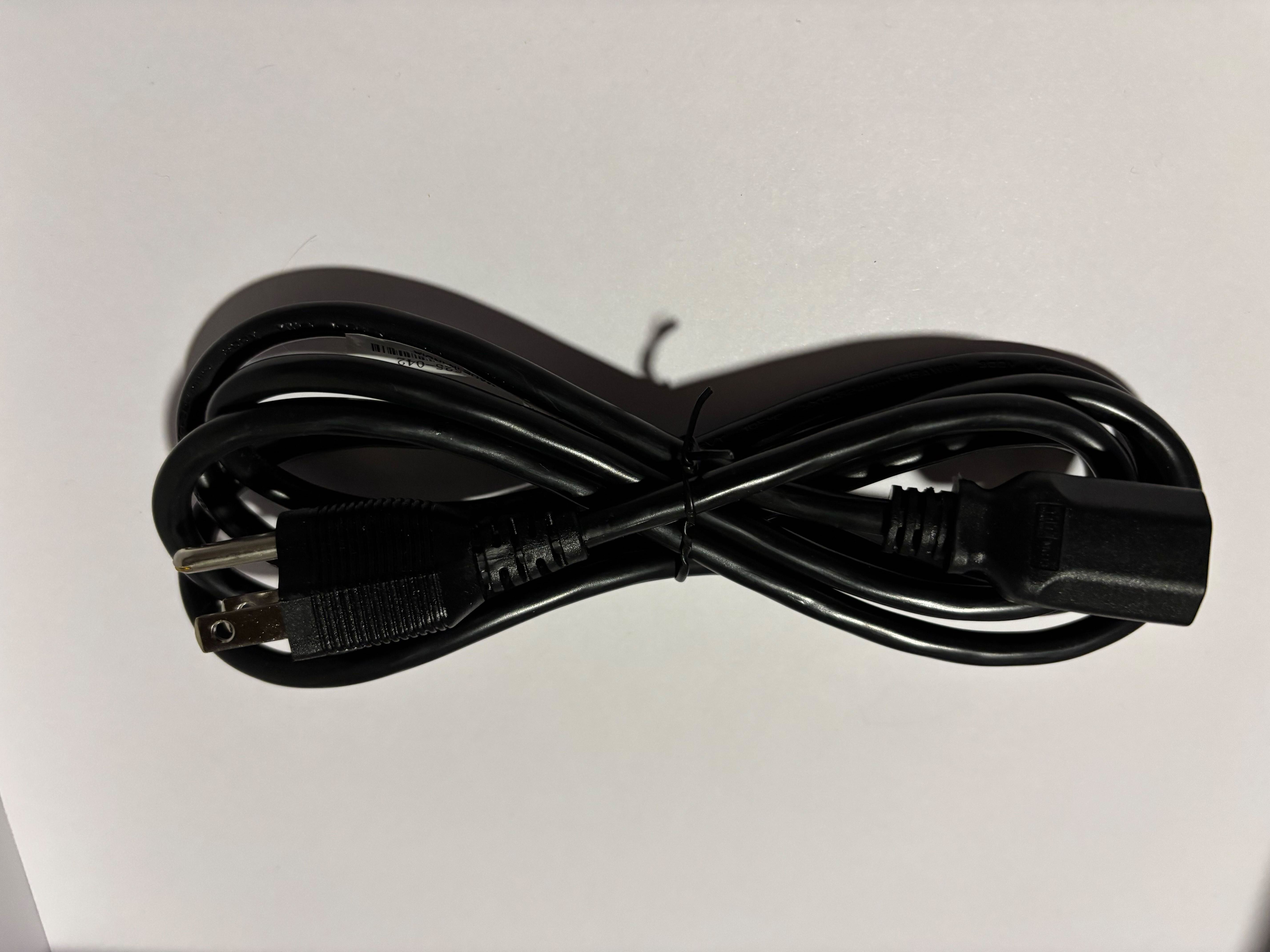
- Power Cord (1) – The cable that connects the power adapter to the wall outlet.
Figure 2-4 Power cord
Note:
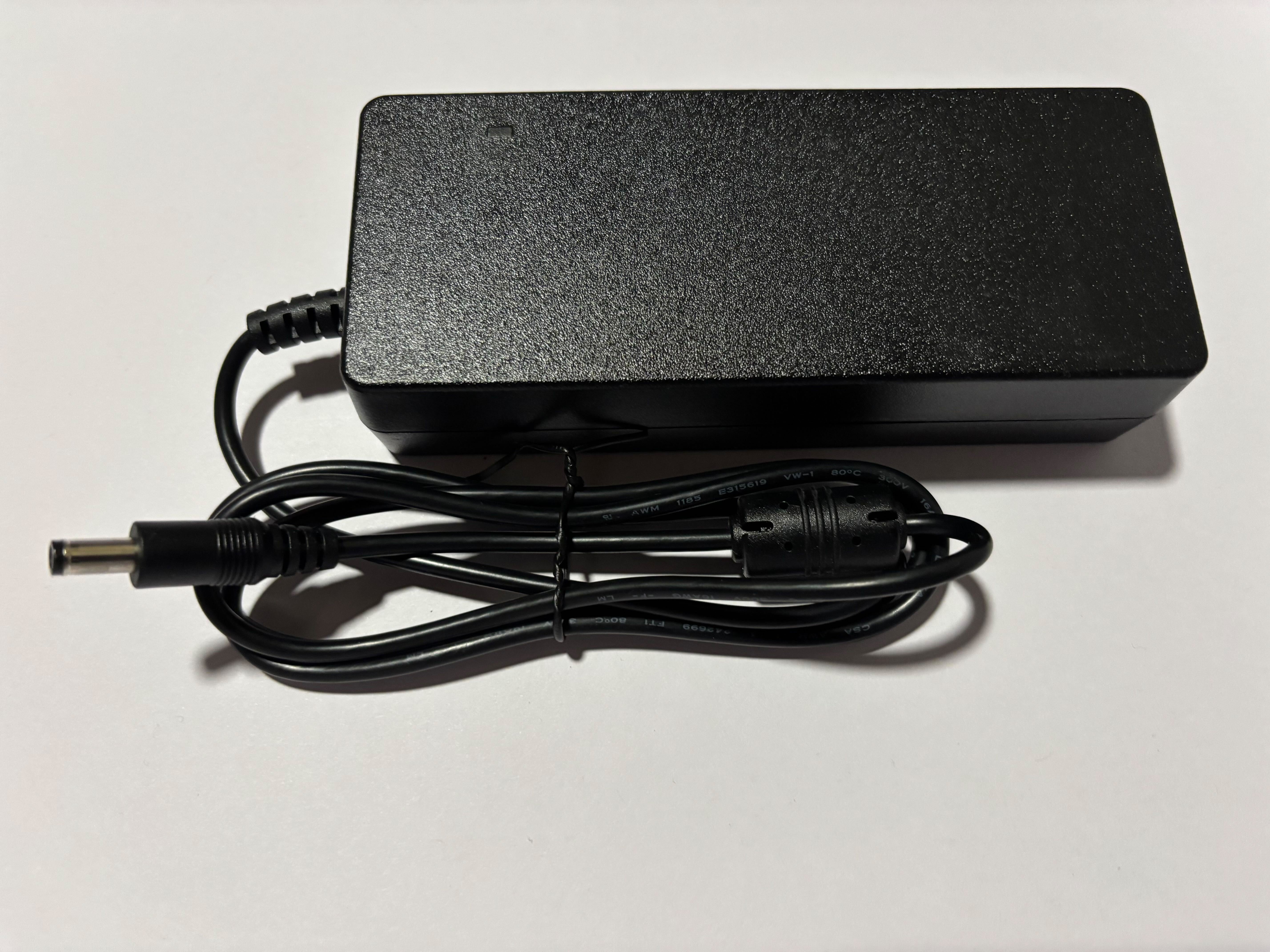
The power cord included matches the plug style appropriate for your delivery country. - Power Adapter (1) – The device that converts AC power from the wall outlet to the DC power required by the Cloud Connector.
Figure 2-5 Power adaptor
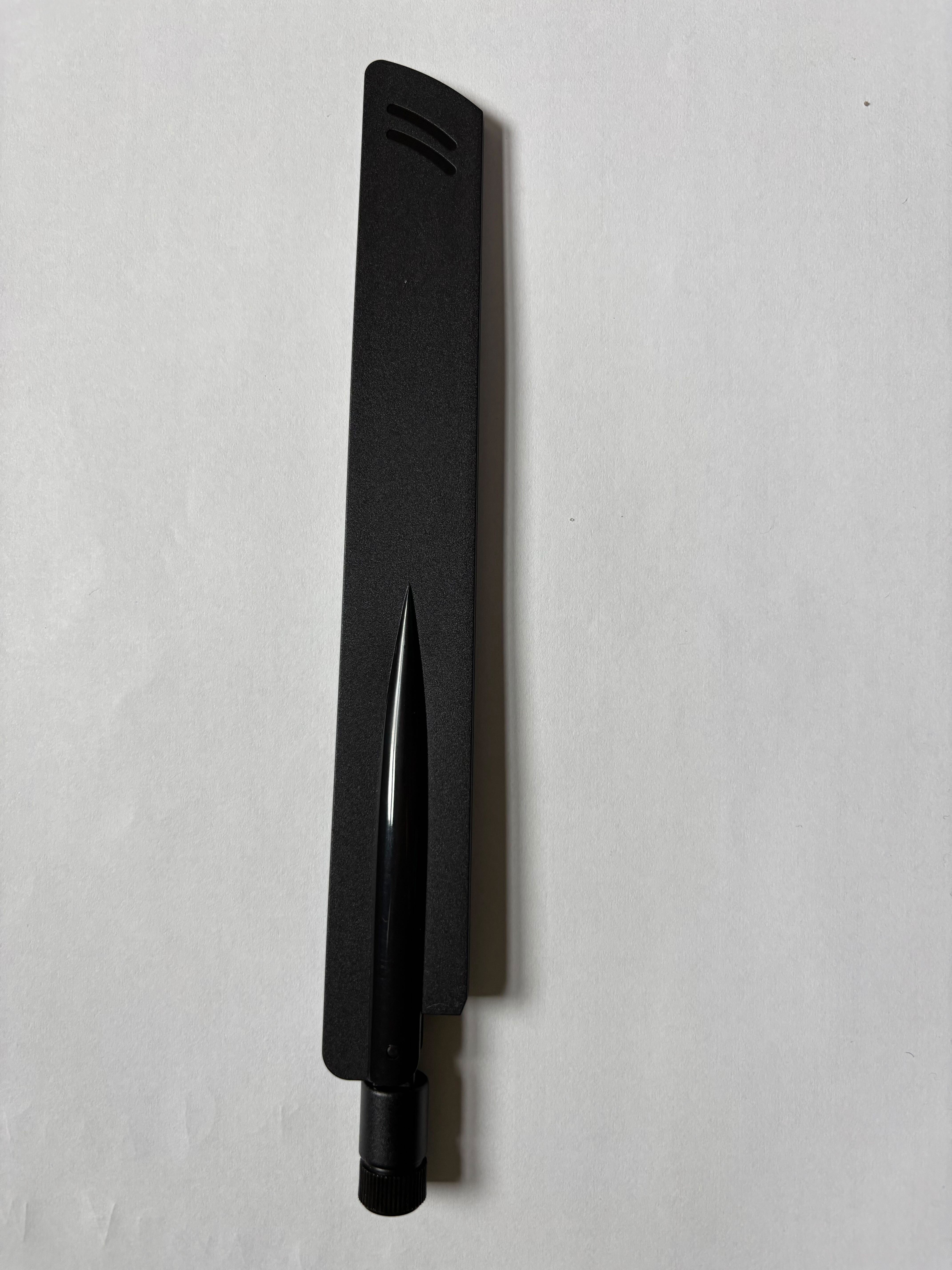
- Wi-Fi Antennas (2) – For wireless connectivity.
Figure 2-6 Wi-Fi antenna
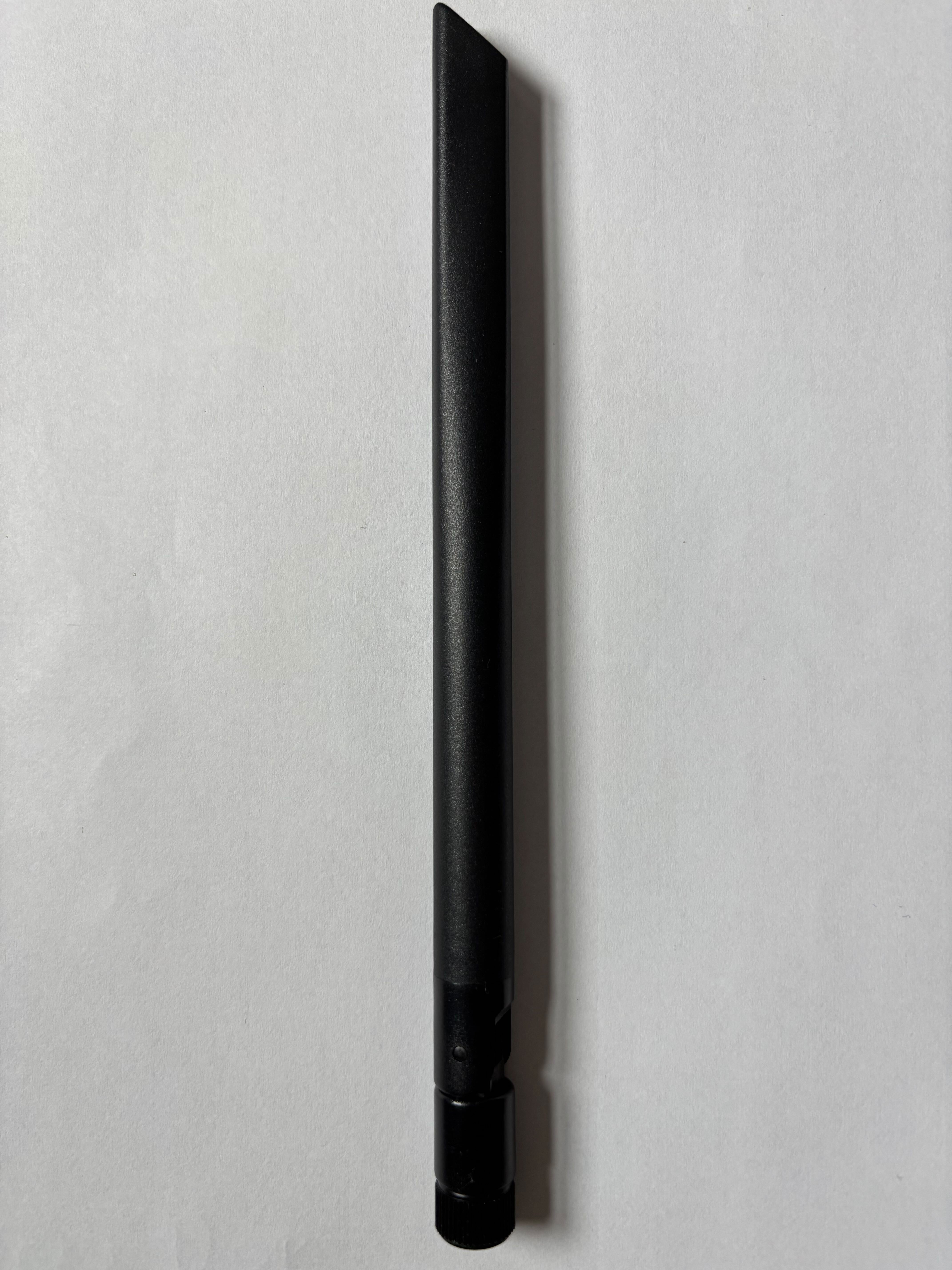
- Cellular Antennas (4) – For LTE/5G cellular connections.
Figure 2-7 LTE/5G Antenna
- GPS Antenna (1) – Provided for future use.
Note:
GPS is not currently supported.
If any item is missing or damaged, please contact Oracle Support before proceeding with installation.
Front Panel Description
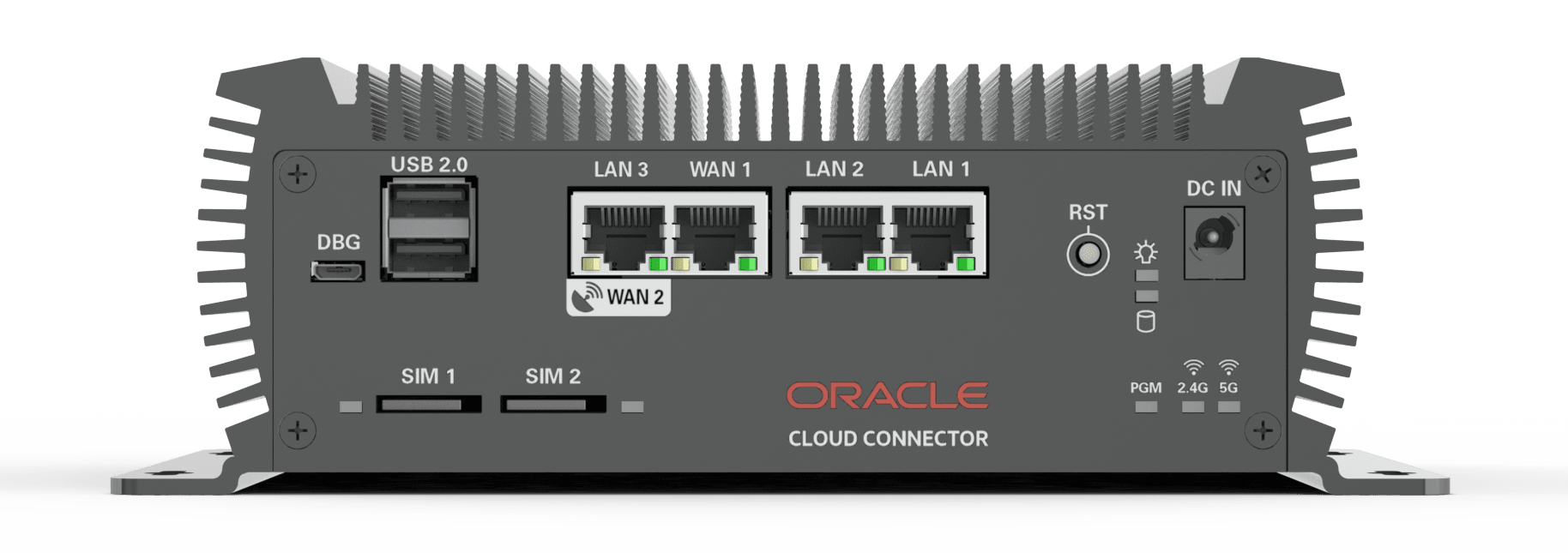
The front panel of your Oracle Cloud Connector offers convenient access to key ports and controls:
- USB 2.0 Ports (2) – Allows connection of supported USB peripherals and devices.
- SIM Card Slots (2) – Pre-installed with SIM cards (for cellular subscription orders); not intended for end user removal or replacement. Do not remove the SIM card slot covers.
- Ethernet Ports (4) – Supports wired connections to LAN and WAN networks.
- Reset Button – Resets the device.
- LED Indicator Lights – Displays device power and system status information. See the following section for more information.
- DC Power Input Port – Accepts the DC connector from the power adapter to supply electrical power to the device.
- Debugging Port – Do not access this port.
Figure 2-8 Front Panel
Front Panel LED Indicators
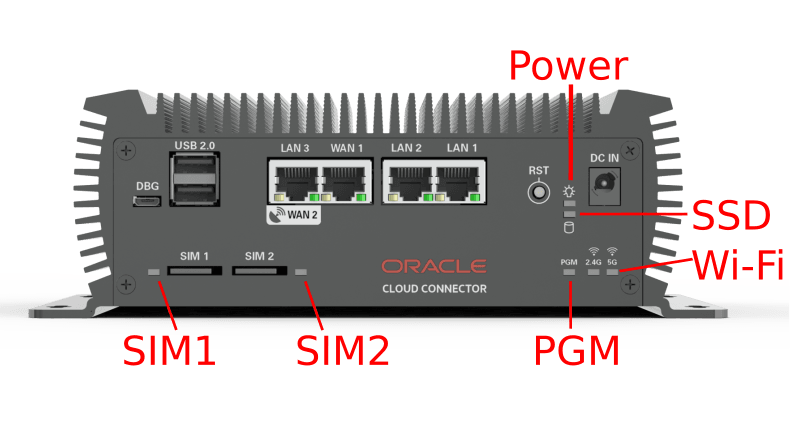
The front panel includes multiple LED indicators that display the current status of your device. The following section explains the function of each LED and what its status signifies.
Figure 2-9 Front Panel LEDs
| LED | Description |
|---|---|
| Power | Illuminates red when the device is powered on and receiving input from the DC power source. |
| SSD | Blinks to indicate activity on the internal storage drive, such as reading or writing data. |
| Wi-Fi 2.4 GHz | Illuminates green to indicate the 2.4 GHz access point is operational. |
| Wi-Fi 5 GHz | Illuminates green to indicate the 5 GHz access point is operational. |
| SIM1 | Illuminates green when a SIM card is correctly installed in the SIM1 slot. |
| SIM2 | Illuminates green when a SIM card is correctly installed in the SIM2 slot. |
| PGM | Reserved for future customizable functions; currently not in use. |
Rear Panel Description
The rear panel of your Oracle Cloud Connector provides connections for all external antennas, with each port clearly labeled for easy installation:
- Wi-Fi (2) – Labeled “Wi-Fi” for the supplied Wi-Fi antennas.
- LTE/5G (4) – Labeled “LTE/5G” for the included cellular antennas.
- GPS (1) – Labeled “GPS” for the supplied GPS antenna (not currently in use).
Figure 2-10 Rear Panel
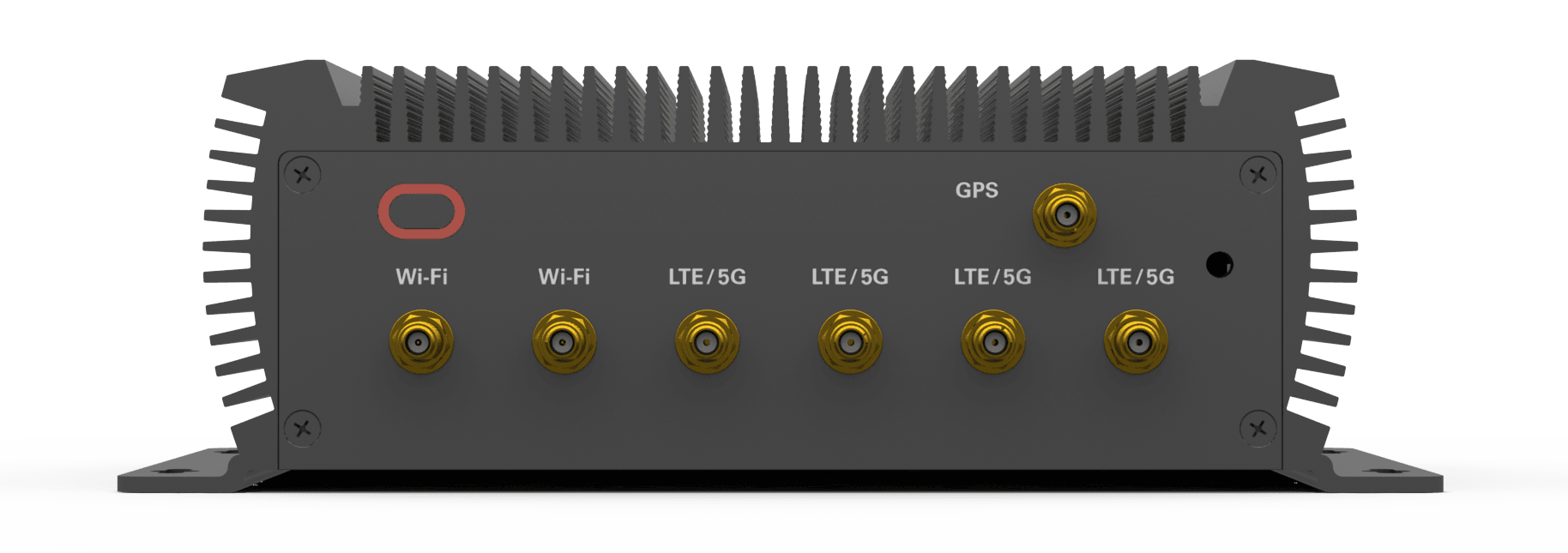
All antenna connectors on the rear panel are SMA female. Attach all antennas securely before powering on the device to ensure optimal connectivity. If you do not plan to use all connections, use dust caps to protect any unused connectors.