The Device Details Page
On the Device Inventory page in Oracle Enterprise Communications Platform (Oracle ECP), the name of each device appears as a link. Click the device name to view more information about that device on the Device Details page.
Note:
Some data that Oracle ECP can display and the menu actions users can perform on the Device Details Page apply only for Devices that are Active (life cycle state) and Connected (connectivity state).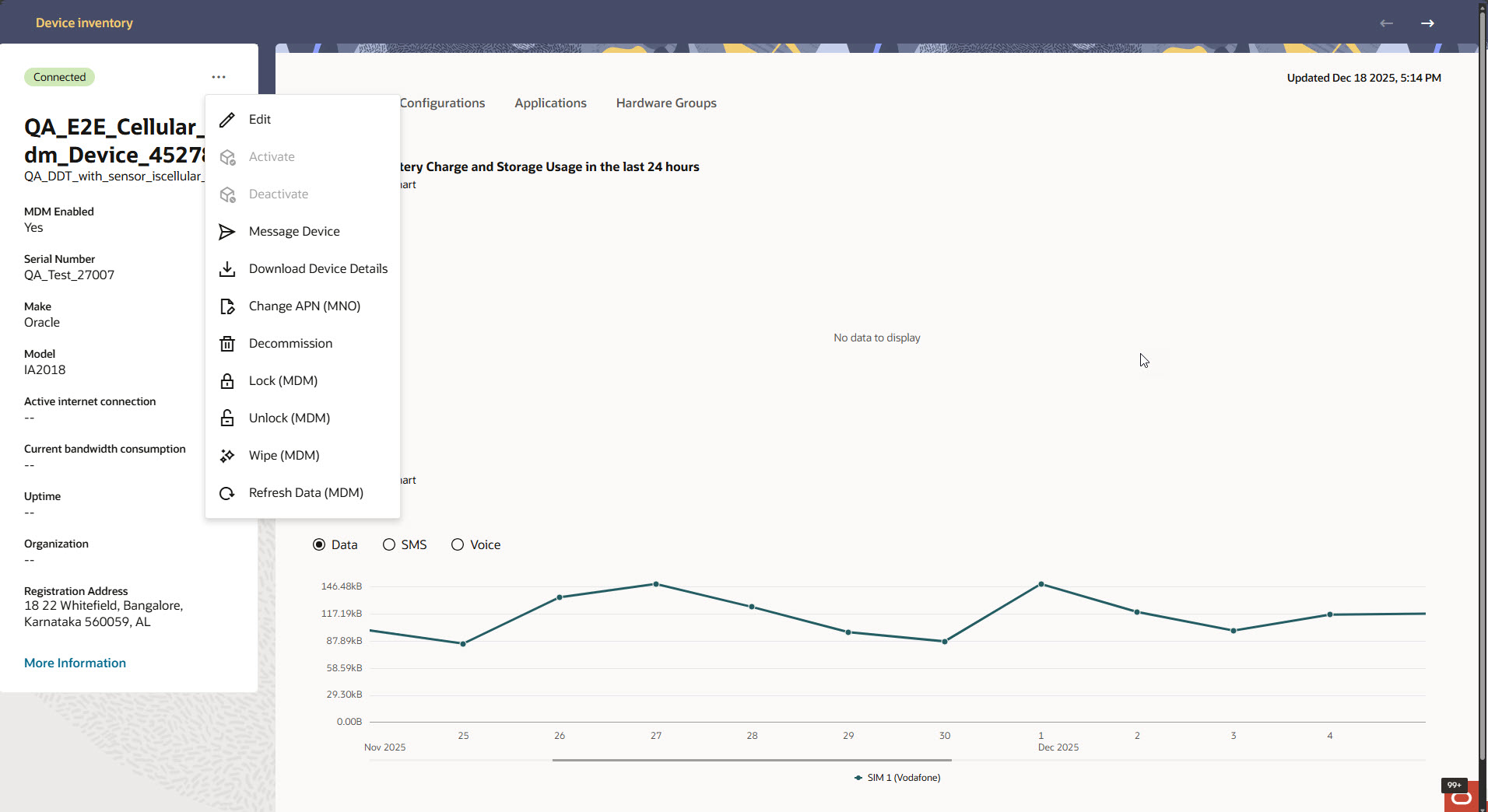
- Click the Device Inventory arrow above the left pane to return to the Devices Inventory page.
- Click the Previous Item and Next Item arrows at the top right of the page to display the Device Details page for the previous device or next device in the Devices Inventory table.
- Click the three dots at the top of the left pane to display a list of the Actions on the Device Details Page. The available actions on the menu depend on the device type, settings, and your role.
Right Pane
The right pane displays Device information on tabs that apply for the device types in your inventory:
- The Overview tab includes charts to show usage:
- For devices with cellular as the connectivity type, the tab displays a usage chart (selected via SMS, Data, and Voice buttons).
- For MDM-managed devices, the chart includes a line plot for Remaining Battery Usage (only for devices for which the external MDM reports battery data to ECP, when available) and a line plot for Storage Usage. You can hover on a data point in a line plot on a chart to view associated information. You can click the legend (beneath the chart) for a line plot to include or remove it on the chart. Some charts include sliders you can adjust to see greater or lesser time spans. Grab the two parallel lines at either end of the slider to move it.
- Configurations tab: Shows the list of configuration profiles applied to the device, with columns for Name, Type, Description, and Status.
- Applications tab: Lists the applications associated with the device, including columns for Application, Version, Status, and Installed date and time.
- Hardware Groups tab: Displays hardware groups linked to the device, with columns for Name, number of Hardware, Configurations, and Applications.
The Configurations Tab
The Configurations tab under Device Details in Oracle Enterprise Communications Platform (Oracle ECP) provides a comprehensive summary of all configuration policies applied to the selected device.
This page allows you to quickly assess which settings, compliance rules, and device management controls have been assigned and successfully implemented on the device. The information aids in monitoring device status, troubleshooting configuration issues, and ensuring continuous compliance with organizational policies.
You can use the Search functionality to find a specific configuration you are looking for.
| Name | The title or identifier of the applied configuration or policy. |
| Type | The category or class of configuration. |
| Description | A brief summary of the configuration’s purpose or any additional context. |
| Status | Indicates the application status of the configuration on the device. |
The Applications Tab
The Applications tab under Device Details in Oracle Enterprise Communications Platform (Oracle ECP) provides a comprehensive view of the software applications associated with the selected device.
This page allows you to review which applications are currently installed, their version, and their installation status in one place.
You can use the Search functionality to find a specific application you are looking for.
Oracle ECP displays the following columns:
| Application | The name of the software application associated with the device. |
| Version | The version number of the application. |
| Status | Indicates whether the application is currently installed or not. |
| Installed | Additional details on installation status (typically used for further status qualifiers or timestamps). |
Note:
You can sort the table by clicking on either the Version column header or the Installed column header. This changes the order of the rows accordingly.The Hardware Groups Tab
The Hardware Groups tab under Device Details in Oracle Enterprise Communications Platform (Oracle ECP) provides a summary view of the hardware group associations for the selected device.
| Name | The name of the hardware group assigned to the device. |
| Hardware | The total number of hardware devices in the group. |
| Configuration | The number of configurations associated with the group. |
| Applications | The number of applications associated with the group. |
Actions on the Device Details Page
Oracle Enterprise Communications Platform (Oracle ECP) lets you perform actions to manage Devices in inventory.
Note:
The display of actions on menus is affected by your user role, the device type, and the device connectivity state, lifecycle state, and settings.| Edit | Use to change the information in any of the Description and Placement fields for the device. Use to toggle "Device will be moving" on and off, as well. |
| Activate | Use to put an device that you added to the inventory into service with Oracle ECP. |
| Change APN | Use to update the SIM card in the selected device to use a different Access Point Name (APN) for accessing the Mobile Network Operator (MNO). |
| Message Device | Use to send a text message or AT command to the device. Valid for cellular devices only. |
| Change Data Plan |
Use to set the network priority and to set the data plan for an device (when supported by the MNO). The ECP Admin can change both the data plan and the network priority. The GBU Admin can change only the network plan. Note:Oracle ECP updates the data plan information on the Device Inventory page every five minutes. |
| Deactivate | Use to temporarily remove a device from service with Oracle ECP. |
| Decommission | Use to permanently remove the selected device from service,
your inventory, and the Oracle ECP database.
When decommissioning an MDM-enabled device, the action:
|
| MDM-Refresh Data
MDM-managed devices only |
Use to update the MDM-managed device information in the Oracle ECP database with the latest information from the external MDM platform. |
More Information Drawer - Devices
The Device Details page includes a More Information link that opens the More Information drawer. When clicked, the More information drawer expands from the right side of the screen and includes the following tabs when relevant for the selected device:
Status Tab
Use to review the following details about the device.
| Lifecycle State | Active | Inactive | Onboarded |
| Lifecycle State Detail | A descriptive phrase that provides additional monitoring- or troubleshooting-related information for a Lifecycle State. For example, a directly connected Device in the Active Lifecycle State may have the Lifecycle State Detail of In Service after connecting to the cloud and authenticating. |
| MDM Device Status | The current managed devices status as reported by the device’s MDM system. |
| MDM Compliance Status | The compliance state as assessed by the MDM system. |
| Connectivity Type | The specified connection type: Cellular, Ethernet, Wi-Fi. |
| Usage Status | Displays either In Use or Not in Use. |
| Description | A description entered when adding the device to inventory displays. |
| Location GPS Coordinates | The latitude and longitude of the device location. |
| Last Modified | The date and time the Administrator most recently modified the attributes or status of the device. |
| Last Updated from Device | The most recent time interval since the device last sent an update. |
Details Tab
Use to review the following details about the device.
| Device OS | The operating system installed on the device. |
| Management Profile | The management mode or profile used for the device. |
| Device ID | A unique identifier assigned to the device to distinguish and manage the device in inventory and communications. |
| Protocol | Lists the supported communication protocols used by the device to interact with the platform. |
| Inventory MAC Address | The unique Media Access Control address assigned to the device network interface and registered in inventory. |
| LAN IP Address | The current IP address assigned to the device on the local area network. |
| Remaining Battery Charge | The current battery level percentage as reported by the device. |
| Onboarding Date and Time | The date and time when the device onboarding process completed. |
| Onboarding User | The user name of the person who added the device to inventory. |
Cellular Tab
Note:
ECP does not display the Cellular tab for a device with no SIM card.| IMSI (International Mobile Subscriber Identifier) | The digit string that uniquely identifies the mobile network subscriber. |
| IMEI (International Mobile Equipment Identifier) | The digit string that uniquely identifies the device. |
| APN | The Access Point Name used to establish a connection between the gateway and the mobile network. |
| MNO | The Mobile Network Operator that is providing connectivity services via the SIM card in the device. |
| MNO Account | The name of the MNO account that defines the connectivity service and accessible APNs. |
| ICCID | The unique Integrated Circuit Card Identification number assigned to the SIM card. |
| SIM Activation State | Displays either Active or Inactive. |
| Monthly Data Plan | An agreement between a Mobile Network Operator (MNO) with support for account rate tier changes and a customer. The data plan specifies how much mobile data can be accessed for a set price, usually per month. At this time, ECP displays values only for devices with AT&T SIM cards. |
| Network Priority | Use to switch the data traffic for a Device with an AT&T SIM card between standard and prioritized networks. When enabled, the device moves to AT&T's prioritized network when there is congestion on the standard network. |
| IP Address | A numeric label assigned to devices that use the internet to communicate. |
| Latest Data Session Start | The time stamp when the last data session started. |
| Current / Home Country | The currently registered (roaming or home) country for the SIM, as reported by the network. |
| Current MCC / MNC / Operator | The Mobile Country Code, Mobile Network Code, and network operator name currently associated with the SIM card registration. |
Authentication Tab
Use to review the following details about the Device displayed:
| Authentication Method | No Authentication | Client Secret. |
| Client Secret | A text string specified as the Client Secret during onboarding when Client Secret is the selected authentication method. You can click the eye icon to display the Secret instead of the string of asterisks that masks the string. |