Add Services
The high-level process for adding services to Oracle® Intelligent Communications Orchestration Network cloud service is similar regardless of the service you select, but some of the configuration fields vary from one service to another. Use the following topics to see the details of the configuration for the service you want to add.
Note:
After you provision a service, please allow up to 24 hours for all DNS services to resolve the URL.- The Process for Connecting Services
- Connect to a Carrier Service
- Connect to a Cisco WebEx Calling or Contact Center Service
- Connect to a Generic SIP Service
- Connect to a Genesys Cloud CX Service
- Connect the Microsoft Teams (Direct Routing) Service
- Connect to a NICE CXone Mpower Service
- Connect to a Zoom Phone Service
The Process for Connecting Services
Connecting services to your Oracle® Intelligent Communications Orchestration Network cloud service deployment requires a multi-step process that varies in details depending on the service you select.
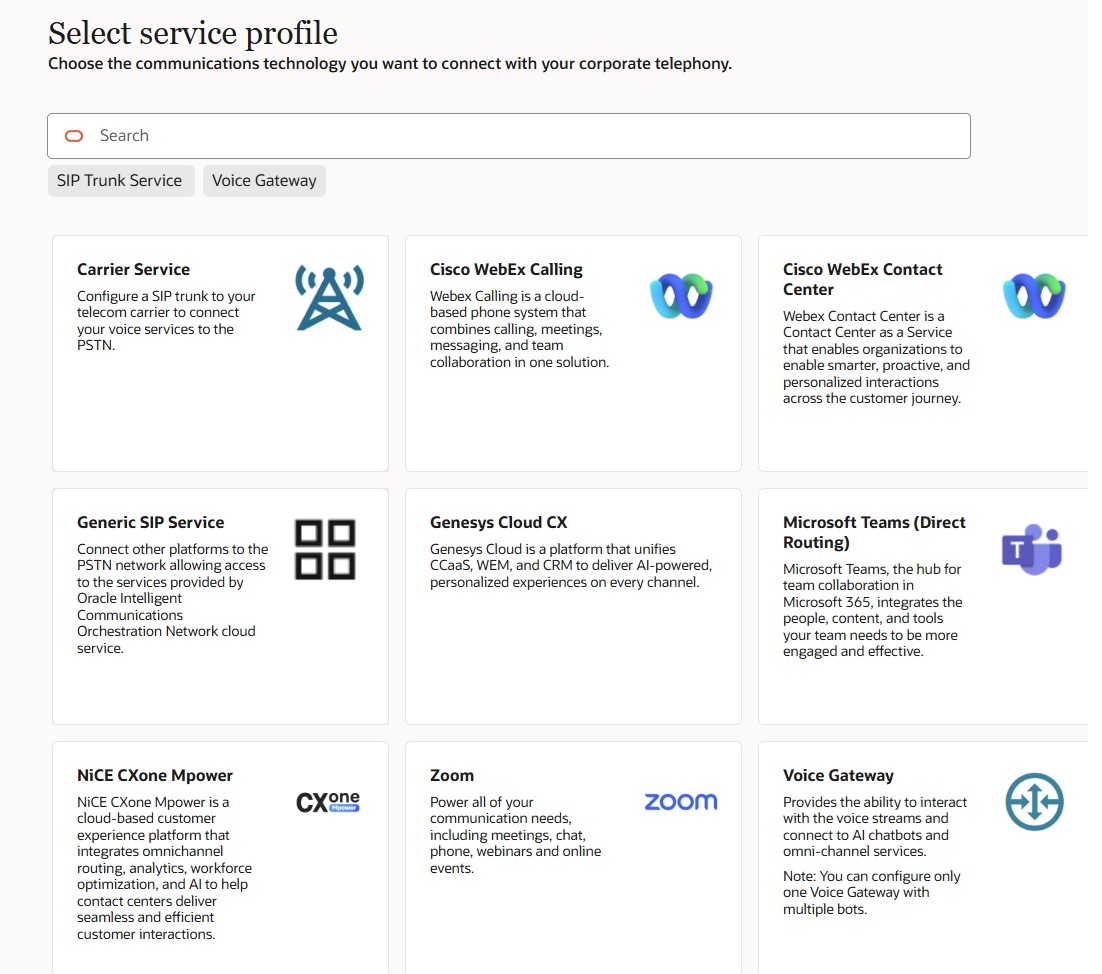
- Go to the Services page—Click Add Service. Oracle® Intelligent Communications Orchestration Network cloud service displays the Select Service Profile page.
- Select a service profile—Select the service you want and click Continue. Oracle® Intelligent Communications Orchestration Network cloud service displays the Set Up a Service page, which varies according to the service selected.
- Follow the guided set up work flow—Complete the steps provided in the navigation pane to the right of the set up pane. Each time you complete a step and click Continue, the work flow advances to the next step.
Note:
After you provision a service, please allow up to 24 hours for all DNS services to resolve the URL.The following screen capture shows an example of the Select Your Service Profile page with a list of services and descriptions. When you click a service and click Continue, Oracle® Intelligent Communications Orchestration Network cloud service displays the next page in the work flow.
Add a Service Group
You might want to create a group of services to provide redundancy during a service outage to support continued communications for business continuity. Within the service group, you can set the fail over priority. See Add Service Groups.
Connect to a Carrier Service
Use the Carrier service to increase flexibility and scalability compared to traditional phone lines. Carrier service may reduce costs and can enhance your business continuity plan by enabling alternate call routing during an outage.
Upon log on, Managed Service Provider users land on the Accounts page. Enterprise users land on the Services page. The steps in the following procedure are identical for both types of users from Step 2 onward.
Note:
After you provision the service, please allow up to 24 hours for all DNS services to resolve the URL.Connect to a Cisco WebEx Calling or Contact Center Service
Use the following procedure to connect to a Cisco WebEx Calling Service or a Cisco WebEx Contact Center Service to the Oracle® Intelligent Communications Orchestration Network cloud service.
- Review the following procedure in advance, so you can get the necessary information from the WebEx Control Hub before you begin. For example, you need the outbound proxy address, the WebEx line or port number, the trunk group (OTG-DTG), and the destination trunk group.
Upon log on, Managed Service Provider users land on the Accounts page. Enterprise users land on the Services page. The steps in the following procedure are identical for both types of users from Step 2 onward.
Note:
After you provision the service, please allow up to 24 hours for all DNS services to resolve the URL.Connect to a Generic SIP Service
Use the Generic SIP Service with Oracle® Intelligent Communications Orchestration Network cloud service instead of traditional phone lines for cost reduction, scalability, and integration with communication channels such as video, messaging, and voice.
- Prepare a list of number blocks to add, if needed.
Upon log on, Managed Service Provider users land on the Accounts page. Enterprise users land on the Services page. The steps in the following procedure are identical for both types of users from Step 2 onward.
Note:
After you provision the service, please allow up to 24 hours for all DNS services to resolve the URL.Connect to a Genesys Cloud CX Service
Use the Genesys Cloud CX Service to take advantage of the Cloud’s scalability and flexibility and to help keep control of your carrier costs. Genesys Cloud CX helps simplify global deployments and meet regional regulations.
- Prepare a list of number blocks to add, if needed.
Upon log on, Managed Service Provider users land on the Accounts page. Enterprise users land on the Services page. The steps in the following procedure are identical for both types of users from Step 2 onward.
Note:
After you provision the service, please allow up to 24 hours for all DNS services to resolve the URL.Connect the Microsoft Teams (Direct Routing) Service
Use the Microsoft Teams Direct Routing Service to connect to your existing phone system to enable users to make and receive calls with their existing phone numbers within your existing infrastructure.
- Configure your Microsoft Teams account to generate the appropriate Outbound URI validation key. You must enter the key in the following procedure.
- Prepare a list of number blocks to add, if needed.
Upon log on, Managed Service Provider users land on the Accounts page. Enterprise users land on the Services page. The steps in the following procedure are identical for both types of users from Step 2 onward.
Note:
After you provision the service, please allow up to 24 hours for all DNS services to resolve the URL.Connect to a NICE CXone Mpower Service
Use the NICE CXone Service for voice and data connectivity that enables your contact center to communicate over the internet with your carrier's network.
Upon log on, Managed Service Provider users land on the Accounts page. Enterprise users land on the Services page. The steps in the following procedure are identical for both types of users from Step 2 onward.
Note:
After you provision the service, please allow up to 24 hours for all DNS services to resolve the URL.Connect to a Zoom Phone Service
The Oracle® Intelligent Communications Orchestration Network cloud service can connect to Zoom Phone by way of the Zoom Phone Bring Your Own Carrier (BYOC) premises peering (BYOC-P) service model.
- Determine the number blocks you want to associate with this service.
Upon log on, Managed Service Provider users land on the Accounts page. Enterprise users land on the Services page. The steps in the following procedure are identical for both types of users from Step 2 onward.
Procedure