Services Page Display and Operations
In the Oracle® Intelligent Communications Orchestration Network cloud service, you configure Services as logical objects that connect carriers to the voice, video, and media streaming services you use. The Services page provides tools to configure and manage SIP Trunk connections.
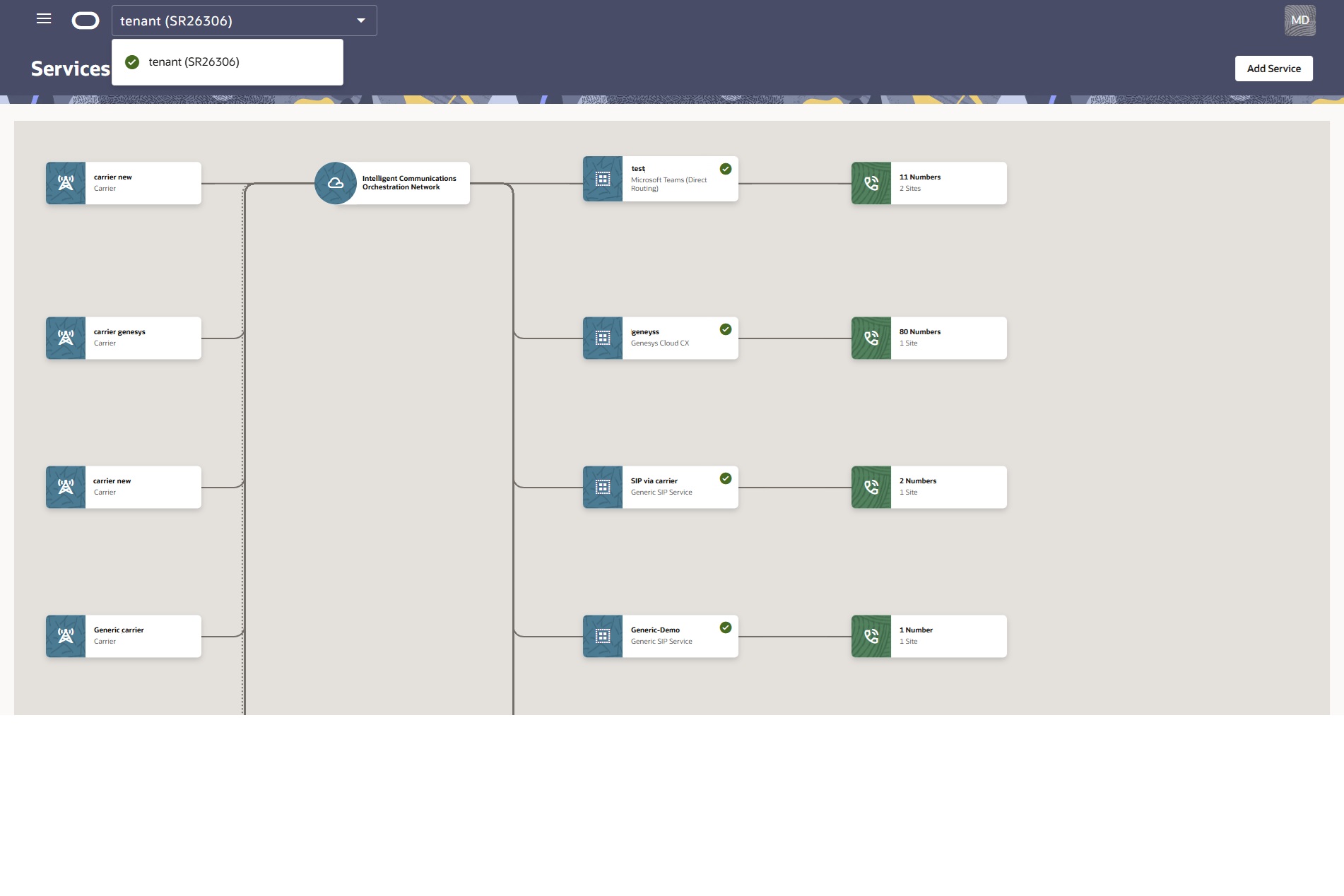
The Services page initially displays no information because there are no SIP Trunk Services configured. As you configure SIP Trunk Services, the page builds and displays a map of your services with a table listing attributes for each one. The following screen capture shows an example of the Services map with carriers on the left and media services on the right. The map will show all your connections, but you may have to move it with your mouse to see them all when there are many. The Services page displays the menu icon at the top-left and the Add Service button at the top-right.
SIP Trunk Services Table Columns
Service Name—The name you created for the service.
Profile—The communication type profile you selected for the service. For example, Carrier Service, and Generic SIP Service.
Group (Optional)—The group of trunks you created to provide redundancy to help overcome service outages. By combining multiple trunks into a single group with various endpoints that automatically switch to a backup trunk when the active trunk becomes unavailable, you can achieve continuous operation during a service interruption.
Sites—The number of sites associated with the service.
Numbers—The total number of phone numbers associated with the service.
Status—The state of the service, such as New | Feasibility Checked | Reserved | Active | Inactive | Pre-Suspended | Suspended | Processing | Paused | Terminated.
Date Added—The date you added the service.
Actions—The Actions menu located at the end of each row. Use to Pause or Delete individual services for non-carriers. For carriers, only Delete is available.
Voice Gateways Table Columns
Service Name—The name you created for the service.
Voice Channels—The number of voice channels you set.
Voice Bots—The number of voice bots configured for the voice gateway.
Sites—The number of sites associated with the voice gateway.
Numbers—The total number of phone numbers associated with the voice gateway.
Status—The state of the voice gateway, such as New | Feasibility Checked | Reserved | Active | Inactive | Pre-Suspended | Suspended | Processing | Paused | Terminated.
Actions—The Actions menu located at the end of each row. Use to Pause or Delete individual voice gateways.
Action Buttons
The Services page displays the following buttons for adding services:
Add Service—Use to add individual services. The button launches the work flow where you select a service profile, assign number blocks, and configure service settings.
Add Service Group—Use to launch the work flow where you select a service profile, select a carrier trunk, assign number blocks, and configure service settings.
Actions on the Services Page
On the Services page, you can use the following actions to manage the services you use with Oracle® Intelligent Communications Orchestration Network cloud service.
Pause—Use to temporarily prevent active Services from transmitting or receiving call traffic.
Resume—Use to enable a paused Service to resume transmitting and receiving call traffic.
Add Services—Use to add services one-by-one. Click to display the Select Your Service Profile page where you select a communication service. When you click the communication service, Oracle® Intelligent Communications Orchestration Network cloud service displays a unique profile of attributes for you to set for the selected service. You can return to edit the profile at any time.
Service Groups—Use to create groups of communication services bundled to provide redundancy for business continuity during an outage or other event. Click to display the Service Group Details drawer.
SIP Trunk Usage and Statistics
You can access detailed SIP trunk usage information for services connected to the Oracle® Intelligent Communications Orchestration Network cloud service. After you select a service from the Services page, the Oracle® Intelligent Communications Orchestration Network cloud service displays the Service Details page with Usage and Statistics metrics along with visualizations for SIP trunk activity.
Select Metrics and Time Periods
- Call Volume
- Call Minutes
- Concurrent Calls
- Today from 1:00 PM Greenwich Mean Time (GMT).
- Last 7 days (For example, on November 18th the result covers November 11th–17th.)
- Last 4 weeks (For example, on November 18th the result covers October 20th–November 16th. Each week ends on a Sunday.)
- Last 12 months (For example, on November 18th the result covers November 2024–October 2025. The time period does not include the current month of November.)
Note:
All times and dates in the Usage and Statistics section reference Greenwich Mean Time (GMT). The system does not currently support local times.
Visualize SIP Trunk Activity
- Charts and graphs display summary values for inbound and outbound calls such as Peak Calls, Total Calls, and Average Call Volume.
- A bar graph shows daily totals for the selected metric. Hover over a bar to view details for inbound and outbound calls on a specific date.
- Legend keys let you filter the graph to show only inbound or outbound calls, or both. Deselect both to hide data.
- When you select Call Minutes, the charts and graphs update show metrics for duration instead of volume.
- When you choose Concurrent Calls, a dotted line on the graph displays the channel limit. Hovering over the graph shows maximum simultaneous call counts.
For Call Volume and Call Minutes, an additional line graph at the bottom of the section illustrates average usage over the past 12 weeks. Tiles display the Peak Trunk Utilization and Trunk Channel Limit. You can filter results further by inbound or outbound direction. Hover over the blue section of a bar graph to see Inbound Calls and over the brown section to see Outbound Calls. You can toggle the legends below the graph on an off to focus on Inbound or Outbound.
When no call data is available for the selected period, the system displays the following message: No calls have been processed during the selected time period.
Note:
These graphs are not available for Voice Gateways.