Calls
The Calls page is the central repository for call analysis in Operations Monitor. You can analyze call information by traversing the platform in real-time or historically. This data can be inspected as a high-level overview of all active calls, or a single call and its messages in detail. Operations Monitor can display SIP or ISUP calls together with MEGACO, MGCP, ENUM, and Diameter Cx.
This page contains two panels: the Calls Chart displaying the number of calls currently in progress, and Recent Calls showing details about recent calls. For more information, see Active Calls Chart and Recent Calls.
Call Legs
A call leg is the portion of the call between two platform devices. Operations Monitor gathers messages from multiple points on the network, correlates them into call legs and merges them into calls.
-
From the Trunk to the Load Balancer device.
-
From the Load Balancer to the SIP Proxy.
-
From the SIP Proxy back to the Load Balancer.
-
From the Load Balancer to the callee.
Figure 4-20 Example Call Flow
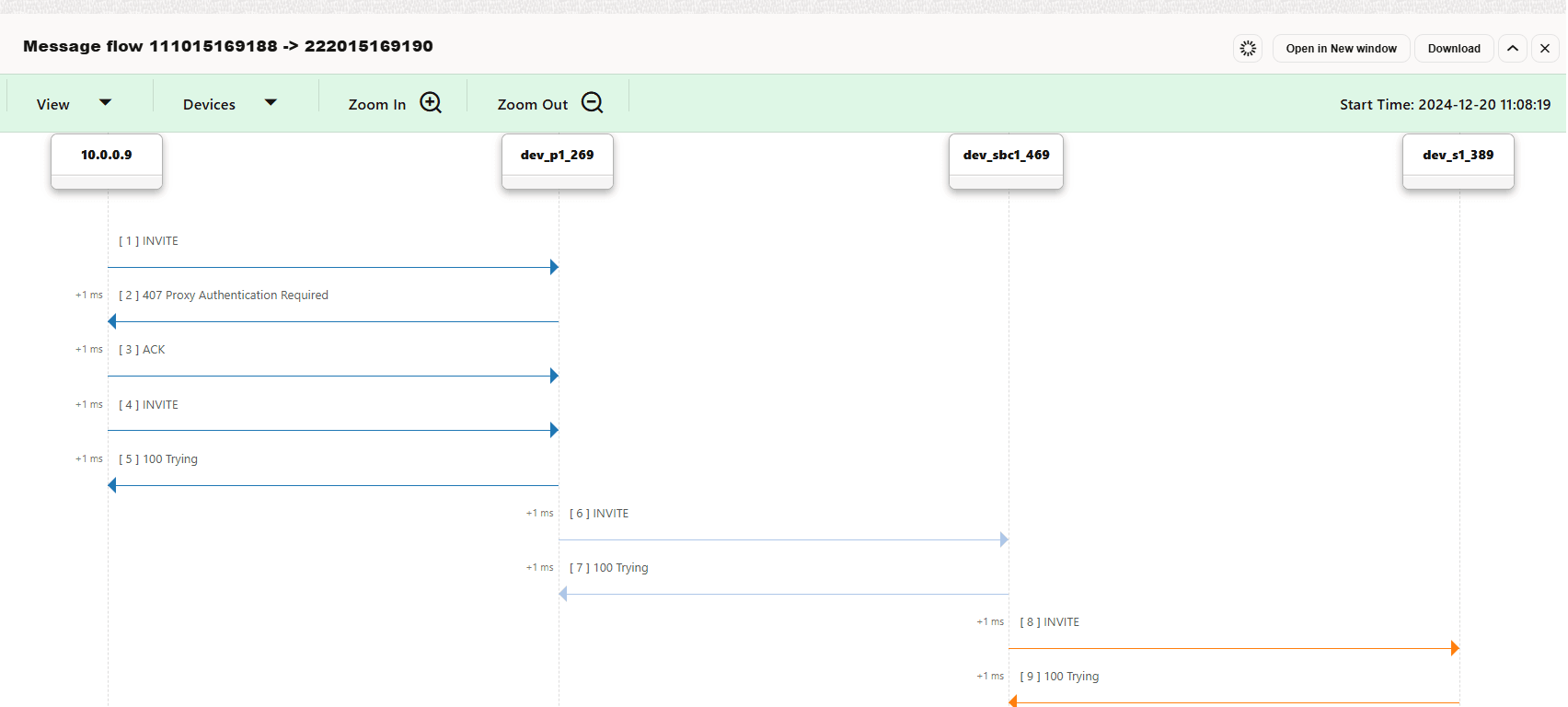
Merging call legs into call flows is important for network troubleshooting and gathering accurate statistics. For call merging to work properly, you need to configure the platform devices in the Platform Devices section. For more information about configuring platform devices, see the Initial Configuration section.
Call States
Table 4-4 lists the call states:
Table 4-4 Call States
| Call States | Description |
|---|---|
|
Unauthorized |
The call was answered with '401' or '407'. The UAC typically sends another INVITE containing the credentials. If these are accepted by the UAS, the state will change to Proceeding or Established. |
|
Proceeding |
The call enters this state immediately after the first INVITE is received, and stays in it until an answer changes the state. The State details column may provide extra information (INVITE seen, ACK seen but no final response yet). |
|
Ringing |
The call enters this state when the first '180 Ringing' answer is seen. |
|
Established |
The call enters this state when the first successful 2xx answer is seen. The State details column mentions if the ACK is not yet received (200 OK seen, waiting for ACK). |
|
Finished |
An Established call enters this state when the first BYE message is seen. The State details column mentions if the related 200 OK message is not yet received (BYE seen, waiting for confirmation). |
|
Timed out |
An Established call enters this state if it lasts longer than the configured session timeout limit. This limit can be changed from the Session-timeout For Calls system option. For more information, see "Session-Timeout For Calls". |
|
Error |
A call enters this state if Operations Monitor is unable to follow the call, due to an unexpected sequence of message. |
|
Failed |
A Proceeding call enters this state if a non-successful final response is seen or the 'INVITE' transaction times out. In the latter case, the State details column shows the 'Timeout during call setup' message. The KPI Number of failed calls per second is incremented for all response codes greater than 300. That is, 3xx,4xx,5xx and 6xx, except for codes 401 and 407. |
|
Not Found |
A Proceeding call enters this state if the 404 response code is seen. |
|
Moved |
A Proceeding call enters this state if the 301 or the 302 response code is seen. |
|
Off-line |
A Proceeding call enters this state if the 480 response code is seen. |
|
Busy |
A Proceeding call enters this state if the 486 or the 600 response code is seen. |
|
Canceled |
A Proceeding call enters this state if the 487response code is seen. |
If a call has multiple call legs, the call state is computed from the call legs' individual states.
Active Calls Chart
-
The CSV Export of information displayed on the chart exports the active calls data for the displayed period in a CSV format for post-processing purposes.
Note:
The Timezone Offset Alignment to Hourly Boundary setting makes exported CSV graph data and metrics line up to the full hour in your local time zone (like 1–2 PM). This is useful if your time zone has a half-hour offset, such as UTC+5:30 or UTC+1:30. When you turn on this setting, time intervals in the exported data will start exactly on the hour in your local time, but there may be a one-time 30-minute gap in the graph data during the switch. Old CSV data is not affected—only new data collected after the setting is turned on (when viewing 3 days or more at a time) is affected. - The Show interval in grid arranges data on a grid according to the time interval of the Active calls chart.
-
By default, the Auto Refresh is set to 30 seconds for this graph. For more information, see " Refresh Button ".
Note:
It is observed that Oracle Communications Session Monitor shows a sudden drop in the graphs at least once in a week. It occurs at around 3:45 am and it is a part of the standard cleanup process. This cleanup can not be deactivated.
Example
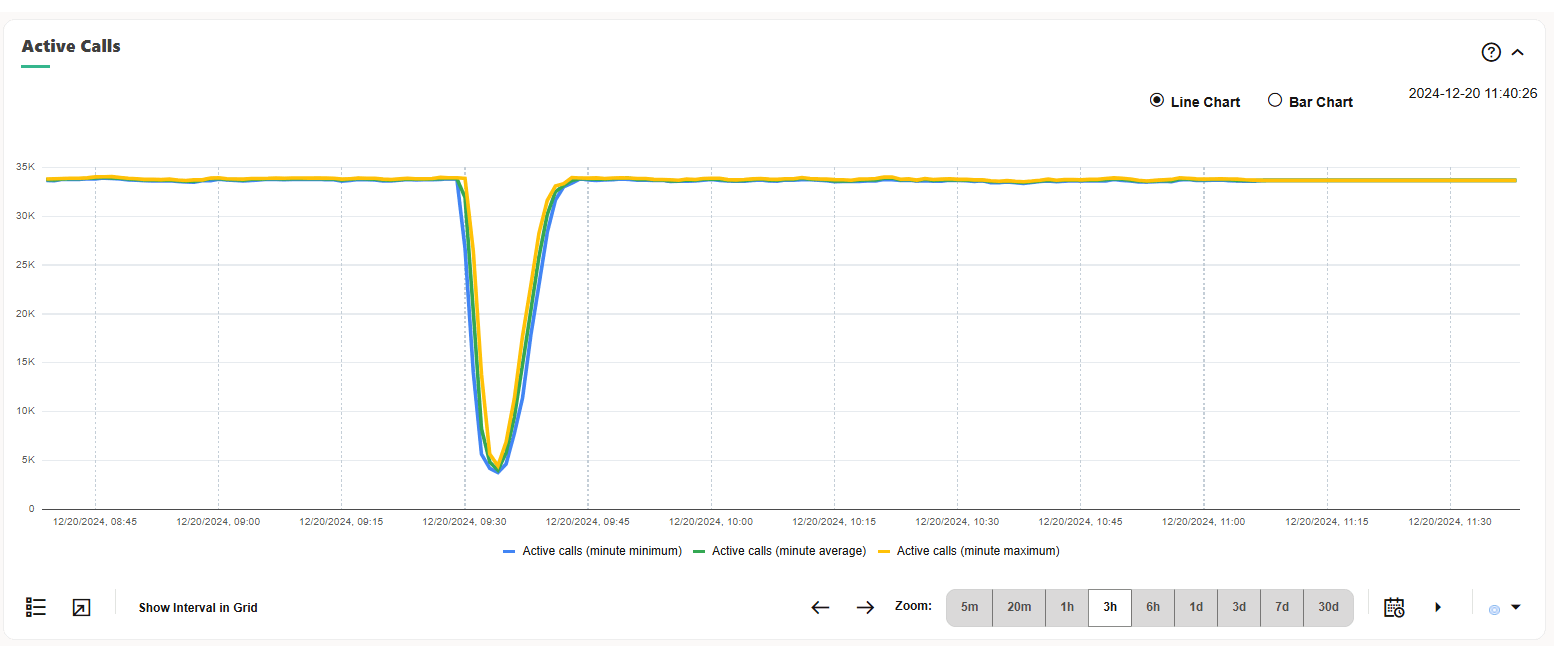
This example depicts a typical view for one day of the Active Calls graph. The number of established calls decreases at night and increases during peak hours.
Figure 4-22 Evolution of Active Calls
Recent Calls
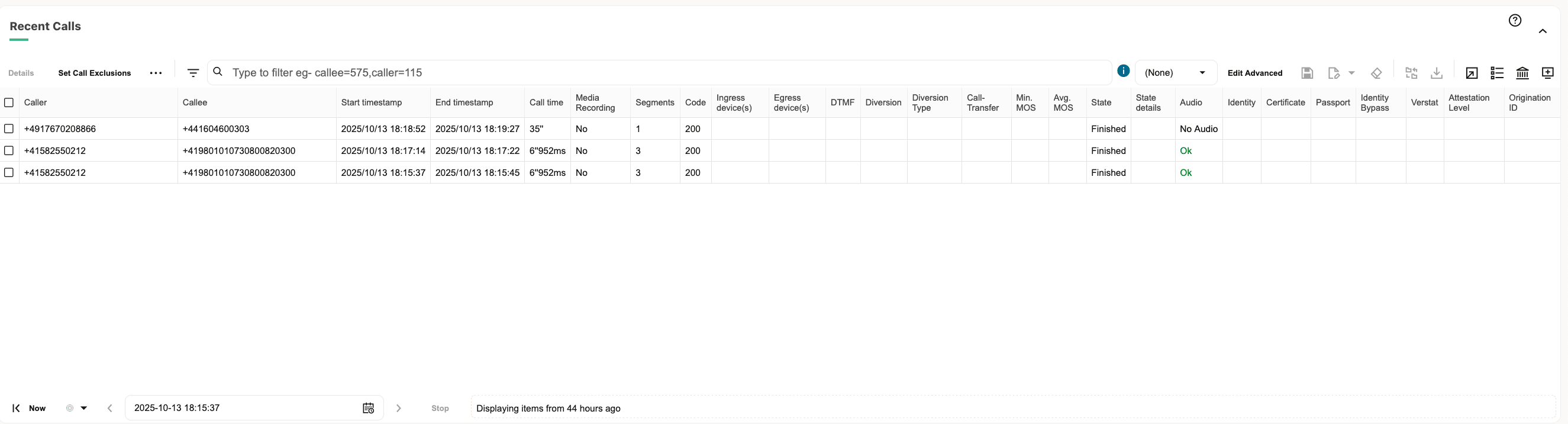
The Recent Calls table displays recent and historical information for calls made in the last few days. The calls from this table are updated in real-time as their state changes.
Figure 4-23 Recent Calls Table
The Recent calls Toolbar
The Recent calls table has, in order, the actions as listed here:
Table 4-5 Recent Calls Table Actions
| Actions | Description |
|---|---|
|
Details |
Opens the Call Details window for the selected call. |
| Set Call Exclusions | Exclude numbers from the Recent Calls table. Excluding a number from this table hides all rows containing that number, ensuring it does not appear in the current view. |
| Set Columns | Allows you to toggle hide/view columns in the Recent Calls table. |
| Select Column | Define a Simple Filter |
|
Apply Filters |
Apply filters. |
| Load Filters list box | Select from the list of advanced filters. |
|
Edit Advanced.. |
Open Advanced Filtering Dialog. |
|
Save |
Saves the changes to the advanced filter. |
| Filters Rename and Delete | Delete or Rename filters. |
| Clear | Resets any selected filters. The Load Filters list box shows None. |
| Show Media Recording Window | Shows the mdeia recording window |
|
Show Message flow for selected calls |
Shows the message flow diagram for the selected calls. You can select multiple calls in the call grid and show a combined message flow diagram. Use the Ctrl key on Windows/Oracle Linux machines and the Cmd key on Macintosh machines. |
| Download Message Flow | Enables you to download the message flow as an HTML file to
your local hard drive.
Note: The Download Message Flow button is available on all Calls panels. Except the Dashboard. |
|
Bulk export |
Exports the current calls grid contents (with the current set of filters applied) as a zip archive. The archive contains one .csv file which is similar to the one generated with the normal CSV export, but with an additional column named pcap_filename. This references one of the pcap files included in the archive, which contains both SIP and RTP data for the call. If column filters are set, they are also applied to the exported CSV file. It is recommended to filter the calls list to the set of interest before exporting the CSV file. |
|
CSV export |
Exports the calls data content in CSV format, for post-processing purposes. If column filters are set, they are also applied to the exported CSV file. The CSV files are set to a maximum of 1 million records. It is recommended to filter the calls list to the set of interest before exporting the CSV file.
Note: You can set the maximum number of lines to export in a CSV file using the system setting Maximum number of lines exported with CSV export. |
|
View saved calls |
Shows the list of already saved calls in Operations Monitor. In order to save a call, the Save option from the calls details page must be used. |
|
Show in Dashboard |
Adds a reduced version of the Recent calls table to the Dashboard. |
|
Auto-Refresher |
From the Refresh menu, the table can be set to auto-update, in order to display the most recent calls and their state changes in real-time. You can set the table to auto-update from the Refresh menu in order to display the most recent calls. The state changes in real-time. The default auto-refresh interval for this table is 5 seconds. |
Recent Calls Table
Note:
Visibility of fields in the Calls table depends on the value of Calls Field Permission field under Settings > User Management > Add (or Edit) User > Permissions for Modules window.Table 4-6 Recent Calls Table Columns
| Column | Description |
|---|---|
| Audio | Shows the audio direction of the call. Each call is updated with the audio direction and the value is one of the below values:
By default, the value of the Audio column is updated once the call is finished. For information on how to enable real-time monitoring of the Audio column, see Audio Status. Note: The color of this field depends on the values set in the system settings: Low threshold for Packet Loss Rate and High threshold for Packet Loss Rate.You can filter data by applying the different types of filter on this column, can bulk export or export this field data to a .CSV file, and add this column as part of a dashboard panel.
Note: Starting with Release 6.1, the One Way Audio Addon has been removed from Platform Setup Application and Mediation Engine. |
| Verstat | Based on the Verstat URI parameter in the From header (or in PAI header). Values can be:
|
| Identity | Based on the Identity header presence within SIP INVITE (whichever appears first on the leg).
|
| Certificate | Certificate – based on the 'info' value of the Identity parameter. |
| Passport | Based on the 'ppt' value of the Identity parameter. Values can be:
|
| Identity Bypass | Based on P-Identity-Bypass header value in the SIP INVITE (the call leg – 1st seen displayed) P-Identity-Bypass: xyz |
| Attestation Level | Based on Attestation-Info or P-Attestation-Info header value within SIP INVITE (whatever the leg – 1st seen displayed) |
| Origination ID | The Origination-Id or P-Origination-Id header value is retrieved from the SIP INVITE, using the value found on the first leg that is detected. |
|
Avg. MOS |
The voice quality estimation for Finished calls. If Operations Monitor does not receive RTP traffic, or the RTP module is not loaded, this field is empty. The value is displayed in green, orange, or red depending on the thresholds set in the system options High Threshold for MOS and Low Threshold for MOS. For more information about how Operations Monitor estimates the MOS value of a call, see " Voice Quality ". |
| Avg Jitter | The average of the measured jitter values of the 10 seconds intervals. By default, this column is not displayed in the Recent Calls table. Add it using the Set Columns feature.
You can apply different types of filter on this column, you can bulk export or export this field data to a .CSV file, and add this column as part of a dashboard panel. The color of the values indicates:
|
| Avg RTCP delay |
The average round-trip delay time reported by RTCP. |
| Callee |
The user to which the call is addressed. This is usually taken from the To header field of the first call leg. |
| Callee codecs |
The comma delineated list of codecs proposed in the SDP body by the UAS. Usually this appears in the responses from INVITE transactions and the UAS includes a single codec in the answer, and this is the codec used in the call. On each re-INVITE from inside the dialog, this field is updated to the last proposed list of codecs. By default, this column is hidden. |
| Callee Initial codecs |
The comma delineated list of codecs proposed in the SDP body by the UAS, usually in the first response from the 'INVITE' transaction. Unlike the Callee codecs, this field is not updated on re-INVITEs. By default, this column is hidden. |
| Callee IP Address |
The IP address of the called user that connected first. It is possible to filter this column by IP address or IP address mask. By default this column is hidden. |
| Callee User Agent |
The User-Agent string advertised in the 200 OK message of the last call leg. This string usually contains the brand and the firmware version of the SIP device answering the call. If the User-Agent header is not present, the string is taken from the 'Server' header if present. By default, this column is hidden. |
| Caller |
The user making the call. This is usually taken from the From header field of the first call leg. |
| Caller codecs |
The comma delineated list of codecs proposed in the SDP body by the UAC, usually in the 'INVITE' message. On each re-INVITE from inside the dialog, this field is updated to the last proposed list of codecs. For example, this is useful for detecting T.38 calls. By default, this column is hidden. |
| Caller Initial codecs |
The comma delineated list of codecs proposed in the SDP body by the UAS, usually in the first 'INVITE' message. Unlike the Caller codecs, this field is not updated on re- INVITEs. This is useful for gathering statistics about the supported codecs. By default, this column is hidden. |
| Caller IP Address |
The IP address of the device initiating the call. It is possible to filter this column by IP address or IP address mask. By default this column is hidden.
|
| Caller User Agent |
The User-Agent string advertised in the 'INVITE' message from the first call leg. This string usually contains the brand and firmware version of the SIP device making the call. By default, this column is hidden. |
| Call time |
If the call is Finished, this field represents the call length, measured from the 200 OK message of the INVITE transaction until the first BYE message. If the call is Established, this field represents the time elapsed since the call establishment (the arrival of the 200 OK message of the INVITE transaction) and it is updated on each refresh. If the call is not yet Established, this field is empty. This field has a precision of milliseconds but cannot be filtered for unless the call is Finished. |
| Call-Transfer |
True if this call has been transferred using the call transfer capabilities in SIP. |
| Code |
The SIP response code of the last received message from the 'INVITE' transaction. For Failed calls, this represents the SIP error code. |
| Diversion |
Diversion URI of first Diversion header in call. |
| Diversion Type |
Diversion type of first Diversion header in call. Possible values are:
|
| DPC |
Destination Point Codes (DPC) contains the address of the destination for the ISUP call. This is always taken from the first ISUP leg seen by Operations Monitor. |
| DTMF |
Displays 'Yes' if the there is DTMF information available for this call. Unless the user has the correct rights this field will not be available. |
| Egress device(s) |
This field contains a comma delineated list of the egress devices for the call, that is through which the call leaves the platform. |
| End timestamp |
The timestamp of the message that closes the main leg of the call (usually the first BYE message). |
| Gateway Devices |
As the MEGACO Gateway column contains the IP address of the MEGACO Gate- way, the Gateway Devices column contains its name. |
| Ingress device(s) |
This field contains a comma delineated list of the ingress devices for the call, that is through which the call enters the platform. |
| Initiator device |
If the call was started from a SIP device of the platform (for example, a media server), this field contains the name of this device. The call must not be relayed by this device, but actually created by it. Otherwise, the field is empty. By default, this column is hidden. |
| KPI - RTCP Jitter threshold | Defines a threshold for the Jitter KPIs (in ms) based on RTCP. Any Jitter value above this threshold is ignored for the KPI computation.
|
| Max Jitter | The maximum of the measured jitter values of the 10 seconds
intervals.
You can apply different types of filter on this column, you can export this field data to a .CSV file, and add this column as part of a dashboard panel. The
color of the values indicates:
By
default, this column is not displayed in the Recent Calls table. Add it
using the Set Columns feature.
|
| Max RTCP delay |
The maximum round-trip delay time reported by RTCP. |
| Media Bypass | Indicates if the Direct Routing calls has Media bypass “Enabled” or “Disabled” for Direct Routing calls. Shows “NA” for non-Direct Routing calls. |
| Media Recording |
Indicates if RTP recordings were requested for this call. |
| Media types |
Indicates the media types that were negotiated in the call. Multiple media types are separated by a comma (for example: audio, video). |
| MEGACO Commands |
Commands placed by the MEGACO Gateway Controller to the MEGACO Gateway in a transaction. For example, Commands exist to add/modify/subtract Terminations from the Context. See Figure 4-25. |
| MEGACO Context ID |
Defines an identifier for each MEGACO connection. See Figure 4-25. |
| MEGACO Gateway |
IP address of the MEGACO Gateway. |
| MEGACO Gateway Controller |
IP address of the MEGACO Gateway Controller. |
| MEGACO Termination ID |
A MEGACO TerminationID is defined for a PSTN line, a channel in a Trunk or rtp stream. Their format is a string like: line/1 or rtp/1 for RTP streams. See Figure 4-25. |
| MEGACO Transaction IDs |
A MEGACO Transaction is identified by a Transaction ID. See Figure 4-25. |
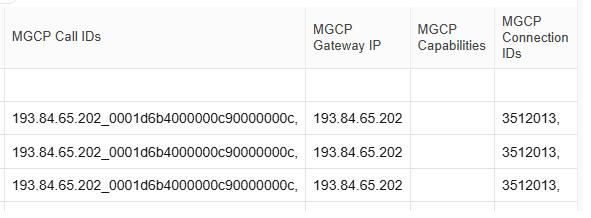
| MGCP Call IDs |
Hexadecimal strings of maximum of 32 characters that identify uniquely a call. See Figure 4-26. |
| MGCP Capabilities |
Defines the capabilities of the endpoints. See Figure 4-26. |
| MGCP Connection IDs |
The connection identifier is encoded as a hexadecimal string, at most 32 characters in length. See Figure 4-26. |
| MGCP Gateway IP |
IP address of the MGCP Gateway. |
| Min. MOS |
The minimum value of the voice quality estimation for Finished calls. If Operations Monitor does not receive RTP traffic, or the RTP module is not loaded, this field is empty. The value is displayed in green, orange, or red depending on the thresholds set in the system options High Threshold for MOS and Low Threshold for MOS. For more information on how Operations Monitor estimates the MOS value of a call, see " Voice Quality ". |
| Negotiated Codecs | For every call, a codec is negotiated while establishing the media. This Negotiated Codec data for a call is displayed. For more information on supported codecs, see Supported Codecs. |
| OPC |
Originating Point Codes (OPC) contains the address of the originator for the ISUP call. This is always taken from the first ISUP leg seen by Operations Monitor. |
| Packet Loss Rate (%) | The number of received RTP packets divided by the number of expected RTP packets. By default, this column is not displayed in the Recent Calls table. Add it using the Set Columns feature.
You can filter Calls data by applying the different types of filter on this column, you can bulk export or export this field data to a .CSV file, and add this column as part of a dashboard panel. |
| P-Asserted-ID |
The content of the P-Asserted-ID header from the initial INVITE SIP request. |
| Preferred Callee Number? |
The number of the callee determined by the configurable number determination mechanism, if available. |
| Preferred Caller Number? |
The number of the caller determined by the configurable number determination mechanism, if available. |
| Prefix Group |
Prefix Tags matching this call (0 to n tags). |
| Q.850 Code |
Q.850 cause code for the ISUP call. |
| Q.850 Details |
Q.850 Details for the ISUP call. |
| Q.850 State |
Q.850 State for the ISUP call. |
| Reason |
The content of the Reason header from the BYE, CANCEL, SIP request or from a failure SIP reply. |
| Remote-Party-ID |
The content of the Remote-Party-ID or P-Preferred-Identity header from the initial INVITE SIP request. |
| RTCP streams |
The number of RTCP streams belonging to the call. |
| Segments |
The number of call legs in this call. By default, this column is hidden. |
| Setup Delay |
This field represents the time elapsed between the initial' INVITE' message and the first valid network response, like '180 Ringing', '183 Session in progress', '480 Temporarily Unavailable', etc. It fulfills Session Request Delay for RFC6076. If the call contains ISUP, Setup Delay is computed on the first SIP leg. This field has a precision of milliseconds. By default, this column is hidden. |
| Setup Delay Type |
Shows the type of Setup Delay computed. Can be 'Successful Session Request Delay' or 'Failed Session Request Delay'. By default, this column is hidden. |
| Setup time |
If the call is Established or Finished, this field represents the time elapsed between the initial INVITE message and the call establishment, marked by the 200 OK answer in the INVITE transaction. If the call is not yet Established, this field is empty. This field has a precision of milliseconds. By default, this column is hidden. |
| Start timestamp |
The timestamp of the first INVITE or IAM message from the call. |
| State |
A short text representation of the call state. For more information on the possible values for this field, see " Call States ". |
| State details |
Extra details about the call state. For example, the state of a call can be Proceeding, and this field adds the information: ACK seen, but no final answer. For more information on the possible values for this field, see " Call States ". |
| Terminator device |
If the call was ended by a SIP device (for example a media server), this field contains the name of the device. The call must not be relayed by this device, but actually terminated by it. Otherwise, the field is empty. By default, this column is hidden. |
| Transcoded Call | Displays a Yes/No value to indicate if the call was Transcoded or not. |
| UCaaSCCaaS Originating | This field is populated as "TEAMS_DR" when the call is identified as originated from MS Teams and terminating at PSTN (MS Teams to PSTN call) |
| UCaaSCCaaS Terminating | This field is populated as "TEAMS_DR" when the call is identified as originated from PSTN and terminating at MS Teams (PSTN to MS Teams call) |
Figure 4-24 Recent Calls Table
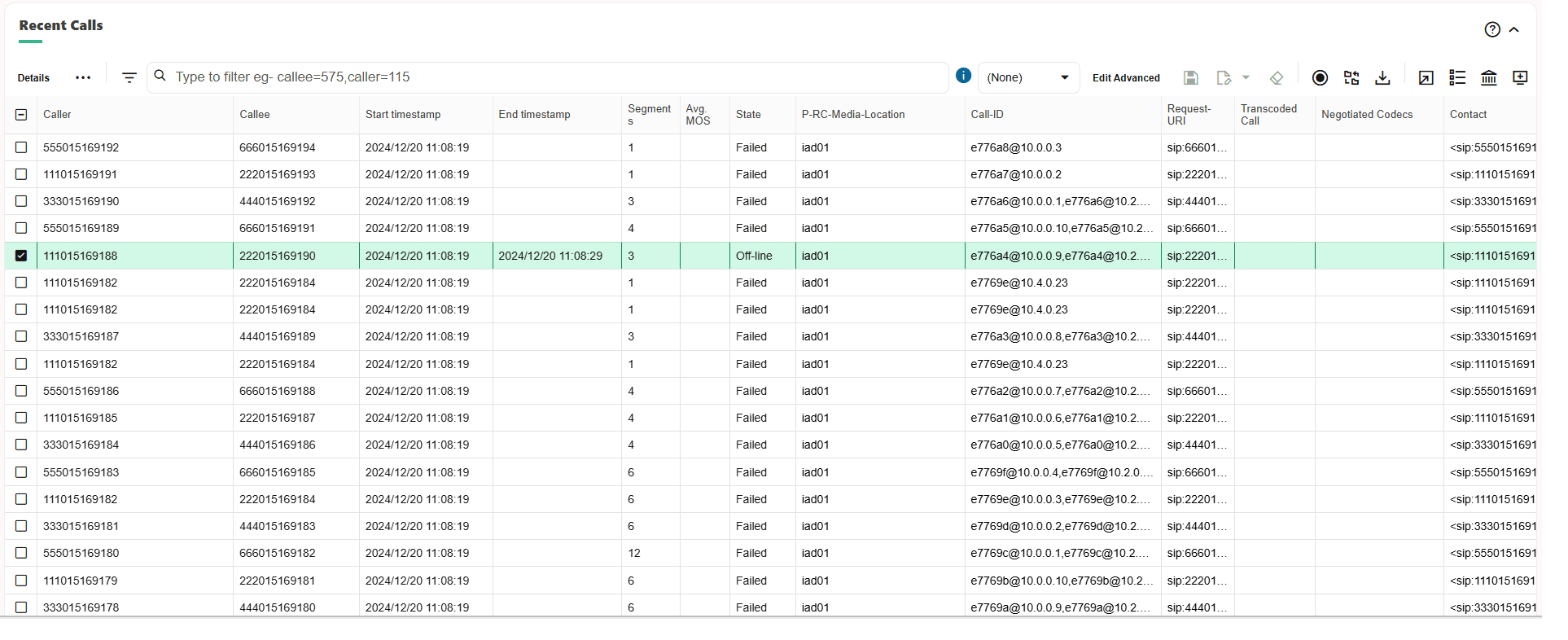
This graphic shows examples of MEGACO call details in the Recent Calls panel.
Figure 4-25 MEGACO Details in the Calls Panel
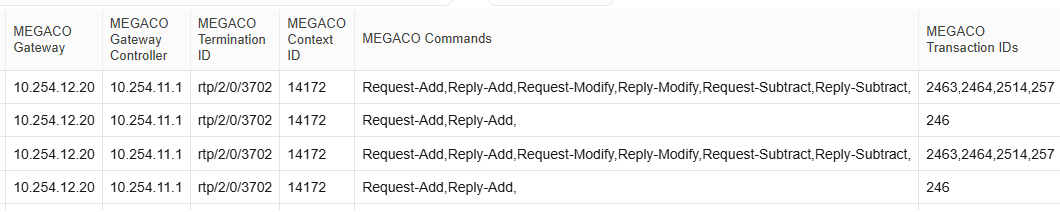
Figure 4-26 MGCP Details in the Calls Panel
Note:
To save horizontal space, several columns are hidden by default. To enable the hidden columns, click Set Columns. For more information, see " Tables ".Filtering
You can filter the columns of the Recent calls table for specific criteria. When you apply a filter, the Load Filters list displays the name of the filter.
Filter Properties
- Search on Enter Key
- Filter the record after the user presses the Enter key rather than as the user types. This option is checked by default but disabled for Advanced Filter.
Note:
The Search on Enter Key check box is also available for both the User Calls window in the User Tracking section and the Calls window in the IP Tracking section.Applying a Simple Filter
To apply a simple filter:
-
From the navigation list, select Calls.
-
On the Recent calls table, select the list of options on a desired column.
- Click the Filters button.
- In the Filters dialog box, Enter or select the filter
criteria for the filter.
The table is filtered for the criteria and the toolbar displays the label SIMPLE.
The following graphic shows an example of a filter applied to the Call time column of the Recent calls table.
Figure 4-27 Applying a Filter

Changing a Simple Filter to an Advanced Filter
To change a simple filter to an advanced filter:
- On the Recent Calls table toolbar,
click Edit Advanced.
The (Unnamed Filter) dialog box appears.
- Click +. A list of filter fields appears.
- Select the fields to include in the advanced filter.
- Click Save.
The Save filters dialog box appears.
- Enter a name for the filter.
- Click Save.
The dialog box now displays the name you assigned the advanced filter.
- Click Hide which closes the dialog box.
Text-Based Filter Fields
Some text-based filter fields can accept queries. In text-based filter fields, you can enter REGEX pattern matching or SQL pattern matching to filter recent calls. REGEX filtering provides slower search times than SQL filtering.
To enter REGEX pattern matching to filter calls, enter the .* character combination before the search values.
When regular expressions are filtered, expressions supported are the same as MySQL 5.5.
The following example uses the REGEX filter:
.*[0049]
To enter SQL pattern matching to filter calls, there are two methods. SQL filtering is faster and more efficient than the REGEX pattern matching. SQL pattern matching is triggered as follows:
-
Entering the SQL wildcard character % into the search field. It can be placed in front of or following the filter value.
-
Entering ^ at the beginning of a string.
Table 4-7 describes the SQL search filters and provides examples of usage.
Table 4-7 SQL Filter Conditions
| Search Filter | Search Example | Description |
|---|---|---|
|
(none) |
|
Filters for strings that contain 0049. |
|
^ |
^ |
Filters for strings that begin with 0049. |
|
% |
or % |
Filters for strings that begin with 0049. Filters for strings that end with 0049. |
The following graphic shows an example of filtering that selects all finished calls. After the filter is set and the view is refreshed, the total number of finished calls is displayed in the bottom-right corner.
Figure 4-28 Filter All Finished Calls

The filtered columns can also be combined to provide more precise answers. For example, to limit the table to all finished calls initiated by a specific device say B2BUA1, set the following filters:
-
State to Finished.
-
Ingress device to B2BUA1.
-
End timestamp to before 15:35
In this table, filtering can be set from the right-click menu. For more information, see Right-click Menu .
Figure 4-29 Filters - Finished Calls by B2BUA1 ending before 15:35

Filtering for this field is done in seconds. For example, the graphic shows all calls that lasted more than 6 seconds are selected.
Figure 4-30 Filtering By Call Length

Note:
When filtering for call length, only the finished calls are considered. Thus, it is not possible to filter for all the established calls with a certain call length.To filter the calls list for calls that contain RTP streams, use Media types filter. You can set the Media types filter to list the calls that contain audio, video, text, image, application, message, or other media type.
When Media types filter is used, any call that contains any of the media types is listed. For instance, when the filter is set to audio, any call where audio is one of the media types that was negotiated in the call is listed, for example, a call containing audio and video.
When multiple media types are set in the filter, for example image and video, any call where image or video is one of the media types that was negotiated in the call is listed, for example, a call containing image and audio.
Advanced Filtering
You can create advanced filters to filter the Recent calls table for specific combinations of results. Advanced filters enable you to select a specific combination of columns from the Recent calls table, then enter criteria against which to filter for matching calls.
See Table 4-6 for details on the metrics available in the Recent calls table columns.
Some filter types require that you customize the logic that is applied in the filter. You can customize the logic by toggling options or entering specific criteria to be matched in each advanced filter you create. The logic that can be customized depends on the combination of filters selected.
When an advanced filter has been created, the Filters toolbar displays the label ADVANCED.
Note:
Advanced filtering requires higher resource consumption. Complex advanced filters utilize more system resources and may impact overall system performance.
Working with advanced filters involves the following tasks:
Creating an Advanced Filter
To create an advanced filter:
-
From the navigation list, select Calls.
-
On the Filters toolbar, click Clear which removes any applied filters.
-
On the Filters toolbar, click Edit Advanced.
The (Unnamed Filter) dialog box appears.
-
Click +.
A list of filter fields appears.
-
Select fields to include in the advanced filter.
-
Click Save.
The Save filters dialog box appears.
-
In the Name field, enter a name for the filter.
-
Click Save.
The (Unnamed Filter) dialog box is now named the title you assigned the advanced filter.
-
Click Hide which closes the dialog box.
Adding Criteria to an Advanced Filter
To add criteria to an advanced filter:
-
From the Filters list, select an advanced filter.
-
Click Edit Advanced.
A filter dialog box appears.
-
Click +.
-
Select fields to include in the advanced filter.
Repeat this step to add additional fields.
Tip:
You can drag column headings from the Recent calls table into the dialog box.
-
In the filter dialog box, customize the logic of the filter you choose by entering or selecting logic values to filter for.
-
Click Save.
-
Do one of the following:
-
Click Apply Now which applies the filter to the Recent calls table.
-
Close the dialog box and apply the saved filter at a later time.
-
Adding Scope to an Advanced Filter
You could create an expression with criteria a, b, and c. You can include brackets in the filter criteria to isolate terms that are dependent on each other, such as:
(a = 2 AND b = 4) OR c = 10
or
a = 2 AND (b = 4 OR c = 10)
To add scope to an advanced filter:
-
From the Filters list, select an advanced filter.
-
Click Edit Advanced.
The filter dialog box appears.
-
Click () in the row you want to add scope to.
-
Click + in the same row and insert filter conditions.
Note:
You can move filter criteria within a dialog box by dragging it to a new area.
Tip:
You can drag criteria in to or out of bracketed statements.
-
Click Save.
-
Do one of the following:
-
Click Apply Now to apply the filter to the Recent calls table.
-
Close the dialog box and apply the saved filter at a later time.
-
Editing an Advanced Filter
To edit and advanced filter:
-
From the Recent calls window, select an advanced filter.
-
Click Edit Advanced.
The filter dialog box appears.
-
Edit the filter criteria.
-
Click Save.
-
Do one of the following:
-
Click Apply Now to apply the filter to the Recent calls table.
-
Close the dialog box and apply the saved filter at a later time.
-
Applying an Advanced Filter
To apply an advanced filter:
-
From the Recent calls window, select an advanced filter.
-
Click Edit Advanced.
A filter dialog box appears.
-
Click Apply Now and close the dialog box.
Clearing Advanced Filters
To clear advanced filters:
-
From the Filters toolbar, select Clear.
Filters - Column Header
Another method of filtering is using the column header search.
Note:
You can resize columns, and the adjustments persist even after you navigate away. On returning to the page, the column resizing is saved.- Double-click a column header.
Figure 4-31 Creating a Filter - Column Header

Text-Based Filtering
You can filter data in the Calls page using the Text-based Filter.
- Type in the filter criteria. For example: Callee=89.
Figure 4-32 Text-box Based Filter

Right-Click Menu
Right-clicking a row in the Recent calls table shows the following contextual options:
Table 4-8 Right-click Context Menu
| Menu Option | Description |
|---|---|
| Track caller and Track callee | Choosing one of these two options opens the User Tracking page, pre-filled with the caller or the callee user of the selected call. For more information, see " User Tracking ". |
| Create trace with | Opens the Traces page, pre-filled with the caller or the callee user of the selected call. For more information, see " Traces ". |
| Call details window | Opens the Call Details Window. For more information, see Call Info or Call Details Window. |
| Message Flow | Shows the message flow diagram for the selected call. For more information, see Working with Message Flows. |
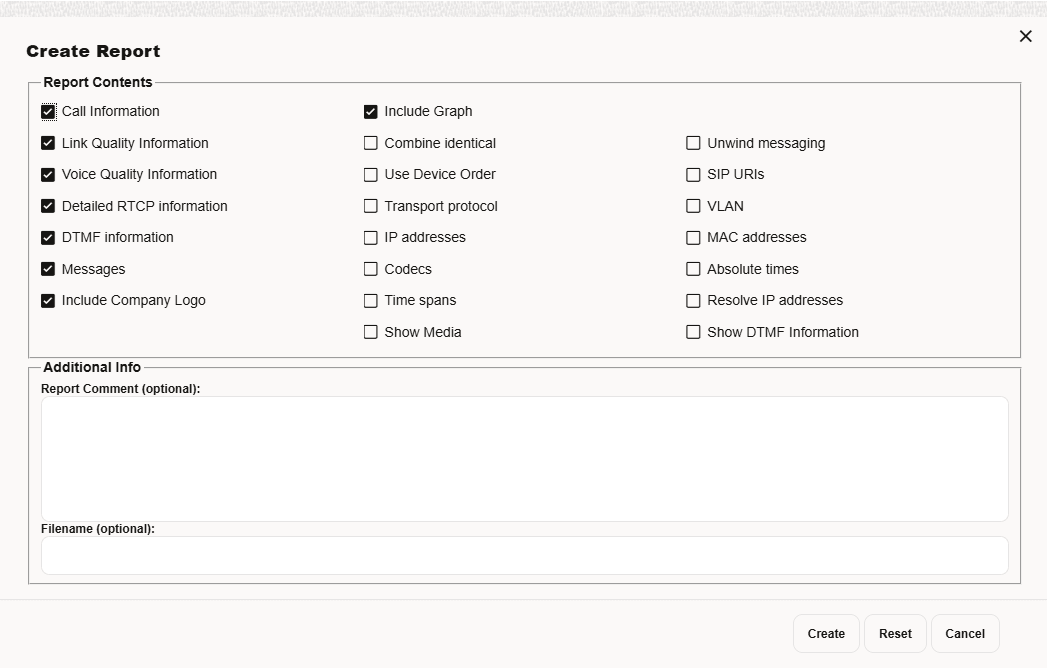
| PDF report | Creates a PDF report for the selected call. A dialog appears that allows the user to select the information to include, and to provide a comment to add to the report. |
| Filter table for ... | Shortcut to column filters. This gives a convenient way of finding calls that are similar with the one selected. |
| Add to Blocklist | Add any of the following to the Blocklist:
|
| Add to Redirect | Add any of the following to the Redirect list:
|
| Add to Ratelimit | Add any of the following to the Ratelimit list:
|
Figure 4-33 Filter Using the Right-Click Menu
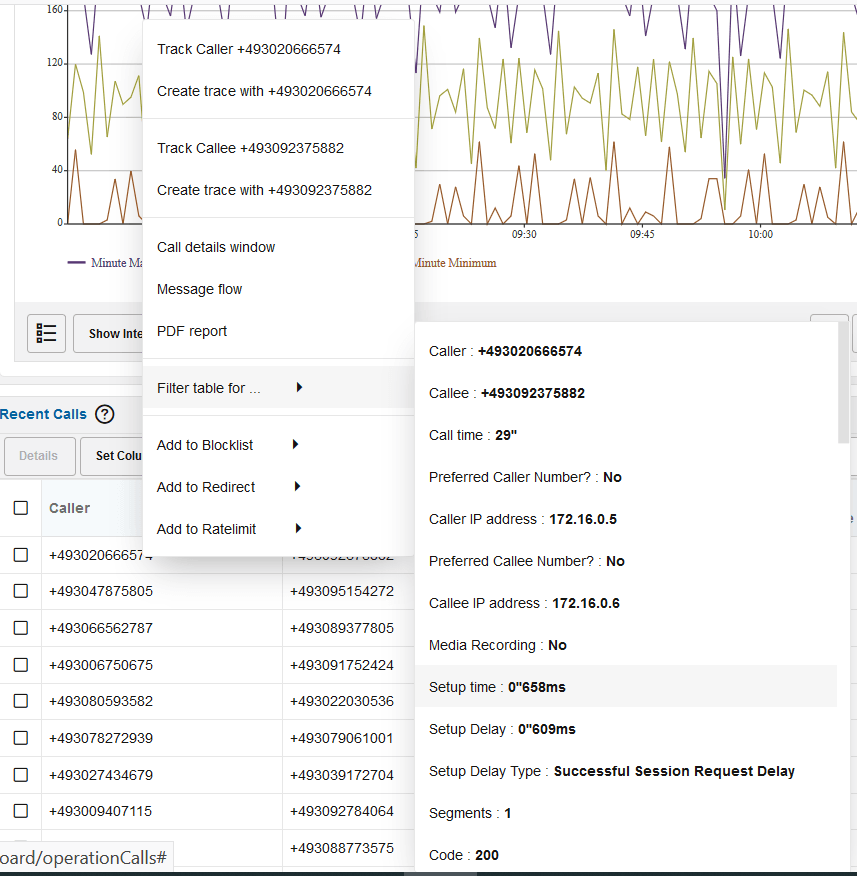
Figure 4-34 PDF Report Creation Dialog
Exclusion of Numbers
The Set Call Exclusions feature enables users to manage the exclusion of caller and callee numbers, with a maximum of five excluded numbers per category (Caller, Callee, or Both).
Users can add numbers to the exclusion list by specifying the exclusion category. If the limit of five excluded numbers is reached in a category, additional numbers can still be added but will be marked as "Not Excluded" until a slot is freed. To exclude a new number after reaching the limit, users must change one of the currently excluded numbers to "Not Excluded." Numbers can also be completely removed from the list using the delete option.
Configuring Set Call Exclusions
Excluding a number from the Recent Calls table hides any rows containing the specified number, ensuring that it is not included in the current view.
Number Exclusion Using Regex
\Information on Number Exclusion Works Using Regex.
- A Regex pattern uses a negative lookahead to exclude matching numbers.
- The generated Regex pattern looks like: ^(?!\+49302).*$
- When you exclude a number like +49302, the system builds a pattern to filter out anything that starts with that number and that number itself if it exists in the table. Hence:
- +49302 → excluded
- +493020001 → excluded
- +4930212345 → excluded
- +49303 → included
- +49123 → included
- This approach ensures all numbers that begin with the excluded prefix are filtered out automatically.
- You can exclude broad number patterns by entering only a starting pattern. For example, +49302. or the exact numbers to be excluded.
Paging
The paging bar allows you to navigate the entries. With the Newer and Older buttons you can step to the next page of newer respective older entries.
Figure 4-35 The Paging Bar

The Now button takes you to the first page, showing the newest entries. The date picker allows you to chose an arbitrary first date and time of the time period you want to view.
Figure 4-36 The Date Picker
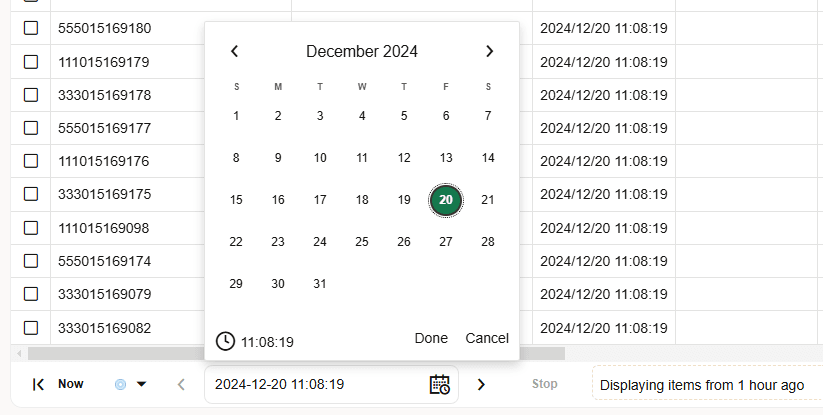
The loading bar will show when entries are being fetched. To fill up a page while applying filters, this might require several calls to the server and might take some time. The blue bar in the loading bar shows the range that has been searched.
The Refresh button reloads the current entries and shows their updated states.
You can also set the refresh button to auto-refresh mode.
Note:
The auto-refresh mode in combination with filtering of a grid can lead to longer refresh times than selected.
Call Info or Call Details Window
To open the call details panel, double-click on a row from the Recent Calls table or click the Details button from the toolbar. You can also access the call details panel from the Media Summary page. For more information, see Voice Quality.
Figure 4-37 Call Info/Details Window
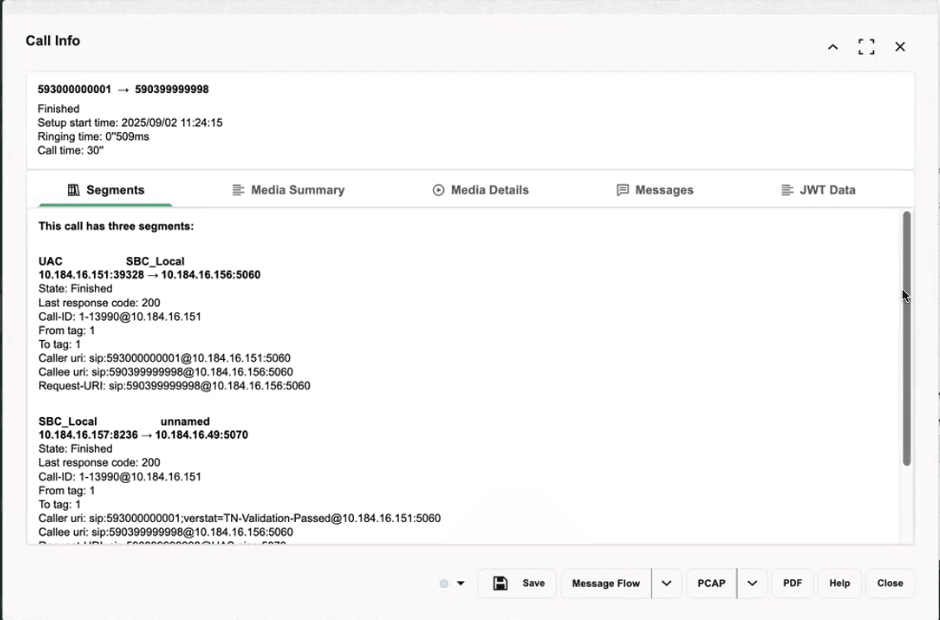
Note:
It is possible that the number of segments for a call in the Call Info screen are more than the number of calls shown in Recent Calls screen. This is because the information displayed in Call Info screen is obtained by connecting to other nodes in order to retrieve the external segments from other nodes.- Segments
- Media Summary
- Media Details
- Messages
- Meta Data This tab displays the Meta Data content
received from the UCaaS CCaaS service for a correlated Direct Routing call. This
is additional information that you can now access with UCaaS CCaaS feature to
support end-to-end visibility of a Direct Routing call. This tab is visible only
if you have enabled the UCaaS CCaaS extension from the
Platform Setup Application.
For more information, seeUCaaS CCaaS Monitoring.
- JWT Displays decoded header and payload for regular JWTs (compact forms not supported).
Note:
The JWT tab is seen only when the Stir/Shaken Setting is enabled at PSA. - HTTP Message visibility, which includes Segment info, Request/response Type, and Protocol. Message flow enhancements highlighting HTTP verification and signing.
Call Details Toolbar
You can save the call details for debugging later.
Click the Save button to save all the call details, including the raw messages and voice quality information.
Click the PCAP button to download the raw signaling messages and the media streams of a call into PCAP file format. See the Downloading Call Details to a PCAP File for more information.
Click the PDF button to create a PDF report for the call with details about segments, raw messages and voice quality information.
Click the Message flow button to open the message flow diagram.
Segments
The Segments tab shows details about each call leg within the call, including:
- Platform Device name
- Source and destination devices set with Platform Devices.
- State
- Last response code
- Call-ID
- From tag
- To tag
- Caller uri
- Callee uri
- Request-URI
- Caller device
- Callee device
Messages
The Messages tab shows a table representation of the messages from the call.
Table 4-10 Messages Table
| Column | Description |
|---|---|
|
Date and Time |
The absolute time when this message was seen by Operations Monitor. |
|
Details |
In case of SIP messages, it is equal to Request-URI for SIP requests, or the reason phrase for SIP replies. In case of ISUP messages, it is equal to point codes. In case of ENUM messages, an example might be 8.4.1.1.7.7.9.7.9.7.4.4.e164.arpa. In case of MEGACO messages, an example might be Add or Modify. |
|
Dst IP |
The destination IP address and port number. |
|
Dst MAC |
The destination hardware address. This column is hidden by default. |
|
Dst PC |
The destination PC address. This column is hidden by default. |
|
Message |
In case of SIP messages, it is equal to the SIP method for SIP requests, or the response code for SIP replies. In case of ISUP messages, it is equal to one of the ISUP method types: IAM, ACM, RLC, etc. In case of MEGACO messages, it is equal to either MEGACO Request or MEGACO Reply. In case of ENUM messages, it is equal to either ENUM Query or ENUM Answer. |
|
Proto |
The transport layer protocol. The supported transport protocols are UDP and TCP. |
|
Src IP |
The source IP address and port number. |
|
Src MAC |
The source hardware address. This column is hidden by default. |
|
Src PC |
The source PC address. This column is hidden by default. |
Figure 4-38 Call Details Messages Tab
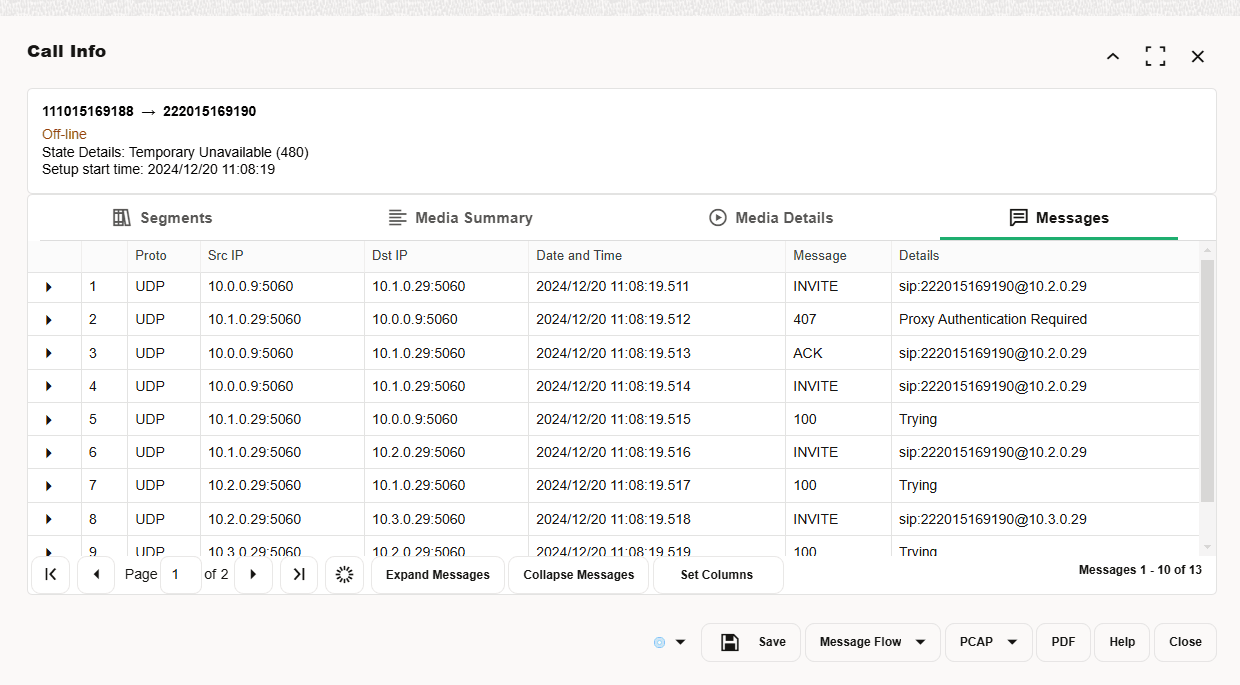
Click the Expand Messages button to view the raw messages as seen on the network. The raw messages can be also viewed in context in the message flow diagram.
Media Summary
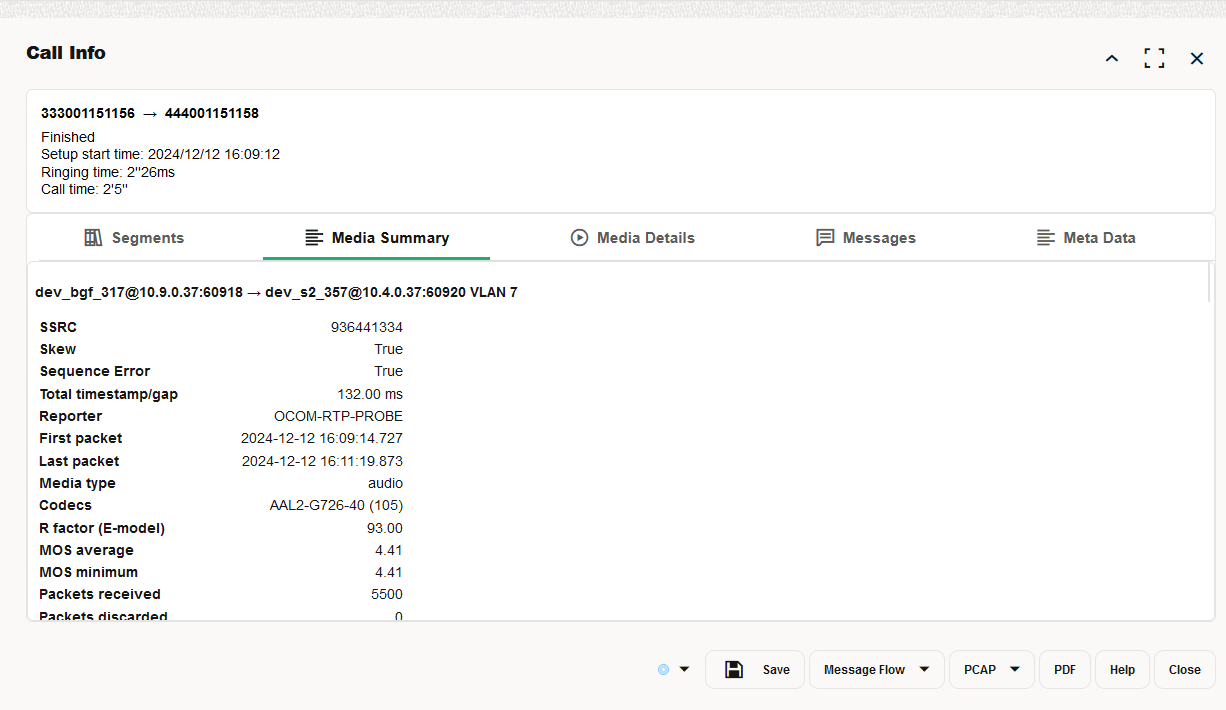
The Media Summary and Media Details tabs display the voice quality summary of the finished calls. It displays the source and destination devices when set in Platform Devices. For a Skype for Business call, along with the other details, the Media Type and the Codec used are also displayed.
Figure 4-39 Media Summary Tab
Downloading Call Details to a PCAP File
You can save the raw signaling messages and the media streams of a call to a PCAP file. When a call has multiple media streams, a single PCAP file is created containing all the streams.
To save the call details to a PCAP file:
-
In the call details panel, click the PCAP. Click Save or Save as.
- The file is saved as <filename>.pcap.
Device Visibility in Realms
Device visibility in a realm works as a Allowlist for visible devices and a blocklist for hidden devices. By default (if no realm is set in the realm visibility settings for a particular device), realm users will not view the related information (messages/segments) for legs via that device.
If the user belongs to a realm which has limited device visibility (only some devices are visible to the realm):
-
Information about call segments between visible devices are shown.
-
Information about call segments between visible devices and hidden devices are not shown.
-
Information about call segments between visible devices and unknown hosts are shown. An unknown host is a host that does not belong to any device. To hide this information from the realm, create a new device for the respective unknown host and set it as hidden for this realm.
This behavior affects the call information on the Segments and Messages tabs, in the message flow diagram, PCAP, and PDF generation.
Note:
To set a device as visible or hidden to a realm, under Platform Devices, click Realms. The Realm Assignation dialog box opens. Select the required checkboxes to assign one or more realms to a single device.
For matching devices, the IP or IP range along with the VLAN information, is considered. As a result, if the VLAN information does not match the device definition, the unmatched device will appear in the diagrams identified by its IP and VLAN. VLAN = 0 implies there is no VLAN, so it matches only the IP of the device.
Following are examples to understand the device visibility:
Example 1
In the following example, User A belongs to Realm A, for which Dev A is shown and Dev B is hidden.
Assume that you will have a call with four legs as shown in the Figure 4-40. There are no VLANs involved in the call.
Figure 4-40 Device Visibility Example 1
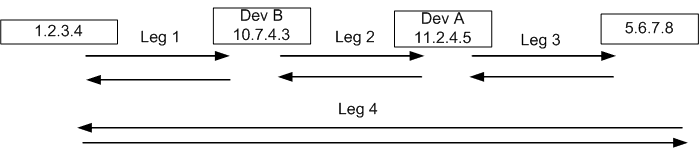
In all the possible views that User A could use to see at call flows or call messages (except for the Traces feature and PI (Packet Inspector)):
-
Leg 1 - Hidden (because Dev B is hidden)
-
Leg 2 - Hidden (because Dev B is hidden)
-
Leg 3 - Visible (because it is between a visible device and an unknown IP)
-
Leg 4 - Visible (because it is between an unknown IP and another unknown IP)
Example 2
In the following example, User A belongs to Realm A, for which Dev A is shown and Dev B is hidden.
Dev B is defined as 5.6.7.8(VLAN=1000) and Dev A is defined as 4.5.6.7(VLAN=1000) 11.2.4.5(VLAN=2000).
Assume that you have a call with three legs as shown in the Figure 4-41 in which Leg 1 and Leg 2 have VLAN=1000, and Leg 3 has VLAN=2000.
Figure 4-41 Device Visibility Example 2

In all the possible views that User A could use to look at call flows or call messages (except for the Traces feature and PI):
-
Leg 1 - Hidden (because Dev B is hidden)
-
Leg 2 - Hidden (because Dev B is hidden)
-
Leg 3 - Visible (because for this leg the VLAN tag is 2000 and not 1000, Leg 3 does not match Dev B (even though it has the same IP address). For this reason, Leg 3 is considered to be a leg between Dev A and an unknown host.)
STIR/SHAKEN Monitoring
STIR/SHAKEN is a framework that integrates two protocol standards—Secure Telephone Identity Revisited (STIR) and Signature-based Handling of Asserted Information Using Tokens (SHAKEN)—to validate the legitimacy of caller identities in SIP-based voice calls.
The STIR/SHAKEN framework prevents caller ID spoofing and reduces unwanted robocalls by verifying caller legitimacy using digital signatures. Starting with the Release 6.1, Session Monitor introduces monitoring and reporting for STIR/SHAKEN-enabled calls.
Enabling STIR/SHAKEN Support
Enable STIR/SHAKEN in two places: In the Platform Setup Application, and under System Settings.
- Using the Platform Setup Application:
- Click Apply.
Figure 4-42 Enabling Stir/Shaken
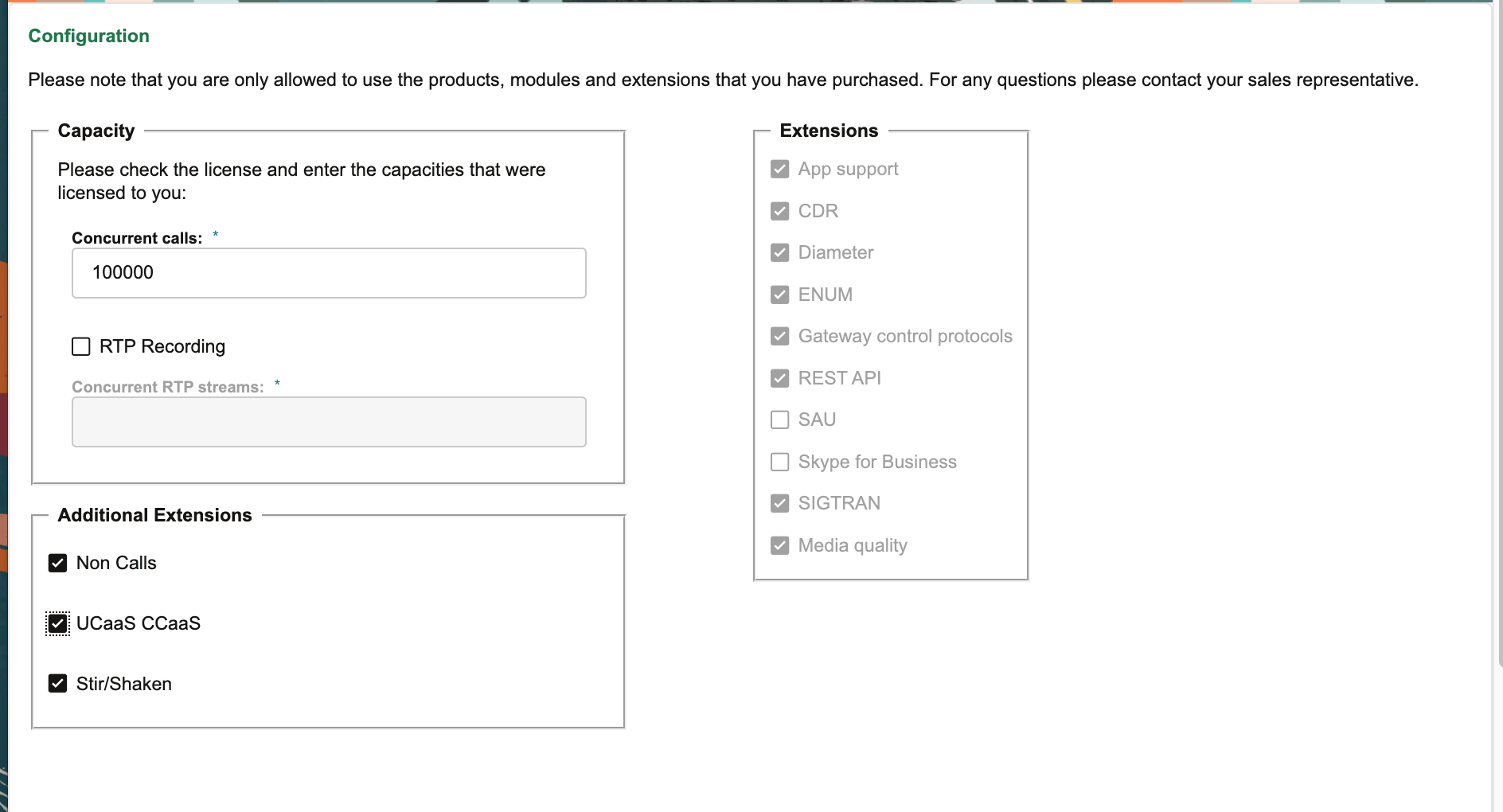
- The STIR/SHAKEN extension, controls if STIR/SHAKEN calls are monitored.
- Enable this extension explicitly. The default setting is false.
Caution:
Enabling/disabling the Stir/Shaken extension will start/stop the HTTP probe process and restart the counters process. It is recommended to perform this action during the maintenance window.
- Click Apply.
- System Settings:
STIR/SHAKEN Call Flow and Verification Process
The STIR/SHAKEN protocols ensures that calls can be traced to their legitimate origin by using digital signatures, allowing service providers and recipients to verify if a caller can rightfully use a given number. This enhances trust in telecommunications, enabling more secure and reliable call flows.
Call Flow for STIR/SHAKEN Calls
- Call Initiation: The calling party initiates a call.
- Authentication by the Originating Provider: The provider checks the legitimacy of the call using an authentication service.
- Digital Signature Creation: If the caller’s legitimacy is validated, the authentication service generates a digital signature. This signature is attached to the SIP call as an identity header.
- Transmission and Verification: The digital signature (identity header) is included in the SIP INVITE and is transmitted throughout the call path from the originating to the terminating service provider.
- Verification at the Terminating End: Upon SIP call initiation, the originating provider sends an HTTP request as part of the STIR/SHAKEN process to further validate the caller ID. The HTTP response contains the identity header with the digital signature, which is then included in the SIP INVITE.
- Reception and Verification by Terminating Provider: The terminating telephone service provider receives the SIP INVITE with the identity header. It checks the legitimacy of the caller ID by verifying the signature, often referencing a certificate repository.
- Outcome Display: Based on the verification result, the terminating provider flags the call outcome (e.g., verified or spam) on the called party’s display.
- Process Components:
- Authentication (Signing) Service: Validates and signs the call at the originating side.
- Verification Service: Verifies the signature at the terminating side.
Correlation of HTTP and SIP Traffic
To associate (correlate) HTTP and SIP traffic within Enterprise Operations Monitor the system uses telephone numbers present in the specific protocol headers.
Correlation Method
- HTTP Side:
After decoding each HTTP message, Enterprise Operations Monitor extracts two key parameters: the originating and destination telephone numbers (for example, from the origin and dest headers, or TN (phone numbers) values).
- SIP Side
The system retrieves the calling and called party numbers from the SIP From and To headers.
Matching Logic
- Correlation occurs by directly matching the originating and destination numbers from the HTTP message with the corresponding caller and callee numbers from the SIP INVITE.
- Only if both numbers match exactly is the HTTP message considered associated with the SIP call.
- This ensures that data (such as STIR/SHAKEN identity information) is correctly tied to its relevant call flow.
Important Notes
Exact Match Requirement: Release 6.1 requires a strict, character-for-character match between HTTP and SIP telephone numbers for a successful correlation.