17 Low Code Automation
Learn about creating automation scenarios in Oracle Communications Solution Test Automation Platform.
Overview
STAP enables users to automate workflows without writing complex code. You can use the Behavior-Driven Development (BDD) language to define automation scenarios in a clear, concise, and human-readable format. This approach simplifies the automation process, making it accessible to technical and non-technical users.
It is important for you to use a well-organized project structure to ensure that you manage automation assets effectively.
Figure 17-1 shows the key project directories in STAP and their purposes.
Figure 17-1 Automation Workspace File Structure
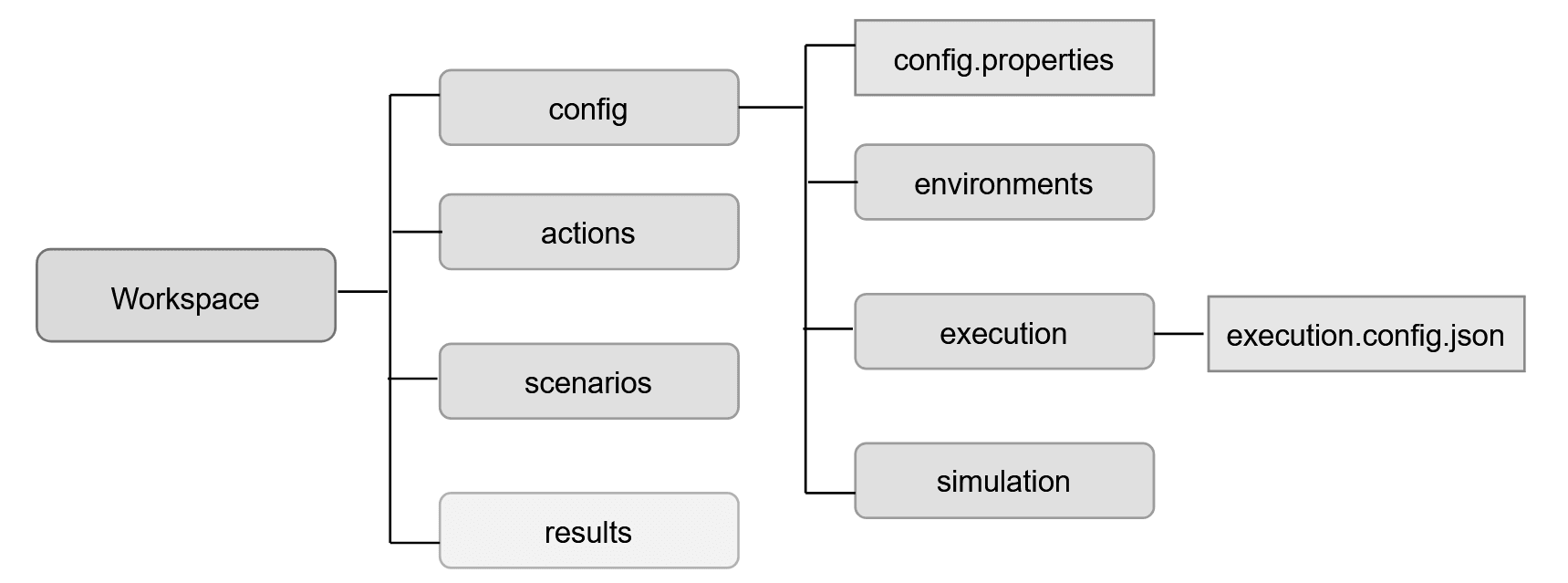
The workspace should contain the following top-level folders:
- action: Contains action files required for running automation scenarios. For more information, see "Setting Up Actions".
- config: Contains the config.properties files and
directories that contain various configuration settings for your automation project.
For more information, see "Setting Up STAP Configuration".
- Environment: Contains environment-specific configurations for your automation tests. For more information, see "Setting Up Environments".
- Simulation: Contains configurations related to test data simulation. For more information, see "Setting Up Simulation".
- Execution: Contains execution configurations that define how automation scenarios are run. For more information, see "Setting Up Execution".
- scenarios: Organizes your automation scenarios into a logical folder structure for improved maintenance and navigation. For more information, see "Setting Up Scenarios".
- results: STAP automatically publishes all test execution results to this folder. For more information, see "Setting Up Reports".
- context: Stores automation context data used to avoid redundant execution of steps during scenario automation. For more information, see "Setting Up Context".
Automating Using the STAP Design Experience
The STAP Design Experience package simplifies the automation of end-to-end scenarios by offering a user-friendly Behavior-Driven Development (BDD) environment for creating, testing, and deploying automation. It includes streamlined scripts for compiling, running, and publishing automation, along with a sample workspace featuring diverse examples across various plug-ins. Additionally, the package provides ready-to-use environment templates tailored for specific plug-ins and environments to accelerate the automation process.
Before using the STAP Design Experience package, ensure you have set it up on your system. For more information, see "Setting Up The STAP Design Experience" in Deployment Guide.
Ensure you have securely stored your automation project in a third-party version control that includes initializing a repository, tracking changes, and collaborating efficiently.
- Create an Automation Workspace: Create a dedicated folder within your project to serve as the automation workspace. STAP offers two ways to configure folder paths:
- Configuration Folder: Create a config folder within the workspace. This folder contains the primary configuration file config.properties, which STAP run time uses to load other configurations. For more information, see "Setting Up STAP Configuration". Create subfolders within the config to organize other configurations.
- (Optional) Environment Configurations: Create an environments subfolder within the config. If you have multiple environments, inside each environment folder, create separate property files for each product API. If you only have one environment, create all environment property files directly under the environments folder. Update the config.properties file with the environment configuration location. For more information, see "Setting Up Environments".
- Results Folder: STAP stores execution results in the results folder. The path can be relative to the workspace or an external location. Execution results are stored in timestamped folders under $results/reports/<timestamp>. After the execution is completed, the report will be automatically opened at the url specified in results.publish.url or Open the index.html to view the execution report.Configure the results storage location in config.properties. For more information, see "Setting Up Reports".
- Tomcat Configuration for publishing results:Publishing results to STAP is mandatory to access the report at the specified URL. Execution results are published to a web server (for example, Tomcat) to enable easy viewing of reports. Configure config.properties as shown below to enable result publishing.
#Provide results.publish.file=<tomcat server location>/webapps/STAPReports/reports/SE2EReports/results.js results.publish.file=<Tomcat installation directory>/webapps/STAPReports/reports/SE2EReports/results.js #Provide the Webserver URL to open the report here ex:- http://localhost:800 results.publish.url=http://localhost:1800 - Context Folder: The context folder stores test context data used during scenario development. Context helps visualize variables and their values used in each step. It allows you to execute specific steps while simulating previously run ones using the context. Configure the context storage location in config.properties. For more information, see "Setting Up Context".
- Scenarios Folder: Define the location of the scenarios folder in config.properties. Each scenario is stored in a separate folder within this directory. For more information, see "Creating Scenarios".
- Compile and Run Automation: Use the Command Line Interface to compile and run automation. For more information, see "Publishing Data using Command Line Interface".
- View Reports: You can view the reports of the scenarios run in the Results folder. For more information, see "Setting Up Reports".
- Publish Scenarios: Once the automation is complete, you can publish scenarios. For more information, see "Publishing Data using Command Line Interface".
- Generating Reports: You can publish your automation reports in an HTML or PDF format. For more information, see "Generating Automation Reports".