Install Admin Tool
Note:
All the tasks below need to be followed in sequential order.Prerequisites
Before installing the OUAW Admin Tool component, verify the following:
-
Ensure Oracle Autonomous AI Database is provisioned which comes with Apex and ORDS automatically.
See Perform Pre-Installation Steps for OUAW for more information.
Download OUAW AdminTool Component
-
Download Oracle Utilities Analytics Warehouse v25.10.0.0 PaaS Multiplatform zip from edelivery.
-
After unzipping the package, you will get these folders:
- AdminTool Component
- Dashboard Component
- ETL Component

-
The AdminTool Component folder contains all the Admin Tool Installation files.

Configure APEX Workspace for OUAW
-
Connect to the ADB with the ADMIN user.
sqlplus ADMIN/<ADB ADMIN PASSWORD>@<ADB Service> -
Create a workspace and configure the users.
@CreateAppWorkspace.sql -
Import the OUAW application run.
@DeployAdminApp.sql -
Configure Admin Tool for PaaS.
@PaaSConfiguration.sql
Access the AdminTool
-
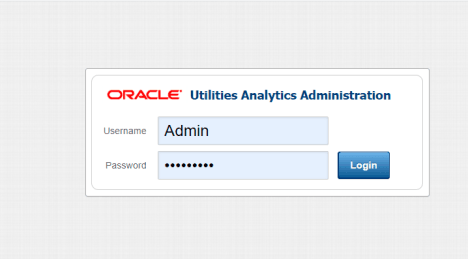
Access the AdminTool from the following URL: https://<ADB URL>/ords/f?p=104
-
Provide the following credentials to access the Admin Tool.
Username: Admin
Password: Admin_123
Note:
After logging in to the application for the first time, you will be asked to change your password. -
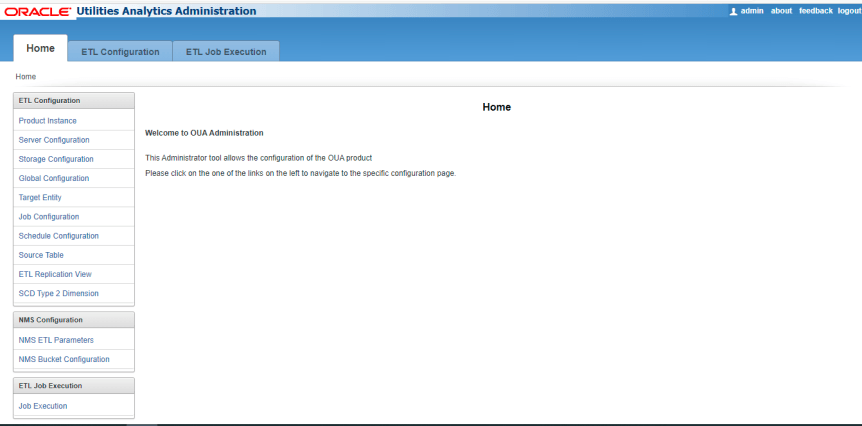
After logging in, you can get the following Admin Tool access to ETL Configuration and ETL Job Execution.