Configure ETL Source for OUAW
This page describes the integration flow between source data and target data, detailing its preparation process and the configuration steps for the ETL process.
Prerequisites
- Ensure that OCI GoldenGate Microservices is provisioned.
- Ensure that installing the Oracle Data Integrator (ODI)-based ETL component is completed.
- Ensure that the Oracle Data Integrator domain is created.
- Ensure that OCI Object Storage is provisioned.
- Ensure Source Application Database is provisioned with Oracle Base Database Service (DBaaS) with 2 Nodes.
- Ensure the source database is accessible with other provisioned OCI resources and services. Accordingly, configure your OCI Networking.
Note:
To perform the C2M Source Configuration, first complete the CCB Source Configuration and then proceed with MDM Source Configuration.See Perform Pre-Installation Steps for OUAW for more information.
Configure Buckets and Extract Parameters
Before attaching a specific source system to Oracle Utilities Analytics Warehouse, it is necessary to complete some source application configurations as detailed on Configure ETL Parameters and Buckets.
Set Up Source Database Server for OCI GoldenGate
To set up each source instance:
- Make sure that the source database is enabled in the ARCHIVELOG mode.
-
Connect to the source database as a sys user to CDB and execute the following statements.
alter database add supplemental log data (primary key) columns; alter system set enable_goldengate_replication=TRUE scope=both; -
Create a new user. This will be the Oracle GoldenGate Owner. Make sure to assign to the new user a tablespace that is not assigned to any other.
- For a standalone database: CCB01SRC
- For a multi-tenant database: C##GGOWNER
Note:
Keep track of the GoldenGate Owner username. It will be used in the Oracle Utilities Analytics Warehouse installation.
Example:
CREATE USER < C##GGOWNER> IDENTIFIED BY <Password> TEMPORARY TABLESPACE TEMP PROFILE DEFAULT CONTAINER=ALL; - Connect to the source database with the sys user to CDB and run the following commands.
-
For a standalone database:
Note:
Replace the GoldenGate Owner placeholder with the actual name for the database user that was created in the previous step.grant CREATE SESSION,CONNECT,RESOURCE,ALTER SYSTEM to <GoldenGate Owner>; grant unlimited tablespace to <GoldenGate owner> with admin option; grant OGG_CAPTURE to C##GGOWNER container=all; grant OGG_APPLY to C##GGOWNER container=all; grant unlimited tablespace to <GoldenGate Owner> with admin option; Revoke dba from <GoldenGate Owner>; grant create any view to <GoldenGate Owner>; grant select any dictionary to <GoldenGate Owner>; GRANT CREATE ANY DIRECTORY TO <GoldenGate Owner>; GRANT DROP ANY DIRECTORY TO <GoldenGate Owner>; GRANT EXP_FULL_DATABASE TO <GoldenGate Owner>; GRANT IMP_FULL_DATABASE TO <GoldenGate Owner>; -
For a multi-tenant database:
Note:
Modify the common user used for the GoldenGate owner placeholder <Common user for GG> with the actual name of the container common user created on your multi-tenant database.grant CONNECT to <Common user for GG> container=all; grant IMP_FULL_DATABASE to <Common user for GG> container=all; grant RESOURCE to <Common user for GG> container=all; grant EXP_FULL_DATABASE to <Common user for GG> container=all; grant DROP ANY DIRECTORY to <Common user for GG> container=all; grant UNLIMITED TABLESPACE to <Common user for GG> container=all; grant CREATE ANY DIRECTORY to <Common user for GG> container=all; grant ALTER SYSTEM to <Common user for GG> container=all; grant SELECT ANY DICTIONARY to <Common user for GG> container=all; grant CREATE ANY VIEW to <Common user for GG> container=all; grant OGG_CAPTURE to C##GGOWNER container=all; grant OGG_APPLY to C##GGOWNER container=all;
-
- Connect to the <source application> ADM schema (for example, CISADM) and run the following commands from PDB.
-
For the Oracle Utilities Customer Care and Billing source database, run the following grants for the USER created in step 4:
Grant select on <application ADM Schema>.F1_MST_CONFIG to <GoldenGate owner>; Grant select on <application ADM Schema>.F1_EXT_LOOKUP_VAL to <GoldenGate owner>; Grant select on <application ADM Schema>.F1_BKT_CONFIG to <GoldenGate owner>; Grant select on <application ADM Schema>.F1_BKT_CONFIG_VAL to <GoldenGate owner>; -
For the Oracle Utilities Operational Device Management source database, run the following grants:
Grant select on <application ADM Schema>.F1_MST_CONFIG to <GoldenGate owner> Grant select on <application ADM Schema>.F1_EXT_LOOKUP_VAL to <GoldenGate owner> -
For the Oracle Utilities Meter Data Management source database, run the following grants:
Grant select on <application ADM Schema>.F1_MST_CONFIG to <GoldenGate Owner>; Grant select on <application ADM Schema>.F1_EXT_LOOKUP_VAL to <GoldenGate Owner>; -
For the Oracle Utilities Work and Asset Management source database, run the following grants:
Grant select on <application ADM Schema>.F1_EXT_LOOKUP_VAL to <GoldenGate Owner>;
Grant select on <application ADM Schema>.F1_MST_CONFIG to <GoldenGate Owner>;
Grant select on <application ADM Schema>.F1_BKT_CONFIG to <GoldenGate Owner>;
Grant select on <application ADM Schema>.F1_BKT_CONFIG_VAL to <GoldenGate Owner>;
-
Access Control Operations on Oracle Autonomous AI Database
-
Connect to ADB as ADMIN user.
sqlplus ADMIN/'< ADB ADMIN Password >'@<ADB Service Name> -
Run the below SQL query by providing the OCI GG Admin Console URL.
begin dbms_network_acl_admin.append_host_ace( host => '<OCI GG Admin Console URL>, ace => xs$ace_type( privilege_list => xs$name_list('CONNECT','HTTP','RESOLVE'), principal_name => '<Metadata username>', principal_type => xs_acl.ptype_db) ,private_target => TRUE ); end; /Example:begin dbms_network_acl_admin.append_host_ace( host => 'example.goldengate.us-phoenix-1.oci.oraclecloud.com', ace => xs$ace_type( privilege_list => xs$name_list('CONNECT','HTTP','RESOLVE'), principal_name => 'MDADM', principal_type => xs_acl.ptype_db) ,private_target => TRUE ); end; /
Create Replication Schema on Oracle Autonomous AI Database
-
Log in to ADB as ADMIN user.
sqlplus ADMIN/'< ADB ADMIN Password >'@<ADB Service Name> -
Create replication users.
CREATE USER <Source Product Context>REP IDENTIFIED BY <Password> DEFAULT TABLESPACE "DATA" TEMPORARY TABLESPACE "TEMP" PROFILE DEFAULT;Example:CREATE USER CCB1REP IDENTIFIED BY OUA1ccbrep1## DEFAULT TABLESPACE "DATA" TEMPORARY TABLESPACE "TEMP" PROFILE DEFAULT;In this example, the Source Product is CCB and Context CD is 1, add REP at end.
Grants to Replication Schema
-
Log in to ADB as ADMIN user.
sqlplus ADMIN/'< ADB ADMIN Password >'@<ADB Service Name> -
Run these grants to the created replication schemas.
grant connect, resource, dw_replicate to <Replication Schema>;
ALTER USER <Replication Schema> QUOTA UNLIMITED ON DATA;
GRANT EXECUTE ON MDADM.B1_TEXT_ARRAY TO <Replication Schema>;
GRANT SELECT ON MDADM.B1_PROD_INSTANCE TO <Replication Schema>;
GRANT SELECT ON MDADM.B1_OBJECT_MAP TO <Replication Schema>;
GRANT SELECT ON MDADM.B1_RANGE_LOOKUP TO <Replication Schema>;
GRANT SELECT ON MDADM.B1_OBJECT TO <Replication Schema>;
GRANT SELECT ON MDADM.B1_OBJECT_SET TO <Replication Schema>;
GRANT EXECUTE ON MDADM.B1_GET_MODEL_CODE TO <Replication Schema>;
GRANT EXECUTE ON MDADM.B1_GET_XPATH_VALUE TO <Replication Schema>;
GRANT EXECUTE ON MDADM.B1_GET_VALID_XML TO <Replication Schema>;
GRANT SELECT ON MDADM.B1_JOB_PARAM_VW TO <Replication Schema>;
GRANT SELECT ON MDADM.B1_DSI_CONFIG_VW TO <Replication Schema>;
grant datapump_cloud_imp to MDADM;
In this example, the Source Product is CCB and Context CD is 1, add REP at end.
Add the Schema Trandata in OCI GG
Prerequisites
-
Create a connection to Source Database to use as source for OCI GoldenGate. Use Oracle GoldenGate Source Database Owner (example, C##GGOWNER) User while creating the connection. See Connect to Oracle AI Database for more details.
-
Assign the created connection to OCI GG deployment. See Assign a connection to a deployment for more details.
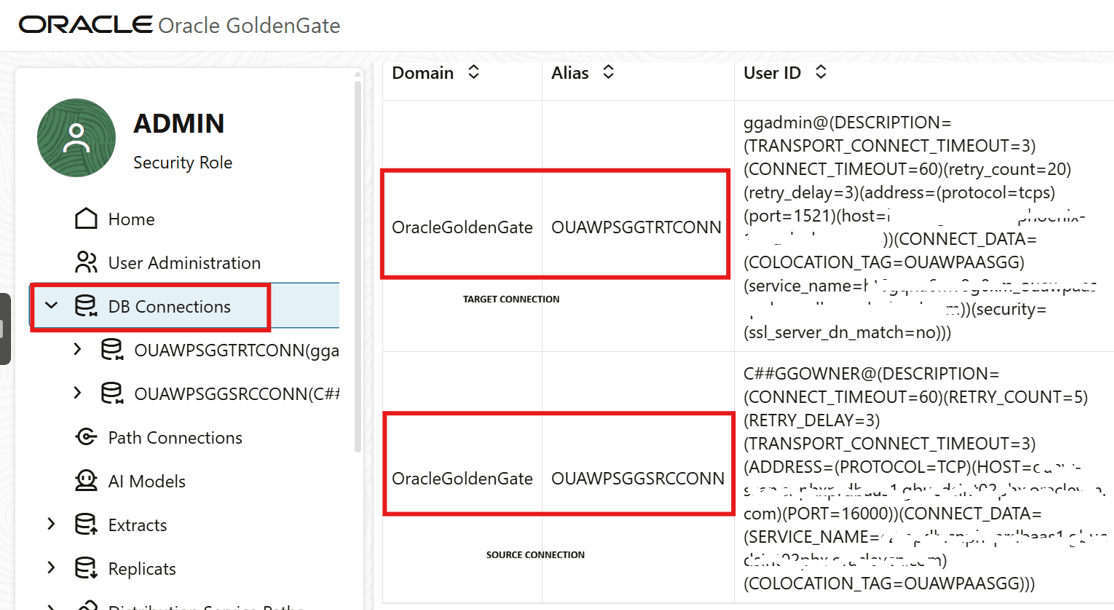
You can see all connections in the OCI GG Admin console.
Add the Schema Trandata
- Log in to the OCI GG Admin console.
-
Click DB Connections and click

of the source database.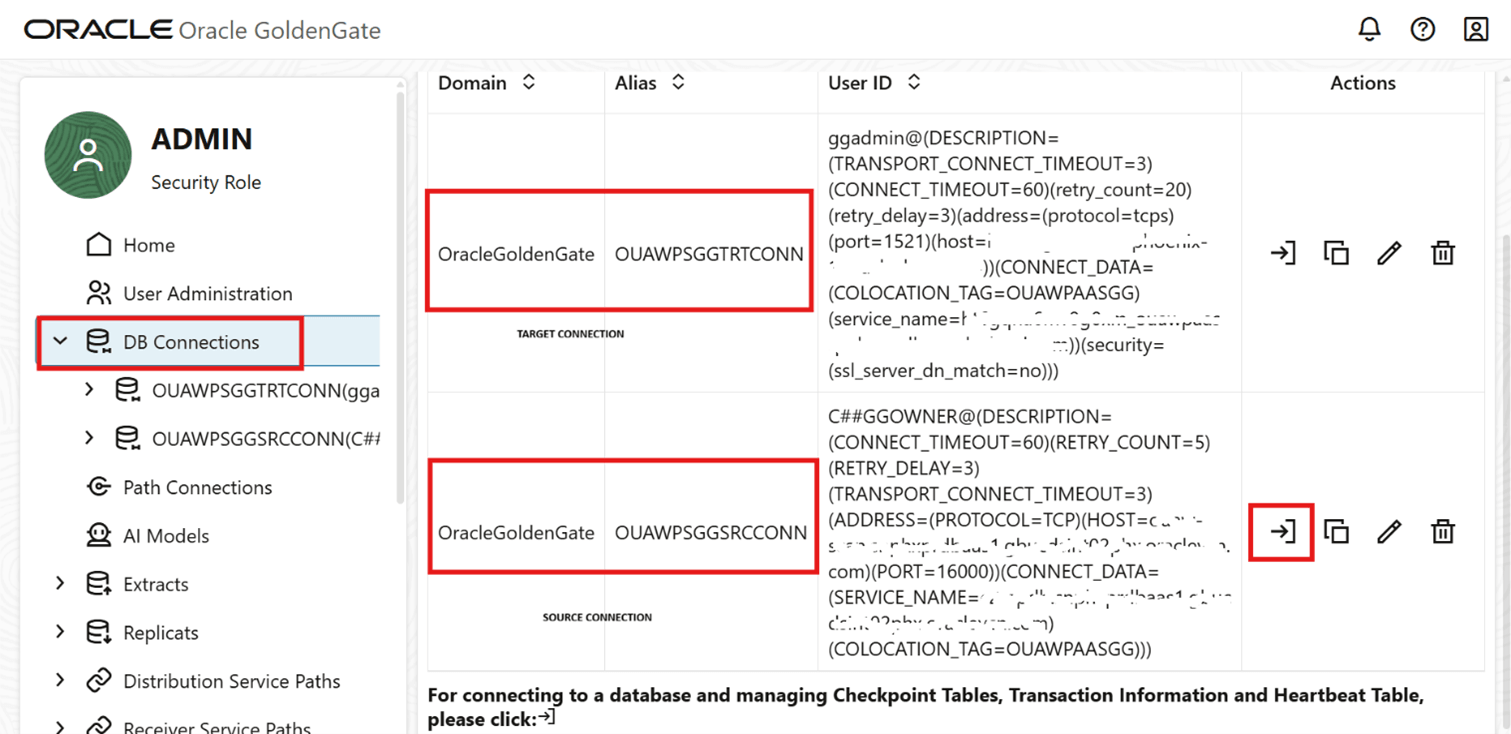
-
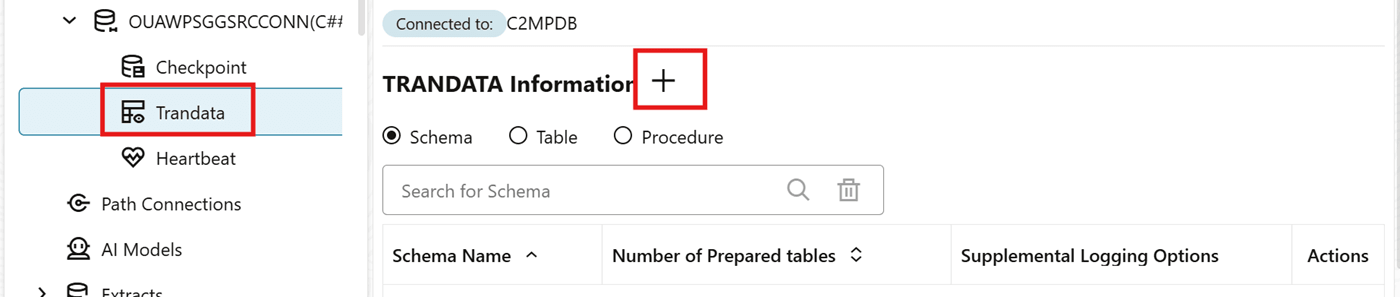
In TRANDATA Information, click +.
-
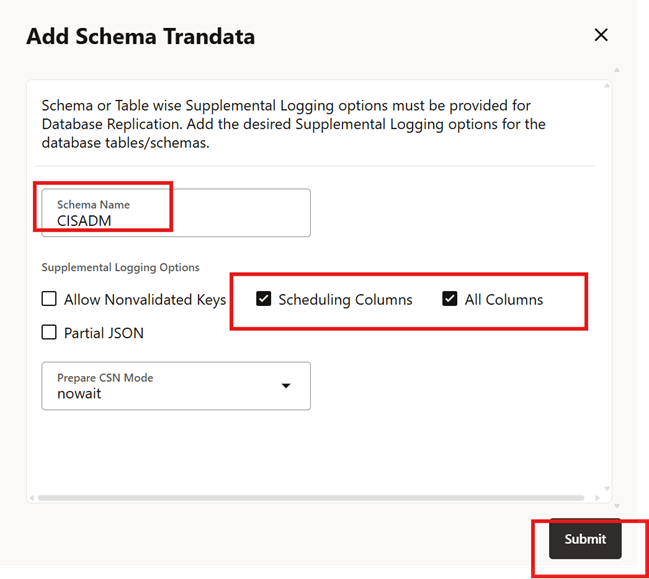
Enter the appropriate parameters and click Submit.
- Schema Name: Source Schema Name. Example, <CISADM>
- Scheduling Columns: Select this checkbox
- All Columns: Select this checkbox
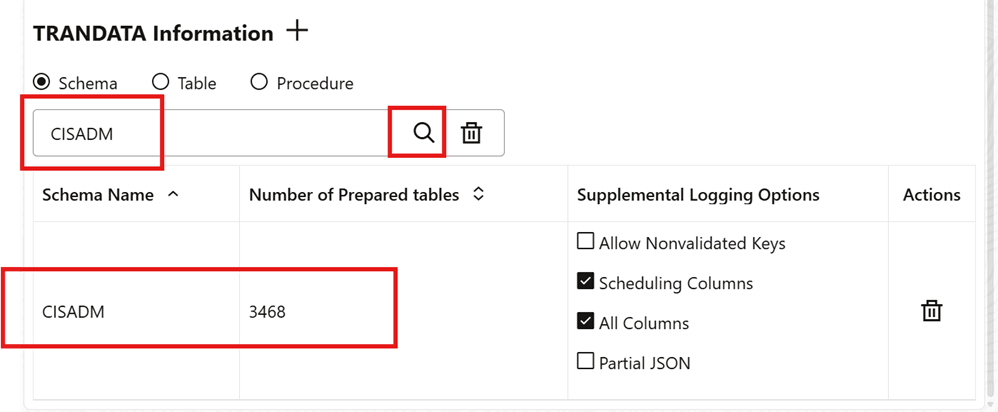
- Verify the schema TRANDATA.
Configure Physical and Logical Architecture for Source in ODI
Note:
All Physical Data Server and Physical/Logical schemas and ODI Studio activity should be performed by logging in to Work Repository.Physical Data Servers (Oracle)
- Log in to ODI Studio to Work Repository.
-
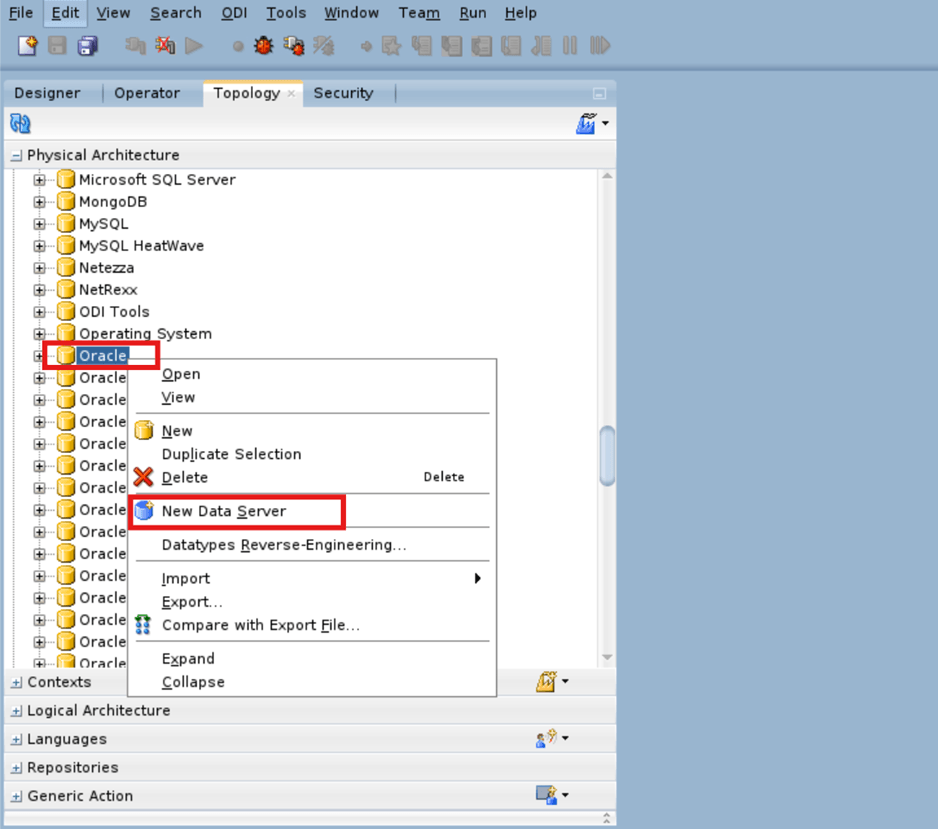
Navigate to Topology > Physical Architecture > Technologies and right click Oracle then select New Data Server.
-
Enter the Physical Data Server details and click Save.
Field Name and Description Value Name
Source Product Context for example, <CCB1>
User Source GoldenGate User for example, <C##GGOWNER>
Password Source GoldenGate User Password 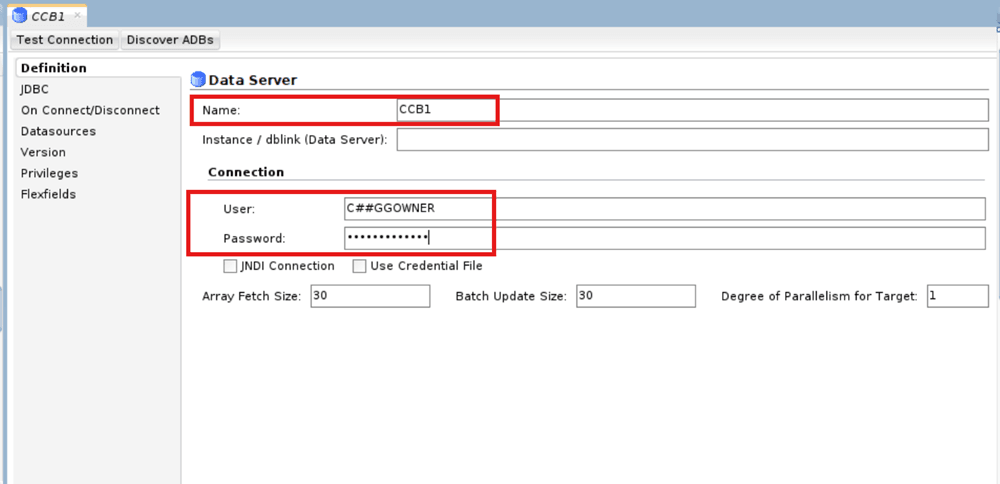
-
Navigate to JDBC and enter the Source Database details and click Save.
Field Name and Description Value JDBC Driver
Oracle.jdbc.OracleDriver
JDBC URL jdbc:oracle:thin:@<Source DB Host>:port/ServiceName
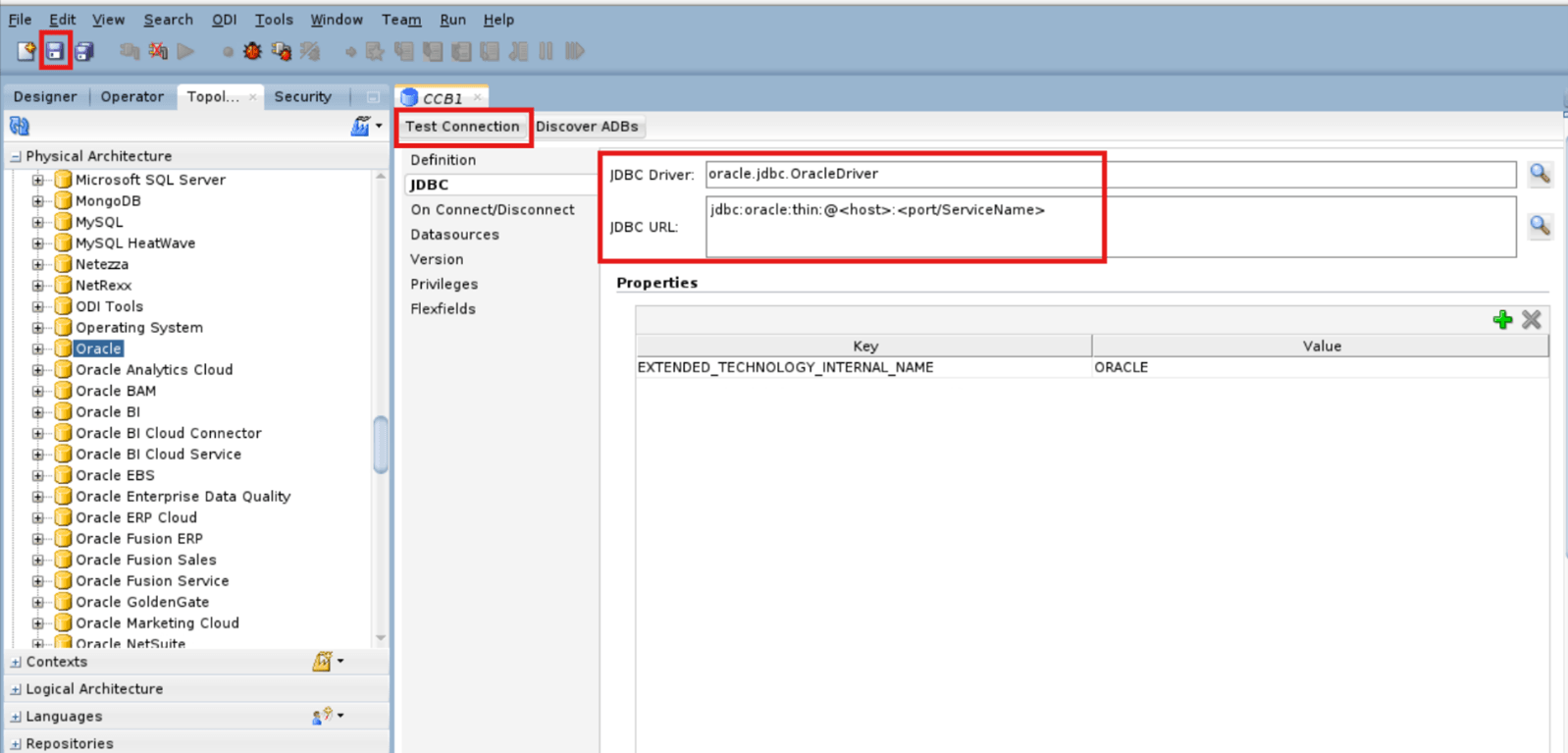
-
Test the connection.
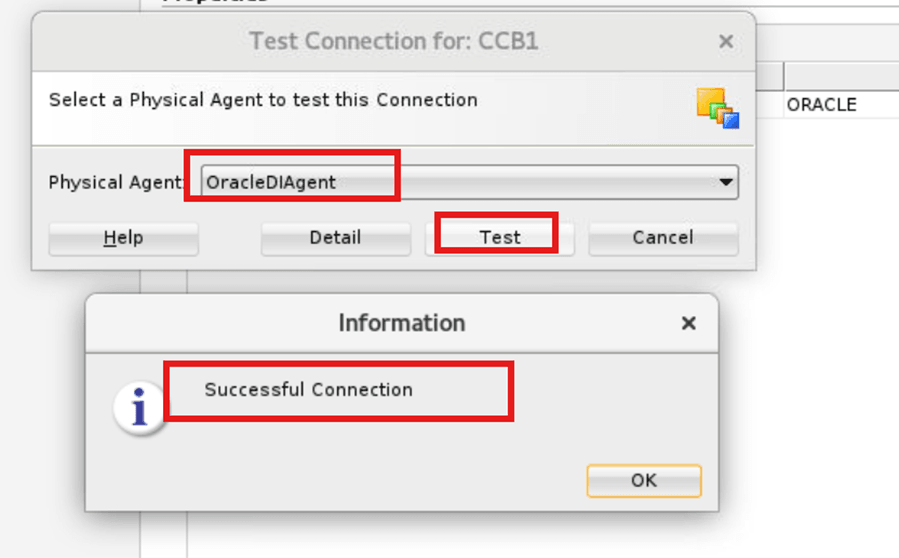
- Repeat steps 2 -5 to add more physical data server for other Source Product Contexts.
- Physical Schema (Source ADM Schema) for example, CISADM
- GoldenGate Source Database User for example, C##GGOWNER
Physical Schema (Oracle)
-
Navigate to Topology > Physical Architecture > Technologies > Oracle and right click the Source Product Context Data Server then select New Physical Schema.
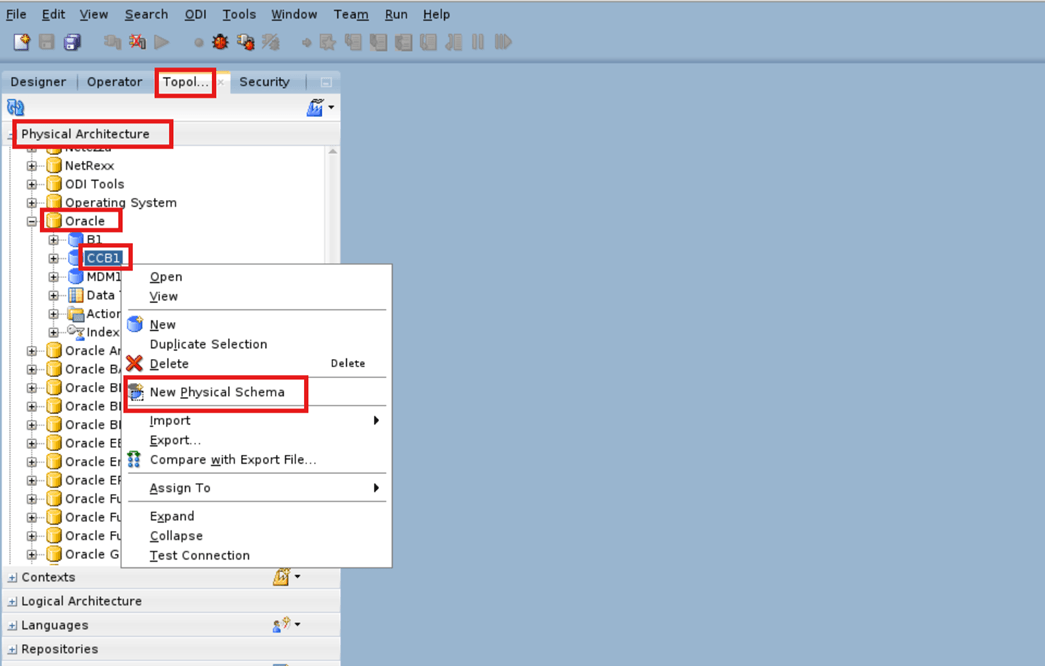
-
Enter the Physical Schema details and click OK.
- Schema (Schema): Source ADM Schema for example, <CISADM>
- Schema (Schema Work): Source GoldenGate User for example, <C##GGOWNER>
Field Name and Description Value Schema (Schema)
Source ADM Schema for example, <CISADM>
Schema (Schema Work) Source GoldenGate User for example, <C##GGOWNER>
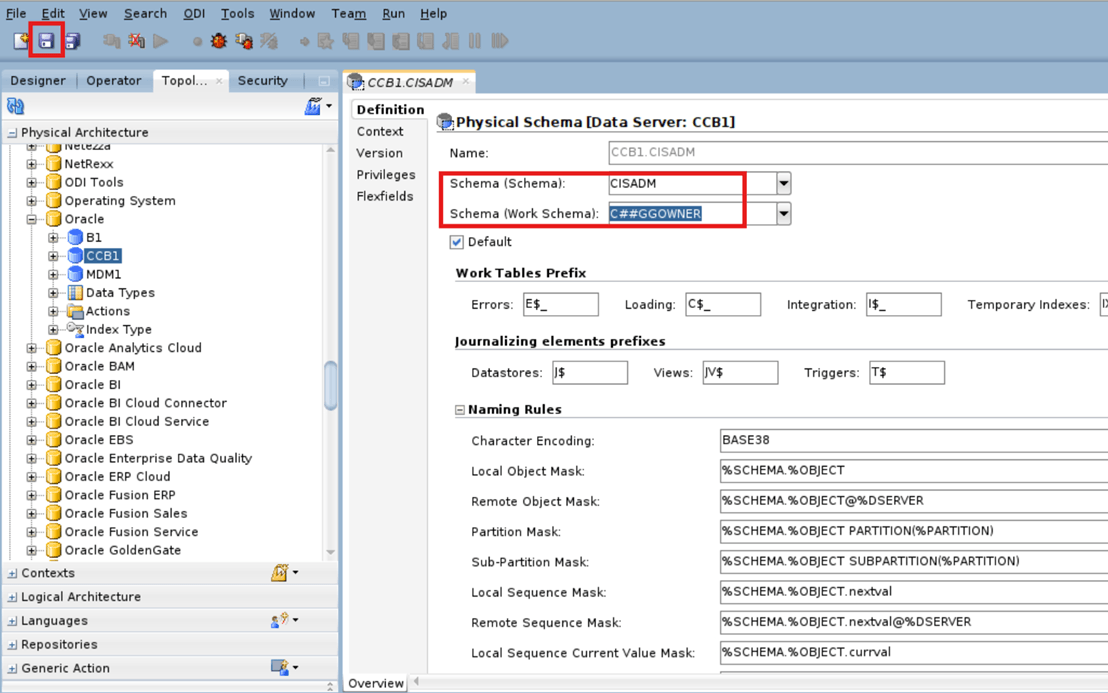
-
Repeat steps 1 - 2 to enter the Physical Schema details for Source GoldenGate Database User.
Field Name and Description Value Schema (Schema)
Source GoldenGate User for example, <C##GGOWNER>
Schema (Schema Work) Source GoldenGate User for example, <C##GGOWNER>
Physical Schema (Replication Schema
Note:
Make sure to create each Physical Replication schema under created Target Data Server (B1).-
Navigate to Topology > Physical Architecture > Technologies > Oracle and right click B1 then select New Physical Schema.
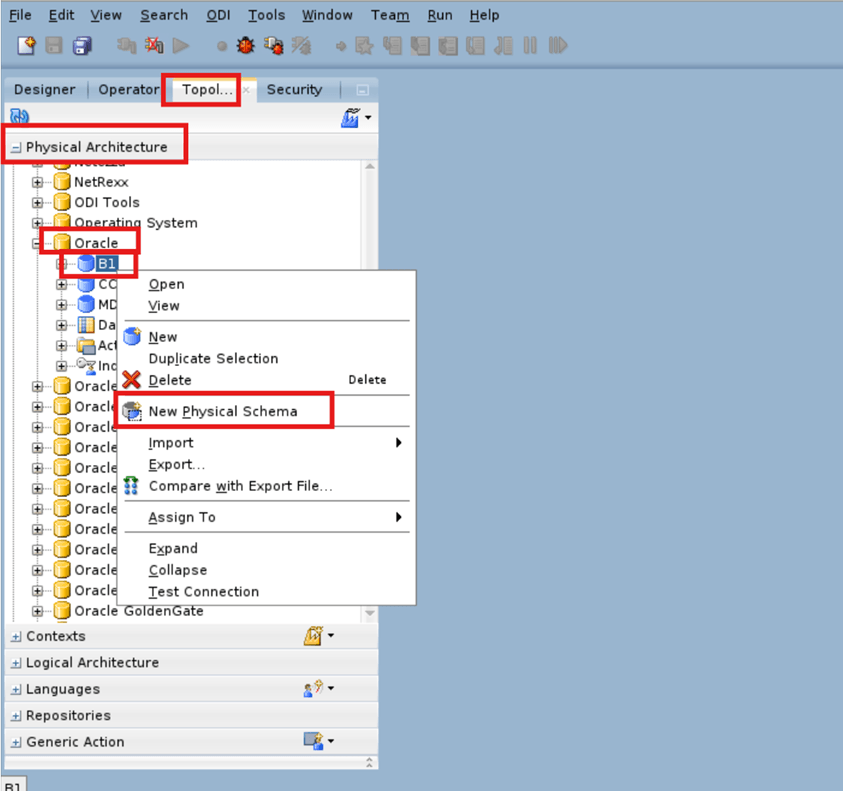
-
Enter the Replica Schema details and click OK.
Field Name and Description Value Schema (Schema)
Replication Schema for example, <CCB1REP>
Schema (Schema Work) Replication Schema for example, <CCB1REP>
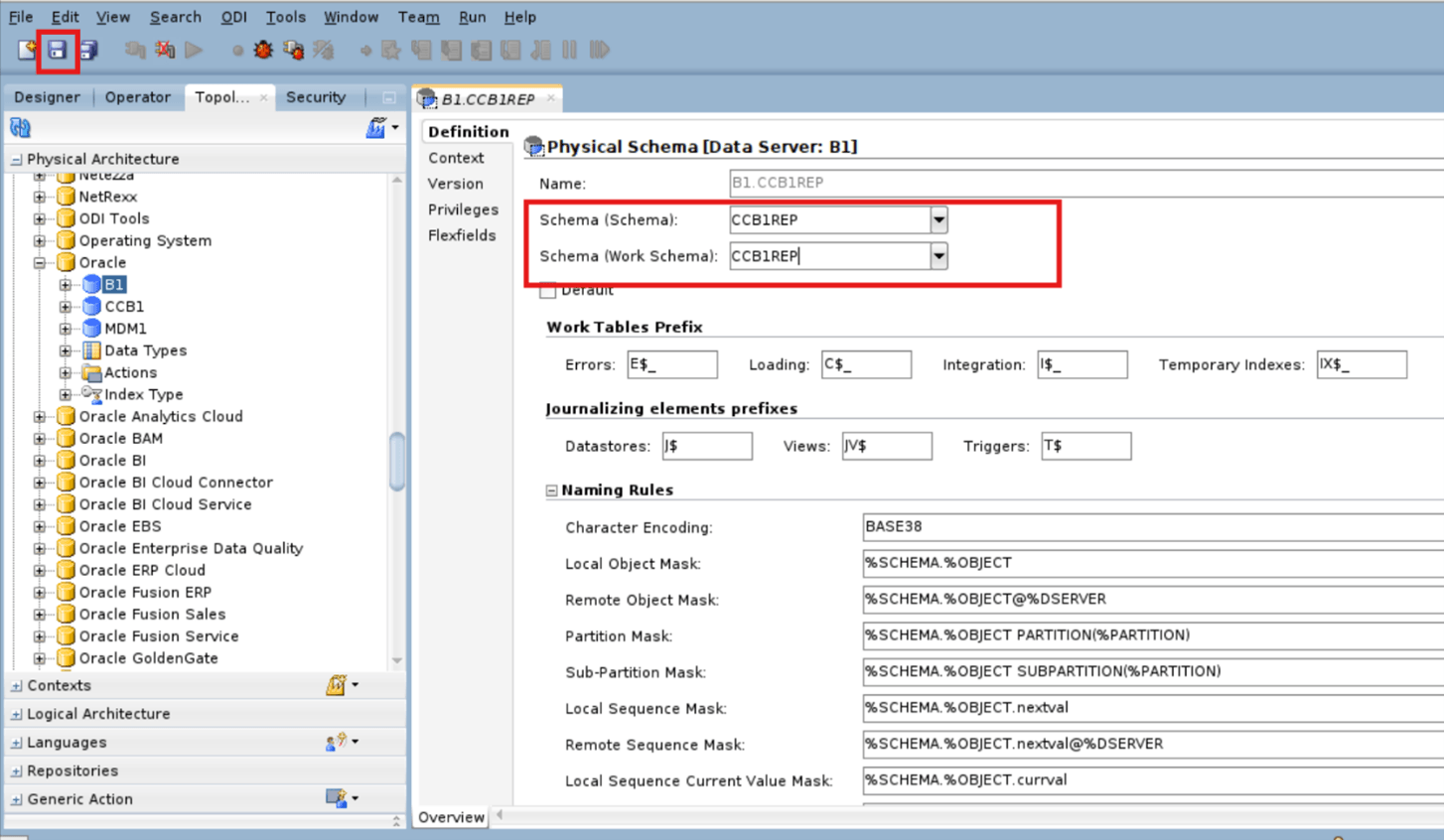
-
Repeat steps 1 - 2 to create more replication schemas.
Physical Data Servers (Oracle GoldenGate)
-
Navigate to Topology > Physical Architecture > Technologies and right click Oracle GoldenGate then select New Data Server.
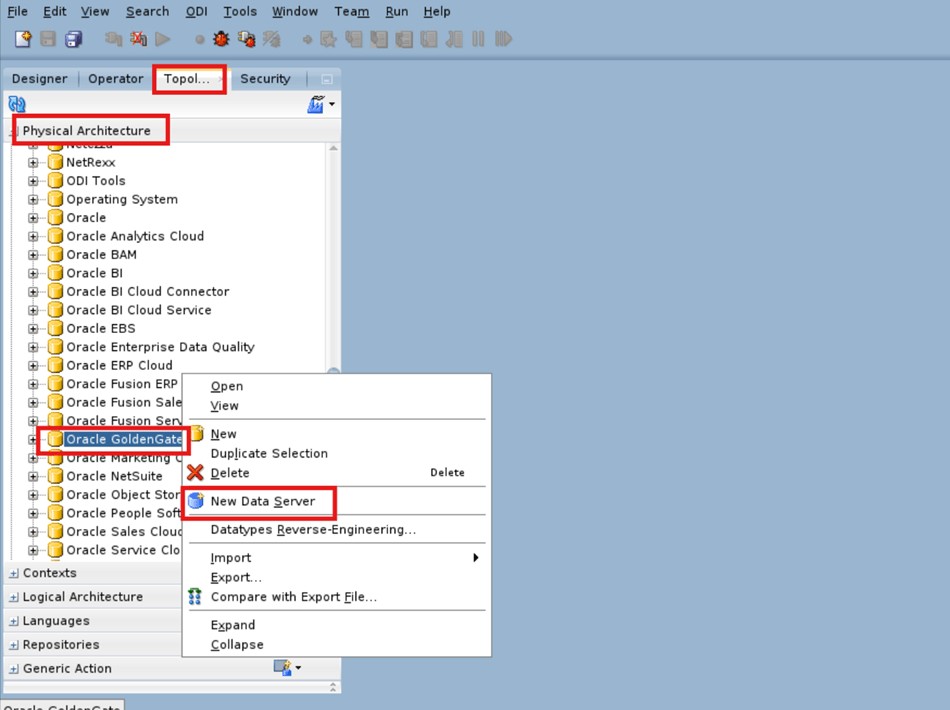
-
Enter the GoldenGate JAgent Server details and click Save.
Field Name and Description Value Name
<Source Context CD>-GG for example, <CCB1-GG>
Host **** (provide asterisk, this a dummy value)
JMX Port -1 Manager Port -1 JMX User **** (provide a dummy value) Password **** (provide a dummy value) Installation Path **** (provide a dummy value) 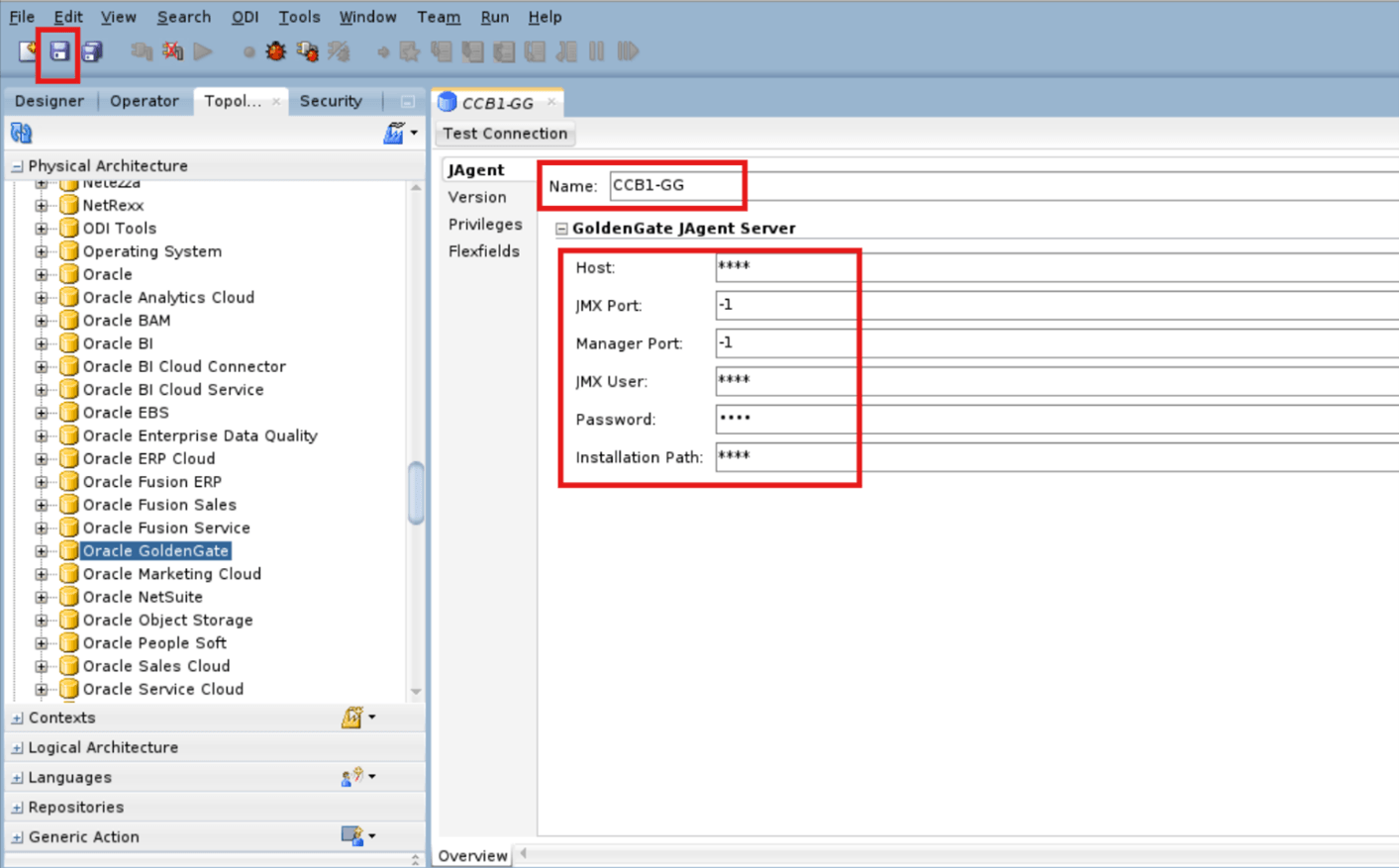
-
Repeat steps 1 - 2 for each Source Product Context, if any.
Physical Schema (Oracle GoldenGate) Source
-
Navigate to Topology > Physical Architecture > Technologies > Oracle GoldenGate and right click Created Source Physical GoldenGate Data Server then select New Physical Schema.
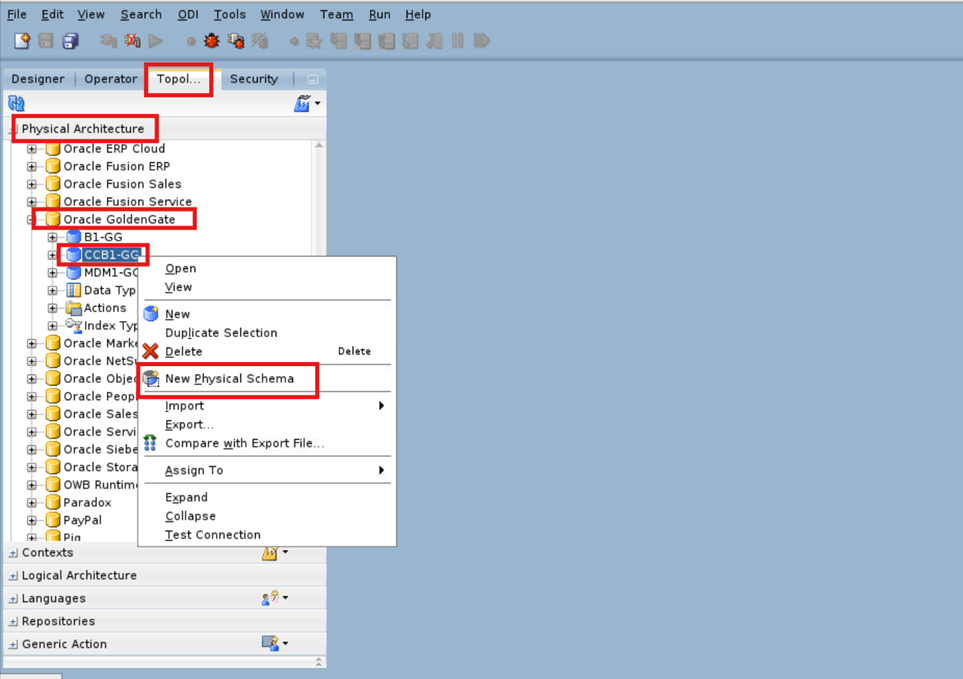
-
Enter the Process Definition details and click Save.
Field Name and Description Value Process Type
Capture
Name Source Product Context for example, <CCB1>
Trail File Path Provide dummy path for example, </u01> Remote Trail File Path Provide dummy path for example, </u01> Trail File Size 100 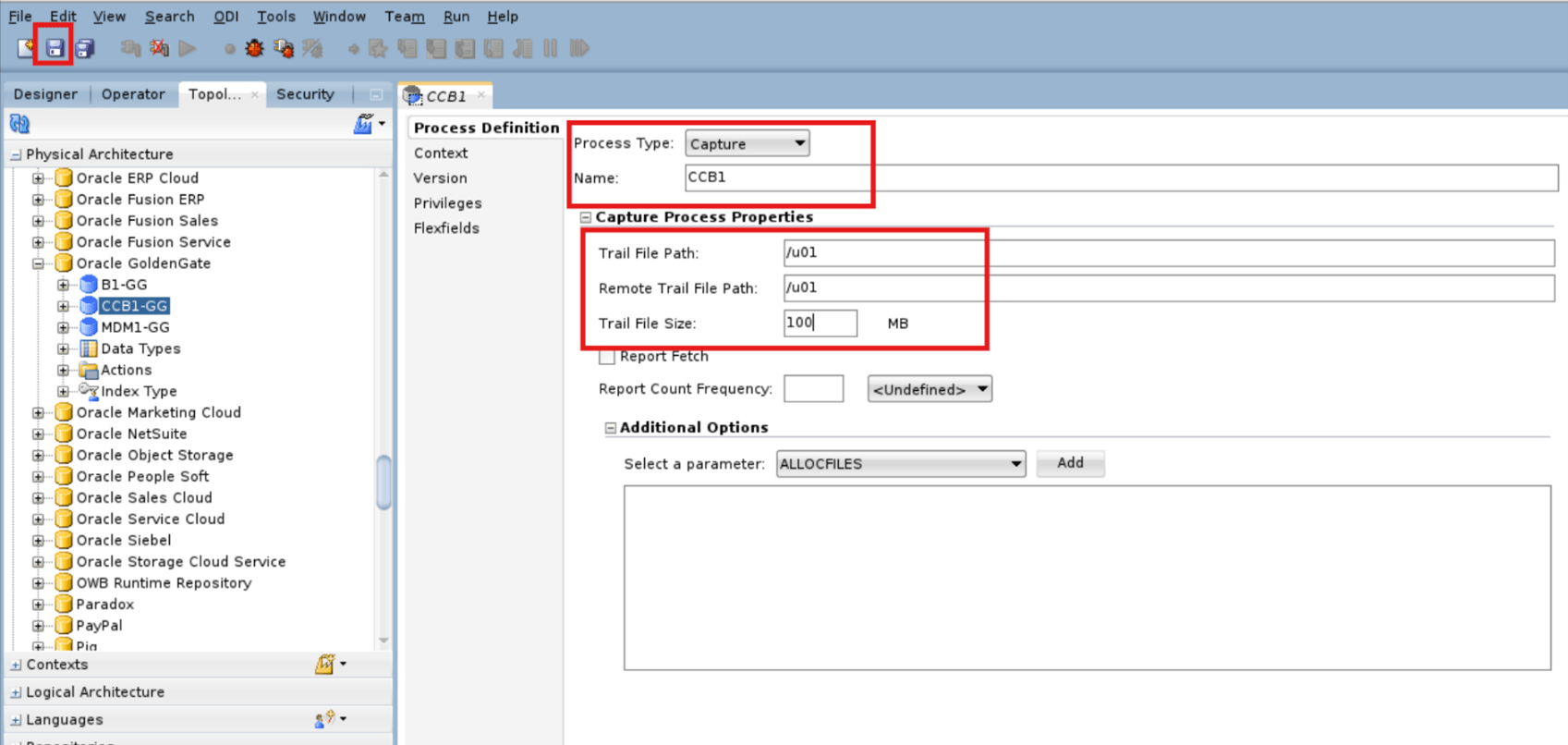
-
Repeat steps 1 - 2 to create the Source Physical GoldenGate Schema for each Source Physical GoldenGate Data Server.
Physical Schema (Oracle GoldenGate) Target
-
Navigate to Topology > Physical Architecture > Technologies > Oracle GoldenGate and right click Target GoldenGate Data Server (example, B1-GG) then select New Physical Schema.
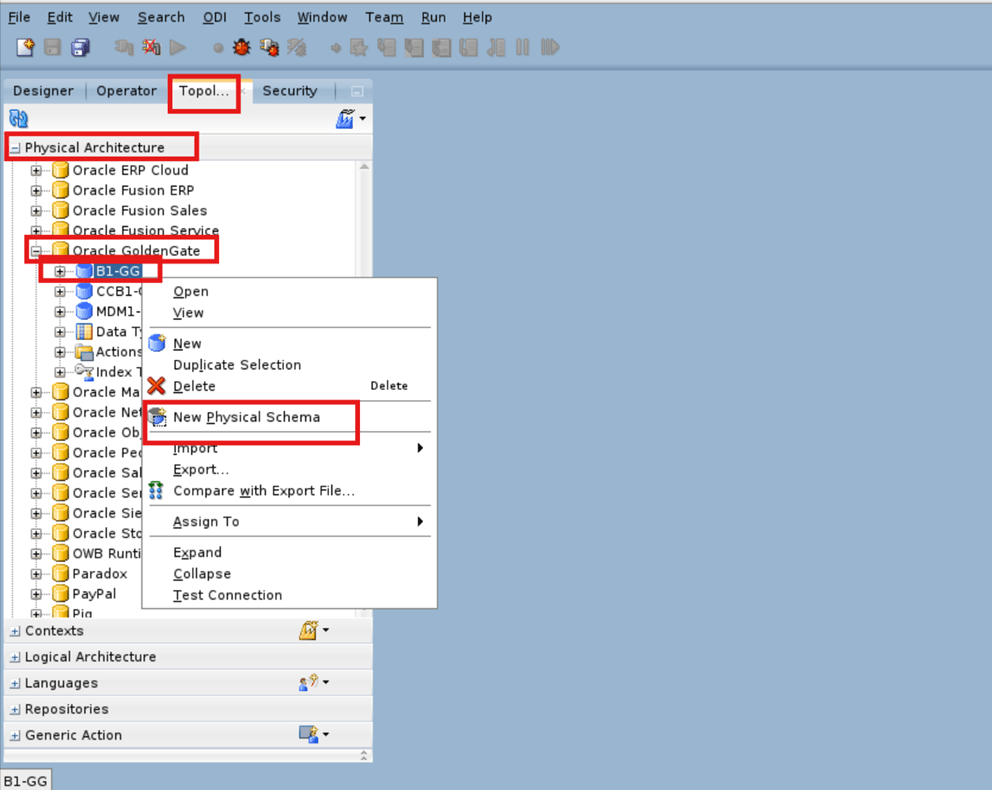
-
Enter the Process Definition details and click Save.
Field Name and Description Value Process Type
Delivery
Name Source Product Context for example, <CCB1>
Trail File Path Provide dummy path for example, </u01> 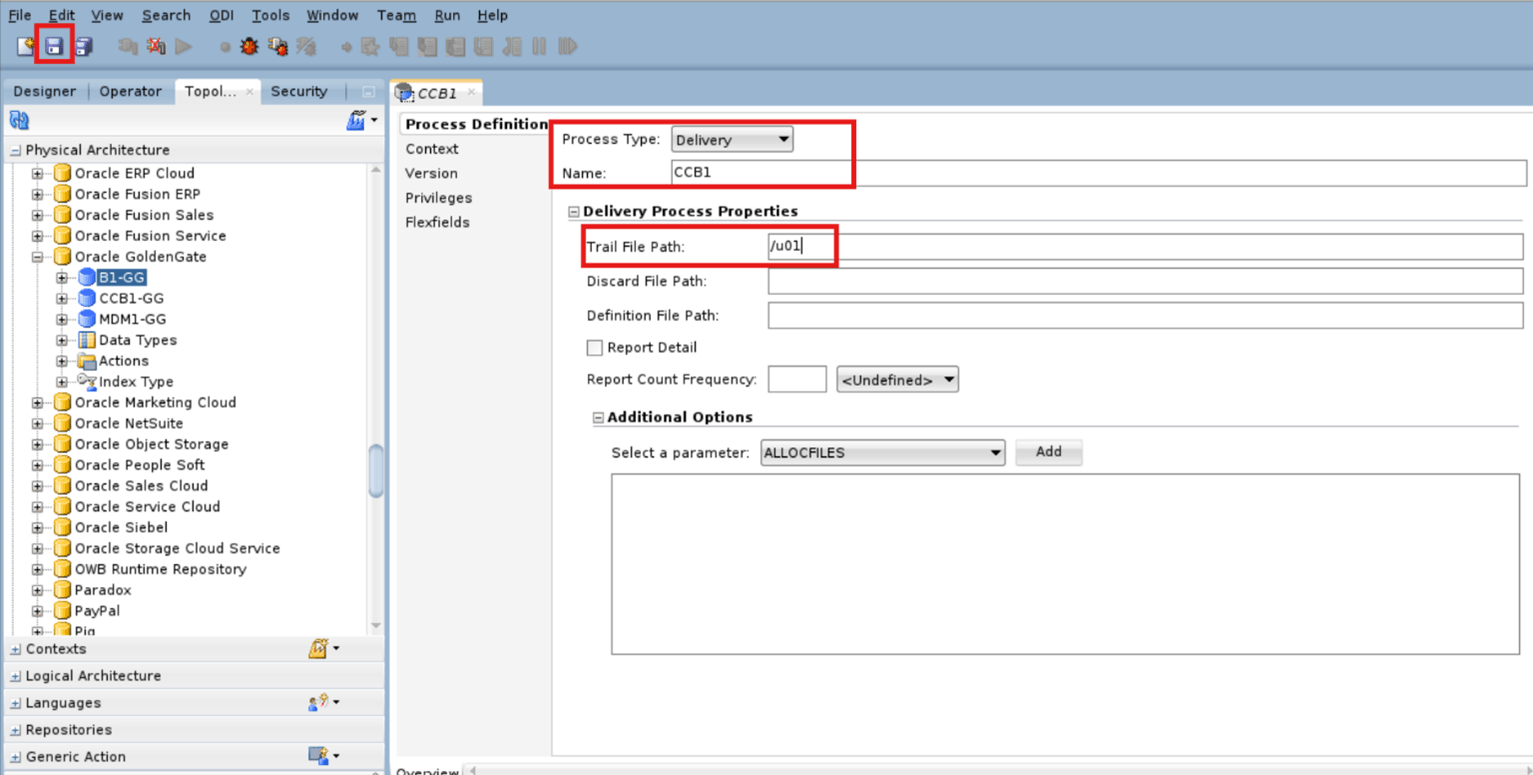
-
Repeat steps 1 - 2 to create the Target Physical GoldenGate Schema for each Target Physical GoldenGate Data Server.
Create Context
-
Navigate to Topology > Contexts and select New Context.
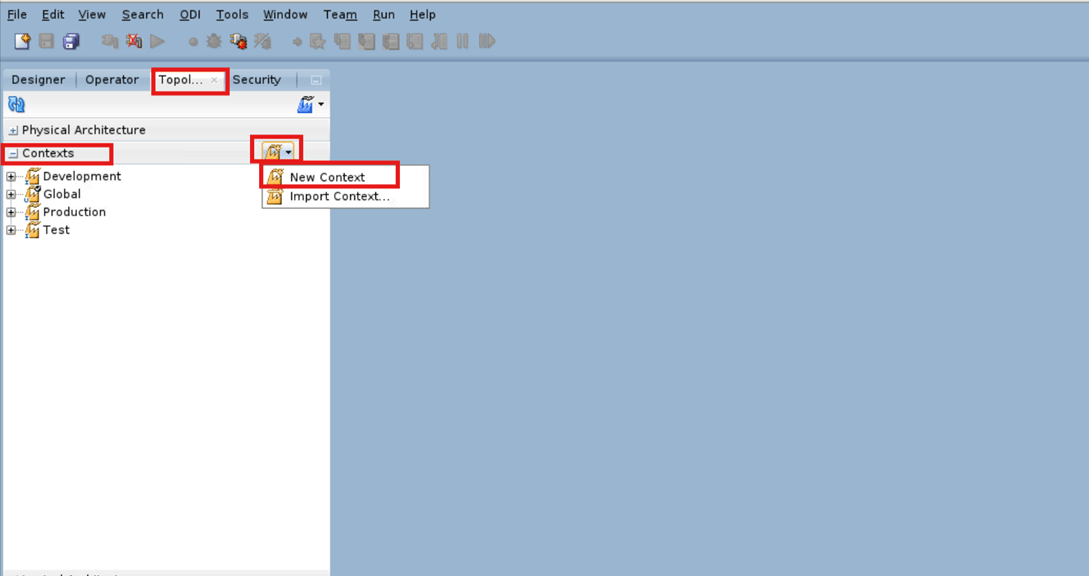
-
Enter the Context Definition details and click Save.
Field Name and Description Value Name
Source Product Context for example, <CCB1>
Code Source Product Context for example, <CCB1>
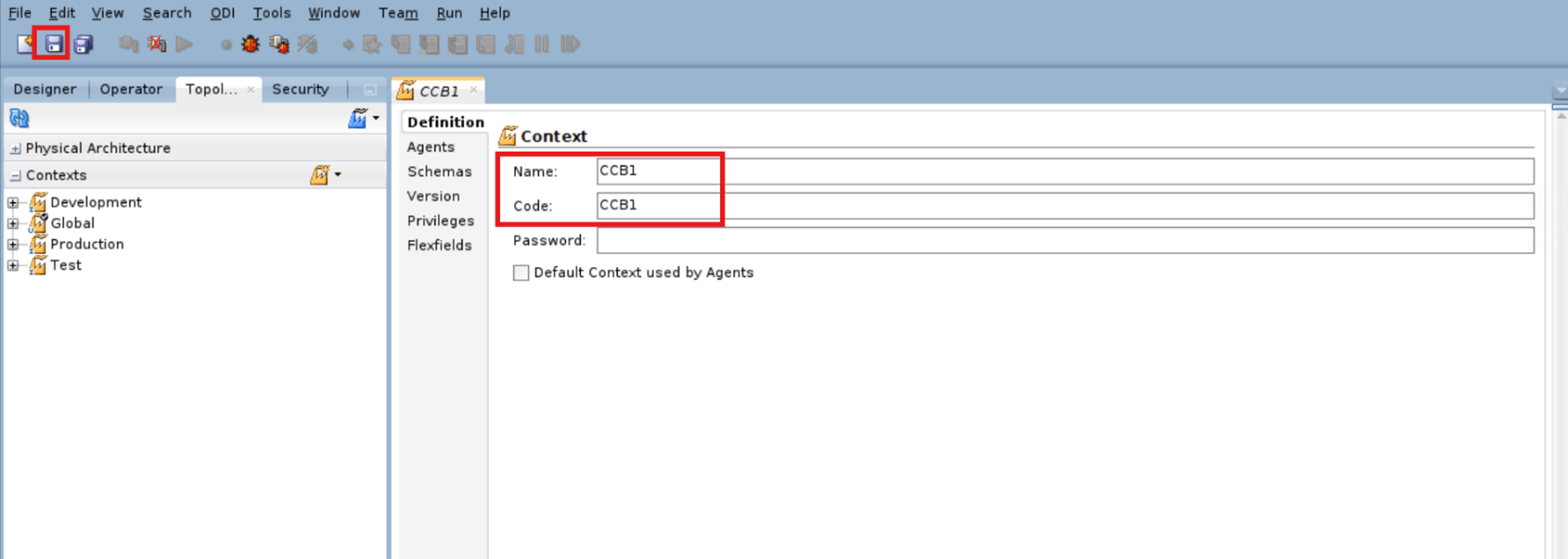
-
Repeat steps 1 - 2 to for each Source Product Context, if any.
Map Physical and Logical Schemas
-
Navigate to Topology > Contexts and double click the created Context.
-
Navigate to Schemas and select the appropriate Physical Schemas then click Save.
Note:
Ensure to map Physical Schemas with its Logical Schemas as per Source Product Context name.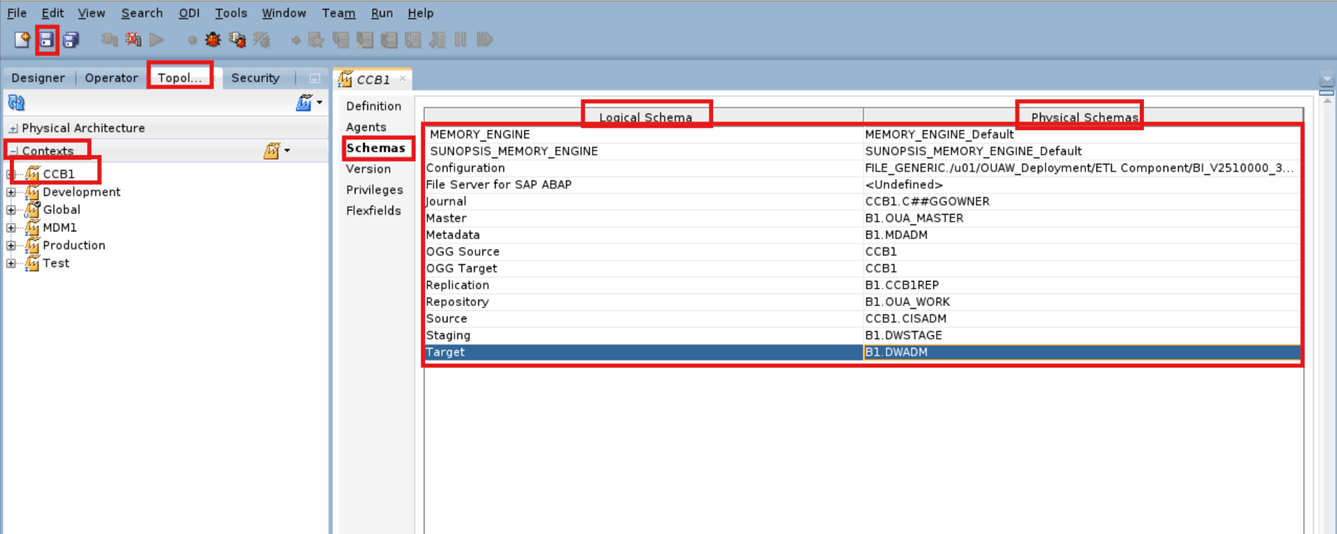
-
Repeat steps 1 - 2 to for each Source Product Context.
Map Physical and Logical Agent
-
Navigate to Topology > Contexts and double click the created Context.
-
Navigate to Agents and select the Physical Agent (OracleDIAgent) then click Save.
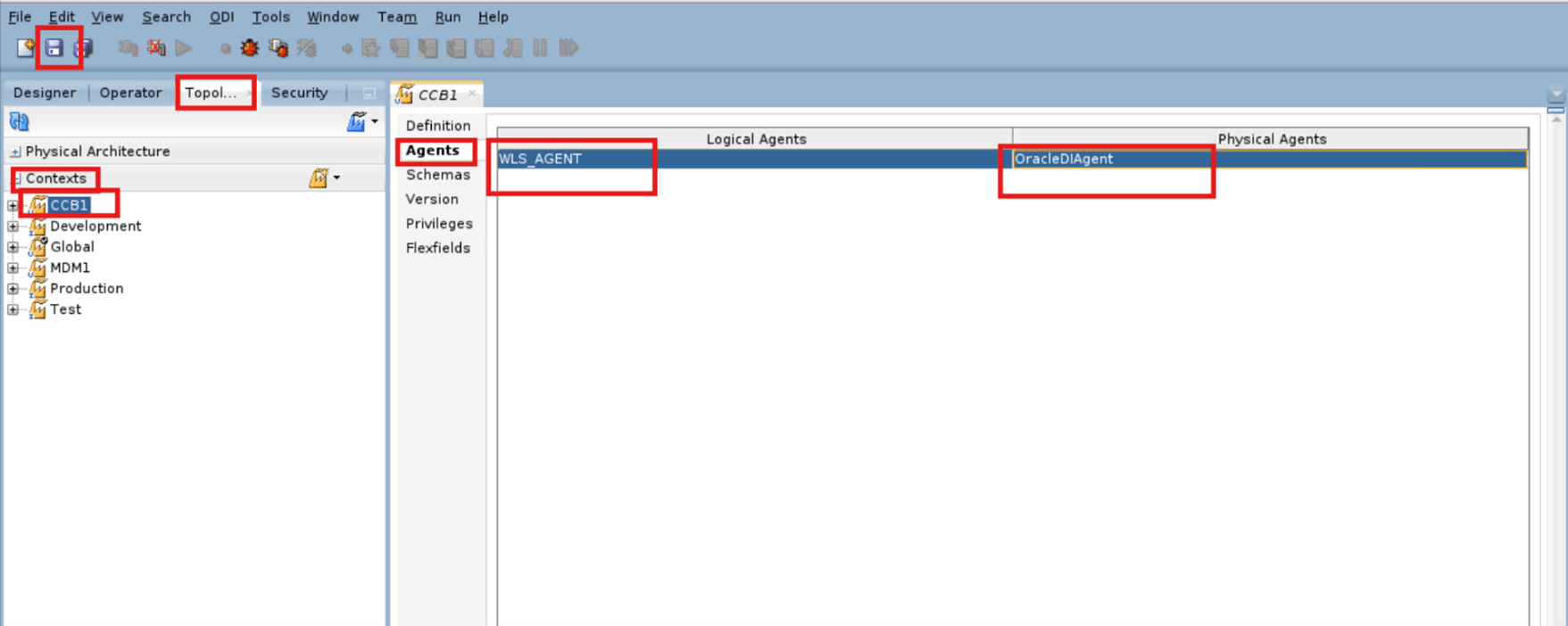
-
Repeat steps 1 - 2 to for each Source Product Context.
Create Product Instance
-
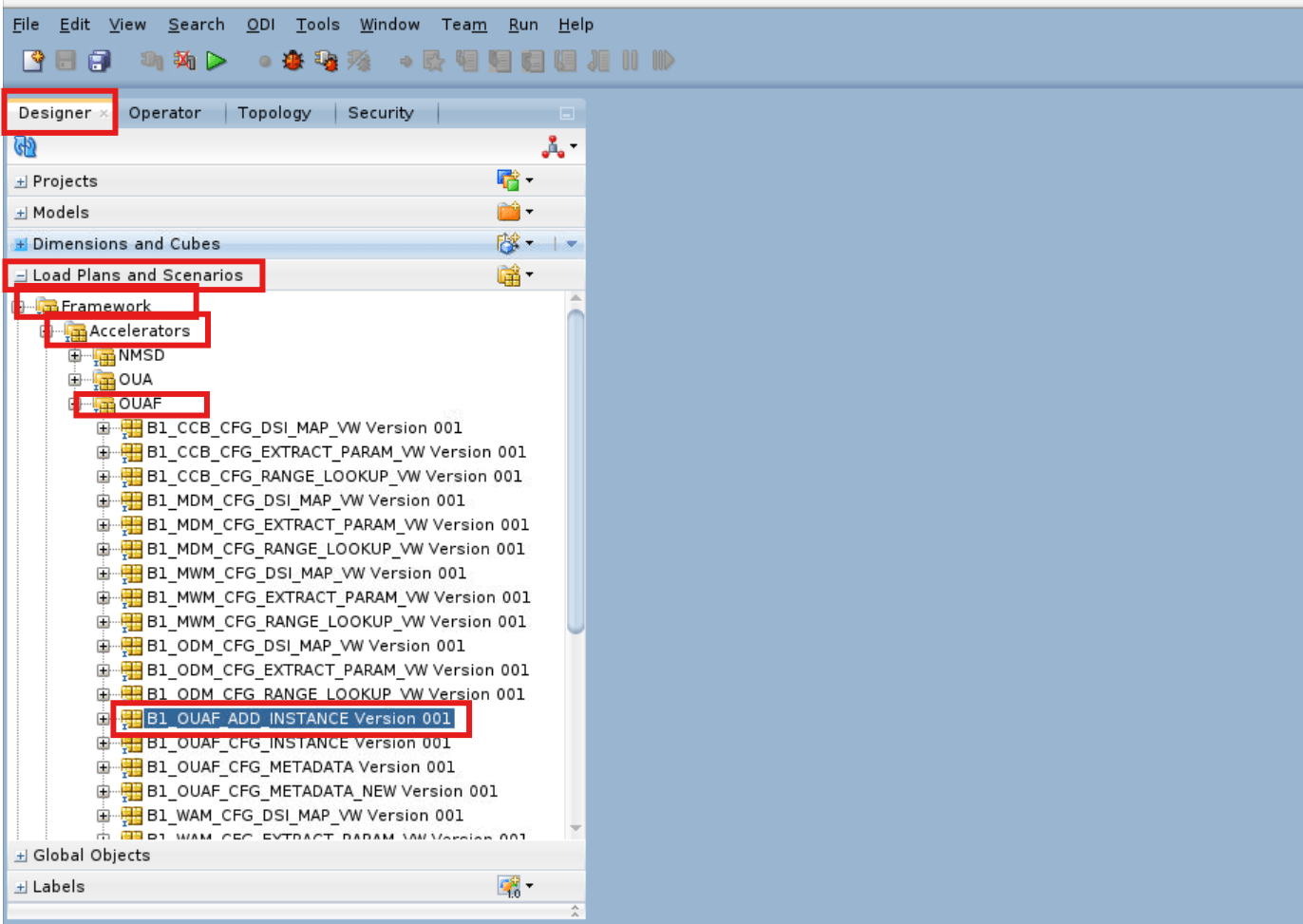
Navigate to Designer > Load Plans and Scenarios > Framework > Accelerators > OUAF and right click B1_OUAF_ADD_INSTANCE Version 001 then select Run .
-
Enter the Run details and click OK.
Field Name and Description Value Context
Source Product Context for example, <MDM1>
Logical Agent Local (No Agent)
Log Level For example, 6 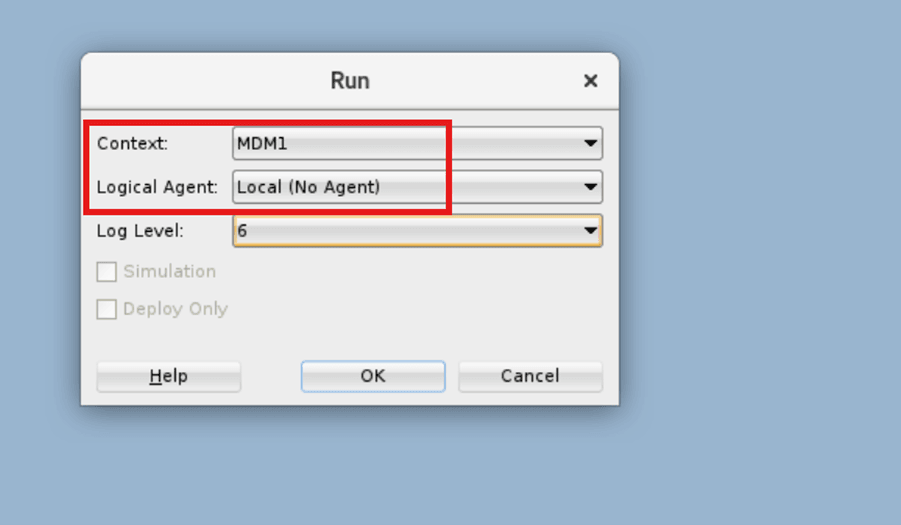
-
Navigate to Designer > Load Plans and Scenarios and right click B1_OUAF_ADD_INSTANCE Version 001 then select Variable Values.
-
Enter the Variable Values details and click OK.
Field Name and Description Value Name
Drillback Variable
Latest Value Select checkbox
Value Source Application URL 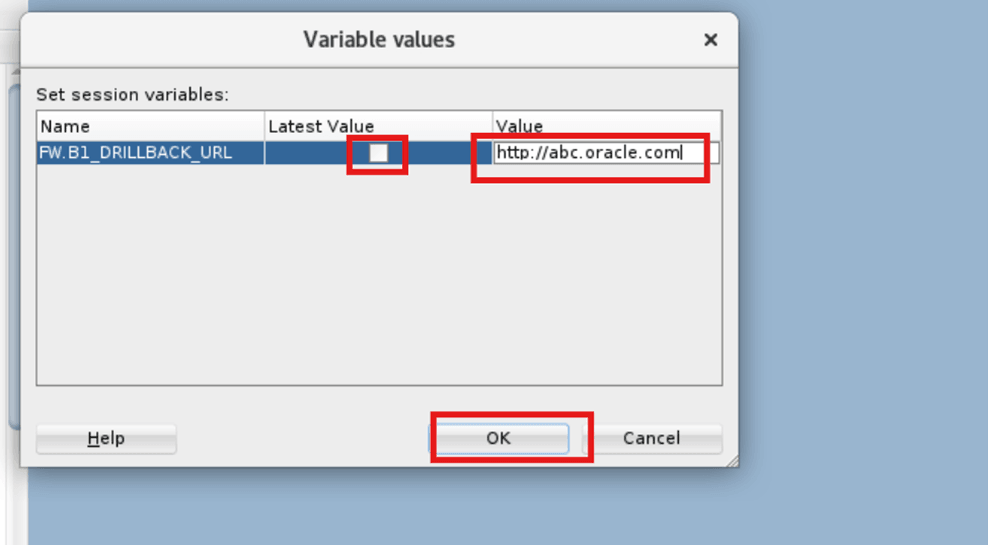
-
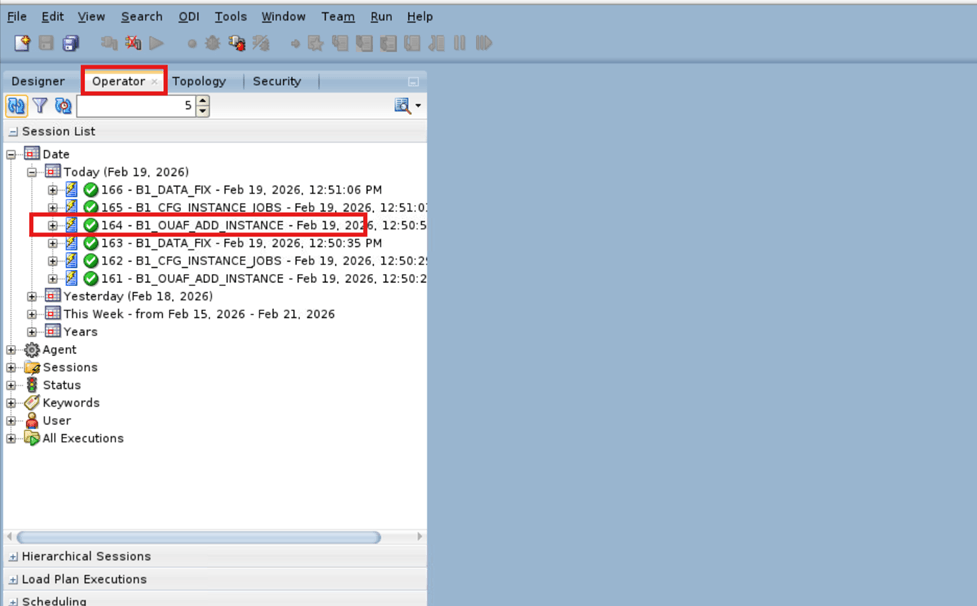
In the Operator tab, check the status of the job for its completion.
Encrypt OCI GoldenGate Password
- Log in to ODI Studio to Work Repository.
-
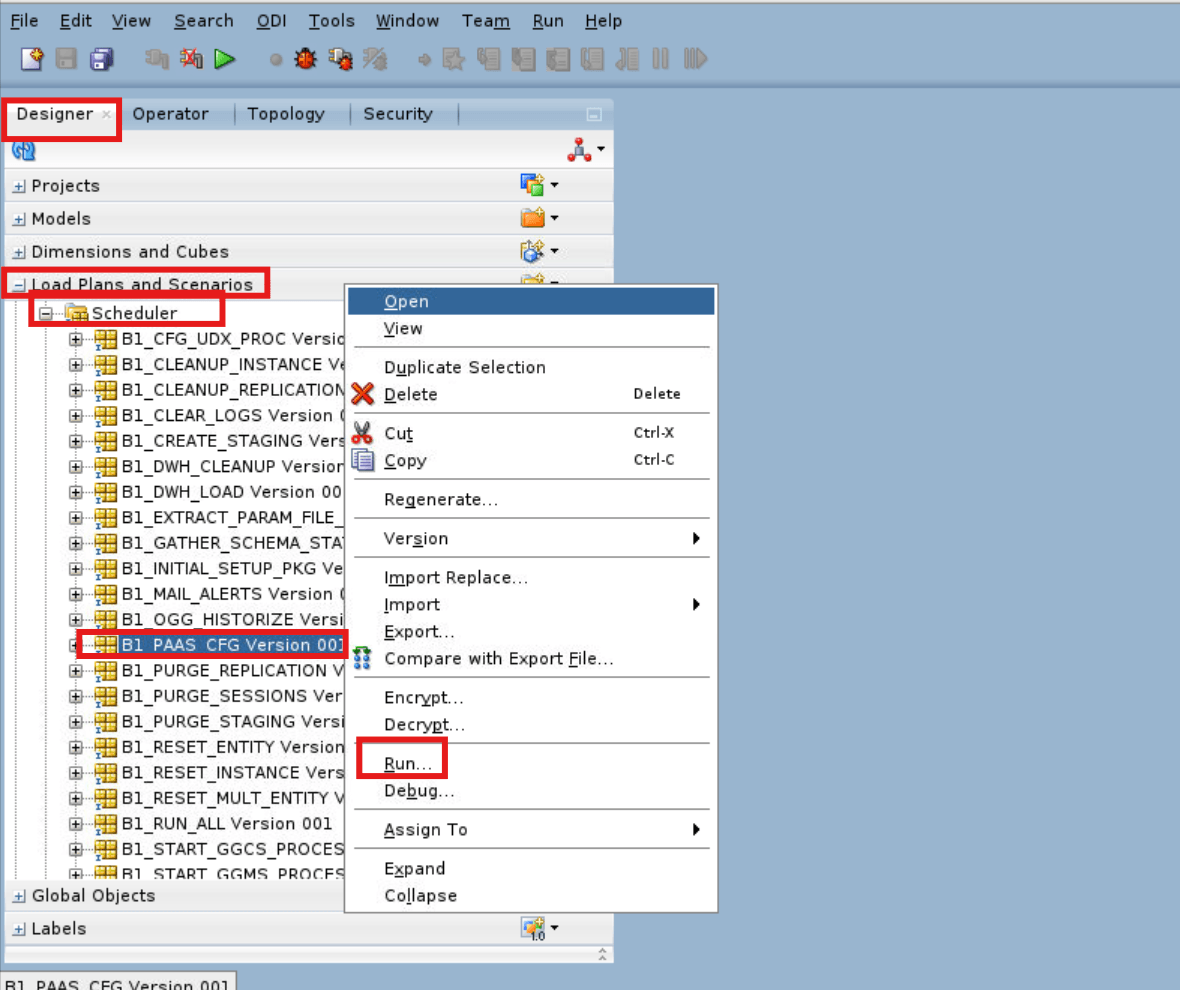
Navigate to Designer > Load Plans and Scenarios > Scheduler and right click B1_PAAS_CFG Version 001 then select Run .
-
Enter the Run details and click OK.
Field Name and Description Value Context
Source Product Context for example, <CCB1>
Logical Agent Local (No Agent)
Log Level For example, 6 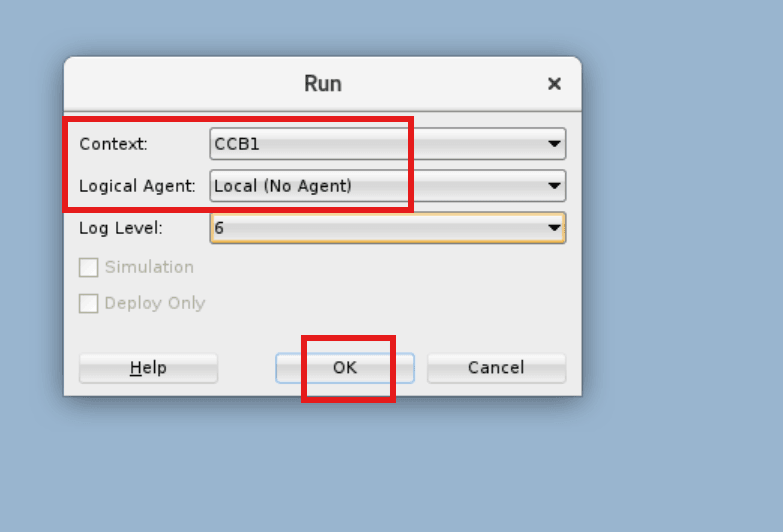
-
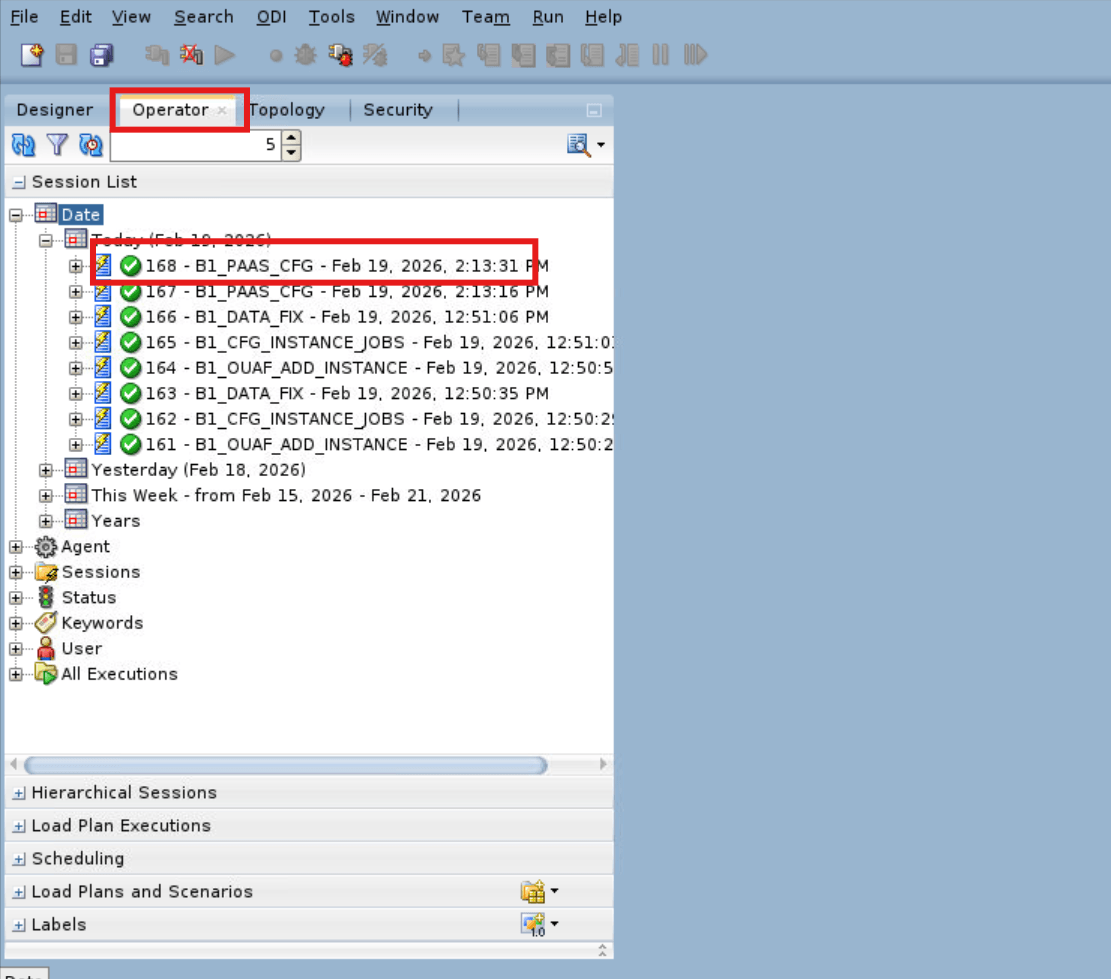
In the Operator tab, check the status of the job for its completion.
-
Log in to ADB with MDADM User and run this SQL for encryption.
Note:
Make sure to run the SQL for each Source Product Context.BEGIN b1_encrypt_string_pass('<Source product Context Code>','<Source OCI GG Admin console password>','<Target OCI GG Admin console password>','<Source OCI GG User password>','<Target OCI GG User password>'); commit; END; /Field Name and Description Value Source product Context Code
Source Product Context for example, <CCB1>
Source OCI GG Admin console password Source OCI GG Admin Console is the same as the Single GG Deployment used for OUAW
Target OCI GG Admin console password Target OCI GG Admin Console is the same as the Single GG Deployment used for OUAW Source OCI GG User password Source GoldenGate DB User Password for example, <C##GGOWNER Password> Target OCI GG User password Target GoldenGate DB User Password for example, <ggadmin Password>
Update PaaS Configuration Parameters in OUAW AdminTool
-
Log in to the AdminTool from the following URL: https://<ADB URL>/ords/f?p=104
-
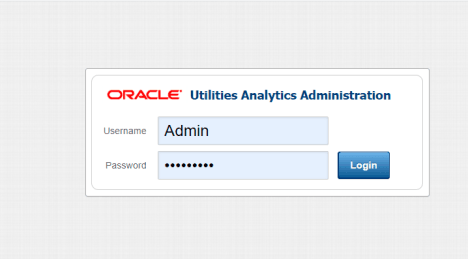
Provide the following credentials to access the Admin Tool.
-
Navigate to ETL Configuration > PaaS Configuration and click Edit.
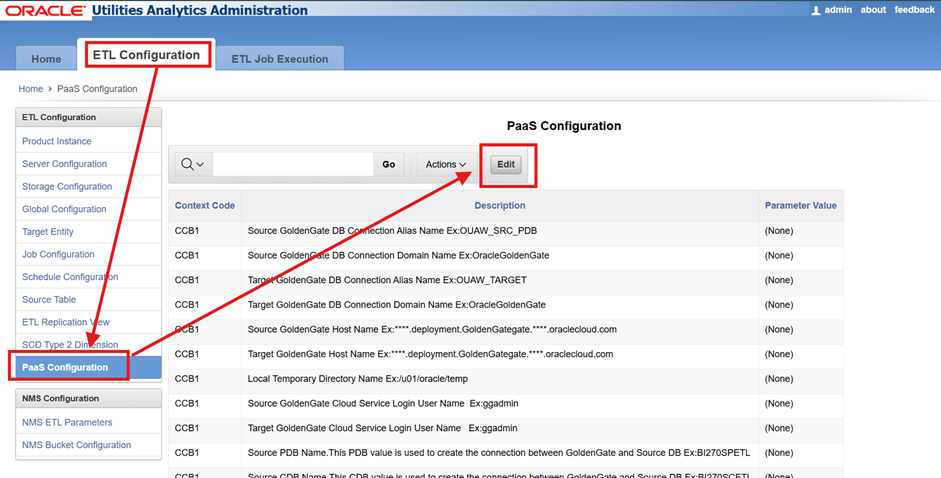
-
Update all Context Code and B1 Parameter Values then click Save.
Field Name and Description Value Source GoldenGate DB Connection Alias Name
For example, <OUAWPSGGSRCCONN>Note:
You will get Connect Alias from OCI GG Admin Console URL > DB ConnectionsSource GoldenGate DB Connection Domain Name OracleGoldenGate
Target GoldenGate DB Connection Alias Name For example, < OUAWPSGGTRTCONN > Note:
You will get Connect Alias from OCI GG Admin Console URL > DB ConnectionsTarget GoldenGate DB Connection Domain Name OracleGoldenGate Source GoldenGate Host Name For example, < example.deployment. ouawpublicsubne.ouawvcn.oraclevcn.com > Target GoldenGate Host Name The Source and Target OCI GG is same for OUAW Local Temporary Directory Name Create a temp folder in ODI Instance for example, < /u01/oracle/local-temp> Source GoldenGate Cloud Service Login User Name OCI GG Admin Console Password for example, <ADMIN> Target GoldenGate Cloud Service Login User Name OCI GG Admin Console Password for example, <ADMIN> Source PDB Name Source PDB Name of Oracle Base Database (DBaaS) for example, <c2mpdb. ouawpublicsubne.ouawvcn.oraclevcn.com > 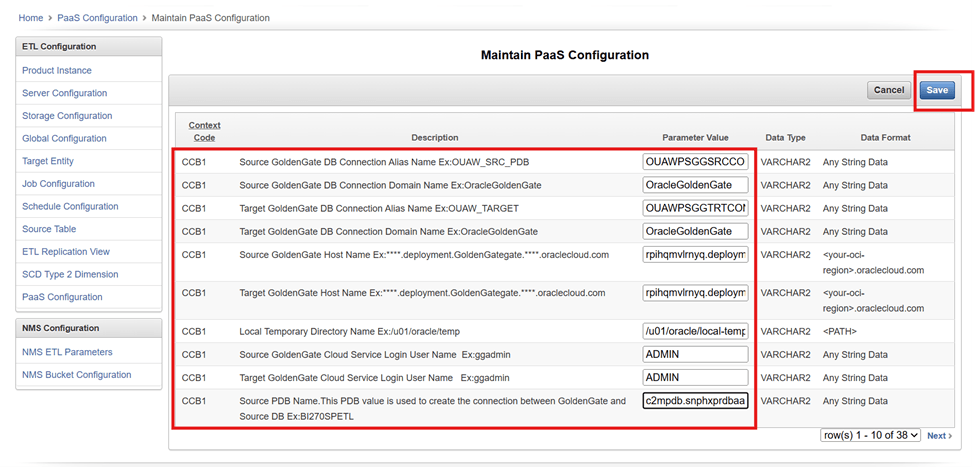
Field Name and Description Value Source CDB Name
Source CDB Name of Oracle Base Database (DBaaS) for example, < ouawpass_rpg_phx.snphxprdbaas1. ouawpublicsubne.ouawvcn.oraclevcn.com>
Source DB Port Value 1521
Target PDB Name ADB TNS Service Name for example, <example_high.adb.oraclecloud.com> Target DB Port Value 1522 Source DB Host Name Source Oracle Base Database (DBaaS) Host for example, < example-scan.ouawpublicsubne.ouawvcn.oraclevcn.com > Target DB Host Name Target ADB Host for example, <example.adb.oraclecloud.com> Source DB GoldenGate Owner Name Source OCI GG GoldenGate DB Owner Name for example, C##GGOWNER Target DB GoldenGategate Owner Name Target OCI GG GoldenGate DB Owner Name for example, GGADMIN 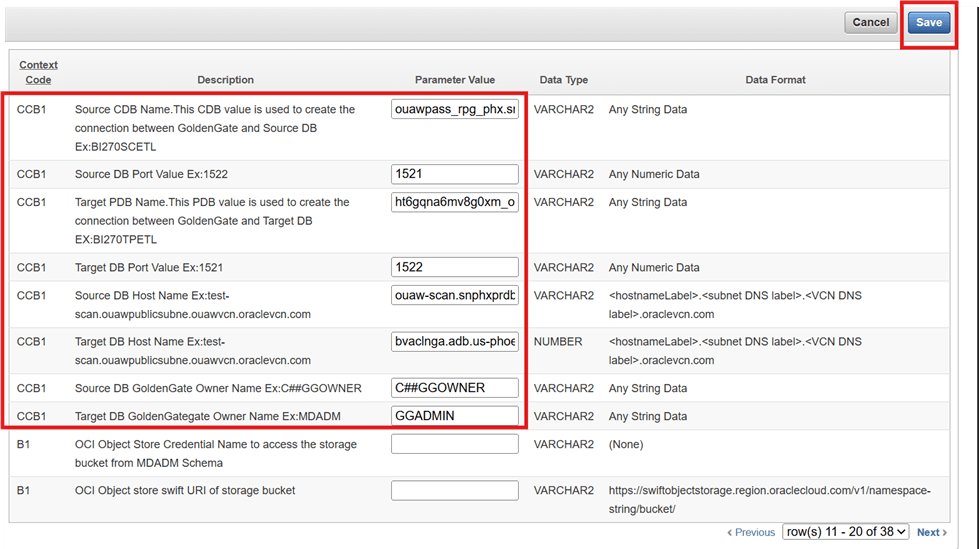
- OCI Object Store Credential Name to access the storage bucket from MDADM Schema:
-
Log in to ADB with MDADM User.
sqlplus MDADM/<MDADM Password>@<ADB TNS Service Name> -
Create and store credentials using the procedure DBMS_CLOUD.CREATE_CREDENTIAL.
exec DBMS_CLOUD.CREATE_CREDENTIAL(credential_name => 'OCI_NATIVE_CRED_MDADM', username => '<user@example.com>', password => '<password>');
Note:
See Manage Credentials for more details. -
- OCI Object store swift URI of storage bucket: OCI Object store swift URI for example, < https://swiftobjectstorage. ouawpublicsubne.ouawvcn.oraclevcn.com /v1/<namespace> /<bucket_name>/ >
Note:
See Create an Object Storage Bucket and Construct the Storage URL for more details.
- OCI Object Store Credential Name to access the storage bucket from MDADM Schema:
Reverse Engineer Knowledge Module in ODI
-
Log in to ODI Studio to Work Repository.
-
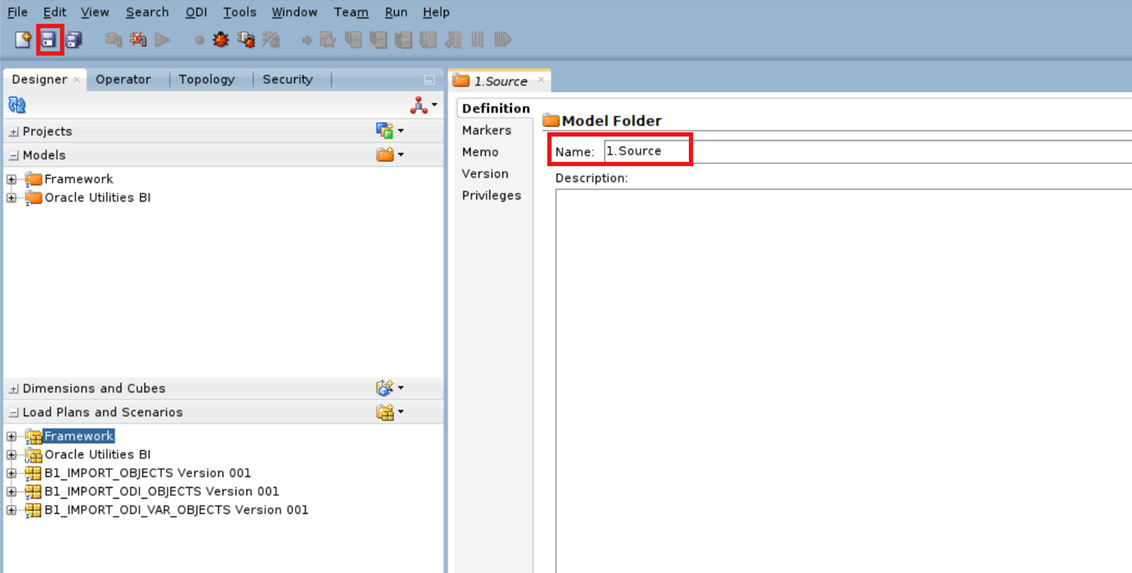
Navigate to Designer > Models and click New Model Folder.
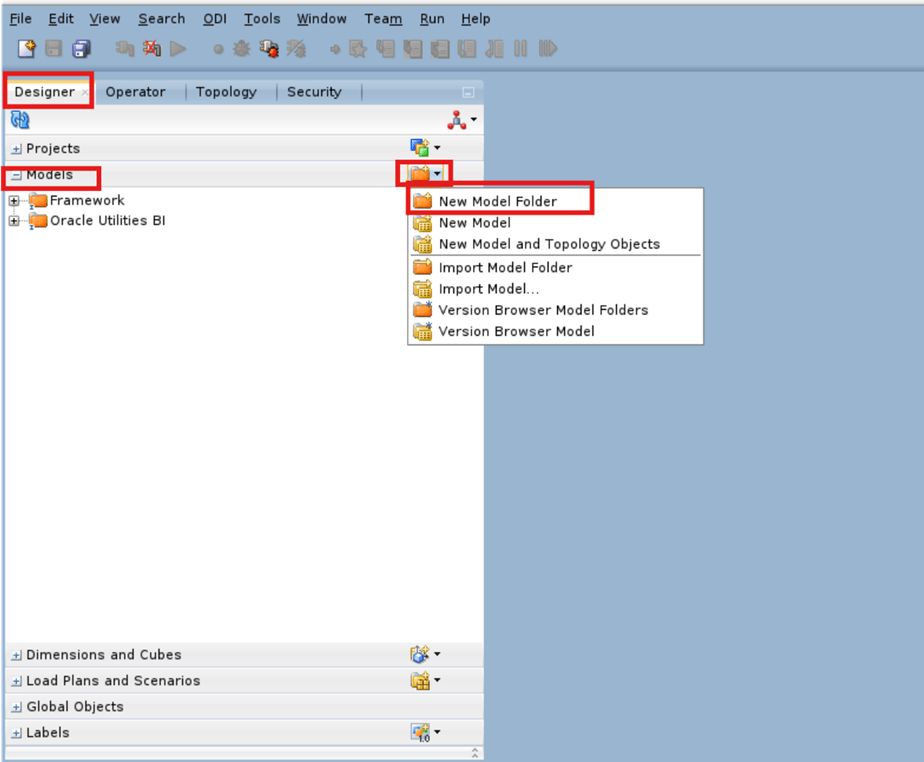
-
Enter the Description details then click Save.
- Name: 1.Source
Field Name and Description Value Name
1.Source
-
Navigate to Designer > Models and right click 1.Source then select New Model.
-
Enter the Definition details then click Save.
Field Name and Description Value Name
Source Product Context Model for example, <CCB1AA>
Code Source Product Context Model for example, <CCB1AA> Technology Oracle Logical Schema Source 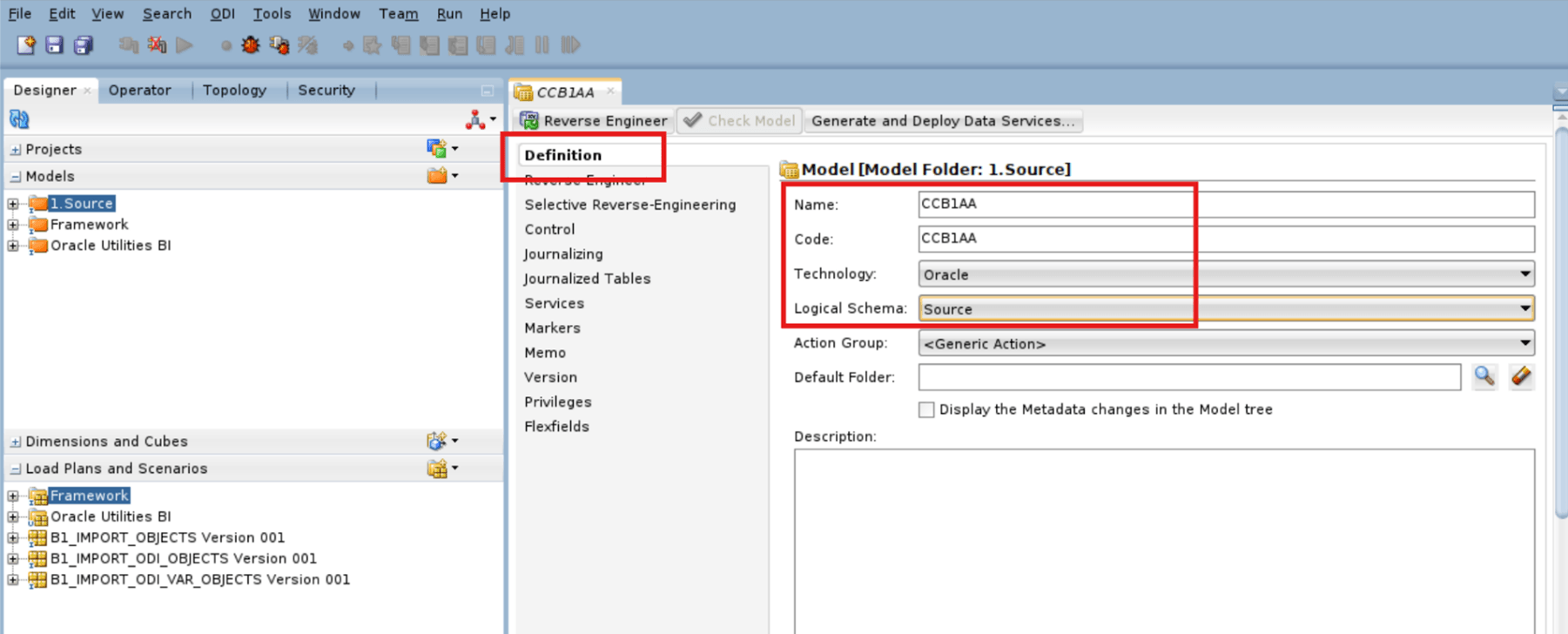
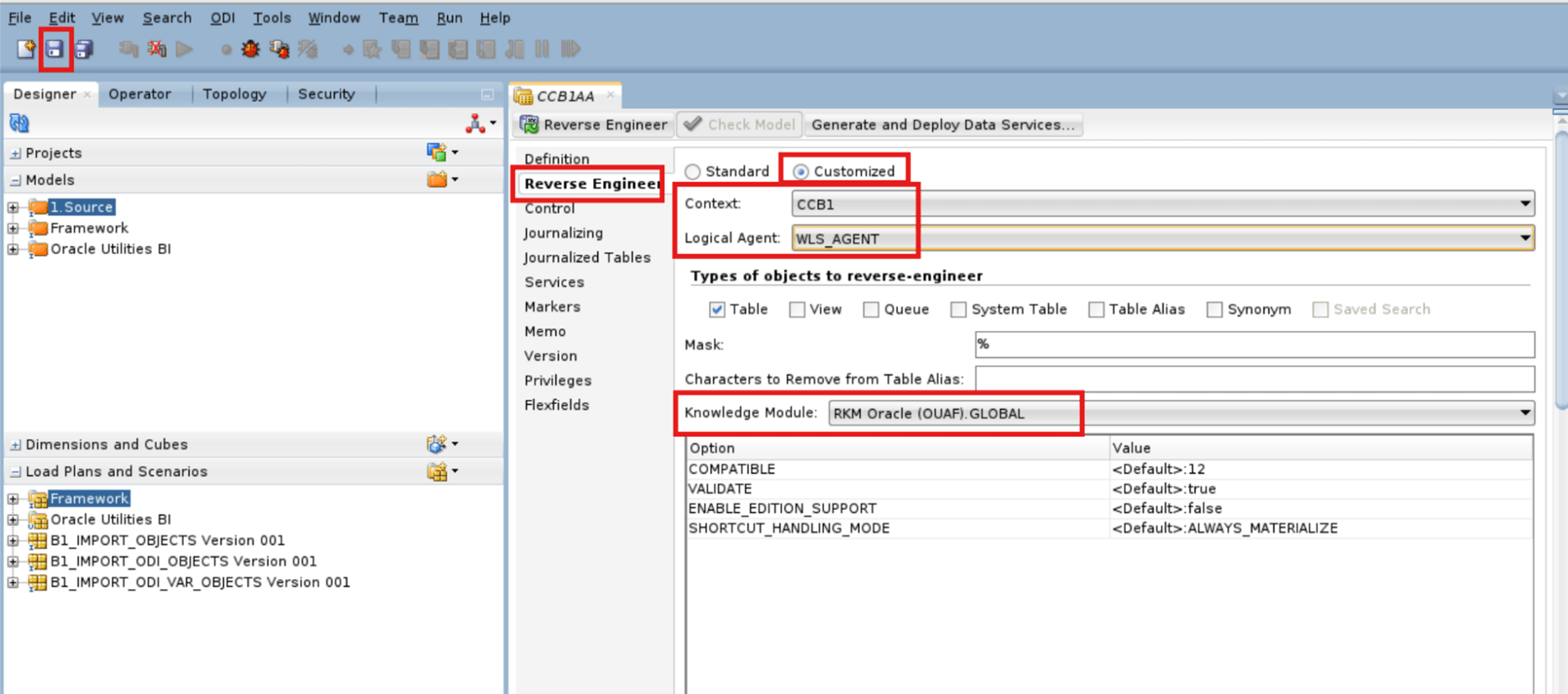
- Navigate to the Reverse Engineer tab and select the Customized option.
-
Enter the Reverse Engineer details and click Save.
Field Name and Description Value Context
Source Context Code as per Model Name for example, <CCB1>
Logical Agent WLS_AGENT Knowledge Module For NMS: RKM Oracle (NMSD).Global
For Remaining Source: RKM Oracle (OUAF).Global
-
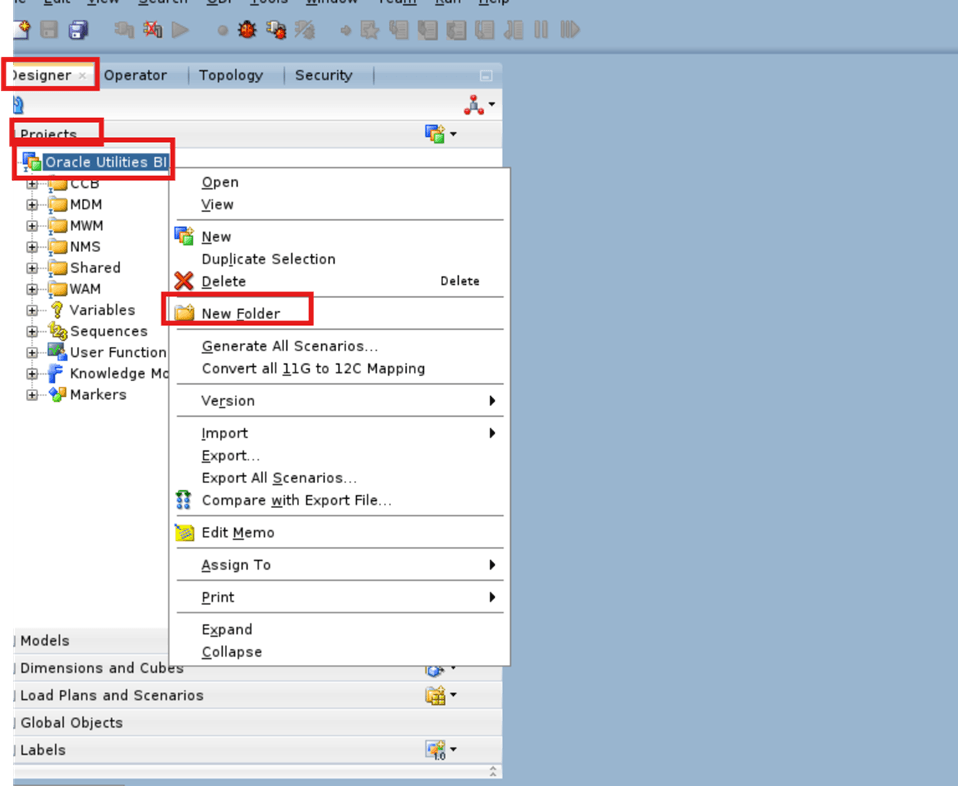
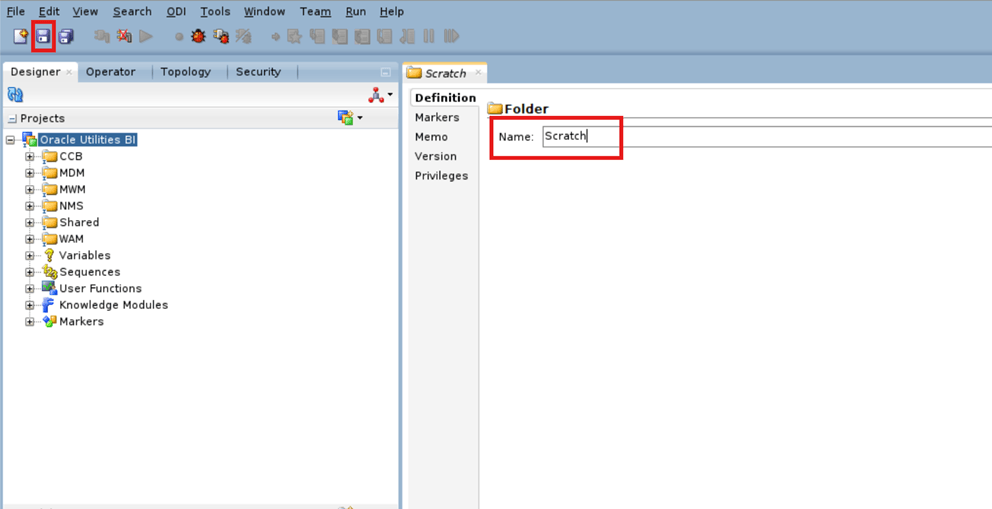
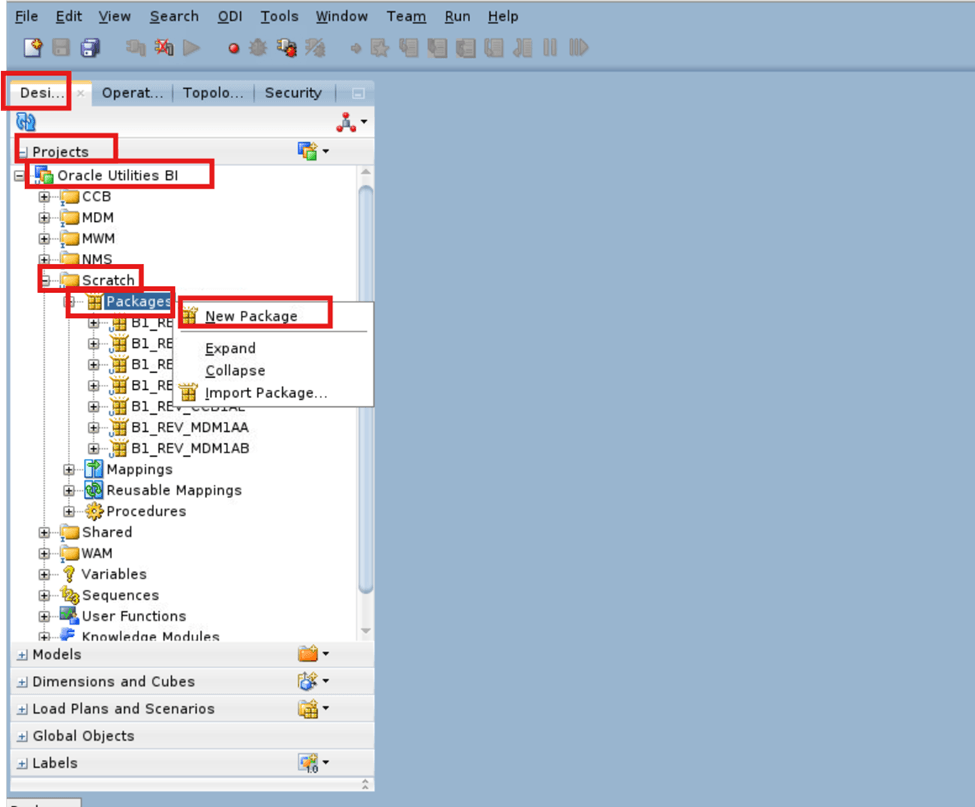
If a Scratch folder is not created, navigate to Designer > Projects and right click Oracle Utilities BI then select New Folder.
-
Enter the Folder details and click Save.
Field Name and Description Value Name
Scratch
-
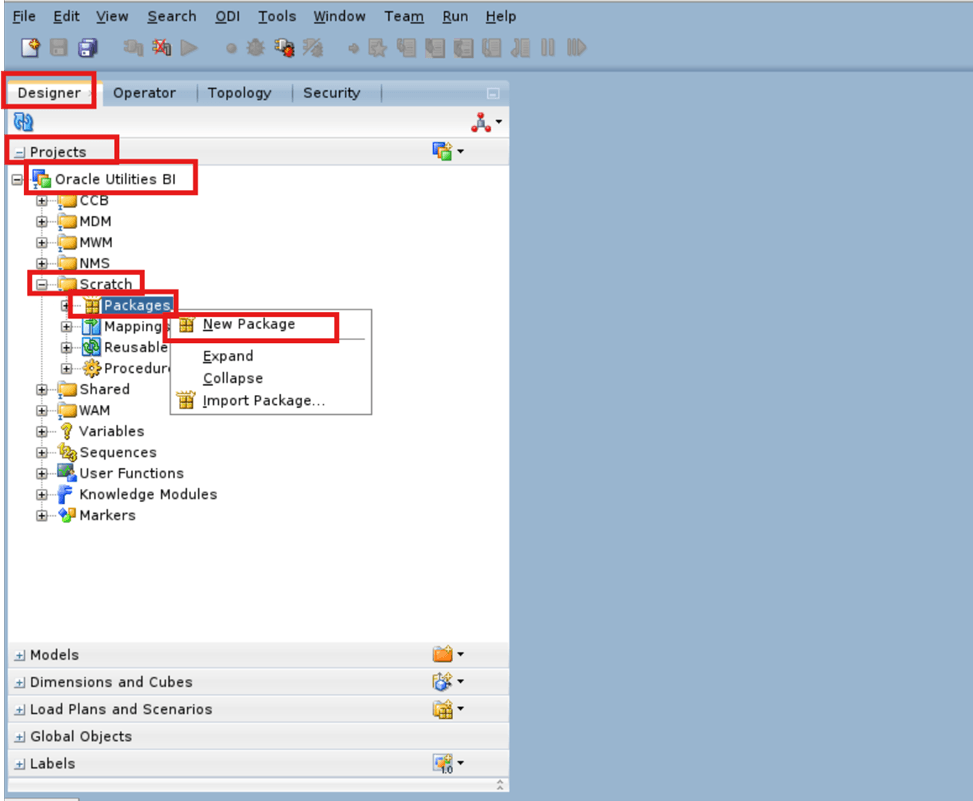
Navigate to Designer > Projects > Oracle Utilities BI > Package and right click Packages then select New Package.
-
Enter the Package details and click OK.
Field Name and Description Value Package Name
B1_REV_< Source Product Model Name > for example, <B1_REV_CCB1AA>
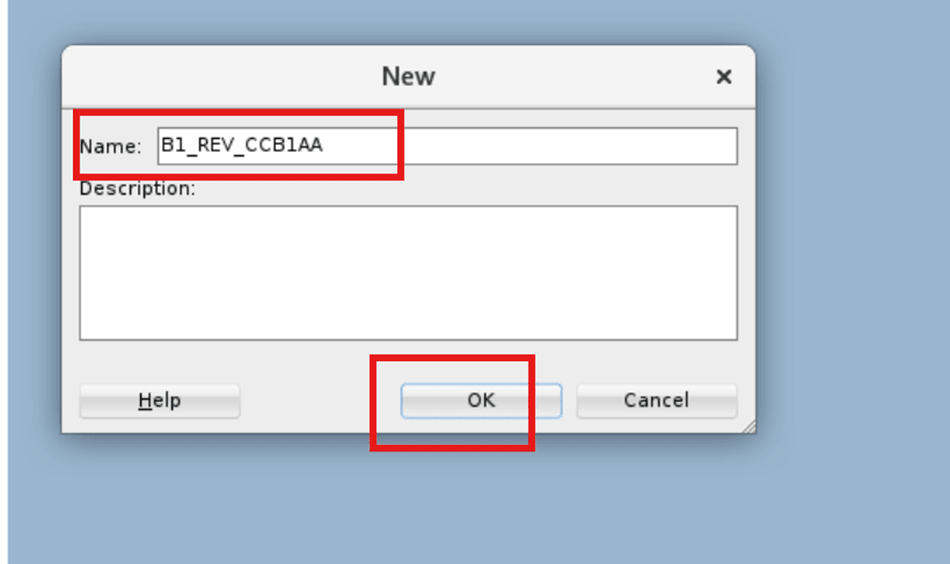
The created package is automatically opened.
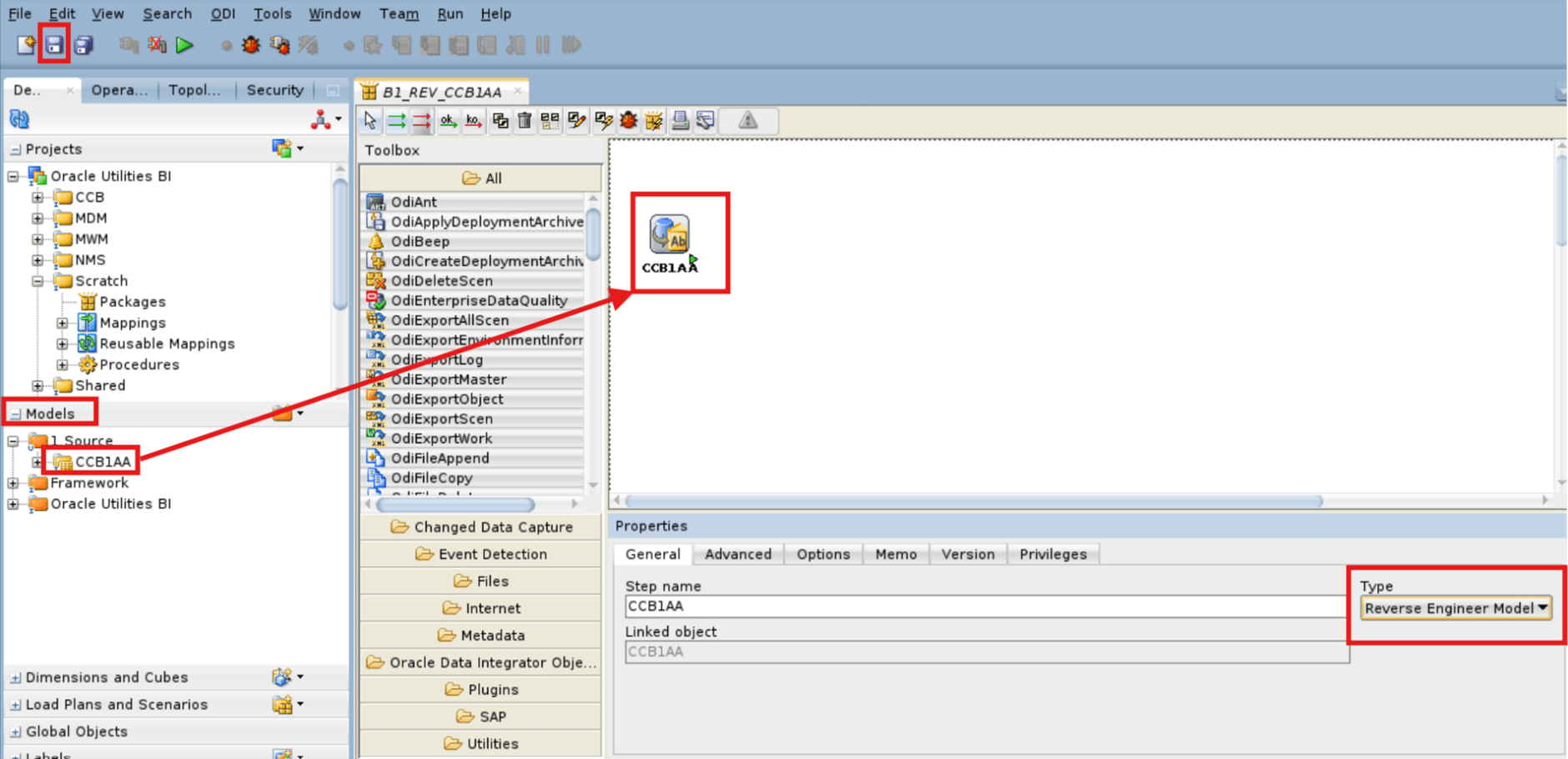
-
Drag and drop the related Model > Type (Reverse Engineer Model) and click Save.
-
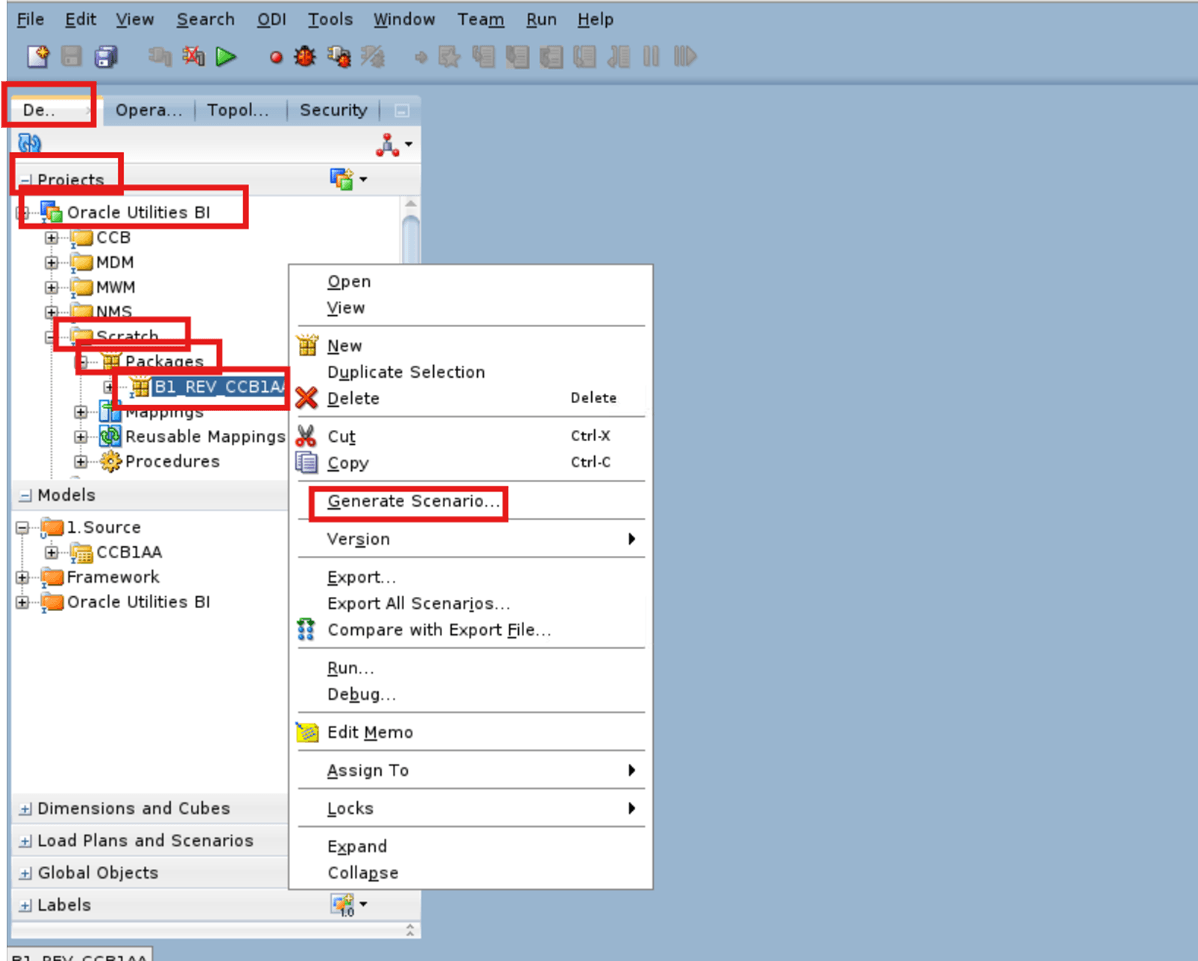
Navigate to Designer > Projects > Oracle Utilities BI > Scratch > Packages and right click Package Name (example B1_REV_CCB1AA) then select Generate Scenario.
-
Enter the Scenario details and click OK.
Field Name and Description Value Name
B1_REV_< Source Product Model Name > for example, <B1_REV_CCB1AA>
Version For example, 001 -
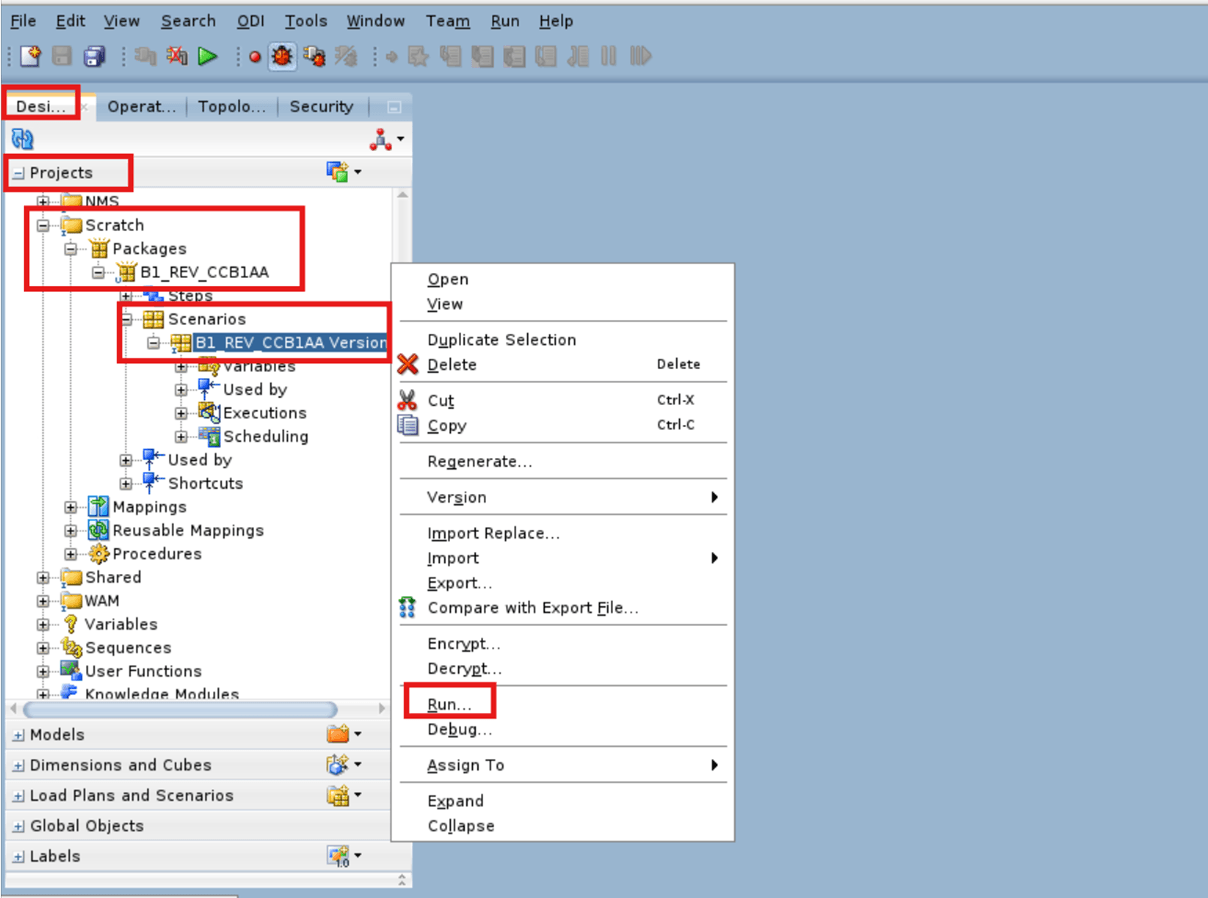
Navigate to Designer > Projects > Scratch > Packages > Package Name > Scenarios and right click Scenario Name (example, B1_REV_CCB1AA Version 001) then select Run.
-
Enter the Context details and click OK.
Field Name and Description Value Context
For example, <CCB1>
Logical Agent WLS_Agent (ODI Agent)
Log Level For example, 6 -
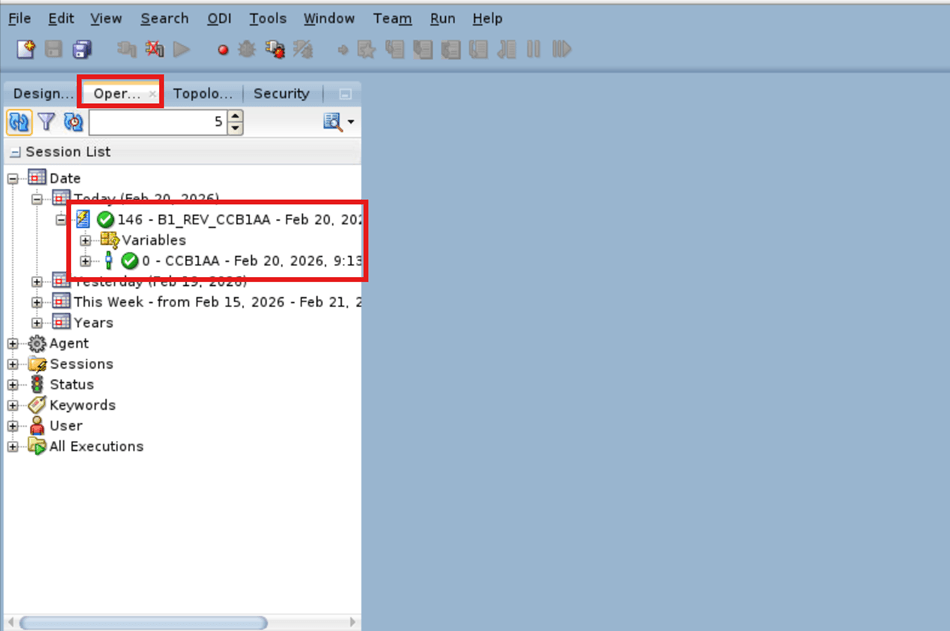
In the Operator tab, check the status of the scenario job for its completion.
-
Repeat step 4 - 17 for other models as per your source product.
- CCB
- Total Models: 5
- Model Name (example, Instance 2): CCB1AA, CCB1AB, CCB1AC, CCB1AD, CCB1AE
- MDM
- Total Models: 2
- Model Name (example, Instance 3): MDM1AA, MDM1AB
- WAM
- Total Models: 10
- Model Name (example, Instance 4): WAM1AA, WAM1AB, and so on
- MWM
- Total Models: 3
- Model Name (example, Instance 5): MWM1AA, MWM1AB, MWM1AC
- NMS
- Total Models: 1
- Model Name (example, Instance 6): NMA1AA
- CCB
Journalize Knowledge Modules in ODI
-
Log in to ODI Studio to Work Repository.
-
Navigate to Designer > Models > 1.Source and right click Model Name (example, CCB1AA) then select Changed Data Capture > Add to CDC > YES.
Note:
Make sure to run this step for all models.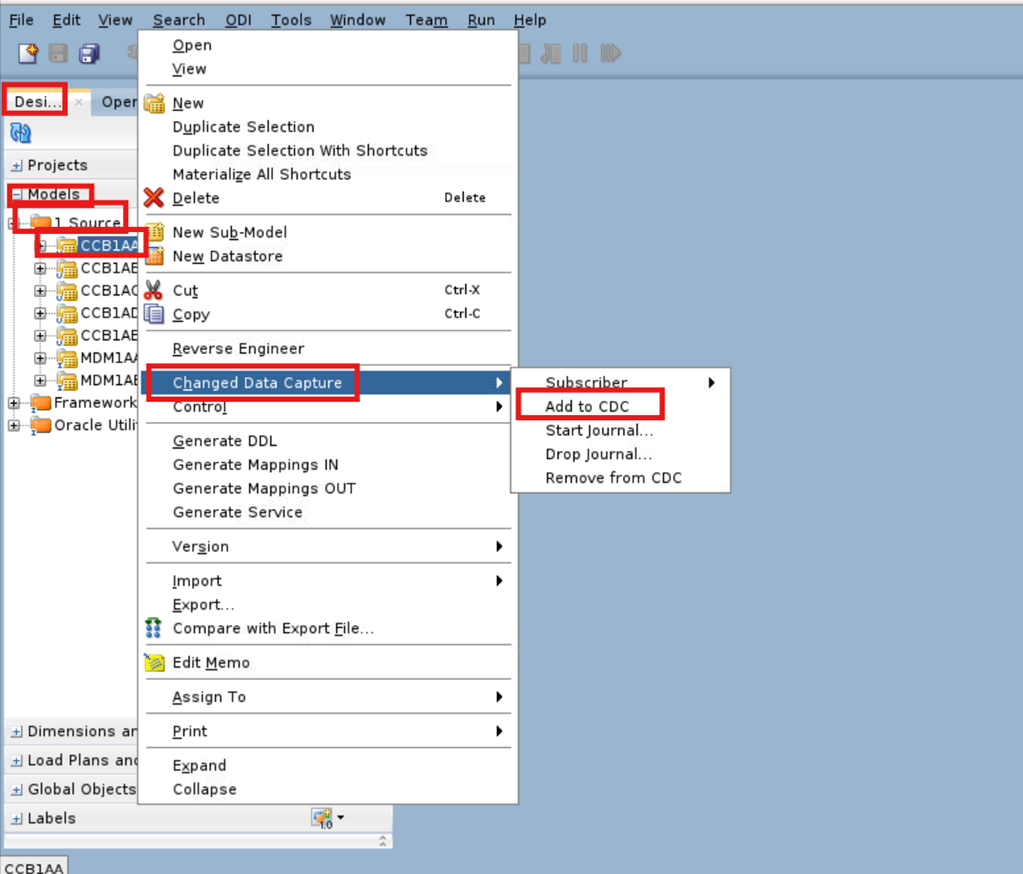
-
Navigate to Designer > Projects > Oracle Utilities BI > Scratch and right click Packages then select New Package.
-
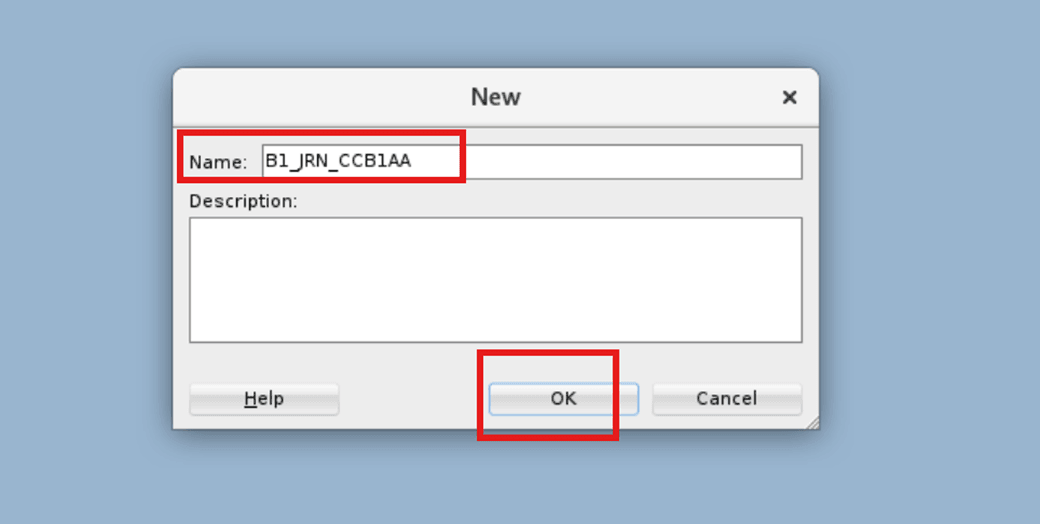
Enter the Package details and click OK.
Field Name and Description Value Name
B1_JRN_<Source Product Context Model for example, B1_JRN_CCB1AA
-
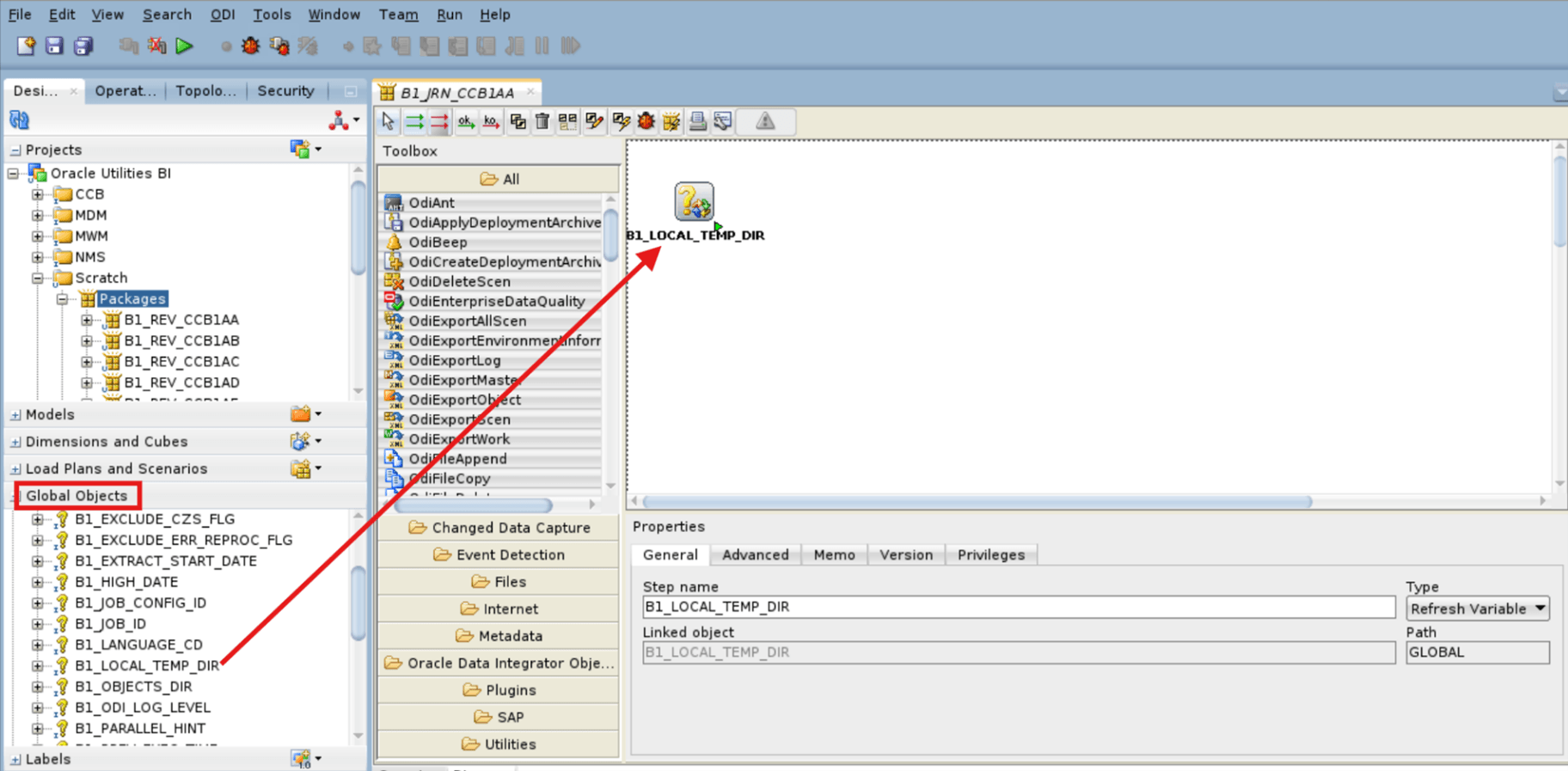
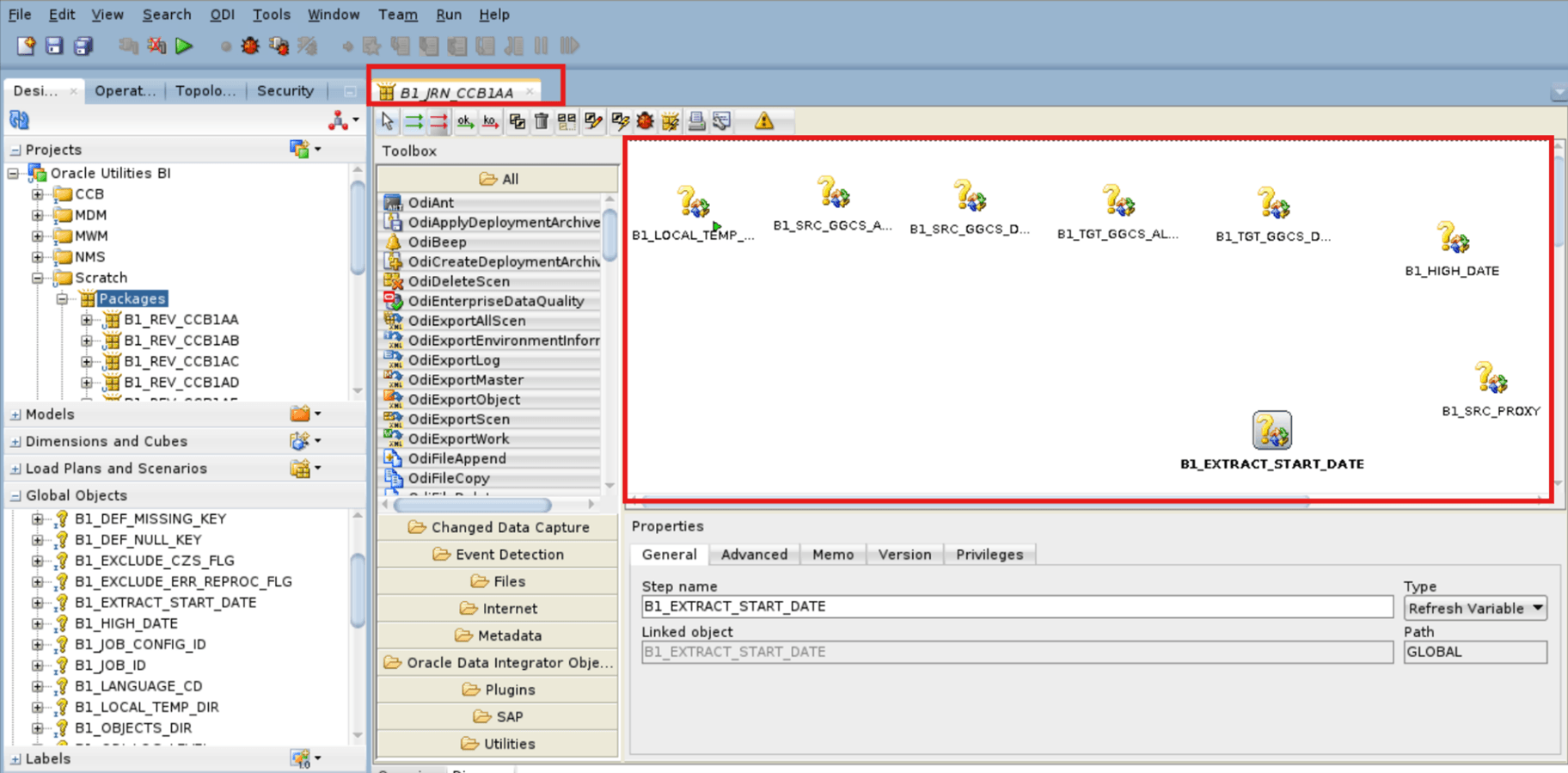
Navigate to Global Objects and drag-and-drop these objects sequentially to the created JRN package.
- B1_LOCAL_TEMP_DIR
- B1_SRC_GGCS_ALIAS
- B1_SRC_GGCS_DOMAIN
- B1_TGT_GGCS_ALIAS
- B1_TGT_GGCS_DOMAIN
- B1_HIGH_DATE
- B1_SRC_PROXY
- B1_EXTRACT_START_DATE
-
Connect the eight Global variables with ––ok––> marks.
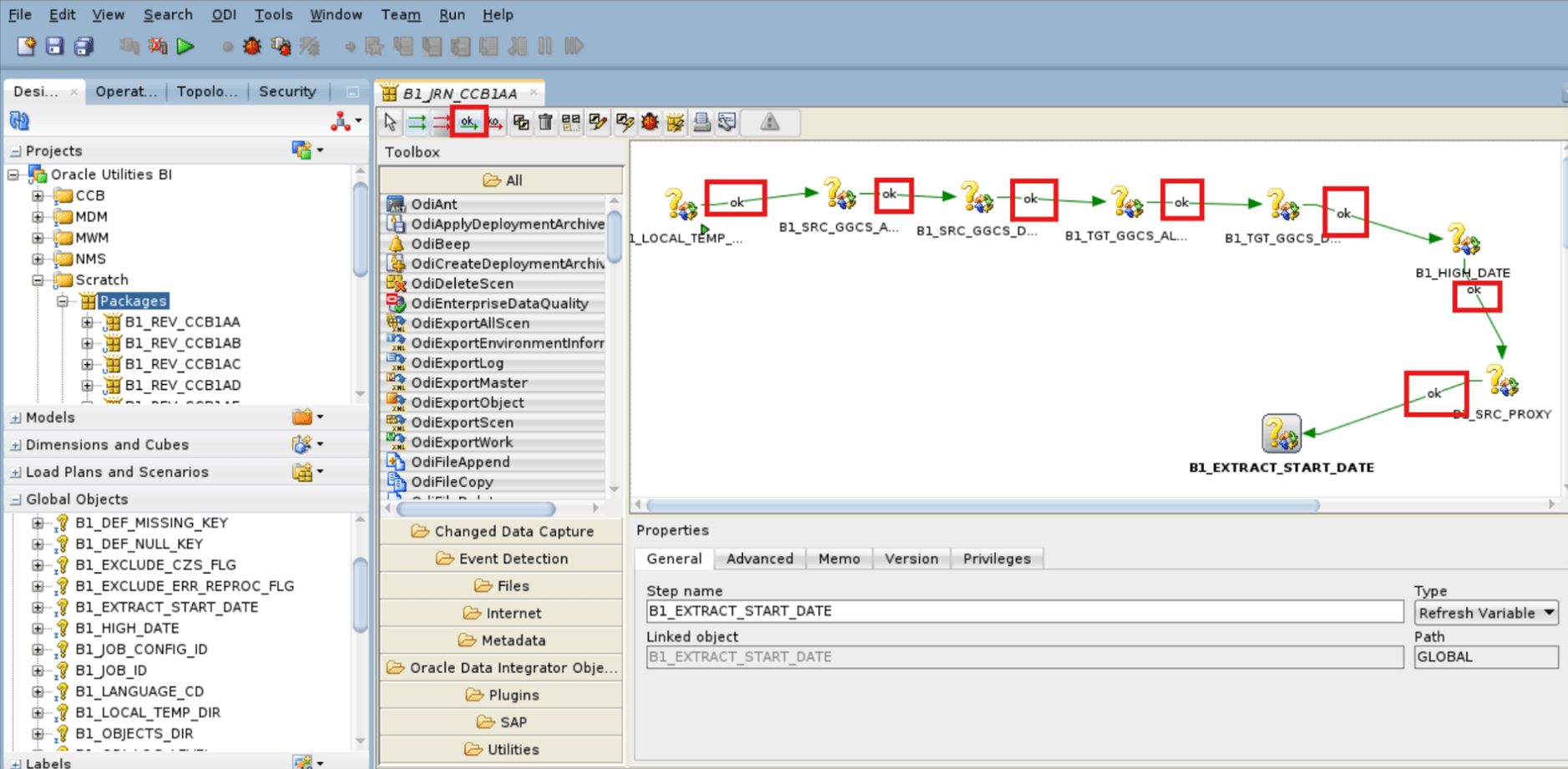
-
Navigate to Models > 1.Source and drag-and-drop the model to the created JRN then select "Type" as the Journalizing Model.
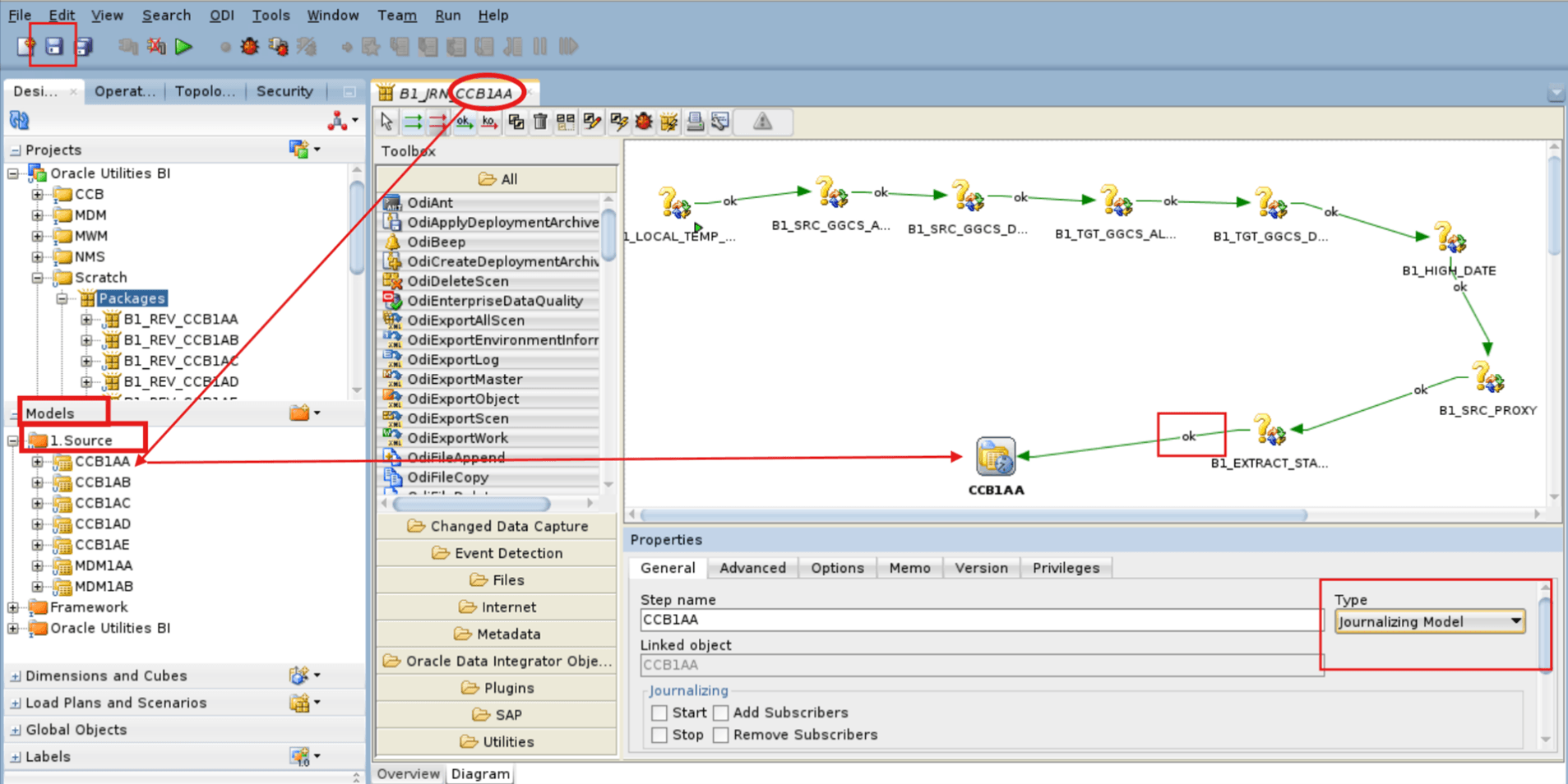
-
Connect the model with the global variable with a ––ok––> mark and click Save.
-
Click the model (example, CCB1AA) and navigate to Properties then select Type (Journalizing Model).
-
In the General tab, select the Start checkbox and add "ORACLE" in the Subscribers field then click Save.
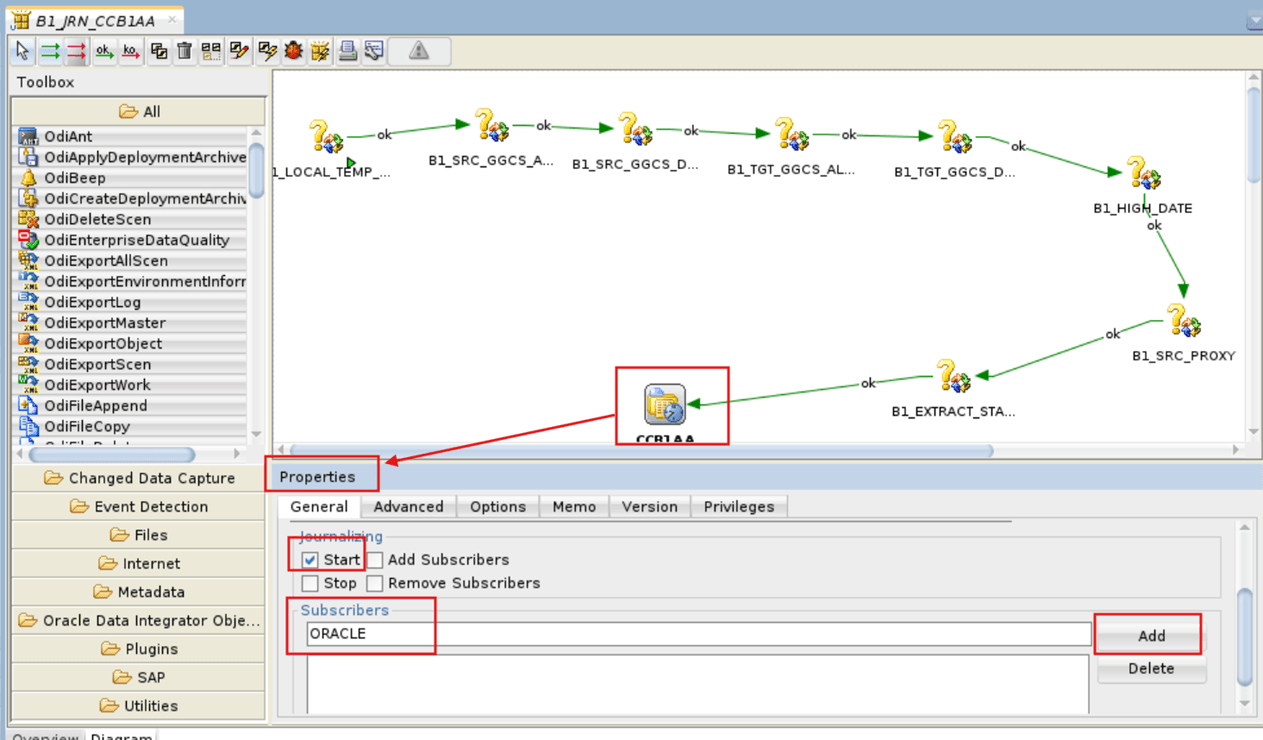 Make sure that the variable B1_LOCAL_TEMP is marked as 'First Step'. If not, perform these steps to mark it as the first step to execute:
- Right click the variable and select First Step.
- Notice that a green arrow icon appears on the step.
-
Navigate to Models > 1.Source and double click the model (example, CCB1AA) then navigate to Journalizing.
-
Enter the Journalizing details then click Save.
Field Name and Description Value Journalizing Mode
Consistent Set
Knowledge Module _PaaS.GLOBAL 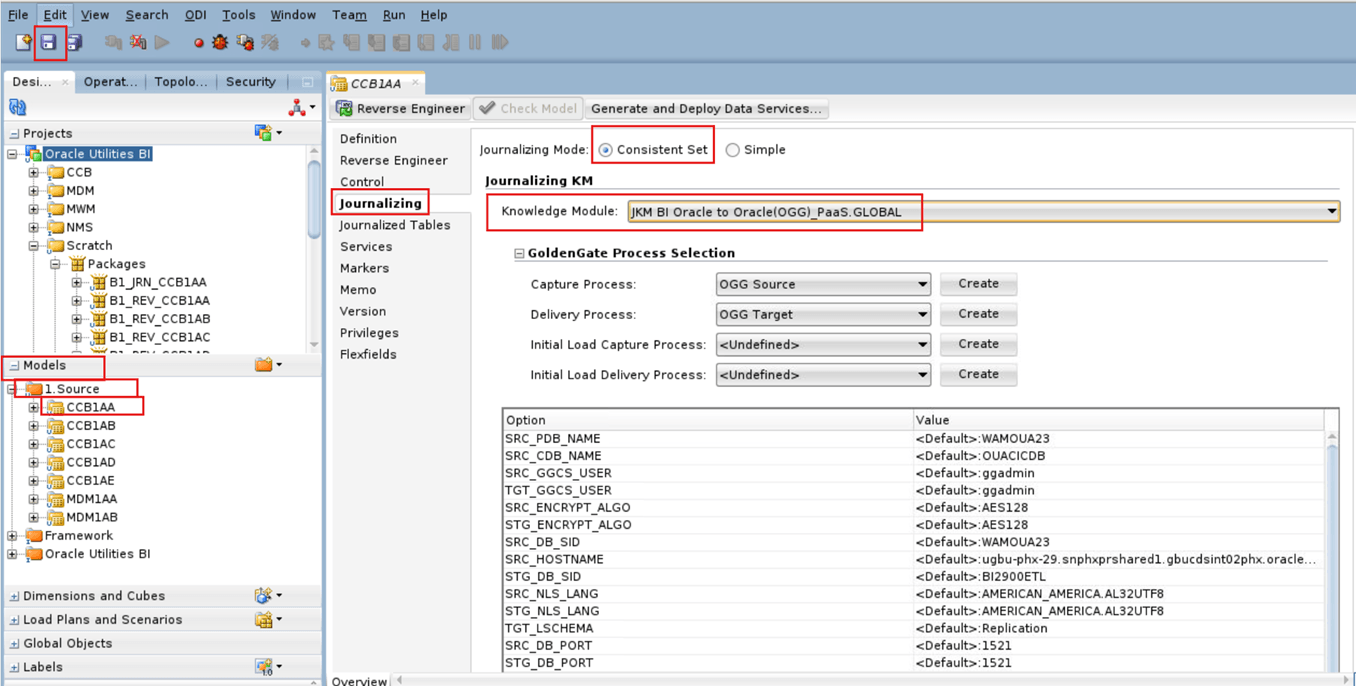
-
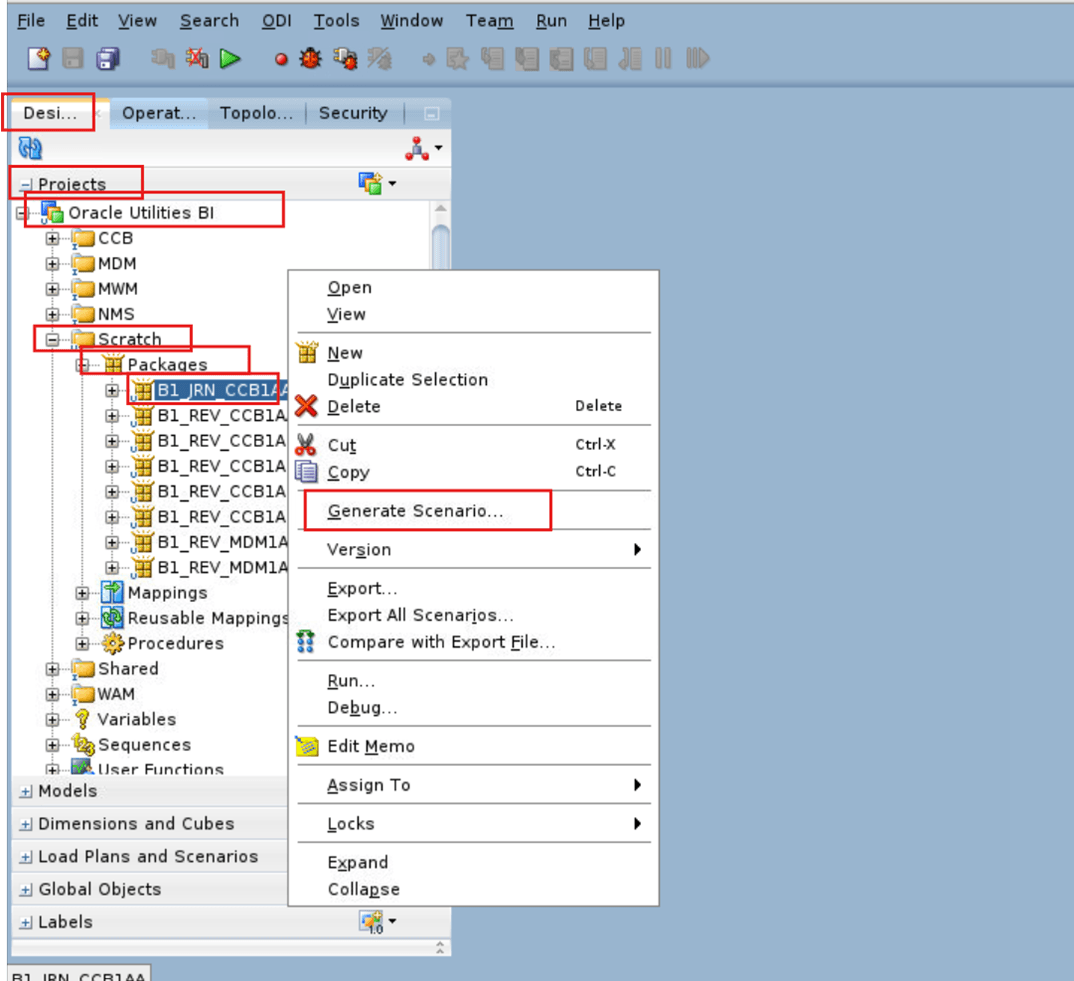
Navigate to Designer > Projects > Oracle Utilities BI > Scratch > Packages and right click JRN Package Name (example, B1_JRN_CCB1AA) then select Generate Scenario.
-
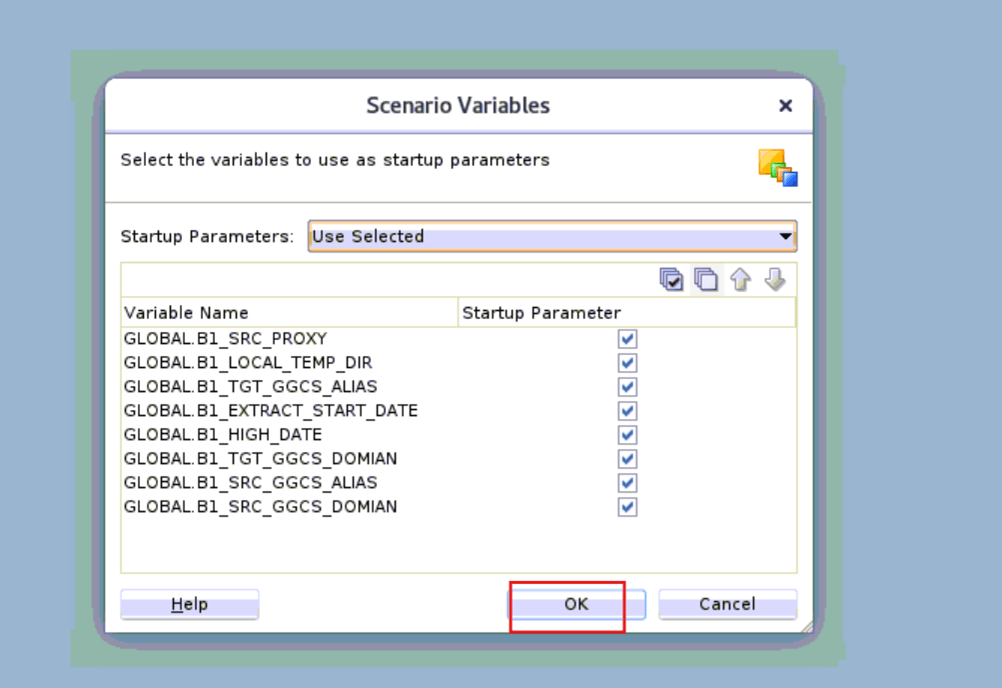
Enter the Scenario details, click OK then select the startup parameters and click OK.
Field Name and Description Value Name
B1_JRN_<Model Name> for example, B1_JRN_CCB1AA
Version For example, 001 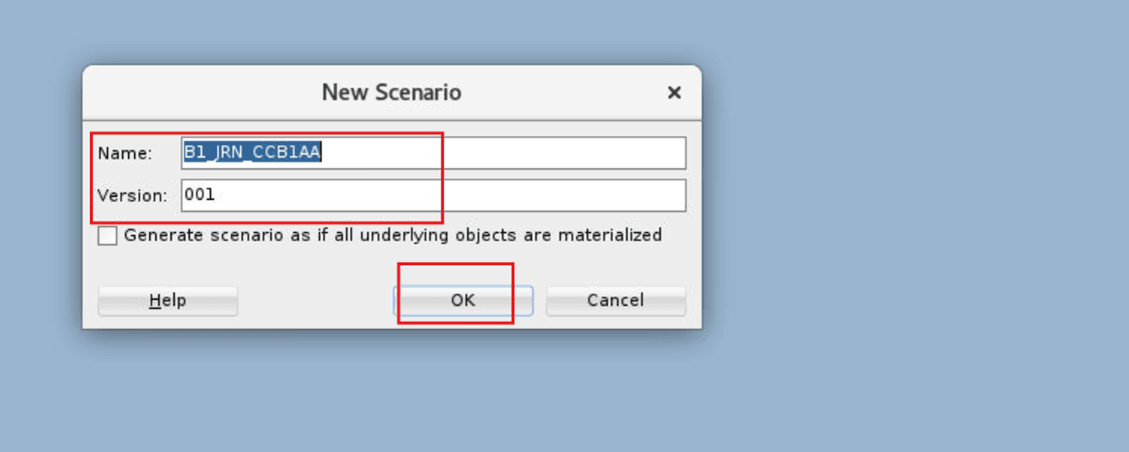
-
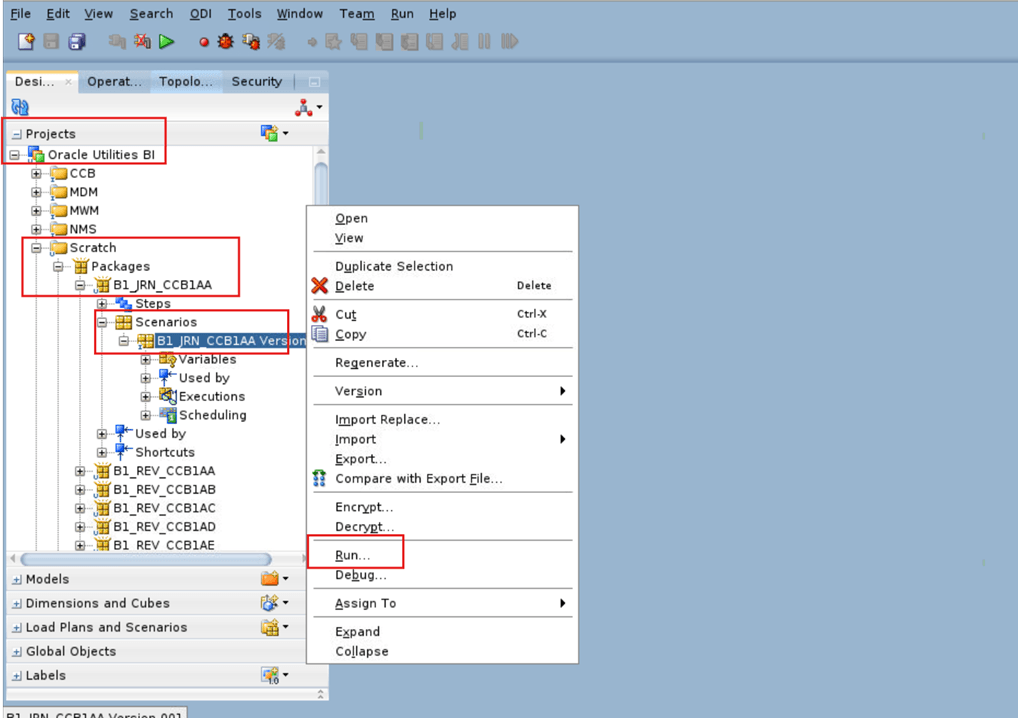
Navigate to Designer > Projects > Scratch > Packages > Package Name > Scenarios and right click Scenario Name and Version then select Run.
-
Enter the Context details and click OK.
Field Name and Description Value Context
For example, <CCB1>
Logical Agent WLS_Agent (ODI Agent) Log Level For example, 6 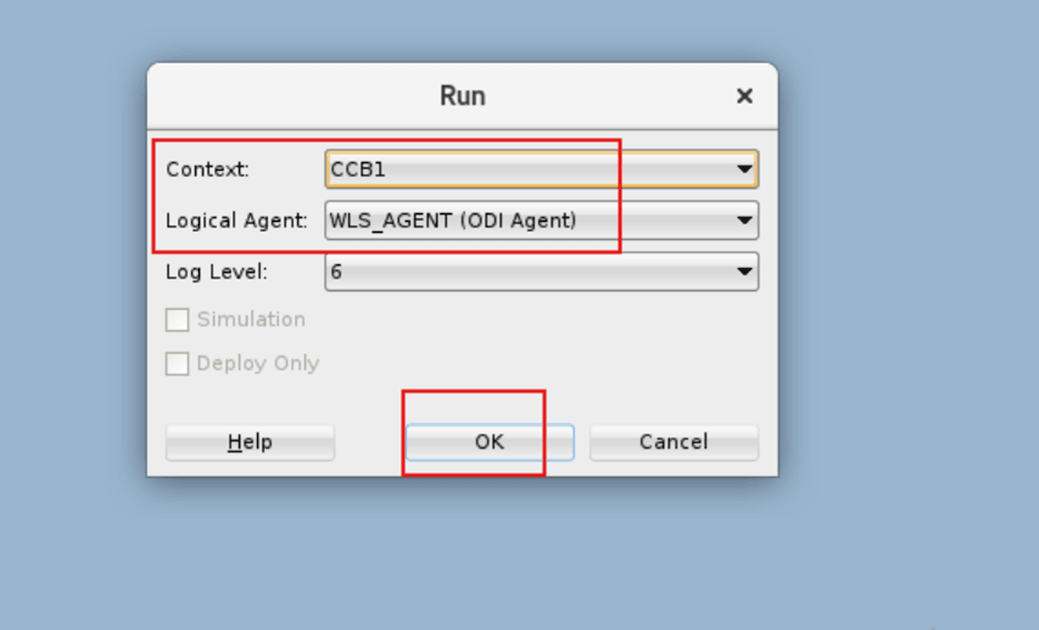
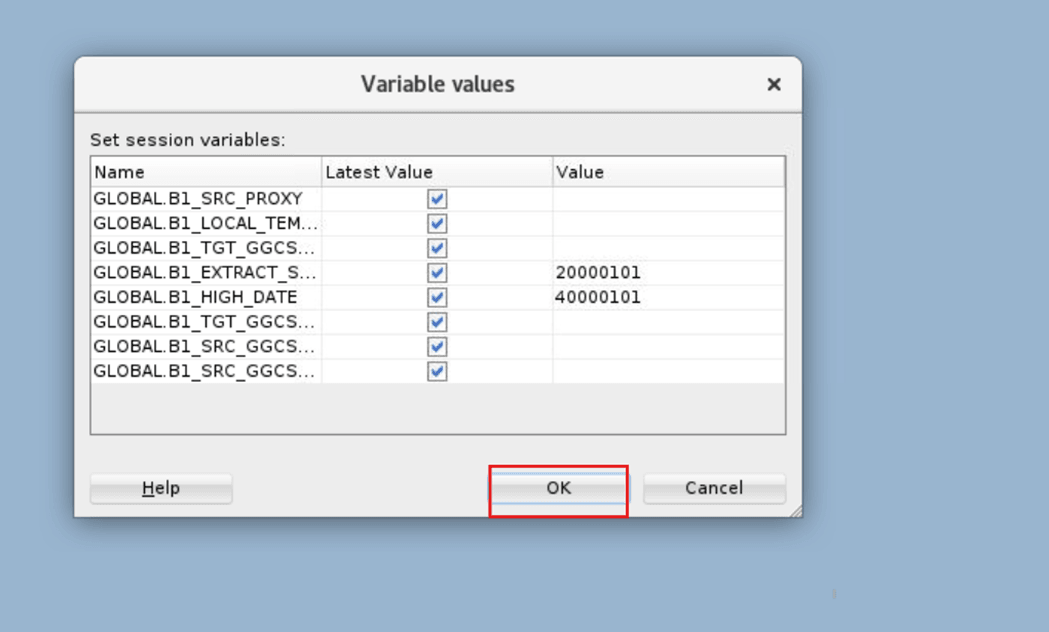
-
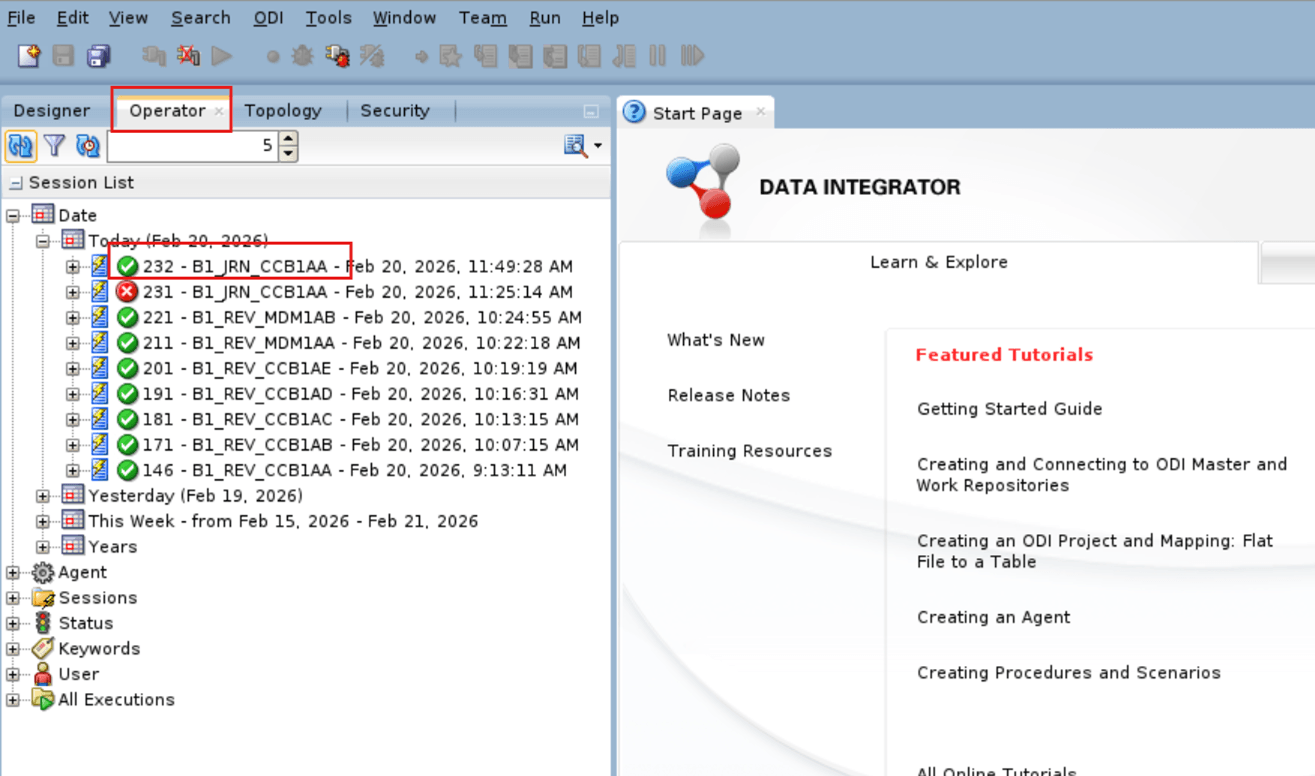
In the Operator tab, check the status of job for its completion.
-
Navigate to Models > 1.Source and double click the model (example, CCB1AA) then navigate to Journalizing.
-
Enter the Journalizing details then click Save.
Field Name and Description Value Journalizing Mode
Consistent Set
Knowledge Module <Undefined> 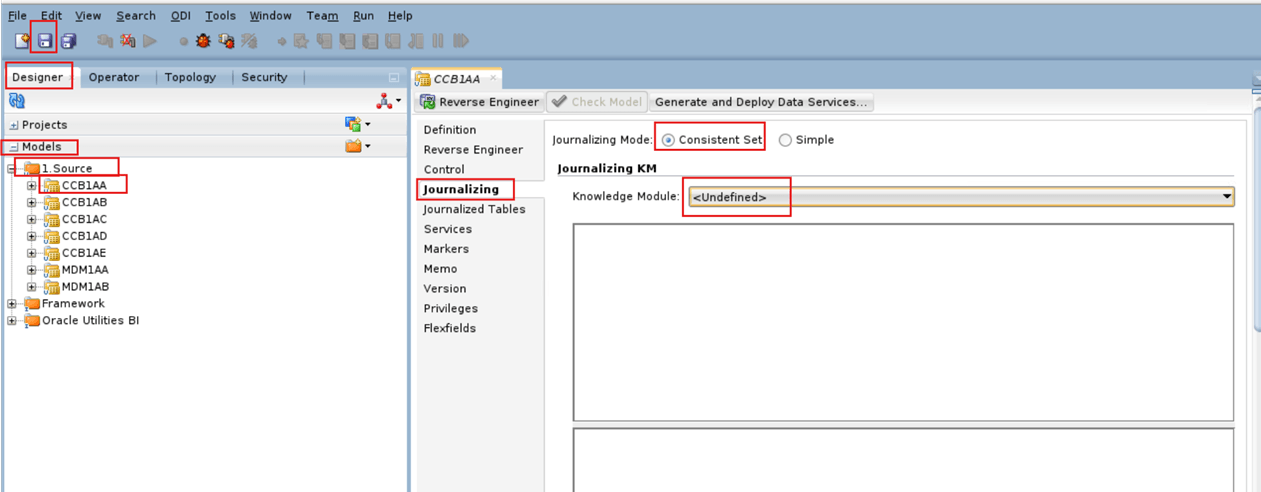
-
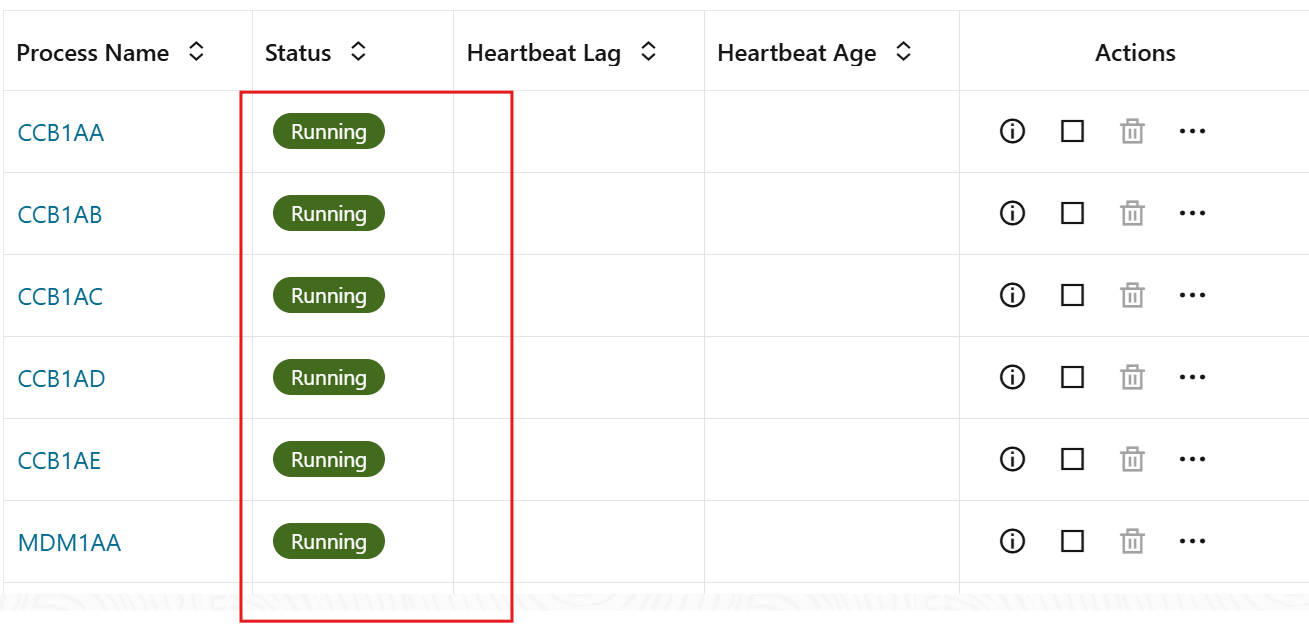
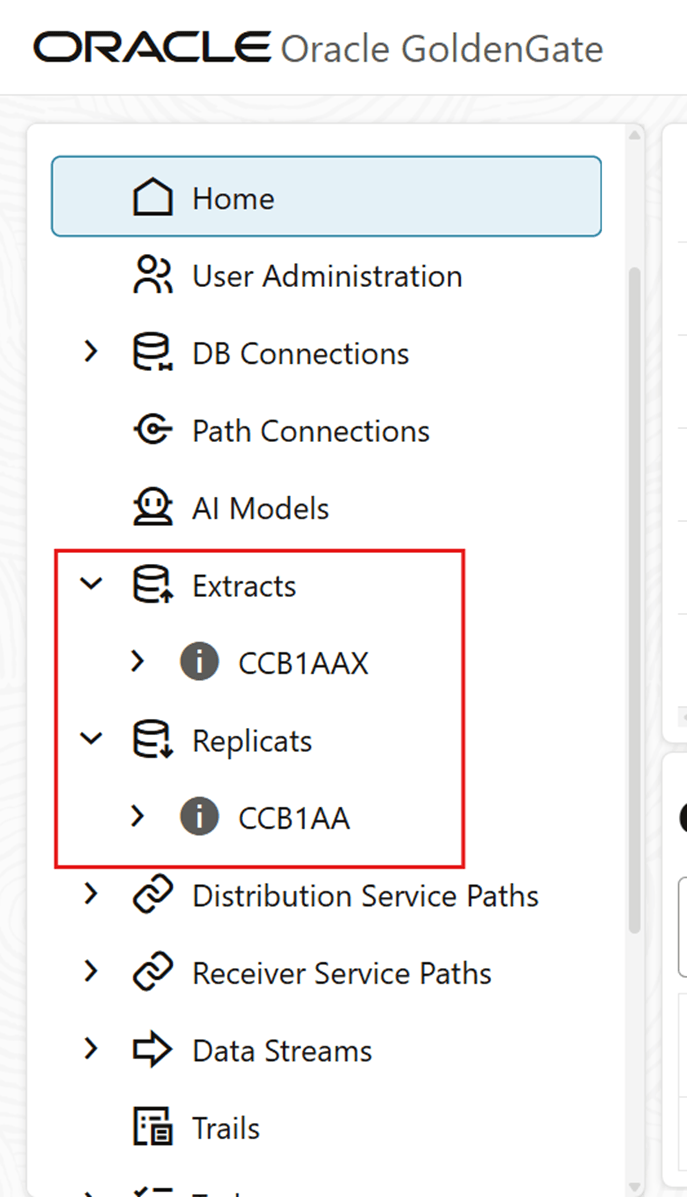
Make sure the respective processes are created in OCI GoldenGate. Verify by logging to the OCI GG Admin Console.
-
Repeat all the steps for other models as per your source product.
- CCB
- Total Models: 5
- Model Name (example, Instance 2): CCB1AA, CCB1AB, CCB1AC, CCB1AD, CCB1AE
- MDM
- Total Models: 2
- Model Name (example, Instance 3): MDM1AA, MDM1AB
- WAM
- Total Models: 10
- Model Name (example, Instance 4): WAM1AA, WAM1AB, and so on
- MWM
- Total Models: 3
- Model Name (example, Instance 5): MWM1AA, MWM1AB, MWM1AC
- NMS
- Total Models: 1
- Model Name (example, Instance 6): NMA1AA
- CCB
Copy Param Files Content from ODI Instance VM to OCI GG Process Parameter Tab
-
Extract and Replicat Param files are created under local Temporary directory which is created earlier in OCI ODI instance.
Note:
You can find the Directory Name in OUAW Admin Tool Console URL > PaaS Configuration > Local Temporary Directory Name.Example:
</u01/oracle/local-temp> -
The Param file folder structure is shown below for example, Model Name : CCB1*.
srccontains Source (Extract) Param files andstgcontains Target (Replicat) Param files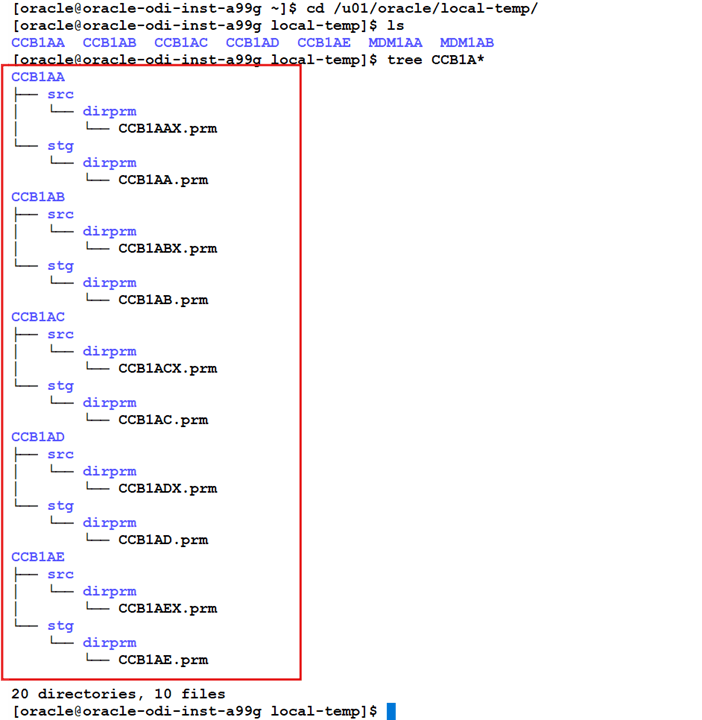
- Log in to the OCI GG Admin console.
-
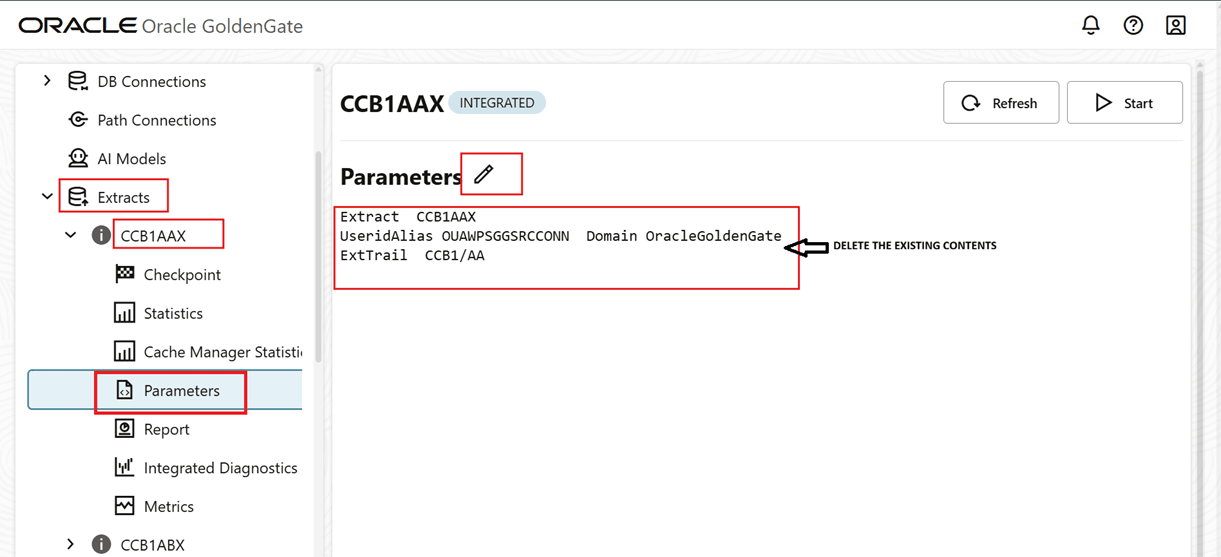
Navigate to Extracts > Extract Process Name (for example, CCB1AAX) > Parameters and remove the existing content from the Parameter tab.
-
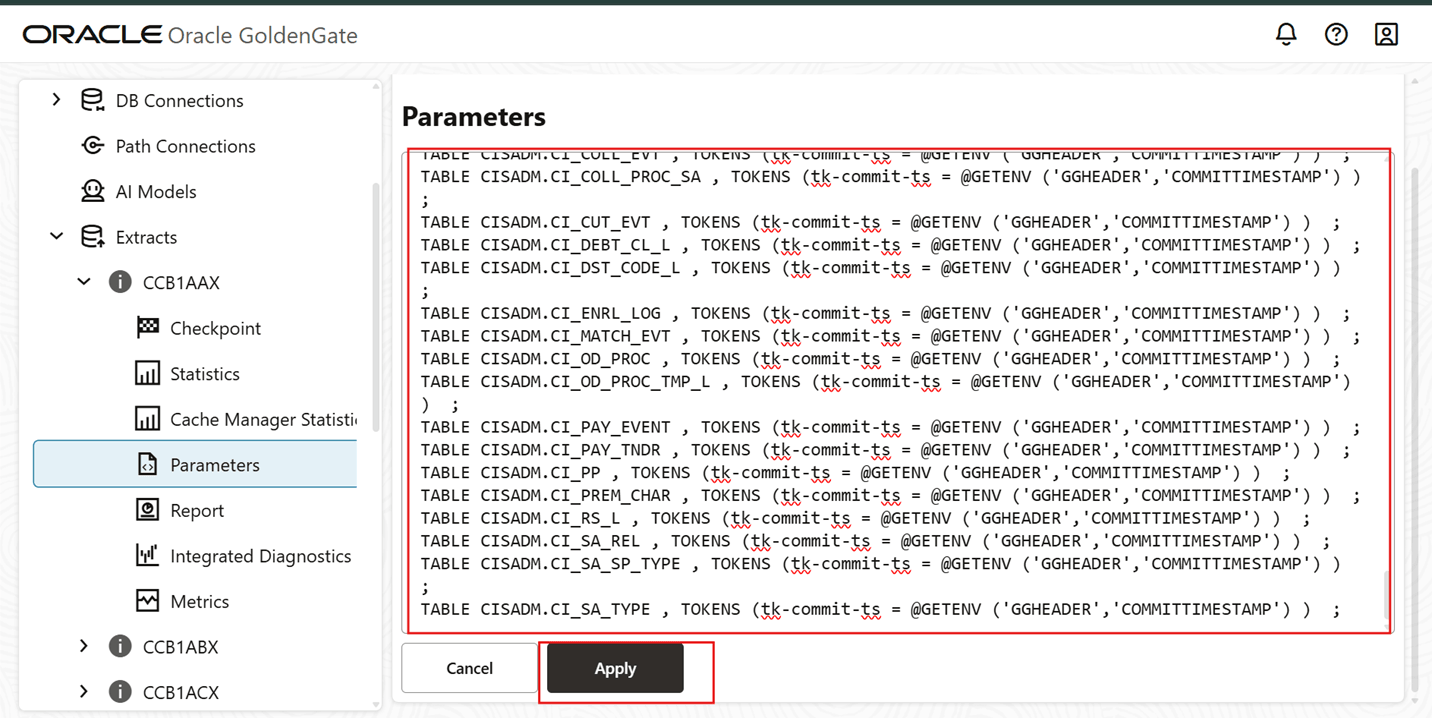
Copy the Extract Param (.prm) files to the Parameter tab and click Apply.
-
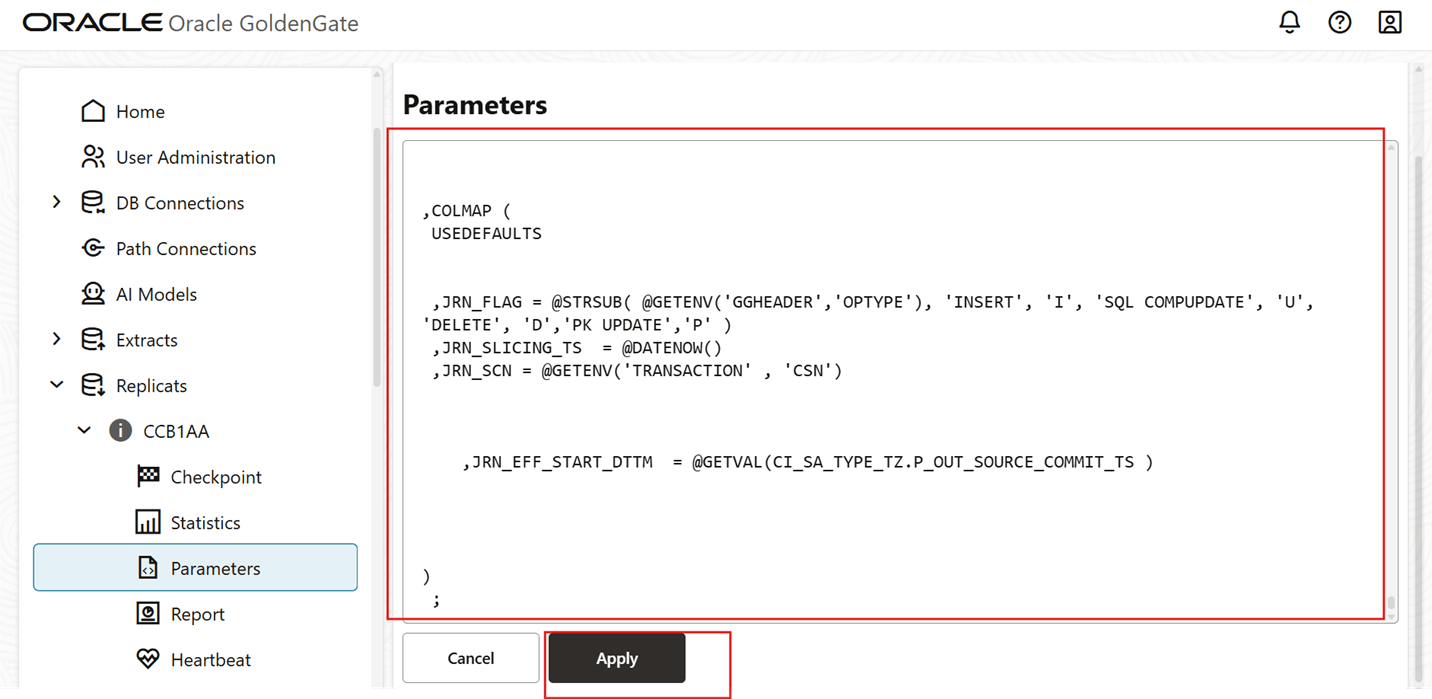
Navigate to Replicats > Replicat Process Name (for example, CCB1AA) > Parameters and remove the existing content from the Parameter tab.
-
Copy the Replicat Param (.prm) files to the Parameter tab and click Apply.
-
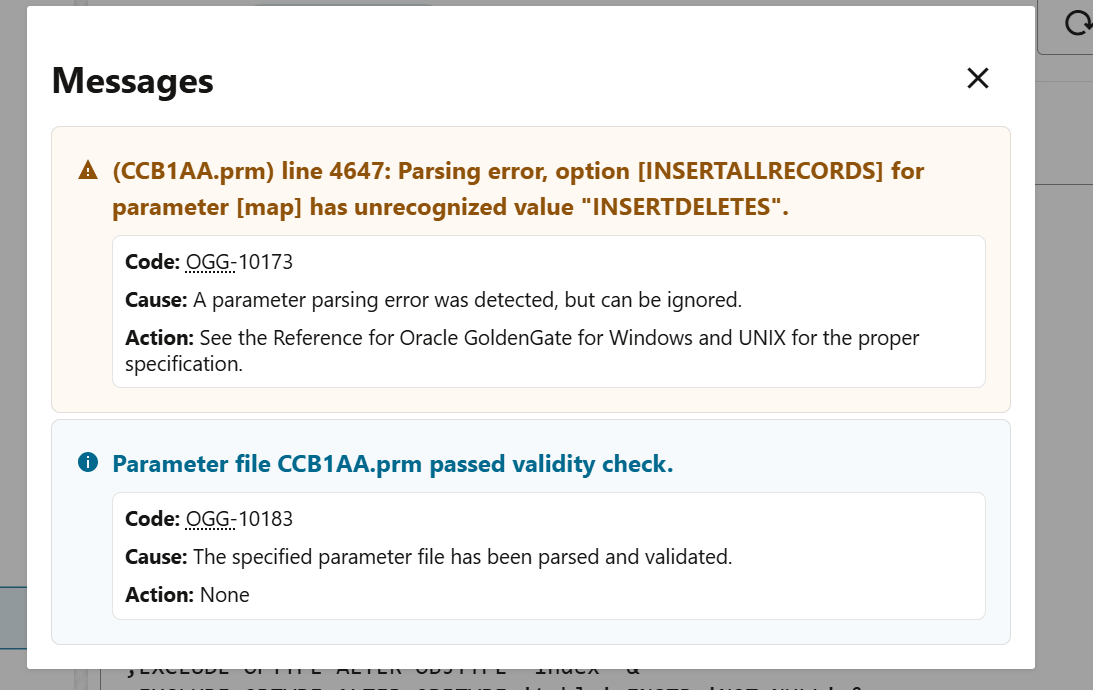
Ignore the errors below.
- Repeat steps 4 -8 for each Extract and Replicat param file.
Start OCI GoldenGate Processes
- Log in to the OCI GG Admin console.
-
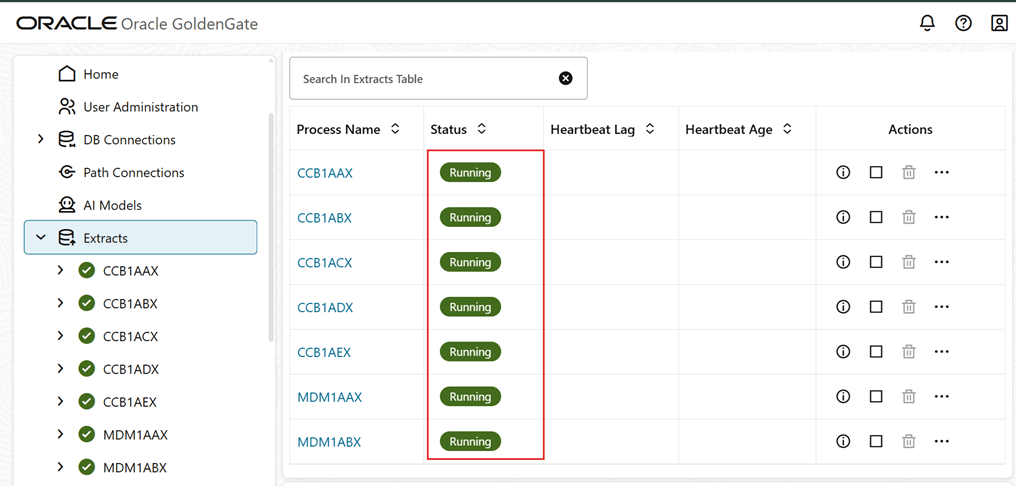
Navigate to Extracts and click Group Action then select Start all extracts.
-
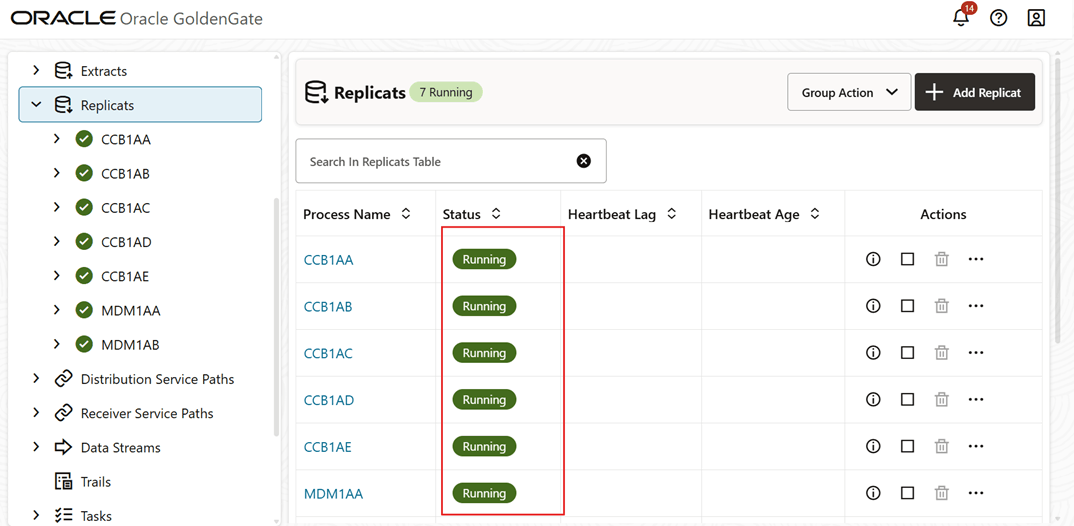
Navigate to Replicats and click Group Action then select Start all replicats.
Create the B1_GET_VALID_XML Function on Source Database
-
Log in to the Source database with the GoldenGate Source Database user for example, C##GGOWNER.
sqlplus <GoldenGate User>/<GoldenGate PASSWORD>@<SOURCE PDB NAME> -
Run this SQL.
CREATE OR REPLACE FUNCTION B1_GET_VALID_XML(c IN CLOB)
   RETURN XMLTYPE
IS
BEGIN
   RETURN XMLTYPE (c);
EXCEPTION
WHEN OTHERS THEN
   RETURN CAST (NULL AS XMLTYPE);
END;
/
Generate Source Views
- Log in to ODI Studio to Work Repository.
-
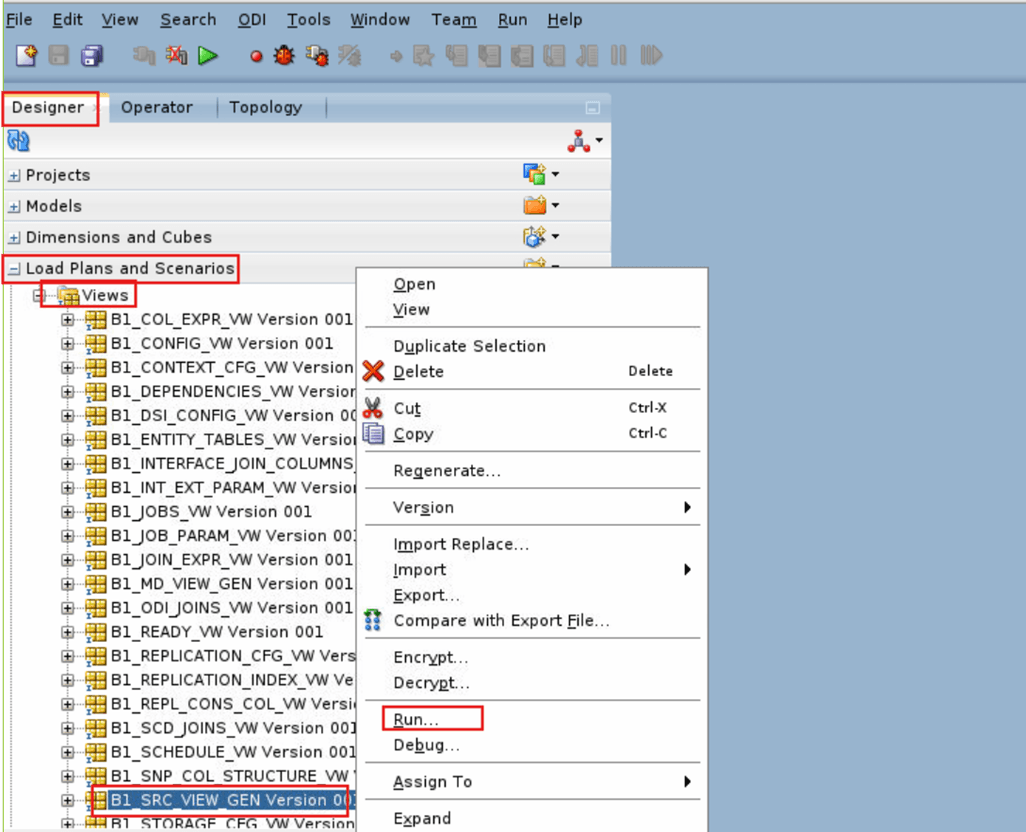
Navigate to Designer > Load Plans and Scenarios > Framework > Views and right click B1_SRC_VIEW_GEN Version 001 then select Run .
-
Enter the Run details and click OK.
Field Name and Description Value Context
Source Product Context for example, <CCB1>
Logical Agent WLS_AGENT (ODI Agent) Log Level For example, 6 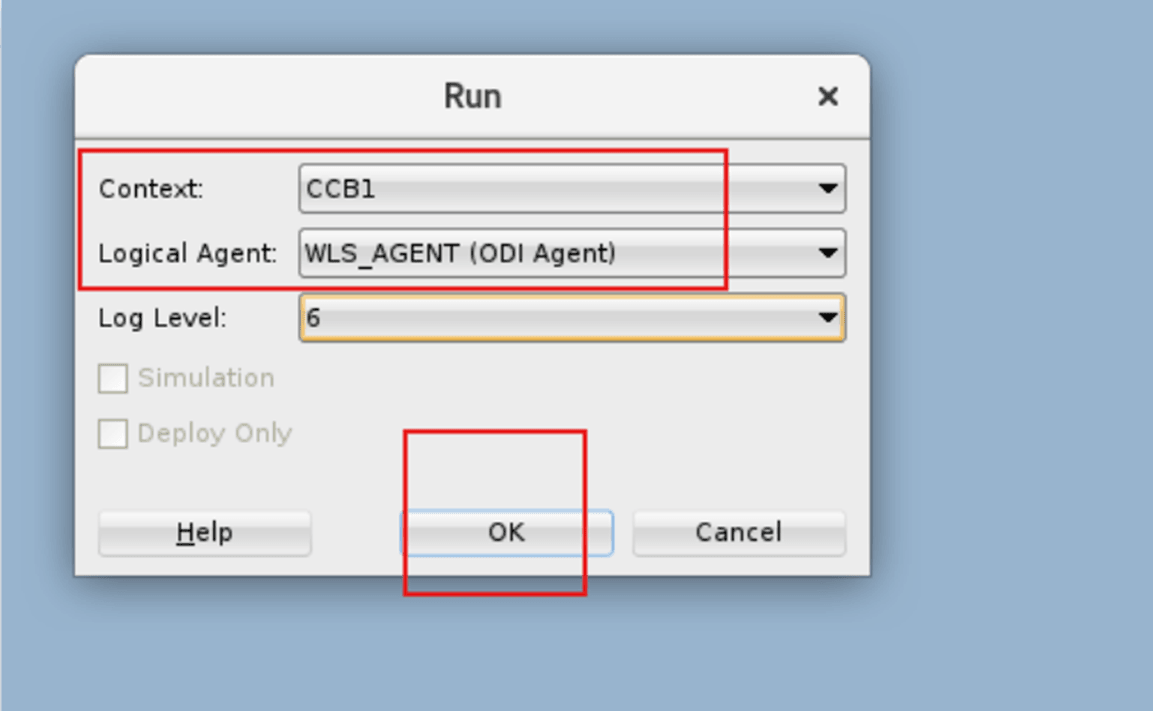
-
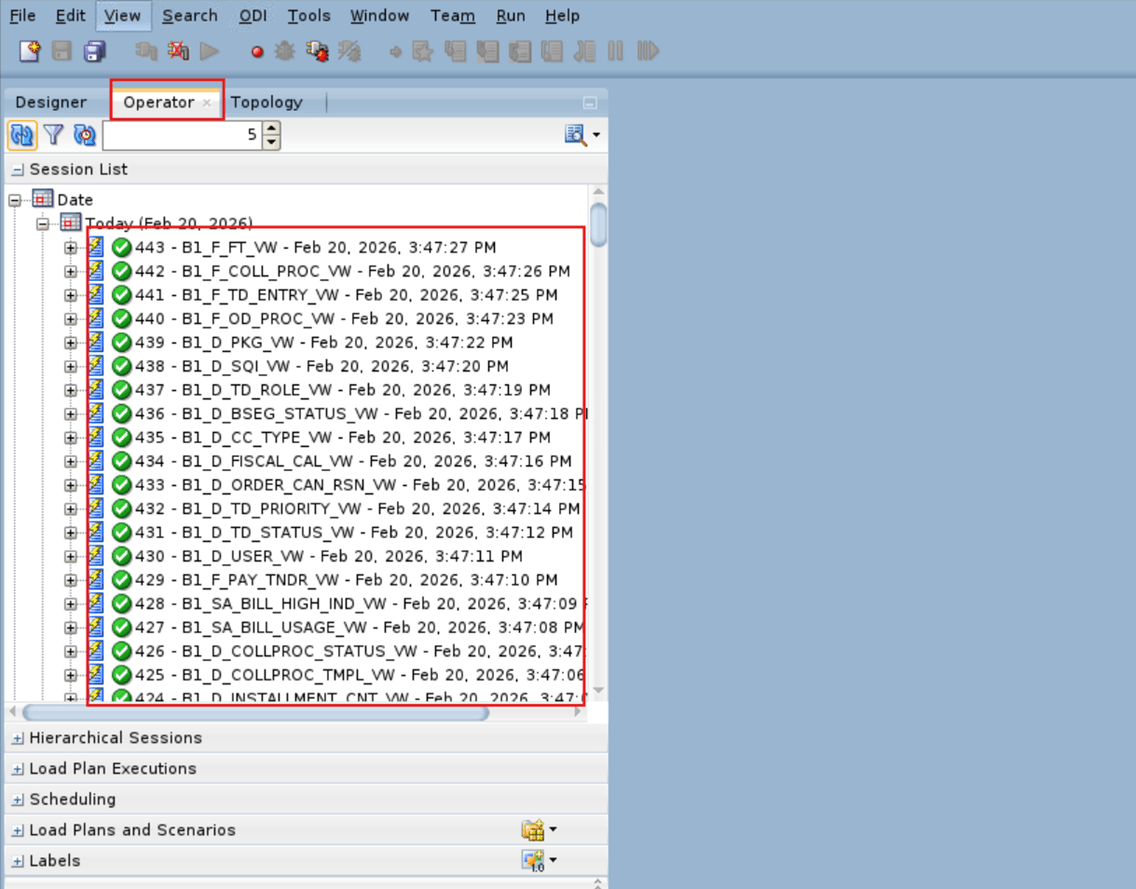
In the Operator tab, check the status of the job for its completion.
Configure Instance
- Log in to ODI Studio to Work Repository.
-
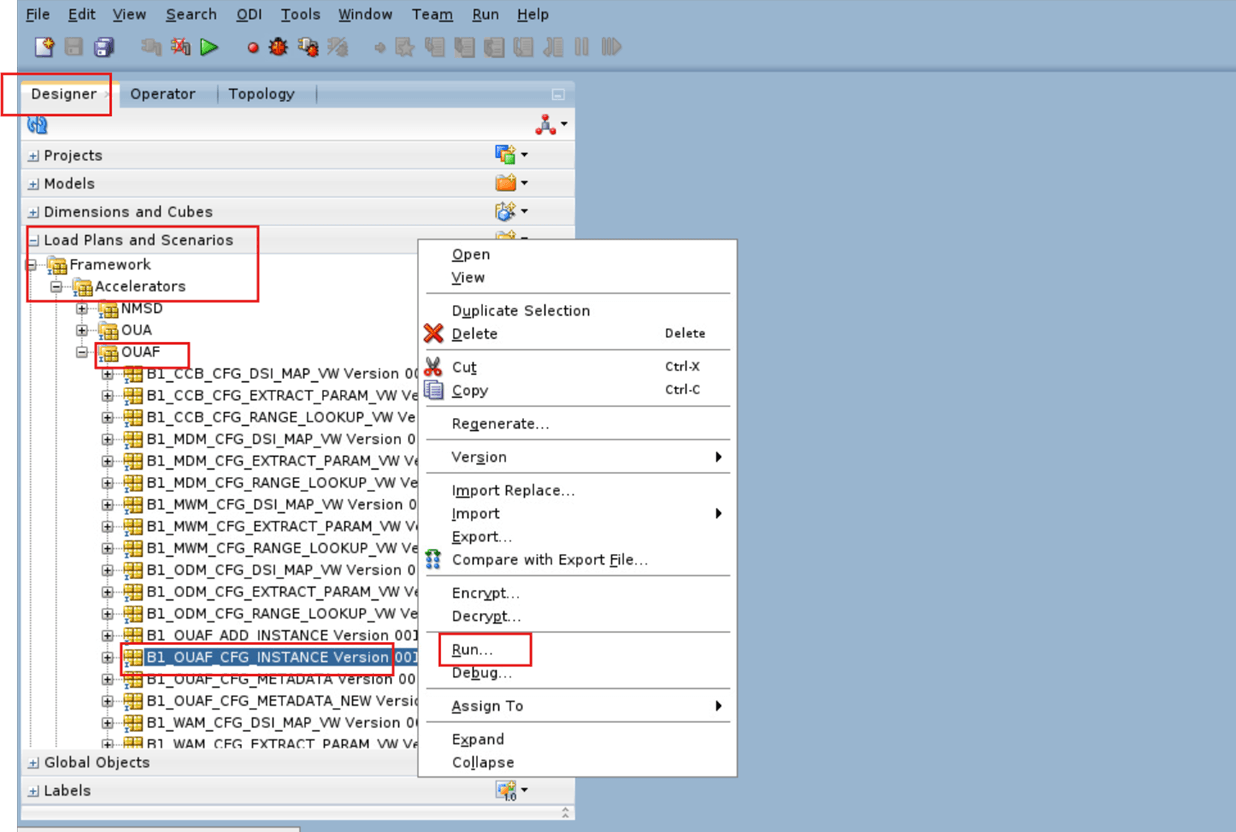
Navigate to Designer > Load Plans and Scenarios > Framework > Accelerators > OUAF and right click B1_OUAF_CFG_INSTANCE then select Run .
-
Enter the Run details and click OK.
Field Name and Description Value Context
Source Product Context for example, <CCB1>
Logical Agent WLS_AGENT (ODI Agent) Log Level For example, 6 -
In the Operator tab, check the status of the job for its completion.
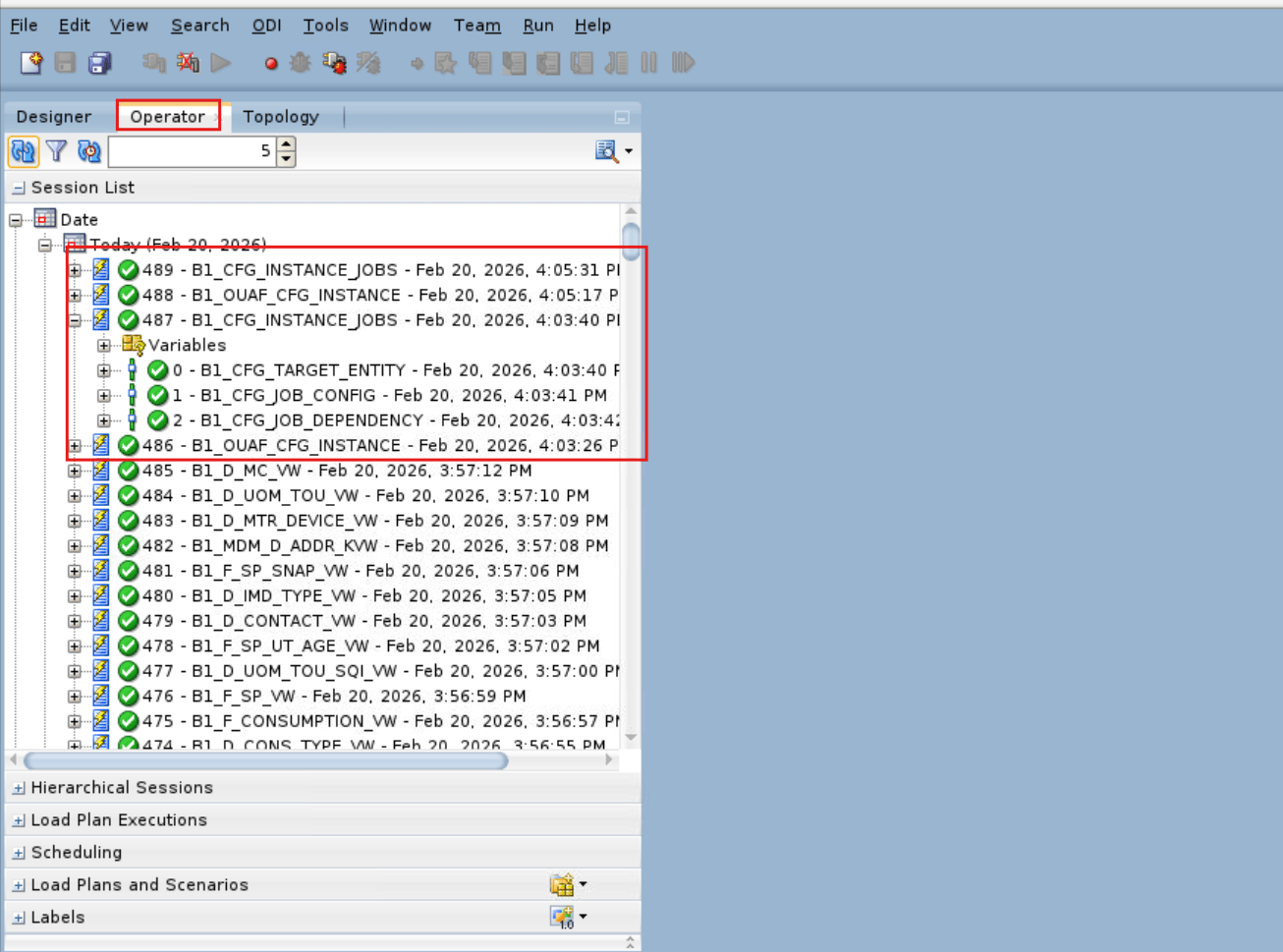
Configure the Source Product in Oracle Data Integrator
Create a B1_DATA_DUMP_DIR Database Directory on the Source Database
- Make sure to have a shared file system provisioned.
-
Log in to the Source Database Server and Create dump directory where you will mount the File System.
For example,
</mnt/file_data> -
Create the B1_DATA_DUMP_DIR database directory in Source Database PDB.
create directory B1_DATA_DUMP_DIR as '</mnt/file_data>'; -
Grant the OCI GG Source Database User (example, C##GGOWNER) permissions to the B1_DATA_DUMP_DIR database directory.
grant read,write on directory B1_DATA_DUMP_DIR to <OCI GG Source Database User>;For example,
grant read,write on directory B1_DATA_DUMP_DIR to C##GGOWNER;
Run Sync Context
-
Log in to the AdminTool from the following URL: https://<ADB URL>/ords/f?p=104
-
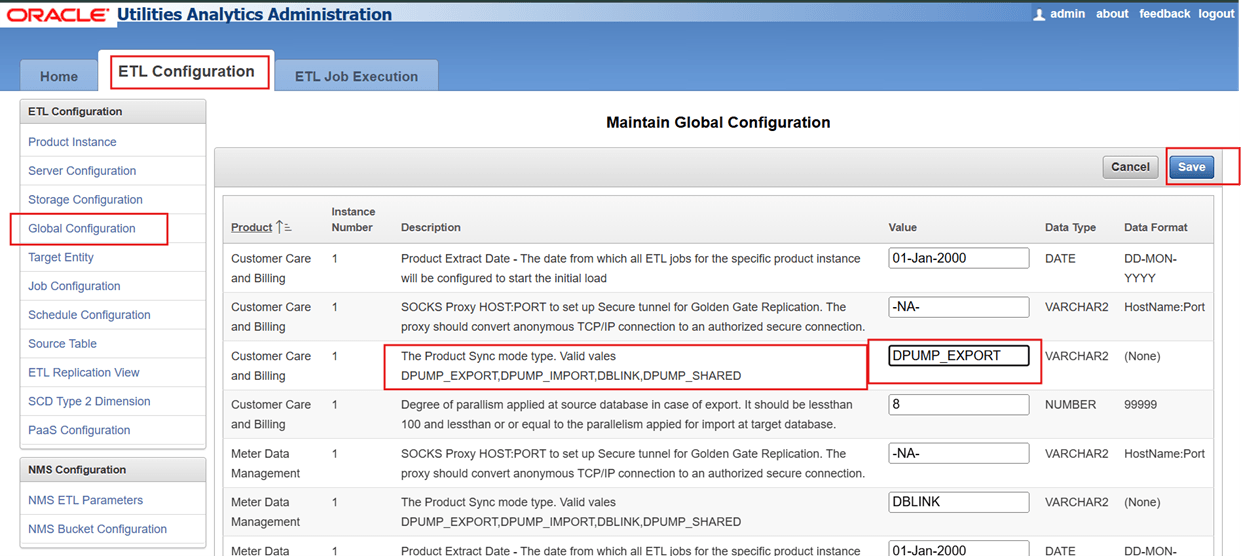
Navigate to ETL Configuration > Global Configuration and click Edit.
-
Update the value of the The Product Sync mode type parameter to "DPUMP_EXPORT" and click Save.
- Log in to the OCI GG Admin console.
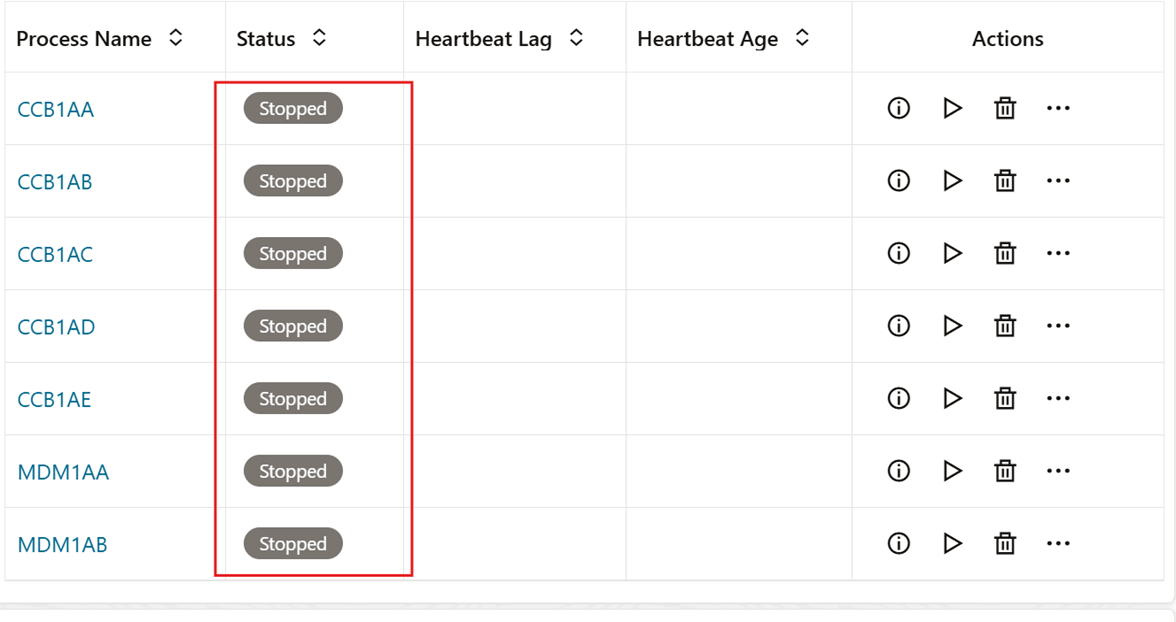
-
Navigate to Replicats and click Group Action then select Stop all replicats.
- Log in to ODI Studio to Work Repository.
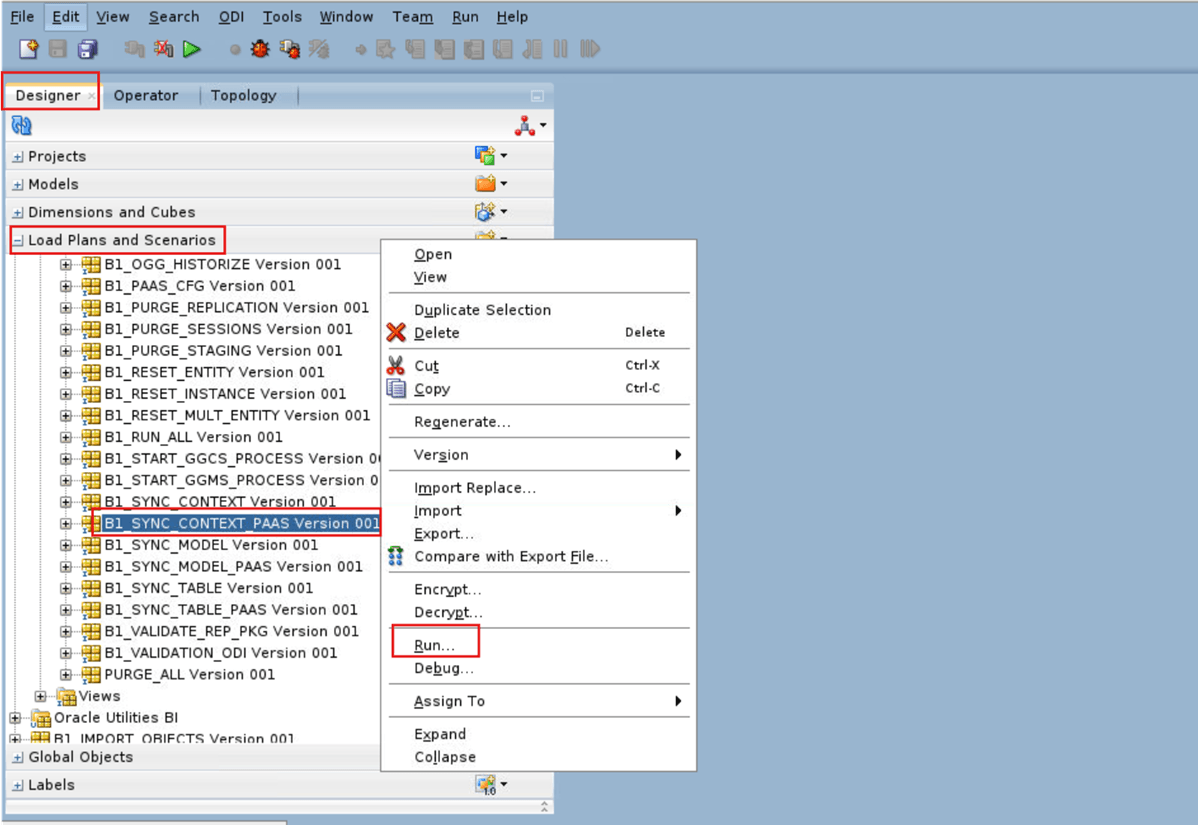
-
Navigate to Designer > Load Plans and Scenarios > Framework > Scheduler and right click B1_SYNC_CONTEXT_PAAS then select Run.
-
Enter the Run details and click OK.
Field Name and Description Value Context
Source Product Context for example, <CCB1>
Logical Agent WLS_AGENT (ODI Agent) Log Level For example, 6 -
Navigate to Designer > Load Plans and Scenarios and right click B1_SYNC_CONTEXT_PAAS then select Variable Values.
-
Enter the Variable Values details and click OK.
Field Name and Description Value Name
FW.B1_PARALLEL_FOR_P...
Latest Value Select checkbox Value For example, 5 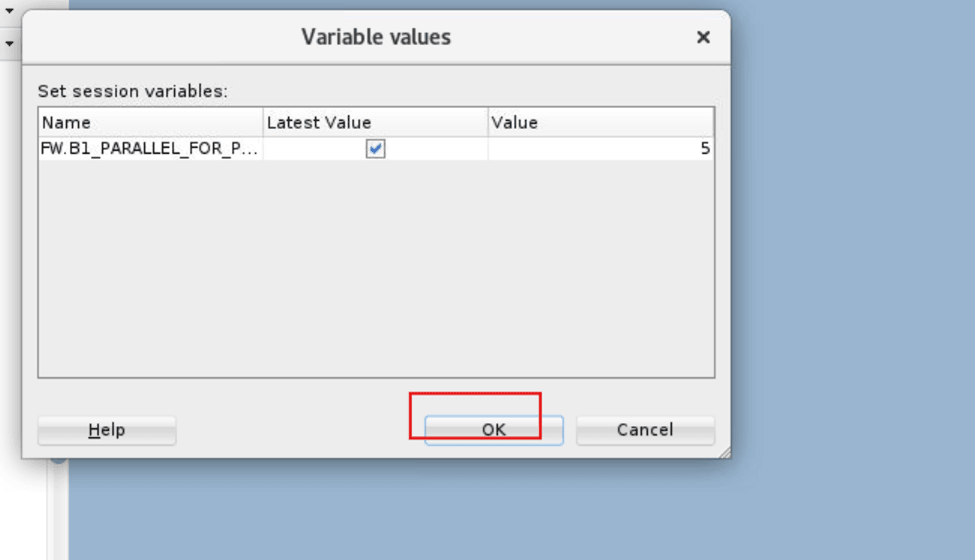
-
In the Operator tab, check the status of the job for its completion.
-
Once the B1_SYNC_CONTEXT_PAAS has successfully completed, the export dumps (.dmp) and logs (.exp.log) are reflected on the B1_DATA_DUMP_DIR database directory path (example, </mnt/file_data>) on the Source Database.
The files names will be in the format <Model Name>*.dmp and <Model Name>.exp.log.
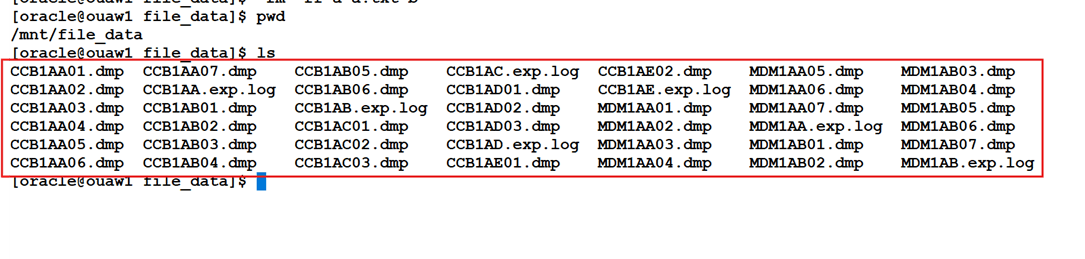
- Upload all dump and log files to OCI Object store swift URI of storage bucket. See Update PaaS Configuration Parameters in OUAW AdminTool for more details of the OCI Object store swift URI of storage bucket parameter value.
-
Log in to the OCI Object Storage via the OCI Console and verify that the dump and log files were uploaded.
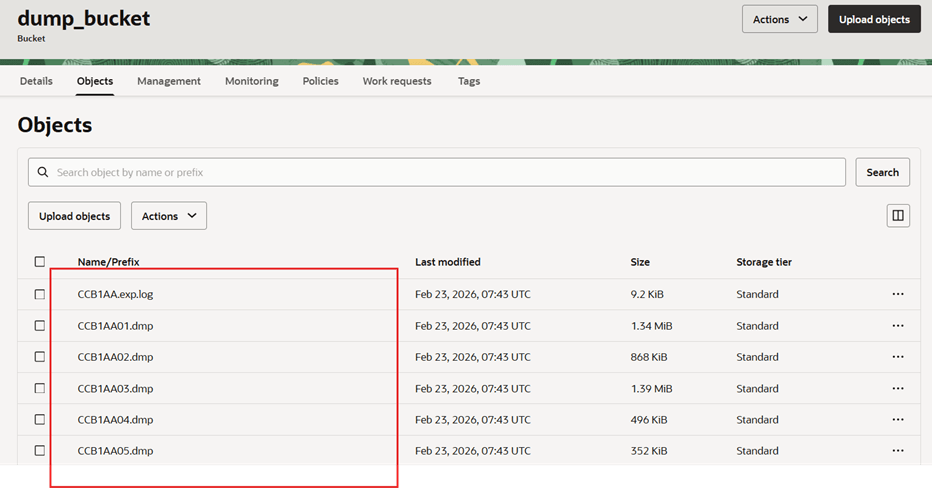
-
Return to the AdminTool (https://<ADB URL>/ords/f?p=104).
-
Navigate to ETL Configuration > Global Configuration and click Edit.
-
For the configured Context, change the value of the The Product Sync mode type parameter to "DPUMP_IMPORT" and click Save.

- Return to the ODI Studio to Work Repository and navigate to Designer > Load Plans and Scenarios > Framework > Scheduler and right click B1_SYNC_CONTEXT_PAAS then select Run .
-
Enter the Run details and click OK.
Field Name and Description Value Context
Source Product Context for example, <CCB1>
Logical Agent WLS_AGENT (ODI Agent) Log Level For example, 5 -
In the Operator tab, check the status of the job for its completion.
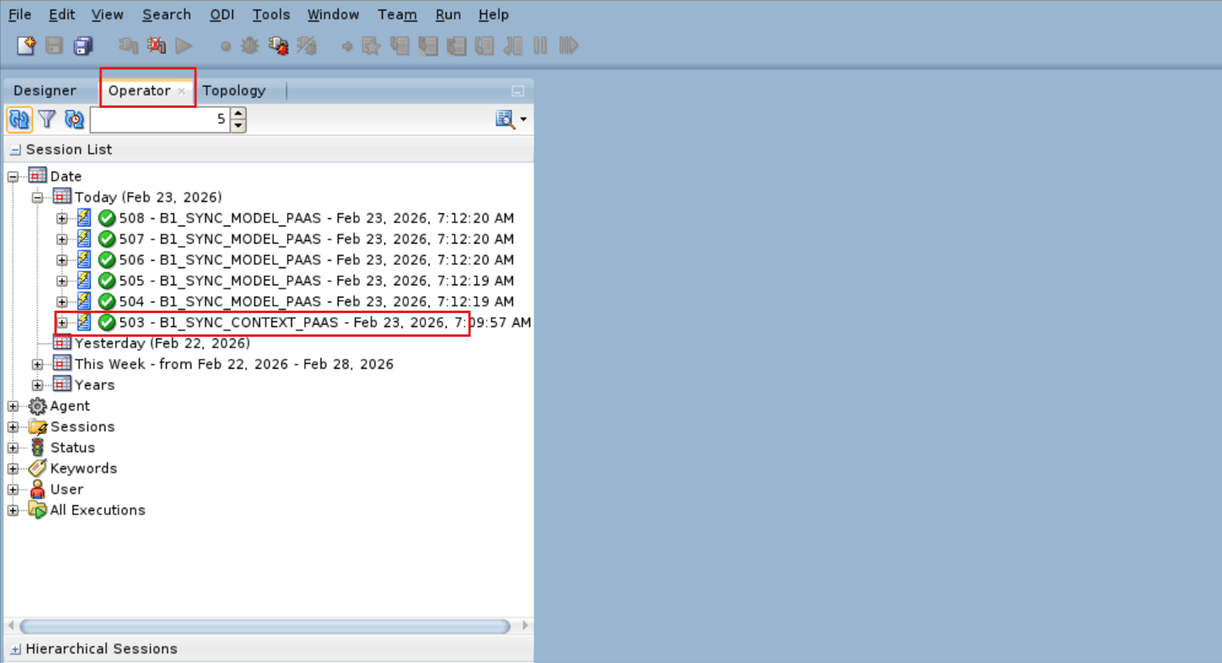
-
Validate the synchronization of data in the replication tables and the metadata in MDADM.B1_TABLE_SYNC on ADB.
Note:
There should not be any NULL value in any ROW.select * from MDADM.B1_TABLE_SYNC; -
Return to the OCI GG Admin console and navigate to Replicats and click Group Action then select Start all replicats.