4.2 Proposal Enrichment - Customer Info
This data segment allows you to configure the party details and add child parties to the party.
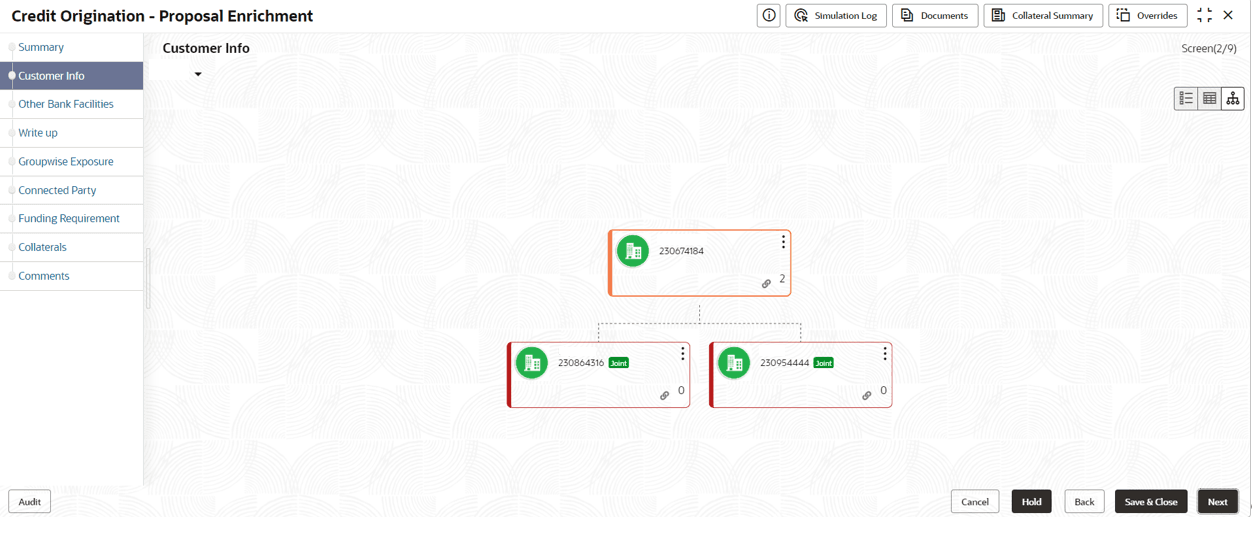
- Add Customer (not applicable for Joint party)
- Configure
- View
- Quick View
- Delete (Not applicable for parent entity)
Note:
For information on performing Add Customer, View, and Quick View actions, refer Existing Facilities section in Proposal Initiation chapter.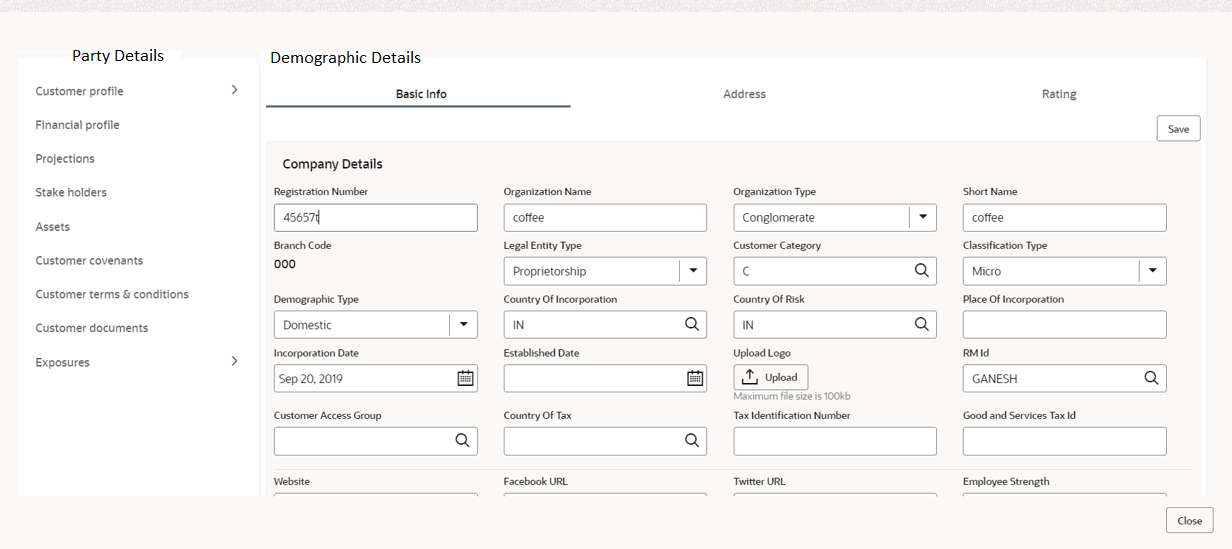
Customer Profile
For information on fields in the Party Details screen, refer the table below.
Table 4-1 Demographic Details- Basic Info
| Fields/Icon | Description |
|---|---|
| Company Details | Enter or select the following details in the
corresponding fields:
|
| Is Special Customer? | Enable Is Special Customer? option, if the party is special customer. |
| Is Blacklisted? | Enable Is Blacklisted? option, if the party is blacklisted. |
| Is KYC Compliant? | Enable Is KYC Compliant? option, if the party is KYC Compliant. |
| Last KYC Date | Click Calendar icon and select Last KYC Date. |
| Listed Company | If the party is listed, then enable Listed Company option. |
| Language | Select Language from the drop-down list. |
| Media | Search and select Media for transactions. |
Table 4-2 KYC Details
| Fields/Icon | Description |
|---|---|
| Received | Enable Received option, if KYC verification details are received for the party. |
| KYC Verification Date and Effective Date | Click Calendar icon and select KYC Verification Date and Effective Date. |
| Verification Method | Enter the KYC Verification Method. For example, Field verification. |
| Save | Click Save to save the details. |
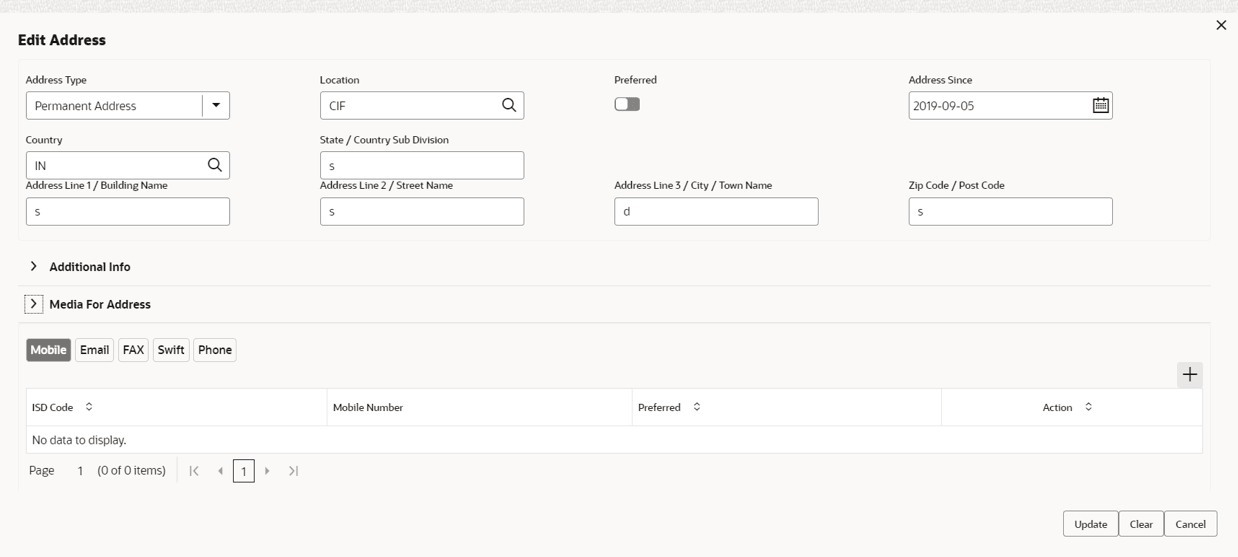
- To add the party address details in Demographic Details screen, click
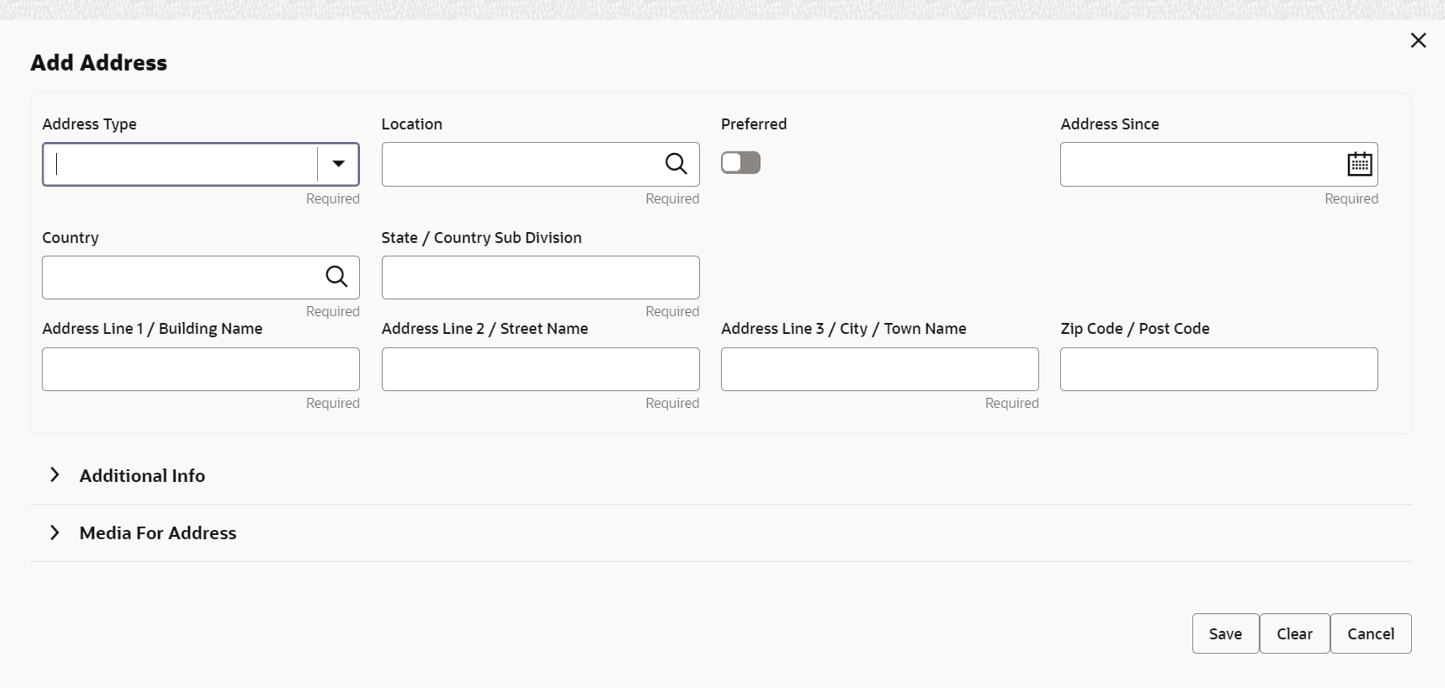
Address tab and then click + icon.The Add Address window is displayed.
For information on fields in the Add Address screen, refer the table below.
Table 4-3 Add Address
Fields/Icon Description Address Details Enter or select the following details in the corresponding fields: - Address Type
- Location
- Preferred
- Address from- Address To
- Address Line 1/ Building Name
- Address Line 2/ Street Name
- Address Line 3/ City/ Town Name
- State/ Country Sub Division
- Country
- Zip Code/ Post Code
Additional Info Click Additional Info. The following options are displayed. Enter the details in the below fields: - Department
- Sub Department
- Building Number
- Floor
- Post Box
- Room
- Town Location Name/ Locality
- Direct Name
- Landmark
- Contact name/ Narrative
Media The followings fields are displayed. - Swift
- Phone
- Fax
- Swift
- FAX
- Swift
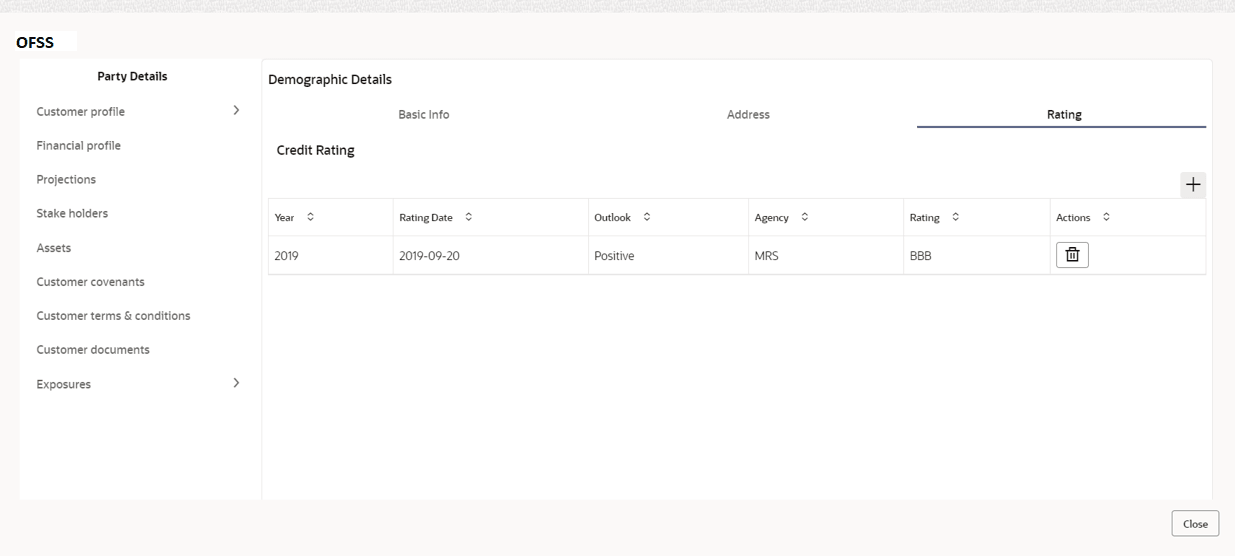
Save Click Save. Address details are added. - To view Rating in Demographic Details screen, click
Rating.The Rating window is displayed with Credit Rating details for below fields.
- Year
- Rating Date
- Outlook
- Agency
- Rating
- Actions
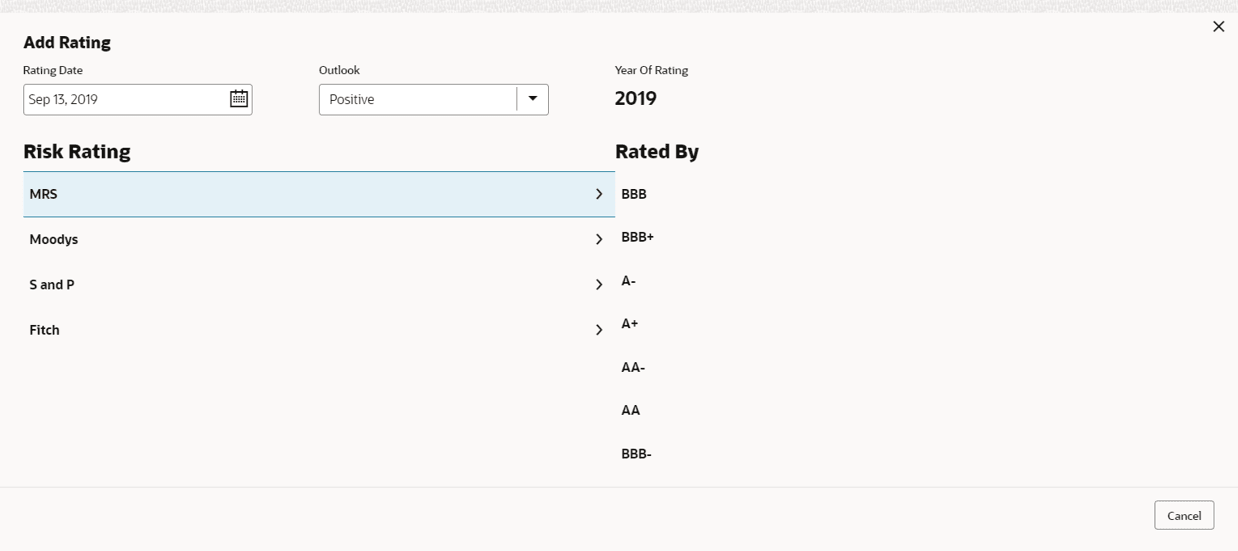
- Click +, to add new rating. The Add Rating screen is
displayed.
For information on fields in the Add Rating screen, refer the table below.
Table 4-4 Add Rating
Fields/Icon Description Rating Date Search and select Rating Date. Outlook Select Outlook from drop-down list: - Positive
- Neutral
- Negative
Year of Rating Year of Rating is displayed by default. Risk Rating Select Risk Rating from the below list: - BBB
- BBB+
- A-
- A+
- AA-
- AA
- AA+
- CCC+
- B-
- B
- BB+
- AAA
- BBB-
Rated By Select Rated By from the below list: - MRS
- Moodys
- S and P
- Fitch
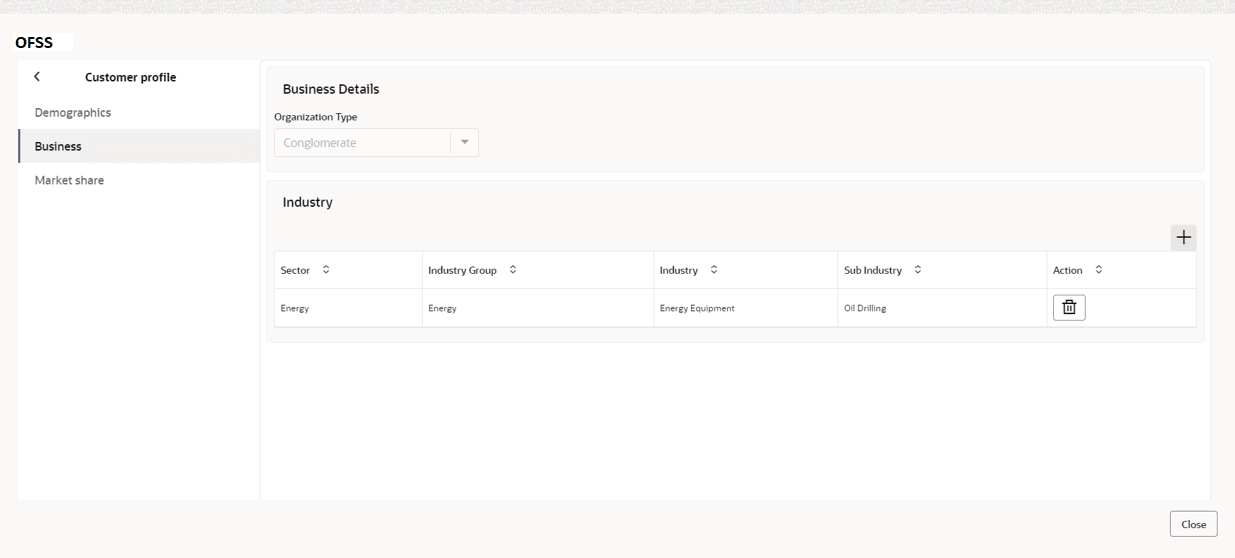
- Click Business in Customer Profile to view the party’s business
details. The Business Details screen is displayed with Business details
information and Industry details.
Click + to add new Industry. For more information about adding new industry refer Industries> Add Industry in Creating Application
- Click Market Share in Customer Profile to view the market share
details. The Market Share screen is displayed with Business details
information and Industry details.
Click Market Share to add Market Share. The Market Share window is displayed.
For information on fields in the Market Share screen, refer the table below.Table 4-5 Market Share
Fields/Icon Description Year Enter Year for the market share. MarketShare Percent Enter MarketShare Percent. Select Decrement and Increment drop-down list option on right to increase or decrease the MarketShare Percent. Currency Search and select Currency. Sales Enter Sales for market share. Growth Percent Enter Growth Percent. Select Decrement and Increment drop-down list option on right to increase or decrease the Growth Percent. Add Click Add to add the market share. Clear Click Clear to remove the market share. Save Click Save to save the market share. Note:
To Edit, Delete or View the added Basic Info, Address, and Rating. click Action icon in the required list item and select the required option.


Financial Profile
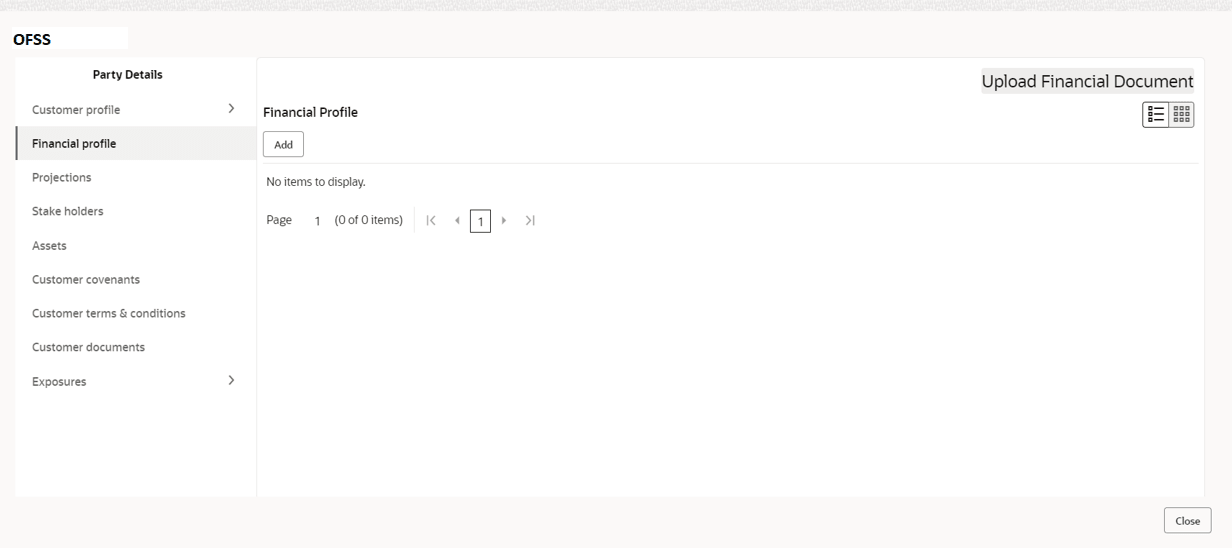
- To Upload / Add party’s financial details, click Financial
Profile in left menu.The Financial profile screen is displayed.
Click Add icon. The Add Financial Profile window is displayed.
For information on fields in the Add Financial Profile screen, refer the table below.
Table 4-6 Add Financial profile
Fields/Icon Description Year Specify Year for which the party’s financial details are to be added. Details Specify the following details in the corresponding fields: - Balance Sheet Size and currency from drop-down list
- Operating Profit and currency from drop-down list
- Net Profit and currency from drop-down list
- Year Over Year Growth
- Return On Investment
- Return On Equity
- Return On Asset
- Capital Adequacy Ratio
- Cost to Income ratio
- Equity
- Gross Impaired Loans
- Liquid assets
- Loan Loss Res / Impaired Loans
- Loan-to-Deposit Ratio
- NPA coverage ratio
- NPA ratio
- Return on Avg Equity
- Return on Avg Assets
- Tier 1 CAR
- Total Assets
- Unreserved Equity
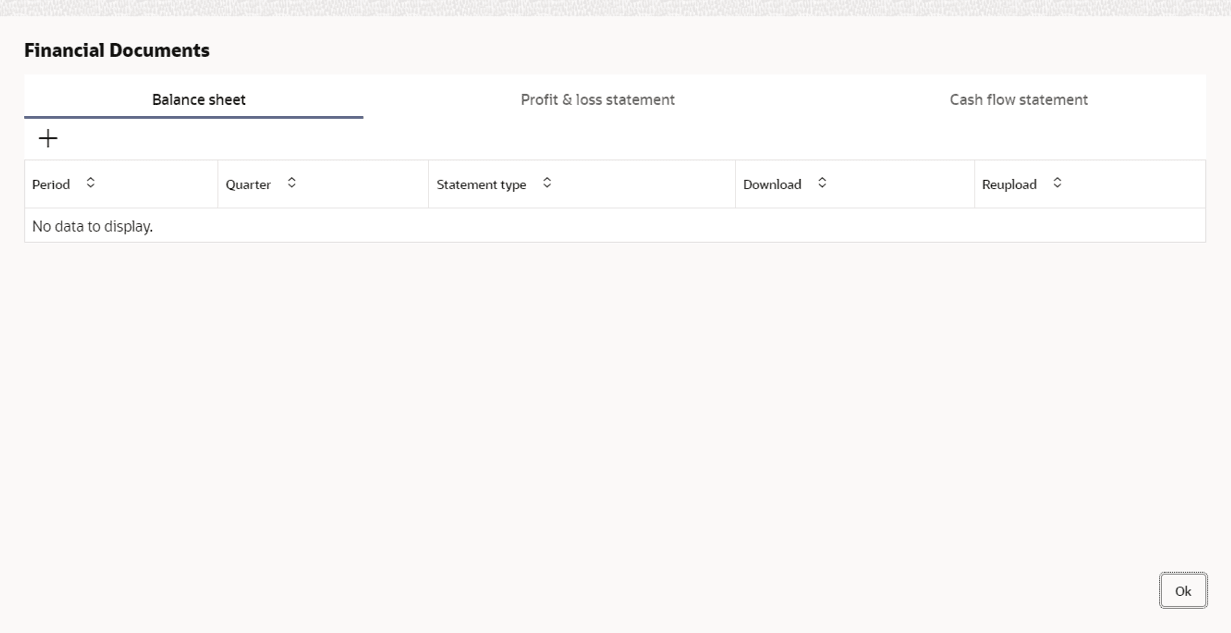
Save Click Save. Party’s financial details are added. - To add financial documents, click Upload Financial Document.The Financial Documents window is displayed.In the Financial Documents window, the user can Add the following documents by clicking respective tabs.
- Balance Sheet
- Profit & Loss Statement
- Cash Flow Statement
Click Add in any of the above tabs, the following window to upload documents is displayed.
For information on fields in the Balance Sheet Details screen, refer the table below.
Table 4-7 Balance Sheet Details
Fields/ Icons Description Period Select Period for which the financial document is to be added. Quarter Select Quarter for which the financial document is to be added. Drop files here or click to select In Drop files here or click to select section, drag and drop or click and upload the financial document. Add Click Add. Document is added. Chart view In the Financial Profile screen, click Chart view icon to change the List view to Chart view.


Projections
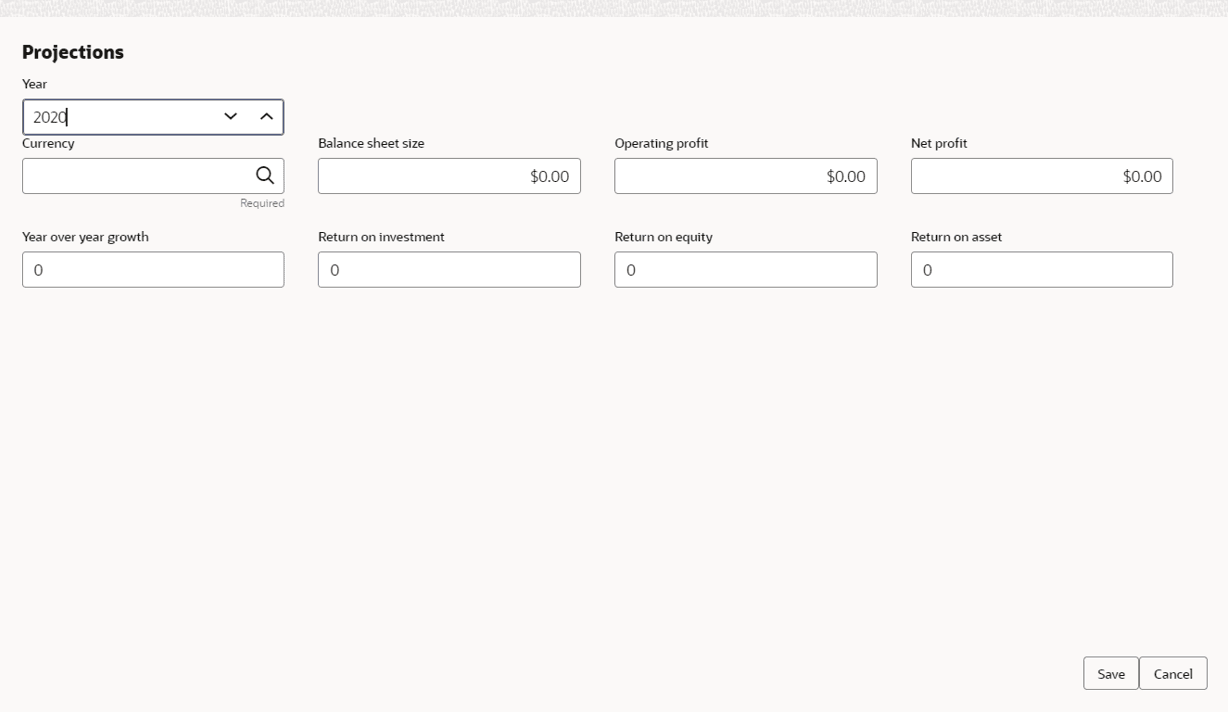
- To Upload / Add projection details, click Projections from the
left menu and then click the Add icon.The Projections window is displayed.
For information on fields in the Projections screen, refer the below table.
Table 4-8 Projections
Fields/ Icons Descriptions Year Specify Year for which the party’s projection details are to be added. Currency Search and select Currency for the projection details. Details Specify the following details in the corresponding fields: - Balance Sheet Size
- Operating Profit
- Net Profit
- Year Over Year Growth
- Return On Investment
- Return On Equity
- Return On Asset
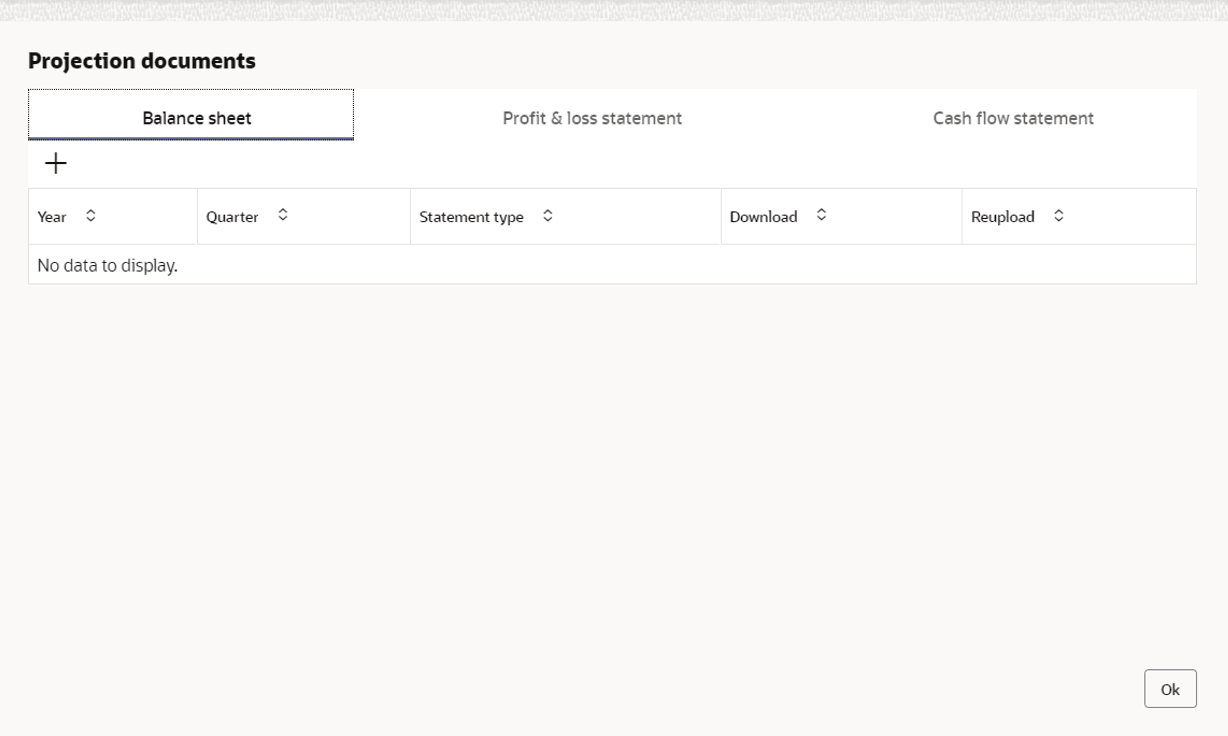
Save Click Save. Party’s projection details are added. - To add projection documents, click Upload Projection Document.The Projection Documents window is displayed.
In the Projection Documents window, the user can Add the following documents by clicking respective tabs.
- Balance Sheet
- Profit & Loss Statement
- Cash Flow Statement
Click + in any of the above tabs, the following window to upload documents is displayed.
For information on fields in the Balance Sheet Details screen, refer the table below.
Table 4-9 Balance Sheet Details
Fields/Icons Description Year Select Year for which the projection document is to be added. Quarter Select Quarter for which the projection document is to be added. Drop files here or click to select In Drop files here or click to select section, drag and drop or click and upload the projection document. Add Click Add. Document is added. Chart view In Business Projection screen, click Chart view icon to change the List view to Chart view. Note:
To Edit, Delete or View the added Projections. Click Action icon in the required list item and select the required option.

Stakeholders
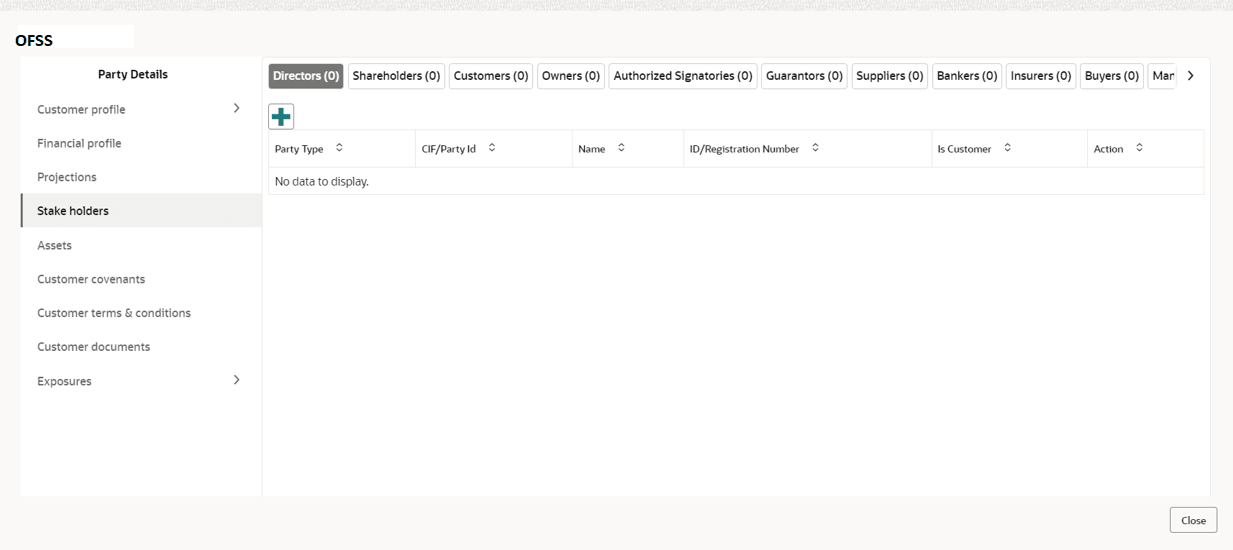
The user can add information about the following stakeholders by clicking the Stakeholders menu:
- Owners
- Authorized Signatories
- Guarantors
- Suppliers
- Bankers
- Insurers
- Buyers
- Management Team
- Sponsors
- Debtors
- Creditors
- Advisor
- Auditors
- Directors
- Contractors
- Shareholders
- Customers
To Add Owners
Click + to add new owners. The Add Owners screen is displayed with following options:- Enter existing CIF/Party Id or
- Select from the recently added stakeholders or
- Click Next to onboard a new stakeholder
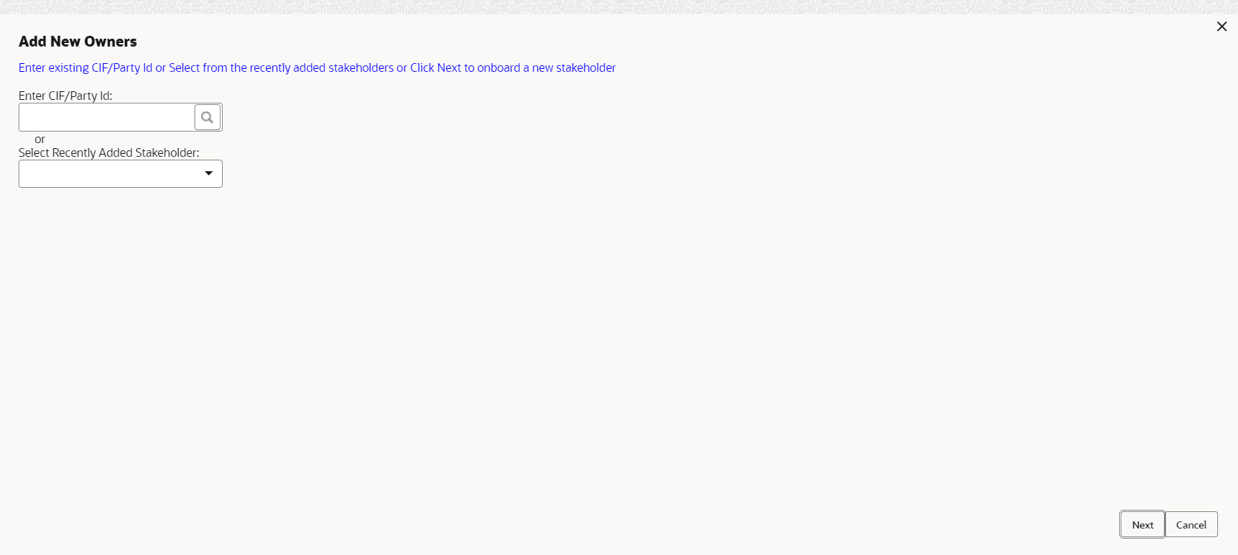
To Enter Existing CIF/Party Id
Specify Enter CIF/Party Id or click search, the Search Party screen is displayed.
Select Individual or Non-Individual check box. Enter the field details or click Fetch. The Stakeholders details are displayed.

Select from the Recently Added Stakeholders
Select Recently Added Stakeholder from the drop-down list.
Select Next to onboard a new stakeholder
Click Next, the Add New Owners screen is displayed. Select Stakeholder Type and enter the field details for the below fields and click Next.- Basic info & Citizenship
- ID Details
- Address


- To add sponsor details, click Sponsors from the left menu and then click
Add.The Sponsors window is displayed.
For information on fields in the Sponsors screen, refer the below table.
Table 4-10 Sponsors
Fields/Icon Description Individual If the sponsor is an Individual, select or type the following sponsor details in the corresponding fields: - Promoter Type (select Individual option)
- Name
- Age
- Experience Summary
- Designation
- Role
- Stake Percentage
- Associated Since
- Education Qualification
Corporate If the sponsor is an Entity, select or type the following sponsor details in the corresponding fields: - Promoter Type (select Corporate option)
- Name
- Stake Percentage
- Associated Since
- Click and expand the Address details section.
Detailed information about the fields in Address details screen refer the table below.
Table 4-11 Address details
Fields/ Icons Description Details Enter or select the following details in the corresponding fields: - House/Building name
- Street
- Locality
- Landmark
- Area
- City
- State
- Zip-Code
- Country
- Email Address
- Phone Number
Add Click Add. Sponsor details are added. Note:
To Edit, Delete or View the added Sponsors. Click Action icon in the required list item and select the required option.Note:
For information on adding Share holders, Directors, Management Team, Bankers, Guarantors, Party's, and Suppliers detail, refer Economic Dependency Analysis User Manual.

Assets
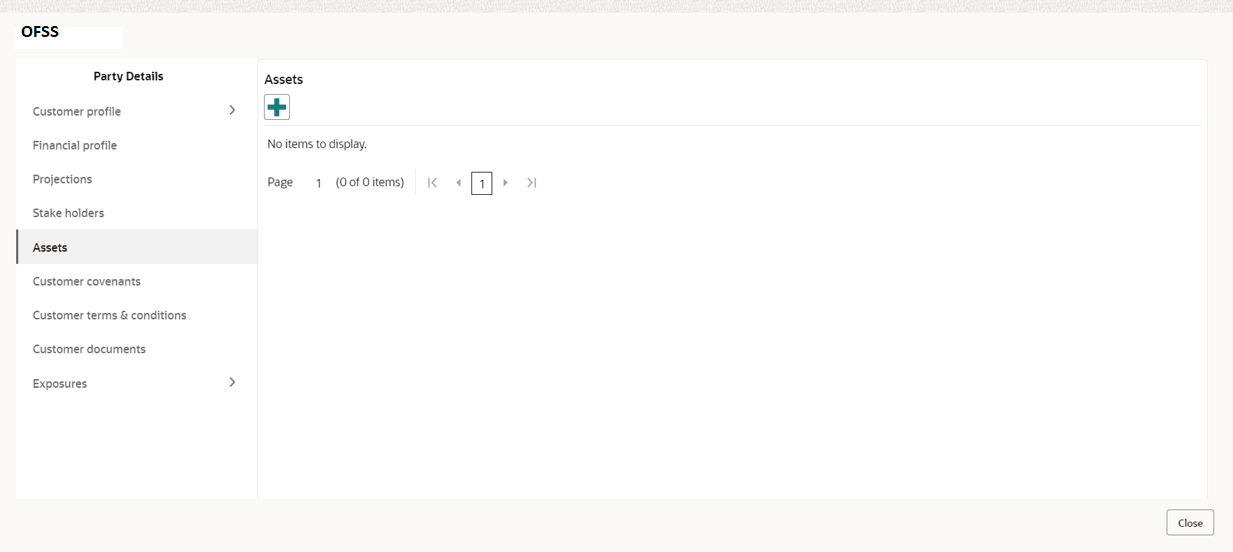
- To add asset details, click Assets from the left menu and then click
Add.The Assets window is displayed.
Figure 4-30 Add Assets Details

For information on fields in the Assets screen, refer the table below.
Table 4-12 Assets
Fields/Icon Description Name Enter Name of the Asset. Value Specify the asset Value and select currency from the drop-down list. Description Enter Description of the Asset. Save Click Save. Asset details are added. Note:
To Edit, Delete or View the added Assets. Click Action icon in the required list item and select the required option.Customer Covenants
Refer Covenants Details section for information on adding and managing covenants for the party.
Customer Conditions
Refer Conditions section for information to configure conditions for the party.
Customer Documents
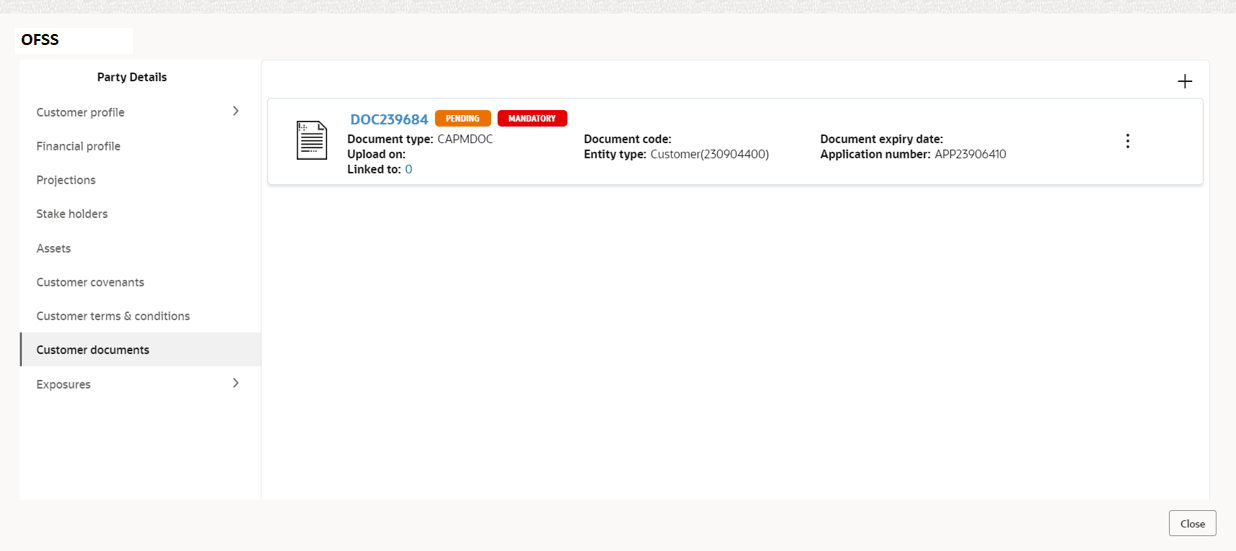
- To add party documents, click Customer Documents from the left menu and
then click Add New Documents. Enter the fields in Document page
and click Upload.The Customer Documents window is displayed below.
Exposures
Table 4-13 Exposures
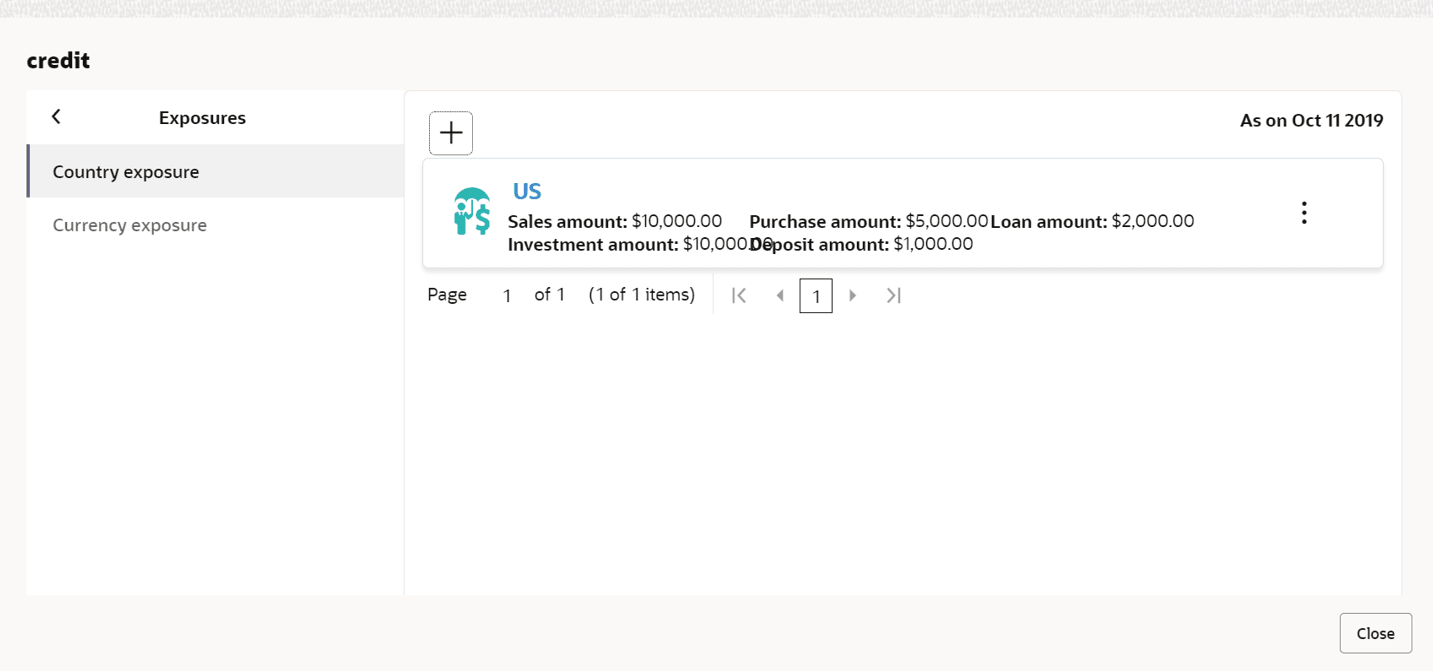
Fields/ Icons Description Exposures To add the exposure details of the entity, click Exposures in the left menu. The Country Exposure and Currency Exposure sub-menus are displayed. Country exposure Click Country exposure and then click the add icon. The Country Dependency Details window is displayed. Search and select the Country and its Currency.
Country Wise Data
For information on fields in the Country Wise Data screen, refer the table below.
Table 4-14 Country Wise Data
Fields/Icon Description Country and Currency Search and select Country and its Currency. Sales Specify amount of Sales recorded in the selected country. Purchase Specify amount of Purchase made from the selected country. Investments Specify amount of Investments made in the selected country. Loans Specify amount of Loans received from the selected country. Deposits Specify amount of Deposits made in the selected country. Country Wise Business Operations
Figure 4-34 Country Wise Business Operations
For field level information refer the table below.
Table 4-15 Country Wise Business Operations
Fields/Icon Description Market Share Percentage Specify entity’s Market Share Percentage in selected country. Presence for Years Specify entity’s Presence for Years in selected county. Major Products Sold Specify Major Products Sold by the entity in the selected country. Associated Since Specify date on which association between entity and selected country is established in the Associated Since field. Sales Breakup
In this section, the user must add details of all the entity’s party in the selected country.
Click +. The Sales Breakup window is displayed.
For information on fields in the Sales Breakup screen, refer the table below.
Table 4-16 Sales Breakup
Fields/Icon Description Customer Specify Customer of the entity. Sales Amount Specify Sales Amount recorded for the specified party. Percentage of Total Sales Specify Percentage of Total Sales recorded for the specified party. Major Product Sold Specify Major Product Sold to the specified party. Debtor Days Specify Debtor Days for the specified party. Associated Since In the Associated Since field, search and select the date on which association between the entity and its party is established. Country Search and select Country for the specified party. Save Click Save. Sales breakup is added and displayed in the Sales Breakup section. Edit or Delete To Edit or Delete the added sales breakup, select the record and click the respective icon.



Purchase Breakup
In this section, the user must capture details of all the entity’s suppliers in the selected country.
Click + icon. The Purchase Breakup window is displayed.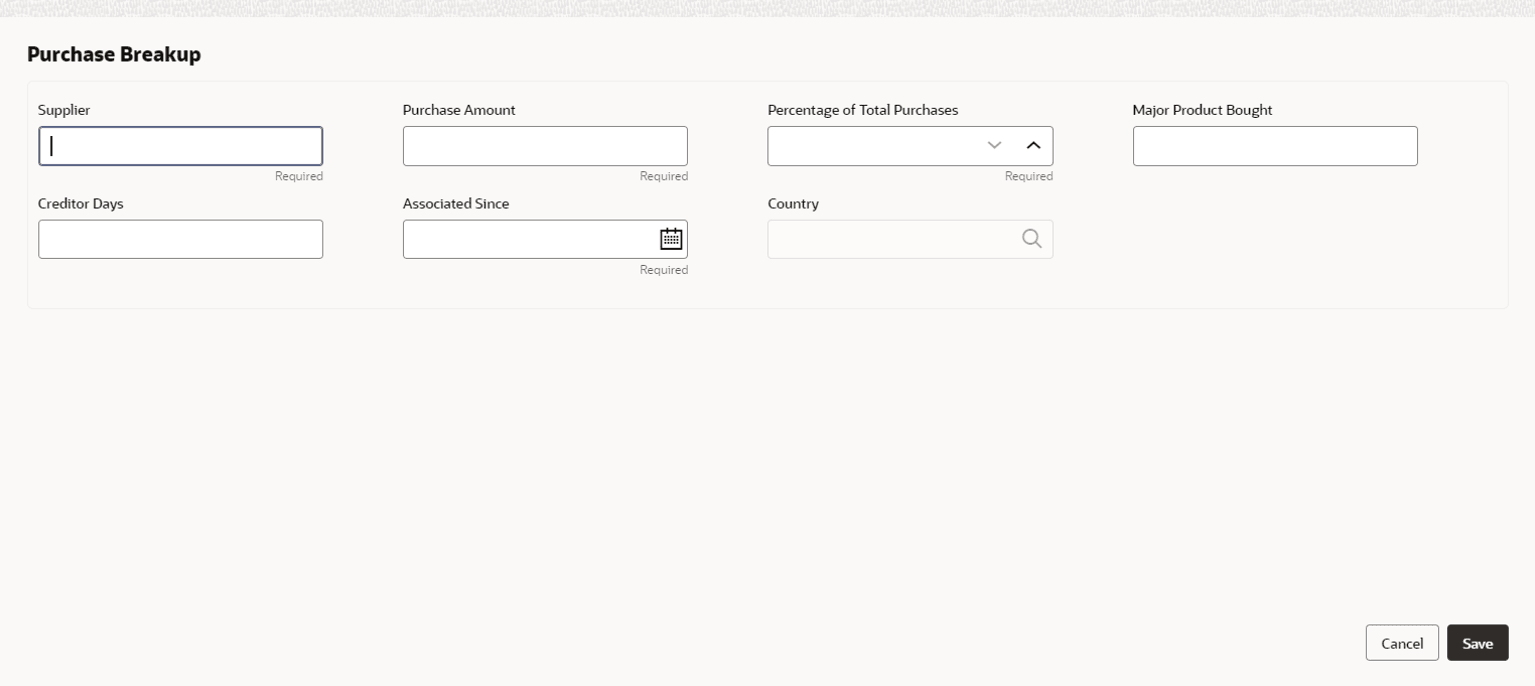
For information on fields in the Purchase Breakup screen, refer the table below.
Table 4-17 Purchase Breakup
| Fields/Icons | Description |
|---|---|
| Supplier | Specify the name of Supplier. |
| Purchase Amount | In the Purchase Amount field, specify the amount of products or services purchased by the entity from the supplier. |
| Percentage of Total Purchases | Specify Percentage of Total Purchases from the supplier. |
| Major Product Bought | Specify Major Product Bought by the entity from the supplier. |
| Creditor Days | Specify Creditor Days for the supplier. |
| Associated Since | In the Associated Since field, search and select the date on which association between the entity and its supplier is established. |
| Country | Search and select Country. |
| Save | Click Save. Purchase breakup is added and displayed in the Purchase Breakup section. |
| Edit or Delete | To Edit or Delete the added purchase breakup, select the record and click the respective icon. |
- In the Country Dependency Details window, click Save. The details
are added and displayed in Exposures screen.
- To capture the currency dependency details, click the Currency Exposure
sub menu.The Currency Dependency Details window is displayed.
For information on fields in the Currency details screen, refer the table below.
Table 4-18 Currency details
Fields/Icon Description Currency Search and select Currency. Sales Amount Specify your party's Sales Amount in the selected currency. Sales Percentage Specify your party's Sales Percentage with respect to the selected currency. Purchase Amount Specify your party's Purchase Amount in the selected currency. Purchase Percentage Specify your party's Purchase Percentage with respect to the selected currency. Loan Amount Specify the Loan Amount availed by your party in the selected currency. Loan Percentage Specify your party's Loan Percentage with respect to the selected currency. Investment Amount Specify your party's Investment Amount in the selected currency. Investment Percentage Specify your party's Investment Percentage with respect to the selected currency. Deposit Amount In the Deposit Amount field, specify the amount deposited by your party in the selected currency. Deposit Percentage In the Deposit Percentage field, specify the percentage of amount deposited by your party in the selected currency. Hedging Details
For information on fields in the Hedging Details screen, refer the table below.
Table 4-19 Hedging Details
Fields/ Icons Description Credit Outstanding Specify Credit Outstanding amount in the selected currency. Debit Outstanding Specify Debit Outstanding amount in the selected currency. Variance On entering the Credit and Debit Outstanding amounts, the system calculates and displays the Variance. Hedging required Enable Hedging required option, if hedging is required. Future Currency Requirement - Loan Repayment
Figure 4-41 Future Currency Requirement - Loan Repayment
For information on fields in the Future Currency Requirement - Loan Repayment screen, refer the below table.
Table 4-20 Future Currency Requirement - Loan Repayment
Fields/ Icons Descriptions Outstanding Loan Amount Specify your party's Outstanding Loan Amount in selected currency. Repayment in Current Year In the Repayment in Current Year field, specify the loan amount to be repaid in the current year. Repayment in Next 3 Years In the Repayment in Next 3 Years field, specify the loan amount to be repaid in next three years. Future Currency Requirement - Creditor Payment
Figure 4-42 Future Currency Requirement - Creditor Payment
For information on fields in the Future Currency Requirement - Creditor Payment screen, refer the table below.
Table 4-21 Future Currency Requirement - Creditor Payment
Fields/Icon Description Outstanding Amount Specify Outstanding Amount to be paid by your party to their creditor in selected currency. 0-30 days Specify outstanding amount to be paid in 0-30 days. 30-60 days Specify outstanding amount to be paid in 30-60 days. 60-90 days Specify outstanding amount to be paid in 60-90 days. 90-120 days Specify outstanding amount to be paid in 90-120 days. 120-150 days Specify outstanding amount to be paid in 120-150 days. 150-180 days Specify outstanding amount to be paid in 150-180 days. More than 180 days Specify outstanding amount to be paid after 180 days in the More than 180 days field. Future currency credit - Debtor payment
Figure 4-43 Future currency credit - Debtor payment
For information on fields in the Future currency credit - Debtor payment screen, refer the table below.
Table 4-22 Future currency credit - Debtor payment
Fields/Icon Description Outstanding Amount Specify Outstanding Amount to be paid by your party's debtor in the selected currency. 0-30 days Specify outstanding amount to be received in 0-30 days. 30-60 days Specify outstanding amount to be received in 30-60 days. 60-90 days Specify outstanding amount to be received in 60-90 days. 90-120 days Specify outstanding amount to be received in 90-120 days. 120-150 days Specify outstanding amount to be received in 120-150 days. 150-180 days Specify outstanding amount to be received in 150-180 days. More than 180 days Specify outstanding amount to be received after 180 days in the More than 180 days field. Future Currency Credit - Interests
Figure 4-44 Future Currency Credit - Interest
For information on fields in the Future Currency Credit - Interest screen, refer the table below.
Table 4-23 Future Currency Credit - Interest
Fields/Icon Description Investment amount interests In the Investment amount interests field, specify the interest to be received for the amount invested in selected currency. Interest expected in current year In the Interest expected in current year field, specify the interest to be received in the Current year. Interest expected in next 3 years In the Interest expected in next 3 years field, specify the interest to be received in the next 3 Years. Save Click Save in the Currency Dependency Details window. The details are saved and displayed in Currency Dependency Details page. Edit, Delete and View To Edit, Delete and View the added currency exposure details, select the record and click the respective icons or click the Hamburger icon and select the corresponding option. OK Click OK in the Party Details window. Next To go to the next page, click Next. The Write up page is displayed.




Parent topic: Proposal Enrichment