3.4.4 Configuring Facility Category
Configuring Facility Category:
- To add Facility Category related policy, click Facility Category from
the left menu and then click + icon. Facility Category window is
displayed:
For information on fields in the Facility Category screen, refer the below table.
Table 3-6 Facility Category
Fields/ Icons Description Facility Category Select Facility Category from the drop-down list. Currency Search and select Currency in which the facility can be utilized. Minimum Amount and Maximum Amount Specify Minimum Amount and Maximum Amount for the selected Facility Category. In the Facility Category window, the following dimensions can be defined for a Facility Category:- Currency
- Covenants
- Terms & Conditions
- Documents
- Pricing
- To add Currency in which the Facility Category can be offered, click
+ icon. Add Currency window is displayed.
For information on fields in the Add Currency screen, refer the below table.
Table 3-7 Add Currency
Fields/ Icons Description Currency Search and select Currency. Save Click Save. Currency is added and listed in Facility Category window. - To capture covenant details for the Facility Category, click the Covenants tab
in Facility Category window and then click + icon. Covenant
Details window is displayed to add covenant.
For information on fields in the Add Covenant screen, refer the below table.
Table 3-8 Add Covenant
Fields/ Icons Description Covenant Details Search and Select Covenant Details from the list of already created and maintained covenants. The following details associated with the covenants are automatically fetched and displayed in the Covenant Details window. - Covenant Name
- Classification Type
- Covenant Type
- Frequency
- Notice Days
- Covenant Description
Is Waivable? Enable Is Waivable? check box, if waive off option is allowed for the covenant. Target Condition Select Target Condition from drop-down list. The following options are available: - Between
- Equal to
- Greater than
- Greater than or equal to
- Less than
- Less than or equal to
Note: This field is available only for Covenant Type selected as Financial. For Covenant Type, selected as Non-Financial it is not available. For more information refer Configuring Customer Covenants Section.
Target Value Enter Target Value. Note: This field is available only for Covenant Type selected as Financial. For Covenant Type, selected as Non-Financialit is not available. For more information refer Configuring Customer Covenants Section.
Comments Enter Comments to help Approvers in making quick decision. Add Click Add. Covenant Details are added and displayed in Facility Category window. - To add the terms and conditions for Facility Category, click Terms &
Conditions tab in Facility Category window and then click
+ icon. Terms & Conditions window is displayed.
For information on fields in the Add Terms & Conditions screen, refer the below table.
Table 3-9 Add Terms & Conditions
Fields/ Icons Description Condition Code Select Condition Code from the drop-down list. Condition Description is displayed based on the selected condition code. The options available in Condition Code are: - Interest Repayment
- Annual Fees Charges
- Others
Terms And Conditions Type Select Terms And Conditions Type from the drop-down list. The options available are: - Pre-Disbursement
- Post-Disbursement.
Is Waivable? Enable Is Waivable? check box, if waive off option is allowed for the terms and conditions. Comments Enter Comments to help Approvers in making quick decision. Save Click Save. Terms and conditions are added and displayed in the Facility Category window. - To add document details, click the Documents tab in the Facility
Category window and then click + icon. Document Details
screen is displayed.
For information on fields in the Document Details screen, refer the below table.
Table 3-10 Documents
Fields/ Icons Description Document Details Select Document Details from the drop-down list. The options available are: - Appetite Documents
- Application Form
- Legal Agreement Document
- Collateral De-Registration Acknowledgment
- Collateral De-Registration Form
- Collateral Particulars
- Collateral Documents
- Collateral Release Document
- Collateral External Check Documents
- Collateral Evaluation Documents
- External Legal Opinion Document
- Collateral Field Investigation Documents
- Collateral Hypothecation Documents
- Collateral Invoice Documents
Is Mandatory? Enable Is Mandatory? check box, if required. Add Click Add. Document Details are added and displayed in Facility Category window. - To add pricing details for the Facility Category, click Pricing tab in
Facility Category window and then click + icon. Pricing
Details is displayed.
In Pricing Details window, policy related to Charge, Interest, and Commission can be defined for any Currency, Charge Code and Charge Type.
- To add Charge related policy, click Add icon. Charge
Details window is displayed.
For information on fields in the Charge Details screen, refer the below table.
Table 3-11 Charge Details
Fields/Icons Description Currency Search and fetch Currency for associating the Charge Details. Minimum Spread (%) and Maximum Spread (%) Specify Minimum Spread (%) and Maximum Spread (%). The spread mentioned while adding charge in any credit process will be validated with respect to this Minimum Spread and Maximum Spread. Charge Code Select Charge Code from the drop-down list. The following charge code are available: - Documentation Charge
- Legal Charge
- Non-Utilization Charge
- Risk Charge
Minimum Charge Amount and Maximum Charge Amount Specify Minimum Charge Amount and Maximum Charge Amount. Is Charge Waivable Enable Is Charge Waivable check box, if waver can be availed according to this policy. Charge Type Enter Charge Type. - Click Add. Charge is added and listed as shown below:
- To add Interest related policy, click Interest tab and then click
Add icon. Interest Details window is displayed.
For field level information Interest Details screen, refer the below table.
Table 3-12 Interest Details
Fields/Icons Description Component Type Select Component Type and Rate Type from the drop- down list. The following component type are available:- Main Interest
- Penalty Interest
- Prepayment
The following rate type are available:
- Fixed
- Floating
- Special Amount
Rate Type If Rate Type is selected as Fixed, then Fixed Interest Rate Details must be added. - Click Add icon. Fixed Interest Rate Details window is
displayed.
For field level information Fixed Interest Rate Details screen, refer the below table.
Table 3-13 Fixed Interest Rate Details
Fields/Icons Description Currency Search and fetch Currency for the interest. Fixed Interest Rate Specify Fixed Interest Rate. - Click Add. Fixed Interest Rate Details are added and displayed as shown
below:
If Rate Type is selected as Floating, then Interest Details window is displayed as shown below:
For field level information Interest Details screen, refer the below table.
Table 3-14 Interest Details
Fields/Icons Description Rate Code Select Rate Code. The options available are: - LIBOR
- SIBOR
Interest Rest Cycle Select Interest Rest Cycle. The options available are: - Auto
- Half-Yearly
- Monthly
- Quarterly
- Click + icon. Spread Details window displayed.
For field level information Spread Details screen, refer the below table.
Table 3-15 Spread Details
Fields/Icons Description Currency Search and fetch Currency for the Spread. Spread Specify Spread. - Click Add. Spread details are added and displayed as shown below:
If Rate Type is selected as Special Amount, then Interest Details window displayed as shown below:
For field level information Interest Details screen, refer the below table.
Table 3-16 Interest Details
Fields/Icons Description Currency Search and fetch Currency for the Special Interest Amount. Special Interest Amount Specify Special Interest Amount. Click Add. Interest Details are added and displayed in Pricing Details window as shown below:
- To add commission related policy, click Commission tab. Commission
Details window is displayed.
For field level information Commission Details screen, refer the below table.
Table 3-17 Commission Details
Fields/Icons Description Commission Details Select details for the following fields from the drop-down list: - Rate Type
- Rate Basis
- Commission Type
- Commission Period
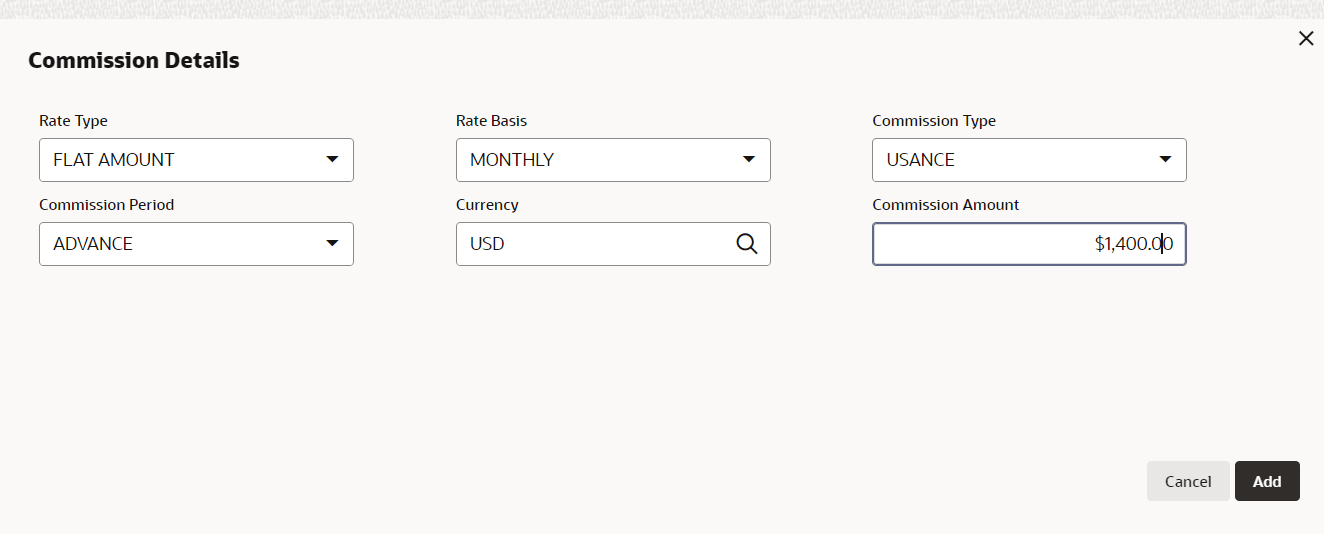
Rate Type If Rate Type is selected as FIXED RATE, specify Minimum Commission Amount and then click Add icon to capture Commission Rate. - If Rate Type is selected as FLAT AMOUNT, Commission
Details window displayed as shown below:
For information on fields in the Commission Details screen, refer the below table.
Table 3-18 Commission Details
Fields/ Icons Description Currency Search and select Currency for the Commission Amount. Commission Amount Specify Commission Amount. Delete To delete the pricing detail, select the pricing and click Delete icon. - Click Add. Commission Details are added and displayed in Pricing
Details window as shown below:




Parent topic: Policy Definition