3.4.7 Configuring Assessment Details
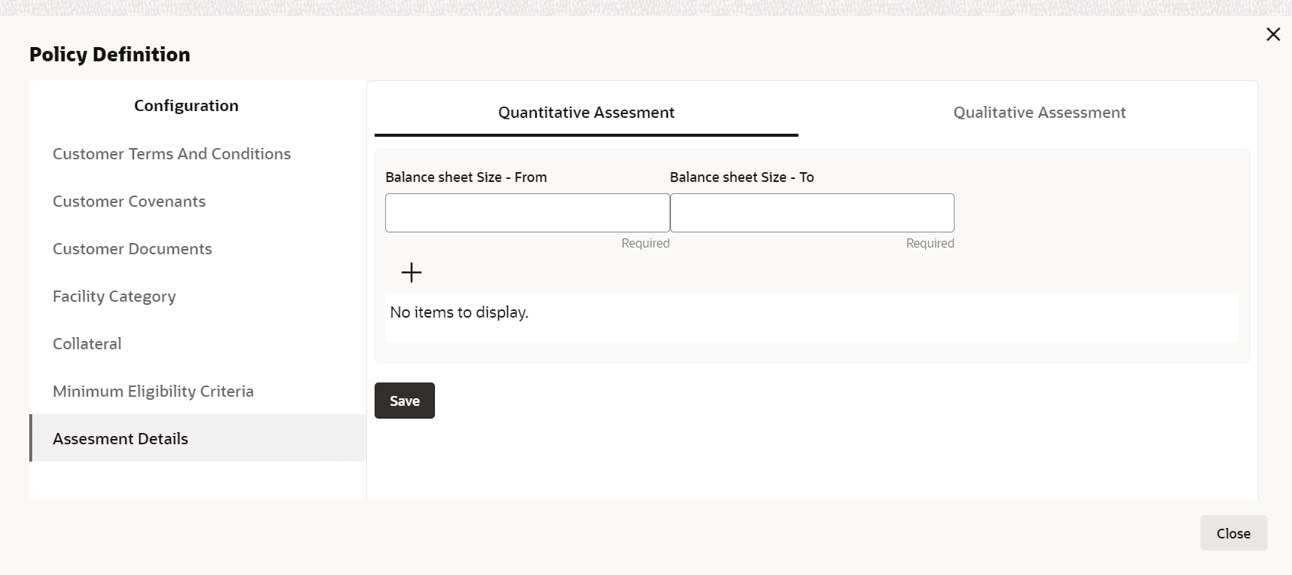
- Click Assessment Details from the left menu. Assessment window is displayed.
- Click Quantitative Assessment tab.
For information on adding Quantitative Assessment fields screen, refer the below table
Table 3-21 Quantitative Assessment
Fields/Icons Description Balance sheet Size - From and Balance sheet Size - To Specify the balance sheet size requirement in Balance sheet Size - From and Balance sheet Size - To fields, respectively. - To capture Benchmark Details, click + icon.
Benchmark Details window is displayed.
For information on fields in the Benchmark Details screen, refer the below table.
Table 3-22 Benchmark Details
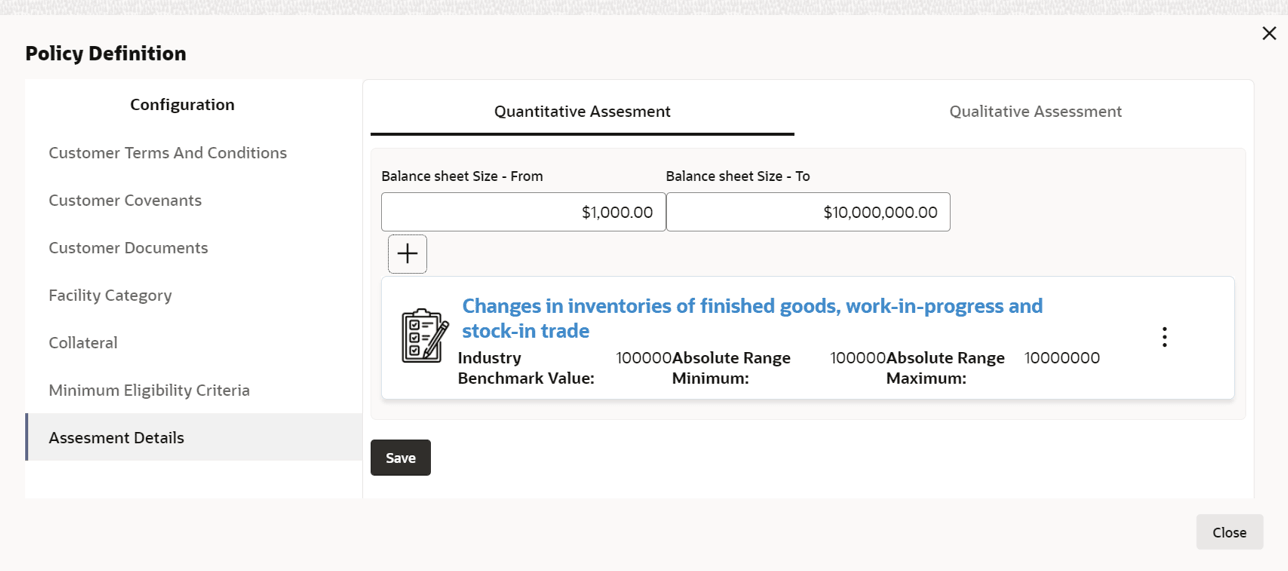
Fields/ Icons Description Financial Code Search and select Financial Code. Financial Description details is displayed based on the selected financial code. The list of financial codes will be displayed on basis of financial code maintenance done in OBCFPM. Industry Benchmark Value Specify Industry Benchmark Value. Absolute Range Minimum and Absolute Range Maximum Specify the allowed Benchmark range in Absolute Range Minimum and Absolute Range Maximum fields. Target Condition Specify Benchmark Target Condition by selecting options available in Target Condition. The available options are: - <
- >
- =
- Between
Note:
If Between is selected as Target Condition, From Benchmark Value and To Benchmark Value will be displayed instead of Bank Benchmark Value. Enter the details.
Click Add. Quantitative Assessment details are displayed as shown below:
For information on adding Questionnaire Linkage Details fields screen, refer the below table.
Table 3-23 Quantitative Assessment Details
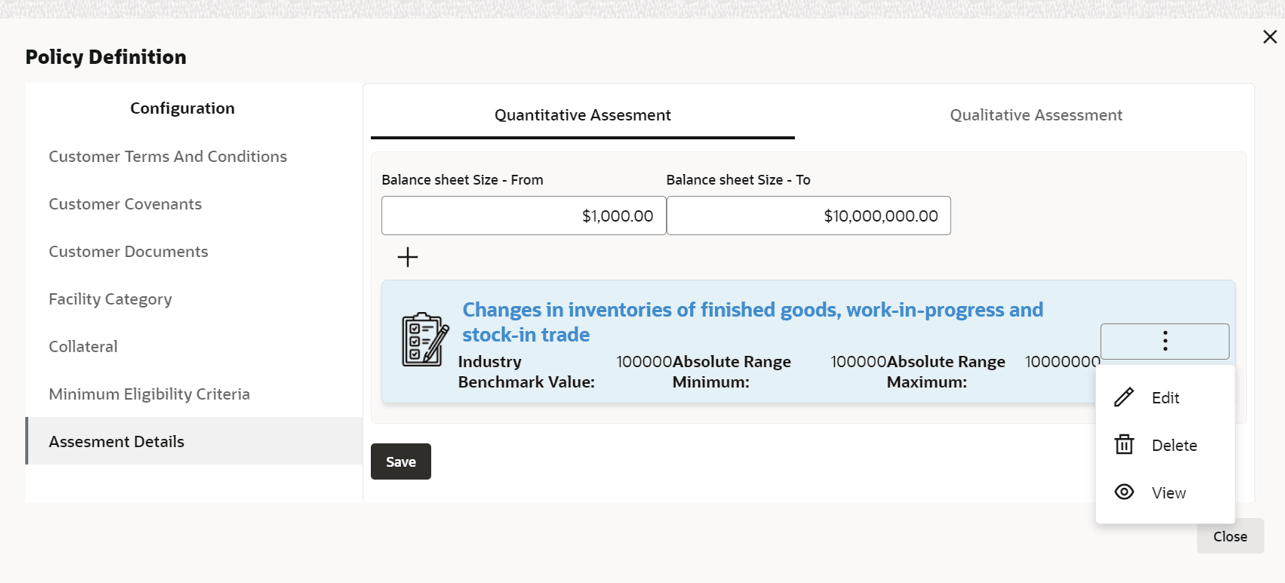
Fields/Icons Description Benchmark Details To add another Benchmark Details, click + icon again and perform the necessary steps. Edit Click Edit, to modify the entered details. Delete Click Delete, to delete the entered details. View Click View, to delete the entered details. Note:
In Quantitative Analysis of CP applications the ratio will be populated for only those Financial codes which meet the below three requirements:- Financial code Maintained as part of Financial Code Maintenance.
- Financial Code added as part of table CFPM_TM_FINANCIAL_RATIO with formula defined. Factory shipped 14 financial codes are included in this table. Any new financial code which needs to be considered for scoring should be added into this table.
- Financial code added as part of Policy definition quantitative assessment details.
- Click Qualitative Assessment tab. Questionnaire Linkage Details
window is displayed.
For information on adding Questionnaire Linkage Details fields screen, refer the below table.
Table 3-24 Questionnaire Linkage Details
Fields/Icons Description Category Code Select the Category Code from the drop-down list. The available options are: - Other Analysis
- Shareholder Analysis
- Guarantor Analysis
- Banker Analysis
- Currency Analysis
- Country Analysis
- Advisors Analysis
- Insurance Analysis
- Management Team Analysis
- Directors Analysis
- Supplier Analysis
- Legal Evaluation
- Risk Evaluation
- Economic Conduct
- Economic domestic Conduct
- Geographic Expansion
- Financial Performance
- Speeding Trends
- Government Support
- Bank Obligations
- Industrial Performance
- Qualitative Analysis
- Sector Analysis
- Creditor Analysis
- Qualitative Analysis
- Debtor Analysis
- Customer Analysis
- Contractor Analysis
- KYC
- Loan Account Analysis
- Trading Operations Analysis
- Rating Analysis
- Market Share Analysis
- External Credit Scoring Analysis
- Peer Analysis
This list will be populated based on the Questionnaire maintained as part of OBCFPM.
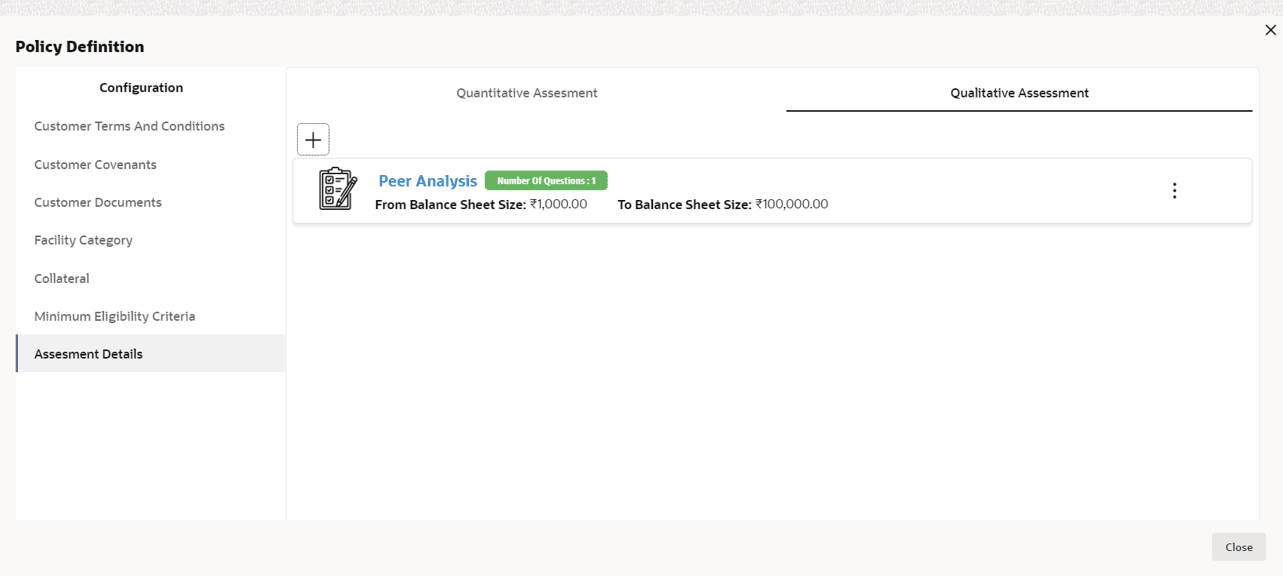
From Balance Sheet Size and To Balance Sheet Size Specify the balance sheet size requirement in From Balance Sheet Size and To Balance Sheet Size fields. In Question Linkage sections, already maintained question details are listed.
- Click View icon in Actions column. Question Details window
is displayed.
For information on adding Question Details fields screen, refer the below table.
Table 3-25 Question Details
Fields/Icons Description Done View the details and click Done. Remove To remove the question, click Remove icon in the Action column. - Click Add. Assessment details are added as shown below:
For information on adding Assessment details screen, refer the below table.
Table 3-26 Assessment details
Fields/Icons Description Save To save the overall configuration details, click Save. Policy Definition page is displayed. Next Define policy for the sub sector and all the sub industries, and then click Next. Policy Summary page is displayed. Default Fields
The Questionnaire set as part of Qualitative Assessment section will get defaulted in the CP processes and the Financial codes defined for Quantitative Assessment will get defaulted in the CP transactions.- under Assessment Details under Qualitative Assessment Questionnaire will get defaulted in Credit application
- under Assessment Details under Quantitative Assessment Financial Codes will get defaulted in Credit application



Parent topic: Policy Definition