29.3 Transaction Code Logo Maintenance - Edit
This topic describes the systematic instruction to Transaction Code Logo Maintenance - Edit option.
Using this option, the System Administrator can update or edit an existing
transaction code–logo mapping by modifying the associated transaction details or logo.
All changes are submitted for approval before being applied.
To edit a transaction code–logo mapping:
- Perform anyone of the following actions:
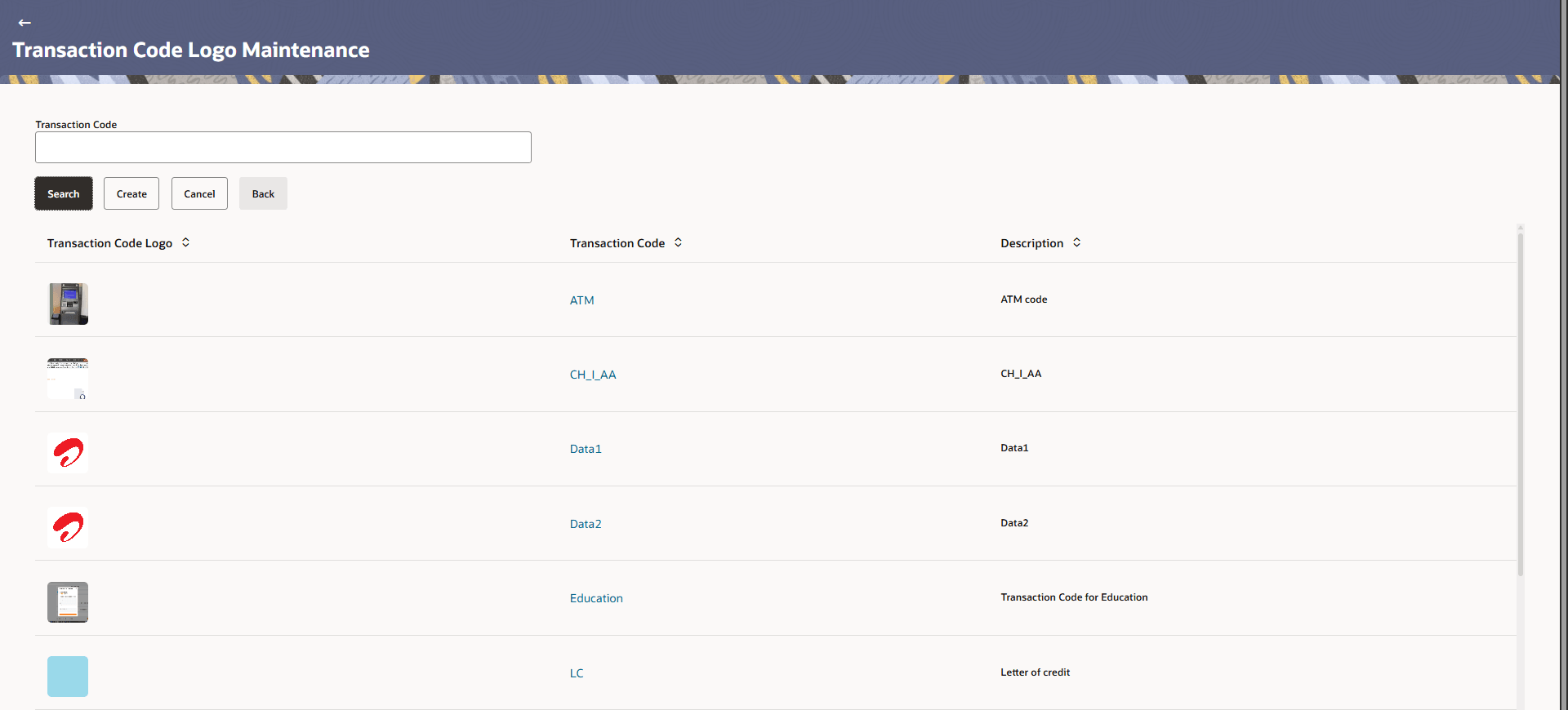
- The Transaction Code Logo Maintenance - Edit screen appears. Click Search. Displays the Transaction Code Logo Maintenance screen with search results appears based on the searched criteria.
- Click Cancel to cancel the search process.
- Click Clear to reset the search parameters.
Figure 29-4 Transaction Code Logo Maintenance - Search
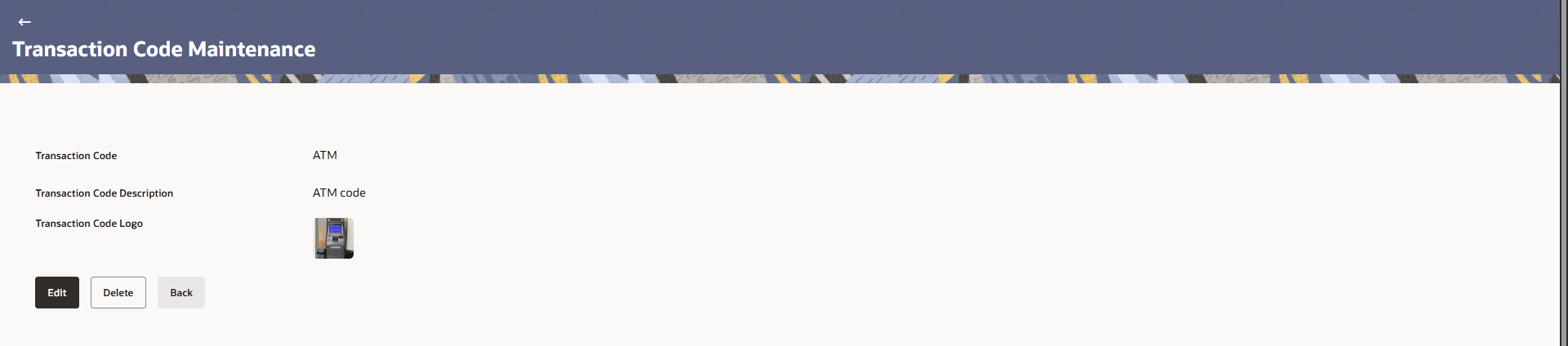
- Click the Transaction Code link of the record to view
the transaction code details.The Transaction Code Logo Maintenance - View screen appears.
Figure 29-5 Transaction Code Logo Maintenance - View
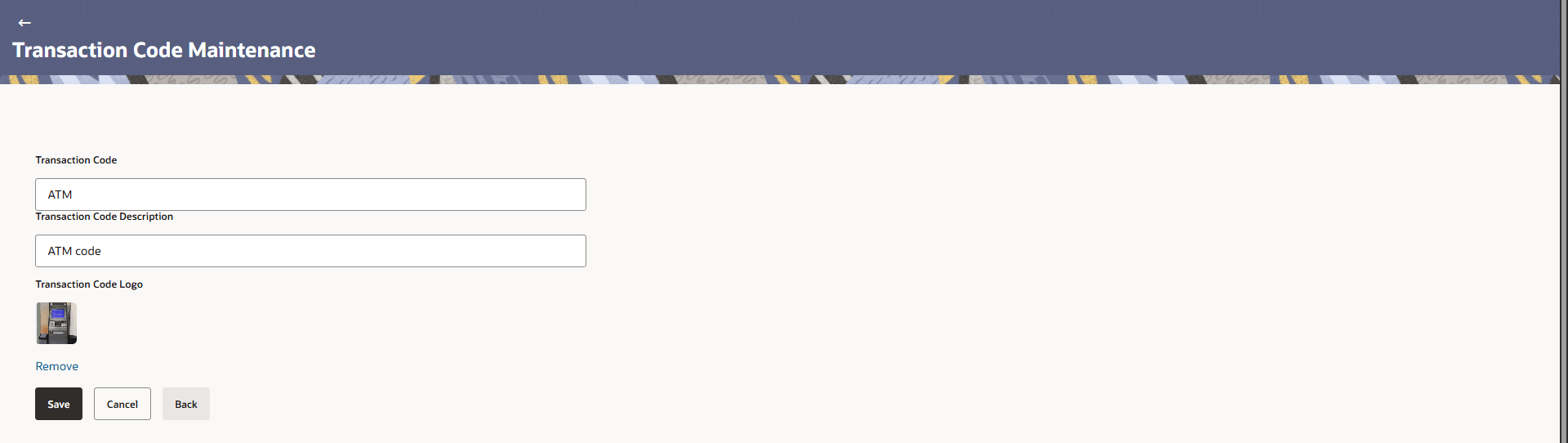
- Click Edit to add or remove the transactions from the
transaction code.The Transaction Code Logo Maintenance - Edit screen appears.
Figure 29-6 Transaction Code Logo Maintenance - Edit
Parent topic: Transaction Code Logo Maintenance