22.4 Initiate Islamic Outward Guarantee/Stand By LC - Outward Guarantee Details
This topic provides the systematic instructions to initiate an Outward Guarantee/Stand By LC - Outward Guarantee Details in the application.
Outward Guarantee Details tab captures the general details of the Outward Guarantee application process.
To initiate an Outward Guarantee/Stand By LC:
- On Initiate Islamic Outward Guarantee/Stand By LC screen, then
click Initiate Outward Guarantee. The Initiate Outward Guarantee/Stand By LC - Outward Guarantee Details screen appears.
Figure 22-6 Initiate Outward Guarantee/Stand By LC - Outward Guarantee Details
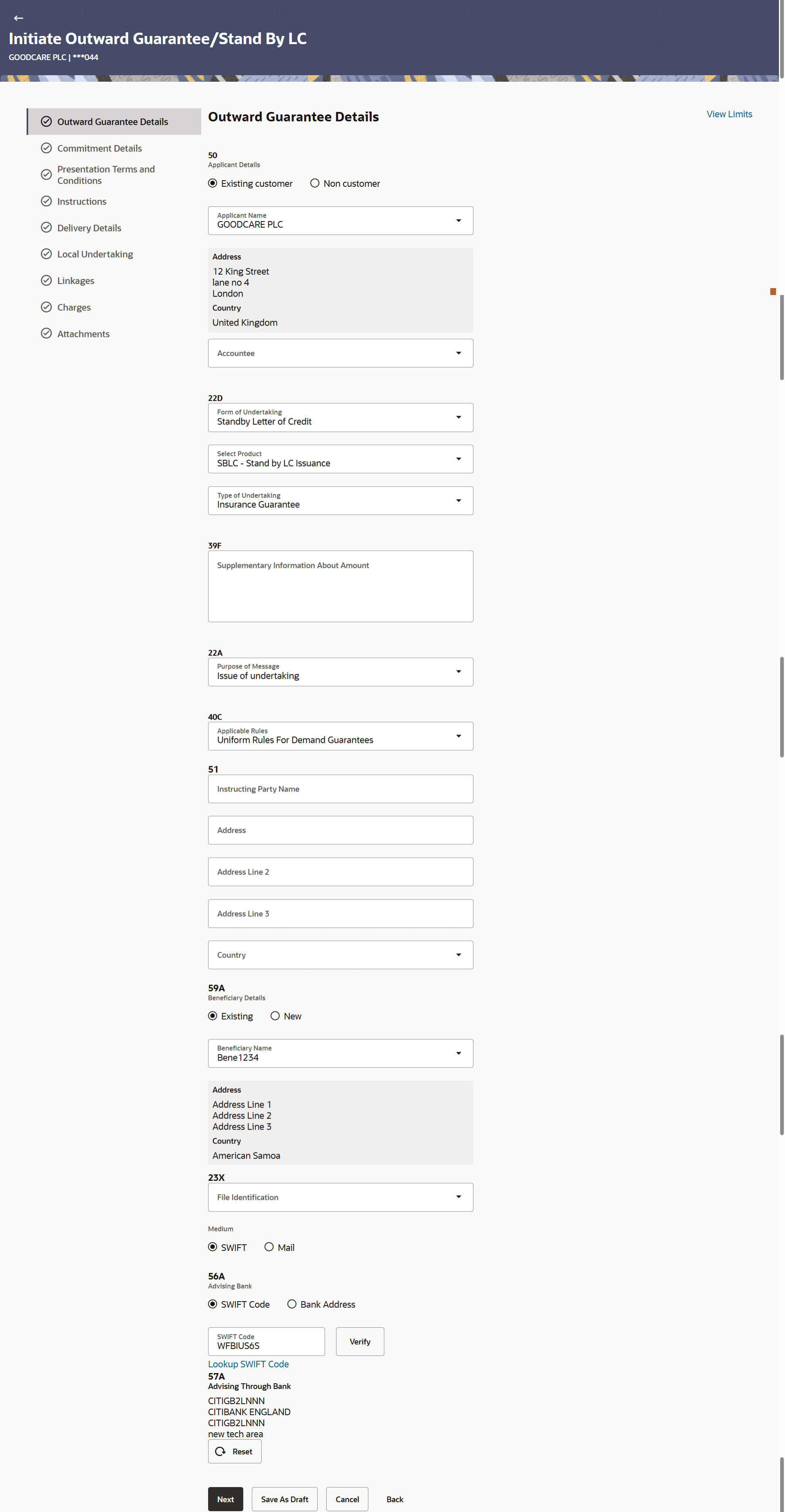
Description of the illustration initiate-outward-guarantee-stand-lc-outward-guarantee-details.pngNote:
The fields which are marked as Required are manadatory.For more information refer to the field description table below:
Table 22-5 Initiate Islamic Outward Guarantee/Stand By LC - Outward Guarantee Details - Field Description
Field Name Description Party Name Displays the name of the applicant. Party ID Displays the party Id of the customer which has access to creating guarantee. Applicant Details Select whether the Applicant is an Existing Customer or a Non Customer. The options are:
- Existing customer
- Non customer
Applicant Name Select the LC applicant name based on the selected party ID. This field is drop-down and allows the user to select the Applicant name for Existing customer option.
This field is input field, if Non customer option is selected in Applicant Details field.Address Displays the LC applicant address. This field is input field, if Non customer option is selected in Applicant Details field.
Country Indicates the country of the applicant. This field is drop-down field, if Non customer option is selected in Applicant Details field.
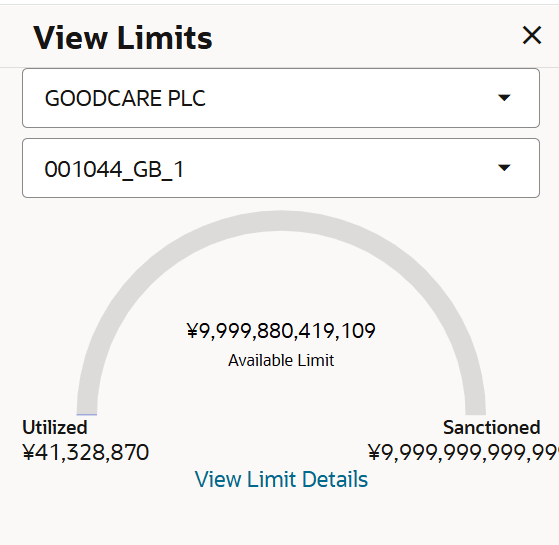
View Limits Indicates the available limits for applicant under the selected Line. The limit details are also represented in a graphical manner with available, sanctioned and utilized limit details for the users.
View Limit Details Click the link to open the Facility Summary screen. Accountee Name Select from the list of all accountees mapped to a party. Address Displays the accountee's address. Country Displays the country of the accountee. Form of Undertaking Select the form of Undertaking. The form of documentary credit are:
- Demand Guarantee
- Standby Letter of Credit
Select Product Select the product type as coming from Host. The values in the drop-down is listed according to the value selected in the Form of Undertaking field.
Type of Undertaking Select the type of Undertaking. The options are:
- Advance Payment Guarantee
- Bill of Lading Guarantee
- Customs Guarantee
- Direct Pay Guarantee
- Insurance Guarantee
- Judicial Guarantee
- Lease Guarantee
- Other Guarantee
- Payment Guarantee
- Performance Guarantee
- Retention Guarantee
- Shipping Guarantee
- Tender Guarantee
- Warranty/ Maintenance
Narrative Specify the narrative.
This field is displayed if Other Guarantee is selected from Type of Undertaking list.Supplementary Information About Amount The additional information about amount, if any.
The details of the obligator/ Concerning party for the Outward Guarantee, and information for the undertaking such as interests, tolerances. +/- Tolerances to be specified as 2n/2n format.Purpose of Message Indicates the purpose of message.
The options are:
- Issue of undertaking – when selected, Local Undertaking screen is disabled
- Issuance of counter-counter-undertaking – when selected, Local Undertaking screen gets enabled
- Issuance of counter-undertaking – when selected, Local Undertaking screen and all its field except "Counter SBLC/Guarantee Issuing Bank" field is enabled.
Applicable Rules Select the applicable rules for guarantee. Applicable Other Details Specify the applicable other details for guarantee. This field is displayed if Other is selected from the Applicable Rules list.
Instructing Party Name Specify the name of the obligator or instructing party. Address Specify the address of the obligator or instructing party. Country Specify the country of the obligator or instructing party. Beneficiary Details The option to select the beneficiary type. The options are:
- Existing
- New
Beneficiary Name The name of the guarantee beneficiary. This field allows the user to select the beneficiary name from drop-down, if Existing option is selected in the Beneficiary Details field.
This field allows the user to specify the beneficiary name, if New option is selected in the Beneficiary Details field.
Address Specify the address of the LC beneficiary. This field is enabled to enter the address details, if New option is selected in the Beneficiary Details field.
Country Specify the country of the LC beneficiary. This field is enabled to enter the country name, if New option is selected in the Beneficiary Details field.
File Identification Select the file identification of outward guarantee. Other Details Specify the other details for file identification. This field is displayed if Other Delivery Channel is selected from the File Identification list.
Medium Select the medium of the outward guarantee. The options are:- SWIFT
Advising Bank Select the mode of advising bank. The options are:- SWIFT Code
- Name and Address
SWIFT Code Displays the SWIFT code of the advising bank. Bank Address Displays the bank address of the advising bank. SWIFT code Look up The following fields appear on a pop up window if the Lookup SWIFT Code link is clicked. Lookup SWIFT Code Select the SWIFT code of the advising bank. This field is enabled if the SWIFT Code option is selected in the Credit Available With field.
SWIFT code Look up The following fields appear on a pop up window if the Lookup SWIFT Code link is clicked. Swift Code The facility to lookup bank details based on SWIFT code. Bank Name The facility to search for the SWIFT code based on the bank name. Country The facility to search for the SWIFT code based on the country. City The facility to search for the SWIFT code based on city. SWIFT Code Lookup Search Results This section displays the SWIFT Code lookup search results. Bank Name Displays the names of banks as fetched on the basis of the search criteria specified. Address Displays the complete address of each bank as fetched on the basis of the search criteria specified. Swift Code Displays the list of SWIFT codes as fetched on the basis of the search criteria specified. Bank Details Specify the name and address of the bank where credit would be available. This field is enabled if the Bank Address option is selected in the Advising Bank field.
Advising Through Bank Select the mode of advising through bank. The options are:- SWIFT Code
- Name and Address
SWIFT Code Displays the SWIFT code of the advising through bank. Bank Address Displays the bank address of the advising through bank. SWIFT code Look up The following fields appear on a pop up window if the Lookup SWIFT Code link is clicked. Lookup SWIFT Code Select the SWIFT code of the advising through bank. This field is enabled if the SWIFT Code option is selected in the Advising Through Bank field.
SWIFT code Look up The following fields appear on a pop up window if the Lookup SWIFT Code link is clicked. Swift Code The facility to lookup bank details based on SWIFT code. Bank Name The facility to search for the SWIFT code based on the bank name. Country The facility to search for the SWIFT code based on the country. City The facility to search for the SWIFT code based on city. SWIFT Code Lookup Search Results This section displays the SWIFT Code lookup search results. Bank Name Displays the names of banks as fetched on the basis of the search criteria specified. Address Displays the complete address of each bank as fetched on the basis of the search criteria specified. Swift Code Displays the list of SWIFT codes as fetched on the basis of the search criteria specified. Bank Details Specify the name and address of the bank where credit would be available. This field is enabled if the Bank Address option is selected in the Credit Available With field.
Bank Name The facility to search for the SWIFT code based on the bank name. Country The facility to search for the SWIFT code based on the country. City The facility to search for the SWIFT code based on city. - Click the View Limits link. The View Limits overlay screen appears.
Parent topic: Initiate Islamic Outward Guarantee/Stand By LC