22.6 Initiate Islamic Outward Guarantee/Stand By LC - Presentation Documents and Undertaking Terms and Conditions
This topic provides the systematic instructions to initiate an Outward Guarantee/Stand By LC - Presentation Documents and Undertaking Terms and Conditions in the application.
Presentation Documents and Undertaking Terms and Conditions tab captures the documents and undertaking terms and conditions present in the Outward Guarantee application.
To initiate the Presentation Documents and Undertaking Terms and Conditions:
- On Initiate Islamic Outward Guarantee/Stand By LC screen, then
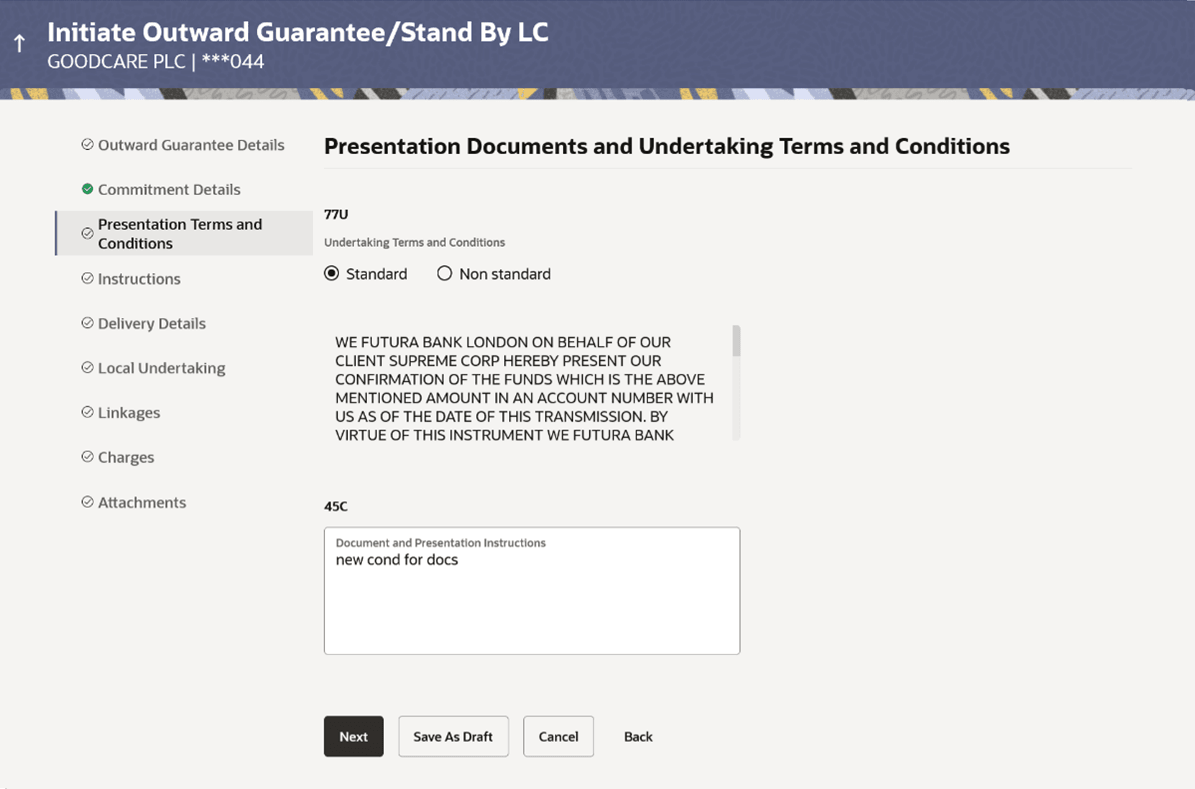
click Presentation Documents and Undertaking Terms and Conditions. The Initiate Islamic Outward Guarantee/Stand By LC - Presentation Documents and Undertaking Terms and Conditions screen appears.
Figure 22-9 Initiate Outward Guarantee/Stand By LC - Presentation Documents and Undertaking Terms and Conditions
Description of the illustration initiate-outward-guarantee-presentation-terms-and-conditions.pngNote:
The fields which are marked as Required are manadatory.For more information refer to the field description table below:
Table 22-8 Initiate Islamic Outward Guarantee/Stand By LC - Presentation Documents and Undertaking Terms and Conditions - Field Description
Field Name Description Undertaking Terms and Condition Select the applicable terms and condition of the undertaking. The options are:
- Standard
- Non Standard
Terms and Condition Displays the details of applicable terms and condition of the undertaking. The standard details of applicable terms and condition of the undertaking appears, if you select Standard option in the Undertaking Terms and Condition field. This field allows you to enter the terms and condition of the undertaking, if you select Non Standard option in the Undertaking Terms and Condition field.
Document and Presentation Instruction Specify the presentation instructions (for example, form and/or place of presentation) including documents required to make a complying demand. The field indicates the details of the document and presentation instructions present in the Outward Guarantee.
Parent topic: Initiate Islamic Outward Guarantee/Stand By LC