22.7 Initiate Islamic Outward Guarantee/Stand By LC - Instructions
This topic provides the systematic instructions to capture the Instructions details in the application.
This tab includes the expiry condition and extension applicable for the Outward Guarantee application.
- Specify the Instruction details.
Figure 22-10 Initiate Outward Guarantee/Stand By LC - Instructions tab
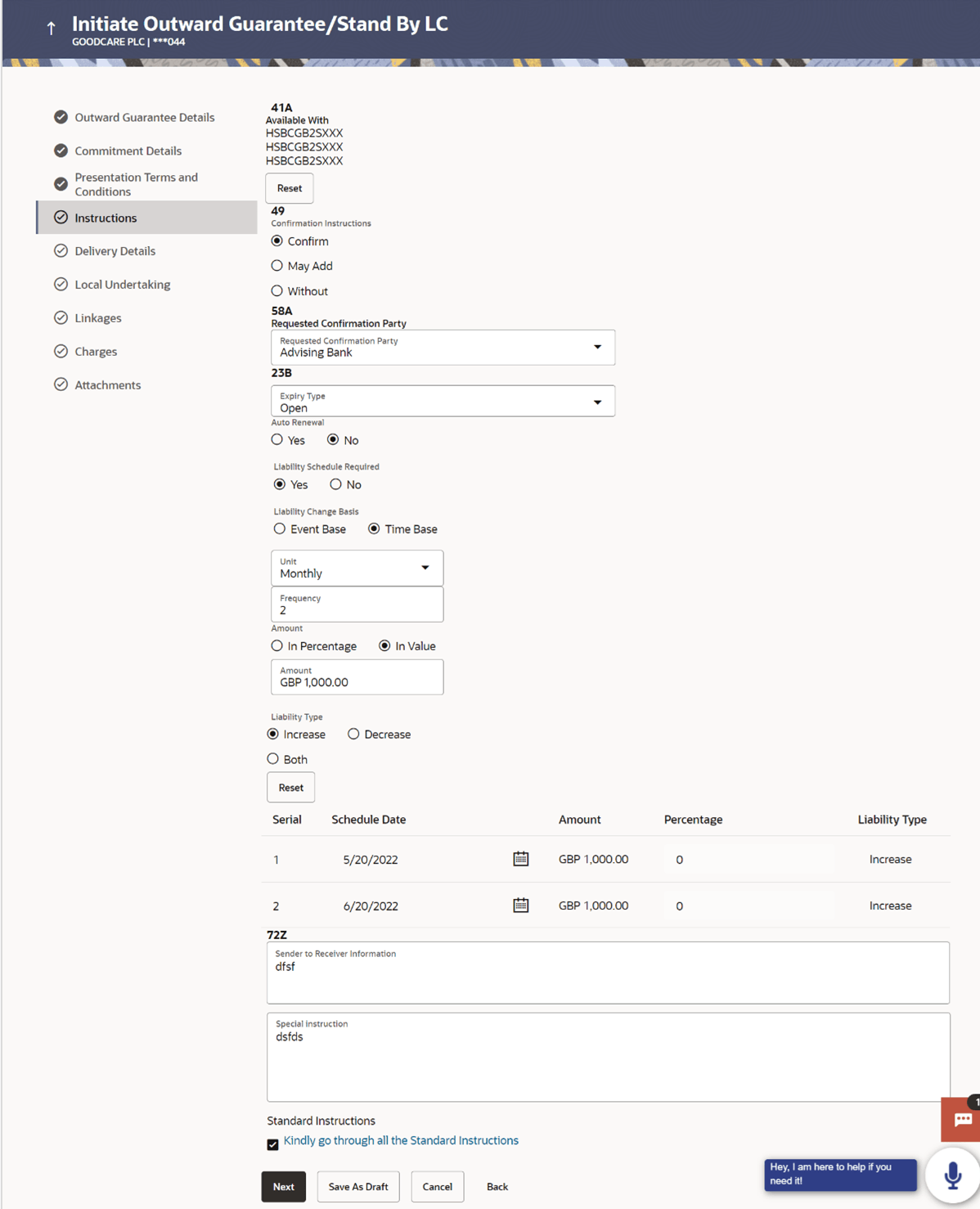
Description of the illustration initiate-outward-guarantee-stand-lc-instructions.pngNote:
The fields which are marked as Required are manadatory.For more information refer to the field description table below:
Table 22-9 Initiate Islamic Outward Guarantee/Stand By LC - Instructions - Field Description
Field Name Description Available With The option to select the details of Bank where credit would become available. The options are:
- SWIFT Code
- Name and Address
This field is enabled only if Standby Letter of Credit option selected in the Form of Undertaking list.
SWIFT Code Specify the SWIFT code of the advising bank, available in the application. Or Click the Lookup SWIFT Code link to search and select the link.
The user can specify the SWIFT Code, City and Bank Name as search criteria.
This field is enabled if the SWIFT Code option is selected in the CounterGuarantee Issuing Bank field.
Bank Details The name and address details of the bank which issued the counter undertaking. This field is enabled if the Bank Address option selected in the Counter Guarantee Issuing Bank field.
Confirmation Instructions The option to select the confirmation instructions for the requested confirmation party. The options are:
- Confirm - The requested confirmation party is requested to confirm the credit
- May Add - The requested confirmation party may add its confirmation to the credit
- Without - No confirmation is requested
Requested Confirmation Party Select the bank which is requested to add its confirmation or may add its confirmation. The options are:
- Advising Bank
- Advise Through Bank
- Confirming Bank
Below SWIFT Code related fields appear if Others option selected in Requested Confirmation Party field.
SWIFT Code Specify the SWIFT code of the confirming bank or Advise through Bank. Or Click the Lookup SWIFT Code link to search and select the link.
The user can specify the SWIFT Code, City and Bank Name as search criteria.
This field is enabled if the SWIFT Code option is selected in the Counter Guarantee Issuing Bank fields.
Bank Details The name and address details of the bank which issued the counter undertaking. This field is enabled if the Bank Address option selected in the Counter Guarantee Issuing Bank field.
Expiry Type Select the type of validity applicable to the Outward Guarantee. The options are:
- Fixed
- Conditional
- Open
Expiry Condition Specify the expiry condition for the Outward Guarantee. This field is enabled if Conditional option selected in the Expiry Type list
Auto Renewal Select whether auto renewal of guarantee is required or not. This field is enabled if Open option selected in the Expiry Type list.
Guarantee Expiry Date Select the date after which Outward Guarantee will expire. Automatic Extension Required Select whether automatic extension is required to the Outward Guarantee or not. The options are:
- Yes
- No
This field does not appear for ‘Open’ Expiry Type.
Automatic Extension Period Select the period after which automatic extension is given to the Outward Guarantee. The options are:
- Days
- One Year
- Other
Below Automatic Extension related fields appear, if Yes option is selected in the Automatic Extension Required field.
Automatic Extension Details Specify the details of the automatic extension of the Outward Guarantee. This field is enabled to fill details only if the Other option is selected in the Automatic Extension Period list.
And if Days option is selected the number of days can be entered.
Automatic Extension Non-Extension Notification Displays the notification given for non-extension of automatic extension while creating Outward Guarantee. Automatic Extension Notification Period Specify the period after which notification given for non-extension of automatic extension while creating Select Guarantee. Automatic Extension Final Expiry Date Select the date after which validity of automatic extension to the Outward Guarantee expires. Liability Schedule Required Select the option for the user to select, whether liability schedule is required to the Outward Guarantee or not. The options are:
- Yes
- No
Below Liability Schedule related fields appear, if Yes option is selected in the Liability Schedule Required field.
Liability Change Basis Select the option for the user to select the liability change basis i.e. whether it would be triggered on an event or in a time bound manner. The options are:
- Event Based
- Time Bound
Additional Details Specify the additional details. Unit Select the units, based on which the schedule, retention dates should be calculated. The options are:
- Yearly
- Half Yearly
- Quarterly
Frequency Specify the frequency based on which the schedule, retention dates would be calculated. Amount Select the amount of each schedule. The options are:
- In Percentage
- In value.
Amount Specify the amount for each schedule. This field is enabled only if In Value option is selected in the Amount field.
Percentage Specify the percentage for each schedule. This field is enabled only if Percentage option is selected in the Amount field.
Liability Type Select the liability type of the scheduler. The options are:
- Increase: User can select this option, if he wants to increase the undertaking amount on the fixed scheduled dates and amount.
- Decrease: User can select this option, if he wants to decrease the undertaking amount on the fixed scheduled dates and amount.
- Both: User can customize as per his requirements and would not be able to default using the scheduler.
Serial Displays the serial number of the schedule record. This field appears if the user clicks Get Schedule button after entering the details in Unit, Frequency, Amount, Percentage and Liability Type fields.
Schedule Date Displays the serial number of the schedule record. This field appears if the user clicks Get Schedule button after entering the details in Unit, Frequency, Amount, Percentage and Liability Type fields.
Amount Displays the amount of the schedule record. This field appears if the user clicks Get Schedule button after entering the details in Unit, Frequency, Amount, Percentage and Liability Type fields.
Percentage Displays the percentage of the schedule record. This field appears if the user clicks Get Schedule button after entering the details in Unit, Frequency, Amount, Percentage and Liability Type fields.
Liability Type Select the liability type of the scheduler. This field appears if the user clicks Get Schedule button after entering the details in Unit, Frequency, Amount, Percentage and Liability Type fields.
Sender to Receiver Information Specify the additional information for the receiver. Special Instructions Specify the instruction which is provided by user to the bank to be taken care of while creating Guarantee and for his information.
Parent topic: Initiate Islamic Outward Guarantee/Stand By LC