22.8 Initiate Islamic Outward Guarantee/Stand By LC – Delivery Details
This topic provides the systematic instructions to capture the details of the delivery of the Outward Guarantee in the application.
This tab includes the details of the delivery of the Outward Guarantee will be done.
- Navigate to Initiate Islamic Outward Guarantee/Stand By LC
screen.On navigation to Initiate Islamic Outward Guarantee/Stand By LC screen, click the Delivery Details tab screen.
Figure 22-11 Initiate Outward Guarantee/Stand By LC – Delivery Details
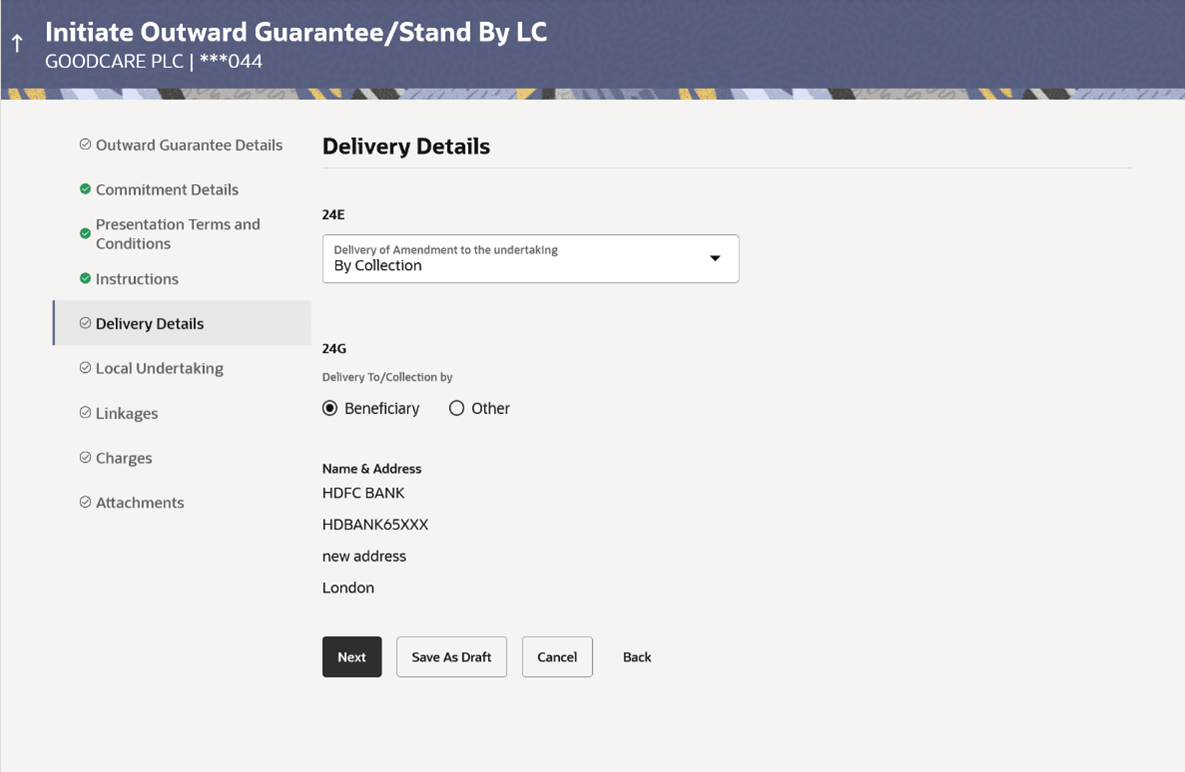
Description of the illustration initiate-outward-guarantee-delivery-details.pngFor more information refer to the field description table below:
Table 22-10 Initiate Islamic Outward Guarantee/Stand By LC – Delivery Details - Field Description
Field Name Description Delivery of Amendment to the Undertaking Select the option for delivery of amendment undertaking. Delivery To/ Collection by Select the option to whom the delivery of undertaking will be done. The options are:
- Beneficiary
- Other
Name & Address Displays the name and address details of the beneficiary to whom delivery of undertaking will be given. This field is auto populated only if the Beneficiary option is selected in the Delivery To/ Collection By field.
Name & Address Specify the name and address details of the beneficiary to whom delivery of undertaking will be given. This field is auto populated only if the Other option is selected in the Delivery To/ Collection By field.
Parent topic: Initiate Islamic Outward Guarantee/Stand By LC