1.4.1 US ACH Dispatch File Log Summary

This topic explains the US ACH Dispatch File Log Summary screen.

  1. On Homepage, specify PMSDNLOG in the text box, and click next arrow.
    The US ACH Dispatch File Log Summary screen is displayed.

    Figure 1-115 US ACH Dispatch File Log Summary
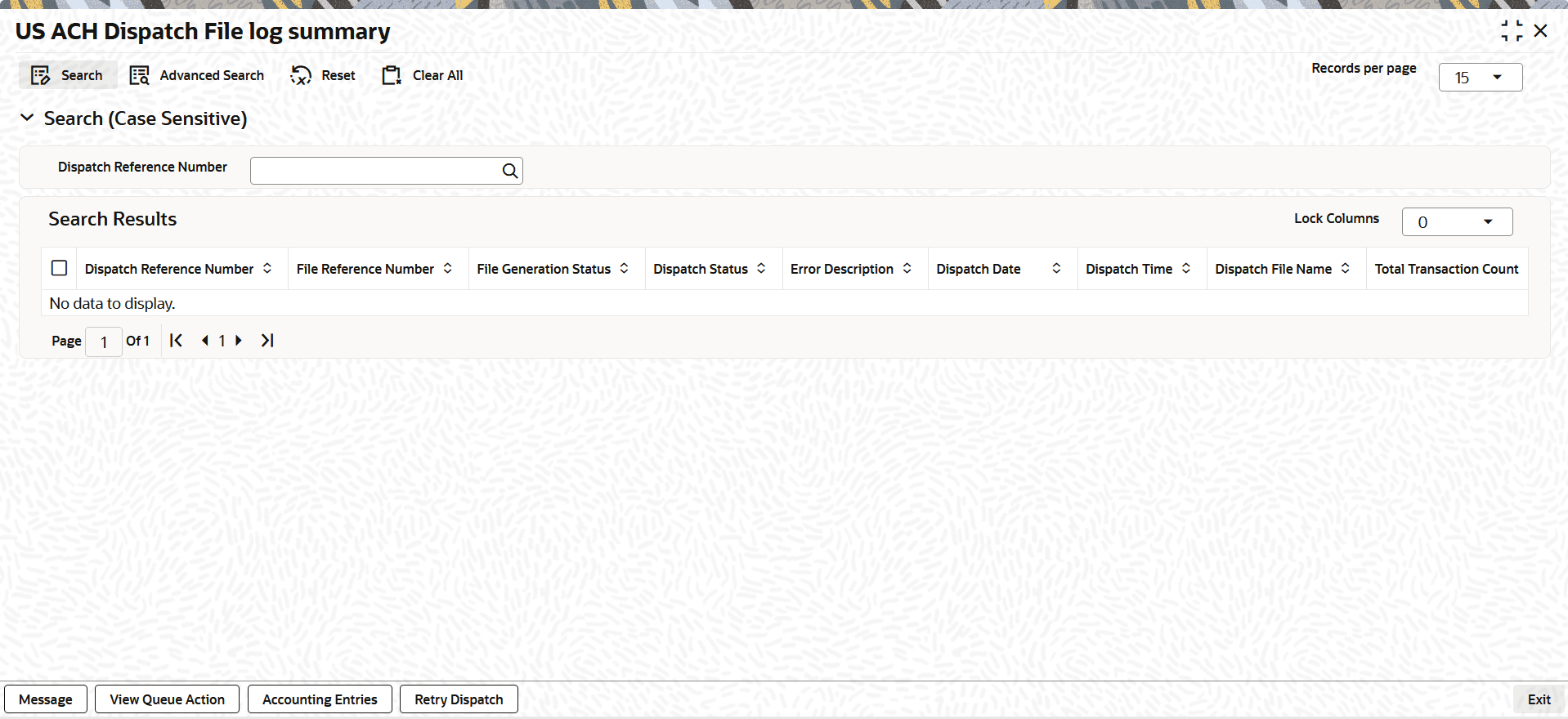


  2. On the US ACH Dispatch File Log Summary screen, search using one or more of the following parameters:
    • Dispatch Reference Number
    • Dispatch Date
    • Dispatch File Name
    • Dispatch Handoff Status
    • File Generation Status
    • Original File Reference No
    • Auth Status
  3. Once you specified the parameters, click the Search button.
    The system displays the records that match the search criteria.
  4. Double-click a record or click the Details button after selecting a record to view the detailed screen.

    Note:

    On the successful generation of the file, the File Generation Status updates as Success. The Dispatch file name generates with .ach as end qualifier.

    The below-mentioned mask rule defines the Dispatch File Name:
    • Naming Convention - ACHACHPXXXXXXXXXFDYYYYMMDDTHHMMSSmmmm.ach
    • Application Code (Pre-set value) - ACH
    • Application Code of the File (Pre-set value) - ACHP
    • RTN - Routing Number of Sending Branch from PMDABANR
    • Test or Production Flag - Set as System Parameters in DB
    • File Transmission Date - Pre-set value D
    • File Transmission Date - File generation date YYYYMMDD
    • File Transmission Time Stamp - Pre-set value T
    • File Transmission Time Stamp - HHMMSSmmmm (mmmm refers to milliseconds.
  5. User can perform the following actions from the US ACH Dispatch File Log Summary screen.

    Table 1-83 User Action and Description

    User Action Description
    Reverse File

    Use the Reverse File action to perform a full or partial reversal, applying file-level reversal accounting and transaction-level reversal accounting for each entry reversed.

    This operation supports save and authorize.

    Reverse Duplicate Emission

    Use the Reverse Duplicate Emission action to generate reversal file without any file accounting and transaction-level reversal accounting.

    This operation supports save and authorize.

    Authorize Use the Authorize button to confirm and approve the changes made.
    Delete Click the Delete button to delete the operations done before authorization.
    View Batch Entries Use the View Batch Entries button to view the batch details of the selected file record.

    Note:

    The Reverse File, Reverse Duplicate Emission, Authorize, and Delete operations allow the user to select only a single record at a time.