1.2.3.2 All Messages Button
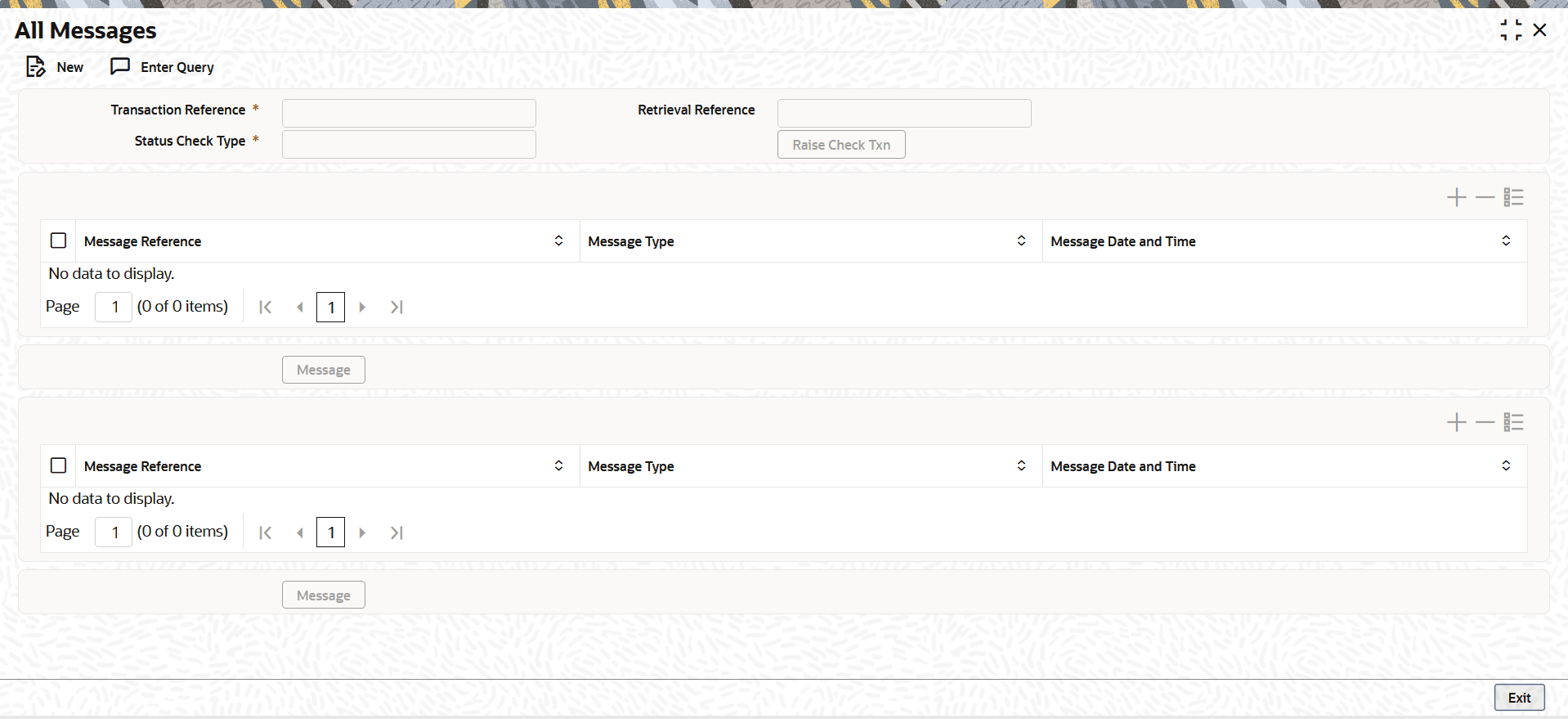
This topic provides details of the All Messages screen.
- Click the All Messages button in the main screen.The All Messages sub-screen is displayed.
- On the All Messages screen, user can view the following
fields.The system displays the following details for the specified Transaction Reference Number.
Table 1-12 All Messages - Field Description
Field Description Transaction Reference Displays the transaction reference. Retrieval Reference Displays the Retrieval Reference. Status Check Type Displays the Status Check Type.
The drop-down value includes:- TXN
- DISPUTE
- TXNDISPUTE
- DISPUTEHIST
Note: When the Status Check Type is set to DISPUTE, TXNDISPUTE, or DISPUTEHIST and the user clicks Raise Check Txn, the system verifies whether a complaint exists for the selected transaction. If no complaint is found, the system displays an error indicating that the selected status check type is valid only when a complaint has been raised. In this case, the user must select TXN as the Status Check Type.
Message Reference Displays the Message Reference grid with Request and Response details. The Response message detail grid contains the same set of columns as the Request grid. Message Type Displays the Message Type. Message Date and Time Displays the Message Date and Time. - Select a record in the Request grid and click the
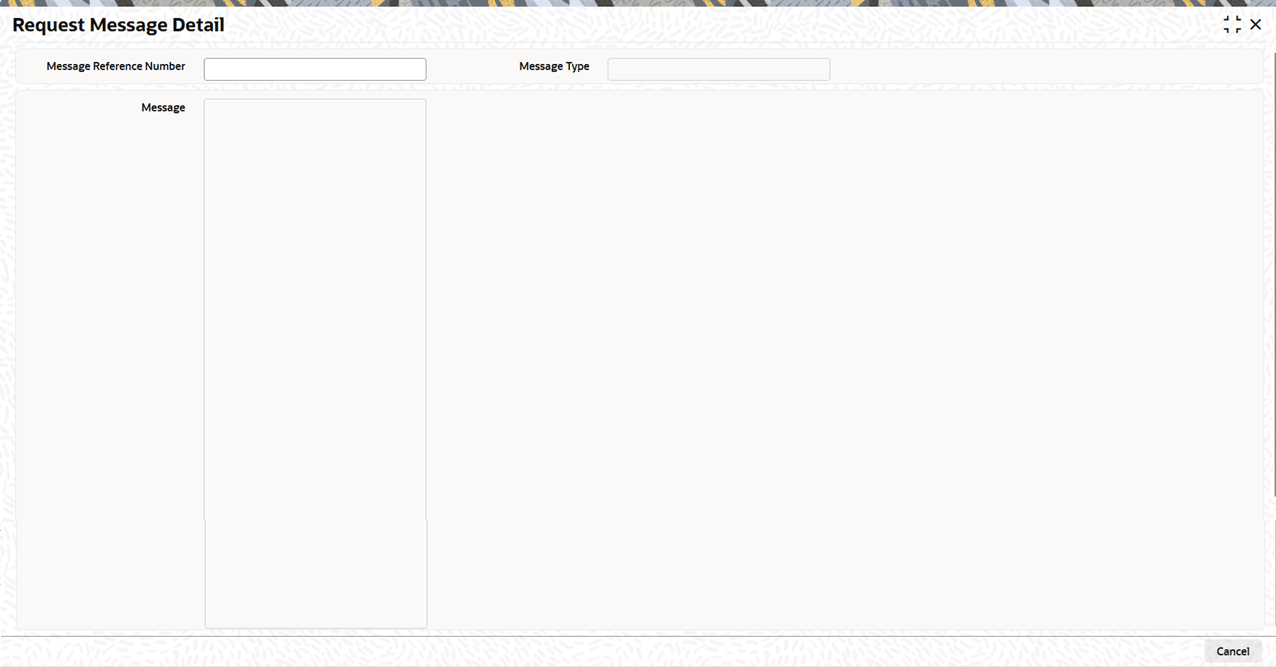
Message button.The Request Message Detail (PVDVWMGS) screen opens and displays the selected record’s Request XML communication.
- Select a record in the Response grid and click the
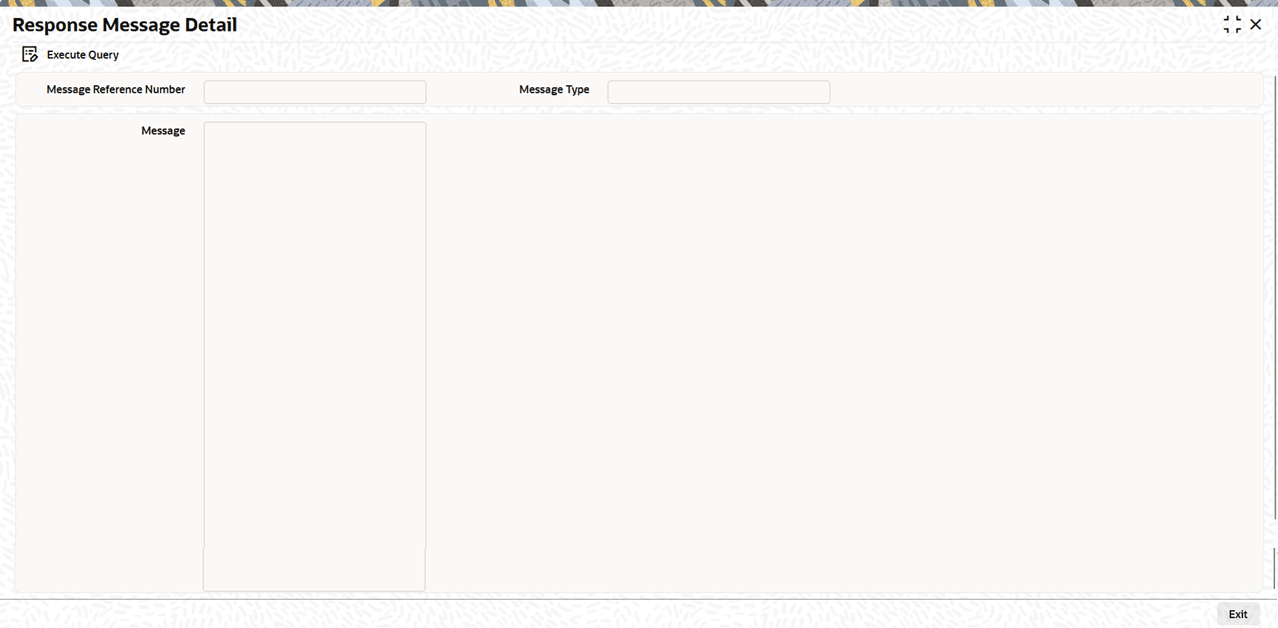
Message button.The Response Message Detail (PVDRWMSG) screen opens and displays the selected record’s Response XML communication.
Parent topic: UPI Transaction View Detailed