1.4.5.2 User Settings
This topic provides the systematic instructions to load user settings.
Specify the User ID and Password, and login to Homepage.
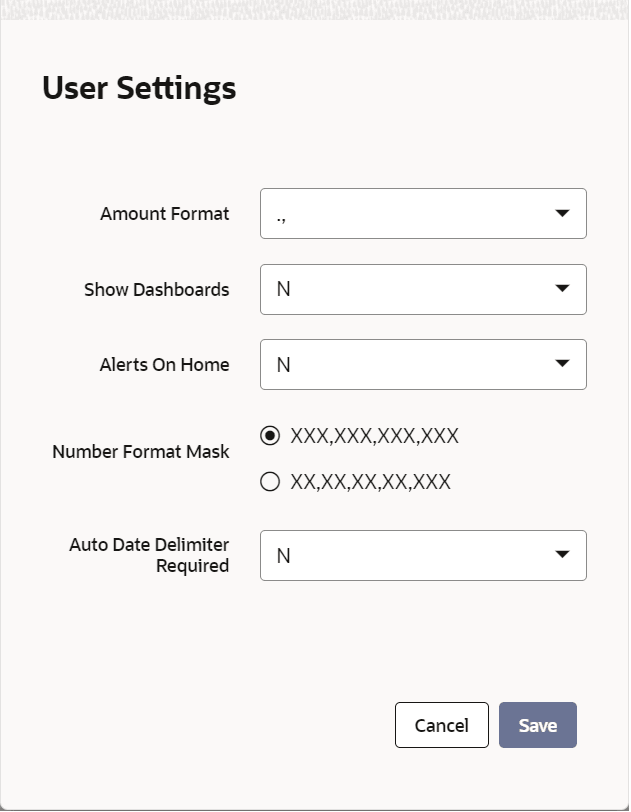
- Under User Action, click User Setting to load User Settings screen.,
- On User Settings screen, specify the following details.For information on fields, refer to Table 1-3:
Table 1-3 User Settings - Field Description
Field Description Amount Format Specify the Amount Format from the drop-down list. Date Format Specify the Date Format from the drop-down list. Font Size Select the Font Size from the drop-down list. The system displays the following values: - Medium
- Small
- Large
Theme Specify the Theme from the drop-down list. Show Dashboards Select an option from the adjoining drop-down list to view the dashboards assigned on the landing page. This drop-down list displays the following values: - N - Select not to view the Dashboards
- Y - Select to view the Dashboards
Alerts On Home Select an option from the adjoining drop- down to view the Alerts on the landing page. This drop-down list displays the following values: - N - Select not to view the Alerts
- Y - Select to view the Alerts
Screensaver Intervals (in seconds) The system defaults the screensaver interval based on the value maintained at the SMS Bank Parameters Maintenance screen. However, user can modify. Number Format Mask Select the number field format of mask number either in Million or in / Lakh from the following options: - XXX,XXX,XXX,XXX
- XX,XX,XX,XX,XXX
For further details on enabling the format in ODT refer ODT user manual.
Note:
After setting the preferences, click Save to apply the changes. The updated screensaver interval is reflected in the User Creation screen. To exit without saving changes, click Cancel.
The system does not support the screensaver functionality if SSO is enabled.
Parent topic: Executing User Actions