4.2 Lead Entry
This topic provides information on lead entry. It explains the process of creating and capturing new sales leads for tracking and conversion.
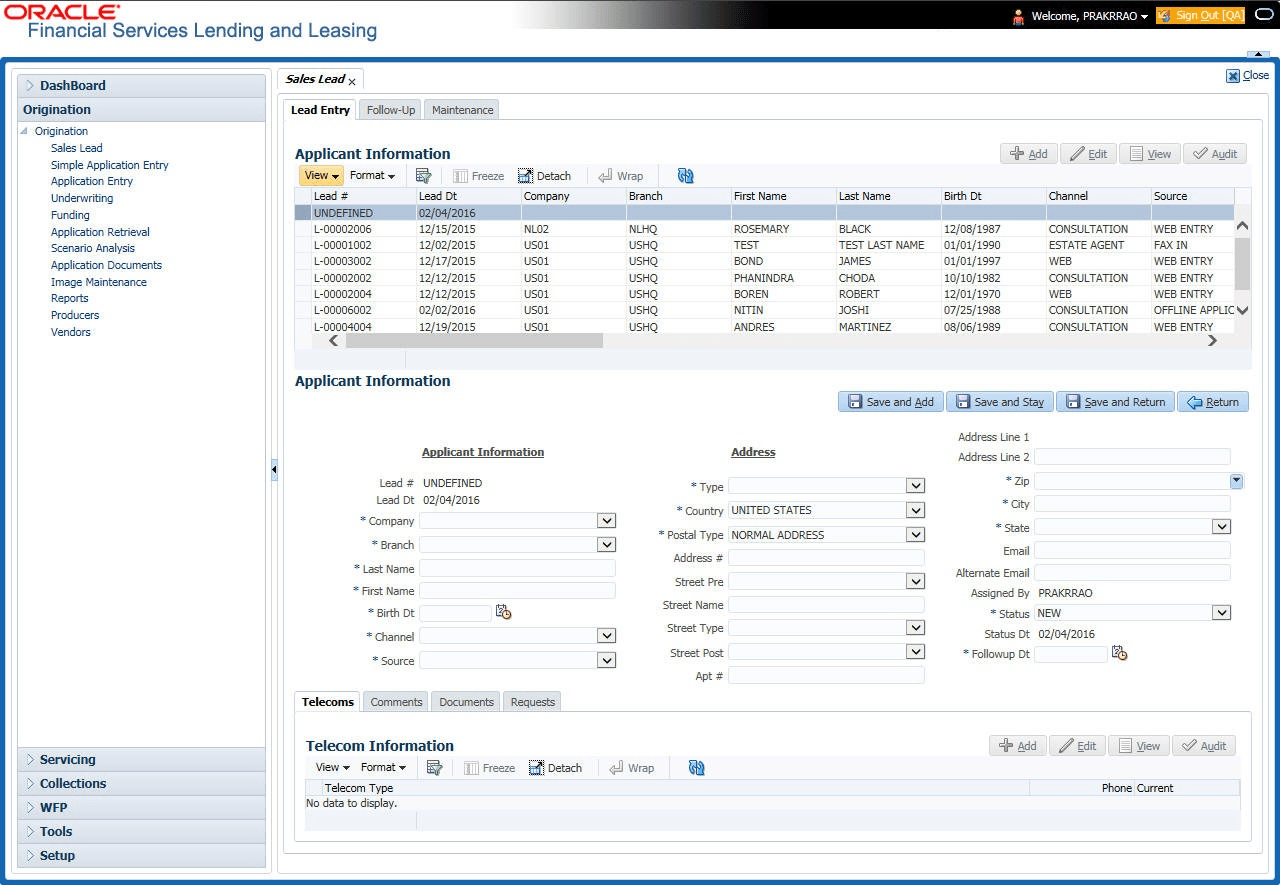
The Lead Entry screen enables user to record information regarding prospective borrowers from a sales query or a call to be used in a follow-up call. The initial status for the lead can be set as NEW or FOLLOW-UP.
- On the Origination, click
Origination. Under Origination,
click Sales Lead. Under Sales
Lead, click Lead
Entry.
The Lead Entry screen displays.
- In the Applicant Information section, user can perform any
of the Basic Operations mentioned in Preface chapter.
A brief description of the fields is given below:
Applicant InformationTable 4-1 Applicant Information
Field Description Lead # View the sales lead number. Lead Dt View the sales lead date. System defaults the current date. Company Select the company name. Branch Select the branch name. Last Name Specify the applicant’s last name. First Name Specify the applicant’s first name. Birth Dt Specify the birth date. Channel Select the channel of the sales lead. Source Select the source of the sales lead. Address It displays the address section. Type Select the address type. Country Select the country from the drop-down list. Postal Type Select the postal address type from the drop-down list. Address # Specify the address. Street Pre Select the street prefix (directional) from the drop-down list. Street Name Specify the street name. Street Type Select the street type from the drop-down list. Street Post Select the street postfix (directional) from the drop-down list. Apt # Specify the apartment number. Address 1 Specify the first address line. Address 2 Specify the second address line. Zip Select the zip code from the drop-down list.
Note: For non US country, user have to enter zip code.
City Specify the city. State Select the state from the drop-down list. Email Specify the e-mail address. Alternate Email Specify the alternate e-mail address. Assigned By View the user code creating the sale lead. Status Select the status for the sale lead from the drop-down list. The available options are: - NEW
- FOLLOW UP
- CLOSED
- CONVERTED
Status Dt View the last sales lead status change date. Followup Dt Select the sales lead follow-up date from the adjoining calendar. - Perform any of the Basic Actions mentioned in Preface chapter.
This section consists of the following topics:
- Telecoms Sub Tab
This topic provides information on telecoms. It outlines the process of capturing, managing, and tracking telecoms details within the system for reference and validation. - Comments Sub Tab
This topic provides information on comments. It allows users to add, view, and manage remarks or notes related to records for better tracking and communication. - Documents Sub Tab
This topic provides information on documents requested by the customer. It records any document sent during sales lead entry for tracking and reference. - Requests Sub Tab
This topic provides information on requests. It allows users to create, view, and manage request records for tracking and processing.
Parent topic: Sales Lead