2.2.2 Quick Search Section
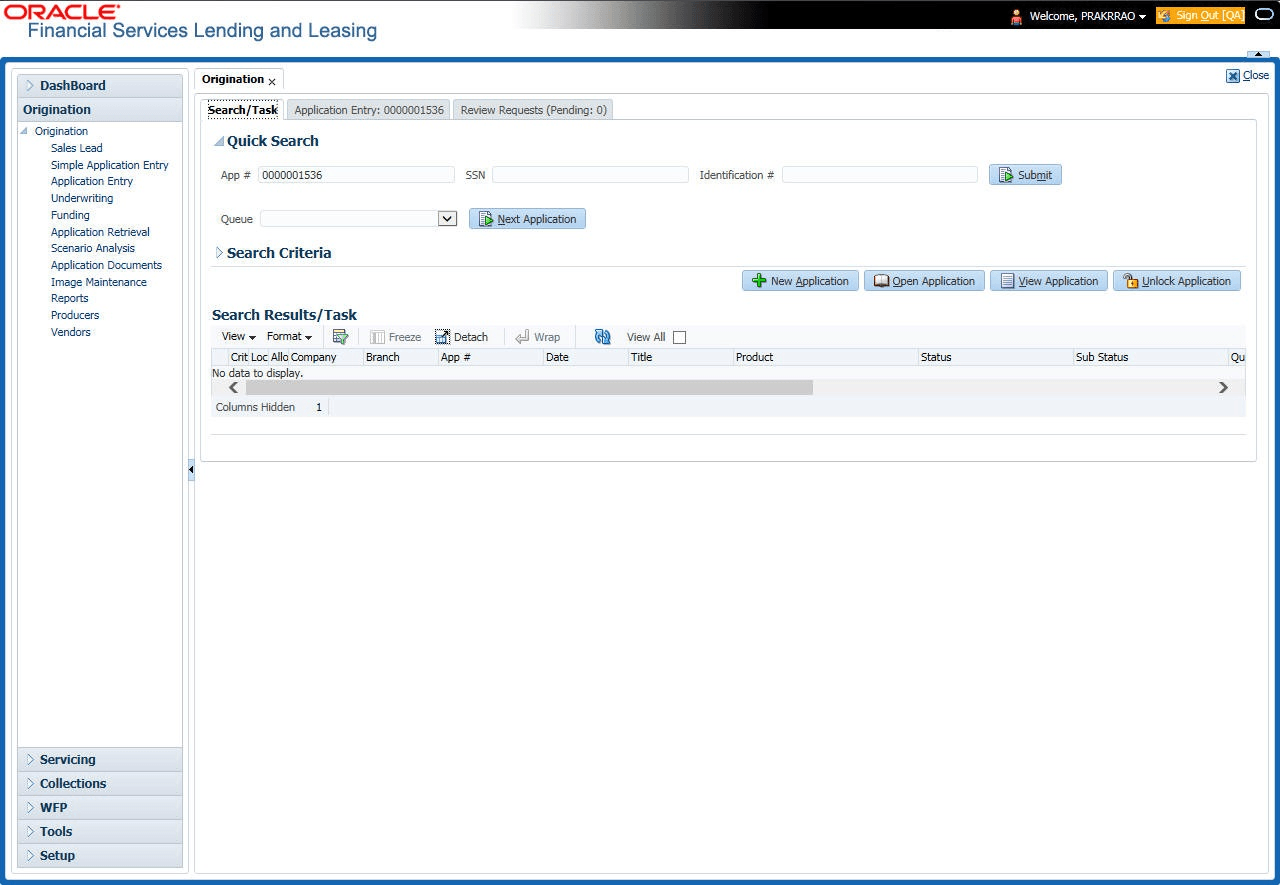
This topic provides information on the quick search section, which allows users to locate applications efficiently.
Quick Search enables to search for an application using any one of the following values - Application Number, SSN, Identification Number or Queue.
- On the Origination, click Origination. Under
Origination, click
Search/Task
tab.
The Search/Task screen displays.
- In the Quick Search section’s App # field, specify the application number user want to load and click
Submit.
User can also load the application by specifying the last 4 digits of the SSN Number. System retrieves only those application where the searched SSN is of the Primary Applicant. If multiple matches are found, system displays an error message as ‘Multiple Matches found for the SSN, Please use normal Search’.
Note:
Search cannot be performed using wild card characters in the Quick Search section.The system loads the selected application.
To load an application from a queue during application entry
- In the Quick Search section’s Queue field, select the queue user want to work with and click Next Application.
This section consists of the following topics:
- Other Features on the Results Screen
This topic provides information on the additional features available on the results screen. - Copying an Application
This topic provides information on the copying an application. - Unlocking an Application
This topic provides information on the unlocking an application. - View Application
This topic provides information on view application. It enables users to access and review the details of submitted applications.
Parent topic: Searching for an Application