Creating a Document
Introduction
The Document configuration helps in defining and structuring the content that needs to be delivered to the customers through various communication channels. It involves creating the Document, along with its versions, and associate Layouts and/or Styles. Document Versions provide flexibility for creating different iterations of a Document to accommodate different Layouts and Styles. Layouts are used to position Content elements efficiently, while Styles define the visual presentation, including fonts, colors, background and so on.
Prerequisites
Following are the prerequisites to consider before creating a Document in Communication Cloud Service.
Note:
Ensure that you complete the prerequisite before proceeding.| Prerequisites | Details |
|---|---|
| Set the Config ID | Config ID must be Active.
Ensure that all dependent configurations and associations are part of the same open Config ID. See Creating Config ID for more details. |
| Configure Entitlements | Ensure that you have the required entitlements to create a Document.
|
| Create Marketing Company configuration | Ensure that you have created the Marketing Company configuration that needs to be associated to the Document configuration.
See Creating Marketing Company for more details. |
| Create Layout configuration | Ensure that you have created the Layout configurations that need to be associated to the Document Version configuration.
See Configuring a Layout for more details. |
| Create Style configuration | Ensure that you have created the Style configurations that need to be associated to the Document Version configuration. This is optional.
See Configuring Styles for more details. |
Before you start creating a Document, it is essential to identify the Document configuration requirements to determine the Contents, and Layouts of the Document. This includes specifying personalized content, defining how the Document should be organized, and determining the required visual and branding elements. Each Document configuration is associated to specific Layouts and Styles, which collectively ensure the Document is structured and styled appropriately before generating the output.
Components involved in Document Configuration:
Document configuration involves several key components that enable the creation of personalized, dynamic communications. These components include Layouts, Contents and Styles, which can be reused across various configurations, ensuring efficiency and consistency in Document creation.
- Content Configuration
Content within a Document can include text, images, or variable data. This Content is personalized based on customer information, such as customer names, financial data, or other dynamic fields. Variables within the Content are mapped to data fields, and these placeholders are replaced with actual values when the Document is generated. Additionally, you can apply Styles on the Content. These Styles enable the presentation of the Content, allowing changes in how text or graphics appear within the Document. See Content Configuration for more details.
- Layout Configuration
Layout associated to a Document provides control on how Content is positioned in the communication output. The Layout configuration uses tables, grids, blocks, or lists, to ensure that Content is displayed in an organized manner. For example, in a Grid type Layout, you can include nested Layouts, which help structuring the content side by side or in any desired structure within a Document. See Configuring a Layout for more details.
- Style Configuration
Style configuration defines the visual appearance and the design consistency of the Documents. It ensures that the Document is aligned with your organization’s branding requirements, by setting Styles such as fonts, colors, background and so on. Hence, this configuration maintains design consistency across all Documents. See Configuring Styles for more details.
The following image illustrates the Document and the components involved in it:
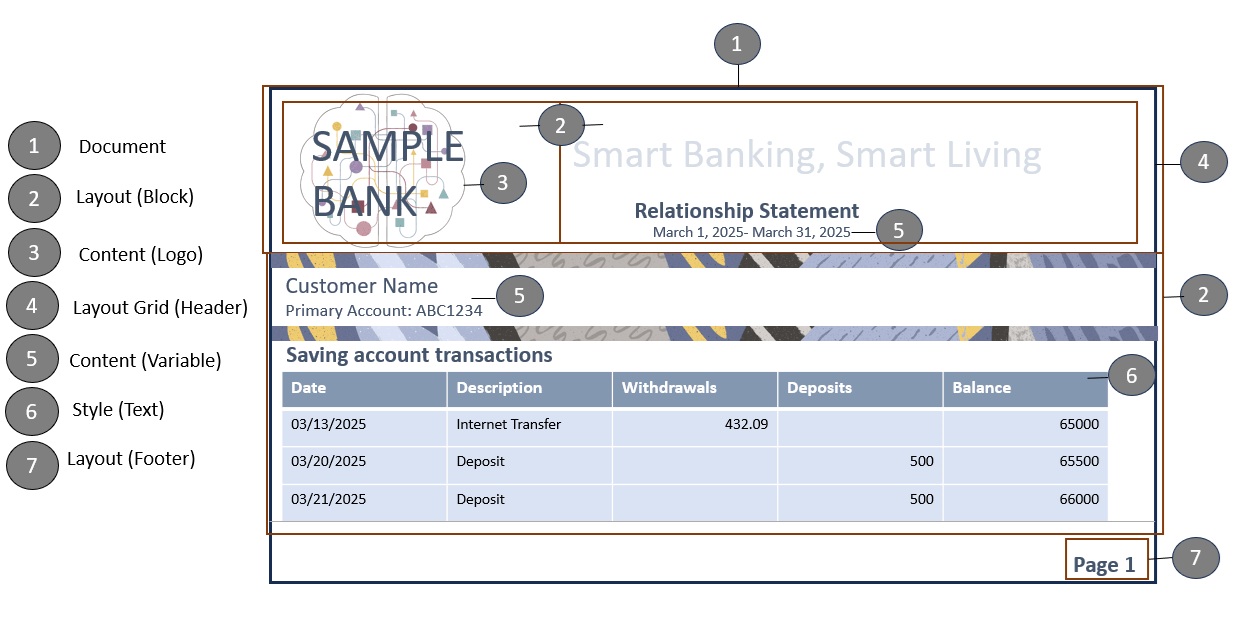
Creating a Document
Creating Document configuration requires creating the configuration and defining its versions. A Document can have multiple versions. However, it must have at least one version created. You can define different versions of the Document to accommodate variations based on the Active Date. You need to associate each version to the respective Layout and Style configurations.
Creating a Document in Communication Cloud Service involves the following steps:
Creating a Document
The Document configuration helps in grouping multiple versions of the Document, with the Active Date set during the configuration creation process, to determine when each version is activated.
- Access the Oracle Financial Services Cloud application.
- From Menu, select Communication and then select Document.
- On the Communication Document landing page, select Create.
- In Basic Information section, enter the Name, Long Name and Description (optional), to identify the Document.
- In Brand section, select Add Marketing Company and then select the Marketing Company that you want to add to the Document.
- In Status section, under Active Date, the date is set to the current date when the Document is created. You can either leave it blank or modify it to a future date. Once you add a date and save the configuration, you cannot leave it blank later.
- Select Continue to save the details and to provide the version details of the Document.
Creating a Document Version
Versions allow for the creation of multiple iterations of a document. These versions can have different Layouts and/or Styles for different purposes. The Active Date helps control when each version of the Document becomes effective for communication output generation.
- In Basic Information section, enter the Name and Description (optional), to identify the Document Version.
- In Status section, under Active Date, the date is set to the current date when the Document Version is created. You can either leave it blank or modify it to a future date. Once you add a date and save the configuration, you cannot leave it blank later.
This helps in identifying the appropriate version for communication generation.
Note:
Ensure that you are not setting the same Active Date for more than one version of the Document. - Select Save to save the details and to continue with the association, or Save & Exit to save the details and return to the landing page.
Associating Layout and Styles
For each Document Version, to ensure that the content is organized and visual elements like fonts, colors, background and so on, are displayed correctly, you need to associate Layouts and Styles with the Document Version configuration.
Associating Layouts
- In Update Communication Document Version page, under Associations, select Add next to Layouts.
- Select the Layout that you want to associate. You can select multiple Layouts.
- In Layout Attributes page, select
 to set the Layout Always Triggered to either True or False. This allows you to control whether the Layout needs to be always included in the communication output. If you are setting Layout Always Triggered to False, then you need to explicitly define the condition for this Layout in the Assembly Template during Package configuration.
- You can edit the Layout Placement to Header, Footer or Relative. This decides where the Layout needs to be placed.
Layout Placement Selection Output Header The Layout appears at the top of the page as header. Footer The Layout appears at the bottom of the page as footer. Relative Positions the Layout in the body of the Document leaving the header and footer areas intact. - After editing, select
 to save the changes or
  to discard the changes.
- To change the sequence, select the Layout, and drag it to your preferred position. This ensures that each Layout is used in the specified order during Document generation, for a structured and consistent presentation of the information.
- Select Done to return to Update Communication Document Version page.
- Select Save to save the association.
Associating Styles
You can associate a version of the Document to one or more Style configurations. This helps in defining the visual appearance of the communication.
- In Update Communication Document Version page, under Associations, select Add next to Styles.
- Select the Style configurations that you want to associate. You can select multiple Style configurations.
- In Style Attributes page, select to enter the Style Class Name. This is optional. Enter the name of the Style Class to apply the corresponding style attributes. When a Style Class is defined, its attributes are inherited and applied to the Layouts and its Contents that use the Style Class. If no Style Class name is provided, the style attributes will be applied directly to the Layouts and Contents.
- After editing, select to save the changes or to discard the changes.
- To change the sequence, select the Style, and drag it to your preferred position. This ensures that each Style is applied in the specified order you have set during Document configuration, maintaining consistent formatting and appearance across the Document.
- Select Done to return to Update Communication Document Version page.
- Select Save to save the association.
Video Tutorial
Document Management & Layout Association in Communication Cloud Service video:
This comprehensive guide explains the purpose and benefits of documents, demonstrates how to create, edit, and manage documents, and covers best practices for naming conventions and versioning. Learn how to associate layouts, configure outputs, and integrate reusable documents for streamlined final communications assembly.