1 Feature Summary
Column Definitions
| SMALL SCALE: These UI or process-based features are typically comprised of minor field, validation, or program changes. Therefore, the potential impact to users is minimal. |
| LARGE SCALE: These UI or process-based features have more complex designs. Therefore, the potential impact to users is higher. |
| ACTION NEEDED TO ENABLE: You must take steps to enable these features before they can be used. These features are delivered disabled, and you choose if and when to enable them. See the Steps to Enable in the linked topic. |
Features that are specific to:
Oracle Hospitality OPERA Cloud Service, Sales and Event Management
Premium Edition are marked with the Premium badge. 
Oracle Hospitality OPERA Cloud Service, Casino and Gaming Management
Add-on are marked with the Gaming badge. 
Oracle Hospitality OPERA Cloud Service, Loyalty are marked with
the Loyalty badge. 
Oracle Hospitality OPERA Cloud Central Management Services are marked with the Central badge.

Oracle Hospitality OPERA Distribution Channel Cloud Services subscription
are marked with the Distribution badge. 
BLOCK MANAGEMENT
Block Code Validation Rule OPERA Control Updated
For properties with the Business Block OPERA Control active, a Back to Back setting is added to the Block Code Validation Rule OPERA Control. When this setting is selected, if you have one block ending and another starting on the same date, you can use the same block code for both blocks.
OPERATIONAL BENEFITS
Using the same code for sequential blocks makes it easier to track and report on related business, enhancing visibility for events or groups booking back to back.
STEPS TO ENABLE
- From the side menu, select Administration, select Enterprise, and then select OPERA Controls.
- Select or confirm the Property.
- Select the Blocks group.
- Locate the Block Code Validation Rule setting and select BACK_TO_BACK.
Drag and Drop Enabled for Attachments
For properties with the File Attachments and Business Block OPERA Controls active, you can drag and drop files to the Browse/Choose File button upload to files.
See Managing Profile Attachments.

OPERATIONAL BENEFITS
Improves usability by streamlining the attachment process.
CASHIERING AND FINANCIALS
Batch Folios Updated
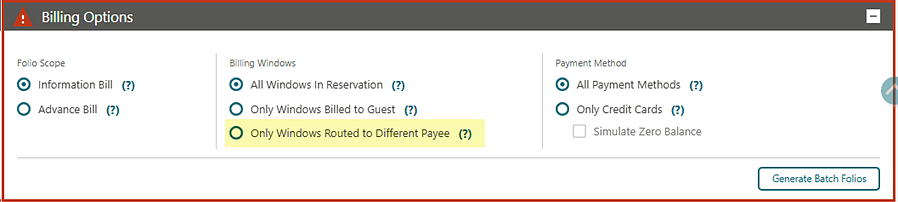
An Only Windows Routed to Different Payee filter option is added to Billing Options in Batch Folios. When selected, only those billing windows with active routing instructions to a different payee are included for batch folio printing. Billing windows without routing instructions are excluded from folio printing. If no routed windows are available, the message "No routed windows are available for batch folio generation" is displayed. All existing billing options and selection logic remain available.
OPERATIONAL BENEFITS
This enhancement streamlines the batch folio process for front desk staff by enabling folio generation exclusively for windows routed to a different payee, improving efficiency and reducing manual effort.
Changes Log Updated with Folios Group
The Changes Log is updated to include a new Folios group. When you generate folios from the following areas of OPERA Cloud, new detailed records are inserted into the Changes Log.
Note:
The Print Fiscal Information Folio OPERA Control must be active for a record to be inserted when you generate an Information Folio.Note:
The Print Fiscal Pro-Forma Folio OPERA Control must be active for a record to be inserted when you generate a Pro-Forma Folio.
- Accounts Receivables (AR Invoice)
- Batch Folios (Information Folio via Information Bill or Advance Bill options)
- Billing (Advance Folio, Interim Folio, Check Out Early Folio, Check Out Folio, Close Folio, Information Folio, Pro-Forma Folio)
- Deposit Cancellation (Deposit Folio)
- Folio History (Credit Bill, Debit Bill)
- Post It (Post It Folio, Passerby Folio)
- Reservations List (Pro-Forma Folio)
OPERATIONAL BENEFITS
The new details recorded in the Changes log is useful when auditing folio generation, and for troubleshooting reported issues.
Check Out with Open Folio Updated
A confirmation prompt appears when you attempt Check Out With Open Folio. See Using Post Stay Charging and Open Folio Status.
Prompt message:
- You are about to check out "Confirmation Number, Guest Name". The folio will remain open after checkout. Do you want to continue?
Prompt actions:
- Confirm. Confirms the action and proceeds with checkout to an open folio.
- Cancel. Returns to the checkout screen without completing checkout.
OPERATIONAL BENEFITS
This enhancement helps you avoid unintended checkouts when the folio remains open for post stay charging. The confirmation prompt gives you clear visibility before completing the checkout action.
Key Benefits:
• Reduces the risk of accidental checkout with an open folio.
• Provides a clear confirmation step before completing checkout.
• Helps you verify that post stay charges may still be applied after checkout.
• Improves accuracy in billing and folio management.
• Supports smoother front desk operations by preventing unintended actions.
Credit Card Surcharge Applied by Payment Service Provider OPERA Control Added
Credit Card Surcharge Applied by Payment Service Provider (PSP) and Payment Service Provider (PSP) Surcharge Transaction Code OPERA Controls are added to the Cashiering group.
Note:
These OPERA Controls are mutually exclusive with the Credit Card Transaction Surcharge OPERA Control.When enabled, the PSP applies a surcharge for credit card payment transactions. The surcharge transaction is posted using the Payment Service Provider (PSP) Surcharge Transaction Code as a separate line item in the folio. The payment transaction displays the original amount and the surcharge as separate line items, and the Credit Card History screen also shows both line items—each with the settlement type and the same approval code.
This feature applies to payments/settlements from billing, deposit payments (with Advance Deposit handling set to 0, 1, or 2), advance payment during check-in, Post It/Passer-by sale, and prepaid card issuance.
OPERATIONAL BENEFITS
Enabling surcharge handling by the Payment Service Provider ensures transparent billing by separating the surcharge from the original payment amount. This simplifies financial reconciliation, improves folio clarity for guests.
STEPS TO ENABLE
- From the Side Menu, select Administration, select Enterprise, and then select OPERA Controls.
- Select or confirm the Property.
- Select the Cashiering group.
- Locate and activate the Credit Card Surcharge Applied by Payment Service Provider (PSP)parameter.
- Locate and update the Payment Service Provider (PSP) Surcharge Transaction Code setting.
Credit Card Wallet OPERA Control Added to Shared Profiles
A Share Profile Credit Card Wallet OPERA Control is added to the Cashiering Group, enabling profile credit card wallet sharing across properties within the chain when shared profiles are active. It's recommended to review this feature with your payment service provider (PSP) to ensure cross-property token usability. A Default Store Credit Card Token to the Wallet OPERA Control setting is also added to the Cashiering Group, defining default behavior (YES/NO) for storing credit card tokens in profile or reservation wallets for tokens added via external systems (OHIP, OXI, OWS). The OPERA control applies by default whenever external requests lack explicit instructions, while incoming requests with a specified 'store Credit Card token to the wallet' flag override the setting.
For properties with the Credit Card Wallet OPERA Control setting set to PROFILE, the Credit Card Wallet is added to the profile details screen. The Profile Credit Card Wallet allows viewing existing tokens and deleting them if the Delete Credit Card from the CC Wallet user task is granted.
OPERATIONAL BENEFITS
Sharing the Profile Credit Card Wallet across properties streamlines payment processes for multi-property guests, enhances guest service, and reduces repetitive data entry. This also enables greater flexibility and control over token storage and management, minimizing reliance on support requests and improving operational efficiency.
STEPS TO ENABLE
Cross-Property Postings and OPERA Controls Added to Post it
For properties with the Post It OPERA Control active, Market Code and Source Code list fields are added to the Additional Information section pre-populated with values from the Default Market Code for Post It and Default Source Code for Post It OPERA Controls.
A Cross Property Postings OPERA Control is added to the Cashiering group, enabling cross-property posting from Post It for transactions between properties. Appropriate permissions on the target property are required to search for reservations and post transactions during the cross-property posting process.
Additionally, Use Cross Property Matching Transaction Code and Default Cross-Property Sales Transaction Code OPERA Controls are added to use a matching transaction code at the target property for incoming postings. If no match is found, it uses the default transaction code specified in the control. If the matching transaction code feature is not enabled, the default transaction code from OPERA Control is always used.
The Post It screen workflow is enhanced with a Charge to Cross Property Room radio option on the payment screen, allowing selection of a target property with search for reservations by room number or guest name.
When Charge to Cross Property Room is selected:
- the process guides selection of the target property and reservation, posting the transaction directly to the chosen property’s folio.
- Posting logic applies the configured or matching transaction code and includes cross-property reference text on the target billing screen.
- Cross-property transaction taxes are calculated and posted based on the target property’s transaction code configuration.
- At the target property, transfer postings, adjustments, and split actions can be performed on these transactions; editing is restricted to supplement and reference fields.
- Routing instructions at the target property are honored for cross-property postings.
Note:
It's recommended to use the Use Cross Property Matching Transaction Code OPERA Control only when transaction code configurations are consistent across all properties in the chain.
OPERATIONAL BENEFITS
Cross-property posting streamlines the transaction postings for guests with activity across multiple properties. Configurable controls ensure accurate transaction handling, tax calculations, and reporting, improving operational efficiency and minimizing the need for manual intervention.
STEPS TO ENABLE
- From the Side Menu, select Administration, select Enterprise, and then select OPERA Controls.
- Select or confirm the Property.
- Select the Cashiering group.
- Locate and activate the Cross Property Postings parameter.
- Update the Use Cross Property Matching Transaction Code setting.
- Update the Default Cross-Property Sales Transaction Code setting.
Daily Rate Codes Limit Updated
For properties with the Daily Rates OPERA Control active, you can create up to 50 daily rate codes per property. When you reach the limit of 50 daily rate codes, the Daily Rate rate type checkbox is disabled. You can also use the Copy Rate Code action to copy daily rate codes, with the same 50 daily rate codes limit per property maximum enforced during copy.
OPERATIONAL BENEFITS
To support faster processing when you create, modify, or copy daily rate codes and when you update pricing schedules across long date ranges, OPERA Cloud Service processes these updates using asynchronous processing and queuing.
Package Code Description Length Updated
The Description field in Package Code Definition is updated to accept 2000 characters.
OPERATIONAL BENEFITS
Clearer package details: You can spell out inclusions, exclusions, usage rules, and policies (for example, meal times or spa access), reducing guest confusion and setting accurate expectations.
Package Postings Display Updated
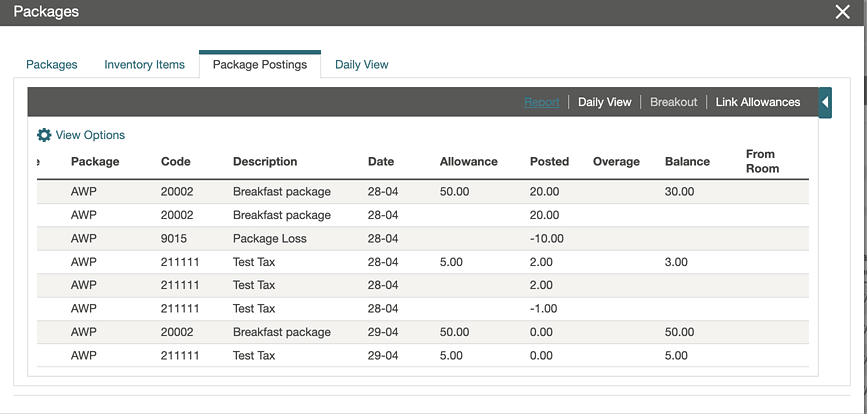
The Breakout option includes two new fields: Posted and Balance.
Posted shows the allowance amount that's posted.
Balance shows the remaining allowance.
OPERATIONAL BENEFITS
This enhancement gives you better visibility into package allowance usage during a guest stay. The Posted and Balance fields help you to quickly understand how much of the allowance is consumed and what remains available.
Promotion Code Updated for Description Localization
For properties with the Promotions Module and Multi Language OPERA Controls active, the Promotion Code Description field is updated with the Manage Translation link to support setup of localized descriptions.

OPERATIONAL BENEFITS
Manual creation, updating, and removal of property-specific and template Promotion Code translations streamline localization, reduce operational overhead, and improve accuracy and time-to-market for market-specific messaging.
Rate Code Package Configuration Updated
When a package is added to a rate code, the Package Transaction Code defaults according to the Default Package Transaction Code OPERA Control. The New action to add a packages remains enabled at all times.
When the Default Package Transaction Code OPERA Control is not configured (null), the Package Transaction Code must be entered or selected in rate code configuration before packages can be added to the rate code.
See Configuring Rate Code Financial Details.
OPERATIONAL BENEFITS
This update eliminates manual entry of the Package Transaction Code when adding packages to rate codes, solving frequent setup errors, inconsistent configurations across properties, and delays caused by missing codes. By autopopulating from a centrally managed default in OPERA Controls, it standardizes data, reduces rework and support escalations, and speeds up rate code changes. Keeping the New option always enabled removes a previous blocker, enabling faster package configuration while preserving control through clear validation when a default is not set. The result is higher data integrity for billing/reporting, shorter onboarding, and more efficient day-to-day operations.
IMPACT OR OTHER CONSIDERATIONS
For properties where the Default Package Transaction Code OPERA Control is null and Package Transaction Code field is null in a rate code, you will encounter an error that prevents packages selection or pricing schedule setup.
- From the side menu, select Administration, select Enterprise, and then select OPERA Controls.
- Select or confirm the Property.
- Select the Rate Management group.
- Set a value for the Default Package Transaction Code setting.
Revenue Recognition Method OPERA Control Added
A Revenue Recognition Method OPERA Control is added to the Cashiering group, enabling revenue recognition for extended stay reservations using a revenue Holding Ledger. When the Revenue Recognition Method OPERA Control is active, accommodation charges and taxes are posted to the revenue Holding Ledger and then automatically distributed to the Guest Ledger during End of Day. This update supports revenue accrual and recognition for long stay reservations such as weekly or monthly intervals. When the Revenue Recognition Method OPERA Control is inactive, accommodation charges and taxes continue to post directly to the guest folio using the standard nightly posting process.
The Trial Balance report displays a separate Holding Ledger section.
OPERATIONAL BENEFITS
This enhancement enables you to manage revenue recognition for extended stay reservations in a structured and automated manner. Charges accrue in a holding ledger and are recognized progressively through End of Day distribution, improving financial accuracy and reporting transparency.
Here are some key benefits:
• Supports revenue recognition for weekly and monthly stay reservations.
• Accrues accommodation revenue and taxes before recognition in the guest folio.
• Automates nightly revenue distribution through End of Day processing.
• Improves financial reporting accuracy for extended stay reservations.
• Reduces manual adjustments required for long duration stays.
STEPS TO ENABLE
- From the side menu, select Administration, select Enterprise, and then select OPERA Controls.
- Select or confirm the Property.
- Select the Cashiering group.
- Locate and enable the Revenue Recognition Method parameter.
Sequence Added to End of Day Final Reports
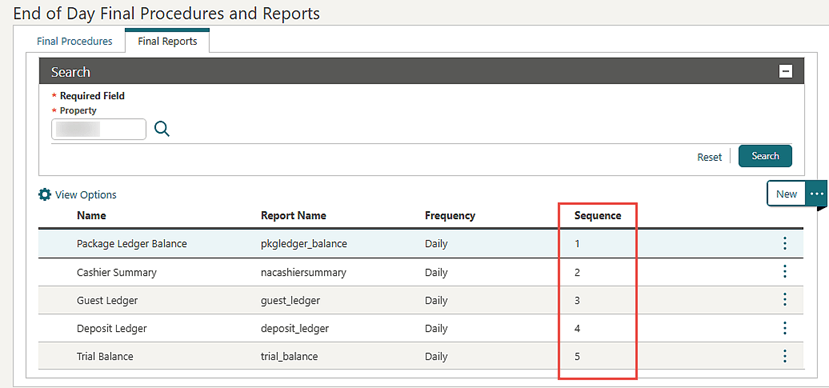
A Sequence column is added to End of Day Interim Reports and End of Day Final Reports screens, displaying the configured sequence value for each report.
OPERATIONAL BENEFITS
Displaying the sequence column improves transparency and ease of use for front desk and audit personnel by making the reporting order explicit.
Summarized Transaction View Added to Billing
View Summarized Transactions and View Detailed Transactions toggle menu items are added to each billing folio window, with the detailed transaction view displayed by default. In the Summarized Transactions view, all postings with the same transaction code are grouped into a single line showing the total amount for each code, and applicable tax totals are listed as separate lines. Summarized transactions can be transferred using the Transfer Posting action, which includes all underlying detailed transactions for the selected summarized entry. When the Folio No Reprint OPERA Control is enabled, all transactions, including those with a bill number, are displayed in the summarized view; however, transactions with a bill number are excluded from transfer posting, and the screen shows the amount eligible for transfer.
OPERATIONAL BENEFITS
Toggle options allow for streamlined billing views and easier reconciliation by grouping transactions, while transfer actions on summarized transactions improve efficiency for managing folios and adjustments.
CLIENT RELATIONS
Add New Communication Row to Communication OPERA Control Added
An Add New Communication Row to Communication OPERA Control is added to the Profile group, to determine whether a row is auto created in Communications panel.
This update aligns Communication validation with configuration, preventing unintended Type/Value required errors in workflows where communications should not be mandatory unless explicitly added.
Behavior by Setting
-
Inactive (Default):
- Communication Entry isn't required or enforced.
- Users can proceed without errors when no Communication row exists.
- Validation for Communication Type and Communication Value is enforced only if a user manually adds a Communication row.
-
Active
- The system automatically adds a Communication row when none exists.
- Mandatory validation is enforced for Type and Value.
- User can either click on the X to delete the row or click Cancel to exit.
OPERATIONAL BENEFITS
-
Fewer workflow interruptions / reduced errors (default OFF): Users aren’t blocked by unexpected “Type/Value required” messages when Communications aren’t needed, improving completion rates across profile/reservation flows.
-
Configuration-driven behavior (predictability): Validation now aligns with the property’s configuration, reducing confusion and support tickets caused by “sudden” mandatory fields.
-
Flexibility by property policy: Properties can choose whether Communications are optional (OFF) or mandatory by default (ON), supporting different operating models without customization.
-
Improved data quality when required (ON): If the property needs consistent contact/communication capture, auto-adding the row ensures Type and Value are captured, improving completeness for downstream use (guest contactability, service recovery, notifications, etc.).
STEPS TO ENABLE
- From the Side Menu, select Administration, select Enterprise and then select OPERA Controls.
- Select the Profile group.
- Locate and activate the Add New Communication Row to Communication parameter.
Display Membership Image as Profile Image OPERA Control Added
A Display Membership Image as Profile Image OPERA Control is added to the Profile group, enabling display of the guest’s primary membership image as the profile image, making it easier to identify loyalty members and deliver a more personalized service experience.
Note:
The Add, Edit, and Delete Profile Image actions are disabled when the Display Membership Image as Profile Image OPERA Control is enabled and the profile has a primary membership attached.
OPERATIONAL BENEFITS
Beneficial for properties that wish to use membership images for recognition and verification purposes at the front desk or other guest touchpoints.
STEPS TO ENABLE
- From the Side Menu, select Administration, select Enterprise and then select OPERA Controls.
- Select or confirm the Property.
- Select the Profile group.
- Locate and activate the Display Membership Image as Profile Image parameter.
Drag and Drop Enabled for Attachments
For properties with the File Attachments OPERA Control active, you can drag and drop files to the Browse/Choose File button upload to files.
See Managing Profile Attachments.
OPERATIONAL BENEFITS
Improves usability by streamlining the attachment process.
Profile Merge Updated for Accounts Receivables Selection
Profile Merge is updated to provide a more comprehensive and controlled merging experience by displaying the Accounts Receivable (AR) Accounts linked to each profile, enabling users to review and make informed decisions about which accounts to retain on the final merged profile.
See Managing Profile Attachments.
OPERATIONAL BENEFITS
The enhancement to the Profile Merge process improves visibility and control, ensuring data accuracy and integrity by allowing users to review and select the correct Accounts Receivable (AR) accounts to be retained on the final merged profile, thereby reducing errors and discrepancies.
Profile Privacy Customization OPERA Control Added
For properties with the Profile Mailing Privacy OPERA Control active, a Profile Privacy Customization OPERA Control is added allowing you to configure the Correspondence/Privacy options shown on Guest and Contact profiles. You can add up to 20 user-defined options, set defaults, control display order, manage translations, and activate/inactivate options (legacy options are not editable beyond active status).
Note:
This functionality is not supported with Cloud HUB/OXI.
OPERATIONAL BENEFITS
- Consistent privacy capture across properties: Chain-level configuration standardizes what staff record on profiles.
- Improved data quality: Defaults and removal of irrelevant options reduce missed or inconsistent selections.
- Faster profile creation: Preselected defaults minimize clicks and training effort at the front desk/contact center.
IMPACT OR OTHER CONSIDERATIONS
This feature is not supported with CloudHub interfaced properties.
STEPS TO ENABLE
- From the Side Menu, select Administration, select Enterprise, and then select OPERA Controls.
- Select the Profile group.
- Locate the Profile Mailing Privacy OPERA Control.
- Activate the Profile Privacy Customization Function.
- From the Side menu select Role Manager, select either Manage Chain Roles or Manage Property Roles according to your needs.
- Enter search criteria and click Search.
- Select the role to update, click the vertical ellipsis Actions menu, and select Edit.
- Select the Client Relations Admin group and grant the Profile Correspondence Privacy, New/Edit Correspondence Privacy,and Delete Correspondence Privacy tasks.
- Click Save.
Stay Records Updated
For properties with the Stay Records OPERA Control active:
- You can view the Central Confirmation Number associated with the given reservation, when viewing stay records details though the Profile Stay Statistics and though the Membership Claims.
- The Missing Market Code Validation and Missing Source Code Validation
OPERA Controls are added for the Stay Records OPERA Control, that
validates the presence for market code and source code for stay records.
- For OPERA Cloud Central Management Services, stay records received through Cloud HUB are validated against these controls, and Stay Records without market/source codes are suspended.
- Stay records added using API (postStayRecord and stayRecords) are also
validated, ensuring data consistency and integrity.
OPERATIONAL BENEFITS
-
Central Confirmation Numbers visible on Stay Records enables central users and loyalty administrators to quickly identify the associated reservation, particularly when stay records are generated from an external system, making it easier to manage membership claims and respond to guest inquiries.
- The Missing Market Code Validation and Missing Source Code Validation OPERA Controls provide properties with the flexibility to configure the validation rules for market code and source code, allowing them to enforce data quality standards that meet their specific business requirements. This helps properties to ensure that stay records are accurate and consistent, and to make informed decisions based on reliable data.
STEPS TO ENABLE
- From the Side Menu, select Administration , select Enterprise and then select OPERA Controls.
- Select or confirm the Property.
- Select the Profile group.
- Locate and activate the Stay Record function.
- Locate and activate the Missing Market Code Validation and Missing Source Code Validation parameter.
Suspended Stays Search Updated
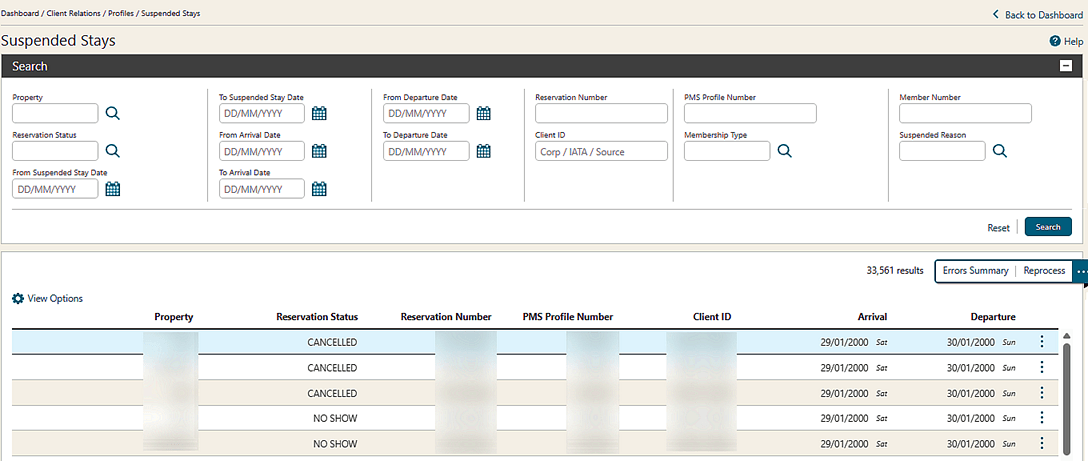
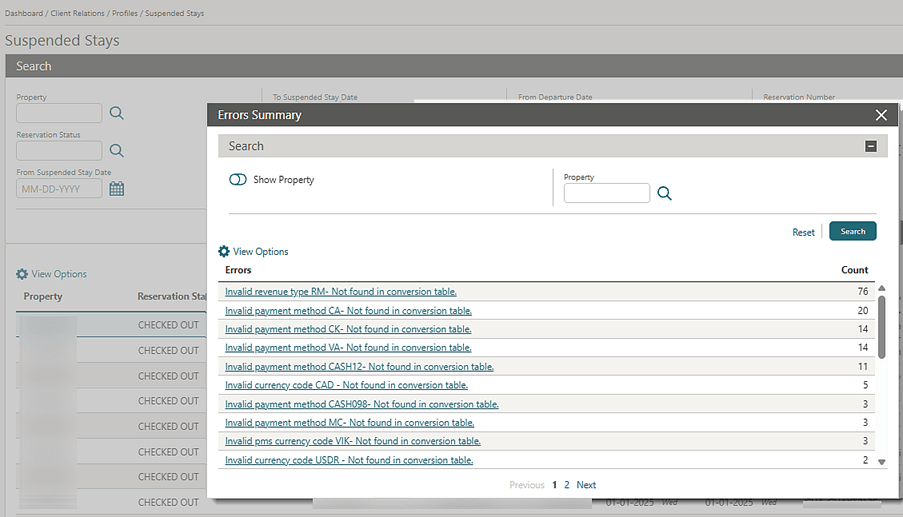
For chains using Cloud Hub–connected properties CENTRAL, and where the Stay Records OPERA Control is active, Suspended Stays now includes additional search filters: Arrival Date, Departure Date, Reservation Number, Client ID, Membership Number, Stay State, and Suspension Reason. The search results grid alignment and overall usability are also enhanced for faster, more accurate management, and you can click the error link to view the detailed list of stay records associated with that error.
OPERATIONAL BENEFITS
-
Increased Operational Efficiency: Advanced filters and improved search usability enable faster identification and retrieval of suspended stay records, reducing manual effort and saving time.
-
Faster Issue Resolution: Direct access to detailed stay records through the error link helps teams quickly investigate and resolve suspension-related issues.
-
Improved Accuracy and Control: Enhanced search capabilities and better grid alignment minimize errors, while property-level filtering supports more targeted and effective management.
COUNTRY SPECIFIC
Country Specific - Algeria, Morocco, Senegal and Ivory Coast: Cash Surcharge/Stamp Tax functionality Added
The following functionality is generically available, but should be reviewed by properties in Algeria, Morocco, Senegal and Ivory Coast.
The Cash Transaction Surcharge OPERA Control is added to the Cashiering group.
When the Cash Transaction Surcharge OPERA Control is active, the following OPERA Control is displayed:
- Default Cash Surcharge Transaction Code OPERA Control. Define the transaction
code used when posting the Cash and Check Payment
Surcharge.
The following tasks are added to the Financial Admin group:
- New/Edit Cash Surcharge and Delete Cash Surcharge.
- Apply Cash Surcharge task is added to the Financial group.
When the Cash Transaction Surcharge OPERA Control is active, the following are available:
- Cash Surcharge screen is available in Cashiering Management. Records can be created specifying the Amount From, Amount To values together with the Percentage or Surcharge Amount for calculation of the Cash Surcharge.
- Payment Methods screen in Transaction Management displays the Cash Surcharge checkbox for Payment Methods linked to transaction codes set up as Cash or Check. Select the Cash Surcharge checkbox for each Payment Method valid for Cash Surcharge generation.
Note:
When Cash Transaction Surcharge OPERA Control is active, Cash or Check payment methods valid for Cash Surcharge generation cannot be used as a payment for deposits and should be restricted on the payment transaction code.
FUNCTIONALITY
Folio Settlement/Payment Screens
The Cash Surcharge is generated for valid Payment Methods during Folio Settlement (Billing, Post It, Passerby, Quick Check Out). Selecting a valid payment method displays an Information Message at the top of the folio settlement/payment screen informing that the payment is subject to a Cash Surcharge. The Apply Cash Surcharge checkbox is displayed beneath the Amount field (selected by default), and the Cash Surcharge Amount and Total Amount to be paid (Payment + Cash Surcharge) values are displayed to the right. During the Folio Settlement/Payment process a Payment Surcharge message displays informing the user that a Cash Surcharge will be applied to the payment, giving the options to Cancel or Continue. Select Cancel to cancel the transaction, or Continue to post the Payment and the Cash Surcharge.
Negative Payments
Folio Settlements or Payments for a negative amount are not valid, and don't generate the Cash Surcharge.
Non-Property Currency Payment
When a Folio Settlement or Payment is made with a Payment Method valid for Cash Surcharge generation, and the currency selected is not the Property Currency, the transaction will not generate a Cash Surcharge. Only Payments marked as Cash Surcharge that are made in the property currency are valid to generate the Cash Surcharge.
OPERATIONAL BENEFITS
Properties in Algeria, Morocco, Senegal, and Ivory Coast are required to apply a Cash Surcharge/Stamp Tax for Cash and Check payments.
STEPS TO ENABLE
OPERA Controls:
- From the side menu, select Administration, select Enterprise, and then select OPERA Controls.
- Select or confirm the Property.
- Select the Cashiering group.
- Locate and activate the Cash Surcharge OPERA Control.
- In the Default Cash Surcharge Transaction Code OPERA Control, select the
transaction code used when posting the Cash and Check Payment
Surcharge.
OPERA Cloud Tasks:
- From the side menu, select Role Manager and then select either Manage Chain Roles or Manage Property Roles according to your needs.
- Enter search criteria and click Search.
- Select the role to update, click the vertical ellipsis Actions menu, and select Edit.
- From the side menu, select Administration, select Financial, select Cashiering Management, and then select Cash Surcharge. Select New to create records.
- From the side menu, select Administration, select Financial, select Transaction Management, and then select Payment Methods.
- Select the required Cash or Check Payment Method required to generate Cash Surcharge, and then select Edit.
- Select the Apply Cash Surcharge checkbox, and then select Save. Repeat the process for each Payment Method required to generate Cash Surcharge.
Refer to Algeria - Oracle Hospitality OPERA Cloud Fiscal Reference Guide.
Country Specific - France - Fiscal Negative Payments for AR Added
The following update is available generically, and should be reviewed by properties in France.
The Fiscal Negative Payments for AR OPERA Control (Cashiering) is added, so that properties can enable fiscal communication for negative AR payments.
OPERATIONAL BENEFITS
Meets fiscal compliance requirements for properties in France, who need to inform the tax authority when negative payments are made to AR Invoices.
STEPS TO ENABLE
- From the side menu, select Administration, select Enterprise, and then select OPERA Controls.
- Select or confirm the Property.
- Select the Cashiering group.
- Locate and activate the Fiscal Payments for AR parameter.
- Locate and activate the Fiscal Negative Payments for AR parameter.
Refer to France - Oracle Hospitality OPERA Cloud Fiscal Reference Guide.
Country Specific - Germany - CITY_TAX Package Formula Updated
The following is generically available, but should be reviewed by properties in Essen, Germany:
The ability to calculate City Tax with a specific maximum amount per night is available.
Creating a Package Code using the Formula CITY_TAX, the required value should be entered into the Maximum Amount per Night field.
Note:
Maximum Amount per Night will be applied for the Package > Calculation Rule
For Example:
- If Calculation Rule = Per Person, the Maximum Amount per Night value will be a per person value (Adults + Children)
- If Calculation Rule = Per Adult, the Maximum Amount per Night value will be a per Adult value
- If Calculation Rule = Per Room, the Maximum Amount per Night value will be a per Room value
Country Specific - Germany, Japan and United Kingdom: Updated City Tax and City Tax Ranges
The following is generically available, but should be reviewed by properties in Germany, Japan and United Kingdom.
Package Code Formula CITY_TAX and City Tax Ranges are updated.
CITY_TAX Package Formula:
The ability to calculate City Tax for a specific date range based on the reservation stay dates is available.
Creating a Package Code using the Formula CITY_TAX, is updated with the following parameters are available:
- Start Date(based on reservation stay dates)
- End Date (based on reservation stay dates)
A Package Code is created for Package Formula CITY_TAX with a Start Date of 24 July, 2026 and an End Date of 31 December, 2026. The Package is linked to a Rate Code.
A reservation is created using the Rate Code and has a valid Purpose of Stay. Arrival 22 July, 2026 for 5 Nights, Departing 27 July, 2026. City Tax is not calculated for 22 July and 23 July, but City Tax is calculated from business date 24 July, 2026 onwards.
A reservation is created using the Rate Code and has a valid Purpose of Stay. Arrival 28 December, 2026 for 7 nights, Departing 2 January 2027. City Tax is calculated from 28 December, 2026 until 31 December, 2026, and is not calculated for 1 January, 2027 and 2 January, 2027.
City Tax Ranges:
The ability to create City Tax Ranges for a specific date range based on the reservation stay dates is available. The update applies to City Tax Range Types CITYTAX and Japan City Tax Ranges.
The City Tax Range Types screen is updated with the following fields:
- Start Date(based on reservation stay dates)
- End Date (based on reservation stay dates)
If a change is required for a future date, for the same range amounts currently configured existing Range Types can be updated with a Start Date or End Date. Once the Date fields are setup for City Tax Range Types, future records must be configured for a start date after the end date of the previous City Tax Range Type for the same range amounts, but can have a different Tax Amount or Tax Percentage.
Note:
If a tax update is required, and the Amount From and Amount To are different to the original City Tax Range Type records, the original City Tax Range Type records should be updated with the End Date. A different City Tax Range must be setup with the new Amount From/Amount To records and the required Start Date.
For Example:
Business Date is 1st February, 2026
City Tax Range Type has records as follows:
- 0 to 5,999 > Tax Amount = 100
- 6,000 to 19,999 > Tax Amount = 200
- 20,000 to 49,999 > Tax Amount = 300
- 50,000 to Null/Blank (50,000 and above) > Tax Amount = 400
A Tax Amount change is announced from 1st July, 2026, for the same amount ranges.
Existing City Tax Range Type records listed above are updated with an End Date 30 June, 2026.
New City Tax Range Records are created with a Start Date 1 July, 2026
- 0 to 5,999 > Tax Amount = 200
- 6,000 to 19,999 > Tax Amount = 400
- 20,000 to 49,999 > Tax Amount =600
- 50,000 to Null/Blank (50,000 and above) > Tax Amount = 800
Package Codes using the City Tax Range with the above City Tax Range Type records attached will automatically calculate the tax based on the stay date of the reservation.
A reservation is created using a Rate Code with a Package using the above City Tax Range. Room Rate is 25,000 per night.
Arrival 29 June, 2026 for 5 Nights, Departing 4 July, 2026.
Tax is calculated as follows:
- 29 June, 2026 > Tax Amount = 300
- 30 June, 2026 > Tax Amount = 300
- 1 July, 2026 > Tax Amount = 600
- 2 July, 2026 > Tax Amount = 600
- 3 July, 2026 > Tax Amount = 600
OPERATIONAL BENEFITS
- Properties using Package Code CITY_TAX and Daily Rates functionality are not able to configure City Tax to start or end on a specific date to calculate based on the Stay date of the reservation.
- Adding the ability to set a Start Date and/or End Date to the Package Formula CITY_TAX allows the package to calculate based on the stay date of the reservation.
- When Properties using CITY_TAX Package or Japan Taxes have a Tax Amount or Tax Percentage change, a change is required at the time the tax changes, and cannot be setup in advance to change automatically.
- Adding the Start Date and End Date fields to the City Tax Range Types screen for the City Tax ranges allows the changes to be configured in advance.
Refer to United Kingdom - Oracle Hospitality OPERA Cloud Fiscal Reference Guide
Refer to Germany - Oracle Hospitality OPERA Cloud Fiscal Reference Guide
Refer to Japan - Oracle Hospitality OPERA Cloud Fiscal Reference Guide
Country Specific - India- Sample_folio_india_buckets Data Model Updated
The sample_folio_india_buckets BI Publisher report is updated. The following new merge codes are available in the G_HEADER section and can be added to the folio during customization.
FISCAL_BILL_NO
FISCAL_BILL_DATE_TIME
ASSOCIATED_FISCAL_BILL_NO
ASSOCIATED_FISCAL_BILL_DATE
ASSOCIATED_FISCAL_BILL_TIME
Fiscal Bill No and Fiscal Bill Date Time are stored in the database when a folio is successfully generated with OFIS. The values are returned by the Fiscal Partner.
The Associated Fiscal Bill No, Date, and Time are stored in the database and used for the Credit Bill and Debit Bill/Supplemental Folio when the folio is successfully generated with OFIS. The values are returned by the Fiscal Partner.
Note:
ASSOCIATED_FISCAL_BILL_DATE merge code should be customized to display the data as required.
OPERATIONAL BENEFITS
Fiscal information returned by the Fiscal Partner should be available to display on the folio in India.
STEPS TO ENABLE
Refer to India - Oracle Hospitality OPERA Cloud Fiscal Reference Guide
Country Specific - Italy - Information Collection Methods Updated
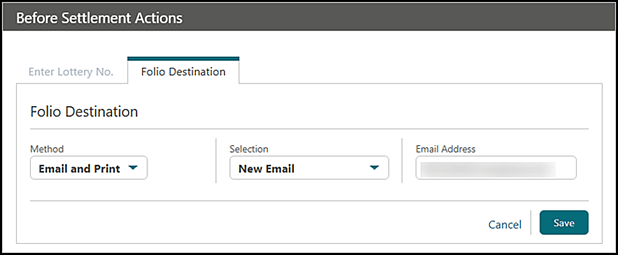
The Default Email Type for Folio Destination OPERA Control (General group) is added, so that properties can select a default Email Type, which is associated with any New Email on the Folio Destination screen and automatically added to the payee profile.
The Folio Destination screen is updated so that when you select Email or Email and Print as the Method, the field for Selection auto-populates with the primary email address from the payee profile.
Example:
OPERATIONAL BENEFITS
The FOLIO_DESTINATION feature is enhanced for improved usability, so that OPERA Cloud properties in Italy can configure which Email Type is associated with any New Email added to the payee profile during folio settlement.
STEPS TO ENABLE
- From the side menu, select Administration, select Enterprise, and then select OPERA Controls.
- Select or confirm the Property.
- Select the General group.
- Locate and update the Default Email Type for Folio Destination setting to an Email Type.
Refer to Italy - Oracle Hospitality OPERA Cloud Fiscal Reference Guide.
Country Specific - Japan - Okinawa Tax Updated
Japan City Tax Ranges for OKINAWA_TAX and OKINAWATAX are available in Rate Management - City Tax Ranges.
Okinawa Tax can be configured using the required Japan City Tax Range configured as per requirements as either a single tax or split between Prefecture Tax and Municipality Tax.
OPERATIONAL BENEFITS
Properties in Okinawa, Japan must have the ability to configure the required tax. The ability to configure the required values for Okinawa Tax is now available.
Refer to Japan - Oracle Hospitality OPERA Cloud Fiscal Reference Guide
Country Specific - Mexico - Fiscal Payments for AR Added
The following update is available generically, and should be reviewed by properties in Mexico.
1. The Fiscal Payments for AR OPERA Control (Cashiering group) is added, so that properties can enable fiscal communication for AR payments.
2. The Fiscal Payment Numbers for AR OPERA Control (Cashiering group) is added, so that properties can include a sequential Payment Number with each fiscal payment to an AR Invoice.
3. When the Fiscal Payments for AR OPERA Control is active, payments applied to one or more AR Invoices invoke the fiscal workflow to transmit payment and AR Invoice details (Cashiering group). The Fiscal Negative Payments for AR OPERA Control and Fiscal Payment Numbers for AR OPERA Control are visible when the Fiscal Payments for AR OPERA Control is active.
- When the Fiscal Negative Payments for AR OPERA Control is active, negative payments applied to one or more AR Invoices invoke the fiscal workflow to transmit payment and AR Invoice details.
- When the Fiscal Payment Numbers for AR OPERA Control is active, a payment number is internally associated with each fiscal payment to an AR Invoice.
OPERATIONAL BENEFITS
Meets fiscal compliance requirements for properties in Mexico, who need to inform the tax authority when payments are made to AR Invoices.
STEPS TO ENABLE
- From the side menu, select Administration, select Enterprise, and then select OPERA Controls.
- Select or confirm the Property.
- Select the Cashiering group.
- Locate and activate the Fiscal Payments for AR parameter.
- Locate and activate the Fiscal Payment Numbers for AR parameter.
Refer to Mexico - Oracle Hospitality OPERA Cloud Fiscal Reference Guide.
Country Specific - Philippines - R+A Reports Added
The following is generically available in Reporting and Analytics (R&A), but should be reviewed by properties in Philippines.
The Persons with Disability report is available in R&A using Bir_persons_with_disability xml located in /Shared Folders/Templates/Fiscal/Philippines (Folder).
The Senior Citizen report is available in R&A using Bir_senior_citizen xml located in /Shared Folders/Templates/Fiscal/Philippines (Folder).
The Zero Rated VAT report is available in R&A using Bir_zero_rated xml located in /Shared Folders/Templates/Fiscal/Philippines (Folder).
The reports contain the required updates for BIR requirements.
Note:
Full details showing how to configure and run the Bir_persons_with_disability xml, Bir_senior_citizen xml, and Bir_zero_rated xml to provide the required data are available in the Philippines - Oracle Hospitality OPERA Cloud Fiscal Reference Guide.
OPERATIONAL BENEFITS
The BIR Reports are legally required for properties in Philippines. Recent changes to the BIR Regulations mean many of the reports required updating with the updated document references and updated data columns.
Refer to the Philippines - Oracle Hospitality OPERA Cloud Fiscal Reference Guide.
Country Specific - Poland - Multiple Updates
Poland - Country Specific - Sample Folio Poland Updated
The following updates are available for properties in Poland.
1. The Sample Folio Poland data model (sample_folio_poland.xml) is updated for existing merge codes, so that they populate with stored Property details and Payee details from the original folio when generated as a copy from Folio History.
Note:
The Sample Folio Poland template (sample_folio_poland.rtf) remains the same.
Example:
The following Property merge codes are affected by this change.
| Merge Code | Description |
|---|---|
| RESORT_FULL_ADDRESS | Property Address + City + State + Postal Code + Country |
| HOTEL_FULL_ADDRESS | Property Address + City + State + Postal Code + Country |
| HOTEL_NAME | Property Name |
| HOTEL_STREET | Property Address |
| HOTEL_CAP_CITY_STATE | Property City + State + Postal Code |
| HOTEL_CITY | Property City |
| HOTEL_STATE | Property State |
| HOTEL_POSTAL_CODE | Property Postal Code |
| HOTEL_COUNTRY_CODE | Property Country Code |
| HOTEL_COUNTRY_DESCRIPTION | Property Country Description |
| PROPERTY_TAX_NO | Property Tax ID (OPERA Control) |
The following Payee merge codes are affected by this change.
| Merge Code | Description |
|---|---|
| ADDRESSEE_FULL_ADDRESS | Payee Name + Address1 + Address2 + Address3 + Address4 + City + State + Postal Code + Country |
| PAYEE_NAME2 | Company Name 2 / Travel Agent Name 2 / Source Name 2 |
| PAYEE_NAME3 | Company Name 3 / Travel Agent Name 3 / Source Name 3 |
| ADDRESSEE_ADDRESS1 | Payee Address 1 |
| ADDRESSEE_ADDRESS2 | Payee Address 2 |
| ADDRESSEE_CITY | Payee City |
| ADDRESSEE_STATE | Payee State |
| ADDRESSEE_STATE_DESC | Payee State Description |
| ADDRESSEE_ZIP_CODE | Payee Postal Code |
| ADDRESSEE_COUNTRY | Payee Country |
| ADDRESSEE_COUNTRY_DESC | Payee Country Description |
| PAYEE_TAX1_NO | Payee Tax ID |
Poland - Country Specific - Polish JPK FA Export Updated
The following updates are available for properties in Poland.
2. The Polish JPK FA Export (PL_JPK_FA) is updated, so that the <Faktura> section populates with stored Property details and Payee details from the original folio.
Note: The Polish JPK FA Export (PL_JPK_FA) must be recreated from template in order for this change to take effect.
Example:
| Field | Description |
|---|---|
| <P_3A> | First Name + Last Name of the Payee |
| <P_3B> | Address1 + Address 2 + Address3 + Address4 + Postal Code + City + Country of the Payee |
| <P_3C> | Legal Owner field in General Information of Property configuration. |
| <P_3D> | Postal Code + City of Property configuration |
| <P_5A> | Country of Payee |
| <P_5B> | Tax ID of Payee |
OPERATIONAL BENEFITS
Copies of folios from Folio History display the same Property details and Payee details as the original folio, and the Polish JPK FA Export (PL_JPK_FA) populates with the same Property details and Payee details as the original folio, maintaining accuracy and compliance with the Polish tax authority.
STEPS TO ENABLE
- From the side menu, select OPERA Cloud, select Miscellaneous, select Exports, and then select Country.
- Enter search criteria then click Search.
- Select thePL_JPK_FA Export, click the vertical ellipsis Actions menu, and select Delete.
- Click New from Template.
- Search and selectPL_JPK_FA.
- ClickCreate and Continue.
See Updating Customized Stationery with Current Data Model.
Refer to Poland - Oracle Hospitality OPERA Cloud Fiscal Reference Guide.
DISTRIBUTION
Content Management Options Added
DISTRIBUTION
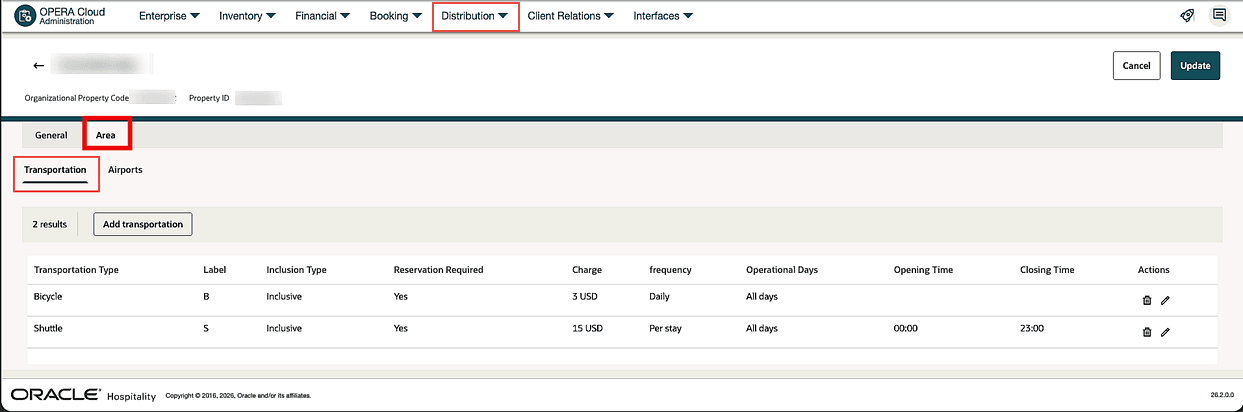
Transportation Options Screen
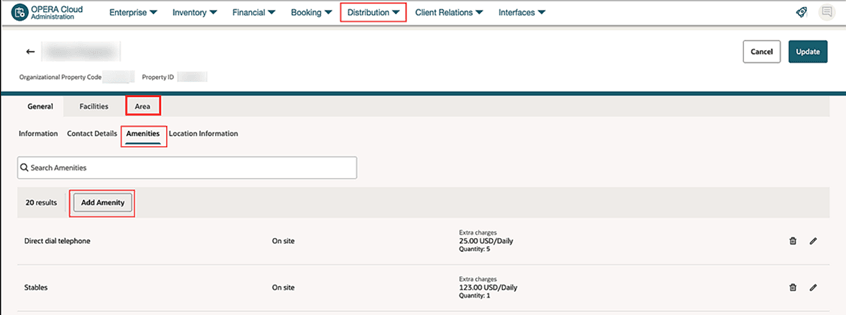
An option to configure Transportation options for Distribution channels is added under the Area tab in Content Management. You can view and configure Transportation options across multiple properties from the same screen.
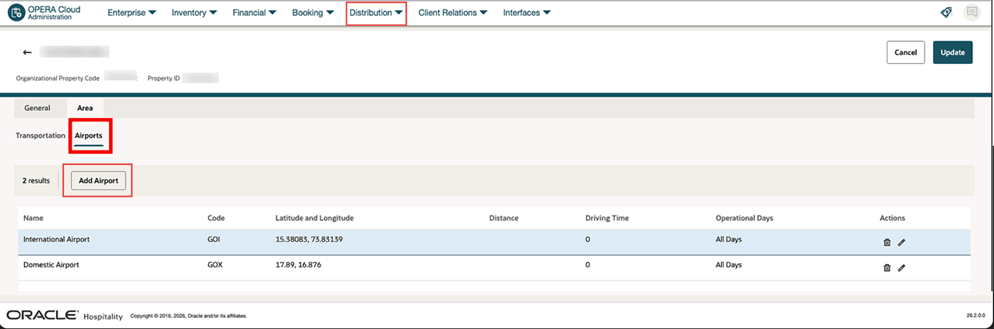
Airports Screen
An option to configure nearby Airports options for Distribution channels is added under the Area tab in Distribution Content Management. You can view and configure Nearby Airports across multiple properties from the same screen.
Property Amenities Screen
An option to configure Property Amenities for Distribution channels is added under the General tab in Distribution Content Management. You can view and configure Distribution Property Amenities across multiple properties from the same screen.
OPERATIONAL BENEFITS
You can manage content regarding location Information for nearby Airports and Transportation options for distribution channels such as GDS , OTA, and Booking engines from OPERA Cloud HUB and Property Mode.
You can also manage distribution content such as Check-In Time , Check-Out Time and property amenities for distribution channels such as GDS , OTA, and Booking engines from OPERA Cloud HUB and Property Mode.
IMPACT OR OTHER CONSIDERATIONS
Ensure you have the necessary tasks assigned at the HUB level and property level in OPERA Cloud Distribution.
Copy Channel Room Flow Added
DISTRIBUTION
CENTRAL
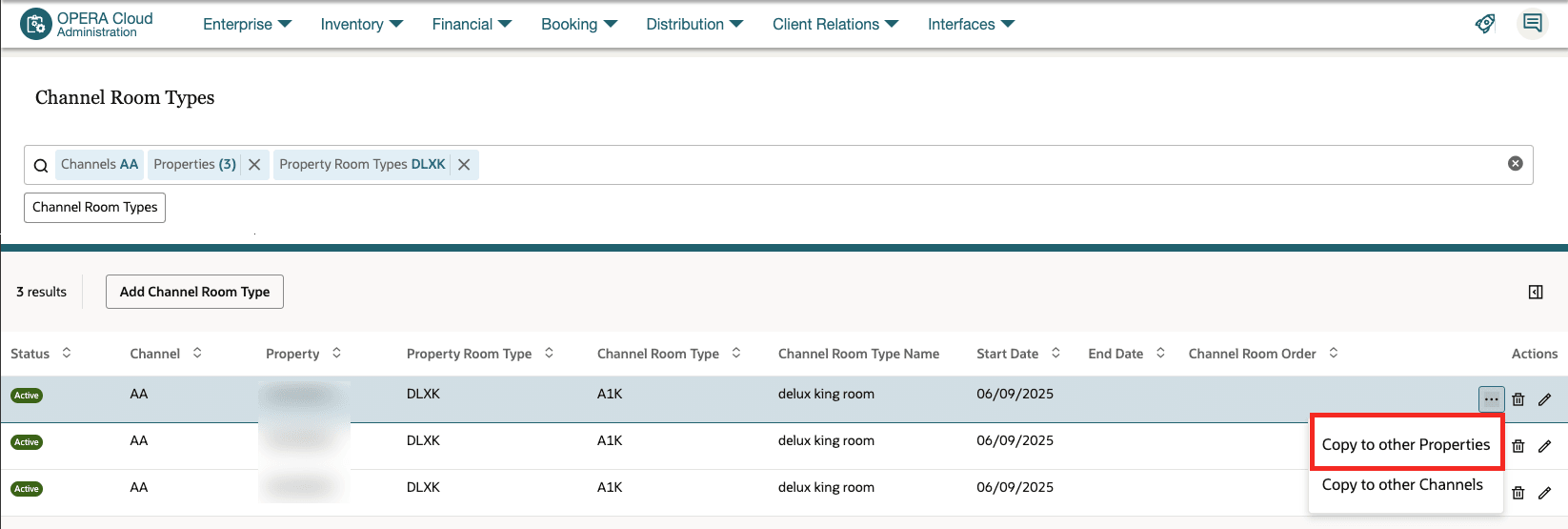
Copy to other Properties option is available for Channel Room Types. You can copy channel room types across multiple properties for a property from HUB location in OPERA Cloud Distribution.
OPERATIONAL BENEFITS
Channel Room Types can be copied across multiple properties. This is very helpful for setting up channel room types for newly provisioned properties or for syncing channel room type configurations across multiple properties using a single screen.
IMPACT OR OTHER CONSIDERATIONS
- This requires OPERA Cloud Distribution 25.5 or higher. DISTRIBUTION
- Copy to other Properties option is only available for properties with OPERA Cloud Central subscription. CENTRAL
- Ensure you have the necessary tasks assigned at the hub and property level in OPERA Cloud Distribution.
Sellable Availability Updated
DISTRIBUTION
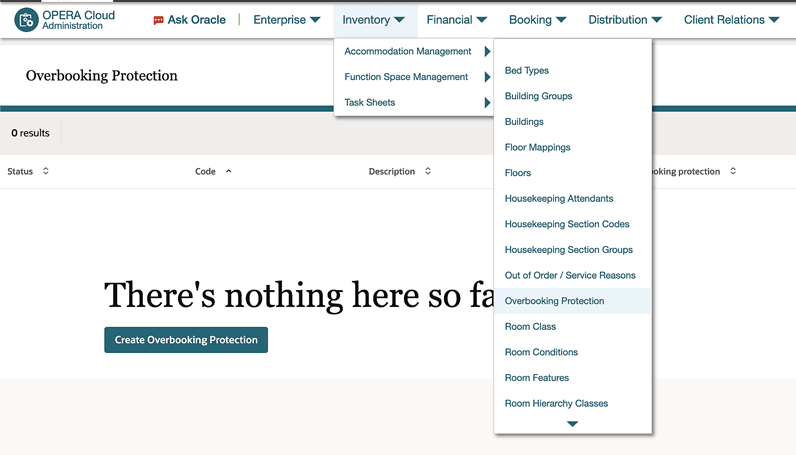
For properties with View Inventory user task in OPERA Cloud Distribution, the OPERA Cloud Sellable Availability screen (search and results) no longer displays inactive room types.
Overbooking Protection OFF: The maximum available rooms per room type until the maximum available rooms per property is reached.
Refer to Sellable Availability.
OPERATIONAL BENEFITS
Cleaner, error-resistant availability views that show only active, sellable room types for faster decisions, plus clear visibility of true capacity when Overbooking Protection is OFF (max per room type until property max is reached).
EVENTS
-
Oracle Hospitality OPERA Cloud Service, Sales and Event Management Essentials Edition.
-
Oracle Hospitality OPERA Cloud Service, Sales and Event Management Standard Edition.
-
Oracle Hospitality OPERA Cloud Service, Sales and Event Management Premium Edition.
Features that are specific to the Sales and Event Management Premium
Edition are marked with the Premium badge.
Internal ID Added for Menus, Menu Items and Item Inventory
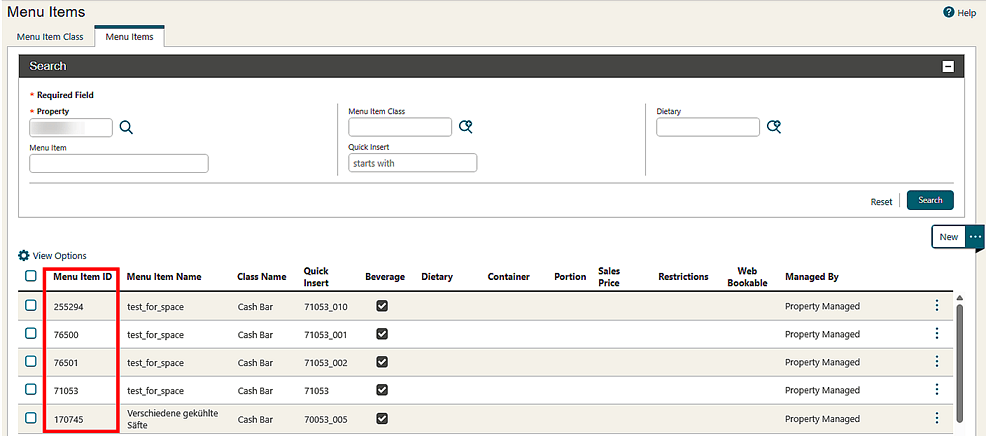
For properties with the Event Resources or Item Inventory OPERA Controls active, the internal ID for Menus, Menu Items, and Inventory Items display in configuration (Administration).
OPERATIONAL BENEFITS
You can view and share the resource ID with external vendors, making it simple to validate information and ensures seamless coordination when vendors need to add the resource to booked events, reducing the potential for errors and streamlining your workflow.
Sample BEO Data Models (XML) Updated
For properties with the Event Resources OPERA Control active, the following elements are added to the SAMPLE_BEO_1COLUMN, SAMPLE_BEO_2COLUMN and SAMPLE_BEO_2COLUMN_FBdata model (XML).
Labels section
- Net Price (NET_PRICE)
- Gross Price (GROSS_PRICE)
- Net Total (NET_TOTAL)
- Gross Total (GROSS_TOTAL)
BEO Controls section
- Language Code (LANGUAGE_CODE)
Event_ROW section
- Meal Period (MEAL_PERIOD)
- Meal Period Description (MEAL_PERIOD_DESCRIPTION)
REV_SUMMARY_GRAND_ROW section
- Gross Grand Rev Total (GROSS_REV_GRAND_TOTAL)
- Net Rev Grand Total (NET_REV_GRAND_TOTAL)
REV_SUMMARY_BY_DAY_ROW section
- Net Revenue Total by Day (NET_REV_DAY_TOTAL)
- Gross Revenue Total by Day (GROSS_REV_DAY_TOTAL)
REV_SUMMARY_ROW section
- Net Package Price (NET_REV_PRICE)
- Gross Package Price (GROSS_REV_PRICE)
- Net Revenue Total by Revenue Type (NET_REV_TOTAL)
- Gross Revenue Total by Revenue Type (GROSS_REV_TOTAL)
OPERATIONAL BENEFITS
Properties can customize the Revenue Summary of the BEO to show net or gross pricing in order to clearly communicate the estimated charges for their event. The language code allows for properties to customize labels and content in various languages in a single template. The meal period information can be clearly communicated to internal and customers in the banquet event order.
STEPS TO ENABLE
See Updating Customized Stationery with Current Data Model.
FRONT DESK
Create Room Keys for Multiple Interfaces
In properties with multiple Door Locking System interfaces you can create room keys for rooms configured across more than one interface after a room move and after updating reservation dates in Stay Details. For online interfaces, keys update automatically; for offline interfaces, the Create Keys screen displays so that you can start key creation manually. When you select Edit with Look To Book, online interfaces update automatically, and for offline interfaces you can select Create Keys.
OPERATIONAL BENEFITS
This feature allows you to create room keys for different DLS interfaces after updating a reservation.
Partial Keys Failure Handling Updated
Key creation handling is updated so that when you request multiple keys in a single action, each key result records independently, including separate “Key Created” and “Key Failed” entries in the changes log and in the confirmation message. The Create Key panel reflects the count of successfully created keys. See Managing Room Keys or Property Interfaces - Managing Keys (Door Lock System).
OPERATIONAL BENEFITS
When some keys succeed and others fail in the same key creation action, you can clearly identify the failed keys and recreate only those, rather than repeating the entire request. This streamlines key issuance and helps assist guests more quickly.
Pre-Arrivals Screen and OPERA Control Added
A Pre-Arrivals OPERA Control is added to the Front Desk group enabling a Pre‑Arrivals screen to assist guest service agents with the review and preparation of upcoming arrivals by managing preferences, notes, and traces prior to check-in. The screen supports searching and listing arriving reservations and provides a detailed right-hand panel where users can Mark as Reviewed (or Mark as Unreviewed) and make updates.

OPERATIONAL BENEFITS
Facilitates guest service agent review and preparation of upcoming arrivals by managing preferences, notes, and traces prior to guest check-in.
IMPACT OR OTHER CONSIDERATIONS
Note: When the Trace Frequency OPERA Control is active, traces can be created using additional frequency options. See Trace Frequency OPERA Control Added.
STEPS TO ENABLE
- From the Side Menu, select Administration, select Enterprise, and then select OPERA Controls.
- Select or confirm the Property.
- Select the Front Desk group.
- Locate and activate the Pre-Arrivals parameter.
- Locate and update the Default Number of Days on Pre Arrival Screen setting.
- From the Side menu select Role Manager, select either Manage Chain Roles or Manage Property Roles according to your needs.
- Enter search criteria and click Search.
- Select the role to update, then click the vertical ellipsis Actions menu, and select Edit.
- Select the Bookings group and grant the Pre‑Arrival task.
- Click Save.
INTEGRATIONS
Business Events Cashiering Updated
A REOPEN GUEST FOLIO business event is generated when a reservation is reinstated and a charge is posted to the reservation account. See Configuring Business Events.
Business Events Configuration Updated
In Business Events Configuration, you can apply filter conditions to UDF columns for the CHECK OUT business event in the Reservation module.
OPERATIONAL BENEFITS
You can tailor event triggers based on custom data and ensure relevant payloads are sent to external systems.
Business Events Streaming Updated with Data Value Mapping (DVM)
Data Value Mapping (DVM) is now supported for Business Events Streaming.
Availability note: DVM support is limited to select Business Events and data elements. Supported events/elements are:
| Business Area | API Operation Name | Business Purpose |
|---|---|---|
| Availability | Summary Total | DVMs provided for Room Type, Rate Code |
| Housekeeping | New Out Of Order | DVMs provided for Room Type, Rate Code |
| Housekeeping | Update Out Of Order | DVMs provided for Room Type, Rate Code |
| Rate | Restrictions | DVMs provided for Room Type, Rate Code |
OPERATIONAL BENEFITS
Ensures streaming event payloads can use the values expected by downstream systems (for supported elements), helping avoid mismatches caused by differing code sets.
IMPACT OR OTHER CONSIDERATIONS
DVM applies only to the business events and data elements listed above.
STEPS TO ENABLE
- From the Administration menu, select Interfaces.
- Select Business Events, then select External Systems.
- Select the target external system and click Edit.
- Under the Properties section, set Enable DVM as needed for the property where DVM should apply.
- Click Save.
Service Locator Added to Changes Logs
Service Locator integration logs are incorporated along with the transaction level changes logs for Profiles, Reservations, Blocks, Accounts Receivable, and Housekeeping.
You can review the respective Changes Logs which show the OPERA Cloud user and external system Integration user who responded via the service locator.
- Manage Reservation > Reservation > IWT: Changes Logs
- Manage Profile > Profile > IWT: Changes Logs
- Manage Block > Block Code > IWT: Changes Logs

OPERATIONAL BENEFITS
Service Locator integration calls are logged in sequence with transactional logs, so you can see the user who initiated each transaction in OPERA Cloud.
This gives the audit process clear visibility into the Service Locator integration calls tied to each transaction started in OPERA Cloud.
INVENTORY
Inventory and Rate Availability Consolidated Screen Added
CENTRAL
An Inventory and Rate Availability option is added to the Inventory menu, to view Room Availability, Rates, and Restrictions in a single location.

OPERATIONAL BENEFITS
These improvements support more informed and timely decision-making while optimizing hotel revenue management and ensuring data consistency across Opera Cloud operations.
Manage Restriction Screen Updated
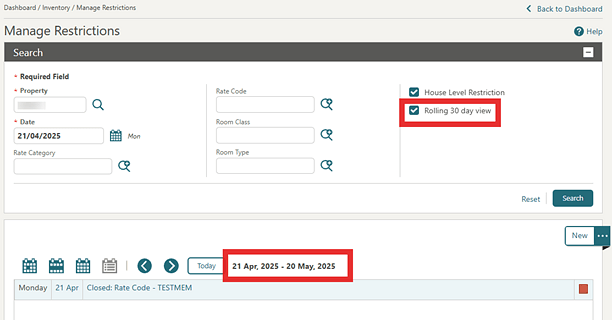
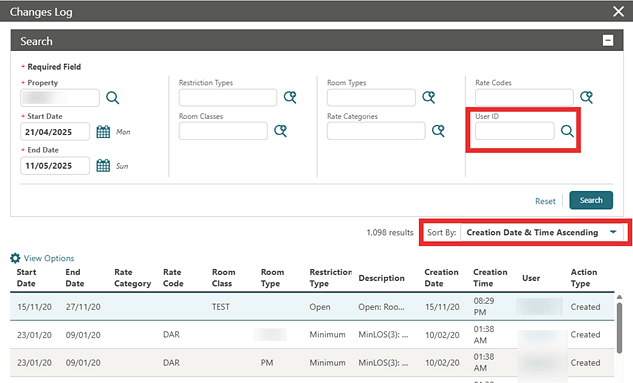
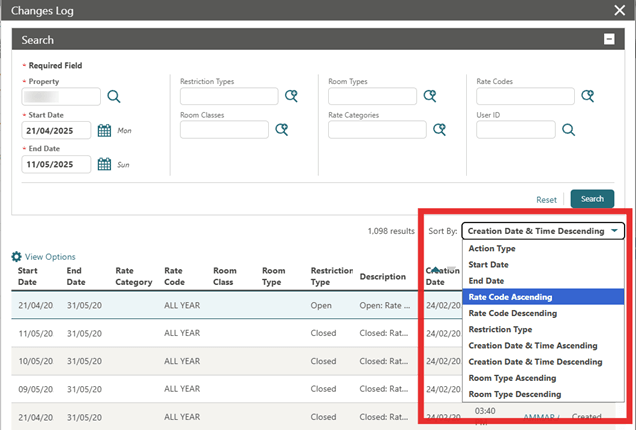
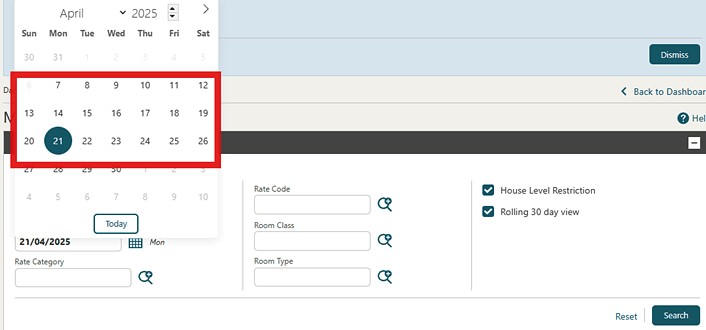
For properties with the Restrictions OPERA Control active, you can review restriction updates more easily in Manage Restrictions Changes Log: you can switch between a Past 14 Days view in the calendar and a Rolling 30 Day view, your results are sorted by Creation Date and Time and other options, and the search screen includes a User field so you can filter the log by who created the change.
OPERATIONAL BENEFITS
You can review restrictions faster with a redesigned, easier-to-navigate experience, including a past 14-day view and a rolling 30-day display. You can filter restrictions, see restrictions in a clear sequential view, and audit updates more efficiently by sorting the Changes Log by creation date/time and filtering results using the User field.
MEMBERSHIP
Member Info Screen Redesigned
LOYALTY
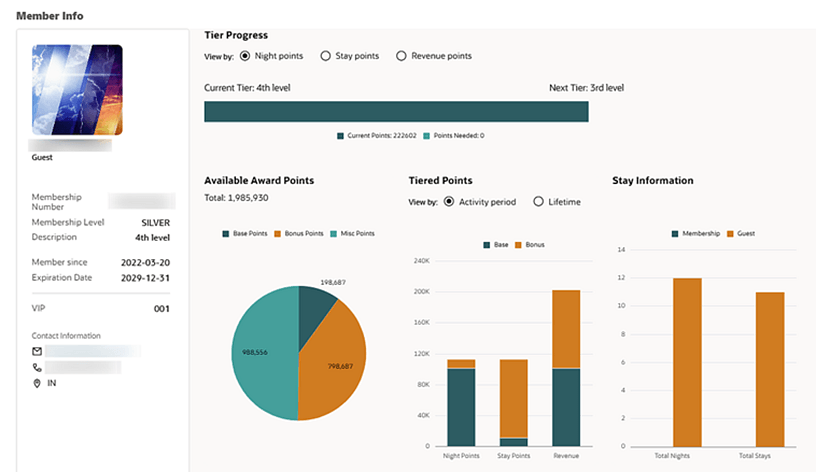
We updated the Member Info screen to make it easier to use and understand.
What’s new:
- Added Member Join Date and a cleaner Member Snapshot with improved Contact Information visibility.
- Points Available is changed to Available Award Points (award points only) to avoid confusion with Tier Points.
- Tier Points can be viewed by Activity Period (based on the configured Activity Period) or Lifetime (existing behavior).
-
Tier progress is shown using the most recent projected date.
OPERATIONAL BENEFITS
- Faster member servicing with improved readability and reduced navigation.
- Fewer points disputes due to clearer labeling and separation of Award vs. Tier points.
- More relevant tier discussions by aligning date-driven tier activity to tier management periods.
Qualifying Rates Screen Visibility
LOYALTY
The Qualifying Rates screen is available regardless of Multi-Property OPERA Control status. This update removes the previous dependency, enabling all eligible users to view and manage qualifying rates directly from the menu.
OPERATIONAL BENEFITS
- Streamlined Access: Staff can quickly access relevant features without dependency on Multi-Property Control status, improving workflow efficiency.
- Reduced Complexity: Simplifies system configuration by eliminating unnecessary dependencies, making operations easier for property teams.
- Consistent User Experience: Provides a uniform experience for eligible users across properties, minimizing confusion and training effort.
View Membership History Added
LOYALTY
You can view a history of changes made to profile membership updates, including modifications to membership card number, membership level, status, expiration date, and other relevant details, thereby providing a clear and transparent record of membership activity.
OPERATIONAL BENEFITS
This enhanced visibility into profile membership updates enables loyalty program administrators to efficiently resolve customer inquiries, improve membership data accuracy, and provide personalized service, ultimately driving loyalty program engagement, increasing customer retention, and fostering a more rewarding experience for loyalty program members.
MISCELLANEOUS
HUB Activity Added to Changes Log
Hub configuration activity is added to the Changes Log: Group=Configuration, Action Type=NEW HUB, UPDATE HUB.

OPERATIONAL BENEFITS
Improved auditability of configuration changes
QR Configuration Updated for Allow List URLs
QR Code Definition is updated to require URLs setup in the QR Code definition to be added to the Outbound Domain Allowlist. See Managing QR Code Definitions.
OPERATIONAL BENEFITS
Improved security measures.
IMPACT OR OTHER CONSIDERATIONS
Ensure all existing QR Code Definitions are checked for references to URLs and add these domains to Outbound Domain Allowlist.
MOBILE
Add Payment Directly to Routing Instruction
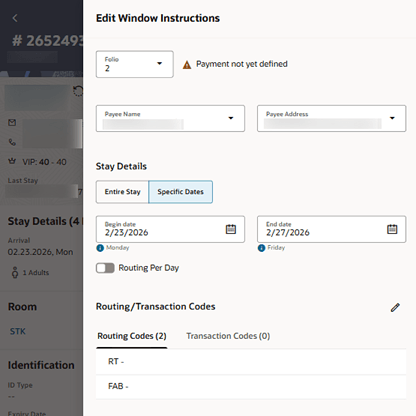
For properties with the Routing Instructions OPERA Control active, the Update and Add Payment Method option is added to Billing Instructions so that you can swipe right to Manage and Edit Window Instructions. This allows you to add a Payment Method to the selected Window.

OPERATIONAL BENEFITS
Adding payment methods directly to routing instructions reduces manual steps, ensures payments are correctly assigned, and speeds up billing processes, enhancing efficiency and minimizing errors.
Advanced Alerts Added
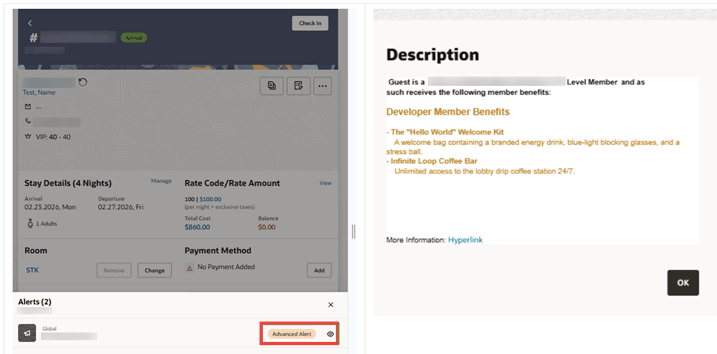
For properties with the Advance Alert OPERA Control active, you can view Advanced Alerts by selecting the Advanced Alert button. See PWA - Managing Alerts.
OPERATIONAL BENEFITS
The use of Advance Alert Messages with Global Alerts allows for personalized alert messages to be autoattached to a reservation using reservation attributes to build the message itself. Examples of merge codes which can be used to deliver personalized service in Alert messages include, guest name, next visit date, membership level.
Commissions Added to Travel Agent Profile
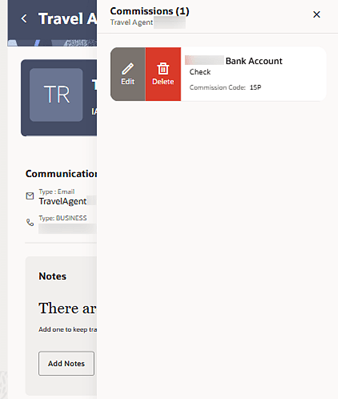
For properties with the Commissions Handling OPERA Control active, you can view and manage commissions associated with a travel agent profile.
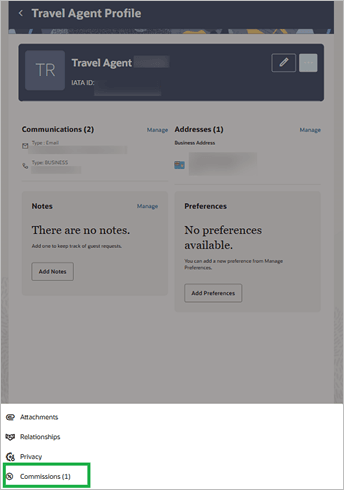
Swipe action right to Edit existing Commissions or Delete to Remove.
OPERATIONAL BENEFITS
You can quickly add a commission to a reservation directly from the Travel Agent profile.
Completed Rooms Added to Task Companion
For properties with the Inspected Status OPERA Control active, the final room status is Inspected. For properties with the Inspected Status OPERA Control inactive, the final room status is Clean.
Rooms marked as finished, based on the final room status, are moved to the end of the rooms list for easier review.

OPERATIONAL BENEFITS
Displaying finished rooms with the highest cleaning status at the end of the Task Sheet helps staff easily identify completed rooms, reducing confusion, improving task prioritization, and ensuring efficient housekeeping operations.
Consumption Date Filter Added to Package Daily View
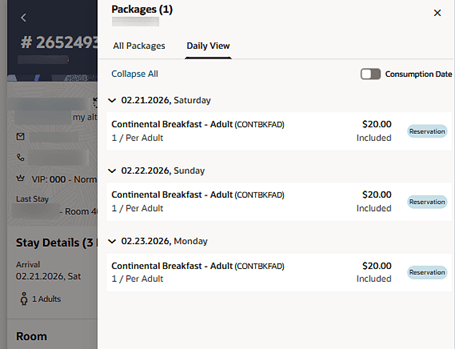
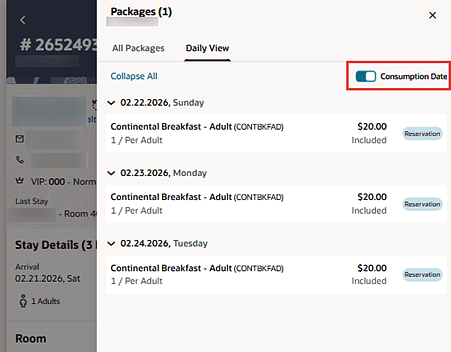
Within the Packages drawer on the Daily View tab, you can toggle the Consumption Date filter to view packages configured with the Forecast Next Day attribute and see the date each package is valid for consumption.
This reservation has a Breakfast Package that's valid for Sunday Morning because it's configured as Forecast Next Day.
After selecting the Consumption Date toggle, you can view the Consumption date of the package for Breakfast for Sunday morning rather than Saturday.
OPERATIONAL BENEFITS
You can quickly view packages and their consumption date with a single toggle, making it easy to validate entitlements and provide guests with accurate information.
IMPACT OR OTHER CONSIDERATIONS
Toggling the Consumption Date filter lets staff see which packages are valid for each day, helping them anticipate demand, prepare resources, and deliver a smoother guest and user experience.
Display Credit Card Wallet in Payment Drawer Added
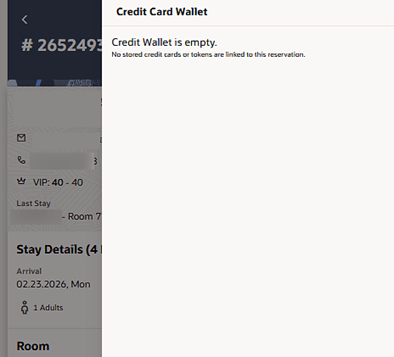
When the Credit Card Wallet OPERA Control parameter is set to RESERVATION, credit card tokens are securely stored in the reservation wallet and can be viewed in OPERA Cloud Mobile. You can access the reservation wallet and use the stored credit card tokens from the Add/Change Payment Method drawer, and Update and Add Payment Method for Routing Instructions.

When no Credit Card is added to the wallet it states that the credit wallet is empty:
When a Credit Card exists for the wallet it shows as a selectable line item:

OPERATIONAL BENEFITS
Storing and accessing credit card tokens in the reservation wallet allows staff to quickly manage payments without re-entering card details, reducing errors, improving security, and speeding up check-in, check-out, and routing processes.
STEPS TO ENABLE
- From the side menu, select Administration, select Enterprise, and then select OPERA Controls.
- Select or confirm the Property.
- Select the Cashiering group and scroll to the parameters section.
- Update the Credit Card Wallet setting to RESERVATION.
- From the Side menu select Role Manager, select either Manage Chain Roles or Manage Property Roles according to your needs.
- Enter search criteria and click Search.
- Select the role to update, click the vertical ellipsis Actions menu, and select Edit.
- Select the Financials group and grant the task Delete Credit Card from the CC Wallet.
- Click Save.
Linked Profiles Communication, Notes, Preferences, Attachments, and Relationships Managing Options Added
To ensure efficient guest profile updates, the Quick Edit allows you to make changes to the essential information such as: Guest Name, Primary Email Address, Primary Phone Number and Primary Address, as well as additional information such as Alternate Name Details, Primary Guest Language, Birthday, Preferences, Relationships, Attachments and Nationality.

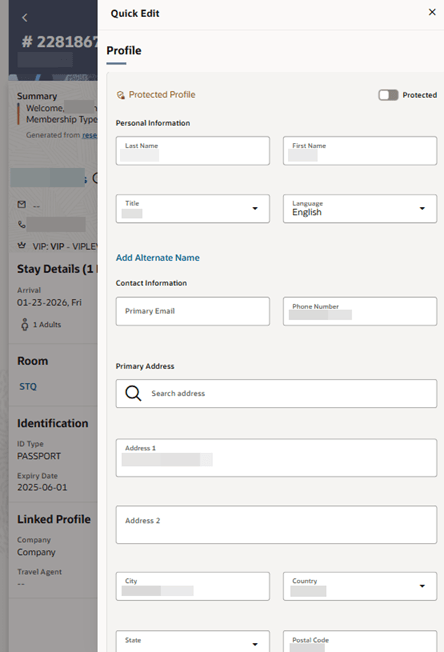

Use the Linked Profile manage option view/update a Company, Travel Agent, Contact, Group and Source profile to a reservation. When the Attach Travel Agent / Source Profiles to Reservations OPERA Control is active, both a travel agent and source can be linked to a reservation.

You can view attached Linked Profiles and Guest Profile. Select view to view the profile attached or select add to add an existing or create a new Linked Profile.

Select the pencil to update or change any details for the Linked Profile(s) for Company, Source, Travel Agent:
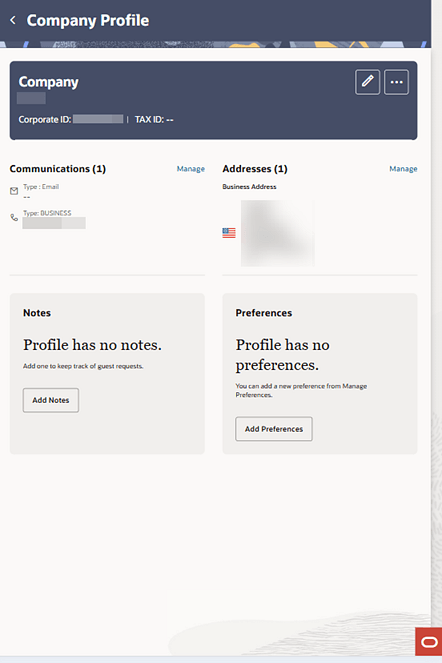
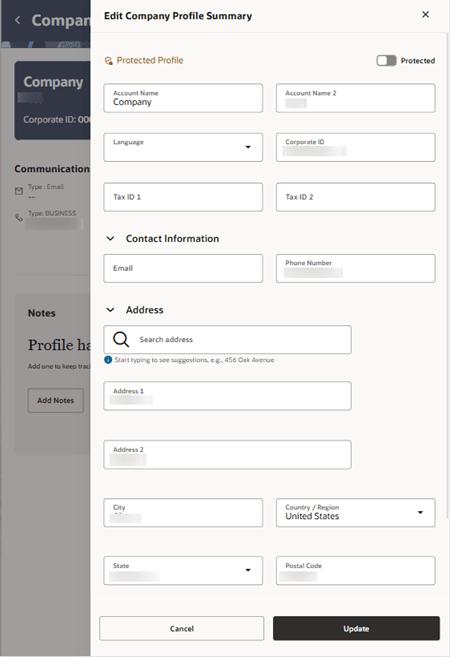
Select the ellipses to view Relationships or Attachments when applicable:

For properties with the Commissions Handling OPERA Control active, you can view and manage commissions associated with a travel agent profile. Refer to Commissions Added to Travel Agent Profile.
OPERATIONAL BENEFITS
This feature enables you to update key guest details and manage linked profiles directly in OPERA Cloud Mobile, reducing navigation, and data entry time.
IMPACT OR OTHER CONSIDERATIONS
Prerequisites
You can update Guest and Linked Profiles via Manage from the Reservation Page if the following OPERA Controls are enabled and user task(s) are granted:
OPERA Controls:
Commissions group
Commissions Handling Functionality function
General group
File Attachments function
Profile group
Relationships function
User Tasks:
Client Relations group
Tasks:
Profile Management
Create Profile
Guest Profile
Company Profile
Travel Agent Profile
Source Profile
Attachments
Relationships
Profile Notes
New/Edit Profile Notes
Delete Notes
Profile Preferences
New/Edit Profile Preferences
Delete Preferences
Communications
Manage Communications
Profile Details
Edit Profile Details
New/Edit Profile Commissions
Delete Profile Commissions
Address
Queue Rooms Module Added
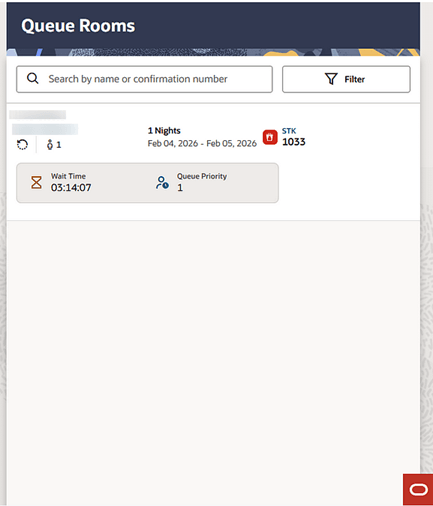
For properties with the Queue Rooms OPERA Control active, you can manage reservations placed on queue.
Using the Queue Rooms module, you can
- View and modify queued reservations
- Prioritize reservations
- Check in reservations directly from the queue
OPERATIONAL BENEFITS
Providing access to the Queue Rooms module from the main menu allows you to quickly view and prioritize reservations, reducing wait times, optimizing room readiness, and improving the overall check-in experience.
IMPACT OR OTHER CONSIDERATIONS
The new Access OPERA Cloud Mobile - Queue Rooms user task gets automatically assigned to all users that have the user task Bookings - Reservation Management - Queue Reservations.
Quick Edit Added to Daily Details
You can update reservation details using Quick Edit for Daily Details directly within the Update Reservation drawer. Edit ability remains governed by active OPERA Controls and user tasks granted (see Impact or Other Considerations below for the prerequisites list).
Swipe action right to modify Daily Details of the reservation. You can apply any of the respective changes for the total stay using the Apply Till field.
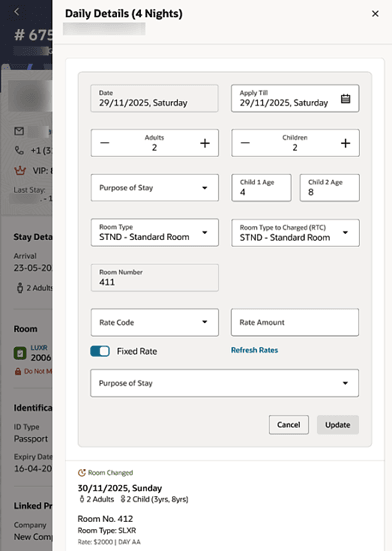

OPERATIONAL BENEFITS
Quick Edit allows you to update daily reservation details efficiently while ensuring changes are authorized, reducing errors, saving time, and maintaining data integrity.
IMPACT OR OTHER CONSIDERATIONS
You can update reservations via Quick Edit if the following OPERA Controls are enabled and user task(s) are granted:
OPERA Controls:
Reservations group:
- Advanced Daily Details parameter
- Room Type to Charge parameter
- Reservation Protection parameter
- Fixed Rate parameter
- Reservation Discount parameter
Rate Management group:
- Child Rates By Defined Buckets parameter
User Tasks
Booking group
tasks:
- Reservation Management
- Stay Details
- Edit Stay Details
- Discounts on Reservations
- Daily Details
- Edit Daily Details
- Reservation Protection
- Mark Reservation as Protected
- Unmark Reservation as Protected
- Override Reservation Protected
Reservation Details and Icons in Task Sheets Updated
Improvements are made to the room and reservation details display in the Task Companion. The Timer, Queue Time, and Requested Cleaning information now appear just below the Room Instructions and stretch across the full width, with the Timer left-aligned. ‘Change Linen’ and ‘Maintenance’ icons are on the same row, right-aligned for easy access.
The Reservations section is also updated to consistently show details for both departing and arriving reservations. All key icons and information—including Room Status, ETA/ETD, Back to Back, Traces, and the Number of Adults and Children—now remain fixed in place, making important details easy to find at a glance.
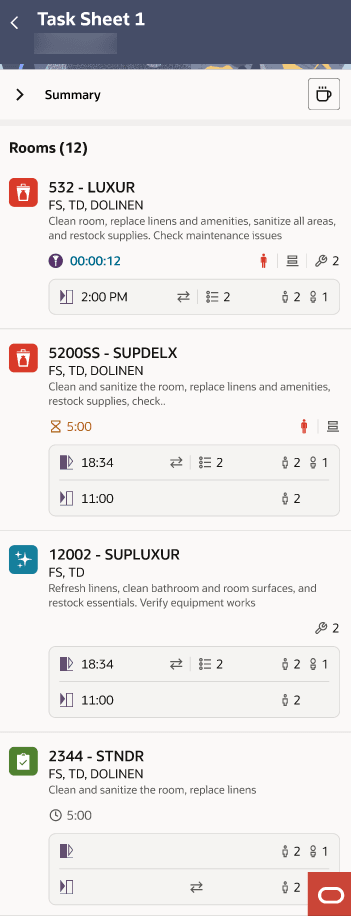
OPERATIONAL BENEFITS
Task Sheets are updated to enhance alignment and provide a better display of icons and relevant reservation information.
Reservation Notes and Traces Updated
Traces and Notes display within a single drawer but are individually handled. Verbiage is improved on the panel to individually indicate when there are no existing Traces or Notes for the reservation. You can create a note or trace from the Add option within the Notes & Traces Drawer.
No Traces and No Notes:

New Note when added:, no Traces:
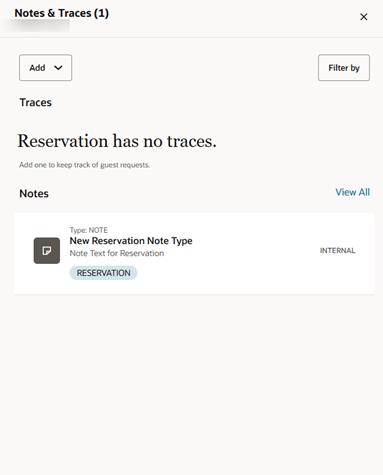
New Trace when added and pending:, no Notes:

OPERATIONAL BENEFITS
Notes and Traces are now consolidated into a single drawer for easier access, while still remaining separate lists so you can manage each independently.
Reservation Search and Quick Edit Updated with ETA and ETD
You can view Estimated Time of Arrival (ETA) and Estimated Time of Departure (ETD) in key areas from the Reservation Search (Arrivals, In-House, Departure) and Quick Edit.
In Arrivals:
p
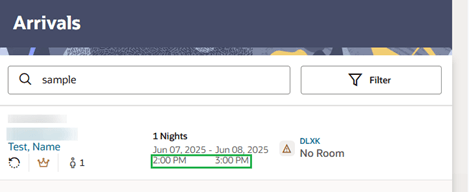
In Departures:

In an In House Reservation:

In Quick Edit:
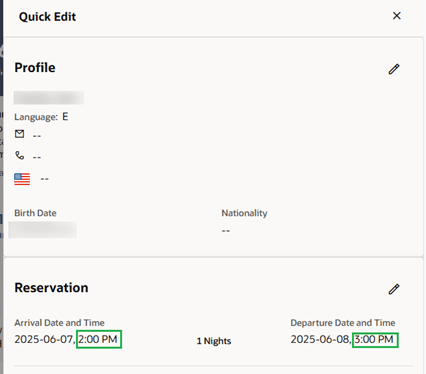
OPERATIONAL BENEFITS
Access to ETA and ETD directly from Reservation Search and Quick Edit helps to better anticipate guest movements, prioritize room readiness, and coordinate housekeeping and front desk operations resulting in smoother arrivals and departures.
Room Status Updated for OO and OS
For properties with the Out of Order / Out of Service OPERA Control(s) active, you can resolve an Out of Order or Out of Service Room from the Room Status menu.
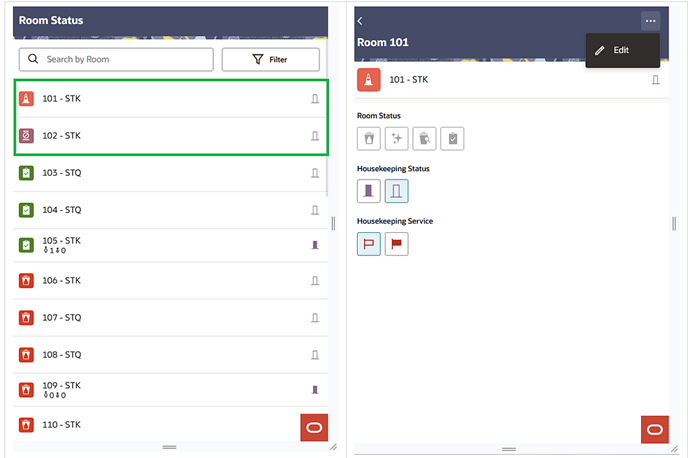
OPERATIONAL BENEFITS
Resolving Out of Order or Out of Service rooms directly from the Room Status menu allows staff to quickly update room status, optimize inventory, and ensure accurate availability for reservations and housekeeping.
Room Type/Room Info Link Added to Room Assignment
When accessing a reservation, you can view the room type and room information from within Assign Room.
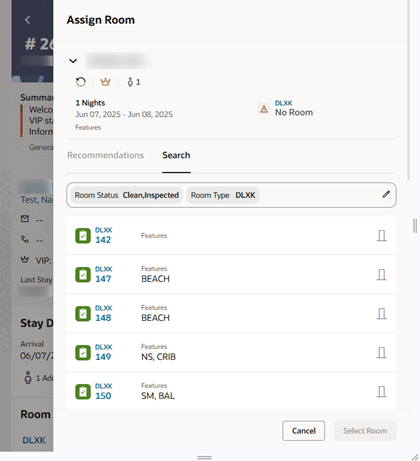
OPERATIONAL BENEFITS
Displaying the Room Type and Room details within Assign Room, reduces additional navigation and helps you select the right room more quickly.
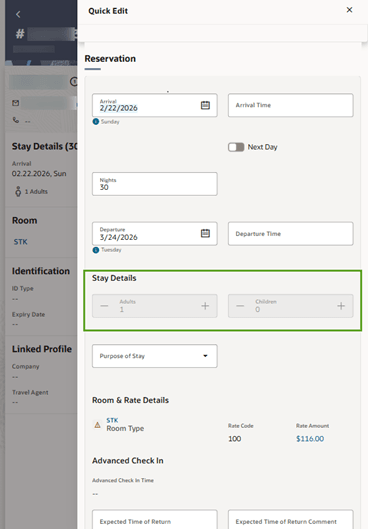
Stay Details Read-Only When Daily Details Vary Per Night
When changes are made in Daily Details that vary on a per night basis, Stay Details for those respective fields become read-only.
Adults vary from previous/future nights:
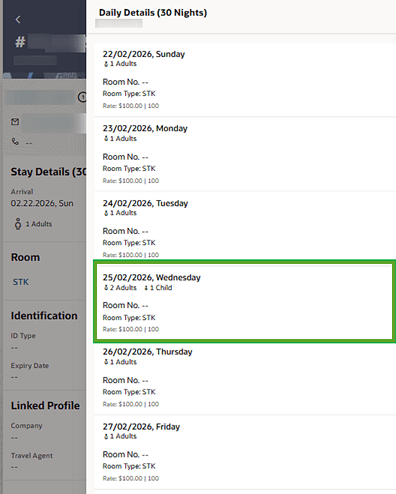
Adults and Children become read-only in Stay Details/Quick Edit:
OPERATIONAL BENEFITS
Making Stay Details read-only when Daily Details vary per night prevents conflicting updates, ensures accurate reservation information, and reduces mistakes in billing, room assignments, and guest services.
IMPACT OR OTHER CONSIDERATIONS
Prerequisites
You can update reservations via Quick Edit if the following OPERA Controls are enabled and user task(s) are granted:
OPERA Controls:
Reservations group
- Advanced Daily Details parameter
- Fixed Rate parameter
- Reservation Discount parameter
- Reservation Protection parameter
- Room Type to Charge parameter
Rate Management group
- Child Rates By Defined Buckets parameter
OPERA Tasks:
Booking group
tasks:
- Reservation Management
- Daily Details
- Edit Daily Details
- Stay Details
- Edit Stay Details
- Discounts on Reservations
- Reservation Protection
- Mark Reservation as Protected
- Unmark Reservation as Protected
- Override Reservation Protected
Supplies Added to Task Companion Task Sheet Overview and Summary
Supplies are added to Task Companion Task Sheet Overview and Summary sections.
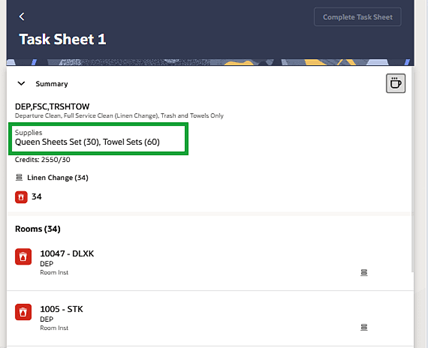
OPERATIONAL BENEFITS
Housekeepers can view a visual summary of required quantities for each configured supply, helping them plan and service rooms more efficiently.
Swipe to Check-In Added
You can easily access the Check-In action by swiping left on an arrival reservation.
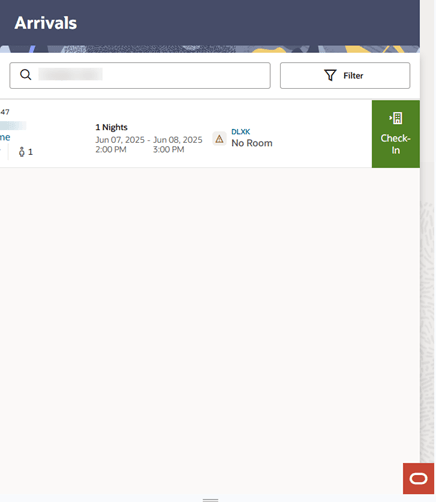
OPERATIONAL BENEFITS
This streamlined interaction improves usability and allows you to quickly initiate the check-in process directly from the arrival list.
Today's Traces Added
For properties with the Reservation Traces and/or(Block) Traces OPERA Controls active, the Today's Traces feature allows you to efficiently manage traces for reservations due today.
An Access OPERA Cloud Mobile - Today's Traces user task is automatically assigned to users with the Bookings - Reservation Management - Traces (and/or) Bookings -Manage Blocks - Block Traces tasks granted to their role.
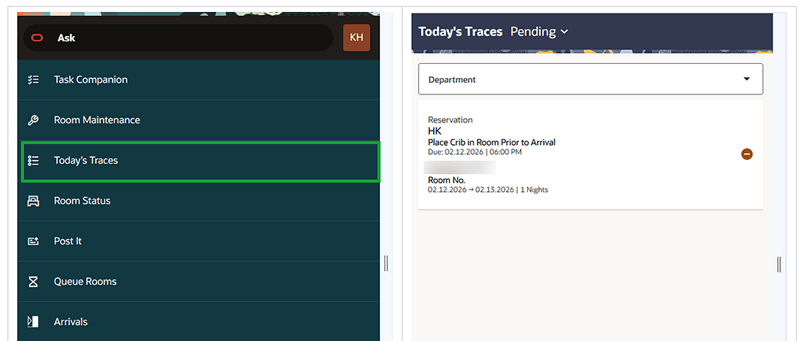
OPERATIONAL BENEFITS
Access to today’s Traces from the main menu allows you to quickly view and act on time-sensitive tasks without navigating multiple screens.
Usability Improved in Task Companion, Room Maintenance, Room Status, and Post It
Task Companion, Room Maintenance, Room Status, and Post It utilize the drawer to display details, making the navigation between the main records and their details seamless.
Drawer examples: Room Maintenance New Request and Rooms Status Set Out of Order screens:

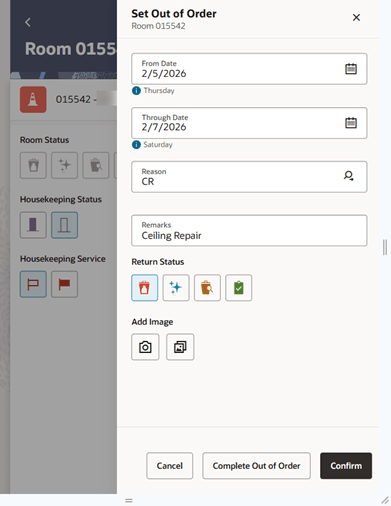
OPERATIONAL BENEFITS
Improvements are made in Task Companion, Room Maintenance, Room Status, and Post It so you have a consistent navigation experience throughout the application.
PROFILES
Manage Name/Alternate Name Protected Profiles Override Task
This enhancement adds a new override task in OPERA Cloud Membership Management that allows authorized users to edit or merge member profiles even when Name Protect or Alternate Name Protect is enabled.
Access is limited to users granted the Override Name Protection and/or Override Alternate Name Protect tasks, enabling updates to fields such as Name, First Name, Title, Salutation, Alternate Name, Alternate First Name, Alternate Title, and Alternate Salutation. All override activity is fully audited.
No changes apply to standard users, who remain unable to modify protected information. This update supports loyalty and membership operations and doesn't affect Profile Auto Merge functionality.
OPERATIONAL BENEFITS
- Streamlined Member Profile Management: Authorized users can efficiently update or merge protected profiles without lengthy escalations or manual workarounds.
- Enhanced Security and Compliance: Only users with specific override privileges can access or modify sensitive fields, and all changes are auditable.
- Reduced Administrative Overhead: Minimizes delays by empowering appropriate users to resolve name protection issues directly.
STEPS TO ENABLE
- From the Side menu select Role Manager, select either Manage Chain Roles or Manage Property Roles according to your needs.
- Enter search criteria and click Search.
- Select the role to update, click the vertical ellipsis Actions menu, and select Edit.
- Select the Client Relation group and grant the tasks: Override_membership_Name_Protect and Override_membership_Alternate_Name_Protect
- Click Save.
PROPERTY APIs
CRM: getMemberHistory API Added
The Customer Relationship Management module (crm.json) is updated with the getMemberHistory API operation allowing you to fetch the detailed history of changes made to a member's profile, including modifications to membership level, status, expiration date, and other relevant details, providing a comprehensive and transparent record of membership activity.
| Path | /crm/v1/memberHistory |
| Method | GET |
| Summary | Get primary membership history details of a guest. |
| Description | This API allows you to retrieve primary membership history details of a profile. |
| Operation Id | getMemberHistory |
OPERATIONAL BENEFITS
By leveraging the getMemberHistory, API users can build integrated applications that provide a unified view of member activity, enabling loyalty program administrators to deliver more personalised and responsive service, while also improving operational efficiency and reducing the need for manual data reconciliation.
CRM: getProfile API Updated
The getProfile API operation in the Customer Relationship Management module (crm.json) is updated with a fetchInstruction "ProfileAccount" allowing you to fetch Accounts Receivables linked to a given profile.
OPERATIONAL BENEFITS
Using getProfile with "ProfileAccount" as fetchInstruction enables API users to fetch Accounts Receivables data associated with a profile, ensuring accurate and comprehensive financial data management.
CRM: getProfile, postProfile, putProfile Updated
A new customizedPrivacyCodes array is added to privacyInfoType in the external Customer Relationship Management API (CRM) for getProfile, postProfile, and putProfile, enabling you to read and update up to 20 configured profile correspondence privacy codes per profile. Each entry includes the code (the configured and active correspondence code) and a value (true/false) indicating whether that code is enabled for the profile.
OPERATIONAL BENEFITS
- More flexible privacy preferences: You can capture additional, property-defined privacy choices beyond the standard set, without waiting for new standard fields.
- Consistent behavior across channels: Privacy selections can be applied the same way whether they are set in the OPERA Cloud screen or through integrations using the API.
- Faster onboarding for new compliance needs: If regulations or brand standards change, you can add a new correspondence privacy code and start collecting it immediately.
- Cleaner automation and segmentation: Marketing, communications, and guest engagement processes can use specific correspondence opt-ins/opt-outs instead of relying on broad “allow email/phone” flags.
CRM: getSuspendedStays Updated
Four new response properties are added to suspendedStaySummaryType in the external Customer Relationship Management API (CRM) getSuspendedStays operation, providing more details for each suspended stay: stayMembershipNumber, stayMembershipType, suspendedStayDate, and suspendedStayReason (comma-separated values, max length 4000).
OPERATIONAL BENEFITS
- Faster issue resolution: You can see the suspension date and reason directly in the response, reducing follow-up calls and manual lookups.
- Better loyalty handling: Membership number and membership type help loyalty teams quickly identify the member and apply the right program rules.
- Improved triage and routing: Suspension reasons can be used to automatically route cases to the right team (fraud, duplicate stay, validation, etc.).
- Clearer guest communication: Agents have the context needed to explain why a stay is suspended and what the next steps are.
CRM: putOrphanStayRecords API Added
The Customer Relationship Management module (crm.json) is updated with putOrphanStayRecords API operation allowing you to edit and update an orphan stay record by modifying the following values.
- GUEST_NAME_ID
- PMS_NAME_ID
- PMS_RESV_NAME_ID
- PMS_RESV_NO
- UDFC10
- PMS_COMPANY_ID
- PMS_TRAVEL_ID
- PMS_WHOLESALER_ID
- ROOM_LABEL
- BOOKED_ROOM_LABEL
- NUMBER_NIGHTS
- CRS_BOOK_NO
| Path | /crm/v1/stayRecords/{stayRecordId} |
| Method | PUT |
| Summary | Ability to edit Orphan Stay Records |
| Description | This API allows user to edit Orphan Stay Record fields |
| Operation Id | putOrphanStayRecords |
OPERATIONAL BENEFITS
The putOrphanStayRecords API operation enables the updating of orphan stay records, allowing them to be linked to the correct profile and ensuring that the associated details are accurate and up-to-date. This improves data integrity, enhances customer profiling, and supports more effective customer relationship management.
CRM: putProfile, postProfile, postMembership APIs Updated
- When adding membership to a profile using the putProfile, postProfile, or postMembership API , you can specify the Enrollment Source using the enrollmentSource attribute to determine the source of the membership enrollment.
- The description for the attribute enrollmentSource is updated to reflect the
same.
- The source from which a profile is enrolled. If not specified when adding a membership to a profile, the value defaults to the Default Enrollment Source setting in the OPERA Control.
Note:
: If no value is sent through the API, the value default to the Default Enrollment Source setting in the OPERA Control.
OPERATIONAL BENEFITS
With the ability to pass the enrollment source through APIs when adding profile memberships, loyalty administrators can now accurately track and analyze the source of membership enrollments, facilitating more informed decision-making and targeted marketing efforts.
CRM/CRMASYNC: getSuspendedStays, putProcessSuspendedStays, deleteSuspendedStays Updated
New optional query parameters are added to the external Customer Relationship Management APIs to improve filtering and bulk processing of suspended stays. getSuspendedStays (CRM) and deleteSuspendedStays (CRMASYNC) now support filtering by importDateFrom/importDateTo, arrivalDateFrom/arrivalDateTo, departureDateFrom/departureDateTo, pmsResvConfNo, clientID, pmsNameID, membershipType, membershipNo, and errorDescription. putProcessSuspendedStays (CRM) supports the same fields via the suspendedStayDetails criteria, allowing you to target which suspended stays to process.
OPERATIONAL BENEFITS
- Faster searching and troubleshooting: Narrow down suspended stays by date ranges, reservation confirmation number, profile identifiers, membership, or error description.
- More efficient bulk processing: Process or delete only the suspended stays that match specific criteria instead of handling broad sets.
- Better operational control: Teams can focus on recent imports, specific arrival/departure windows, or particular loyalty/member segments.
CSH: putCashSurchageRange, postCashSurchargeRange, getCashSurchageRange, deleteCashSurchargeRange, getCashSurchargeInfo APIs Added
The Cashiering API includes the new operations putCashSurchageRange, postCashSurchargeRange, getCashSurchageRange, deleteCashSurchargeRange, getCashSurchargeInfo offering a convenient way to define cash surcharge ranges, retrieve Cash/Check surcharge details, including percentage or flat amounts to be applied to transaction amount.
OPERATIONAL BENEFITS
Cash Transaction Surcharge functionality is added for Properties in Algeria, Morocco, Senegal and Ivory Coast which are required to apply a Cash Surcharge/Stamp Tax for Cash and Check payments.
The Cashiering API operation has been created to support this functionality.
STEPS TO ENABLE
- From the side menu, select Administration, select Enterprise, and then select OPERA Controls.
- Select or confirm the Property.
- Select the Cashiering group.
- Locate the Cash Surcharge OPERA Control and activate
- The Default Cash Surcharge Transaction Code OPERA Control is displayed, select the transaction code used when posting the Cash and Check Payment Surcharge.
- From the side menu, select Role Manager and then select either Manage Chain Roles or Manage Property Roles according to your needs.
- Enter search criteria and click Search.
- Select the role to update, click the vertical ellipsis Actions menu, and select Edit.
- From the side menu, select Administration, select Financial, select Cashiering Management, and then select Cash Surcharge. Select New to create records.
- From the side menu, select Administration, select Financial, select Transaction Management, and then select Payment Methods.
- Select the required Cash or Check Payment Method required to generate Cash Surcharge, then select Edit.
- Select the Apply Cash Surcharge checkbox, and then select Save. Repeat the process for each Payment Method required to generate Cash Surcharge.
CSH: postPasserBySale, postBillingPayment, postDepositPayment Updated
The Cashiering API operationspostPasserBySale, postBillingPayment, postDepositPayment are updated with the attribute applyCashSurcharge for billing, passerby/post it, and deposit operations.
This indicates if the cash surcharge amount has to be applied to the total folio amount due to the payment type selected for payment operations on billing, passerby/ post it and deposit flows.
OPERATIONAL BENEFITS
Cash Transaction Surcharge functionality is added for Properties in Algeria, Morocco, Senegal and Ivory Coast which are required to apply a Cash Surcharge/Stamp Tax for Cash and Check payments.
The Cashiering API operation has been updated to support this functionality.
STEPS TO ENABLE
- From the side menu, select Administration, select Enterprise, and then select OPERA Controls.
- Select or confirm the Property.
- Select the Cashiering group.
- Locate the Cash Surcharge OPERA Control and activate
- The Default Cash Surcharge Transaction Code OPERA Control is displayed, select the transaction code used when posting the Cash and Check Payment Surcharge.
- From the side menu, select Role Manager and then select either Manage Chain Roles or Manage Property Roles according to your needs.
- Enter search criteria and click Search.
- Select the role to update, click the vertical ellipsis Actions menu, and select Edit.
- From the side menu, select Administration, select Financial, select Cashiering Management, and then select Cash Surcharge. Select New to create records.
- From the side menu, select Administration, select Financial, select Transaction Management, and then select Payment Methods.
- Select the required Cash or Check Payment Method required to generate Cash Surcharge, then select Edit.
- Select the Apply Cash Surcharge checkbox, and then select Save. Repeat the process for each Payment Method required to generate Cash Surcharge.
FOF: postHotelInterface, getHotelInterfaceDetails, getRoomKeyInterfaceDetails API operations Updated.
- A new non-required element sequence is added in postHotelInterface and putHotelInterface.
- A new element sequence is added in getHotelInterfaceDetails in theresponse.
- Two new non-required query parameters orderBy and sortOrder are added in getRoomKeyInterfaceDetails.
OPERATIONAL BENEFITS
The sequence attribute can be use by consumers for fetching and sorting interfaces based on the assigned sequence.
FOF: postRoomKeys API Updated
"keyStatus": {
"description": "keys success or failure status.",
"type": "string",
"minLength": 0,
"maxLength": 2000
},
OPERATIONAL BENEFITS
The new keyStatus attribute allows consumers to receive the detailed keys success and failure messages sent by the Door Locking System.
FOFCFG: getPaymentMethods, postPaymentMethods, putPaymentMethods Updated
The Front Office Configuration API following operations getPaymentMethods, postPaymentMethods, putPaymentMethods are updated to indicate the cash surcharge amount included when the corresponding payment method is used during folio settlements.
OPERATIONAL BENEFITS
Cash Transaction Surcharge functionality is added for Properties in Algeria, Morocco, Senegal and Ivory Coast which are required to apply a Cash Surcharge/Stamp Tax for Cash and Check payments.
The Front Office Configuration API operation is updated to support this functionality.
STEPS TO ENABLE
- From the side menu, select Administration, select Enterprise, and then select OPERA Controls.
- Select or confirm the Property.
- Select the Cashiering group.
- Locate the Cash Surcharge OPERA Control and activate.
- The Default Cash Surcharge Transaction Code OPERA Control is displayed, select the transaction code used when posting the Cash and Check Payment Surcharge.
- From the side menu, select Role Manager and then select either Manage Chain Roles or Manage Property Roles according to your needs.
- Enter search criteria and click Search.
- Select the role to update, click the vertical ellipsis Actions menu, and select Edit.
- From the side menu, select Administration, select Financial, select Cashiering Management, and then select Cash Surcharge. Select New to create records.
- From the side menu, select Administration, select Financial, select Transaction Management, and then select Payment Methods.
- Select the required Cash or Check Payment Method required to generate Cash Surcharge, then select Edit.
- Select the Apply Cash Surcharge checkbox, and then select Save. Repeat the process for each Payment Method required to generate Cash Surcharge.
HSK: getHousekeepingOverview Updated
The getHousekeepingOverview operation is updated with two new query parameters to search for attendantInRoomOnly and attendantInRoom records.
 {
                        "name": "attendantInRoomOnly",
                        "in": "query",
                        "required": false,
                        "description": "Query only rooms with attendant working in them.",
                        "type": "boolean"
                    },
 {
                        "name": "attendantInRoom",
                        "in": "query",
                        "required": false,
                        "description": "Include Attendant in Room information. The time the room was started and the name of the logged in user that started it.",
                        "type": "boolean"
                    },
HSK: gethouseKeepingtasks API Updated
The gethouseKeepingtasks operation of HSK module include Query Parameter includeTaskSupplies.
 },
        "totalSupplies": [
            {
                "description": "Queen Sheets Set",
                "quantity": 30,
                "code": "QS"
            },
            {
                "description": "Towel Sets",
                "quantity": 60,
                "code": "TS"
            }
        ],
HSK: getRoomMaintenance API Updated
New Query parameters for Front Office Status and the Expected By date in the Room Maintenance screen are part of the request.
A new query parameter, frontOfficeRoomStatus, is now supported for Operation Id getRoomMaintenance
Parameter: frontOfficeRoomStatus
Allowed values: Occupied or Vacant
Purpose: Filter results based on the room’s front office status.
A new query parameter, expectedByDate, is now supported.
Parameter: expectedByDate
Purpose: Filter results to items expected by the specified date.
{
                        "name": "frontOfficeRoomStatus",
                        "in": "query",
                        "description": "Simple type for front office room status instructions to be used in requests for fetching room maintenances. Valid values are Vacant and Occupied.",
                        "uniqueItems": true,
                        "type": "string",
                        "$enumRef":"#/definitions/frontOfficeRoomStatusType",
                        "required": false,
                        "enum": [
                            "Vacant",
                            "Occupied"
                        ]
                    },
                    {
                        "name": "expectedByDate",
                        "in": "query",
                        "required": false,
                        "description": "The date room maintenances are expected by.",
                        "type": "string",
                        "format": "date"
                    }
RSV: putReservation, postReservation, getReservation Updated
putReservation, postReservation , and getReservation in the Reservation (RSV) API are Updated to Support Trace Frequency
The putResevation and postReservation operations in the Reservation (RSV) API request and response body is updated to include the object traceFrequency in reservations.reservation.traces. For properties with the Trace Frequency OPERA Control active, this object can be used to create a trace with a defined trace frequency. Trace created with a trace frequency will automatically move with a reservation after updates are made to the reservation's stay dates based on the specified traceFrequencyPattern. Available frequency options include: ArrivalNight, CertainNightsOfTheWeek, DepartureNight, EveryNight, EveryXNightsStartingDayY, and XDaysPriorToArrival.
Note:
Traces can continue to be created for a specific date/ date range (without a trace frequency) by omitting sending the traceFrequency object when creating a trace using putReservation.The getReservation operation in the Reservation (RSV) operation response body is updated to include the object traceFrequency when reservations.reservation.traces is returned for properties with the Trace Frequency OPERA Control active. This object returns details of the trace as it relates to its trace frequency when reservations.reservation.traces is returned in the response. Use the traceFrequencyPattern to determine the frequency of the trace.
Available values include:
- ArrivalNight: Traces with this frequency are configured to be applicable on the Arrival date of the reservation
- CertainNightsOfTheWeek: Traces with this frequency are configured to be applicable on certain nights of the week. When selected, values for the specific nights (Sunday-Saturday) are returned in the supporting element 'certainNightsOfTheWeek'
- DepartureNight: Traces with this frequency are configured to be applicable on the departure date of the reservation
- EveryNight: Traces with this frequency are applicable for every date of the reservation
- EveryXNightStartingNightY: Traces with this frequency are applicable starting on night 'X' and repeating every 'Y' number of days. When selected, values for night X are returned in the supporting element 'startOnDayY'and values for night Y are returned in the supporting element 'everyXDays'
- XDaysPriorToArrival: Traces with this frequency are applicable 'X' Days prior to arrivals. When selected, the value for X is returned in the supporting element 'daysPriorToArrival'
OPERATIONAL BENEFITS
By creating traces with a trace frequency, this eliminates the manual effort required to update the trace dates upon modification of a reservation's stay dates, as the trace frequency traces will be automatically regenerated based on the defined frequency.
RTP: getHotelAvailability API Updated
getHotelAvailability operation in the RTP API is updated with a condition while making a reservation, Owner or Owner Referral rate codes will only be available when Owner Profile Type and Owner Room are filled in.
| Module | par.json |
| Path | /hotels/{hotelId}/availability |
| Operation Id | getHotelAvailability |
| Path | /availability |
| Operation Id | getHotelAvailabilityCRO |
| Schema Changes - RQ |
Request Query Parameters - |
OPERATIONAL BENEFITS
This enhancement ensures that you are restricted from assigning a rate code marked as Owner or Owner Referral to a reservation that does not qualify for it, maintaining subscription compliance and supporting property policies.
RTP: postRatePlan, postRatePlanPackages, postRatePlanSchedules, putRatePlanSchedules, putRatePlan APIs Updated
The RTP API Operations postRatePlan, postRatePlanPackages, postRatePlanSchedules, putRatePlanSchedules, putRatePlanenforce validation for the Package transactionCode when missing for the rate.
- For RTP API Operation postRatePlan - Added validation for packageTransactionCode when it isn’t included in the request with packages or packageGroup, and no default package transaction code is configured in OPERA Control or provided in the postRatePlan request.
- For RTP API Operation postRatePlanPackages -When invoked for an existing rate code to add packages or package groups, a validation message is returned if no default package transaction code is configured in OPERA Control and the rate header does not contain a packageTransactionCode.
- For RTP API Operations postRatePlanSchedules and putRatePlanSchedules - When invoked while creating or editing pricing schedule with packages or packageGroups, a validation message is returned if no default package transaction code is configured in OPERA Control and the rate header does not contain a packageTransactionCode.
- Validation Error message returned for above API calls - Please set a Package Transaction Code on the rate code or configure a Default Package Transaction Code in OPERA Control.
-
Note:
For above mentioned APIs no validation message is returned when a Default Package Transaction Code is configured in OPERA Control; the rate code header will use and save the default value. -
For RTP API Operation putRatePlan - Added validation for packageTransactionCode when it’s missing or removed from the request and the rate code or pricing schedule has packages or packageGroups attached.
-
Validation Error message returned for putRatePlan API - Package Transaction Code is required and cannot be removed once a package is attached to a rate code or pricing schedule. Provide or Select another valid code to update it.
OPERATIONAL BENEFITS
Improves data integrity and reduces failed integrations by enforcing Package Transaction Code requirements across RTP APIs, leading to cleaner rate setups, fewer downstream errors, and faster troubleshooting; when a default is configured, calls proceed without interruptions, streamlining automation.
IMPACT OR OTHER CONSIDERATIONS
Ensure Default Package Transaction Code in OPERA Control is configured.
Multiple Operations Enhanced to Return the Applicable Time for Cancellation Policies.
- [Rest API] The operations getReservationPolicies, putValidatePolicies, putValidateReservationChanges (RSV) are updated to return the absoluteDeadline in the response for cancel penalties noting the time the cancel penalty would be applicable.
- [Rest API] The operation getCancellationPolicy (RSVCFG) is updated to return 'offsetFromArrival' for Cancellation Policies configured with a specified applicable date of X days before arrival.
- [Rest API] The operation getDepositFolio (CSH) is updated to return 'offsetFromArrival' for Cancellation Policies configured with a specified applicable date of X days before arrival.
- [Rest API] The operation putComputeCancellationPolicies (RSV) is updated to return 'offsetFromArrival' for Cancellation Policies configured with a specified applicable date of X days before arrival.
OPERATIONAL BENEFITS
Multiple operations enhanced to return the applicable time for cancellation policies manually added to a reservation in order for these details to be consumed.
New POST Based Search and Deletion Endpoints for Improved Query Flexibility
API operations across multiple modules are enhanced for flexibility and extensibility to allow advanced querying/filtering and to avoid the limitations of URL length. This update introduces the “POST as Search” pattern for selected operations by placing parameters formerly provided in the URL into the JSON request body instead.
What's new
-
GET endpoints replaced by POST-based “searches” endpoints
- Each replaced GET endpoint has a corresponding POST endpoint on the same
resource path with
/searchesappended. - Parameters previously supplied as query strings are now included in the request body as JSON.
- Each replaced GET endpoint has a corresponding POST endpoint on the same
resource path with
-
DELETE endpoints replaced by POST-based “deletions” endpoints
- Each replaced DELETE endpoint has a corresponding POST endpoint on the same
resource path with
/deletionsappended. - Parameters previously supplied in the URL/query are now supplied in the JSON request body.
- Each replaced DELETE endpoint has a corresponding POST endpoint on the same
resource path with
-
Parameter naming parity
- Request body fields use the same parameter names as the legacy query/path parameters to minimise migration effort.
What stays the same?
- Functionality and results (same records returned for the same inputs)
- Pagination behaviour (same paging semantics)
- Response shape/models
API Operation Details
| Module | Existing Operation | Existing Endpoint | Replacement Operation | Replacement Endpoint |
|---|---|---|---|---|
| ACT | getEmails | GET /activities/emails | searchEmails | POST /activities/emails/searches |
| CRM | getProfiles | GET /profiles | searchProfiles | POST /profiles/searches |
| CRM | getProfileMatches | GET /profiles/profileMatches | searchProfileMatches | POST /profiles/profileMatches/searches |
| CRM | getProfileMatch | GET /profiles/profileMatch | searchProfileMatch | POST /profiles/profileMatch/searches |
| CRM | getExternalProfiles | GET /externalProfiles | searchExternalProfiles | POST /externalProfiles/searches |
| CRM | getStagedProfiles | GET /stagedProfiles | searchStagedProfiles | POST /stagedProfiles/searches |
| CRMCFG | getAccountOwners | GET /accountOwners | searchAccountOwners | POST /accountOwners/searches |
| CRMCFG | getTierManagementBatchRecords | GET /tierManagementBatchRecords | searchTierManagementBatchRecords | POST /tierManagementBatchRecords/searches |
| ARS | getARTransactions | GET /arTransactions | searchARTransactions | POST /arTransactions/searches |
| ARS | getInvoicesOnHold | GET /hotels/{hotelId}/accounts/invoicesOnHold | searchInvoicesOnHold | POST /hotels/{hotelId}/accounts/invoicesOnHold/searches |
| BLK | getBlock | GET /blocks | searchBlocks | POST /blocks/searches |
| BLKCFG | getSalesManagersMultipleHotelIds | GET /salesManagers | searchSalesManagersMultipleHotelIds | POST /salesManagers/searches |
| BLKCFG | getSalesManagers | GET /hotels/{hotelId}/salesManagers | searchSalesManagers | POST /hotels/{hotelId}/salesManagers/searches |
| CMS | getTrackItItems | GET /hotels/{hotelId}/trackItems | searchTrackItItems | POST /hotels/{hotelId}/trackItems/searches |
| CSH | getFolioHistory | GET /hotels/{hotelId}/folioHistory | searchFolioHistory | POST /hotels/{hotelId}/folioHistory/searches |
| CSH | getReceiptHistory | GET /hotels/{hotelId}/receiptHistory | searchReceiptHistory | POST /hotels/{hotelId}/receiptHistory/searches |
| CSH | getCompRoutingInstructions | GET /hotels/{hotelId}/compRoutingInstructions | searchCompRoutingInstructions | POST /hotels/{hotelId}/compRoutingInstructions/searches |
| CSH | getFiscalSupportingDocuments | GET /hotels/{hotelId}/fiscalSupportingDocuments | searchFiscalSupportingDocuments | POST /hotels/{hotelId}/fiscalSupportingDocuments/searches |
| ENTCFG | removeTransportation | DELETE /hotels/{hotelId}/transportations/{transportationCode} | postDeleteTransportation | POST /hotels/{hotelId}/transportations/{transportationCode}/deletions |
| ENTCFG | getTelephoneBookEntries | GET /hotels/{hotelId}/telephoneBookEntries | searchTelephoneBookEntries | POST /hotels/{hotelId}/telephoneBookEntries/searches |
| ENTCFG | getApplicationUsers | GET /applicationUsers | searchApplicationUsers | POST /applicationUsers/searches |
| FOF | getBankAccounts | GET /hotels/{hotelId}/bankAccounts | searchBankAccounts | POST /hotels/{hotelId}/bankAccounts/searches |
| FOF | getReservationsForCommissions | GET /hotels/{hotelId}/bankAccounts/{bankAccountId}/agents/{agentId}/reservationsForCommissions | searchReservationsForCommissions | POST /hotels/{hotelId}/bankAccounts/{bankAccountId}/agents/{agentId}/reservationsForCommissions/searches |
| FOF | getWakeUpCalls | GET /hotels/{hotelId}/wakeUpCalls | searchWakeUpCalls | POST /hotels/{hotelId}/wakeUpCalls/searches |
| FOFCFG | getPrepaidCardBalance | GET /prepaidCardBalance | searchPrepaidCardBalance | POST /prepaidCardBalance/searches |
| FOFCFG | getPrepaidCard | GET /prepaidCard | searchPrepaidCard | POST /prepaidCard/searches |
| FOFCFG | getCompAuthorizers | GET /hotels/{hotelId}/compAuthorizers | searchCompAuthorizers | POST /hotels/{hotelId}/compAuthorizers/searches |
| FOFCFG | getCashiers | GET /cashierDetails/cashiers | searchCashiers | POST /cashierDetails/cashiers/searches |
| PAR | getHotelAvailabilityCRO | GET /availability | searchHotelAvailabilityCRO | POST /availability/searches |
| PAR | getHotelAvailability | GET /hotels/{hotelId}/availability | searchHotelAvailability | POST /hotels/{hotelId}/availability/searches |
| PAR | getAlternateAvailability | GET /hotels/{hotelId}/availability/alternate | searchAlternateAvailability | POST /hotels/{hotelId}/availability/alternate/searches |
| PAR | analyzeRateAvailability | GET /hotels/{hotelId}/analyzeRateAvailability | searchAnalyzeRateAvailability | POST /hotels/{hotelId}/analyzeRateAvailability/searches |
| RMCFG | removeHousekeepingAttendants | DELETE /hotels/{hotelId}/housekeepingAttendants/{attendantId} | postDeleteHousekeepingAttendants | POST /hotels/{hotelId}/housekeepingAttendants/{attendantId}/deletions |
| RMCFG | getHousekeepingAttendants | GET /hotels/{hotelId}/housekeepingAttendants | searchHousekeepingAttendants | POST /hotels/{hotelId}/housekeepingAttendants/searches |
| RMR | getReservationRotationPoints | GET /hotels/{hotelId}/departureStartDate/{departureStartDate}/departureEndDate/{departureEndDate}/reservationRotationPoints | searchReservationRotationPoints | POST /hotels/{hotelId}/departureStartDate/{departureStartDate}/departureEndDate/{departureEndDate}/reservationRotationPoints/searches |
| RMR | getRoomOwners | GET /roomOwners | searchRoomOwners | POST /roomOwners/searches |
| RSV | getReservationsSummary | GET /hotels/{hotelId}/reservations/summary | searchReservationsSummary | POST /hotels/{hotelId}/reservations/summary/searches |
| RSV | getReservations | GET /reservations | searchReservations | POST /reservations/searches |
| RSV | getHotelReservations | GET /hotels/{hotelId}/reservations | searchHotelReservations | POST /hotels/{hotelId}/reservations/searches |
| RSV | getExternalSystemReservations | GET /externalSystems/{extSystemCode}/reservations | searchExternalSystemReservations | POST /externalSystems/{extSystemCode}/reservations/searches |
| RSV | deletePreCheckInReservation | DELETE /hotels/{hotelId}/reservations/{reservationId}/preCheckIn | postDeletePreCheckInReservation | POST /hotels/{hotelId}/reservations/{reservationId}/preCheckIn/deletions |
| RSV | getPreConfiguredRoutingInstructions | GET /hotels/{hotelId}/preConfiguredRoutingInstructions | searchPreConfiguredRoutingInstructions | POST /hotels/{hotelId}/preConfiguredRoutingInstructions/searches |
| RSV | getExternalReservations | GET /externalSystems/{externalSysCode}/externalReservations | searchExternalReservations | POST /externalSystems/{externalSysCode}/externalReservations/searches |
| RSV | getRateInfo | GET /hotels/{hotelId}/reservations/rateInfo | searchRateInfo | POST /hotels/{hotelId}/reservations/rateInfo/searches |
OPERATIONAL BENEFITS
- Improved flexibility for query criteria by supporting a structured JSON request body.
- Avoids URL length constraints when passing multiple or long filter values.
- Establishes a consistent foundation for future enhancements to searching and filtering, without changing current behaviour for existing use cases.
IMPACT OR OTHER CONSIDERATIONS
- Integration update required: Consumers must migrate from the replaced GET/DELETE operations to the new POST endpoints.
- HTTP method change: Integrations and any networking/proxy rules must allow POST for search/delete-style operations on these resources.
STEPS TO ENABLE
The steps below are provided as an example of what API consumers would need to change when migrating from existing endpoints to the new POST-based endpoints.
- Update integration code calling the existing endpoints to use the new URLs and the HTTP method POST.
- Update integration code to send parameters previously passed as query parameters in the JSON request body.
For example -
- Old request : GET /crm/v1/profiles?profileType=Guest&city=Dublin
-
New request : POST /crm/v1/profiles/searches
Request Body :
{
"profileType": "Guest",
"city": "Dublin"
}
RESERVATIONS
Auto-Borrow Inventory from House When Creating Block Reservations
If the Auto-Borrow from House when Creating Block Reservations user task is granted and the Sales Allowance OPERA Control is disabled, then when you create block reservations in the Look to Book Sales Screen or the Reservation Sales Screen, and the Elastic or Sell Limit block does not have sufficient block-level inventory, OPERA Cloud automatically borrows the remaining inventory from House without displaying the borrow prompt, provided House availability exists.
Note:
If the Sales Allowance OPERA Control is enabled, then when creating block reservations the Auto-Borrow from House when Creating Block Reservations user task is ignored, and the Borrow prompt is displayed.
OPERATIONAL BENEFITS
When the Auto-Borrow from House user task is granted and when booking a new block reservation (elastic or sell limits) via Look to Book or Reservation Sales Screen (and all allocated rooms are picked-up), OPERA Cloud automatically borrows the remaining inventory from House, without displaying the borrow prompt, provided House availability exists.
This results in a more efficient booking workflow by enabling faster block reservation creation and reduced manual effort.
STEPS TO ENABLE
Steps to assign the user task to roles:
- From the Side menu select Role Manager, select either Manage Chain Roles or Manage Property Roles according to your needs.
- Enter search criteria and click Search.
- Select the role to update, click the vertical ellipsis Actions menu, and select Edit.
- Select the Booking group and grant the task: Auto-Borrow from House when Creating Block Reservations.
- Click Save.
Cancel Penalties Before Time Renamed to After Time
Cancel Penalties configuration is updated as follows:
The Before Time field is renamed to display as After Time. See Configuring Cancel Penalty Rules.

The column label Before Time is updated to reflect After Time on the cancellation section of the deposit/ cancellation panel on a reservation screen.
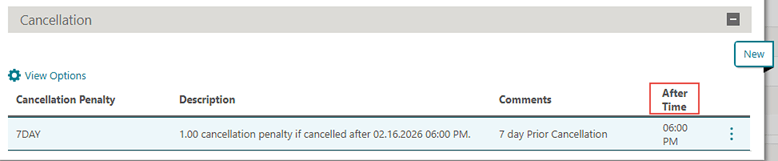
OPERATIONAL BENEFITS
It's clearly defined the time after which a cancellation penalty is applicable. Cancellation penalties apply after: [time].
Communication Panel Edit Mode Added
The Communication panel from a reservation opens directly in edit mode, allowing you to add and update communication methods and addresses without being required to first select the Edit action.
Note:
If no communication method exists on the reservation, there will be an empty row available to immediately update.You can also add the Communication panel to the My Panels section on the reservation. See Configuring Presentation Panel Tabs.
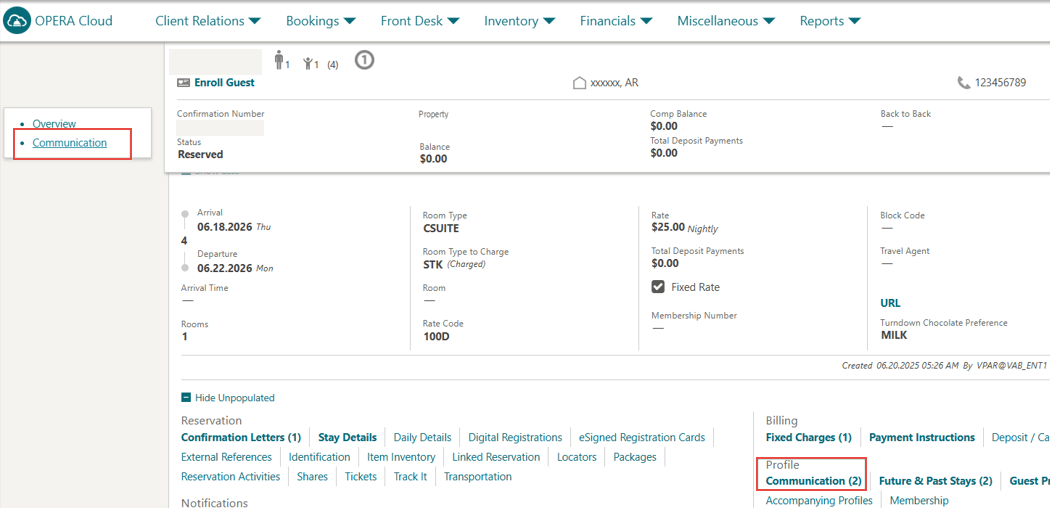
OPERATIONAL BENEFITS
You can access improved workflow when viewing a reservation as well as during check-in by opening the Communications panel in Edit mode directly when selected, thus reducing the number of clicks to input communication methods and addresses.
Copy Reservation OPERA Control Available
CENTRAL
The Copy Reservation OPERA Control is available for activation to copy reservations. See Copying Reservations.
OPERATIONAL BENEFITS
The Copy Reservation OPERA Control was previously available for properties with an OPERA Cloud Foundation subscription. This update allows OPERA Cloud Central Management tenants, without an OPERA Cloud Foundation subscription, to use Reservation Copy functionality.
STEPS TO ENABLE
- From the Side Menu, select Administration, select Enterprise, and then select OPERA Controls.
- Select or confirm the Property.
- Select the Reservations group.
- Locate and activate the Copy Reservation function.
Drag and Drop Enabled for Reservation Attachments
For properties with the File Attachments OPERA Control active, you can drag and drop files to the Browse/Choose File button upload to files.
See Managing Reservation Attachments.

OPERATIONAL BENEFITS
Improves usability by streamlining the attachment process.
Look To Book Updated for Owner Reservations
For properties with the Identify Owner Rate Code and Room Rotation OPERA Controls active this feature enhances the reservation process in OPERA Cloud by introducing conditions over the availability of rate codes marked as Owner and Owner Referral.
When making a reservation, Owner or Owner Referral rate codes only appear in the Rate Code list and the room and rate availability grid when a room is selected in the Owner Room field and the guest’s profile includes an ownership or owner referral record for the reservation dates. If these qualifying conditions are not met, these rate codes are hidden and cannot be assigned, reducing the risk of applying restricted rate codes to ineligible reservations. This improvement helps support property policies, ensures compliance with subscription requirements, and streamlines the booking experience by displaying only relevant rate codes.
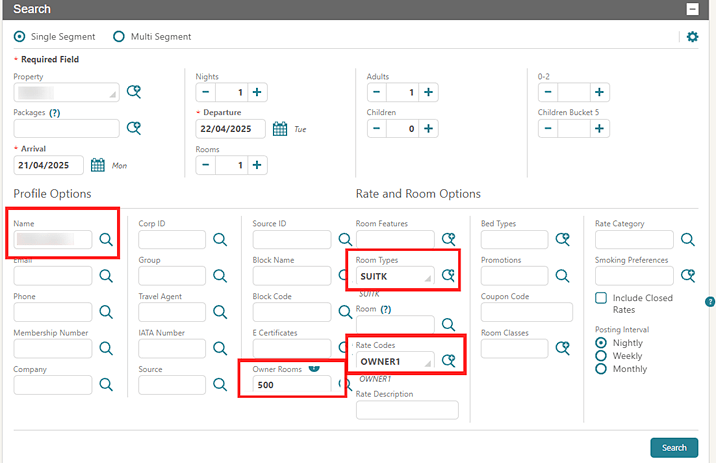
OPERATIONAL BENEFITS
This enhancement ensures that you are restricted from assigning a rate code marked as Owner or Owner Referral to a reservation that does not qualify for it, maintaining subscription compliance and supporting property policies.
New Reservation Colors Added
A 15-color Oracle Redwood palette is implemented to provide you with greater flexibility in identifying guests and reservations. The new palette replaces the existing 8-color options for Market Codes, Membership Levels, Reservation Colors, and VIP Levels configuration, with existing color assignments automatically updated based on a standardized mapping. Existing color descriptions remain in place, and you now have access to expanded choices across relevant configuration and reservation areas.

See Redwood Color Text Chart For the New Reservation Colors Added for a text table version of the new colors.
The Room Diary is updated to use the new color palette for reservation displays, based on the existing Reservation Color Definition OPERA Control selection and your property’s color configuration. If no reservation color definition is set, Room Diary displays reservation bars in deep teal. Out of Order and Out of Service room bars show in nimbus gray. See OPERA Controls — Reservations.

OPERATIONAL BENEFITS
The expanded palette features visually distinct colors to enhance accessibility and minimize the potential for selection errors caused by color similarity. It empowers you to assign a broader range of colors to configuration codes and reservations, improving recognition and enabling better alignment with your unique processes, branding, and property-specific requirements.
Redwood Color Text Chart For the New Reservation Colors Added
The new replacement colors:
| New Color | Replaces Color |
|---|---|
| Rosewood | Red |
| Ocean blue | Blue |
| Aqua sky | Cyan |
| Forest Green | Green |
| Mocha brown | Black |
| Soft lavender | White / Gray |
| Olive gold | Yellow |
| Deep teal (Default color in Room Diary) | None |
The new additional colors:
| Color Name |
|---|
| Sunset orange |
| Moss green |
| Clay brown |
| Plum purple |
| Mist blue |
| Dusty violet |
| Copper |
| Nimbus gray (Used for Out of Order/Out of Service in Room Diary) |
Offshore Trading Rates OPERA Control Added
CENTRAL
For properties with Offshore Trading Rates OPERA Control enabled, these updates apply to offshore reservation booking via the Reservation Sales Screen:
- The offshore rates marked as suppressed appear as suppressed throughout the booking flow.
- The Total Cost of Stay shown in the closing script correctly reflects the offshore rate details.
OPERATIONAL BENEFITS
Proper handling of offshore suppressed rates ensures the rate amount is masked or crossed (clearly marked as “not to be shared”, depending on View Suppressed Rates task not-granted/granted ) for booking agents, preventing inappropriate disclosure of the suppressed rates.
The Total Cost of Stay in the closing script now accurately reflects the offshore rate details, ensuring agents provide correct pricing when confirming the booking.
STEPS TO ENABLE
- From the Side Menu, select Administration, select Enterprise and then select OPERA Controls.
- Select or confirm the Property.
- Select the Rate Management group.
- Locate and activate the Offshore Trading Rates parameter.
Page Composer Added to Reservation Sales Screen
CENTRAL
Page Composer customization is available for the Reservation Sales Screen: New Reservation - Search panel and the In Progress - Overview tab.
IMPACT OR OTHER CONSIDERATIONS
The Customize Chain and Customize Property/Hub tasks are required. See About Page Composer.
Rate and Availability Posting Interval OPERA Controls Added
Properties with a new OPERA Control, Rate Posting Interval, and the Default Rate Code Posting Interval OPERA Control setting added to the Rate Management group can set the Default Rate Code Posting Interval (Nightly by default) and choose Weekly or Monthly posting for extended-stay reservations or bookings.
Note:
The dependency on Enforce Same Stay Dates for Sharing Guests applies only when the SHARES OPERA Control is active. If SHARES is inactive, enabling Rate Posting Interval does not require Enforce Same Stay Dates for Sharing Guests.In New Rate Code, the Rate Posting Interval field is preselected based on the Default Rate Code Posting Interval setting (for example, if the default is Weekly, Weekly is preselected) (See Configuring Rate Code Definition).
- Weekly/Monthly posting is available only for Standard rate codes, and any base/child relationship must use the same posting interval.
- In Edit, the posting interval is read-only if pricing schedules, dependent/base rates, or active/future reservations exist; otherwise, you can change it.
- Copy and Sync require the function to be active in both source and target properties, with validations to ensure matching intervals.
- For Weekly/Monthly rates, packages are limited to Add to Rate – Separate Line. Clear error messages appear if schedules conflict with the selected interval or if edits are blocked by dependencies. Additionally, Weekly posting requires a minimum schedule of 7 nights and Monthly posting requires a minimum schedule of 30 nights; longer schedules (>7 nights or >30 nights) are allowed for their respective intervals, but shorter schedules are not permitted.
Look To Book Sales Screen
Weekly and Monthly radio button options available in the Look to Book Sales screen flow options are available in both single-segment and multi-segment bookings. You can select accommodation rates by week or month when the Rate Posting Interval OPERA Control is enabled (see OPERA Controls - Rate Management). This update provides more flexibility in choosing accommodation rate intervals. The rate amount includes the per week/month text on the first night of the cycle to indicate the frequency. The Rate Display section will show either the configured Nightly, Weekly or Monthly.
Managing Reservations
Reservations with a Weekly or Monthly Rate Code are noted with the posting interval displayed beside the rate amount. This is visible on Reservation Search, Reservation Overview, Stay Details, and Daily Details screen.
When editing daily details for a weekly or monthly rate reservation, the rate code, rate amount, and discount fields are only editable on the posting interval posting dates. You can not edit these fields mid-cycle.
When applying a discount to a weekly or monthly rate posting interval on Daily Details, and selecting to apply the change to future nights, only the nights with a posting interval rate posting will be updated.
Reporting & Analytics
The Bookings-Reservation subject area is updated to include additional available columns supporting Weekly and Monthly Rate Posting Interval reservations.
A new subfolder is added to Reservation Overview with the following columns: Cycle Begin Date, Cycle End Date, Posting Interval, Amount, Currency Code, Rate Code.
Posting Interval is also added as an available column in the subfolder Reservation Overview - Daily Details
Stationery
The sample data XML for Guest Confirmation letter stationery template is updated to include a new merge code RATE_POSTING_INTERVAL to display the rate posting interval of the rate code on the reservation.
Rich Text Editor
The merge code RatPostingInterval is added to the OPERA Cloud Rich Text Editor and is available to be used when configuring Advance Alerts, Closing Script, as well as Confirmation Letter Delivery Management.
STEPS TO ENABLE
- From the Side Menu, select Administration, select Enterprise, and then select OPERA Controls.
- Select or confirm the Property.
- Select the Rate Management group.
- Locate and activate the Rate Posting Interval function.
- Locate and select the Default Rate Code Posting Interval setting.
Reservation Linked Profiles: Add/Edit Contact Option Added
Added the option to Add/Edit Contact for contacts linked to a Source/Travel Agent/Company Profile while accessing the Linked Profiles panel attached to a reservation.
Note:
Add/ Edit contact (Available when Company/ Travel Agent/ Source are selected): Select to add an associated contact profile from the selected Company/ Travel Agent/Source as a Reservation and or Billing Contact. User cannot change the search criteria.OPERATIONAL BENEFITS
The ability to easily identify and attach the appropriate contacts corresponding to a reservation by enabling the option to Add/Edit Contact if the Company/ Travel Agent/Source Profiles are attached.
Reservation Packages and Item Inventory Panel Updated
The Packages and Item Inventory Panel on a reservation is updated with changes made to the Packages and Daily View tab.
A Package Category search filter is added to the Available Package pane on the Packages tab for filtering package search results based on configured Package Category.
Also, within the search results for Available Packages, the default column order is updated with the Add action available without the need for scrolling, and a column for package allowance is available to easily see the configured package allowance for the package selected.
When editing packages added to a reservation on the Packages tab, you have the option to update the price on a day-by-day basis or from a single field update the price across all stay dates.
The Daily View tab is redesigned with a table layout and separate sections for Packages and Inventory Items. Within the Packages section a detailed daily view for all reservation packages is available based on either the Package Date or Consumption Date with the ability to group the packages either by day or by package code.
Available columns for packages include the following:
- Date (either Package Date or Consumption Date based on selection)
- Code
- Quantity
- Calculation Rule
- Posting Rhythm
- Total Price
- Total Allowance
- Allowance Consumed
- Allocated Quantity
- Consumed Quantity
For more information, see Managing Reservation Packages.
OPERATIONAL BENEFITS
The updates to the Packages and Item Inventory panel on reservations allows for less required clicks to view and update package details for a reservation, as well as allows for more detailed information to be readily available in a user friendly flexible view on the Daily View tab.
Reservation Sales Screen Updated
CENTRAL
The Reservation Sales Screen (see Using the Reservation Sales Screen) is updated with the following:
LANDING SCREEN:
- Recent Reservations and Recent Profiles tile enhancements:
- The Recent Reservations tile displays all reservations created or accessed by the user during the current business day.
- The Recent Profiles tile displays all profiles created or accessed by the user during the current business day.
- Reservations booked on the current business day are highlighted with a “New” label in the Recent Reservations tile.
OPERATIONAL BENEFITS: Faster follow-up and reduced handle time: Agents can quickly return to any reservation/profile they touched that day without re-searching. The “New” label makes it easy to identify newly created bookings for immediate confirmation, review, or next-step actions.
AVAILABILITY SCREEN:
- When a reservation in the Trip Composer is in Edit mode, you can collapse the Trip Composer drawer using the collapse icon in the upper-right corner without exiting edit mode; click the checkmark to save your changes, and clicking the in-reservation X now displays a Discard confirmation to prevent accidental loss of updates.
OPERATIONAL BENEFITS: The collapse icon only collapses the drawer and does not trigger a discard action, reducing confusion in edit mode. Agents can no longer unintentionally discard edits by closing the drawer; discarding now requires confirmation.
- In the Profile and Details Stays screen, the Associated Profiles column shows a hyperlinked count of associated profiles for each reservation. Selecting the count displays a popup listing the associated profile, and you can click a profile name to open that profile in a separate window.
OPERATIONAL BENEFITS: This is an improvement as before you could only see how many profiles were associated to the reservation but you could not click on the number to access any of those associated profiles attached. Now you can easily access any profile associated to the reservation.
- When a cancelled reservation with an assigned room number is reinstated and availability needs to be rechecked, the room type associated and the room number are populated in the smart search filter chips so that the search results only contain availability for this specific room number and room type.
OPERATIONAL BENEFITS: In the past, a user could select a different room type via the filter chip when reinstating a cancelled reservation that had already been assigned a room number. When they would arrive on the overview screen the existing room number was still applied but a room type not associated to this assigned room was populated causing an error. This update ensures the room type associated to the previously assigned room number match in the availability screen before going to the overview screen to reinstate.
OVERVIEW IN-PROGRESS SCREEN:
- When booking linked reservations in the Reservation Sales Screen, adding a guest profile from the In Progress screen now includes an Apply to remaining linked reservations option in the Find Profile drawer, allowing you to assign the selected profile to all other linked in-progress reservations that don’t already have a profile.
OPERATIONAL BENEFITS:This saves you time to apply the same profile across multiple linked reservations at once.
FIND RESERVATION SCREEN:
-
When the reservation is selected in the Find Reservation search, the following links display in the right reservation panel, allowing view and updates of the functionality:
Call History, Changes Log, Communication, Confirmation Letters, Daily Details, External Reference, Future and Past Stays, Membership, Preferences, Transportation
OPERATIONAL BENEFITS:This gives the RSS user the ability to access these areas for existing reservations without having to leave RSS where previously, most of these links were only available to users within OPERA Cloud.
Room Reassignment in Room Diary Updated
The room reassignment of reserved reservations in Room Diary, when using drag and drop, is optimized and removes an extra prompt previously presented asking you to confirm the room reassignment. (See
While the extra prompt is removed, the confirmation warning message is included in the Assign Room popup where you can complete the room reassignment. You are still able to take advantage of the search filters, which you can expand to update and use any of the filters to search for a different room. Performance while searching for rooms and after updating reservations is improved.
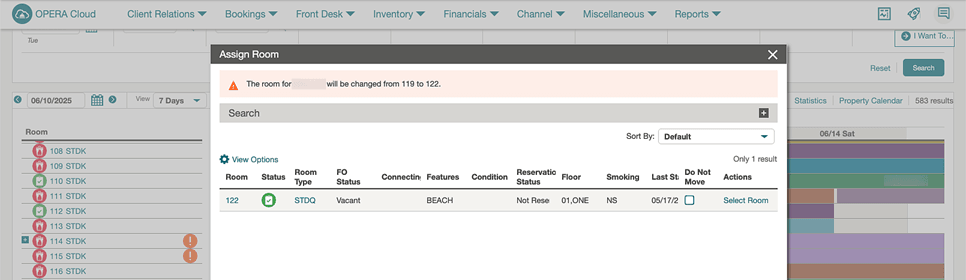
OPERATIONAL BENEFITS
This optimization to the Room Diary reduces the time needed to complete the room reassignment and saves you extra clicks when performing this repetitive task.
TA Record Locator Added to Reservation Protection
For properties with the Reservation Protection and TA Record Locator OPERA Controls active, TA Record Locator is an available field to be marked as protected on a reservation. See Configuring Reservation Protection Fields.
Additionally, when Guest Type is configured as a protected field, the protection of this field is honored.
OPERATIONAL BENEFITS
For properties that wish to provide users from overwriting the TA Record Locator for certain reservations, this can be easily managed by making the TA Record Locator a protected field based on defined conditions.
Trace Frequency OPERA Control Added
For properties with the Reservations Traces OPERA Control active, a Trace Frequency OPERA Control is added to set the frequency for a trace being added to a reservation. Available Trace frequency options include Specific Date / Date Range, On Arrival Day Only, On Departure Day Only, Every Day of Reservation, Starting from Day X, Every Y Day of Reservation, X Days Prior to Arrival, and Specific Days of the Week. When a trace is added to a reservation with a Trace Frequency other than ¿Specific Date/Date Range¿, if the reservation¿s stay dates are modified, the traces are regenerated based on the updated stay dates of the reservation and the associated trace frequency. Additionally, a Default Trace Frequency OPERA Control is added allowing you to default the Trace Frequency selection when creating a new Reservation Trace. See Managing Reservation Traces.
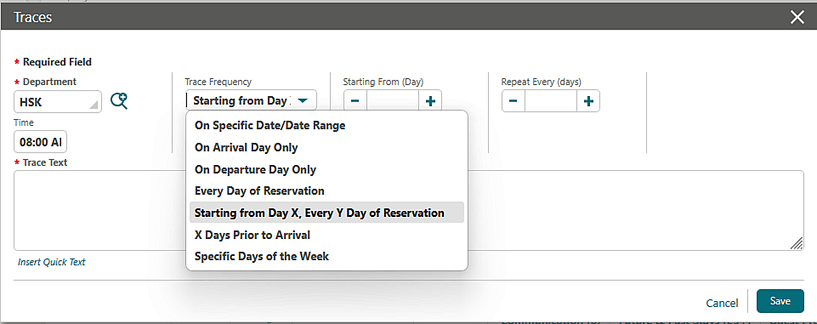
OPERATIONAL BENEFITS
Using Trace Frequency allows for traces to automatically move with a reservation after updates are made to a reservation's stay dates without requiring further user interaction. This ensures actionable items to be completed by hotel staff in different departments remain recorded on the appropriate days in relation to the reservation eliminating this manual effort required when such a change is made.
STEPS TO ENABLE
- From the Side Menu, select Administration, select Enterprise and then select OPERA Controls.
- Select or confirm the Property.
- Select the Reservations group.
- Locate the Reservation Traces OPERA Control.
- Activate the Trace Frequency parameter.
- Update the Default Trace Frequency setting.
Waitlist from Reservation Sales Screen Added
For tenants with the Reservation Sales Screen and Waitlist OPERA Controls active, reservations can be added to the waitlist during booking from the Alternate Calendar and In Progress screen.
When the Waitlist for Open Rates OPERA Control is active,open-rate reservations can also be waitlisted from the In Progress screen, and can be removed from the waitlist using Remove from Waitlist to return the reservation to a regular In Progress status.
See Using the Reservation Sales Screen.

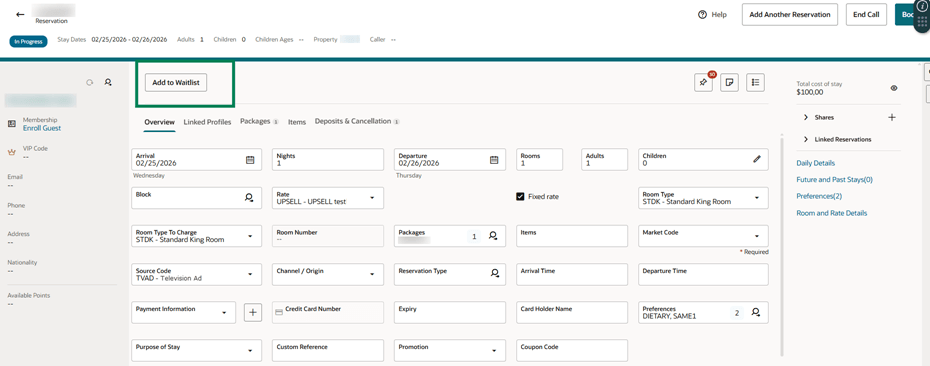
OPERATIONAL BENEFITS
You can Waitlist a reservation during booking in the Reservation Sales Screen.
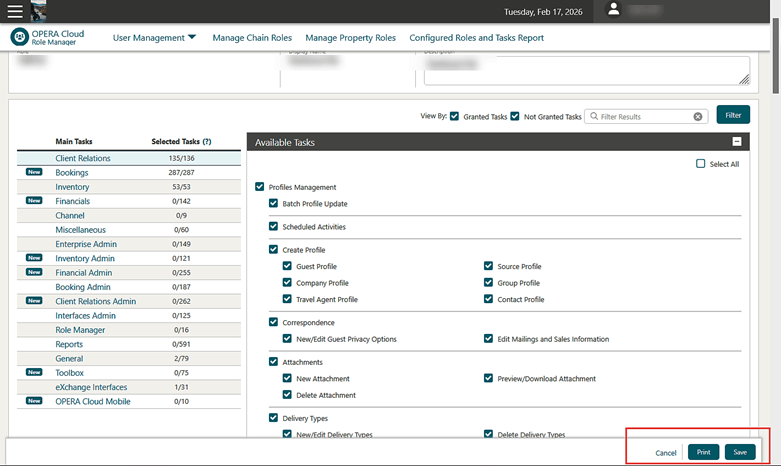
ROOMS MANAGEMENT
Attendant in Room indicator Added to Housekeeping Board
The Housekeeping Board is updated with the Attendant In Room indicator (Broom icon) for rooms that are actively being cleaned by an attendant that started the room in the Task Companion. When hovering over the broom icon, the attendant name along with the time the room was started is displayed. You can include the broom icon in the list of all rooms by selecting the Include - Attendant in Room filter.
You can use the Attendant in Room Only filter to return only rooms that are currently being cleaned in the results.
Additionally, the Display Options (Reservation Information/Turndown/Attendant in Room) moved into the Search area of the Housekeeping Board as Include checkboxes for easier access.
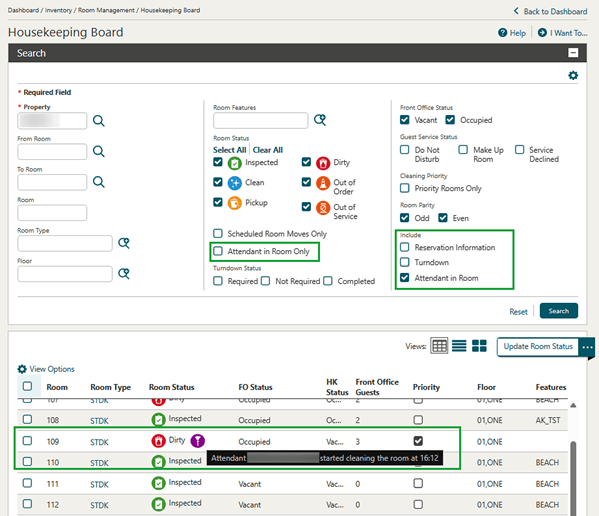
OPERATIONAL BENEFITS
Adding this Attendant in Room indicator to the Housekeeping Board gives Housekeeping supervisors an efficient way to see where all the attendants are at any time.
Room Status Search Component Updated
The Room Status search component is updated with 'Select All' and 'Clear All' action links.
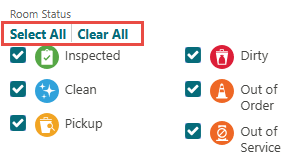
This change applies in the following areas (available based on the active OPERA Controls):
- Housekeeping Board
- Assign Room/Room Details
- Room Diary
- Arrivals
- Advanced Checked In
- Arrivals with Deposit Balance
- Available Room Search
- Pre Registered
- Queue
- Room Assignment (including the 3 Auto Assign screens)
- Out of Order - New
- Out of Service - New
- Room Conditions and Room Conditions - New
- Auto Generate Task Sheets (Room Criteria panel)
- Task Sheet Presentation screen (Filter Options)
OPERATIONAL BENEFITS
This update saves multiple clicks when interacting with the Room Status search filter.
Task Sheet Reports Updated for Back-to-Back Reservations
For properties with the Back to Back Handling for Linked Reservations OPERA Control active, Task Sheet Reports and the R&A (BI Publisher) Task Sheet Report are updated to display the appropriate task code for a departing back-to-back reservation that is assigned to the same room for the next back-to-back reservation.
OPERATIONAL BENEFITS
This update ensures that the attendant completes the correct task when using printed task sheets.
SALES
-
Oracle Hospitality OPERA Cloud Service, Sales and Event Management Essentials Edition.
-
Oracle Hospitality OPERA Cloud Service, Sales and Event Management Standard Edition.
-
Oracle Hospitality OPERA Cloud Service, Sales and Event Management Premium Edition.
Features that are specific to the Sales and Event Management Premium
Edition are marked with the Premium badge.
Drag and Drop Enabled for Activities Attachments
For properties with the File Attachments OPERA Control active, you can drag and drop files to the Browse/Choose File button upload to files.
See Managing Reservation Attachments.
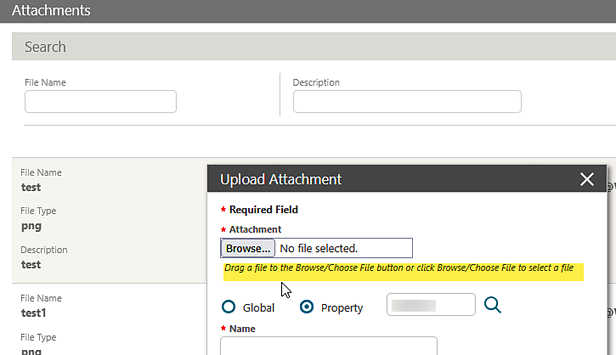
OPERATIONAL BENEFITS
Improves usability by streamlining the attachment process.
TOOLBOX
Change Room Class Utility Updated for Historical Data
For properties with the Room Class OPERA Control active, the Change Room Class utility is updated with a Historical Data Sync checkbox. When selected, a Date field (up to 5 years from today) appears to update historical (from that date) and future records for the selected Room Type(s) to the chosen Room Class. if not selected, only future records are updated. See Changing Room Class.
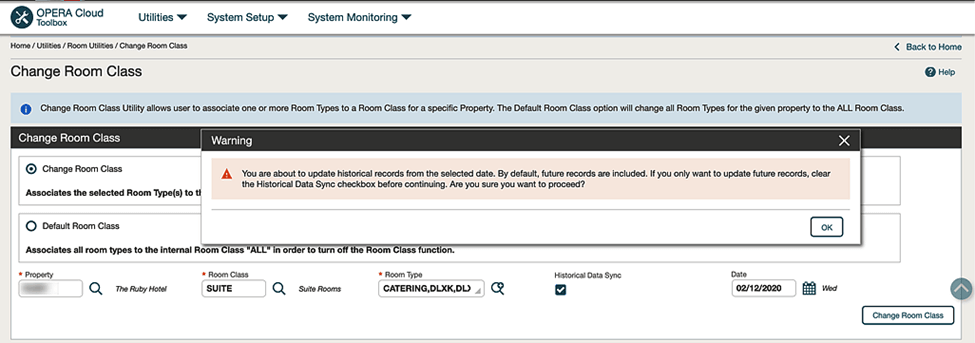
OPERATIONAL BENEFITS
Speeds room reclassification during property data migrations, minimizes manual updates, and ensures consistent future records—without requiring historical updates if not desired.
IMPACT OR OTHER CONSIDERATIONS
Selecting Historical Data Sync will update up to five years of past records to the new room class, which can materially affect historical reporting, analytics, and audits. Plan carefully, review reporting implications, validate a sample in non-production first, and proceed only if reclassifying history aligns with property policies and compliance requirements.
Synchronize Geographic Coordinates Utility Added
CENTRAL
For tenants with the Reservation Sales Screen OPERA Control active, a Synchronize Geographic Coordinates utility is available to users with the Chain-ADMIN role.
OPERATIONAL BENEFITS
This utility lets you quickly populate geographic coordinates for all or selected properties with sufficient address information, eliminating the need to update each property individually in the Property Configuration screen.