1 Feature Summary
Column Definitions
| SMALL SCALE: These UI or process-based features are typically comprised of minor field, validation, or program changes. Therefore, the potential impact to users is minimal. |
| LARGE SCALE: These UI or process-based features have more complex designs. Therefore, the potential impact to users is higher. |
| ACTION NEEDED TO ENABLE: You must take steps to enable these features before they can be used. These features are delivered disabled, and you choose if and when to enable them. See the Steps to Enable in the linked topic. |
BLOCK MANAGEMENT
Apply to All Processing for Block Reservations Enhanced
Enhanced the Apply to All functionality for Block Reservations by introducing background processing for large reservation updates. This improvement reduces wait times, minimizes UI timeouts, and provides better visibility through status updates and alerts while processing completes.
OPERATIONAL BENEFITS
- Faster processing for large reservation updates.
- Reduced UI wait times and timeouts.
- Improved scalability and user experience.
- Better visibility with processing status and alerts.
IMPACT OR OTHER CONSIDERATIONS
This enhancement changes the processing behavior of Apply to All updates in Block Reservations from synchronous to asynchronous execution. Reservation updates using Apply to All may continue processing after the initial request is submitted. To improve visibility into background processing, new UI messaging, alerts, and a Status column are introduced to display processing progress and request state information.
ACTION REQUIRED (STEPS TO ENABLE)
No configuration changes are required to use this enhancement.
Automated Pre-filled Rooming List Added
This enhancement introduces automated pre-filled Rooming List generation to streamline group reservation creation and reduce manual data entry. The system automatically populates Arrival Date, Departure Date, and Room Type for each guest row based on matching inventory availability from the group block room/rate grid.
You can download and upload pre-filled Rooming Lists using XLS, XLSX, and CSV formats, simplifying guest information exchange between OPERA PMS, CRS, and external systems.
OPERATIONAL BENEFITS
- Reduces manual data entry
- Improves reservation accuracy and consistency
- Streamlines group reservation workflows
- Simplifies file exchange and bulk processing
- Helps prevent reservation and inventory errors
IMPACT OR OTHER CONSIDERATIONS
Rooming List download and upload functionality supports XLS, XLSX, and CSV file formats.
Block Statistics Display Updated
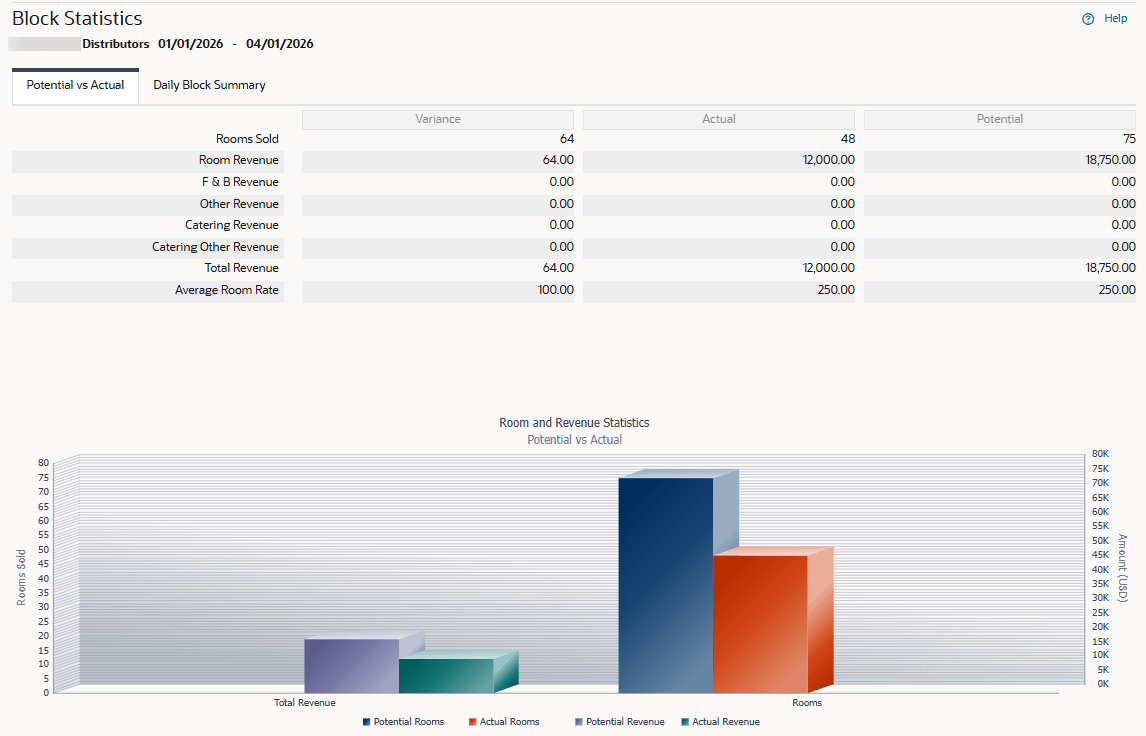
Block Statistics displays room rate and revenue details in the Potential vs. Actual screen when logged in at HUB level.
OPERATIONAL BENEFITS
The same room, rate and revenue details display when working at the hub or property level ensuring efficiency and consistency.
Blocks with Room Inventory Checkbox Added
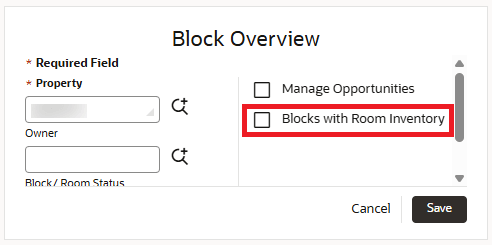
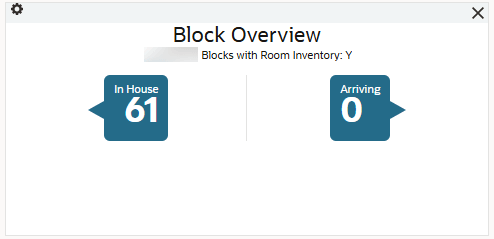
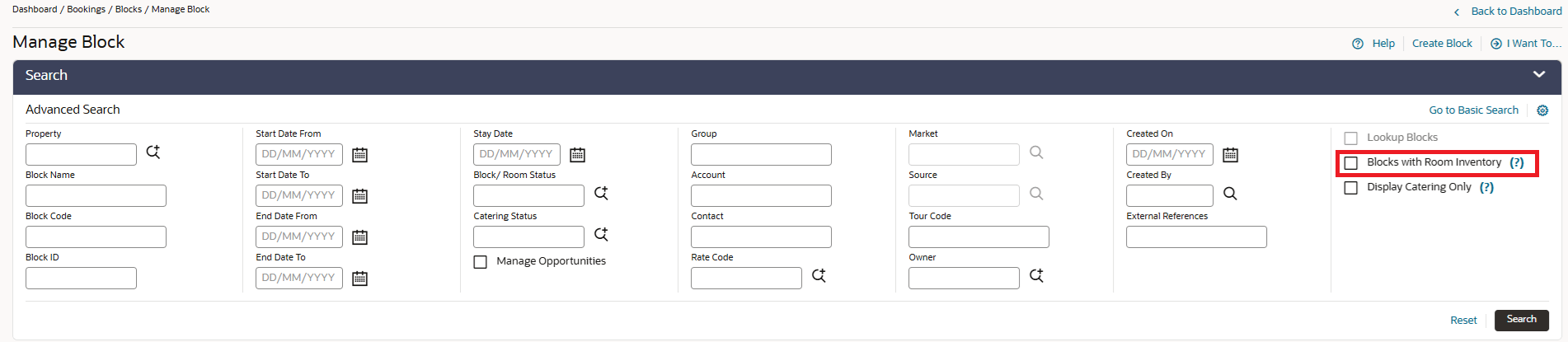
For properties with the Business Blocks OPERA Control active, a new checkbox for Blocks with Room Inventory is added in the Block Overview tile and Manage Block search screen. In the Block Overview tile the checkbox filters and displays counts for arriving and in house blocks with room inventory. In the Manage Block screen, when selected only blocks with guest room inventory display.
OPERATIONAL BENEFITS
This provides a clearer overview of relevant blocks, improves search efficiency, and helps Sales Managers focus on blocks tied directly to guest room availability.
Mass Borrow Availability for Block Rooming Lists Added
Reservations users working with large Block Rooming Lists can run into insufficient House inventory for a given room type and date range and must click Borrow to complete the borrowing flow individually for each reservation, which is repetitive and time-consuming. Block Rooming Lists now support mass “Borrow for Similar Reservations” option (by room type/date range) to borrow inventory for multiple reservations in one action. See Creating Reservation Using the Rooming List.
OPERATIONAL BENEFITS
- Reduces repetitive clicks by allowing users to borrow inventory for multiple reservations in one action.
- Improves efficiency and consistency when managing high-volume rooming lists.
- Maintains control and flexibility by preserving the option to borrow per reservation.
IMPACT OR OTHER CONSIDERATIONS
This mass action is scoped by specific criteria (for example, room type and date range) and applies only to matching reservations in the rooming list. Non-matching rows aren't affected.
Rooming List Import: Legal Company Field Added
Block Reservations users can now import Legal Company as part of a Rooming List, eliminating the need to manually update each guest profile and enabling faster, more consistent bulk updates for block reservations.
Previously, Legal Company was not available in Rooming List imports and had to be entered manually on individual guest profiles. This release introduces Legal Company as a new importable field for Rooming Lists so it can be populated/updated in bulk.
OPERATIONAL BENEFITS
This update allows you to import Legal Company in bulk with Rooming Lists, reducing manual profile updates, speeding block reservation setup, and improving data consistency and tracking without changing existing matching or workflows.
IMPACT OR OTHER CONSIDERATIONS
There is no impact to profile matching/merging, no validation against a company list, while manual entry of Legal Company within the Rooming List workflow remains available.
CASHIERING AND FINANCIALS
Additional Charges Added
Note:
The following changes to functionality are available generically.1. The Additional Charges OPERA Control is added to the Cashiering group.
2. The Additional Charges Task is added to the Financial Admin group in Role Manager, so that you can limit access to who can view the Additional Charges screen.
3. The New/Edit Additional Charges Task is added to the Financial Admin group in Role Manager, so that you can limit access to who can create and modify Additional Charges records.
4. The Delete Additional Charges Task is added to the Financial Admin group in Role Manager, so that you can limit access to who can remove Additional Charges records.
5. The Additional Charges screen is added in Administration so that you can configure one or more charges to be posted during the End of Day or Advance Folio. You can define simple or complex conditions for when a charge should apply, the amount of the charge, and which Transaction Code should post the charge.
6. The End of Day is updated so that the active Additional Charges in the property are posted to corresponding in-house reservations during the Room & Tax step.
7. The Advance Folio settlement workflow is updated so that the active Additional Charges in the property are posted to the folio.
OPERATIONAL BENEFITS
Customer can configure and update automated charges that post during the End of Day, with dynamic conditions based on their business needs.
ACTION REQUIRED (STEPS TO ENABLE)
- From the side menu, select Administration, select Enterprise, and then select OPERA Controls.
- Select or confirm the Property.
- Select the Cashiering group.
- Locate and activate the Additional Charges function.
- From the side menu, select Role Manager, select either Manage Chain Roles or Manage Property Roles according to your needs.
- Enter search criteria and click Search
- Select the role to update, click the vertical ellipsis Actions menu, and select Edit.
- Select the Financial Admin group and grant the tasks: Additional Charges, New/Edit Additional Charges, Delete Additional Charges.
- Click Save.
Additional OPERA Controls Updated to Complimentary
The following OPERA Control functions are updated as complimentary features and don't impact the subscription-based function count:
- Articles
- Batch Posting
- Fixed Charges
- Routing
OPERATIONAL BENEFITS
- Provides additional functionality without affecting the subscribed feature count.
- Increases flexibility in using key cashiering and posting features without additional licensing impact.
Assigning Multiple Authorizers for Comp Folio Window Added
A new Multiple Comp Authorizers on a Comp Folio Window OPERA Control is added to the Comp Accounting group, to assign multiple authorizers to comp folio windows and routing instructions. This control is mutually exclusive with Authorized PIN Required and can't be deactivated when multiple authorizers are configured.
Comp Routing configuration supports up to 5 authorizers per routing instruction, with transaction codes filtered based on selected authorizers and displayed as a combined list. The same transaction code can be assigned to multiple authorizers but not across multiple comp folio windows. Relevant screens display all assigned authorizers. The combined authorizer transfer limits are assigned as the routing limit for the comp folio window.
Comp posting supports multiple authorizers, allowing selection of an authorizer during manual transfers when required. A comp folio window supports up to 5 authorizers, and each transaction is associated with a single selected authorizer.
When transactions are routed using multiple-authorizer routing instructions, the application assigns the transaction to the first eligible authorizer with the appropriate transaction code and sufficient limit. If the selected authorizer doesn't have enough limit, the application automatically checks the next eligible authorizer. If no authorizer has a sufficient limit, the transaction remains on the guest folio window. Transactions aren't split across multiple authorizers. This logic applies to End of Day processing, Post It, batch postings, POS charges, and rate code postings. Existing routing limit behavior continues to apply at the folio window level; if a transaction exceeds the routing limit, the transaction is split and the remaining amount stays on the guest folio window.
OPERATIONAL BENEFITS
- Increases flexibility in managing comp authorizations across multiple approvers.
- Ensures accurate and controlled comp posting with system-driven authorizer selection.
- Reduces manual intervention and improves efficiency in high-volume posting scenarios.
ACTION REQUIRED (STEPS TO ENABLE)
- From the Side Menu, select Administration , select Enterprise and then select OPERA Controls.
- Select or confirm the Property.
- Select the Comp Accounting group.
- Locate and activate the Multiple Comp Authorizers on a Comp folio window parameter.
Attach, Search, and Select Multiple Rate Codes Added
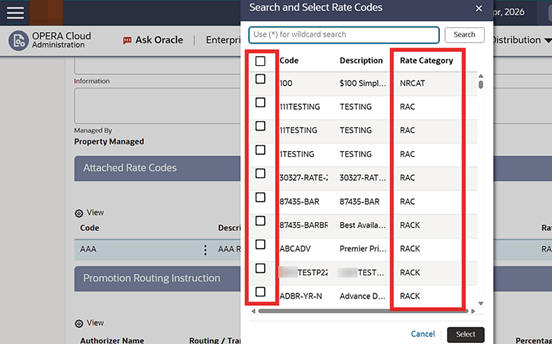
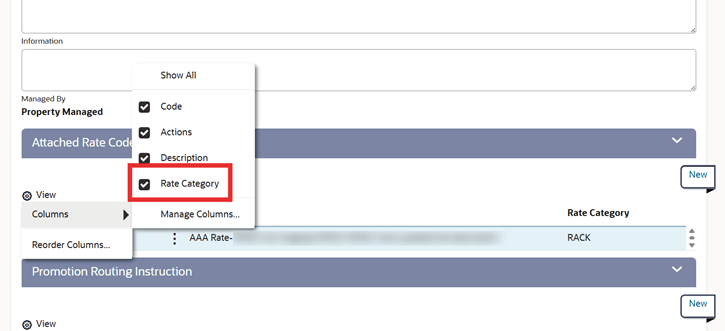
For properties with OPERA Control Promotion Modules Active, when you create or edit a Promotion Code in OPERA Cloud, the Rate Code list of values now supports multi-selection to select and add multiple rate codes simultaneously instead of adding them individually. You can search for rate codes using Rate Category, refine your results, and use a Select All option to quickly include all displayed rate codes in your Promotion Code. In addition, use the View Options to improve visibility and filtering.
OPERATIONAL BENEFITS
This enhancement streamlines the configuration process, reduces repetitive steps, and improves efficiency when managing Promotion Codes with multiple associated rate codes.
Block Code Added to Folio History
The Block Code field and Search icon are added to the search header of the Folio History screen so that you can filter folio records by Block Code.
OPERATIONAL BENEFITS
When you include a Block Code in the search criteria, the Folio History screen displays only folios associated with that Business Block.
Credit Card PAN Restriction for Check Number Field Added
A restriction is added to the Check Number transaction fields to prevent a credit card primary account number (PAN) from being saved. Any 12 to 30 digit credit card number entered in these fields is removed.
Custom Charges Updated
For properties with the Custom Charges OPERA Control active, the following update is available generically, but should be reviewed by properties in Italy.
Custom Charges functionality is updated to prevent the removal of the main guest profile from the reservation (See Managing Reservation Linked Profiles) and the removal of an Accompanying Profile from the reservation when a Custom Charge Exemption is associated with the profile. In that case, the message "The profile cannot be removed from the reservation while a Custom Charge Exemption is attached." appears. After removing the Custom Charge Exemption from the profile, you can remove the profile from the reservation.
OPERATIONAL BENEFITS
Properties are informed that an attached Custom Charge Exemption must be removed before the profile can be removed from the reservation.
Note:
This resolves behavior prior to this change where, in specific navigation paths, you could remove the profile from a reservation when it had a Custom Charge Exemption attached, but afterward you could not access the Custom Charge Exemption screen for that reservation.
Custom Data Parameters Autopopulated for CC Vault
For properties with the EFT interface active, when the CC Vault functionis enabled, the custom data parameters are automatically populated in the Custom Data panel. The VAULT_ID field is populated with the EFT IFC number, and VAULT_MAX_CC_PROCESSED is populated with a default value of 50.
Refer to the Documentation ticket :
OPERATIONAL BENEFITS
Eliminates manual configuration of custom data parameters.
New, Update, and Delete Posting Business Event Element Added
For properties with Cashiering Business Events configured, a new UPDATE USER NAME element is added for New, Update, and Delete Posting business events.
See Business Events - Cashiering.
OPERATIONAL BENEFITS
Improves auditability by identifying the user responsible for posting updates and deletions.
Package Codes Copy Attributes Enhanced
Copy Package Codes between properties using OPERA Cloud Administration - Financial - Rate Management - Package Codes - Copy, all configured fields are included in the copy process, ensuring a complete and consistent configuration across OPERA Cloud. Along with existing details, the Arrangement Code, Package Category, and Item Inventory are copied to replicate Package Codes without additional manual configuration. This enhancement improves efficiency, reduces repetitive setup tasks, and ensures accuracy when maintaining standardized Package Codes across properties.
OPERATIONAL BENEFITS
This enhancement eliminates the need for manual reconfiguration of key Package Code attributes when copying across properties, reducing the risk of missing critical elements such as Arrangement Code, Package Category, and Item Inventory. You gain efficiency by completing cross-property setup in a single step, saving time and minimizing repetitive tasks. It also improves data consistency and accuracy across OPERA Cloud, ensuring standardized Package Code configurations and reducing operational errors.
Pay By Link Feature for Batch Deposits Added
For properties with the Pay By Link OPERA Control active and access granted through the Pay by Link for Batch Deposits task, the Batch Deposit screen supports Pay by Link functionality, allowing you to send payment links and check payment status through batch processing.
- You can send payment links for all deposit outstanding reservations from the Batch Deposit screen, and these links are sent to the primary email address configured on each reservation. The PBL Status column displays “Waiting for payment” for reservations with active payment links, and the Payment Status Check (PBL) search option helps identify reservations pending payment. A status screen displays processing results, including successful and failed requests, and notifications when a valid email address is not available. A Print action link is available to support tracking and reconciliation.
- The Payment Status Check (PBL) search option displays reservations pending payment. When selected, the Send Payment Link action link changes to Resend Payment Link, and a Check Payment Status action link is available. You can resend existing links or generate a new link if the previous link is expired. The Check Payment Status action retrieves the payment status from the payment service and updates reservation payment details. A status screen displays “Payment Received” or “Waiting for payment” messages, with a Print action link available for reconciliation.
- Added Pay by Link for Deposit payments user task to the bookings - Reservation Management, allowing the send payment link and check payment status from the Deposit/Cancellation Screen.
- Additional merge codes are available in Pay by Link delivery settings including Title, Salutation, Nights, Room Type Description, Rate Code Description, and Due Date.
OPERATIONAL BENEFITS
- Streamlines deposit collection through bulk payment link processing.
- Improves visibility of pending and completed payments with real-time status tracking.
- Reduces manual follow-up with automated resend and status check actions.
- Supports efficient reconciliation with status screens and print functionality.
ACTION REQUIRED (STEPS TO ENABLE)
- From the Side menu select Role Manager, select either Manage Chain Roles or Manage Property Roles according to your needs.
- Enter search criteria and click Search.
- Select the role to update, click the vertical ellipsis Actions menu, and select Edit.
- Select the Financials group and grant the tasks: Pay by Link for Batch Deposits.
- Select the Bookings group and grant the tasks. Pay by Link for Deposit Payments.
- Click Save.
Property_Details Merge Code Added to Stationery Reports
A new Property_Details report text parameter is added to the report text configuration, adding configuration of property details such as address, fax number, and phone number.
The Property_Details merge code is added to the following stationeries:
- sample_deprecpt
- sample_exrecpt
- sample_grp_folio
- sample_paidout
- sample_payment / sample_payment_philippines / sample_payment_tax (Thailand)
When the Property_Details report text parameter is configured and used as a merge code, the property details are displayed on the stationery reports.
OPERATIONAL BENEFITS
Centralized configuration of property details ensures consistent and accurate information across all stationery reports.
Rates and Pricing Schedules Updated
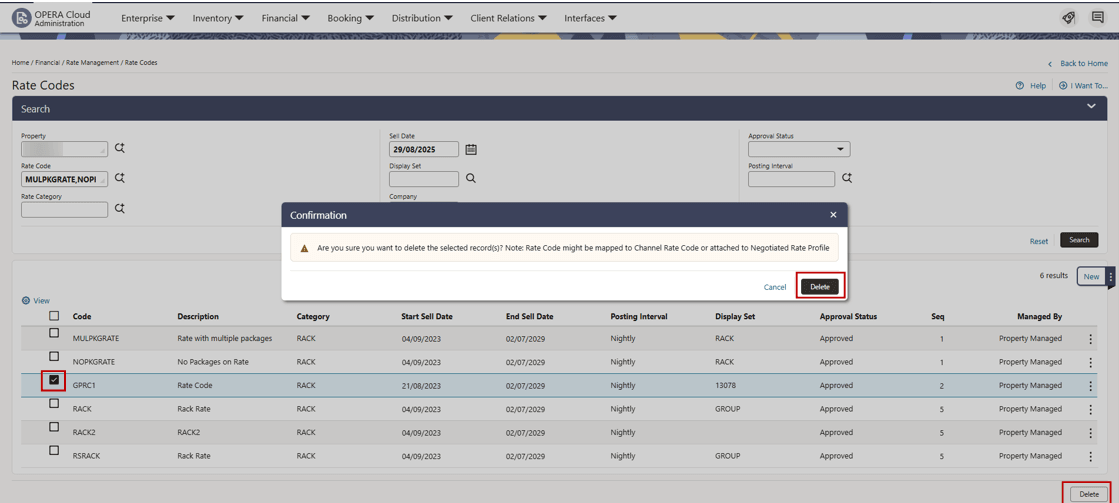
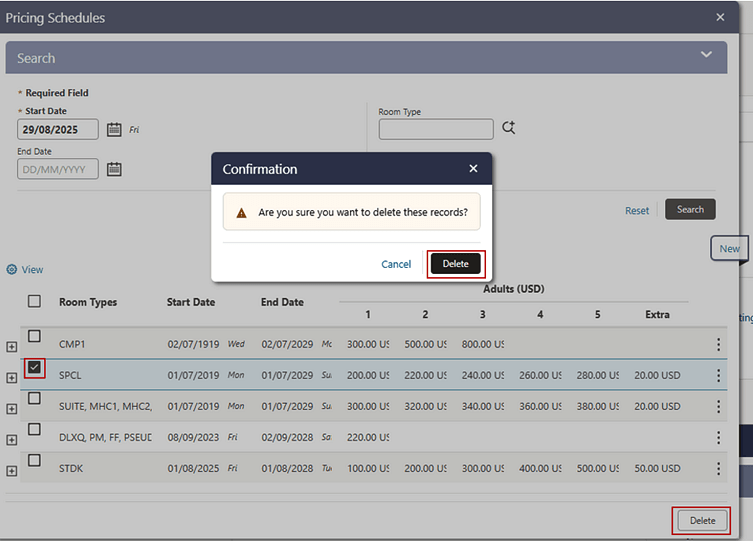
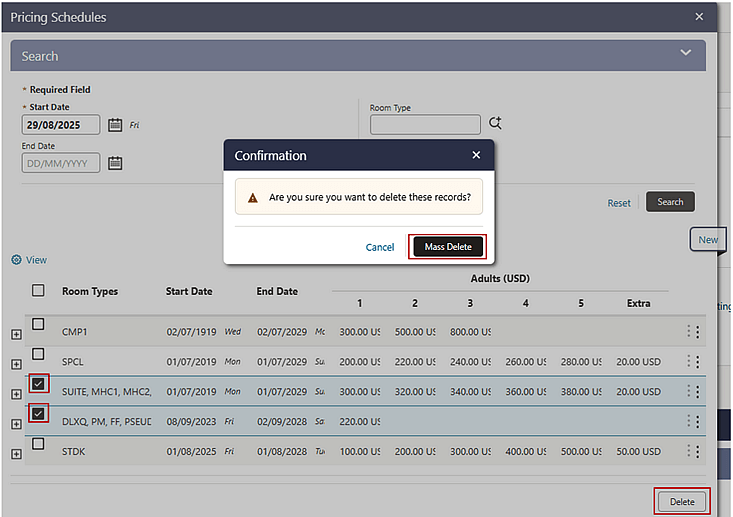
The Delete action for a single rate or a single pricing schedule on Administration - Financial - Rate Management - Rate Codes is moved from the individual record to the Delete button at the bottom of the screen where multiple-record deletion is already available. You can also split pricing schedules successfully for rate codes that have 75 or more dependent rates.
Delete Rate Codes and Pricing Schedules:
Rate Codes
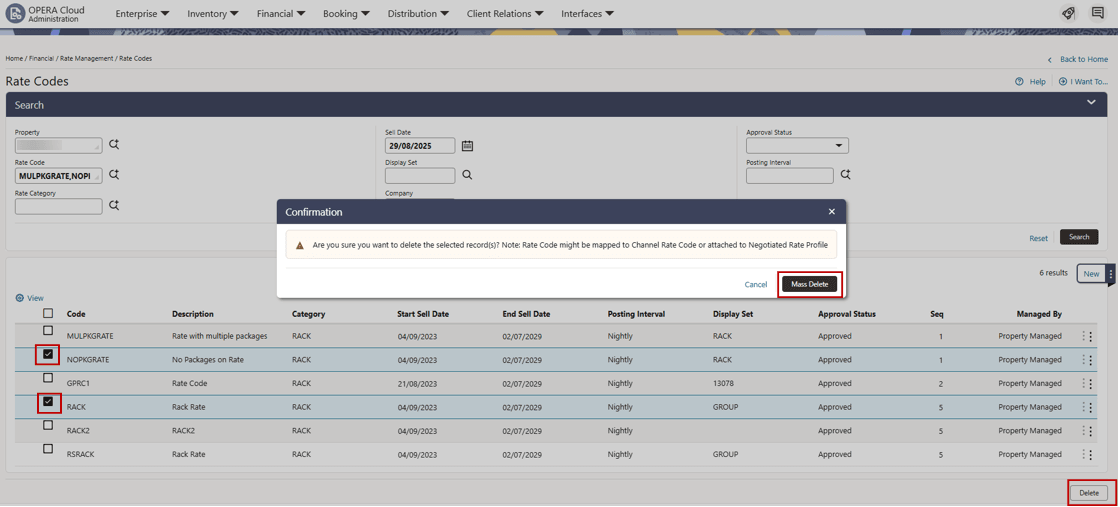
Pricing Schedules
OPERATIONAL BENEFITS
A single Delete/Mass Delete option to remove one record or multiple records, which provides a more consistent workflow. Successful pricing schedules split for rates with more than 75+ dependent rates.
IMPACT OR OTHER CONSIDERATIONS
Single-record deletion is available from the Delete button at the bottom of the screen instead of the action menu for each record.
Simplified Settlement Workflow Updated
The following update is available generically.
The Simplified Settlement Workflow OPERA Control (OPERA Controls - Cashiering) and the Fiscal Folio Printing OPERA Control (OPERA Controls - Cashiering) are updated, so that they can be active simultaneously.
OPERATIONAL BENEFITS
Properties with the Fiscal Folio Printing OPERA Control active can activate the Simplified Settlement Workflow OPERA Control so that when you generate a settlement from the Billing screen, you can choose to preview, email, or download the folio from the Folio Settlement window without an additional pop-up.
ACTION REQUIRED (STEPS TO ENABLE)
- From the side menu, select Administration, select Enterprise, and then select OPERA Controls.
- Select or confirm the Property.
- Select the Cashiering group.
- Locate and activate the Simplified Settlement Workflow parameter.
Total Package Rate Tax Calculation Added
You can calculate tax based on the Total Rate amount (Package Rate total) by using the Additional Charges functionality. When OPERA Control Additional Charges is active and you have the associated Role Manager - Tasks, additional charges can be created to post charges or taxes for amounts or percentages based on Total Rate Amount Net, Total Rate Amount Gross, Rate Amount Net, Rate Amount Gross or Total Cost of Stay. Conditions are then set to validate generation and posting of the charge or tax.
Additional charges are posted with the room rate/package rate and displayed on the billing screen and folio. Properties with Fiscal Folio Printing active, the Additional Charge transactions are included in the Universal Payload.
Tax Function Example:
A tax must be generated each night at 2.5% of the reservation’s Total Package Price, which includes the accommodation rate and F&B package.
Accommodation = 263.00
Breakfast (Package) = 37.00
Total Package Rate = 300.00
Tax calculation 300.00 x 2.5% = 7.50
Additional Charge is created to post to a tax transaction code, Flat Rate, Each Night for 2.5% of the Total Rate Amount Net. Conditions are then set to post the additional charge based on the package rate code.
When the room rate is posted, the additional charge is posted as a separate transaction to the package rate amount.
OPERATIONAL BENEFITS
Additional Charges and Taxes can be created to calculate based on package rate amount to avoid rounding issues when generates are calculated for each individual element of a package rate
ACTION REQUIRED (STEPS TO ENABLE)
- From the side menu, select Administration, select Enterprise, and then select OPERA Controls.
- Select or confirm the Property.
- Select the Cashiering group
- Locate and if not already active, turn On Additional Charges Parameter
- From the side menu, select Role Manager, select either Manage Chain Roles or Manage Property Roles according to your needs.
- Enter search criteria and click Search.
- Select the required role to update, click the vertical ellipsis Actions menu, and select Edit.
- Enter search criteria Additional Charges and click Search.
- Select the Financial Admin group and if not already granted, grant the task:Additional Charges, New/Edit Additional Charges. Delete Additional Charges.
- Click Save.
Virtual Credit Card (VCC) Token Handling Added
For properties with the OPI Cloud Credit Card Handling OPERA Control active, a Virtual Credit Card OPERA Control is added to the Credit Card group, enabling handling of Virtual Credit Card (VCC) tokens received from external partner integrations.
A Virtual Credit Card task is available in the Cashiering workspace with Add and Remove subtasks, allowing you to manage the VCC flag from the Payment Instructions and LTB screens.
Credit card processing supports VCC tokens received through external integrations or updated through authorized actions, with the VCC flag displayed across payment workflows including Payment Instructions, Routing, Shares, Split Reservation, Check-In, and Billing. VCC indicators are available across the application, including a checkbox in payment components and VCC columns in Payment Instructions Summary, Credit Card Wallet, and Credit Card History screens. You can store VCC tokens in Profile and Reservation Wallets and move them across folio windows, and refund processing follows standard credit card workflows. Payment processing for VCC tokens skips pre-authorization during check-in, manual and automatic authorization, and Night Audit, while payment and settlement transactions send pay-only messages (ccPayOnly / cpPayOnly) to the OPI interface. All create and update actions involving VCC-flagged tokens are recorded in the change log.
OPERATIONAL BENEFITS
- Enables seamless handling of Virtual Credit Card payments from external integrations.
- Improves visibility with consistent VCC indicators across payment workflows.
- Reduces unnecessary authorization steps, improving processing efficiency.
- Ensures accurate tracking and auditability of VCC transactions.
- Supports flexible token management across wallets and folio windows.
ACTION REQUIRED (STEPS TO ENABLE)
- From the Side Menu, select Administration , select Enterprise and then select OPERA Controls.
- Select or confirm the Property.
- Select the Credit Card group
- Locate and activate the Virtual Credit Card parameter.
- From the Side menu select Role Manager, select either Manage Chain Roles or Manage Property Roles according to your needs.
- Enter search criteria and click Search.
- Select the role to update, click the vertical ellipsis Actions menu, and select Edit.
- Select the Financials group and grant the tasks: Virtual Credit Card, Add Virtual Credit card and Remove Virtual Credit Card from Cashiering Workspace.
- Click Save.
CLIENT RELATIONS
Address Auto-Suggestion and Validation Feature Added
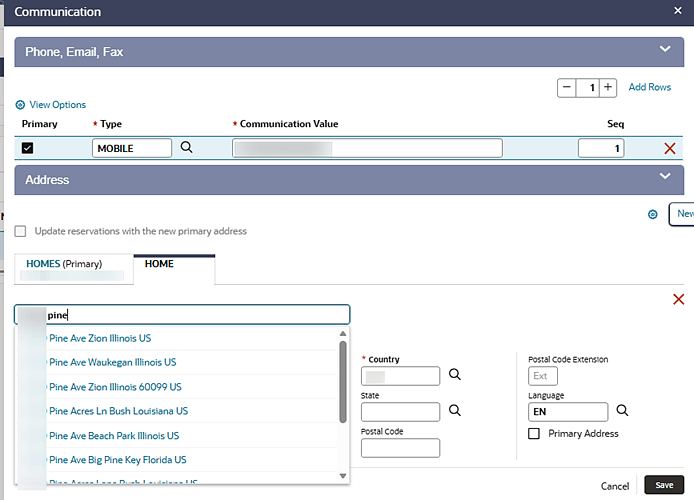
The Address Auto-Suggestion & Validation feature enhances address entry in OPERA Cloud by integrating with the Oracle Maps Geocoding/Places API to provide real-time address suggestions and automated field population. See Managing Profile Communications.
When you begin typing in the “Search for Address” field (minimum 3 characters), the system retrieves and displays matching address suggestions. Upon selection, the system automatically populates key address fields, including:
- Address Line 1
- City
- State/Province
- Postal Code
- Country
You retain full control and can:
- Accept a suggested address
- Modify any populated field
- Manually enter address details if desired
The feature is consistently available across OPERA Cloud Address panels, including profile creation and edit workflows.
OPERATIONAL BENEFITS
- Improved Data Accuracy
- Reduces manual entry errors through standardized, validated addresses.
- Increased Efficiency
- Speeds up address entry for front desk, reservations, and customer service teams.
- Enhanced Data Consistency
- Ensures uniform address formatting across profiles and transactions.
- Better User Experience
- Simplifies the address entry process with intuitive search and auto-fill functionality.
- Operational Resilience
- Manual entry remains fully available in cases of no match or service unavailability.
IMPACT OR OTHER CONSIDERATIONS
- Configuration Dependency
- Feature is controlled via OPERA Control:
ADDRESS AUTO SUGGESTION
- Default state is OFF, requiring explicit enablement.
- Feature is controlled via OPERA Control:
- User Experience Changes
- Introduction of a new “Search for Address” field above Address Type.
- Drop-down suggestions appear dynamically during input.
- Partial Address Handling
- Some suggestions may not include full details (such as apartment/unit numbers).
- Users are expected to complete missing information manually.
ACTION REQUIRED (STEPS TO ENABLE)
To activate the Address Auto-Suggestion feature, follow these steps:
- Navigate to OPERA Controls
- Access the OPERA Controls configuration module.
- Locate Control
- Search for:
Address Auto Suggestionin the Profile Group (GLOBAL)
- Search for:
- Set Control Value
- Change value from OFF to ON.
Credit Card PAN Restriction for Profile Fields Added
PCI DATA SECURITY FOR PROFILE FIELDS
This enhancement strengthens PCI data security by preventing the storage of valid credit card numbers in non-payment profile fields. During profile creation and profile update, if a valid credit card number is detected in any of the fields listed below, the value is automatically cleared before the profile is saved.
- Name Fields:
- Guest Profile:
- Name
- First Name
- Middle Name
- Alternate Name
- Alternate First Name
- Alternate Salutation
- Alternate Envelop Greeting
- Accounts Profile:
- Name
- Name 2
- Name 3
- Alternate Name
- Guest Profile:
- Client ID, Corp ID, IATA Number
- Legal Company
- Communication Value
- Address fields:
- Address 1
- Address 2
- Address 3
- Address 4
- City
- Postal Code
- Profile Notes:
- Title
- Comments
- UDF Character and Number Fields
Note:
When a valid credit card number is detected and removed from any of the above fields, the event is tracked for auditing purposes, and a record is logged in the Profile Changes log under the Remove Sensitive Data Action Type.OPERATIONAL BENEFITS
- Prevents cardholder data from being stored in free-text or general profile fields.
- Supports PCI data security practices by limiting where credit card data can reside.
- Provides auditable traceability for sensitive data removal activities.
Default Profile Address Country and Currency OPERA Control Added
A new property-level OPERA Control Default Profile Address Country and Currency is introduced to automatically default the profile address country and profile currency during profile creation. The defaulting is driven by the logged-in context (Property or HUB)and its corresponding configuration.
Note:
The control is enabled by default to maintain backward compatibility, ensuring no behavioral change for existing customers after upgrade.OPERATIONAL BENEFITS
- Improved Data Consistency:Standardized default values ensure that country and currency are applied uniformly across all new profiles, supporting cleaner data and more reliable reporting.
- Reduced Input Errors:By minimizing manual selection of country and currency, the feature helps reduce keying mistakes and subsequent corrections in billing and guest records.
- Configurable to Property Preference:Properties that don't want country and currency auto-populated can disable this control, retaining full flexibility for manual entry where business processes require it.
Membership Type Descriptions Replace Codes in Profile and Membership Screens
This enhancement improves usability across OPERA Cloud by adding Membership Type descriptions in user-facing profile screens. This change helps you recognize guest membership details without needing to interpret internal codes. Use OPERA Cloud Page Composer to add or remove these fields from profile related pages.
OPERATIONAL BENEFITS
- Membership Type Display
- Membership Type descriptions are shown instead of codes across the application's profile pages.
- Profile Search Enhancements
-
- All Profile Search screens and results display Membership Type descriptions.
- Where applicable, Membership Level descriptions are also included in search results.
-
- Search Result Flexibility
- For chains requiring configurability:
- Search results show either code or description for Membership Type and Level.
- For chains requiring configurability:
- Hover Text Updates
- Hover text (tooltip) reflects descriptions instead of codes, ensuring consistency.
IMPACT OR OTHER CONSIDERATIONS
- Improved guest recognition with clearer, more meaningful Membership Type information.
- Reduced reliance on memorizing or referencing Membership Type codes.
- Enhanced efficiency for users.
Property-Specific Control Over Guest Identification (PII) Data Storage and Visibility Added
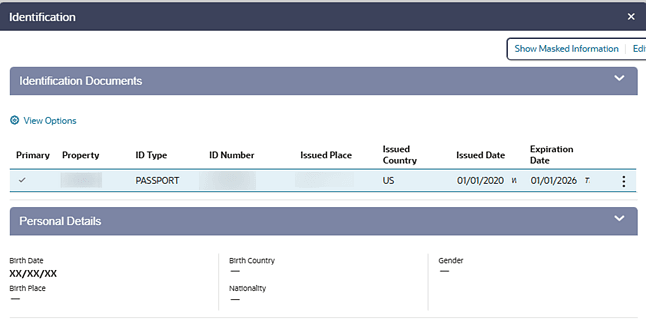
This enhancement introduces property-specific control over guest identification (PII) data storage and visibility in OPERA Cloud, enabling organizations to better manage compliance, privacy, and operational requirements.
Key capabilities include:
- Guest Identification Storage Location is a global-level control.
- Determines whether identification data is handled globally or restricted to a property.
- Profile-level identification (GLOBAL) remains the global source of truth and is accessible across properties.
- Property-level identification allows sensitive data to be stored, viewed, and managed only within a specific property.
- PROFILE IDENTIFICATION RETENTION DAYS is a property-level control.
- This defines how long identification is retained at the property level, based on the system date. Leaving this control blank means property-level identification records aren't purged.
A new Job is added in the OPERA Cloud Chain Scheduler that can be scheduled to purge property level Identification records based on the Profile Identification Retention Days (see OPERA Controls - Profile).
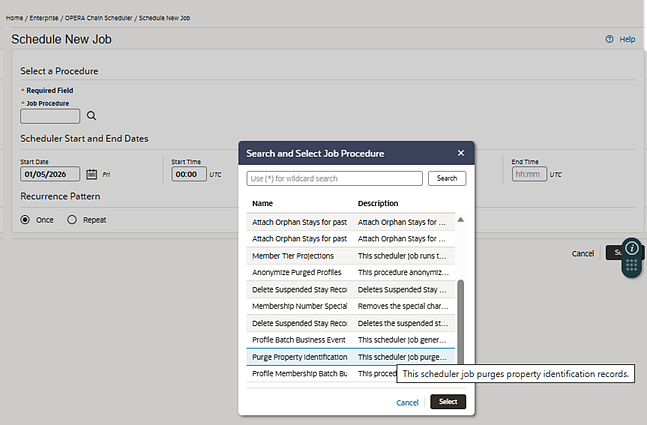
When active, identification data previously associated to a profile will not be available through the UI or API. A Property must be specified to interact with Identification.
OPERATIONAL BENEFITS
- Enhanced Data Privacy & Compliance
- Supports regulatory requirements by restricting Identification visibility to the relevant property.
- Granular Data Control
- Enables properties to manage their own guest identification independently while maintaining global profile integrity.
- Automated Data Retention
- Reduces risk through automated purging of sensitive data based on configured retention periods.
IMPACT OR OTHER CONSIDERATIONS
- Configuration-Driven Behavior
- Functionality depends on proper setup of:
GUEST IDENTIFICATION SCOPEPROPERTY IDENTIFICATION RETENTION DAYS- Existing identification records aren't reclassified.
- Global identification data is visible across properties.
- Property-level data is isolated but still linked to the same Profile ID. Property-specific identification won't be visible or editable outside its originating property.
- Retention and Purge Behavior
- Purge applies only to property-level records.
- Global identification data isn't impacted.
- Each purge action generates an audit log entry.
- Functionality depends on proper setup of:
- Security Enforcement
- Masking is applied by default across UI and API.
- Unmasking requires appropriate privileges and is logged.
- Reporting Considerations
- Operational reports (such as compliance/police reports) reflect property-specific data when enabled.
- No impact to global profile-level reporting outputs.
ACTION REQUIRED (STEPS TO ENABLE)
To enable and configure property-specific guest identification storage, follow these steps:
Step 1: Configure Identification Scope
- Navigate to OPERA Controls.
- Locate control:
GUEST IDENTIFICATION SCOPE
- Set value:
- Property: Enables property-level restriction
- (Default/other values maintain global behavior)
Step 2: Configure Retention Policy
- Locate control:
PROFILE IDENTIFICATION RETENTION DAYS
- Set the number of days for retention of property-level identification records.
- Save configuration.
COUNTRY SPECIFIC
Country Specific - Canada - Guest Vehicle Registration Information OPERA Control Added
The following functionality is available generically but should be reviewed by properties in Canada.
For properties with the Flexible Dynamic Fields OPERA Control active, a Vehicle Registration Information OPERA Control is added to the Reservation group for properties to capture Vehicle Registration Information for each guest.
Vehicle 1 codes are automatically displayed for each reservation and data is entered either before or at the time the guest arrives at the property. The Vehicle Registration Information can be set as part of the check in steps to allow easy capture of information during the check in process.
Using the existing functionality for Flexible Dynamic Fields, the codes can be set as mandatory if required, Alerts set for reminders to enter the data, or to Stop Check In, Stop Check Out as required.
Reservation Flexible Dynamic Fields can be added to Presentation Panel Tabs or user's My Panels to ensure easy access to the screen.
The Vehicle Registration Information Flexible Dynamic Fields can also be displayed on sample_guest_confirmation, sample_folio (or specific sample country folios) and sample_registration_card. Add the required merge codes during customization.
To update your customized reports (folio, confirmation letter, and registration card) refer to Flexible Dynamic Fields functionality documentation, or see Updating Customized Stationery with Current Data Model
Note:
The legal requirement is to display vehicle information based on each individual guest. Use Share reservations to ensure the correct vehicle details are captured for each guest. Accompanying guests aren't displayed in the report.For properties with Fiscal Folio Printing OPERA Control active, the data is included in the Fiscal Payload.
For properties with Fiscal Business Events OPERA Control active, the data is included in the related Fiscal Business Events.
Reporting and Analytics (R+A) Report
The following report is generically available in Reporting and Analytics, but should be reviewed by properties in Canada.
- The Vehicle Registration Information report is available in R&A using Vehicle report located in /Shared Folders/Templates/Fiscal/Canada (Folder).
For properties in Canada
Anonymization of guest profiles or purging of guest profiles when Guest Vehicle Registration is activated is not allowed and the following Error Message is displayed: "Profile anonymization is not available when Parameter Vehicle Registration Information is active".
Refer to Canada - Oracle Hospitality OPERA Cloud Fiscal Reference Guide.
OPERATIONAL BENEFITS
When Vehicle Registration Information functionality is active, required fields for Canada are automatically displayed in the Reservation Flexible Dynamic Fields for Vehicle 1 details for record keeping.
This functionality is generic, but is required for properties in Canada.
ACTION REQUIRED (STEPS TO ENABLE)
- From the side menu, select Administration, select Enterprise, and then select OPERA Controls.
- Select or confirm the Property.
- Select the General group.
- Locate and if not already active, turn On Flexible Dynamic Fields Parameter.
- Select the Reservations group.
- Locate and turn On the Vehicle Registration Information parameter.
- From the side menu, select Role Manager, select either Manage Chain Roles or Manage Property Roles according to your needs.
- Enter search criteria and click Search.
- Select the required role to update, click the vertical ellipsis Actions menu, and select Edit.
- Enter search criteria Flexible Dynamic Fields and click Search.
- Select the Enterprise Admin group and grant the task:New/Edit Flexible Dynamic Fields.
- Select the Bookings group and grant the tasks: Reservation Flexible Dynamic Fields, New/Edit Reservation Flexible Dynamic Fields, Delete Reservation Flexible Dynamic Fields.
- Click Save.
Country Specific - France - Updates
COUNTRY SPECIFIC - FRANCE - FISCAL NEGATIVE PAYMENTS FOR AR UPDATED
1. The Fiscal Negative Payments for AR OPERA Control is updated so that OPERA Cloud generates the fiscal payload when you unapply a payment from an AR Invoice.
2. The Changes Log is updated to record the action of unapplying a payment from an AR Invoice (under the Accounts Receivable Group).
COUNTRY SPECIFIC - FRANCE - DEPOSIT FOLIO FUNCTIONALITY UPDATED
1. The Deposit Folio Functionality OPERA Control is updated so that when the Deposit Folio Functionality OPERA Control is active, and one or more Deposit Folios are generated against the reservation, the first folio generated after check-in displays the deposit information on the folio.
2. The Deposit Folio Functionality OPERA Control is updated so that when the Fiscal Folio Printing OPERA Control is active, the Deposit Folio Functionality OPERA Control is active, and one or more Deposit Folios are generated against the reservation, the fiscal payload includes the deposit information when you generate the first folio after check-in.
OPERATIONAL BENEFITS
- Meets fiscal compliance requirements for properties in France, who need to inform the tax authority when negative payments are made to AR Invoices, and when payments are unapplied from an AR Invoice.
- Meets fiscal compliance requirements for properties in France, to display deposit folio information on the first folio generated after Check In.
Country Specific - Generic - PoliceReport1 Updated
The following is generically available in Reporting and Analytics (R+A).
Policereport1 is updated to use the Reservations-Bookings R+A subject area. The original subject area used by the report is retired.
The PoliceReport1 is available in R+A using PoliceReport1.xml located in /Shared Folders/Templates/Fiscal (Folder).
Note:
Properties using this report should reselect the report and customize for their requirements.OPERATIONAL BENEFITS
This is a generic police report available in R+A and can be updated and used by properties to generate the required Legal/Fiscal data required by Police and legal authorities.
The existing report's original Subject Area used to generate the data is replaced. The report is updated to use the Reservations-Bookings subject area.
Country Specific - Germany - eStatistik Added
The following changes to functionality are country specific for properties in Germany.
- The value for ESTATISTIK is added to the Fiscal Partner list of values on the Manage Fiscal Partner screen (see Configuring Fiscal Partners).
- The value for DATA MANAGEMENT is added to the Fiscal Payments list of values on the Manage Fiscal Partner screen and is only visible when ESTATISTIK is selected as the Fiscal Partner.
- New Fiscal Folio Parameters are added to the Fiscal Folio Parameters screen for the GENERIC1, GENERIC2, GENERIC3, and ESTATISTIK Fiscal Partners.
| Code | Description | Default Value |
|---|---|---|
| FLIP_EXTERNAL_CODE1 | Used to specify property general details for use by the Partner | |
| FLIP_EXTERNAL_CODE2 | Used to specify property general details for use by the Partner | |
| FLIP_EXTERNAL_CODE3 | Used to specify property general details for use by the Partner | |
| FLIP_EXTERNAL_CODE4 | Used to specify property general details for use by the Partner | |
| FLIP_EXTERNAL_CODE5 | Used to specify property general details for use by the Partner | |
| FLIP_EXTERNAL_ID1 | Used to specify property identity details for use by the Partner | |
| FLIP_EXTERNAL_ID2 | Used to specify property identity details for use by the Partner | |
| FLIP_EXTERNAL_ID3 | Used to specify property identity details for use by the Partner | |
| FLIP_EXTERNAL_ID4 | Used to specify property identity details for use by the Partner | |
| FLIP_EXTERNAL_ID5 | Used to specify property identity details for use by the Partner |
- The Fiscal Command for ESTATISTIK_STATS is visible on the Fiscal Commands screen (see Configuring Fiscal Commands) when ESTATISTIK is configured as a Fiscal Partner.
- The ESTATISTIK_COUNTRY Mapping Type is visible on the Mapping Types/Codes screen (see Managing Export Mapping Types and Codes), and the corresponding MC_ESTATISTIK Mapping Code is visible on the Mappings screen for Country Codes (see Managing Export Mappings), so that you can configure a value to represent the corresponding Country in the universal payload.
- The Fiscal Command for ESTATISTIK_STATS is visible on the Fiscal Commands screen (see
Sending Fiscal Commands) when ESTATISTIK is configured as
a Fiscal Partner.
- When you send the ESTATISTIK_STATS Fiscal Command, the universal payload generates with the corresponding tourism statistics.
- When you send the ESTATISTIK_STATS Fiscal Command, the universal payload generates with the
corresponding tourism statistics.
- When you send the ESTATISTIK_STATS Fiscal Command, the universal payload generates with the corresponding tourism statistics.
Refer to Germany - Oracle Hospitality OPERA Cloud Fiscal Reference Guide.
OPERATIONAL BENEFITS
Properties in Germany can submit monthly tourism statistics to eStatistik automatically through OPERA Cloud.
ACTION REQUIRED (STEPS TO ENABLE)
- From the side menu, select Administration, select Financial, select Fiscal Management, then select Fiscal Partners.
- Select or confirm the Property.
- Click New.
- Select the Partner, select the Priority, and select the Fiscal Payloads.
- Click Save.
Country Specific - India - Currency Limit Restrictions Updated
The following is generically available, but should be reviewed by properties in India.
For properties with the Foreign Currency Limits OPERA Control active, Foreign Currency Limits functionality is updated to include the option to add Local and Foreign limits Per Stay.
Per Stay limit allows Cash to be posted to the set limit per reservation. If a reservation is staying over multiple months, the Per Stay limit is used for the entire stay. Blocks for events with cash payments made for the event are also considered by the Per Stay limit. Posting the deposit to the Block Header or PM Reservation won't allow the Per Stay limit to be exceeded.
When the Per Stay limit is exceeded (either Local or Foreign Profile) for a Block or Reservation, an error message is displayed to the user. The Per Stay Limit amount applies to the total of cash payments in all billing windows and all folios generated for the Block/Reservation (Deposit Folio, Interim Folio, Advance Folio, Early Check Out, Check Out).If the reservation is checked out and reinstated, the Per Stay limit for the original reservation cash transactions cannot be exceeded.
For reservations staying over multiple months, or blocks with start and end dates over multiple months, the Per Stay Limit cannot be exceeded for the total stay of the reservation, or regardless of the number of cash payments or folios generated for the reservation or block.
It is suggested to use either Per Stay or Per Month currency limits.
Post-It and Accounts Receivable Payments
- Currency Limits functionality is not considered for Post It folios or Cash payments made to selected invoices or as an unallocated payment.
- If the Per Stay limit is legally required, properties should not use Post It functionality
- Currency Limits Per Stay functionality is not considered for Cash Payments made to selected invoices or as an unallocated payment.
- If the Per Stay limit is legally required, properties should not use the accept Cash Payments for Accounts in Accounts Receivable or consider using a Per Transaction currency limit.
OPERATIONAL BENEFITS
Properties in India are required to limit the amount of cash transactions for a reservation or for Events (Blocks) in the property.
Adding the Per Stay option allows an amount to be specified per Stay/Reservation and also includes Blocks where Cash deposits can be posted to the Block leading up to an event.
Country Specific - India - Imbalance Analysis Updated
The following is generically available, but should be reviewed by properties in India.
The Imbalance Analysis in Toolbox is updated to fix previous imbalances caused by foreign currency exchange transactions with Currency Exchange Service Tax, or incorrectly configured transaction codes linked to OPERA Controls Currency Exchange Taxable Offset Transaction Code and/or Currency Exchange Taxable Transaction Code.
OPERATIONAL BENEFITS
Although the Currency Exchange Service Tax functionality was previously updated, this update resolves the Imbalance Analysis tool side of the issue.
Previous imbalances from foreign currency exchange transactions with Currency Exchange Service Tax can now be corrected by running the Imbalance Analysis tool in Toolbox.
Country Specific - Italy - Export Templates Updated
COUNTRY SPECIFIC - ITALY - ITALY E-INVOICE EXPORTS UPDATED
1. The Italy E-Invoice Export (IT_E-INVOICE, IT_E-INVOICE_DAY) templates are updated so that the <TipoDocumento> element, located within the <DatiGeneraliDocumento> section of the Export file(s), always populates with 'TD04' for Credit Bills.
2. The Italy E-Invoice Exports (IT_E-INVOICE, IT_E-INVOICE_DAY) templates are updated so that the <IdCodice> element, located within the <CessionarioCommittente> section of the Export file(s), populates according to the following rules:
- If the Payee Profile field for Tax ID is populated, then the <IdCodice> element populates with the value for Tax ID.
- If the Payee Profile field for Tax ID is blank, and the field for Country does not include a value configured in the European Union Countries OPERA Control, then the <IdCodice> element populates with OO99999999999.
- If the Payee Profile field for Tax ID is blank, and the field for Country includes a value configured in the European Union Countries OPERA Control, then the <IdCodice> element populates with XXXXXXXXXXX.
Note:
If the Italy E-Invoice Exports (IT_E-INVOICE, IT_E-INVOICE_DAY) are configured in the property, rename the existing exports and create them new from the template for the new changes to take effect.Refer to Italy - Oracle Hospitality OPERA Cloud Fiscal Reference Guide.
COUNTRY SPECIFIC - ITALY - ITALY E-INVOICE WRAPPER EXPORTS UPDATED
1. The Italy E-Invoice Wrapper Export (IT_E-INVOICE_W, IT_E-INVOICE_W_DAY) templates are updated so that the <TipoDocumento> element, located within the <DatiGeneraliDocumento> section of the Export file(s), always populates with 'TD04' for Credit Bills.
2. The Italy E-Invoice Wrapper Exports (IT_E-INVOICE_W, IT_E-INVOICE_W_DAY) templates are updated so that the <IdCodice> element, located within the <CessionarioCommittente> section of the Export file(s), populates according to the following rules:
- If the Payee Profile field for Tax ID is populated, then the <IdCodice> element populates with the value for Tax ID.
- If the Payee Profile field for Tax ID is blank, and the field for Country does not include a value configured in the European Union Countries OPERA Control, then the <IdCodice> element populates with OO99999999999.
- If the Payee Profile field for Tax ID is blank, and the field for Country includes a value configured in the European Union Countries OPERA Control, then the <IdCodice> element populates with XXXXXXXXXXX.
Note:
If the Italy E-Invoice Wrapper Exports (IT_E-INVOICE_W, IT_E-INVOICE_W_DAY) are configured in the property, rename the existing exports and create them new from the template for the new changes to take effect.Refer to Italy - Oracle Hospitality OPERA Cloud Fiscal Reference Guide.
OPERATIONAL BENEFITS
1. The Italy E-Invoice Exports (IT_E-INVOICE, IT_E-INVOICE_DAY) and Italy E-Invoice Wrapper Exports (IT_E-INVOICE_W, IT_E-INVOICE_W_DAY) include the correct TipoDocumento value for Credit Bills, in a scenario where the Tax ID of the Payee Profile matches the Property Tax ID.
2. The Italy E-Invoice Exports (IT_E-INVOICE, IT_E-INVOICE_DAY) and Italy E-Invoice Wrapper Exports (IT_E-INVOICE_W, IT_E-INVOICE_W_DAY) include the correct IdCodice value, based on updated rules regarding the Tax ID of the Payee Profile.
ACTION REQUIRED (STEPS TO ENABLE)
Note:
If the Italy E-Invoice Exports (IT_E-INVOICE, IT_E-INVOICE_DAY)or Italy E-Invoice Wrapper Exports (IT_E-INVOICE_W, IT_E-INVOICE_W_DAY) are configured in the property, rename the existing exports and create them new from the template for the new changes to take effect.Rename the existing exports:
- From the side menu, select OPERA Cloud, select Miscellaneous, select Exports, and then select Country.
- Enter search criteria and then click Search.
- Select the existing IT_E-INVOICE or IT_E-INVOICE_W Export in the search results, click the vertical ellipsis Actions menu, and select Edit.
- Update the Export Name.
- Click Save.
- Select the existing IT_E-INVOICE_DAY or IT_E-INVOICE_W_DAY Export in the search results, click the vertical ellipsis Actions menu, and select Edit.
- Update the Export Name.
- Click Save.
Create new exports from template:
- From the side menu, select OPERA Cloud, select Miscellaneous, select Exports, and then select Country.
- Click New from Template.
- Search and select IT_E-INVOICE or IT_E-INVOICE_W.
- Click Create and Continue.
- Click New from Template.
- Search and select IT_E-INVOICE_DAY or IT_E-INVOICE_W_DAY.
- Click Create and Continue.
Country Specific - Italy - Nationality Statistics Reports Available in R+A
The following are generically available in Reporting and Analytics (R+A), but should be reviewed by properties in Italy.
The istat Daily report is available in R&A using istat_daily_report.xml located in /Shared Folders/Templates/Fiscal/Italy (Folder).
The istat Monthly report is available in R&A using istat_monthly_report.xml located in /Shared Folders/Templates/Fiscal/Italy (Folder).
Note:
Full details showing how to run the istat_daily_report.xml and istat_monthly_report.xml to provide the required data is available in the Fiscal Reference Guide for Italy.Refer to Italy - Oracle Hospitality OPERA Cloud Fiscal Reference Guide (DOC1887)
OPERATIONAL BENEFITS
The Nationality Statistics reports (istat and istat_monthly) reports generate the required data for properties in Italy to be legally compliant, and have been recreated in R&A.
Country Specific - Mexico - Fiscal Payment Numbers for AR Updated
The following update is available for properties in Mexico.
1. The Fiscal Payment Numbers for AR OPERA Control is updated so that it's only visible for only properties with Country Mode = MX (Mexico).
Refer toMexico - Oracle Hospitality OPERA Cloud Fiscal Reference Guide.
OPERATIONAL BENEFITS
- Meets fiscal compliance requirements for properties in Mexico, who need to inform the tax authority when payments are made to AR Invoices.
- Limits the functionality to Mexican properties, to avoid potential confusion/issues from customers activating the functionality outside of Mexico.
Country Specific - Poland - Debit Note Added and Customer Faktura VAT Updated
Country Specific - Poland - Debit Note Added
The following changes to functionality are country specific for properties in Poland.
1. The Debit Note OPERA Control is added to the Cashiering group, and is only visible when the Country Mode = PL (Poland).
2. The Debit Note Exceptions OPERA Control is added to the Cashiering group, and is only visible when the Country Mode = PL (Poland).
3. The Debit Note checkbox is visible on the Manage Folio Type screen when the Country Mode = PL (Poland) and the Debit Note OPERA Control is active.
4. The Debit Note Task is added to the Financials group in Role Manager so that you can limit access to the generation of a Debit Note folio.
5. The Billing screen is updated to display a new link for Debit Note in the window level Actions menu and the I Want To menu, and is only visible when the Country Mode = PL (Poland), the Debit Note OPERA Control is active, and the Debit Note Task is granted.
Note:
You must recreate the Export from the template for these changes to take effect.
Country Specific - Poland - Customer Faktura Vat Updated
The following changes to functionality are country specific for properties in Poland.
1. The Customer Vat Folio Type is updated so that when the checkbox for Fiscal Printing is selected on the Manage Folio Type screen the fiscal workflow engages and the universal payload generates with corresponding details.
Refer to Poland - Oracle Hospitality OPERA Cloud Fiscal Reference Guide.
OPERATIONAL BENEFITS
Properties in Poland meet upcoming legal requirements.
ACTION REQUIRED (STEPS TO ENABLE)
- From the side menu, select Administration, select Enterprise, and then select OPERA Controls.
- Select or confirm the Property.
- Select the Cashiering group.
- Locate and activate the Debit Note parameter.
- Locate and update the Debit Note Exceptions setting.
- From the side menu, select Role Manager, select either Manage Chain Roles or Manage Property Roles according to your needs.
- Enter search criteria and click Search
- Select the role to update, click the vertical ellipsis Actions menu, and select Edit.
- Select the Financials group and grant the task: Debit Note.
- Click Save
- From the side menu, select OPERA Cloud, select Miscellaneous, select Exports, and then select Country.
- Enter search criteria then click Search.
- Select the PL_JPK_FA Export, click the vertical ellipsis Actions menu, and select Delete.
- Click New from Template.
- Search and select PL_JPK_FA.
- Click Create and Continue.
Country Specific - Portugal - Auto Generate Credit Bill for Deposit Upon Check In Functionality Updated
The following is available when Country Mode = PT.
When the Credit Bill OPERA Control is active, the Auto Generate Credit Bill for Deposit upon Check In OPERA Control, related OPERA Controls Payment Transaction Code for Auto Generate Credit Bill and Reason for Auto Generate Credit Bill and functionality are available and continue to work if previously active.
The Auto Generate Credit Bill for Deposit upon Check In OPERA Control, related OPERA Controls and functionality are no longer available for non-Portugal properties.
If the OPERA Control Auto Generate Credit Bill for Deposit upon Check In was previously active for non-Portugal properties, the OPERA Control is no longer available and functionality is no longer displayed.
OPERATIONAL BENEFITS
Auto Generate Credit Bill for Deposit upon Check In functionality is only required for Legal/Fiscal compliance in Portugal.
Country Specific - Portugal - Debit Folio Functionality No Longer Displayed
The following is updated for Country Mode = PT.
When the Debit Folio OPERA Control was previously active, the functionality is no longer displayed.
In Administration, previously configured Folio Type for Debit Folio records are no longer displayed, and the Debit checkbox is no longer displayed on the Manage Folio Type screen.
Folio Settlement The Folio Settlement screen is updated in billing to display a single balance when transactions exist which previously would have generated a separate Debit Folio. The Quick Check Out, Auto Check Out, Auto Folio Settlement and End of Day procedures for folio settlement are updated to display a single balance and no longer generate Debit Folios.
Folio History The ability to search and select previously generated Debit Folios is available in Folio History, and these can be regenerated if required.
Toolbox The ability to update the Folio Number sequence for Debit Folios is no longer available in Toolbox - Document Number Update - Folio Numbers.
Note:
The folio type previously configured for Debit Folio still shows in the Folio Types LOV, but only displays records when selected in Folio History.OPERATIONAL BENEFITS
The Debit Folio OPERA Control was previously available only for properties in Portugal.
This functionality is no longer used in Portugal and the Parameter is updated to no longer display the functionality in OPERA Cloud.
This ensures only functionality required is available for Portugal.
Country Specific - Vietnam - Police Report Added to R+A
The following is generically available in Reporting and Analytics (R&A), but should be reviewed by properties in Vietnam.
The Vietnam Police Report is available in R&A using VTM-Police_report.xml located in /Shared Folders/Templates/Fiscal/Vietnam (Folder).
Note:
Full details showing how to run the VTM-Police_report.xml to provide the required data is available in the Vietnam - Oracle Hospitality OPERA Cloud Fiscal Reference Guide.
Refer to Vietnam - Oracle Hospitality OPERA Cloud Fiscal Reference Guide (DOC6540).
OPERATIONAL BENEFITS
The Police in Vietnam require specific data from OPERA regarding guests staying in properties.
The Vietnam Police Report is created to generate the required data to ensure properties are legally compliant.
DISTRIBUTION
Content Management Options Added
DISTRIBUTION
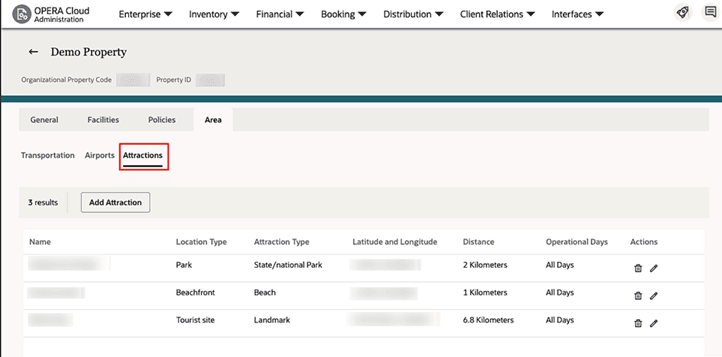
Attraction Options Screen
An option to configure Attraction options for Distribution channels is added under the new Area tab in Content Management. You can view and configure Nearby Attraction options such as landmarks, restaurants, and more for multiple properties from the same screen.
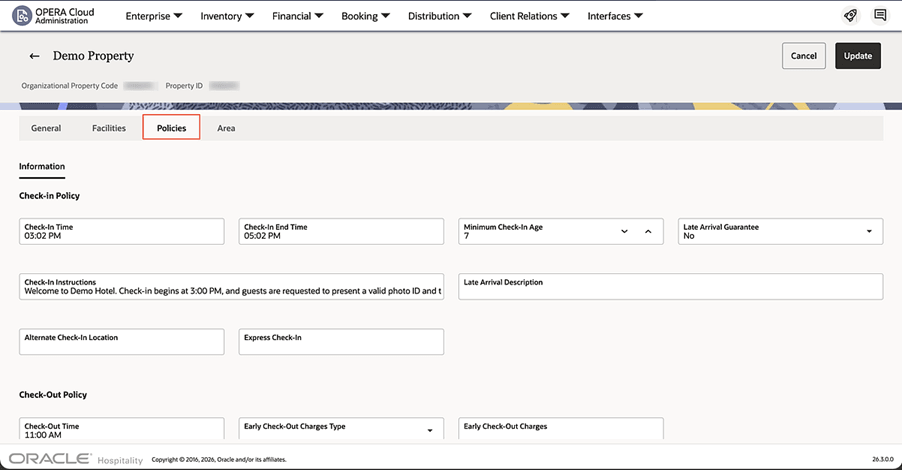
Policy Information Screen
An option to configure policies for Distribution channels is added under the new Policies tab in Content Management. You can view and configure policy descriptions such as check-in instructions, check-out policy, and more for multiple properties from the same screen.
OPERATIONAL BENEFITS
You can manage content regarding location Information for nearby Attractions for distribution channels such as GDS , OTA, and Booking engines from OPERA Cloud HUB and Property Mode.
You can define content policy information for distribution channels such as GDS , OTA, and Booking engines from OPERA Cloud HUB and Property Mode.
IMPACT OR OTHER CONSIDERATIONS
No additional HUB or Property Level tasks required.
Distribution Billing Details View and Download Added
DISTRIBUTION
A new Billing sub-menu is added under the OPERA Cloud Administration - Distribution main menu at both Hub and Property levels. Use Billing to view and download monthly billed reservation details for Distribution.
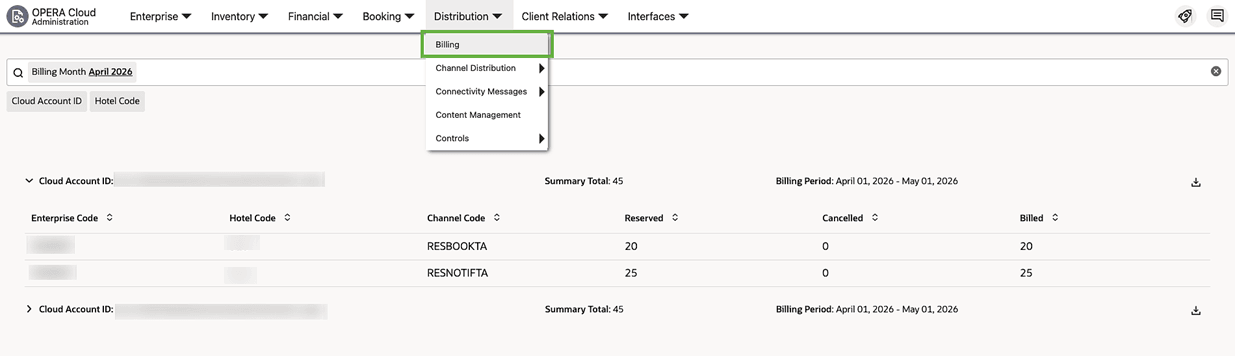
OPERATIONAL BENEFITS
- Hotel users can quickly review Distribution billed reservation activity and reconcile billing information across properties, cloud accounts, and channels.
IMPACT OR OTHER CONSIDERATIONS
- Access to the report is permission-controlled so only authorized users can view or download distribution billing data.
- The feature supports reporting for the last 12 billing months going forward. Immediately after release, historical availability will be limited by the existing production retention, where billing data older than 6 months has already been purged. After the release, billing data will be retained for 12 months, so the report will gradually reach full 12-month historical coverage over time.
- Guest names in the Details CSV are masked to protect guest privacy.
ACTION REQUIRED (STEPS TO ENABLE)
- Enable View Cluster Level Billed Reservation Details role permission in Distribution roles for Cluster Level Billing Details access.
- Enable View Hotel Level Billed Reservation Details role permission in Distribution roles for Property Level Billing Details access.
HUB Level Property Controls Added
DISTRIBUTION
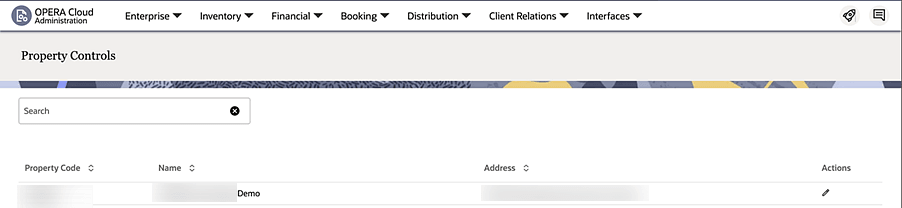
Property Controls option is added in Distribution Administration menu on HUB Level. You can view and configure Property Controls for multiple properties from the same screen.
OPERATIONAL BENEFITS
You can manage Property Controls for multiple properties from the same screen.
IMPACT OR OTHER CONSIDERATIONS
No additional HUB or Property Level tasks required.
EVENTS
-
Oracle Hospitality OPERA Cloud Service, Sales and Event Management Essentials Edition.
-
Oracle Hospitality OPERA Cloud Service, Sales and Event Management Standard Edition.
-
Oracle Hospitality OPERA Cloud Service, Sales and Event Management Premium Edition.
Features that are specific to the Sales and Event Management Premium
Edition are marked with the Premium badge. 
Guest Room as Meeting Room OPERA Control Updated
PREMIUM
For properties with the Guest Room as Meeting Room OPERA Control active, when an event booked in a guest room is updated to a return (canceled) status at the block level, the system automatically cancels the linked reservation.
OPERATIONAL BENEFITS
This ensures the room is promptly returned to available inventory, helping maintain accurate availability and allowing the room to be booked for other guests or utilized for catering events.
EXPORTS
Display Deposit Folio Information in the UPE Export
For properties using OPERA Control Advanced Deposit Handling= 3, 4, 5, 6, 8, 9, 10, 11, 12, 13, 14, or 15, the General Exports UPE_EXPORT and UPE_EXPORT_DAY Export are updated.
Exports can include Deposit Folio posting data in the <Folio> section for the
business date when the Deposit Folio is generated.
Note:
If Deposit Folio posting data isn't required in the UPE Exports, no action is required. The Parameter DEPOSITFOLIOIND is added to the UPE_EXPORT and UPE_EXPORT_DAY Definitions.The default value for Parameter DEPOSITFOLIOIND is Null/Blank.
When the DEPOSITFOLIOIND Parameter value is updated to Yes, the Deposit Folio posting data is included in the <Folio> section of the UPE_EXPORT and UPE_EXPORT_DAY exports for the business date the Deposit Folio is generated. When DEPOSITFOLIOIND Parameter value is No or Null/Blank, the Deposit Folio posting data isn't included in the UPE_EXPORT and UPE_EXPORT_DAY exports for the business date the Deposit Folio is generated.
Note:
Properties in France with Parameter for Deposit Folio Functionality active, no change is made to the UPE Export data and no action is required.OPERATIONAL BENEFITS
Properties using Deposit Folio functionality need to include the data in the UPE_EXPORT and UPE_EXPORT_DAY exports for the business date the Deposit Folio is generated.
ACTION REQUIRED (STEPS TO ENABLE)
The following steps should be followed if Deposit Folio data is required in the UPE Export. If Deposit Folio data isn't required in the UPE Export, no action is required.
Note:
If the UPE_EXPORT and/or UPE_EXPORT_DAY exports exist, rename the existing export and create a new UPE_EXPORT and UPE_EXPORT_DAY export from the export template.Rename the existing export:
- From the top menu, select Miscellaneous, select Exports, and then select Country.
- Enter search criteria, then click Search.
- Select the existing UPE_EXPORT export in the search results, click the vertical ellipsis Actions menu, and select Edit.
- Update the Export Name.
- Click Save.
- Repeat steps 3-5 and rename the existing UPE_EXPORT_DAY.
Create a new export from template:
- Click the New From Template action link.
- From the Template list, select UPE_EXPORT, then select Create and Continue.
- Click Save.
- Click the vertical ellipsis Actions menu, select Definitions, and select Edit.
- Select Parameter DEPOSITFOLIOIND, and select Edit.
- Enter Yes.
- Click Save.
FRONT DESK
Create Multiple Guest Room Keys on Multiple Interfaces
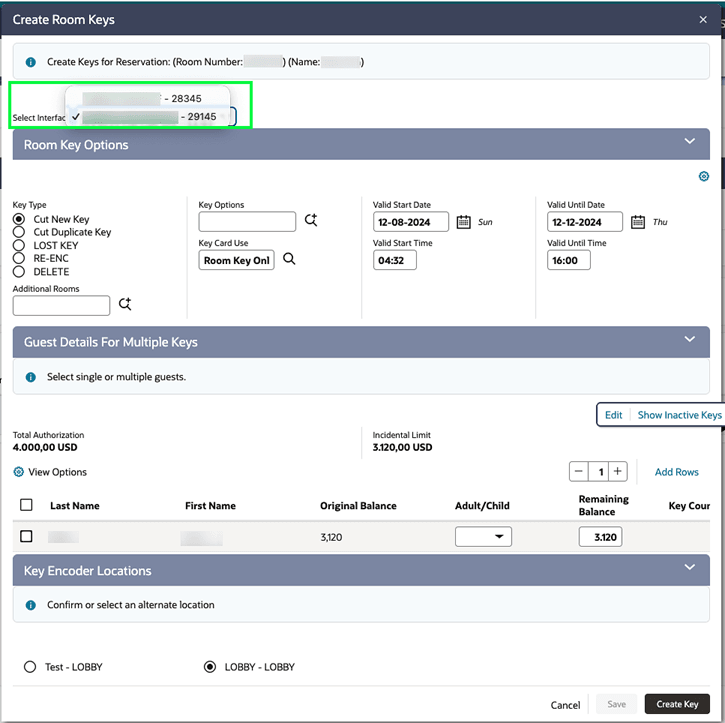
In properties where the Multiple Guest Room Keys OPERA Control is active with multiple Door Locking System (DLS) interfaces configured, the Create Room Keys screen is enhanced to allow selecting different DLS interfaces to create keys for a room that is configured in more than one interface.
OPERATIONAL BENEFITS
This enhancement allows you to create room keys for one or multiple guests and for different DLS interfaces from the same screen, accelerating the key creation process.
Default Key Encoder for Multiple Interfaces
The Create Room Keys screen is enhanced to store your preferred key encoder and location for each Door Locking System (DLS) interface. OPERA Cloud saves the last preferred location and encoder in browser cookies and automatically defaults to the appropriate encoder based on the selected room and interface.
In properties with multiple DLS interfaces, selecting a room automatically defaults the key encoder based on your previously saved preference for that interface. When switching between interfaces, the corresponding encoder is automatically selected.
In multi-property environments, encoder preferences are stored separately for each property and default based on the selected property, room, and DLS interface.
This feature applies when creating room keys from reservations and from Property Interface Controls, including Guest Room Keys, One-Shot Key, and Read Key options.
OPERATIONAL BENEFITS
This enhancement reduces the need to manually select key encoders, minimizes clicks, and accelerates key creation by ensuring the correct encoder is selected.
Merge Codes Added to eSign Registration Card
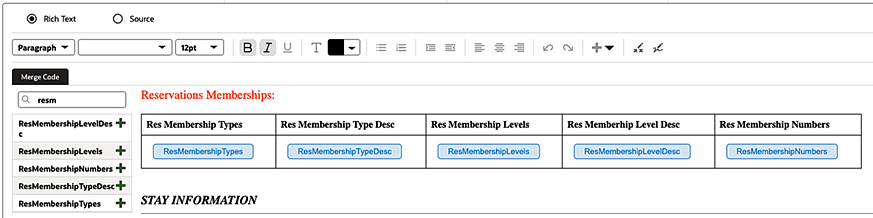
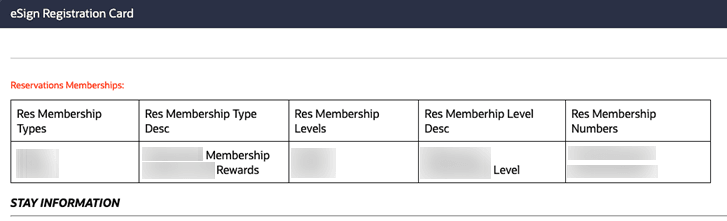
In properties where the eSign Registration Card OPERA Control is active, the Electronic Registration Card configuration is updated with Reservation Membership related merge codes for the eSign Registration Card.
You can add ResMembershipTypes, ResMembershipTypeDesc, ResMembershipLevel, ResMembershipLevelDesc, and ResMembershipNumber to display membership details from memberships attached to the reservation, instead of only the default membership type. (See Configuring Electronic Registration Card Templates.)
OPERATIONAL BENEFITS
Showing reservation specific membership details on the eSign Registration Card helps front desk agents confirm the membership information associated with the reservation directly with guests, while helping guests feel recognized.
INTEGRATIONS
Async Queue UI for Monitoring Asynchronous API Requests
A new user interface, Async Queue, is introduced in OPERA Cloud to provide visibility into the status of asynchronous API requests sent to OPERA Cloud.
This feature helps you to monitor and track the lifecycle of async jobs initiated through external integrations. In addition to monitoring async requests, you can now manually refresh the status of incomplete jobs and terminate jobs that appear to be stuck or running longer than expected.
Navigation Path:
- OPERA Cloud - Miscellaneous - Monitoring - Async Queue
A new task permission named Async Queue has been introduced. Only users with this permission will be able to access the screen.
OPERATIONAL BENEFITS
- Enables real-time monitoring of async job execution.
- Reduces turnaround time for troubleshooting failed or delayed requests.
- Improves operational efficiency by providing a self-service monitoring interface.
- Enhances usability with a dedicated, easy-to-navigate UI for async job tracking.
- Provides self-service visibility into asynchronous integration processing.
IMPACT OR OTHER CONSIDERATIONS
- Access to the feature is controlled via the newly introduced Async Queue task permission.
- Users can terminate only jobs identified as running longer than the expected duration.
- Terminated jobs must be resubmitted manually if the action needs to be retried.
- No impact on existing API functionality or integration behavior.
ACTION REQUIRED (STEPS TO ENABLE)
- Navigate to Role Manager in OPERA Cloud.
- Under Manage Chain Roles, edit the relevant user role(s).
- Assign the Async Queue task permission available under Monitoring Workspace of Miscellaneous main task.
- Save the changes.
- Users with this task permission can access the feature via:
- OPERA Cloud - Miscellaneous - Monitoring - Async Queue
MEMBERSHIP
Membership Claims Updated
LOYALTY
For properties with Membership Claims OPERA Control active, the following enhancements are available in the Membership Claims workflow:
- You can create and edit a membership claim within the same workflow using the Save and Edit Membership Claim button.
- While managing a membership claim, you can access profile awards directly using the Award List button.
- The Membership Number is a hyperlink, allowing quick access to membership details during claim review.
- When a membership is added or replaced for a stay record transaction under All Transactions, the action is recorded in the profile changes log.
- When adding a membership to a stay record transaction, you can directly add a new membership to the profile without separately navigating to the profile.
OPERATIONAL BENEFITS
The enhancements to the Membership Claims workflow deliver the following operational benefits:
- Reduced Handling Time per Claim
- Create and edit membership claims within the same workflow using Save and Edit Membership Claim, minimizing screen changes and clicks, and improving overall claim throughput.
- Faster Award Validation and Processing
- Direct access to profile awards through the Award List button enables quick eligibility checks and award application, reducing wait times and rework when managing membership claim.
- Improved Member Verification and Data Quality
- The Membership Number hyperlink provides immediate visibility into membership details, supporting accurate verification and reducing errors in claim processing.
- Stronger Audit Trail and Operational Transparency
- All add/replace membership actions for stay record transactions under All Transactions are recorded in the profile changes log, improving traceability for investigations, compliance reviews, and faster resolution of guest disputes or queries.
- Streamlined Membership Maintenance
- Ability to add a new membership to the profile directly from a stay record transaction removes the need to navigate to the profile separately, reducing steps and the risk of incomplete updates, especially during claim corrections.
Membership Enrollment Image Added
LOYALTY
GAMING
For properties with Enrollment OPERA Control (OPERA Controls - Membership) active and integrated with an external loyalty and gaming system, the enrollment screen is enhanced to display primary and secondary image thumbnails. These images are driven by the Membership Enrollment Image configuration and can be used to present brand logos, promotions, and marketing campaign visuals, providing a richer, branded enrollment experience.
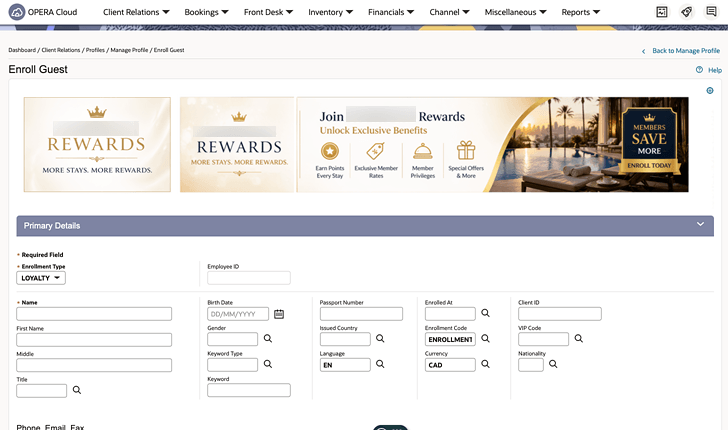
OPERATIONAL BENEFITS
- Dynamic Content Display
- Enrollment UI automatically retrieves and displays the configured images.
- Branding and Visual Consistency
- Improves branding consistency across the enrollment experience.
- Enhances visual clarity and professionalism of the enrollment screen.
- Improved Member Enrollment Experience
- Creates a more engaging and informative enrollment journey for guests.
- Operational Efficiency for Hotel Users
- Allows hotel staff to present loyalty offerings, promotions, and marketing campaigns directly during enrollment.
- Reduces reliance on multiple sources for marketing or loyalty information.
- Streamlines and accelerates the guest enrollment process.
Profile Membership Batch Business Event Procedure Added
LOYALTY
A new procedure,Profile Membership Batch Business Event, is introduced in the OPERA Chain Scheduler.
This procedure generates Update Profile business events whenever:
- A membership transaction is created.
- Points are calculated for a membership transaction.
- An award is issued for a profile membership.
Each event includes details of the related membership transaction and any generated award, and a corresponding record is simultaneously logged in the Profile Changes Log.
Note:
- The Update Profile business event must be configured with the PENDING ACTION data element, allowing Profile Membership Batch Business Event job procedure to generate business events for profile membership updates related to Membership Transaction, Points Calculation, and Award issued.
- The Limit Data Elements for Business Events Environment Control Parameter should be Inactive.
- The business event is generated for all configured external systems except OXI‑OPERA.
OPERATIONAL BENEFITS
- End‑to‑end membership visibility:All key membership lifecycle actions (creation, point calculation, award issuance) now trigger profile update events, ensuring downstream systems have a current and complete view of membership activity.
- Improved data consistency across integrations:Events are pushed to all configured external systems (excluding OXI‑OPERA), reducing the risk of stale or inconsistent membership data.
- Stronger audit and compliance:Automatic logging in the Profile Changes Log provides a traceable history of membership‑related updates for audits, investigations, and support.
- Reduced manual effort:Automated event generation and logging minimize manual reconciliation and monitoring of membership updates across integrated systems.
MISCELLANEOUS
Idle Session Timeout Control Added
An Idle Session Timeout Global OPERA Control is added in the General group with a default value of 15 minutes. The value in this setting applies to the OPERA Cloud session timeout. (See Signing In and Signing Out.)
Caution:
Setting the idle session timeout above 15 minutes may impact your PCI DSS compliance obligations. PCI DSS Requirement 8.2.8 requires re-authentication after 15 minutes of idle time for applicable user sessions.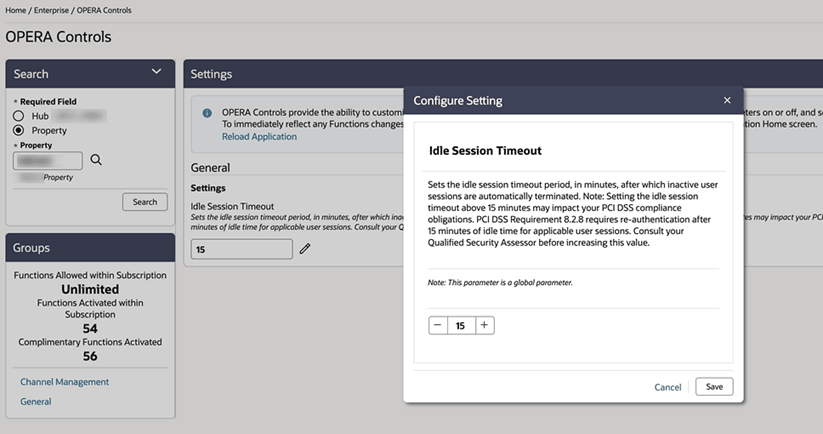
OPERATIONAL BENEFITS
You can configure idle-session timeout behavior to better align with property operations, helping properties reduce avoidable session interruptions during longer operational workflows while maintaining a consistent, auditable timeout policy across the chain.
IMPACT OR OTHER CONSIDERATIONS
Setting the idle session timeout above 15 minutes may impact your PCI DSS compliance obligations. PCI DSS Requirement 8.2.8 requires re-authentication after 15 minutes of idle time for applicable user sessions.
ACTION REQUIRED (STEPS TO ENABLE)
- From the Side Menu, select Administration, then Enterprise, and then OPERA Controls.
- Select or confirm the Property.
- Select the General group.
- Locate and define the Idle Session Timeout setting.
Page Composer Updated for Time Fields
You can use Expression Language to conditionally update time fields . See Adding Custom Business Logic Using Expression Language.
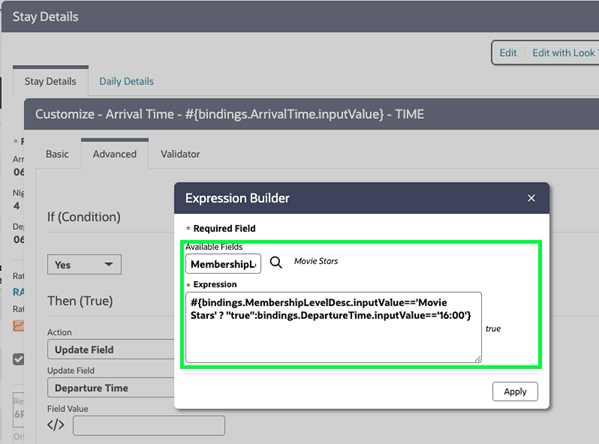
OPERATIONAL BENEFITS
Improved extensibility capabilities.
Property Brochure Updated
A new Property Brochure screen ( see Property Brochure ) replaces the legacy version, delivering a unified experience across OPERA Cloud and OPERA Cloud Central with an improved, more intuitive interface featuring enhanced layout, expanded data visibility, anchor-based navigation, browser search, and an interactive map across all workflows and entry points.
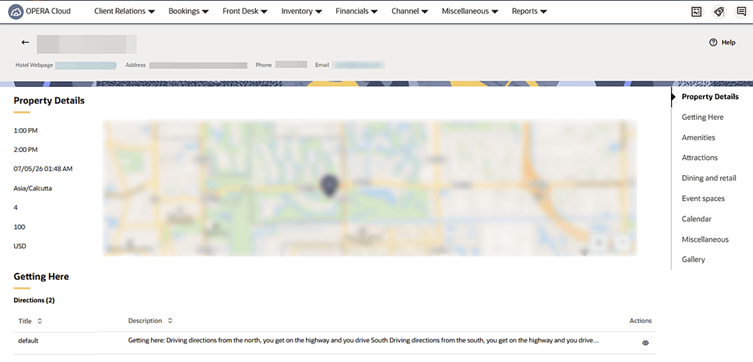
OPERATIONAL BENEFITS
A consistent and intuitive Property Brochure experience across OPERA Cloud and OPERA Cloud Central.
SMTP Delivery Method Enhanced
OPERA Cloud SMTP configuration is enhanced for RFC compliance for authentication standards.
OPERATIONAL BENEFITS
OPERA Cloud SMTP configuration for RFC compliance enhancement increases the maximum supported character limit. This change is required for OPERA Cloud to work with OCI Email Delivery and aligns the configuration with RFC standards.
MOBILE
Add an Accompanying Guest with Existing Relationship
In properties with the Accompanying Guests and Relationships OPERA Controls active, you can add an Accompanying Guest(s) to a reservation when a relationship exists between profiles.
Within the Accompanying Guests drawer, you can select Add and select Relationships when existing:
- Select the guest(s) you would like to add as Accompanying Guest(s) from the relationships choices, and then click Add Guest(s). In this example there are 3 relationships from which to choose:
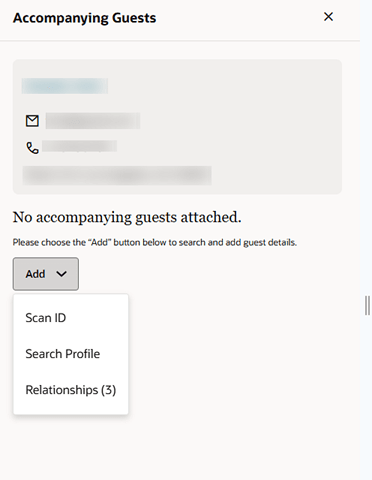
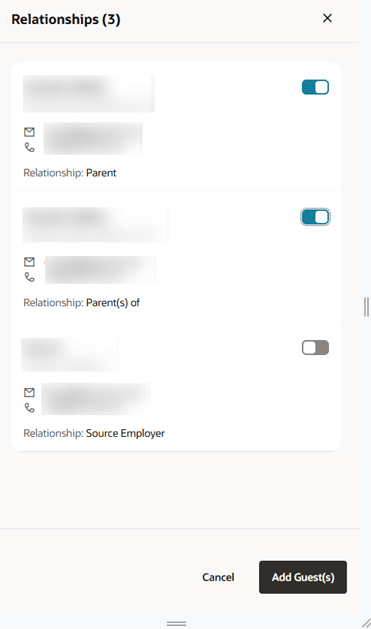
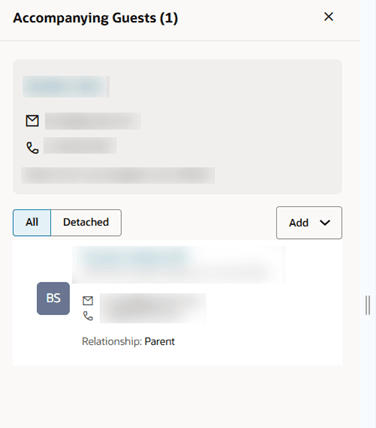
Note:
When Attach/Detach Accompanying Guest functionality for OPERA Cloud is enabled, to detach an Accompanying Guest, swipe from right to left and select the Detach button. To delete the Accompanying Guest, swipe from left to right and select the Delete button.
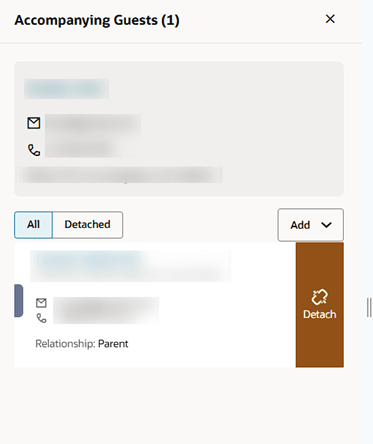
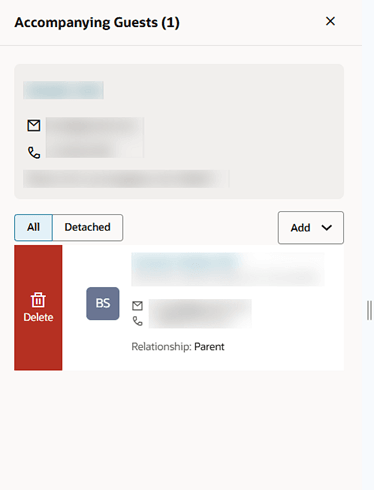
OPERATIONAL BENEFITS
This streamlines the reservation process, improves data accuracy, and enhances the user experience by reducing the need to manually search for and link related guests.
IMPACT OR OTHER CONSIDERATIONS
If Attach/Detach Accompanying Guest functionality for OPERA Cloud is enabled and user tasks are granted, you can swipe from right to left and select the Detach button to detach an Accompanying Guest.
STEPS TO ENABLE OPERA CONTROLS
- From the side menu, select OPERA Controls.
- Use the search field to locate Accompanying Guests.
- Select the control and set it to Active.
- Click Save.
- In the search field, locate Relationships.
- Select the control and set it to Active.
- Click Save.
STEPS TO ENABLE USER TASKS
- From the side menu, select Role Manager.
- Choose Manage Property Roles.
- Enter search criteria and click Search.
- Select the role to update.
- Click the vertical ellipsis (Actions menu) and select Edit.
- Select the appropriate group (such as Reservations).
- Grant the task:
- Accompanying Guest
- Click Save.
- From the side menu, select Role Manager.
- Choose Manage Property Roles.
- Enter search criteria and click Search.
- Select the role to update.
- Click the vertical ellipsis (Actions menu) and select Edit.
- Select the appropriate group (such as Profiles).
- Grant the task:
- Profile Relationships
- Click Save.
Clear Application Cache Updated
Clear Application Cache is improved to Clear Cache and Device Data functionality. This clears specific cookies to help resolve stale data, session inconsistencies, and unexpected application behavior without impacting other browser cookies through the OPERA Cloud Mobile Settings option.
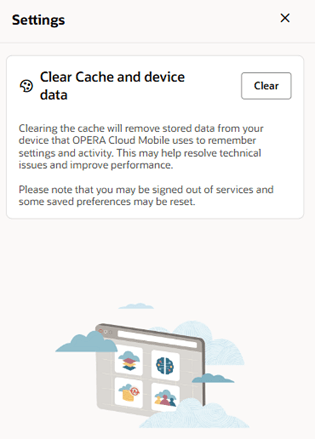
OPERATIONAL BENEFITS
Enhances operational efficiency by enabling users to quickly resolve session and application issues directly within OPERA Cloud Mobile, reducing troubleshooting time, minimizing support intervention, and improving application reliability without affecting other browser data.
Date/Time Based on Property Details Updated
The Date and Time when displayed considers the time and date format configured in Property Details. If you are in HUB Level, the date and time format displays according to the Property Details configuration, ensuring consistency across views.
OPERATIONAL BENEFITS
Standardizing the date and time format improves clarity and reduces errors by ensuring users view information in a consistent, familiar format. This enhances operational efficiency and supports accurate reporting across properties, including at the HUB level.
IMPACT OR OTHER CONSIDERATIONS
At the HUB level, the date and time format displays according to the Property Details configuration, ensuring consistency across views.
ACTION REQUIRED (STEPS TO ENABLE)
Steps to Configure:
- Navigate to Administration - Enterprise -Chain and Property - Properties.
- Search for and select the desired property, then open the Actions menu (⋮) and click Edit.
- In the Property Controls section, click Edit.
- Configure the following fields as required:
- Short Date Format – controls how dates display in the application.
- Long Date Format – used in templates and extended displays.
- Time Format – defines 12-hour or 24-hour time display.
- Time Zone – ensures time reflects the property’s local setting.
- Click Save to apply the configuration.
Reservation and Rate Validations Enhanced
New validation in OPERA Cloud Mobile enhances Quick Edit and Daily Details reservation updates with additional fields and integrated reservation and rate validation. You are notified of validation changes during updates, while permission-based actions ensure only users can complete reservation modifications for respective workflows.
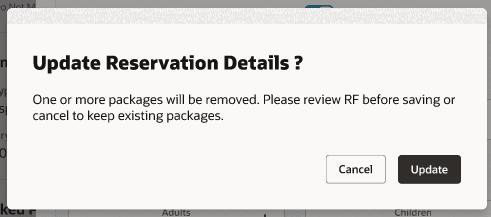
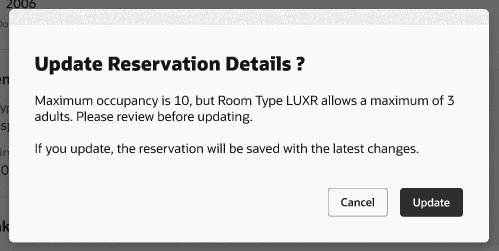
OPERATIONAL BENEFITS
Enhanced reservation and rate validation in OPERA Cloud Mobile helps ensure reservation updates reflect accurate pricing and stay details before changes are saved. By extending validation to Quick Edit and Daily Details, users can identify reservation or rate conflicts immediately, reducing billing discrepancies and minimizing manual correction efforts.
Permission-based validation also helps enforce operational controls by preventing unauthorized reservation changes, while confirmation prompts keep users informed of impacts before updates are completed. This improves data accuracy, supports consistent rate management, and creates a more reliable mobile reservation update experience.
ACTION REQUIRED (STEPS TO ENABLE)
- From the Side menu select Role Manager, select either Manage Chain Roles or Manage Property Roles according to your needs.
- Enter search criteria and click Search.
- Select the role to update, click the vertical ellipsis Actions menu, and select Edit.
- Select the appropriate group and grant the tasks:
- Oversell Room Type for a Reservation or Block at House Level
- Oversell Room Type for a Reservation or Block at Room Class Level
- Oversell Room Type for a Reservation or Block at Room Type Level
- Override Maximum Occupancy
- Override LTB and Edit Reservation
- Override Restricted Profiles for Reservation
- Override Rate Code Restriction
- Override Block Availability
- Override Sell Limits
5. Click Save.
.
Guest-facing eSign Signature Landing Page Added
For a smoother check-in experience, when the OPERA Control for eSign Registration Card is enabled, a guest-facing landing page appears after signing, prompting guests to return the device to hotel staff.
After a guest completes their signature on an eSign, a PIN prompt is displayed requiring hotel staff authentication before proceeding.
OPERATIONAL BENEFITS
Enhances operational efficiency by clearly guiding guest actions during check-in, prompting device return after signature, and supporting a secure handoff with a staff PIN entry, reducing the need for intervention, minimizing the risk of device mishandling, and ensuring a consistent and controlled process.
ACTION REQUIRED (STEPS TO ENABLE)
From the Side Menu, select Administration, select Enterprise, and then select OPERA Controls. Select or confirm the Property. Select the Reservations group. Locate and activate the eSign Registration parameter.
Configuring User Pin
- From the side menu, select Settings.
- In the Change PIN area:
- Old PIN: Enter the current PIN.
- New PIN: Enter the new PIN.
- Confirm PIN: Repeat entry of the new PIN.
- Click Save.
Indication for Notes and Traces Added
A new indicator appears on the Reservation page when Notes or Traces exist.
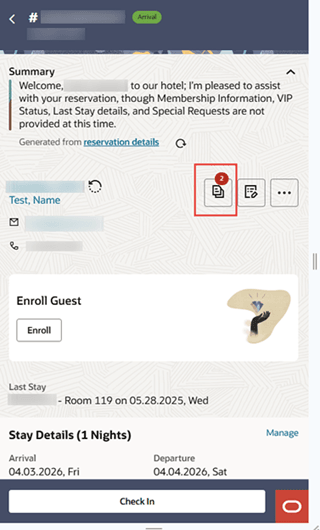
OPERATIONAL BENEFITS
Helps users quickly identify reservations with Notes and Traces, enabling faster, more informed decision-making.
Linked Source and Travel Agent Profiles Removal Added
In properties with the Attach Travel Agent/ Source Profiles to Reservations OPERA Control enabled, users granted with the Attach/Detach Travel Agent and Attach/Detach Source tasks can remove linked Source and Travel Agent profiles directly from a reservation.
By selecting the Delete icon, you can remove the Linked Profile(s) desired:
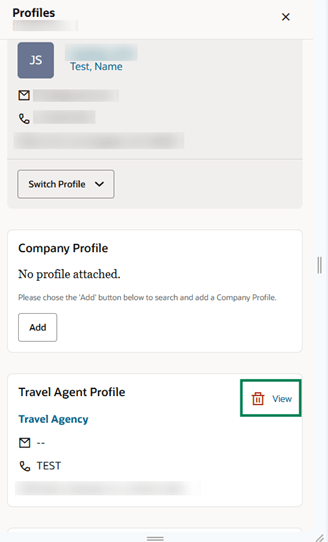
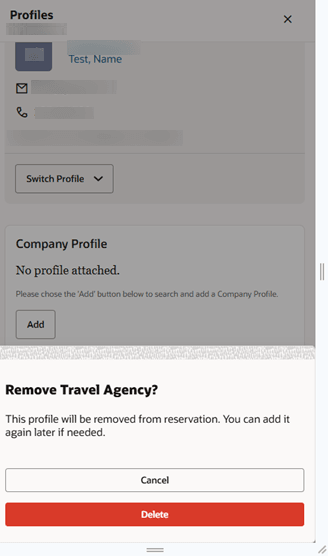
OPERATIONAL BENEFITS
This feature improves efficiency and accuracy by allowing users to quickly remove incorrect or outdated profile links directly from within the reservation. This reduces extra steps, minimizes errors in billing and reporting, and streamlines daily operations.
ACTION REQUIRED (STEPS TO ENABLE)
Steps to assign new user tasks to roles:
- From the Side menu select Role Manager, select either Manage Chain Roles or Manage Property Roles according to your needs.
- Enter search criteria and click Search.
- Select the role to update, click the vertical ellipsis Actions menu, and select Edit.
- Select the Reservations group and grant the tasks: Attach/Detach Travel Agent and Attach/Detach Source.
- Click Save.
Steps to enable OPERA Controls for attaching/detaching Travel Agent and Source profiles to reservations:
- From the Side menu, select OPERA Controls.
- In the search field, enter Reservations and click Search.
- Locate and enable Attach Travel Agent/ Source Profiles to Reservations
- Click Save.
Membership Management Updated
Improvements are made to Membership and Enrollment/Loyalty Management from the Reservation Page.
A link for Manage Membership is added to the Reservation Overview screen. The Manage Membership option allows users to enroll guests in a selected membership type directly from the reservation.
When creating a new membership, the default membership type (if configured in OPERA Cloud) is automatically applied.
If a guest has an existing membership linked to their profile but not yet attached to the reservation, an Attach option is available to seamlessly link the membership to the reservation.
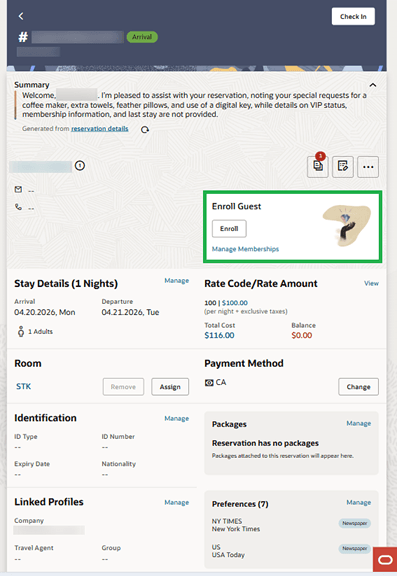
OPERATIONAL BENEFITS
This enhancement helps you to streamline operations by allowing you to enroll or attach memberships directly within the reservation workflow, reducing steps and saving time. It ensures memberships are consistently linked, so that you can better recognize guests and apply benefits accurately. Additionally, it makes it easier for you to enroll guests in loyalty programs during interactions.
IMPACT OR OTHER CONSIDERATIONS
Key behavior:
- Multiple memberships can be added to a profile.
- Memberships are stored at the profile level and can later be attached to reservations.
ACTION REQUIRED (STEPS TO ENABLE)
ENABLE AND CONFIGURE MEMBERSHIP (LOYALTY) IN OPERA CLOUD
1. Enable OPERA Controls (Required)
- Go to Administration - Enterprise - OPERA Controls
- Enable relevant controls under:
- Membership
- Profiles (such as Contact / Membership-related controls).
- Configure additional options as needed, such as:
- Loyalty features (for example Awards, Redemption).
- Membership handling and validation.
2. Create Membership Types
- Navigate to: Administration - Client Relations - Membership Management - Membership Types
- Select New.
- Define:
- Membership Type (program).
- Levels/Tiers (for example - Gold, Platinum).
- Rules, benefits, and validation.
- Click Save.
3. Configure Membership Details (Optional but Recommended)
Within Membership Type setup:
- Configure:
- Levels (tiers).
- Card number generation/validation.
- Enrollment rules (such as required enrollment code).
- Expiry and handling rules.
4. Add / Enroll Membership to a Profile
- Go to: Client Relations - Profile - Manage Profile.
- Select a profile.
- Click Membership - New.
- Enter:
- Membership Type.
- Card Number (or auto-generated).
- Level, Enrollment Code, Dates.
- Click Save.
5. Use Memberships in Reservations
- Memberships can be:
- Selected or attached during booking or check-in.
- Added later from the profile.
- Only valid configured membership types are available.
- One membership per class can be applied to a reservation.
Move Room for Same Room Type Added
You can move an in-house reservation to a different room within the same room type using the Move option on the reservation page, if you have the Move Room for an In-House Reservation task. Available rooms display by the highest configured room status (for example, Inspected or Clean).
If the Mandatory Room Move Reason OPERA Control is enabled, the Reason field is mandatory on the Room Move screen. You are presented with Create Key(s) after the guest is successfully moved:
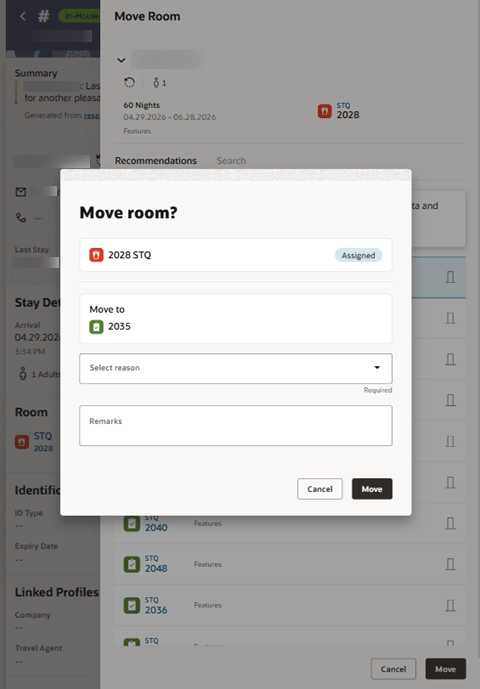
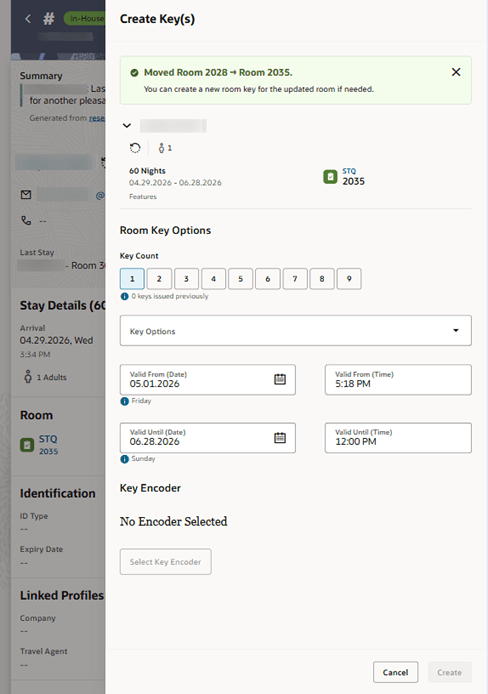
OPERATIONAL BENEFITS
Enhances operational flexibility in OPERA Cloud Mobile by enabling staff to perform room moves in real time from anywhere on the property. This supports faster response to guest requests and operational changes, reduces service delays, minimizes guest disruption, and improves coordination between front desk and housekeeping.
IMPACT OR OTHER CONSIDERATIONS
If the Mandatory Room Move Reason OPERA Control is enabled, the Reason field is mandatory on the Room Move screen.
ACTION REQUIRED (STEPS TO ENABLE)
Steps to Enable OPERA Controls- From the Side Menu, select Administration, select Enterprise, and then select OPERA Controls.
- Select or confirm the Property.
- Select the Reservations group.
- Locate and activate the Mandatory Room Move Reasons parameter.
- From the Side Menu, select Administration, select Enterprise, and then select OPERA Controls.
- Select or confirm the Property.
- Select the Rooms Management group.
- Locate and activate the Inspected Status parameter.
Payment Methods in Reservations Updated
The Payments drawer is updated to display all configured Payment Methods for a reservation.
OPERATIONAL BENEFITS
You can add and process any payment methods directly in OPERA Cloud Mobile, eliminating the need to switch to desktop. This streamlines check-in and check-out processes, reduces errors from manual re-entry, and enables faster, more flexible service anywhere on property while supporting guests’ preferred payment methods.
Place Reservation / Room on Queue Updated
For properties with the Queue Rooms OPERA Control active, the Queue Rooms feature allows you to efficiently place reservations on queue. With the Queue Rooms module, you can easily view and modify all queued reservations, prioritize reservations as needed, and Check in guests directly from the Queue.
You can place a Room on Queue directly by selecting Place on Queue from the Arrivals - Assign/Change Room from the Reservation Page or from the Check-In workflow.
OPERATIONAL BENEFITS
Placing a room or reservation in on Queue allows staff to track and manage pending actions in real time. This improves visibility, accelerates room assignment and readiness decisions, and supports more efficient coordination across teams.
Profile Protection for Profiles Updated
When the Profile Protection OPERA Control is active, fields defined as protected are read-only for Guest, Travel Agent, Source, Group, and Company Profile Types.
OPERATIONAL BENEFITS
Ensuring profile protection across all profile types prevents unauthorized updates, reduces errors, and enforces role-based access—leading to more consistent data, better compliance, and increased operational control.
ACTION REQUIRED (STEPS TO ENABLE)
Steps to enable new OPERA Controls
- From the Side Menu, select Administration , select Enterprise and then select OPERA Controls.
- Select or confirm the Property.
- Select the Profile group.
- Locate and activate the Profile Protection parameter.
- Select the Profile group.
- Locate and update the Profile Protection type setting and define By Profile Type.
Steps to assign new user tasks to roles
- From the Side menu select Role Manager, select either Manage Chain Roles or Manage Property Roles according to your needs.
- Enter search criteria and click Search.
- Select the role to update, click the vertical ellipsis Actions menu, and select Edit.
- Select the Client Relations group and grant the tasks: Profile Management and remove desired Override Profile Protection user tasks.
- Click Save.
Room Management Error Handling Improvements.
Improvements are made to error messages and validation for a more consistent and user-friendly experience in the Room Maintenance, Out of Order, and Out of Service pages.
OPERATIONAL BENEFITS
Enhances operational efficiency by providing clearer and more consistent error messaging and validation, enabling you to quickly identify and resolve issues in Room Maintenance and Room Status workflows, reducing confusion, minimizing delays, and improving overall task accuracy.
Share Indicator on Reservations Added
When the Shares OPERA Control is active, a shares indicator shows on reservation screens providing clear visibility when a reservation is part of a shared stay.
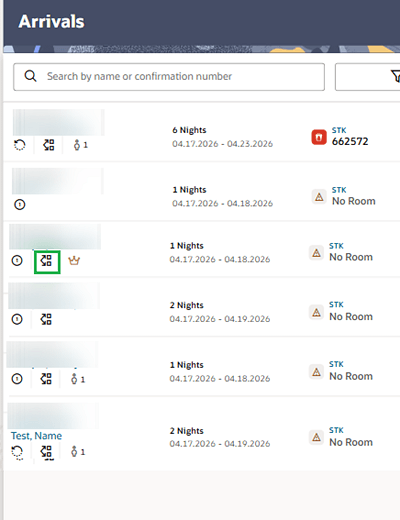
When you select the Share Reservations hyperlink from the Reservation, the Shares display in a drawer.
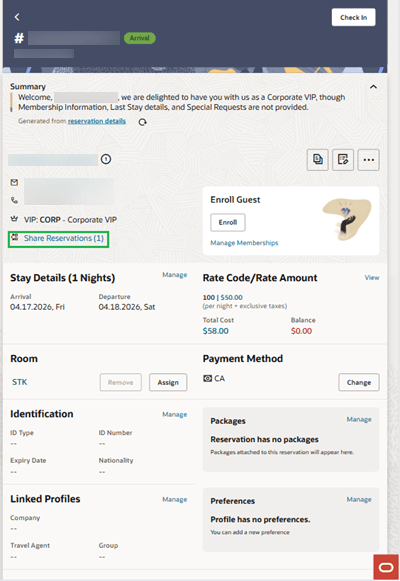
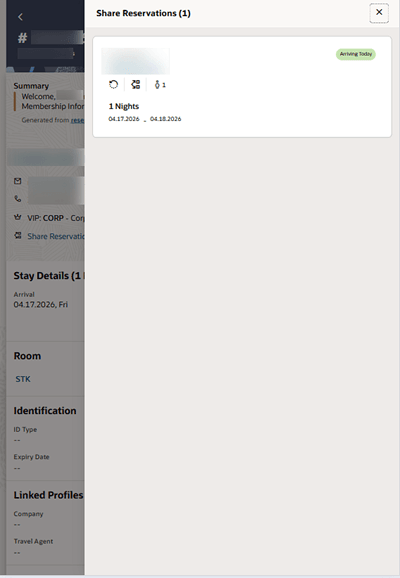
OPERATIONAL BENEFITS
Displaying a shares indication in mobile improves operational awareness and coordination by making it immediately clear when a reservation is linked to other guests.
This helps staff avoid errors during check-in, room assignment, and billing by recognizing shared reservations at a glance. It also enhances service efficiency, as users can quickly understand guest relationships without navigating through multiple screens, leading to smoother interactions and better guest experience.
Task Sheets Automatic Loading Added
Task Companion automatically loads your Task Sheet when only one is assigned.
OPERATIONAL BENEFITS
When there’s only one Task Sheet, users no longer have to manually select or load it—so you eliminate an unnecessary step. That leads to:
- Faster task startup: users can begin work immediately
- Fewer clicks and decisions: less cognitive load, especially for repetitive tasks
- Improved efficiency at scale: small time savings add up across many users or frequent sessions
- Reduced chance of user error: no risk of selecting the wrong Task Sheet
In short, it streamlines the workflow and makes the tool feel more responsive and intuitive.
Tax ID 1 Added to Guest Profile Additional Information
When the OPERA Controls for TAX ID Validation and TAX1 NO are enabled, you can view and update the TAX1_NO fiscal/legal identification value within the Additional Information section of a profile from either the Quick Edit Profile section or the Guest Profile Edit Drawer, supporting tax validation and localization requirements.
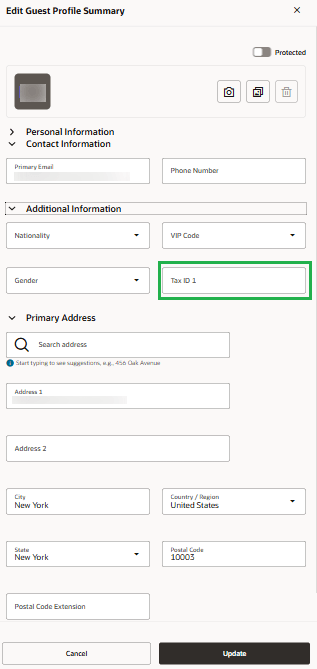
OPERATIONAL BENEFITS
This functionality allows you to capture and maintain critical fiscal and legal guest information directly in OPERA Cloud Mobile, reducing the need to switch to desktop workflows. It improves operational efficiency, supports regional compliance requirements, and helps ensure guest profile data is updated accurately and securely while respecting Profile Protection permissions.
ACTION REQUIRED (STEPS TO ENABLE)
- From the Side Menu, select Administration, select Enterprise, and then select OPERA Controls.
- Select or confirm the Property.
- Select the Profiles group.
- Locate and activate the TAX ID Validation parameter.
- Select the Profiles group.
- Locate and update the TAX1 NO setting.
Today's Events Views Added
For properties with an OPERA Sales and Event Management subscription or the Simple Events OPERA Control active, you can view Today's Events.
When the user task for Access OPERA Cloud Mobile - Today's Events is granted, you can view Today's Events and access events for the current day in viewing options, all sorted chronologically by start time.
The All Events view includes every event scheduled for today, and the Active Events view includes only events whose end time has not yet passed, meaning they are still ongoing or upcoming.
The Completed Events view includes only events whose end time has already passed, indicating they have finished.
Mobile:
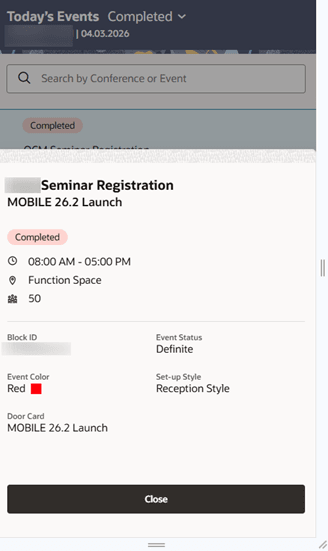
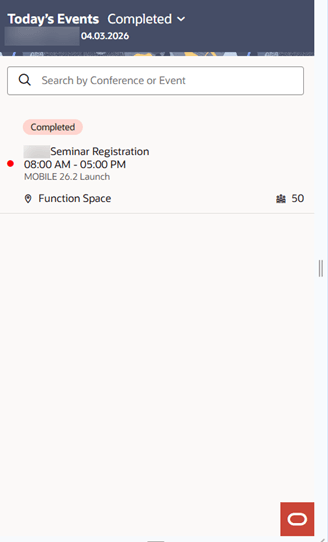
Tablet:
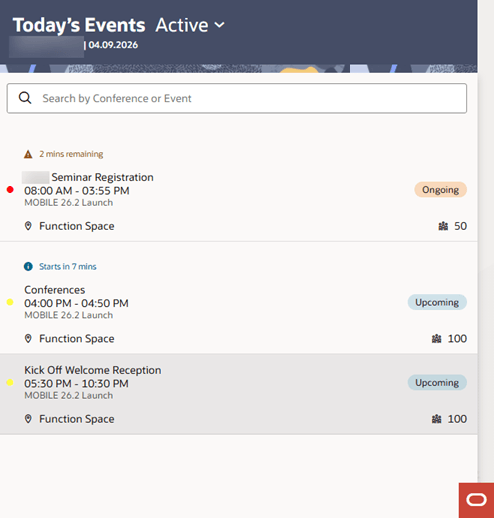
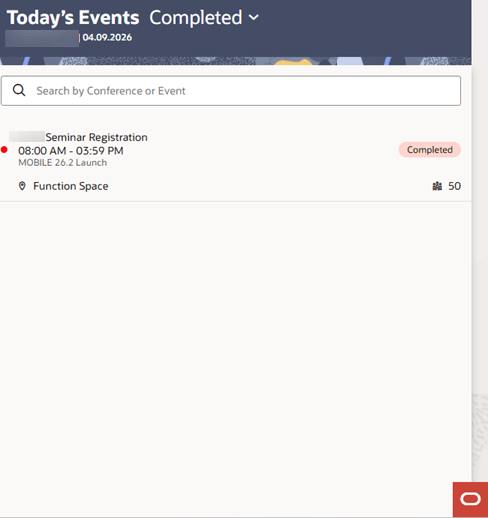
OPERATIONAL BENEFITS
Viewing Today’s Events in OPERA Cloud Mobile gives event management users a clear, real-time snapshot of the day’s schedule, making it easy to track what’s upcoming, in progress, or completed. This helps event teams stay organized, manage timelines effectively, and quickly adjust to changes on the floor. With instant mobile access, users can coordinate with teams, ensure events run on schedule, and deliver a seamless experience for clients and attendees.
IMPACT OR OTHER CONSIDERATIONS
OPERA Sales and Event Management subscription or OPERA Control Simple Events is required to view Today's Events.
ACTION REQUIRED (STEPS TO ENABLE)
No additional action is required for properties that already have the required subscription or control active and the appropriate user task assigned.
To make Today's Events available to users:
1. Confirm the property has an OPERA Sales and Event Management subscription or the OPERA Control Simple Events active.
2. Grant the Access OPERA Cloud Mobile - Today's Events user task to users who should view Today’s Events in OPERA Cloud Mobile.
3. Confirm users can access OPERA Cloud Mobile.
4. From OPERA Cloud Mobile, access Today's Events to view events scheduled for the current day.
Trace Frequency OPERA Controls Added
For properties with the Reservations Traces OPERA Control active, a Trace Frequency OPERA Control is added to set the frequency for a trace being added to a reservation.
Available Trace frequency options include:
- Specific Date / Date Range
- On Arrival Day Only
- On Departure Day Only
- Every Day of Reservation
- Starting from Day X
- Every Y Day of Reservation
- X Days Prior to Arrival
- Specific Days of the Week
When a trace is added to a reservation with a Trace Frequency other than Specific Date/Date Range, if the reservation's stay dates are modified the traces are regenerated based on the updated stay dates of the reservation and the associated trace frequency.
Additionally, a Default Trace Frequency OPERA Control is added allowing you to default the Trace Frequency selection when creating a new Reservation Trace. See Managing Reservation Traces.
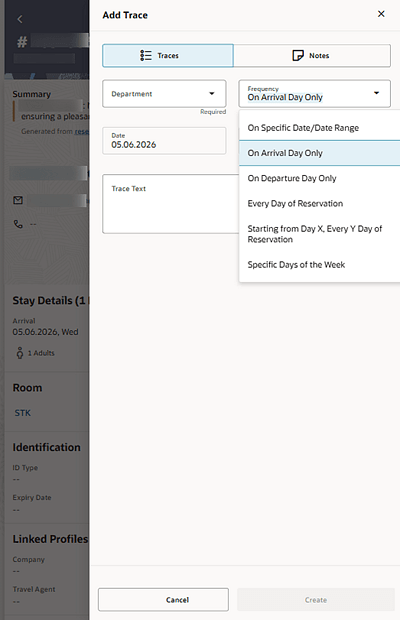
OPERATIONAL BENEFITS
Enhances operational efficiency and consistency by automating trace scheduling based on reservation stay dates and configured trace frequency rules. This reduces manual trace management, minimizes missed operational tasks, and ensures traces remain aligned with reservation changes, improving coordination across front desk, housekeeping, and guest service operations.
IMPACT OR OTHER CONSIDERATIONS
Note:
X Days Prior to Arrival is not visible in Mobile as you are only able to manage Arrival, In-House or Departure reservations and not future reservations.ACTION REQUIRED (STEPS TO ENABLE)
- From the Side Menu, select Administration, select Enterprise and then select OPERA Controls.
- Select or confirm the Property.
- Select the Reservations group.
- Locate the Reservation Traces OPERA Control.
- Activate the Trace Frequency parameter.
- Update the Default Trace Frequency setting.
User Tasks Considered When Updating Profile Images
Guest profile image options are available based on the user tasks granted. Users with the New/Edit Profile Images and/or Delete Images tasks can take a picture, upload an image, or delete guest profile images.
Without User Tasks granted:
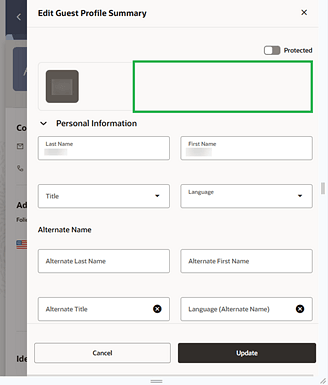
With User tasks granted:
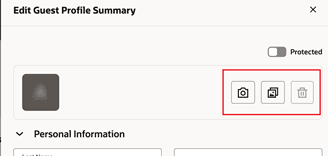
OPERATIONAL BENEFITS
Limiting access to profile image tasks helps keep guest information safe, accurate, and consistent. It ensures only the right users can make changes, reducing mistakes and supporting privacy and accountability.
ACTION REQUIRED (STEPS TO ENABLE)
- From the Side Menu, select Role Manager, then select either Manage Chain Roles or Manage Property Roles according to your needs.
- Enter search criteria and click Search.
- Select the role to update, click the vertical ellipsis Actions menu, and select Edit.
- Select the Profile Management – Profile Images group and remove the tasks: New/Edit Profile Images and/or Delete Images.
- Click Save.
PROPERTY APIs
ASYNC - SetRatePlan APIs Added
Pricing schedule management is enhanced with new asynchronous APIs that create and update Standard Rate and Derived Rate pricing schedules without requiring a rateSetId.
The new startSetRatePlanSchedulesProcess API starts the pricing schedule process, the headSetRatePlanSchedulesProcessStatus API checks the process status, and the getSetRatePlanSchedulesProcessSummary API provides the process summary.
This update supports the following:
- Standard Rates
- Base Rates
- Tiered Rates
- Dynamic Rates
- Advanced Dynamic Rates with Best Available Rate and offset options
- Best Available Rate rates
- packages for both Standard Rates and Derived Rates
EXAMPLE
startSetRatePlanSchedulesProcess
INITIAL Pricing Schedule of Rate Code TPACK:
Start Date = 06/05/2026 (6th May, 2026)
End Date = 07/05/2026 (7th May, 2026)
Price for 1 Adult = 150
Room Types = STDK
UPDATED Pricing Schedule of Rate Code TPACK:
With startSetRatePlanSchedulesProcess API, we are sending the
following updated data:
Start Date = 06/05/2026 (6th May, 2026)
End Date = 08/05/2026 (8th May, 2026)
Price for 1 Adult = 200
Room Types = STDK, STDQ
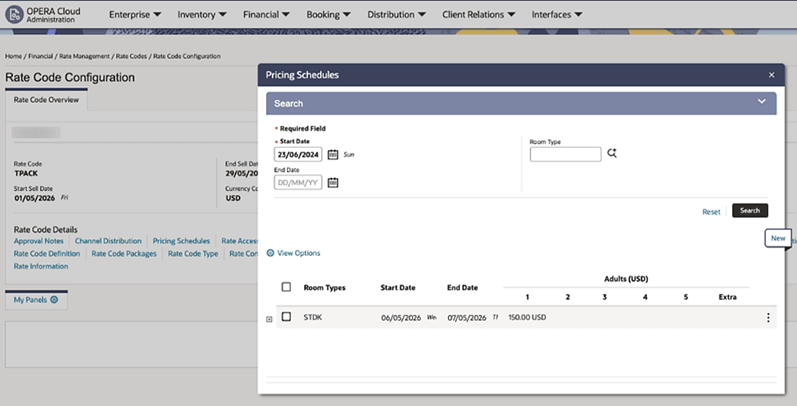
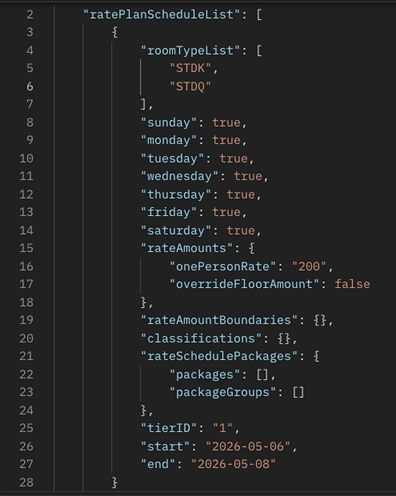
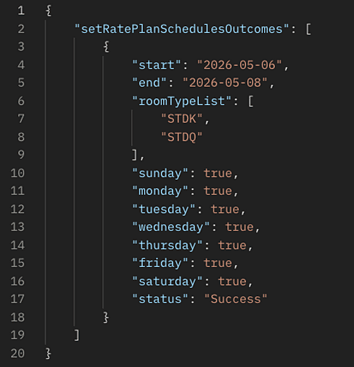
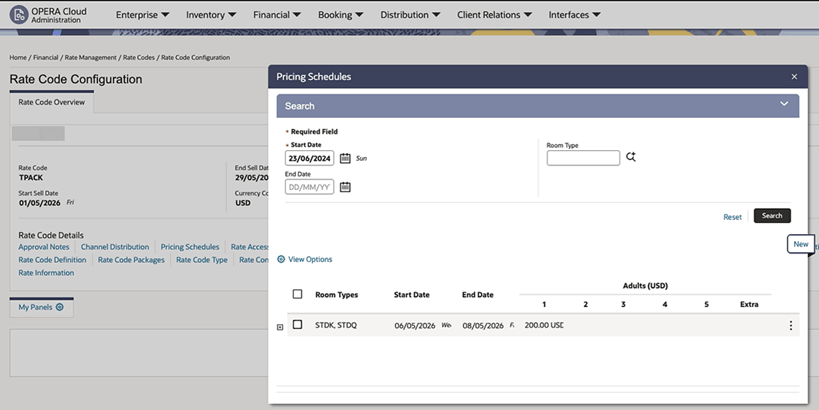
OPERATIONAL BENEFITS
Reduces manual dependency in pricing schedule maintenance, enables more flexible pricing configuration, and improves the reliability and visibility of complex or high-volume pricing schedule updates.
CRM - Enhance APIs to provide masked/unmasked data based on OPERA User tasks
The CRM/Profiles APIs are enhanced to return sensitive guest data, including Identification and Membership Card Number, as masked or clear text based on the user’s credentials.
OHIP users must be granted a role in OPERA Cloud/OCIM that contains the tasks
- View Membership Numbers
- View Identification Details
OPERATIONAL BENEFITS
This change ensures that properties and chains have control over the sensitive data being accessed by external partners.
IMPACT OR OTHER CONSIDERATIONS
Partners requiring this data should speak to their customers (hotels) and ensure they have the tasks assigned as needed.
ACTION REQUIRED (STEPS TO ENABLE)
Go to OPERA Cloud - Role Manager
Manage Chain or Property roles (as required) and update the Roles to include or exclude the tasks based on your preference or requirement.
CRM - Membership Type Descriptions Replace Codes in Profile and Membership Screens APIs
The following APIs are updated to include Membership Type Description in the response:
getAllMembershipClaims
getMembershipClaims
getProfileTransactions
getMembershipIssueAwardsList
CRM - Profile Identification Data - Property-Specific Storage and Retention
When the Guest Identification Storage Location OPERA Control is set to Property, the crm/profiles APIs issue a warning and the data is ignored if the property is not provided when creating, updating, retrieving profiles and their identification details.
CRMCFG - API Operations Added
The following operations are added to the Customer Relationship Management Configuration API (CRMCFG):
- getProfileMatchRules
- putProfileMatchRules
- postProfileMatchRules
- deleteProfileMatchRules
- getMembershipRevenueGroups
- postMembershipRevenueGroups
- putMembershipRevenueGroups
- deleteMembershipRevenueGroups
- getQualifyingRates
- putQualifyingRates
CSH - getDepositFolioInfo Operation Added
The Cashiering API includes the new operation getDepositFolioInfo offering a convenient way to retrieve transactions for Deposit Folios.
ENTCFG - getFlexFields, postFlexField, updateFlexField, deleteFlexField Updated
The Enterprise Configuration APIs for getFlexFields, postFlexField, updateFlexField, deleteFlexField are updated to include a new column to indicate whether a flex field is generated by the system or created manually through the UI.
The purpose of the column is to distinguish system-generated records from user-added records. This distinction is used to prevent deletion of system-generated records, while allowing deletion of records added by users.
OPERATIONAL BENEFITS
To avoid issues with functionality, users cannot delete system required Flex Fields. Records can be set to inactive if not required to display, but cannot be deleted.
RSV - createRsvFlexFieldValue Updated
When the Vehicle Registration Information OPERA Control is active, the Reservation API operation createRsvFlexFieldValue is updated to support automatic creation of seeded reservation flex dynamic field values after a booking is confirmed.
To support this functionality, a new optional query parameter, autoInsertSeededFlexCodes, is introduced.
When the corresponding OPERA parameter is enabled, autoInsertSeededFlexCodes is set to true. Four seeded values are then automatically populated and displayed in the reservation flex dynamic fields in the UI.
As part of this update, the request body field flexFieldValueInfo is changed from mandatory to optional. This allows the create API to be invoked without providing flexFieldValueInfo in the request body. In these cases, the seeded data is automatically created and shown in the UI.
OPERATIONAL BENEFITS
When Vehicle Registration Information functionality is active, required fields for Canada are automatically displayed in the Reservation Flexible Dynamic Fields for Vehicle 1 details to be recorded.
This functionality is generic, but is required for properties in Canada.
ACTION REQUIRED (STEPS TO ENABLE)
- From the side menu, select Administration, select Enterprise, and then select OPERA Controls.
- Select or confirm the Property.
- Select the General group.
- Locate and if not already active, turn On Flexible Dynamic Fields Parameter.
- Select the Reservations group.
- Locate and turn On the Vehicle Registration Information parameter.
- From the side menu, select Role Manager, select either Manage Chain Roles or Manage Property Roles according to your needs.
- Enter search criteria and click Search.
- Select the required role to update, click the vertical ellipsis Actions menu, and select Edit.
- Enter search criteria Flexible Dynamic Fields and click Search.
- Select the Enterprise Admin group and grant the task: New/Edit Flexible Dynamic Fields.
- Select the Bookings group and grant the tasks: Reservation Flexible Dynamic Fields, New/Edit Reservation Flexible Dynamic Fields, Delete Reservation Flexible Dynamic Fields.
- Click Save.
RSV - Override Externally Excluded Packages Added
A new override flag, overrideExternallyExcludedPkRestrictions is available for external systems to use when managing reservation packages. When set to true, external systems can add, remove, or update packages which are configured as externally excluded.
When the flag is set to false or not provided, the existing behavior is retained. Packages marked as Externally Excluded continue to be protected and cannot be added, removed, or updated by external systems. This flag is now supported in postReservation, putReservation, postReservationPackage, putReservationPackage, putAddOnReservationPackages and putAddOnReservationPackagesByExtId request payloads.
OPERATIONAL BENEFITS
This enhancement gives approved external systems the flexibility to manage externally excluded packages when required, while preserving the default package protection behavior.
RTP - copyRatePlans and startCopyRatePlansProcess Updated
EXAMPLES DATA:
- Source Property I
- Target Property IB
- STDRATE1 - All details are available in IB as well - so it should be copied successfully to Property IB
- STDRATE2 - Room Type is not available in Property IB
- STDRATE3 - Transaction Code belongs to a different Group/Sub-Group in Property IB
Rate Codes in Source Property (Property I) before copying
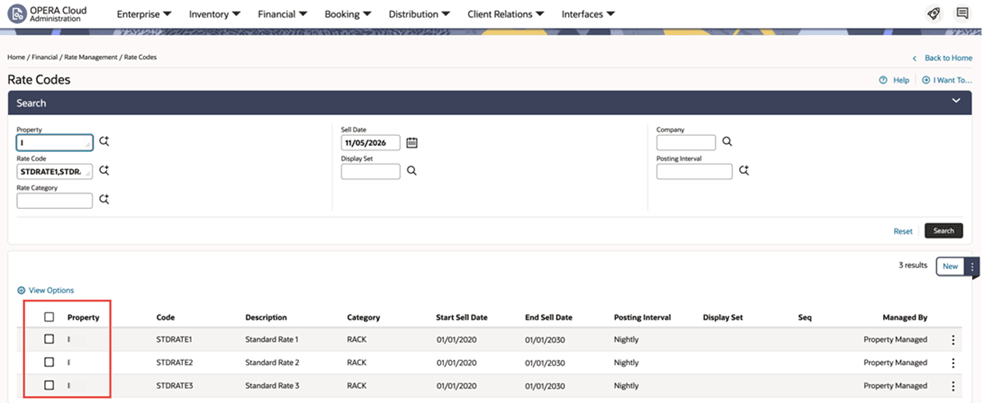
Screenshot 2 - copyRatePlans - Synchronous API - Request
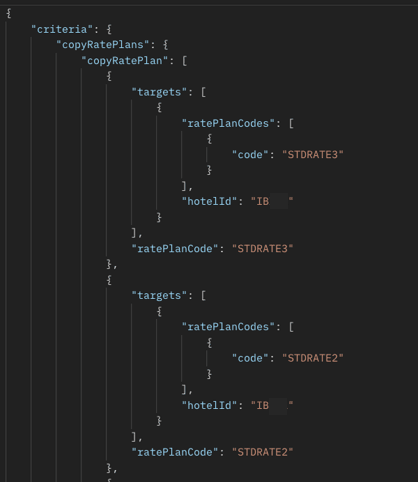
Screenshot 3 - copyRatePlans - Synchronous API - Response:
STDRATE1 in target property IB: Copy operation was successful.
STDRATE2 in target property IB: Room type A1K does not exist.
STDRATE3 in target property IB: Trx Code 1000 does not exist or belongs to a different group / sub-group.
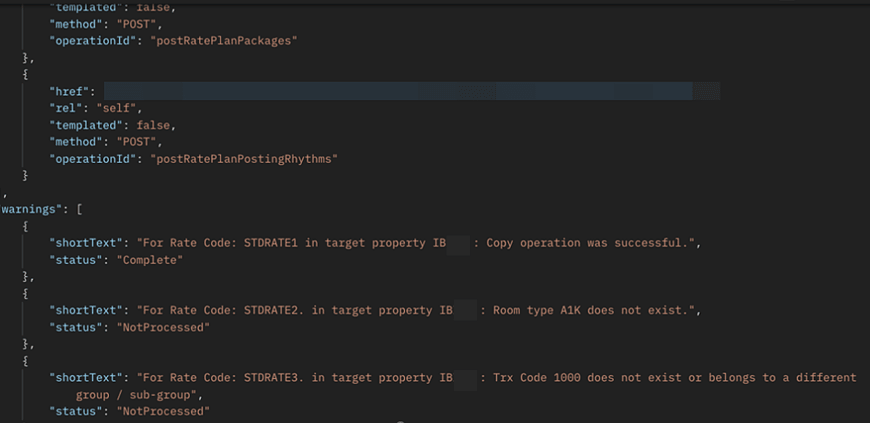
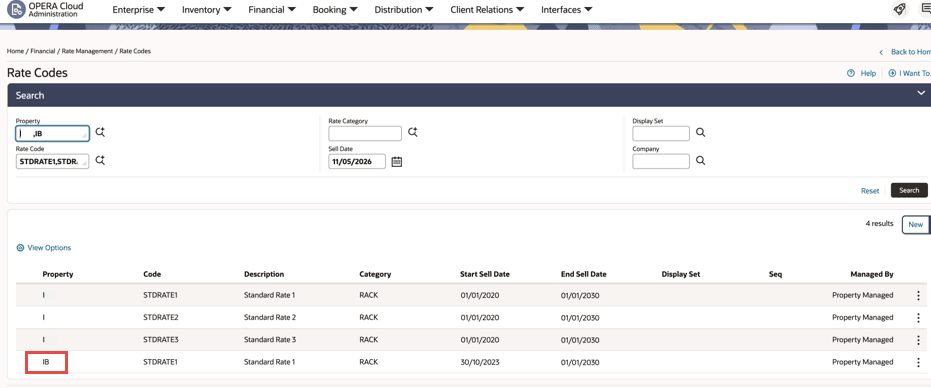
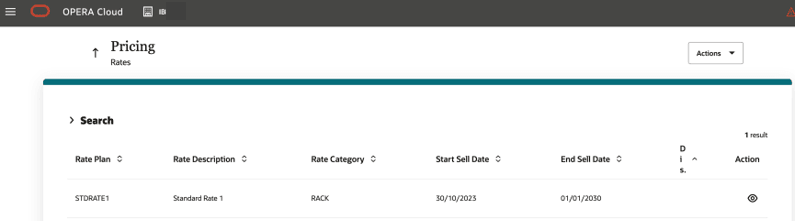
startCopyRatePlansProcess API:
Screenshot 1 - Rate Codes in Source Property before copying
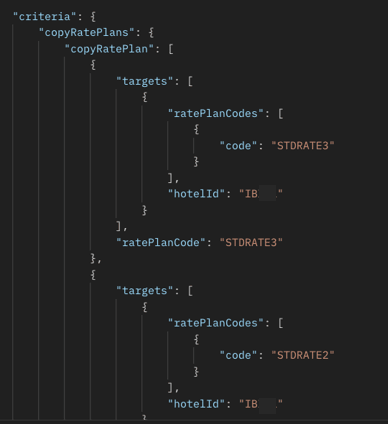
(STDRATE3) "copyStatusMessage": Trx Code 1000 does not exist or belongs to a different group / sub-group.
(STDRATE2) "copyStatusMessage": Room type A1K does not exist.
(STDRATE1) "copyStatusMessage": Copy operation was successful.
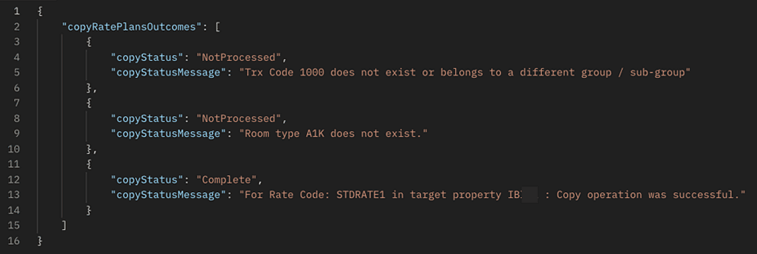
OPERATIONAL BENEFITS
Improves data consistency between OPERA Cloud and OPERA Cloud Distribution by ensuring that only successfully copied rate codes are published for downstream processing. This reduces the risk of synchronization discrepancies, prevents incomplete or failed copy results from being distributed, and improves reliability across rate code copy operations.
RTP - POST ChangeRoomClassOnRoomTypes Updated
The RTP ChangeRoomClassOnRoomTypes API is updated to validate a maximum of 5 room types. If a request includes more than five room types, an error is displayed and the room class change is rejected.
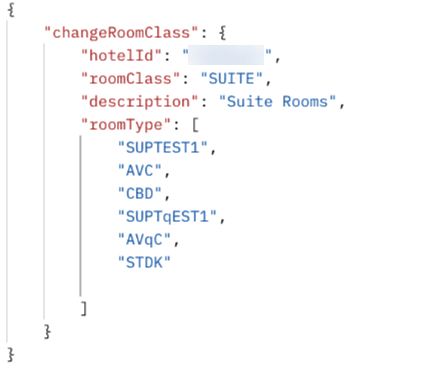
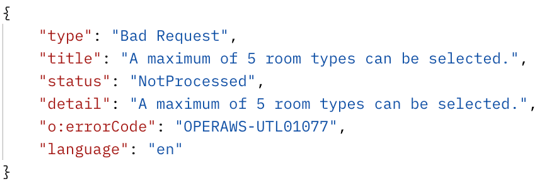
OPERATIONAL BENEFITS
This update helps prevent unsuccessful room class changes by validating the number of selected room types before processing. It provides clear guidance when the selection exceeds the supported limit.
RTP - POST splitRatePlanSchedule Updated
The RTP - POST splitRatePlanSchedule API is updated to support splitting pricing schedules for rates with 75 or more dependent rates.
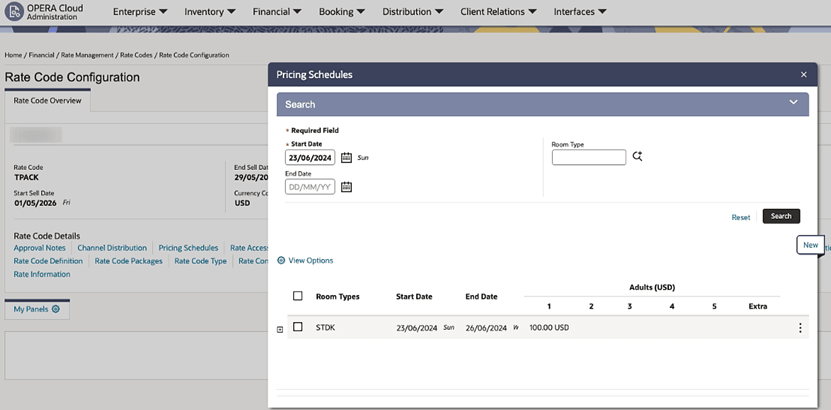
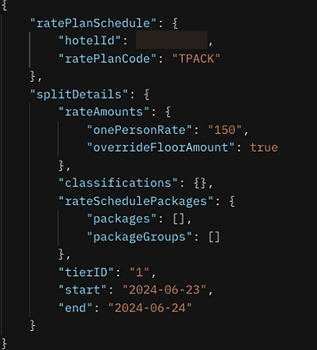
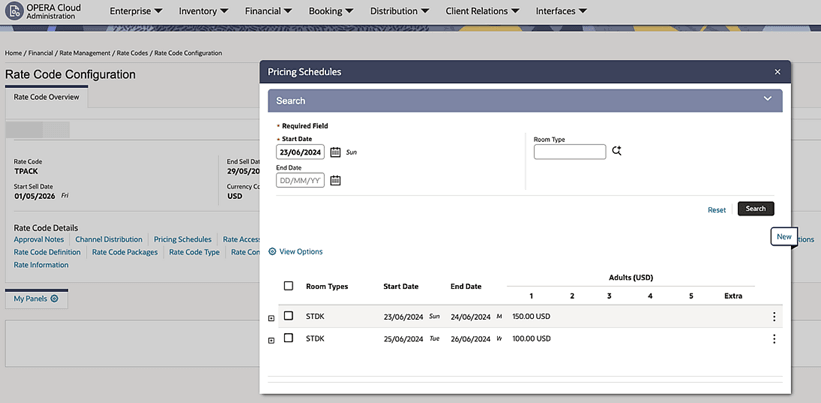
OPERATIONAL BENEFITS
Enables efficient splitting of pricing schedules for rates with 75+ dependent rates, reducing manual effort and improving operations.
RTP - POST startRatePlanScheduleDeletionProcess Updated
Updated RTP Post startRatePlanScheduleDeletionProcess to delete all pricing schedules for a given rate code without passing individual rate schedule IDs.
The{{baseUrl}}/rtp/async/v1/hotels/{{hotelId}}/ratePlans/schedules/deletions API supports bulk deletion with the following request body:
{
    "ratePlansSchedules": [
 {
            "ratePlanCode": "RateCode"
        }
    ]
}
OPERATIONAL BENEFITS
You can delete all pricing schedules for a rate code in bulk, improving efficiency and reducing the risk of missing individual pricing schedule IDs.
REPORTS
28 days Forecast and Detailed Availability R+A Report Added
The 28 Days Forecast Reports and Analytics report (rna_28daysavail) is introduced in Reports - Manage Reports and is shown when you select the Show Internal checkbox.
You can identify the R&A report by the icon next to the report name and filter by the following criteria:
- Chain
- Property (default: All)
- Start Date
All filters are required.
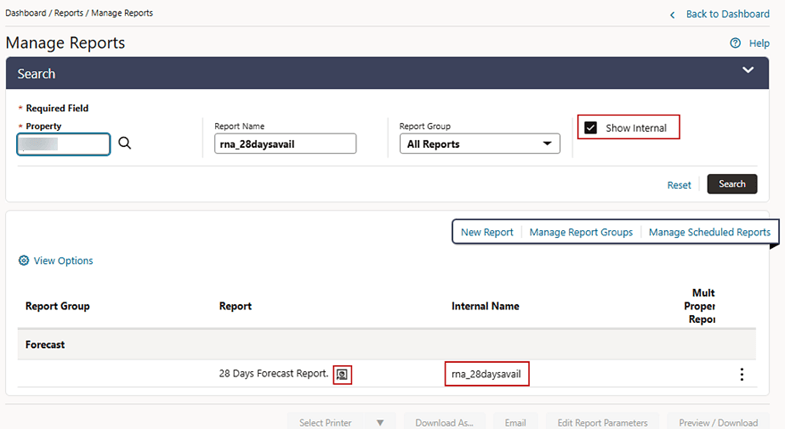
The Detailed Availability Reports and Analytics report (rna_detail_avail) is introduced in Reports - Manage Reports and is shown when you select the Show Internal checkbox. The report provides a detailed breakdown of room availability for a selected date range.
You can identify the Reporting and Analytics report by the icon next to the report name and filter by the following criteria:
- Property
- From Date
- To Date
- Room Class (for properties with the Room Class OPERA Control inactive, the list of values is empty)
- Room Type
- Display (Availability, Occupancy)
- Include Non-Deduct Inventory
- Overbooking
- Out of Order Rooms
- Master Allocations
Note:
When Display is set to Occupancy, the Include Overbooking and Include Out of Order Rooms options aren't available, as these selections aren't valid for the Occupancy Display.All filter criteria are required.
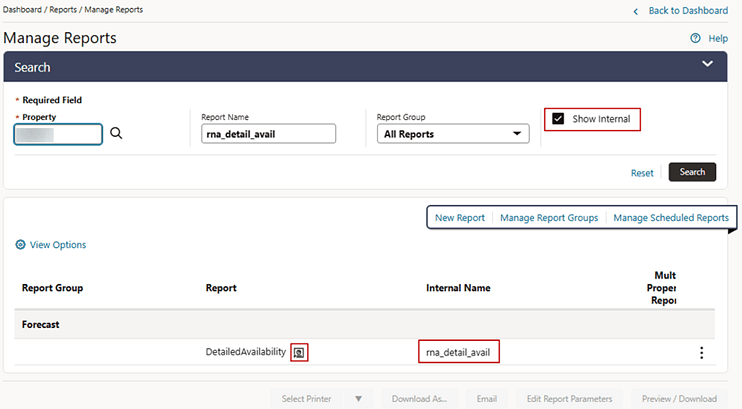
Holding Ledger Report for Revenue Recognition Added to R+A
Revenue Recognition for Long/Extended Stay Reservations.
For properties using OPERA Control Revenue Recognition Method, the Holding Ledger Report is available in Reporting and Analytics located in /Shared Folders/Templates/Financial (Folder).
The report can be generated for the selected Property and Business Date.
OPERATIONAL BENEFITS
For Long/Extended Stay Reservations the Revenue Recognition functionality is enhanced with the addition of the Holding Ledger Report in R&A, which allows customers to generate data related to the Holding Ledger.
Manager Report Added to R+A
The Manager Report is available in Reporting and Analytics, and is located in /Shared Folders/Templates/Financial (Folder).
The report can be generated for the selected Property and Business Date.
OPERATIONAL BENEFITS
Manager Report is added to Reporting and Analytics so that it can be run and exported using the standard OPERA Cloud reporting framework.
OPERA Cloud STAT_REGION_YEARVIEW, RATEOVERRIDE, and RATECAT_FORE_CLS Matrix Reports Deprecated
The reports STAT_REGION_YEARVIEW, RATEOVERRIDE and RATECAT_FORE_CLS are no longer available in the Internal Name list of values of Reports - Manage Reports when creating a new report.
OPERATIONAL BENEFITS
These reports have been deprecated due to prolonged inactivity.
Report Text Configuration Updated
For properties with the Catering Packages OPERA Control active, the code for the Banquet Event Order label "Incl" is renamed to REP_BEO_P_INCL in Report Text Configuration. For properties with translations configured the values remain unchanged.
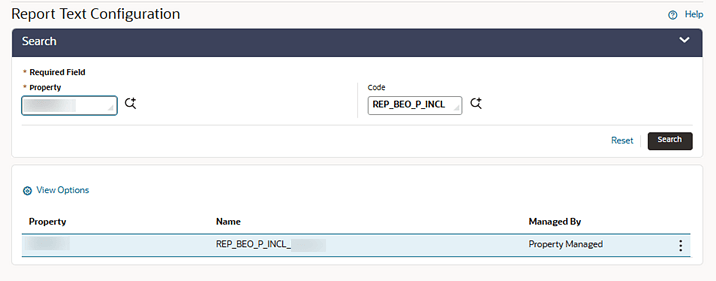
OPERATIONAL BENEFITS
The translations for this code can be managed from Enterprise Manager allowing for the values to be configured once and distributed to the selected properties.
Yearly Forecast R+A Report Added
The Stat_ForecastYearly Reports & Analytics report (rna_stat_forecastyearly) is introduced in Reports - Manage Reports and is shown when you select the Show Internal checkbox. The report shows all reserved rooms in a summary breakdown of either deduct or non-deduct. The reservation type determines whether the room reserved has a status of deduct or non-deduct. The figure represents both reservations and rooms held against a block.
You can identify the R&A report by the icon next to the report name and filter by the following criteria:
- Property
- From Date
- To Date
- Room Class (for properties with the Room Class OPERA Controlinactive, the list of values is empty)
- Calendar/Fiscal
- Rooms/Guests
All filter criteria are required.
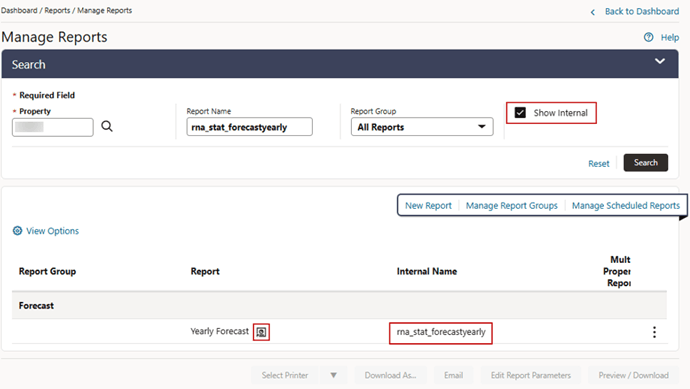
RESERVATIONS
Age Threshold for Reservations OPERA Control Added
Age Threshold Control for Reservations
A new Age Threshold OPERA Control is added to support age-based configuration and messaging across reservations. When enabled, you can define a minimum qualifying age using the Age Threshold Minimum Age setting.
When configured, the system evaluates guest ages against this threshold and enables dynamic behavior across multiple areas, including:
- Reservation Flex Fields
- Auto Attach Elements
- Global Alerts and Advanced Alerts
- Closing Scripts
- Confirmation Stationery Templates
This allows properties to display or trigger customized content based on whether guest age criteria are met.
New Reservation Flex Field Bindings
The following bindings are available for use in Reservation Flex Fields and Page Composer:
-
AgeThresholdPrimaryGuestExceeded
Returns:trueif the primary guest’s age exceeds the defined thresholdfalseif the primary guest’s age does not exceed the thresholdnullif no valid date of birth is available
-
AgeThresholdAllGuestsExceeded
Returns:trueif all guests exceed the thresholdfalseif all guests have valid dates of birth but at least one does not exceed the thresholdnullif one or more guests are missing a valid date of birth
-
AgeThresholdAnyGuestsExceeded
Returns:trueif any guest exceeds the thresholdfalseif no guests exceed the threshold
These bindings can be used to drive default values, visibility, and formatting logic within Flex Fields.
See Adding Custom Business Logic using Expression Language.
Stationery Template Enhancements
The sample_guest_confirmation stationery XML is updated with new merge codes:
- AGE_THRESHOLD_PRIMARY_GUEST_EXCEEDED
- AGE_THRESHOLD_ALL_GUESTS_EXCEEDED
- AGE_THRESHOLD_ANY_GUESTS_EXCEEDED
Each returns:
Ywhen the condition is metNwhen the condition is not metnullwhere applicable (e.g., missing date of birth data)
These enable tailored messaging within guest communications based on age criteria.
See Configuring Stationery Templates.
Rich Text Editor Merge Code Support
The same age threshold logic is now available in the OPERA Cloud Rich Text Editor for:
- Closing Scripts
- Advanced Alerts
- Confirmation Letter Delivery Methods
Supported merge codes:
AgeThresholdPrimaryGuestExceededAgeThresholdAllGuestsExceededAgeThresholdAnyGuestExceeded
Values returned:
Y(condition met)N(condition not met)nullwhere applicable
See Using the Rich Text Editor.
Alerts and Auto Attach Elements
New age threshold evaluation fields are now available when configuring:
- Auto Attach Elements
- Global Alerts
These fields allow conditional logic to be applied based on whether reservation guests meet the defined age threshold.
See Configuring Auto Attachment Rules.
See Configuring Global Alert Rules.
OPERATIONAL BENEFITS
The Age Threshold functionality introduces greater flexibility and automation in how properties manage age-related business rules, delivering the following benefits:
-
Improved Compliance and Risk Management
Easily enforce age-based policies (such as minimum age requirements) across reservations, helping ensure compliance with legal, brand, or property-specific standards.
-
Consistent Guest Communication
Automatically tailor confirmation letters, alerts, and on-screen messaging based on guest age criteria, reducing manual effort and ensuring consistent, accurate communication.
-
Enhanced Operational Efficiency
Automates decision-making through alerts, auto-attached elements, and scripts—minimizing the need for staff to manually verify guest eligibility or apply special handling.
-
Greater Configuration Flexibility
Enables properties to define and adapt age-based rules without customization, using configurable controls, bindings, and merge codes across multiple touchpoints.
-
Improved Data Utilization
Leverages guest profile data (date of birth) more effectively to drive operational workflows and personalized experiences.
ACTION REQUIRED (STEPS TO ENABLE)
Steps to enable new OPERA Controls:
- From the Side Menu, select Administration , select Enterprise and then select OPERA Controls.
- Select or confirm the Property.
- Select the Profile group.
- Locate and activate the Age Threshold parameter.
- Locate and update the Age Threshold Minimum Age setting.
Steps to Add Flex Field to Reservation Presentation Screen:
- Enable Page Composer at property/hub or chain level, as required. (See Using Page Composer to Customize Pages.)
- From the OPERA Cloud menu, select Bookings, select Reservations, and then select Manage Reservation.
- Enter search criteria, then click Search.
- Click Confirmation Number link to launch reservation presentation page.
- Select the gear icon to customize the Reservation Overview panel.
- Add flexfield in the desired locations.
- Click Save.
- Disable Page Composer from the settings menu. (See Managing Application Settings.)
Copy Reservation Updated
Added Custom Reference and Promotion checkboxes in the Copy Reservation flow on the OPERA Cloud Property Manage Reservation screen, allowing selected details to be carried over when copying a reservation.
OPERATIONAL BENEFITS
Reduces manual re-entry when copying reservations and helps preserve key reservation details, making similar bookings faster and more accurate.
Drag and Drop Attachment Added To Reservation Sales Screen
CENTRAL
The Reservation Sales Screen (see Using the Reservation Sales Screen) is updated with an Attachments icon for In-Progress, Manage Reservation, and Find Reservation. You can upload files from the Attachments popup by dragging and dropping files or selecting Choose Files. Saved attachments can be previewed, edited, or deleted.
OPERATIONAL BENEFITS
Reservation-related documents can be added and maintained directly from the reservation flow, reducing extra navigation and keeping supporting files linked to the correct reservation.
Reservation Sales Screen Additional Updates
CENTRAL
The Reservation Sales Screen (see Using the Reservation Sales Screen) is updated with the following:
Availability Screen:
- You can view Item Inventory and Packages availability during the availability search and add them directly from the property card or within the Trip Composer before completing the reservation. Selected items and/or packages are added to the Trip Composer, allowing you to build the reservation with room, rate, packages, and items prior to navigating to In Progress screen.
OPERATIONAL BENEFITS:
This enables you to view availability of items and packages before selecting room and rate details, so you can guide the booking based on available add-ons. You can also include these add-ons early in the process to provide a more accurate total and better advise guests upfront.
- After performing an availability search, when criteria are shown as a search bar with filter chips, you can still access the advanced search form by selecting the filter icon next to the search bar, allowing you to update fields in the form if preferred.
OPERATIONAL BENEFITS:
This gives you flexibility in how you refine searches—either quickly via filter chips or in a structured form. It reduces friction when adjusting multiple fields, improves efficiency, and supports different user workflows without needing to restart the search.
-
Selecting a room number opens a drawer showing the available room numbers. Additional filters — Room, Connecting Rooms Only, and Perfect Fit — are introduced to make room selection easier and more precise.
OPERATIONAL BENEFITS:
These filters help narrow down room options quickly, making it easier to find the right room, connecting rooms, or best-fit room combination during availability search.
In-Progress Screen:
- On the In Progress screen, you can view availability in a drawer without leaving the page when updating Room Type or Rate Code—either by selecting the search icon or when prompted to Check Availability after modifying rate-impacting fields.
OPERATIONAL BENEFITS:
Speed and fewer workflow interruptions - By letting you check availability directly within the In Progress screen, you avoid navigating away and re-entering data. That reduces time per update, minimizes context switching, and lowers the risk of errors or lost changes. Overall, it helps you make quicker, more accurate updates to reservations or bookings.
- You can now split a multi-room reservation into individual reservations during booking in In Progress screen, allowing you to create and confirm multiple linked reservations with the appropriate details for each.
OPERATIONAL BENEFITS:
This gives you more control and flexibility when handling multi-room bookings by letting you tailor details (such as guest info, rate, room type) per reservation. It reduces manual rework after booking, improves accuracy, and streamlines the booking process for complex or group reservations.
- When the Default Tax Type OPERA Control is configured, reservations created in the Reservation Sales screen default to the configured tax type.
OPERATIONAL BENEFITS:
This ensures consistent tax application across reservations, reduces manual entry, and minimizes the risk of errors, helping you process bookings more quickly and accurately.
- When deposit or cancellation rules are auto-attached based on reservation type, you can select "Replace deposit/cancellation rule"in the Deposit & Cancellation tab to override them during booking. The new rule replaces the original and is the only rule attached upon confirmation. You can also add additional rules or modify rules after the reservation is confirmed. For rate codes that support multiple rules, you can continue adding additional rules during booking.
OPERATIONAL BENEFITS:
This improves clarity and accuracy during booking by ensuring the UI reflects the actual system behavior. It reduces confusion about whether rules are added or replaced, helps prevent incorrect policy application, and minimizes rework at or after confirmation.
Find Reservation:
The Copy Reservation option is now available from Future and Past Stays in the RSS Find Reservation flow, allowing an existing reservation to be copied directly from the guest’s stay history.
OPERATIONAL BENEFITS:
This reduces manual steps when creating repeat or similar bookings from a guest’s stay history, helping complete reservation copies faster and with less re-entry.
Reservation Sales Screen Customization:
The following enhancements have been implemented within Reservation Sales Screen customization:
- Customization is now supported for the existing reservation screen.
- The following fields have been added to the Component Palette for Overview customization:
- TA Record Locator
- Tax Type
- Guest Type
- Total Stay
- Effective Rate
- When a field within In Progress - Overview is customized as Required, system validation will now prevent booking completion unless all mandatory information is entered.
OPERATIONAL BENEFITS:
Expands customization capabilities within the Reservation Sales Screen, providing greater flexibility for property-specific business requirements.
- You can view the Notification Area in code-description format on reservation notes across all relevant screens, with improved note visibility, accuracy, and display in Profile Details, Stays, Overview, and Block Notes.
OPERATIONAL BENEFITS:
Improves note clarity by showing the assigned department, helping quickly identify the right area responsible for the note and reducing confusion during reservation review.
Reservation Sales Screen Manage Reservation Display OPERA Control Added
CENTRAL
A new Reservation Sales Screen Manage Reservation Display OPERA Control is introduced under the Look to Book Sales Screen group to determine how confirmed reservations are opened for viewing and editing from the Reservation Sales Screen. This control includes two options: OPERA Cloud Central Reservation Sales Screen and OPERA Cloud Property Manage Reservation screen.
When OPERA Cloud Central Reservation Sales Screen is selected, confirmed reservations open in the Reservation Sales Screen edit flow, allowing the reservation to be viewed and managed within the Reservation Sales Screen experience. When OPERA Cloud Property Manage Reservation screen is selected, confirmed reservations open in the existing OPERA Cloud Property Manage Reservation screen for viewing and editing.
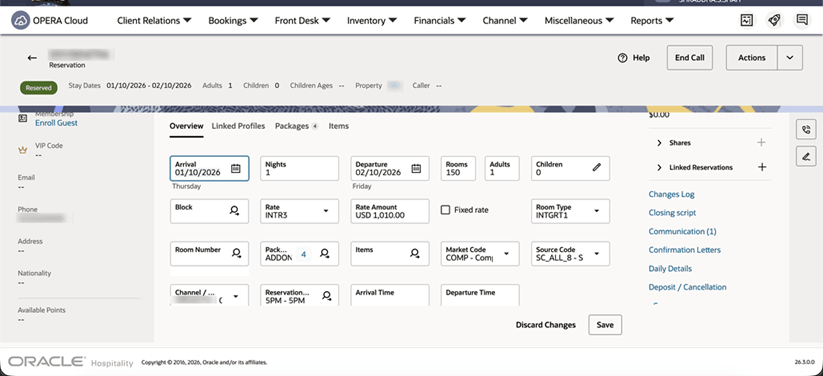
OPERATIONAL BENEFITS
This enhancement gives properties flexibility to choose how confirmed reservations open for viewing and editing. It helps reduce navigation steps by allowing reservations to open in the Reservation Sales Screen edit flow, while still supporting the existing Property Manage Reservation screen when preferred.
IMPACT OR OTHER CONSIDERATIONS
Properties should review the new OPERA Control setting under the Look to Book Sales Screen group and select the preferred reservation viewing and editing experience. The selected value determines whether confirmed reservations open in the Reservation Sales Screen edit flow or in the OPERA Cloud Property Manage Reservation screen.
ACTION REQUIRED (STEPS TO ENABLE)
To enable the feature:
- From the Side Menu, select Administration.
- Select Enterprise, and then select OPERA Controls.
- Select or confirm the Property.
- Open the Look to Book Sales Screen control group.
- Locate Reservation Sales Screen Manage Reservation Display.
- Select the value.
- Save your changes.
Reservation Sales Screen Share Reservation Workflow Enhanced
CENTRAL
The Share Reservation workflow is enhanced for existing reservations in the Reservation Sales screen, allowing separate shares to be managed and the entire rate to be applied to a selected guest when required. The flow also supports additional share-level fields such as reservation type, market code, source code, and payment method.
In addition, the Share Reservation workflow supports the configured OPERA Controls for sharing reservations, including:
- Default Share Price Distribution Method
- Always Use Fixed Rates
- Enforce Same Stay Dates for Sharing Guests
- Enforce Same Rate Code for Sharing Guests
- Enforce Credit Card Entry for Credit Card Guaranteed During Break Share
OPERATIONAL BENEFITS
This enhancement helps you manage shared reservations more accurately and efficiently within the Reservation Sales Screen experience.
Search for Detached Accompanying Guests Added
You can optionally include detached accompanying guests (see Managing Accompanying Guests) when searching for reservations from the Manage Reservation / Reservation Search screens. A new checkbox, Include Detached, appears when the Attach and Detach Accompanying Guest OPERA Control is enabled. When selected, reservation searches match on detached accompanying guest details in addition to existing criteria—while excluding deleted accompanying guests at all times.
OPERATIONAL BENEFITS
- Helps you find the correct reservation faster when an accompanying is detached.
- Adds a clear, user-controlled option to broaden search results without changing default behavior.
- Preserves auditability by continuing to support retrieval of attach/detach timestamps in results/details.
IMPACT OR OTHER CONSIDERATIONS
If Attach/Detach Accompanying Guests OPERA Control is enabled, a new Include Detached guests checkbox is available in Manage Reservation Search Screen. When enabled, Include Detached expands the reservation search to match previously attached (now detached) accompanying guest details, excluding DELETED guests, and should be used as needed to broaden results beyond standard criteria.
ACTION REQUIRED (STEPS TO ENABLE)
Prerequisite: Attach/Detach Accompanying Guests OPERA Control must be enabled.
To enable the feature:
- From the Side Menu, select Administration.
- Select Enterprise, and then select OPERA Controls.
- Select or confirm the Property.
- Open the Reservations control group.
- Locate and enable Accompanying Guest - Attach/Detach Accompanying Guests OPERA Controls.
- Save your changes.
Shared Reservation Allocations in Room Diary Updated
In properties where the Shares and Advanced Daily Details OPERA Controls are active, the Room Diary is updated. You can view shared reservations and clearly identify room assignments when room moves are scheduled or completed.
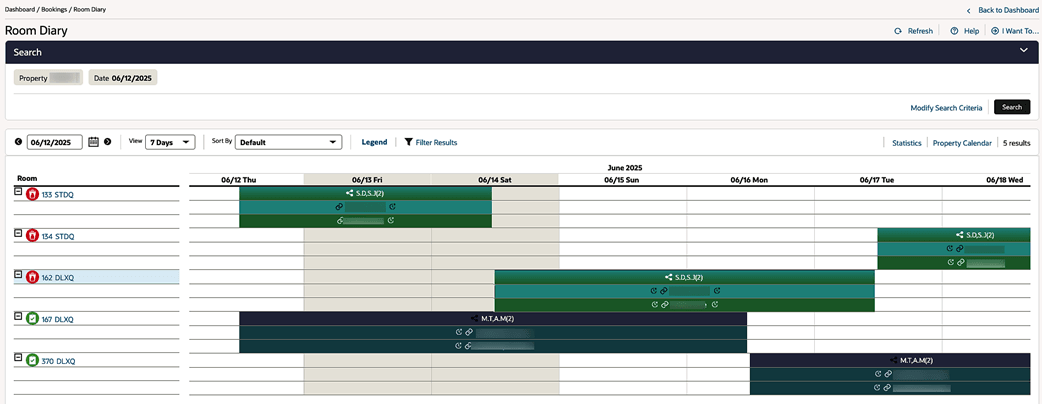
OPERATIONAL BENEFITS
With this update, you are able to easily identify correct room allocation for shared reservations with a scheduled room move or the room move history after a room move is completed.
ROLE MANAGER
Distribution Tasks Permissions Added to OPERA Cloud Role Manager
Distribution task permissions are now available in OPERA Cloud Role Manager under the Distribution Admin task group. This enables administrators to manage Distribution access together with other OPERA Cloud permissions from a centralized Role Manager experience.
Administrators can use Manage Chain Roles or Manage Property Roles to grant the appropriate Distribution Admin parent tasks, tasks, and subtasks to custom roles. This helps hotels control Distribution access at the right level while keeping role setup centralized in OPERA Cloud.
| Parent Task | Tasks | Sub Tasks |
|---|---|---|
| Channel Management | AI Settings |
New / Edit AI Settings |
| Hotel Level Billed Reservation Details | N/A | |
| Cluster Level Billed Reservation Details | N/A | |
| Cluster Channel Rate Plans | N/A | |
| Cluster Channel Room Types | N/A | |
| Cluster Channel Requests | N/A | |
| Cluster Channel Offers Distribution | N/A | |
| Cluster Enterprise Channels | New / Edit Cluster Enterprise Channels | |
| Cluster Properties | N/A | |
| Cluster Profile Channel Rate Access |
New / Edit Cluster Profile Channel Rate Access |
|
| Property Details | N/A | |
| Channel Rate Plan Mapping |
New/Edit Channel Rate Plan Mapping |
|
| Negotiated Rate Access |
Edit Negotiated Rate Access |
|
| Channel Room Type Mapping |
New / Edit Channel Room Type Mapping |
|
| Channel Provisioning | New / Edit Channel Provisioning | |
| Channel Requests | New Channel Requests | |
| Cluster Channel Provisioning | New Cluster Channel Provisioning | |
| Channel Controls |
New Channel Controls |
|
| Hotel Controls |
New Hotel Controls |
|
| Geo search parameters |
New/Edit Geo search parameters |
|
| Property Rates | N/A | |
| Property Room Types | N/A | |
| Rate Plan Channel Attributes | Edit Rate Plan Channel Attributes | |
| Reservation Codes |
New / Edit Codes Setup |
|
| Content Management | Content |
New / Edit Content |
| Digital Asset | Digital Assets |
New / Edit Digital Assets |
| Messaging | Channel Lookup | View in Channel lookup |
| Message Summary in Cluster | View Message Summary In Cluster | |
| Interface Messages | View Interface messages | |
| Shop | Offers LOV | N/A |
| Channel Availability | N/A | |
| Web Booking Admin | Web Booking Onboarding | Edit Web Booking Onboarding |
OPERATIONAL BENEFITS
- Centralizes role management for Distribution capabilities in one place.
- Reduces setup time and training effort for role administrators.
- Improves auditability and transparency of user access.
- Lowers the risk of inconsistent or incomplete Distribution access assignments.
- Creates a scalable foundation for future Distribution permission enhancements inside Role Manager.
IMPACT OR OTHER CONSIDERATIONS
- Existing valid Distribution permission assignments are preserved and are reflected in OPERA Cloud Role Manager. Customers don't need to recreate existing task assignments after this update.
- Distribution seeded roles ADMIN, CHANNELMANAGEMENT, and CLUSTERMANAGEMENT are read-only from OPERA Cloud Role Manager.
- To limit selected Distribution tasks to a set of users or a user, create or update a custom role and assign only the required tasks or subtasks.
- Only applicable Distribution permissions are available under the Distribution Admin task group. Deprecated, unused, or unmapped Distribution tasks aren't exposed in OPERA Cloud Role Manager.
ACTION REQUIRED (STEPS TO ENABLE)
- No action is required to preserve existing valid Distribution access. Existing valid Distribution task assignments are reflected in OPERA Cloud Role Manager after the update. Action is recommended only when customers want to limit or refine Distribution access. In that case, administrators should review the applicable Distribution Admin tasks and assign only the required tasks or subtasks to custom roles.
ROOMS MANAGEMENT
Change Room Class Utility Updated
For properties with the Room Class OPERA Control active you can select a maximum of 5 room types in Toolbox - Utilities - Room Utilities - Change Room Class.
If you select more than 5 room types, OPERA Cloud displays a warning message and doesn't continue with the room class change.
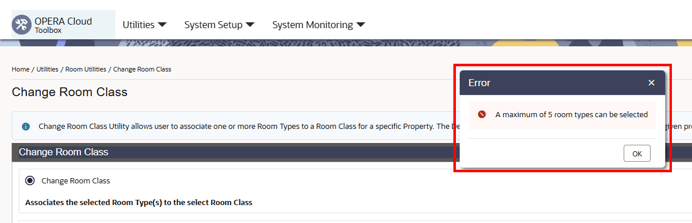
OPERATIONAL BENEFITS
This update helps prevent unsuccessful room class changes by validating the number of selected room types before processing. It provides clear guidance when the selection exceeds the supported limit and helps you complete the change only with valid room type selections.
TOOLBOX
Imbalance Analysis Updated
Imbalance Analysis tool in Toolbox is updated. In a scenario when imbalance is caused by folios checked out with a deposit balance, the Imbalance Analysis will fix the imbalance for Guests Checked-Out, Cancelled, or No Show with Deposit Balance.
OPERATIONAL BENEFITS
The Imbalance Analysis tool in Toolbox is updated to correct imbalances directly, improving issue resolution and reducing the need for additional follow-up.
Internal Settlement AR Transfer Invoices Utility Added
A new Internal Settlement AR Transfer Invoices utility is added under Toolbox - Utilities - Data Management for processing the AR transfer queue for invoices generated when Accounts Receivable functionality was previously inactive. The Accounts Receivable OPERA Control can't be activated if on-hold AR invoices exist.
The utility allows searching on-hold AR invoices with results displayed as year-wise aggregated totals. A year-wise date range (up to 365 days) can be specified to settle on-hold AR invoices. Internal settlements use the transaction code defined in the AR Folio Balance Transfer Code OPERA Control setting.
See Internal Settlement AR Transfer Invoices.
OPERATIONAL BENEFITS
- Simplifies processing of AR transfer queues for legacy invoices.
- Ensures readiness for activating Accounts Receivable by clearing on-hold invoices.