Add a user and assign trial access
As a Life Sciences AI Agents administrator, you can add new users and assign their trial access.
Note:
All users who need access to Life Sciences AI Agents must have an Oracle Cloud account.To add a user and assign their trial access:
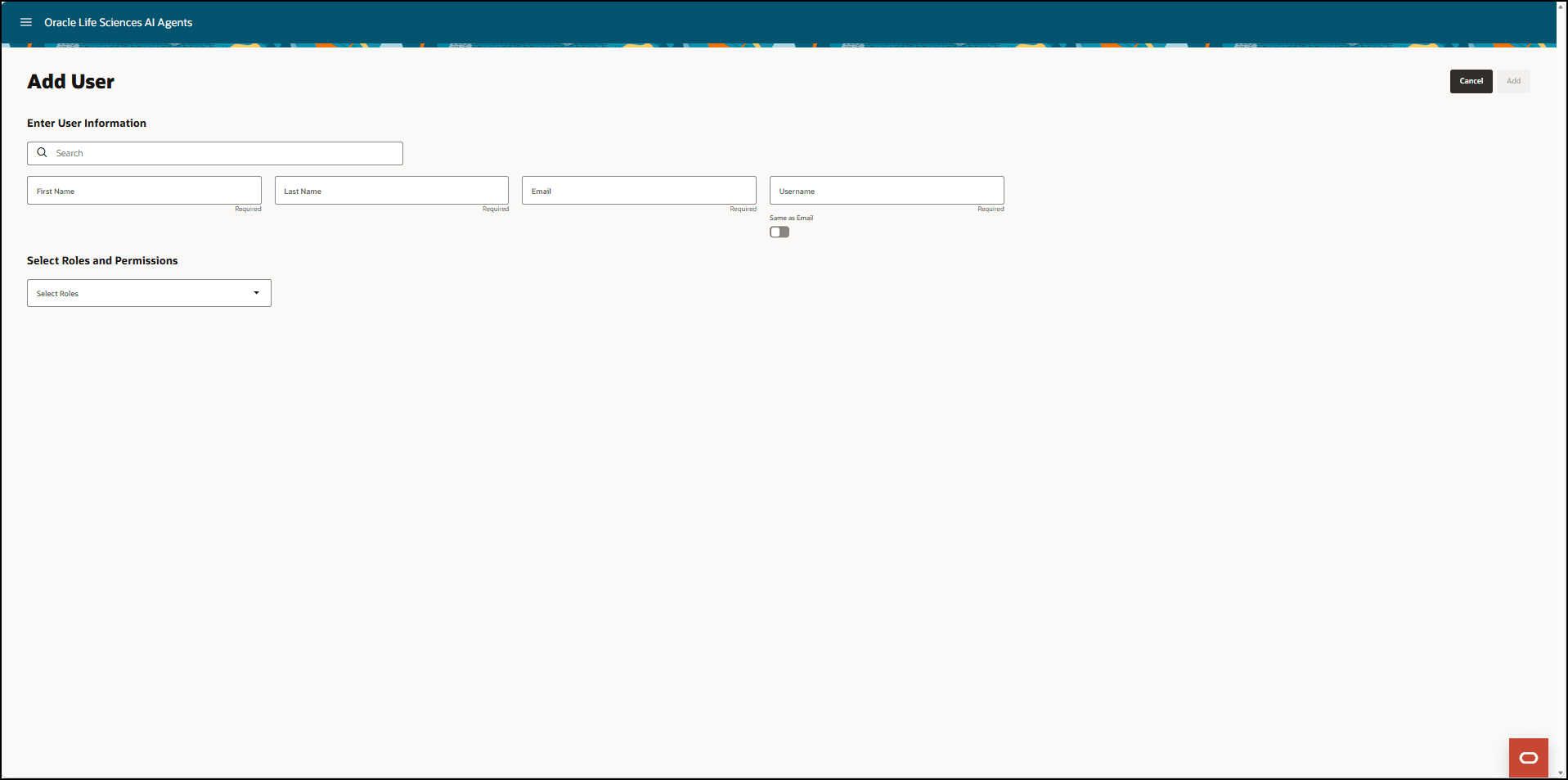
- In the User Management page, at the top right, select Add User. The Add User page opens. For example:
Note:
The Add button at the top right of the page is disabled by default until you enter all of the required information. - In the Enter User Information section, provide the following information:
- Search—Enter the name of the user you want to add to make sure that they have an Oracle Cloud account. The search starts after you enter three characters.
- First Name—Required. Enter the user's first name.
- Last Name—Required. Enter the user's last name.
- Email—Required. Enter the user's email address.
- Username— Required. Enter a name for the user. If you want to use the email address as the user name, select the Same as Email toggle button until it turns green and the white button moves to the right
 .
.
Note:
When you set the toggle button to the on position, the Username field is automatically populated with the email address and it becomes read-only. To make the Username field editable again, turn the toggle button off by selecting the button so that the white button appears on the left ( ).
).
- In the Select Roles and Permissions section, select the role or roles you want to assign to the user. The available roles are Administrator and Trials. For example:
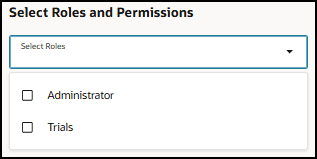
- Administrator—Select to give the user permission to manage all the Life Sciences AI Agents users and to assign their access to trials.
Note:
If you want a user with the Administrator role to also have access to any trials, you must also select the Trials role for the user. - Trials—Select to display the options you use to allow the user access to Trials in Planning and to identify the trials the user can access. When you select this role, the Trials in Planning Access toggle button and Trial Access section appear on the page. For example:

Note:
Users with only the Trials role cannot manage users or assign trial access. - Administrator—Select to give the user permission to manage all the Life Sciences AI Agents users and to assign their access to trials.
- To give the user access to Trials in Planning, and allow them to view uploaded protocols and to add new protocols, select the Trials in Planning Access toggle button until it turns green and the white button moves to the right ().
- Select Select to open the Access panel. For example:
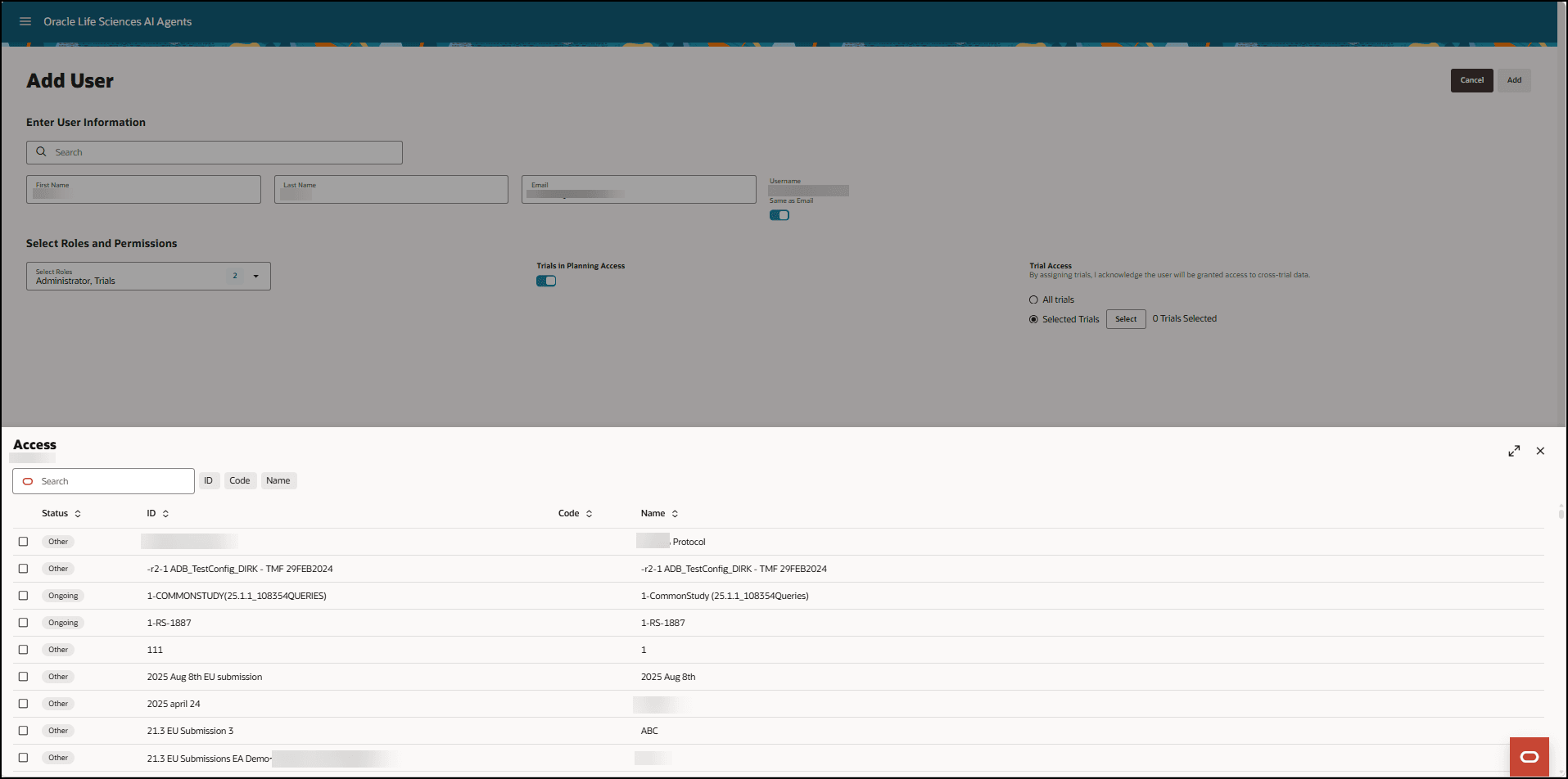
- In the Access panel, select the checkbox in the first column for each trial you want to give the user access to.
You can expand the panel to full size by selecting the arrows (
 ) at the top right.
Note:
Your trial selections are saved when you add the new user (step 10). - To exit the User Management interface:
- Select the Oracle icon
 at the bottom of the page to open the Profile dialog box.
- In the Roles drop-down menu, select Trials to return to the Trials interface.
- If you do not have any trial access, select Sign Out.
- Select the Oracle icon
Parent topic: Manage users and trial access