View the list of users
As a Life Sciences AI Agents administrator, you can view the list of users in the system.
For each user, you can view their First Name, Last Name, Email, Username, and User Type (Domain Administrator, Administrator, or Trial Access Only).
To open the User Management interface to view the list of the users in the system:
- Select the Oracle icon
 at the bottom of any page in the Trials interface. The Profile dialog box opens. For example: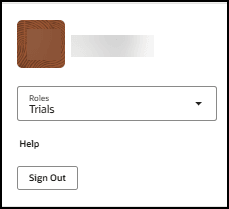
- In the Roles drop-down menu, select User Management. For example:
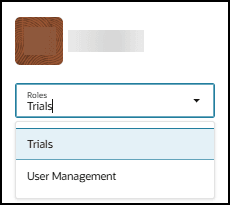
Note:
The User Management role option is only available if you are a Life Sciences AI Agents administrator.As soon as you select User Management, the interface refreshes and the User Management page opens. For example:
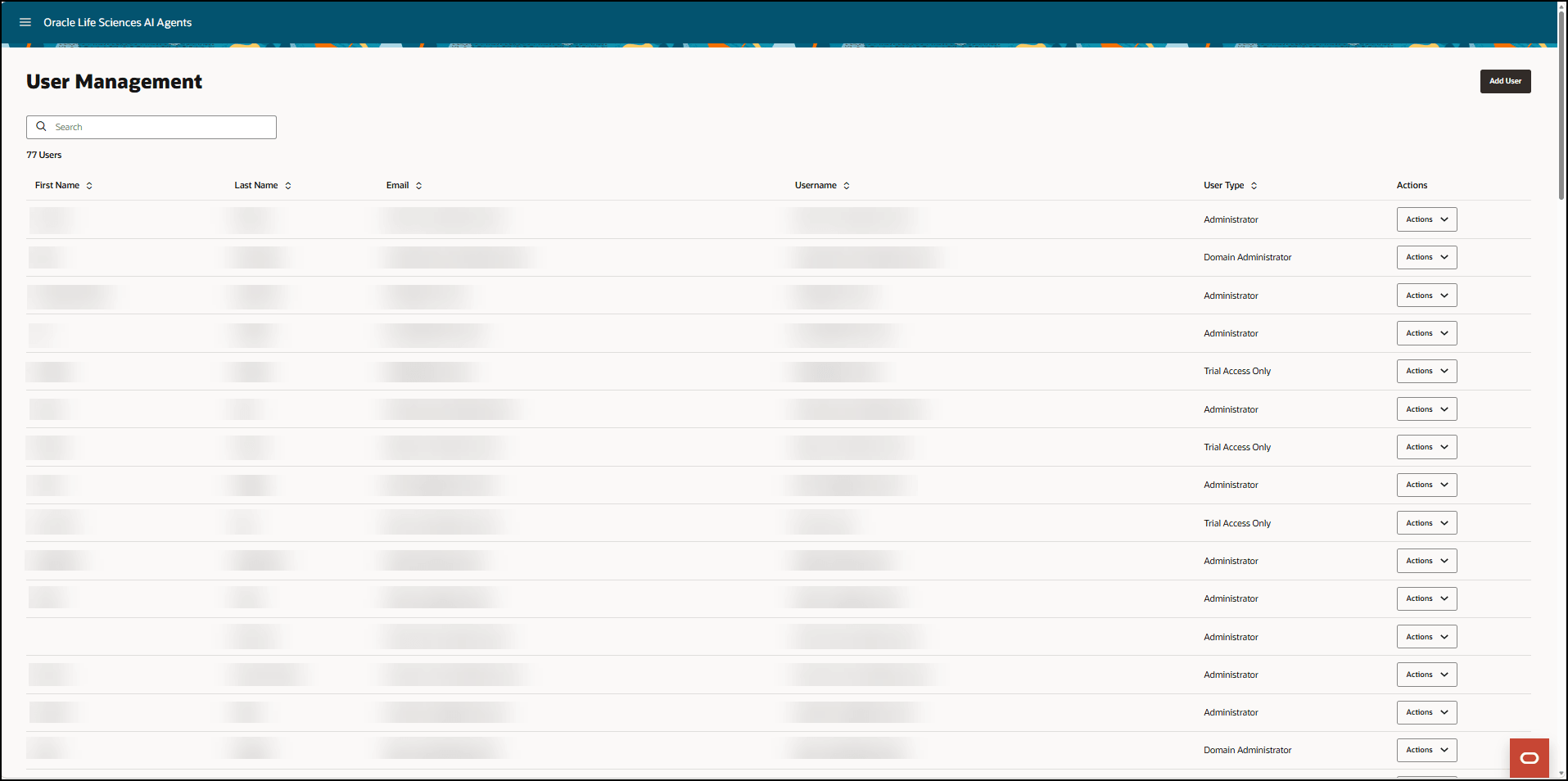
Note:
- To search for a specific user, enter at least three characters in the Search field above the list.
- You may see the Domain Administrator role in the User Type column on the User Management page. This role is assigned automatically based on your system configuration and cannot be assigned or removed manually.
- To exit the User Management interface:
- Select the Oracle icon at the bottom of the page to open the Profile dialog box.
- In the Roles drop-down menu, select Trials to return to the Trials interface.
- If you do not have any trial access, select Sign Out.
- Select the Oracle icon
Parent topic: Manage users and trial access