View the AI reasoning steps for an alert
You can view the AI reasoning steps for an alert to understand how the insights and recommendations were rationalized. You can view the AI reasoning for an alert from the Alerts list or from an Alert details page.
To view the AI reasoning steps for an alert:
- To view the AI reasoning steps for an alert from the Alerts list, open the Alerts list as described in View the list of alerts for all trials you can access.
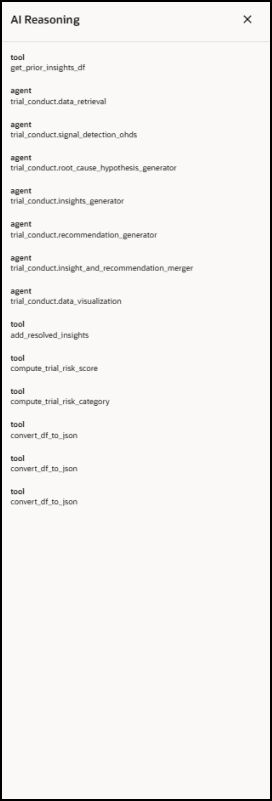
- In the Alerts list, find the alert you want to view the AI reasoning steps for, and in the Actions column on the right select View AI Reasoning Steps from the Actions drop-down menu. The AI Reasoning panel opens. For example:
- Select the X at the top right to close the AI Reasoning panel.
Parent topic: Manage the alerts for all Ongoing Trials