Global improvements
In this release, you’ll see significant user experience enhancements that improve navigation and simplify your work.
Release 25.1 overview
Release 25.1 introduces enhancements that align with Oracle design standards, including a modern color palette, updated fonts, new icons, and improved input controls. These updates create a more consistent, intuitive, and visually appealing user experience and align Oracle Site Activate with other Oracle products. In addition, we made the following application-wide improvements and updates:
- Vertical global navigation at the left side of your screen replaces the former top menu design. See details of this enhancement in the Global and user badge navigation section.
- Tables now use a progressive loading design and rows will load as you scroll down to the bottom. See the Tables and item selection section for additional details.
- All pages show the current view in the browser tab (for example, "Activate – Study home"). See details of this enhancement in the Page titles section.
- Contracts, Documents, Submissions, and IP release packages have a new full-screen artifact drawer design that replaces the previous modals. The drawers provide familiar functionality with improved navigation. See details of this enhancement in the Artifact drawers section.
- Minor text updates (e.g., changing the label on the "Submission dates" tabs to "Submissions") improve the user interface but do not change functionality.
- Minor navigation updates include relocating table legends and some input fields where necessary. These minor design element changes did not remove functionality.
-
Enhanced accessibility powered by Oracle JET (OJET) ensures consistent design principles, making navigation intuitive and layouts predictable. OJET provides comprehensive keyboard navigation on every page and improved color contrast, resulting in greater readability and a more inclusive user experience.
Note:
These release notes highlight key updates, including improved navigation, new features, and redesigned pages; however, they do not provide a comprehensive list of every change. Some updates in this release altered the appearance of certain features (such as colors, fonts, or icons) without changing their functionality. Visual-only changes are not included here, but remaining functional changes and new enhancements are described in detail in the sections that follow.
Global and user badge navigation menus
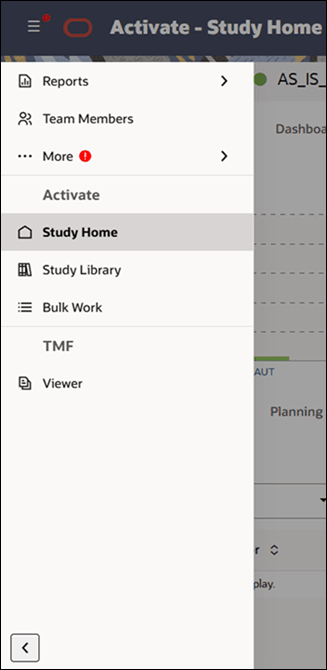
With release 25.1, vertical global navigation replaces the previous top header navigation. Now, at the top left of any page, click menu  to expand a list of navigational links to Oracle Site Activate and Oracle eTMF functional areas (TMF is available in the menu only if Oracle eTMF has been licensed by your organization). When you sign into Oracle Site Activate, the Study home page displays by default, as it did previously.
Navigation options in the left menu reflect your Oracle Site Activate business role permissions. For example, the Event Messages option in the menu’s Oracle Site Activate section will be available only if you have been granted business role permission to manage Event Messages. Also, when unreviewed files are available in the Quarantined Files area, the global menu icon as well as the expandable More section and the Quarantined Files sections will update to display an attention  icon.
icon.
When expanded to include all available options, the global navigation menu will be organized as follows:
Reports >
- Audit Report
- Analyze Reports
- Data Export
Team Members
More >
- Quarantined Files
- Expiring Items
- Configuration Designer
- Submission Details
- Event Messages
- Manage Submission Agencies
- Manage Publish Endpoints
- Study Planning
- View Tasks for All Studies
Activate
- Study Home
- Study Library
- Bulk Work
TMF
- Viewer
At the bottom of the vertical menu, you can optionally click minimize  to pin the menu to the left and view icons only. Your minimize/maximize selection (i.e., icon pinned view vs. fully hidden view) will be saved and the next time you sign in, the menu will load as you left it.
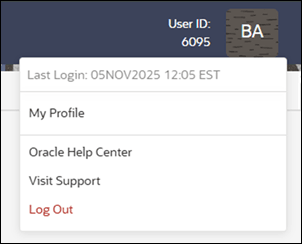
We also made minor updates to the user menu at the upper right of each page. We removed the "Hi, <username>" text and replaced it with a badge showing your initials (or your full name if this option is enabled for your organization's account). Click the badge to access links to your user profile, the Oracle Help Center, Support, etc. Note that now you'll also find the Log Out option in the user badge menu.
Page titles and browser tabs
We improved navigation in this release with updated page titles and matching browser tab titles. Browser tab text is dependent upon your organization's licensing and use of Oracle Site Activate and Oracle eTMF.
Oracle Site Activate + Oracle eTMF
- Study, country, and site homepages have explicit titles with a matching tab titles:
- Activate - Study Home
- Activate - Country Home
- Activate - Site Home
- Oracle eTMF pages (i.e., TMF Viewer) uses "TMF” as the prefix with a matching tab title
Oracle Site Activate only
Browser tabs for the study, country, and site home pages and major functional areas (e.g., Team Members, Study Library, Bulk work) have explicit page and tab titles with the "Activate -" prefix before the page name. By design, other functional areas (e.g., Quarantine, Submission Details, Event Messages, etc.) show the page name in the browser tab, but don't include the "Activate -" prefix.

Global search
In addition to styling updates for Global search, release 25.1 includes a minor functional update. Now, instead of the search field displaying by default, you'll click search  next to the page title to expand the search field. Enter two or more leading characters to begin your search.

Study Country Site navigation and controls
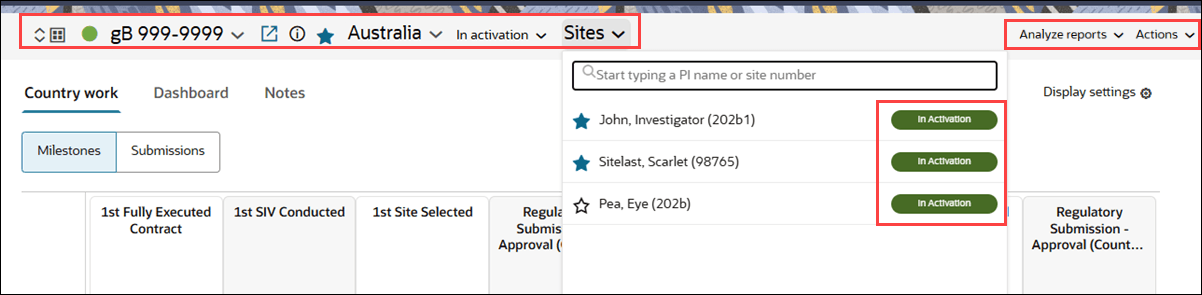
With release 25.1, you'll see familiar navigation and other information in the persistent study, country, and site navigation bar. For instance, you'll see the Accounts icon, drop-down selectors, the favorite icon, Actions drop-down, etc. We made a minor styling update to Study, country, and site text so that it is now more prominent. You'll also see new status badges in the country and site drop-downs.
The Analyze reports drop-down and the Actions drop-down have a minor functional change; these links now open when you click, rather than on hover.
Tables and item selection
Progressive loading
With the design updates introduced in this release, tables now use progressive loading to fill the available space on initial display and then load additional rows as you scroll down. Most tables feature a pulse loading animation. Pagination is no longer supported, so the forward, back, and page count controls have been removed.
Selected rows
When you select a table row, it appears with a blue background. If you use the "select all" check box at the table's upper left, all visible rows are selected, and as you scroll down, the item count automatically updates to include each new row, which is selected by default. Select all mode will be disabled if you initiate a search or sort which refreshes the table.
Show/clear selected
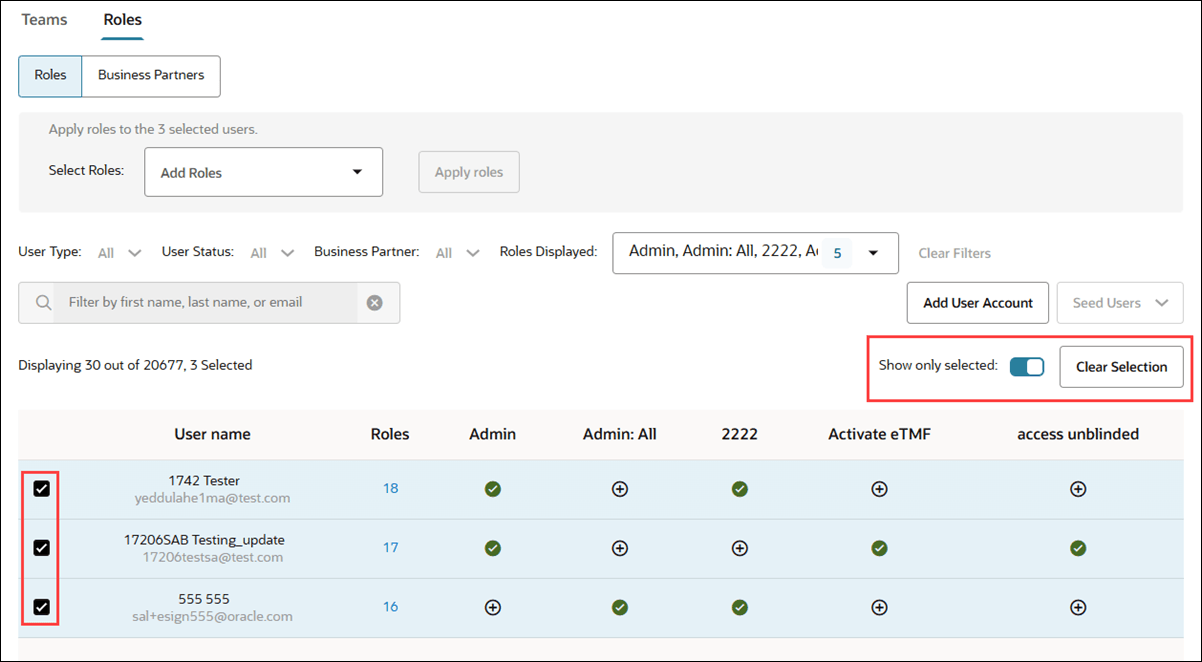
Previously, selecting items in some tables created a subset table above the main table. Subset tables are no longer supported. Instead, tables in the following areas now include “Show only selected” and “Clear selection” controls:
- Home page (Planning > Milestones and Submissions tabs)
- Bulk work (Activities, Items, and Planning tabs)
- Team members (Roles tab)